> ## Documentation Index
> Fetch the complete documentation index at: https://docs.ycloud.com/llms.txt
> Use this file to discover all available pages before exploring further.
# Calling 快速入门
> 了解 YCloud Calling 工作区的主要区域和控制项。
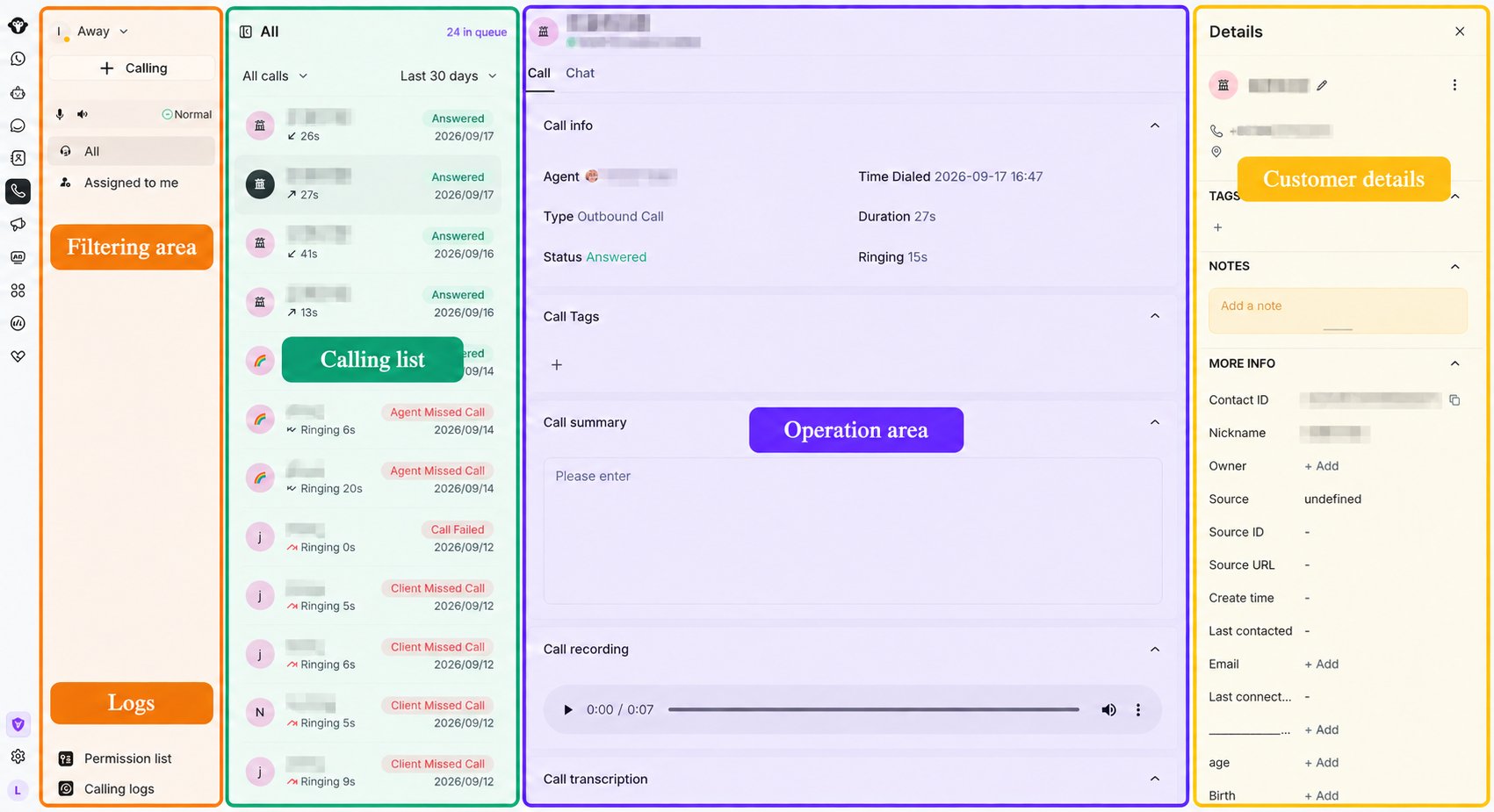
## Calling 工作区
从 YCloud 控制台导航栏中打开 **Calling** 。
 ### 状态与控制项
* **客服状态:** 在 **Away** (离开)和 **Available**(空闲)之间切换。处于“离开”状态时,系统不会自动分配通话。
* **浏览器授权:** 如果尚未授予麦克风或音频访问权限,请在接听通话前向浏览器授权。
* **Calling:** 使用 **+ Calling** 按钮发起外呼。
* **音频状态:** 在处理通话前,检查麦克风、扬声器和连接状态。
* **分配筛选:** 在 **All** (全部)和 **Assigned to me**(分配给我)之间切换。
* **权限列表:** 查看已授予外呼权限的客户。
* **Calling 日志:** 打开历史通话记录。
### 队列与通话列表
* 队列数量显示当前正在等待的通话数。
* 使用通话状态筛选条件(如 **All calls**)来缩小列表范围。
* 使用时间筛选条件,例如 **Today**、 **Yesterday** 或 **Last 30 days**。
* 选择通话以打开其详情。
### 通话详情与跟进
详情区域可以显示所选通话的分配客服、方向、状态、时间、标签和备注。在通话期间或通话结束后,客服可以:
* 添加通话标签。
* 添加或编辑通话摘要。
* 更新客户的联系信息。
* 切换至 Inbox 聊天并通过消息继续沟通。
### 客户详情
客户面板显示联系人的姓名、电话号码、其他联系人属性和标签。客服可在需要时更新现有的联系信息。
This documentation is built and hosted on [Mintlify](https://mintlify.com), a developer documentation platform.
### 状态与控制项
* **客服状态:** 在 **Away** (离开)和 **Available**(空闲)之间切换。处于“离开”状态时,系统不会自动分配通话。
* **浏览器授权:** 如果尚未授予麦克风或音频访问权限,请在接听通话前向浏览器授权。
* **Calling:** 使用 **+ Calling** 按钮发起外呼。
* **音频状态:** 在处理通话前,检查麦克风、扬声器和连接状态。
* **分配筛选:** 在 **All** (全部)和 **Assigned to me**(分配给我)之间切换。
* **权限列表:** 查看已授予外呼权限的客户。
* **Calling 日志:** 打开历史通话记录。
### 队列与通话列表
* 队列数量显示当前正在等待的通话数。
* 使用通话状态筛选条件(如 **All calls**)来缩小列表范围。
* 使用时间筛选条件,例如 **Today**、 **Yesterday** 或 **Last 30 days**。
* 选择通话以打开其详情。
### 通话详情与跟进
详情区域可以显示所选通话的分配客服、方向、状态、时间、标签和备注。在通话期间或通话结束后,客服可以:
* 添加通话标签。
* 添加或编辑通话摘要。
* 更新客户的联系信息。
* 切换至 Inbox 聊天并通过消息继续沟通。
### 客户详情
客户面板显示联系人的姓名、电话号码、其他联系人属性和标签。客服可在需要时更新现有的联系信息。
This documentation is built and hosted on [Mintlify](https://mintlify.com), a developer documentation platform.