> ## Documentation Index
> Fetch the complete documentation index at: https://docs.ycloud.com/llms.txt
> Use this file to discover all available pages before exploring further.
# 录音与转录
> 配置通话录音、转录以及在开始采集前播放的提示语音。
为每个 WhatsApp 商业号码单独配置录音和转录。这些设置将应用于该号码的新呼入和呼出通话。
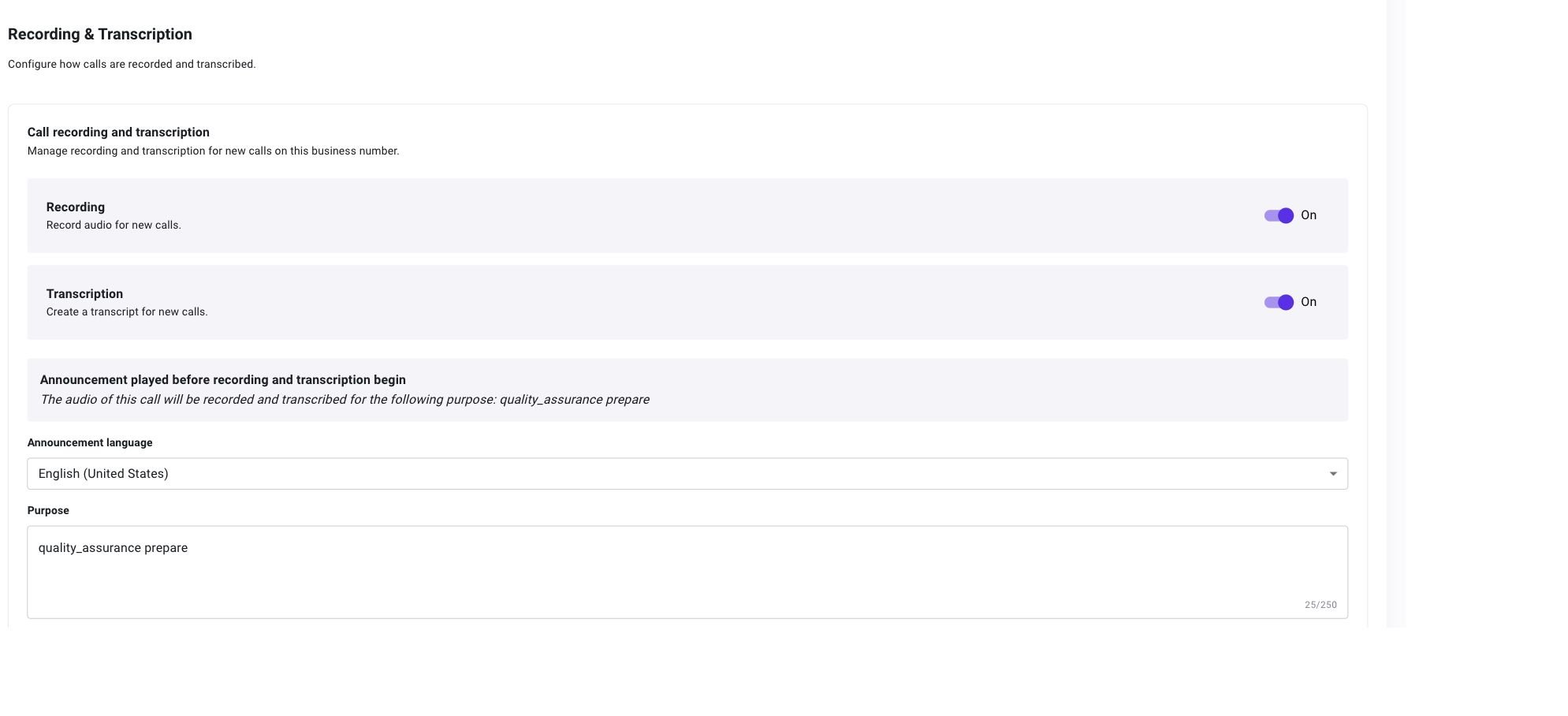
## 配置录音与转录
1. 前往 **WhatsApp 账户** 并打开该商业号码的设置。
2. 选择 **通话 > 录音与转录**。
3. 启用 **录音**、 **转录**,或两者同时启用。
* **录音** 会录制新通话的音频。
* **转录** 会为新通话生成按说话人区分的文本。
 当启用至少一项功能时,请配置:
* **提示语言:** 在开始录音或转录前播放的提示语音所使用的语言。这不会改变通话过程中使用的语言。
* **目的:** 对通话进行录音或转录的原因。此字段为必填项,最多支持 250 个字符,并将显示在提示预览中。
预览内容会根据已启用的功能相应更改。当两者均启用时,双方都会听到通话将被录音和转录以及您输入的相应目的。
当启用至少一项功能时,请配置:
* **提示语言:** 在开始录音或转录前播放的提示语音所使用的语言。这不会改变通话过程中使用的语言。
* **目的:** 对通话进行录音或转录的原因。此字段为必填项,最多支持 250 个字符,并将显示在提示预览中。
预览内容会根据已启用的功能相应更改。当两者均启用时,双方都会听到通话将被录音和转录以及您输入的相应目的。
 关闭录音或转录仅会影响新的通话。现有的录音和转录文本仍可在通话日志中查看,具体取决于用户的通话日志权限。
## 查看录音和转录文本
打开 **通话 > 通话日志** 查找已采集的通话。有关播放、下载、转录文本查看和导出说明,请参阅 [通话日志](/zh/documentation/calling/calling-logs)。
This documentation is built and hosted on [Mintlify](https://mintlify.com), a developer documentation platform.
关闭录音或转录仅会影响新的通话。现有的录音和转录文本仍可在通话日志中查看,具体取决于用户的通话日志权限。
## 查看录音和转录文本
打开 **通话 > 通话日志** 查找已采集的通话。有关播放、下载、转录文本查看和导出说明,请参阅 [通话日志](/zh/documentation/calling/calling-logs)。
This documentation is built and hosted on [Mintlify](https://mintlify.com), a developer documentation platform.