> ## Documentation Index
> Fetch the complete documentation index at: https://docs.ycloud.com/llms.txt
> Use this file to discover all available pages before exploring further.

# 聊天链接

为号码生成可分享的链接、二维码或聊天组件。

打开 **WhatsApp Manager**，选择您的商业号码，并在其设置中打开 **聊天链接** 。

## 核心优势

**简化沟通流程**\
通常情况下，通过 WhatsApp 应用程序聊天需要知道对方的电话号码，将其保存到移动设备中，然后搜索该联系人才能发起对话。借助 YCloud 的增长工具，该流程得以简化，客户只需点击链接或扫描二维码即可发起 WhatsApp 聊天。

**快捷回复**\
通过简单的设置，您可以预设自定义消息并实现快速自动回复，支持大量客户同时接入。要启用此功能，您需要在 YCloud 中连接您的 WhatsApp 账户。

**多种触达用户的方式**\
您可以针对网站、应用、落地页和线下门店等各种场景生成二维码、链接或聊天组件，助您获客引流。

**合规收集用户信息**\
通过 YCloud 聊天链接与您沟通的客户会自动添加到您的联系人中。您可以查看和编辑其信息（例如添加时间和上次对话时间），并使用 YCloud 群发工具为目标客户创建合适的营销活动。

## 使用场景

**网站客服入口：** 在您的网站上插入聊天组件，方便客户快速找到 WhatsApp 客服入口。

**传单派发：** 在传单上印制二维码并进行派发。感兴趣的客户扫码即可快速获取潜在客户线索。

**扫码入会：** 在线下门店放置会员二维码。客户可以通过 WhatsApp 加入您的会员体系，并成功留存会员信息。

**落地页咨询：** 在落地页添加 WhatsApp 按钮。感兴趣的客户点击按钮即可通过 WhatsApp 与您联系，无需担心联系方式填写有误，直接获取目标客户的 WhatsApp 账号。

## 生成链接和二维码

链接和二维码的生成方法相同，以下示例以二维码教程为例。

### 步骤 1：点击创建按钮

<Frame caption="Select Create from the Chat Links settings for your business number.">
  <img src="https://mintcdn.com/lchnan/rmZYWVwRdpR7TJaI/product-assets/english-help-context-2026-09-23/chat-links-context-annotated.svg?fit=max&auto=format&n=rmZYWVwRdpR7TJaI&q=85&s=fc7df05656b1306d9067cdf9b159fa02" alt="包含门店演示二维码和组件的聊天链接列表。" width="3024" height="1656" data-path="product-assets/english-help-context-2026-09-23/chat-links-context-annotated.svg" />
</Frame>

### 步骤 2：选择类型为二维码

<Frame caption="Choose QR code to generate a scannable chat entry.">
  <img src="https://mintcdn.com/lchnan/rmZYWVwRdpR7TJaI/product-assets/english-help-context-2026-09-23/chat-link-types-context-annotated.svg?fit=max&auto=format&n=rmZYWVwRdpR7TJaI&q=85&s=6ef3e0cbed6a3ecb6c3d8159f3c3d2f2" alt="完整控制台中的链接、二维码和聊天组件选项。" width="3024" height="1656" data-path="product-assets/english-help-context-2026-09-23/chat-link-types-context-annotated.svg" />
</Frame>

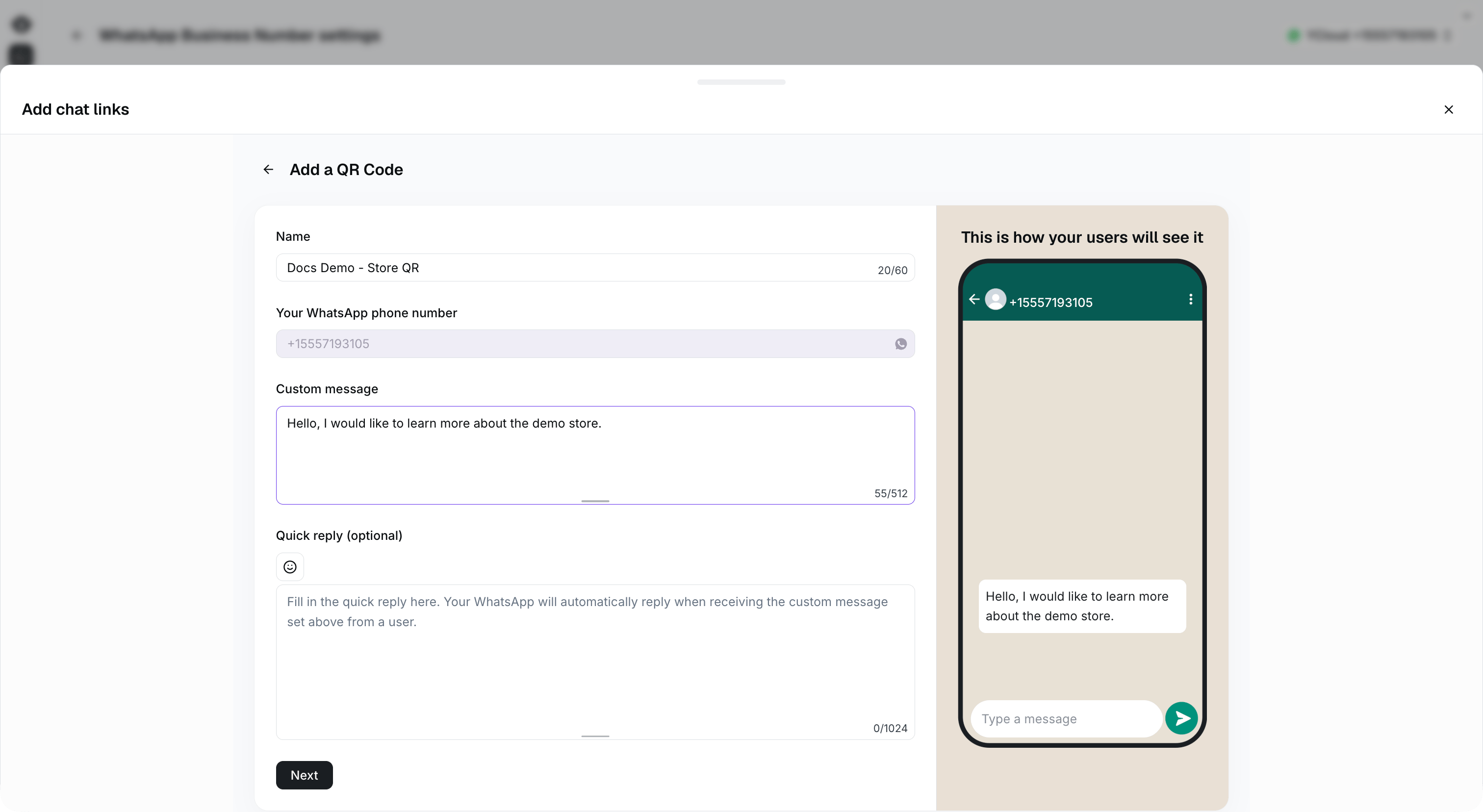
### 步骤 3：设置链接内容

链接名称：仅用于内部展示

预设内容：当用户点击链接或扫描二维码时，此文本将自动填入聊天输入框。

快捷回复（可选）：您可以根据内容配置自动回复消息。

设置完成后点击“下一步”。

<Frame caption="Enter a name and custom message, review the preview, then select Next.">
  <img src="https://mintcdn.com/lchnan/rmZYWVwRdpR7TJaI/product-assets/english-help-context-2026-09-23/chat-qr-settings-context.png?fit=max&auto=format&n=rmZYWVwRdpR7TJaI&q=85&s=b8b536b1a87330138f912d3b397071a6" alt="带有门店演示消息和预览的二维码配置。" width="3024" height="1656" data-path="product-assets/english-help-context-2026-09-23/chat-qr-settings-context.png" />
</Frame>

### 步骤 4：复制链接和二维码

生成成功，下载二维码或复制链接。

<Frame caption="Copy the chat link or download the generated QR code.">
  <img src="https://mintcdn.com/lchnan/TsMGu8UTNQaUw-Rc/product-assets/english-help-demo-2026-09-23/chat-qr-generated-annotated.svg?fit=max&auto=format&n=TsMGu8UTNQaUw-Rc&q=85&s=5f1c656073cb75ef1aa1063641a39e88" alt="生成的 WhatsApp 二维码，带有复制链接和下载二维码选项。" width="3024" height="1656" data-path="product-assets/english-help-demo-2026-09-23/chat-qr-generated-annotated.svg" />
</Frame>

## 生成聊天组件

### 步骤 1：点击创建按钮

<Frame caption="Select Create to begin configuring a chat widget.">
  <img src="https://mintcdn.com/lchnan/rmZYWVwRdpR7TJaI/product-assets/english-help-context-2026-09-23/chat-widget-entry-context-annotated.svg?fit=max&auto=format&n=rmZYWVwRdpR7TJaI&q=85&s=48ebf481fb9f2d761bd3945ce75618e1" alt="商业号码聊天链接中的创建按钮。" width="3024" height="1656" data-path="product-assets/english-help-context-2026-09-23/chat-widget-entry-context-annotated.svg" />
</Frame>

### 步骤 2：选择聊天组件

<Frame caption="Choose Chat widget.">
  <img src="https://mintcdn.com/lchnan/rmZYWVwRdpR7TJaI/product-assets/english-help-context-2026-09-23/chat-widget-type-context-annotated.svg?fit=max&auto=format&n=rmZYWVwRdpR7TJaI&q=85&s=923d2f0f08655f7aab61ccfa0606df05" alt="聊天链接类型选择器中的聊天组件选项。" width="3024" height="1656" data-path="product-assets/english-help-context-2026-09-23/chat-widget-type-context-annotated.svg" />
</Frame>

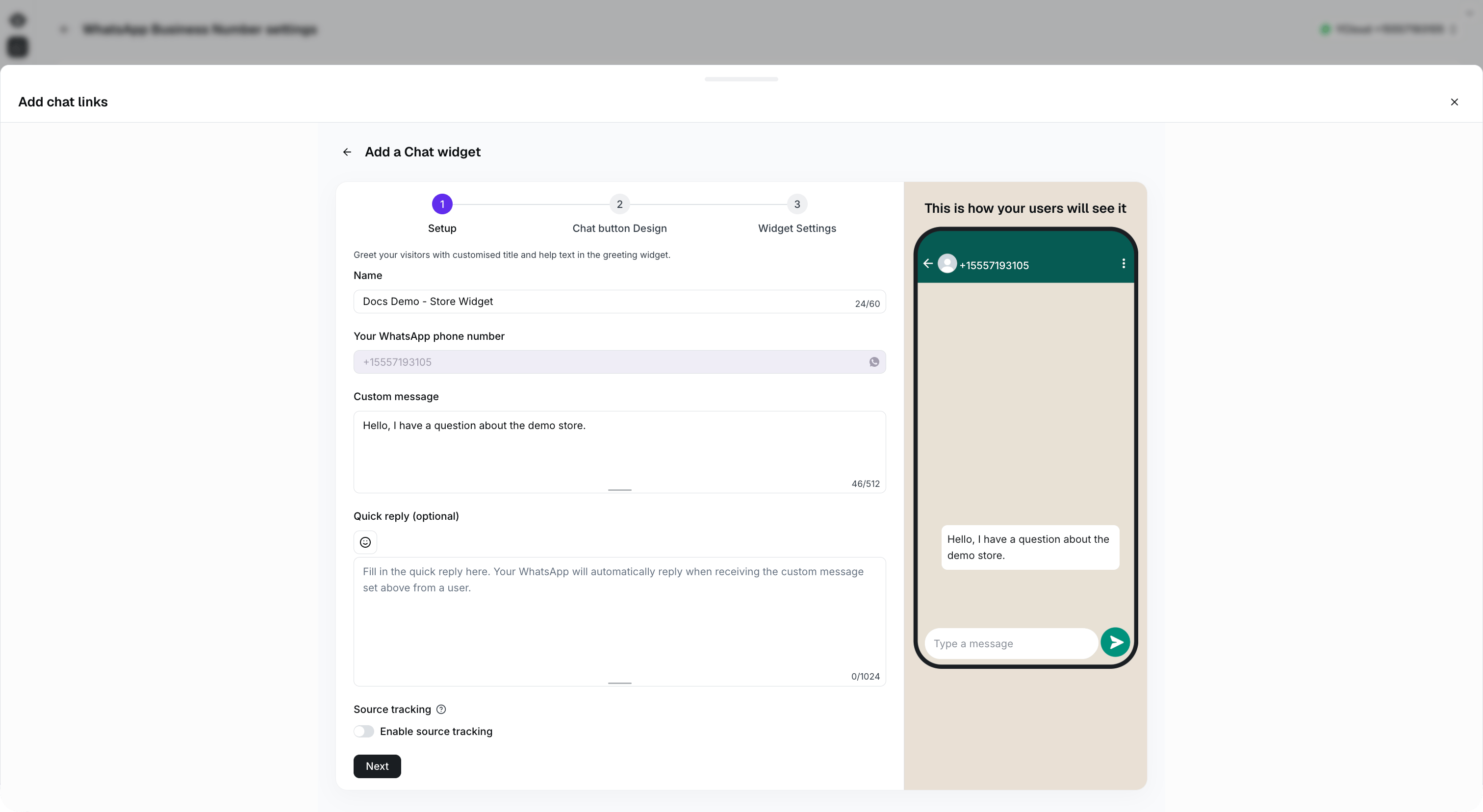
### 步骤 3：配置聊天内容和来源追踪

填写以下字段：

* **名称：** 用于在 YCloud 中标识此聊天组件的内部名称。
* **您的 WhatsApp 电话号码：** 用于接收从组件发起对话的商业电话号码。
* **自定义消息：** 客户打开 WhatsApp 时可发送的预设消息。
* **快捷回复（可选）：** 当 YCloud 收到配置的客户消息时触发的自动回复。
* **来源追踪：** 启用此选项以记录客户打开聊天组件所在页面的 URL。

启用来源追踪后，页面 URL 将与传入的对话一同记录。这有助于您的团队了解客户是通过哪个页面与您的业务取得联系的。

<Info>
  **电商用例：** 如果在多个商品页面上安装了相同的聊天组件，来源追踪可让客服人员识别出客户当时正在查看的商品页面。这样，客服人员在回复前就能了解客户咨询的是哪款商品。
</Info>

来源追踪仅记录客户打开组件瞬间的页面 URL，不会记录客户的浏览历史记录。

完成配置后点击 **下一步** 。

<Frame caption="Enter the widget name and custom message, review the preview, then select Next.">
  <img src="https://mintcdn.com/lchnan/rmZYWVwRdpR7TJaI/product-assets/english-help-context-2026-09-23/chat-widget-setup-context.png?fit=max&auto=format&n=rmZYWVwRdpR7TJaI&q=85&s=7bb6d4e83e86877081463ae77795b68a" alt="包含门店组件示例和 WhatsApp 预览的完整聊天组件设置。" width="3024" height="1656" data-path="product-assets/english-help-context-2026-09-23/chat-widget-setup-context.png" />
</Frame>

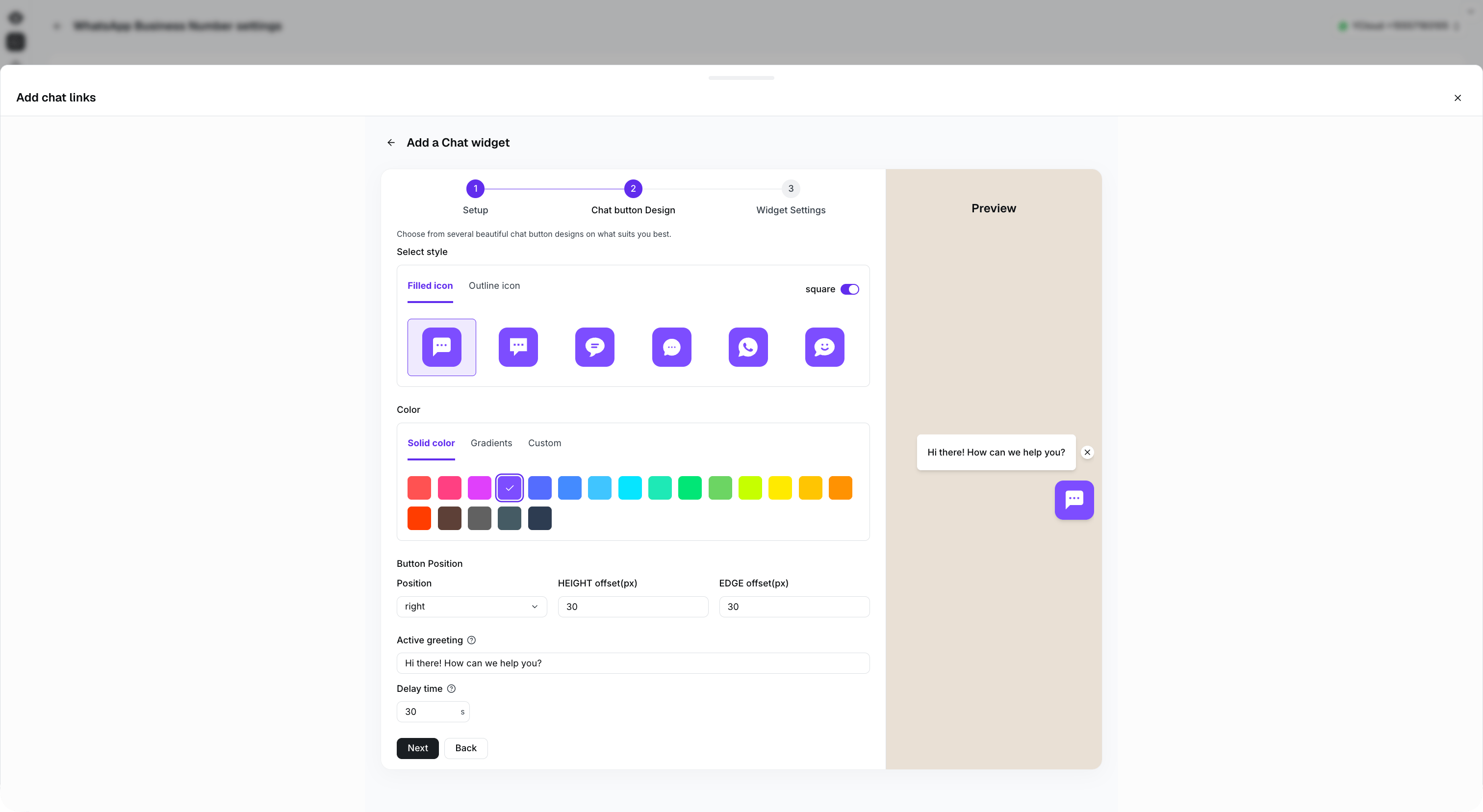
### 步骤 4：配置图标样式

* 图标样式：圆形或方形，即图标的形状。
* 颜色：图标颜色选择，支持纯色、渐变色和自定义颜色。
* 组件位置：在电脑屏幕上的显示位置。
* 问候语：自动弹出的欢迎消息。
* 延迟显示时间：客户进入页面后多久显示问候消息。

<Frame caption="Choose the button design, position, and greeting, then select Next.">
  <img src="https://mintcdn.com/lchnan/rmZYWVwRdpR7TJaI/product-assets/english-help-context-2026-09-23/chat-widget-style-context.png?fit=max&auto=format&n=rmZYWVwRdpR7TJaI&q=85&s=06e50a228fd44553de1d3bd033dfba05" alt="完整的聊天按钮设计步骤，包含图标、颜色、位置、问候语和预览。" width="3024" height="1656" data-path="product-assets/english-help-context-2026-09-23/chat-widget-style-context.png" />
</Frame>

### 第 5 步：配置小部件信息

* 公司徽标
* 欢迎消息设置
* 主题颜色配置
* 按钮文本配置
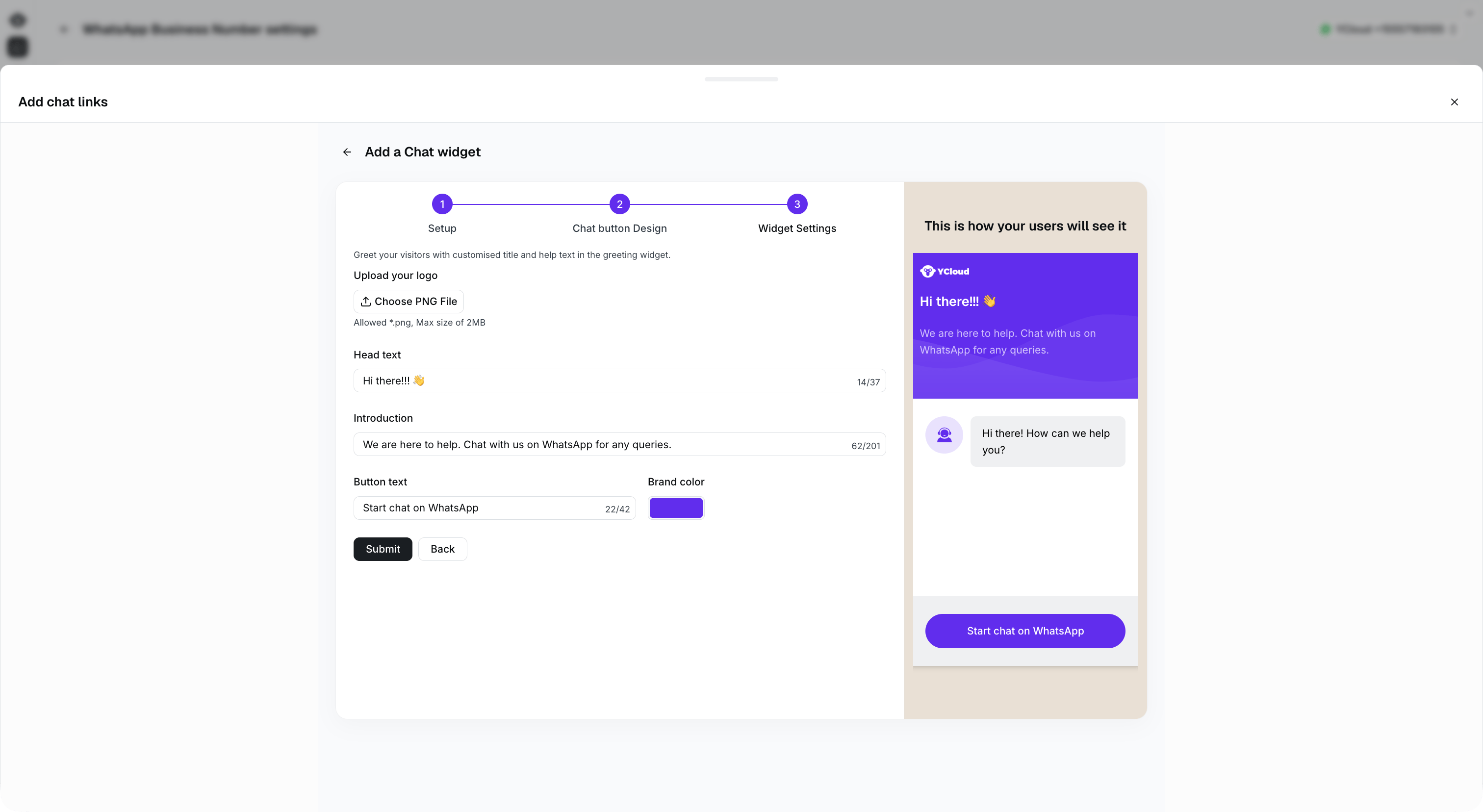
<Frame caption="Review the widget text, brand color, and preview before selecting Submit.">
  <img src="https://mintcdn.com/lchnan/rmZYWVwRdpR7TJaI/product-assets/english-help-context-2026-09-23/chat-widget-settings-context.png?fit=max&auto=format&n=rmZYWVwRdpR7TJaI&q=85&s=ed94a202d341114a71bfeb7a755b3f76" alt="完整的小部件设置步骤，包含文本字段和面向客户的预览。" width="3024" height="1656" data-path="product-assets/english-help-context-2026-09-23/chat-widget-settings-context.png" />
</Frame>

### 第 6 步：复制代码并安装

创建成功，复制生成的代码并将其安装到您的网站上。

<Frame caption="Copy the generated code to install the widget on your website.">
  <img src="https://mintcdn.com/lchnan/TsMGu8UTNQaUw-Rc/product-assets/english-help-demo-2026-09-23/chat-widget-generated-annotated.svg?fit=max&auto=format&n=TsMGu8UTNQaUw-Rc&q=85&s=017dbb616e5e47c94b4c1219f9856619" alt="聊天小部件创建成功，包含安装代码和复制代码选项。" width="3024" height="1656" data-path="product-assets/english-help-demo-2026-09-23/chat-widget-generated-annotated.svg" />
</Frame>

## 常见问题

<AccordionGroup>
  <Accordion title="信息可以修改吗？">
    可以。但是，修改配置会重新生成链接或小部件代码。请保存更改，并将现有的链接或代码替换为新生成的版本。
  </Accordion>
</AccordionGroup>


This documentation is built and hosted on [Mintlify](https://mintlify.com), a developer documentation platform.