> ## Documentation Index
> Fetch the complete documentation index at: https://docs.ycloud.com/llms.txt
> Use this file to discover all available pages before exploring further.
# 创建模板
## 什么是消息模板?
WhatsApp 消息模板是企业创建并提交给 Meta 审核的一种消息格式。审核通过后,可用于可重复的企业发起沟通,包括在客户服务窗口外发送的消息。
模板可以包含固定文本、变量、媒体和支持的按钮。其类别、内容、审核状态及消息收发规则均由 Meta 管理。
有关模板概念、类别、格式、审核和生命周期的详细介绍,请参阅[消息模板](/zh/documentation/whatsapp-business-platform/messaging/message-templates/index)。
## 模板所有权和身份标识
模板是特定 WhatsApp 商业账户 (WABA) 的资源,只能由属于该 WABA 的商业电话号码使用。
模板通过其 **名称** 和 **语言**的组合进行唯一标识。名称相同但语言不同的模板属于独立的本地化版本。发送模板消息时,请使用对应 WABA 完全一致的已获批模板名称和语言。
## 营销和通用模板创建教程
### 第一步:进入模板页面
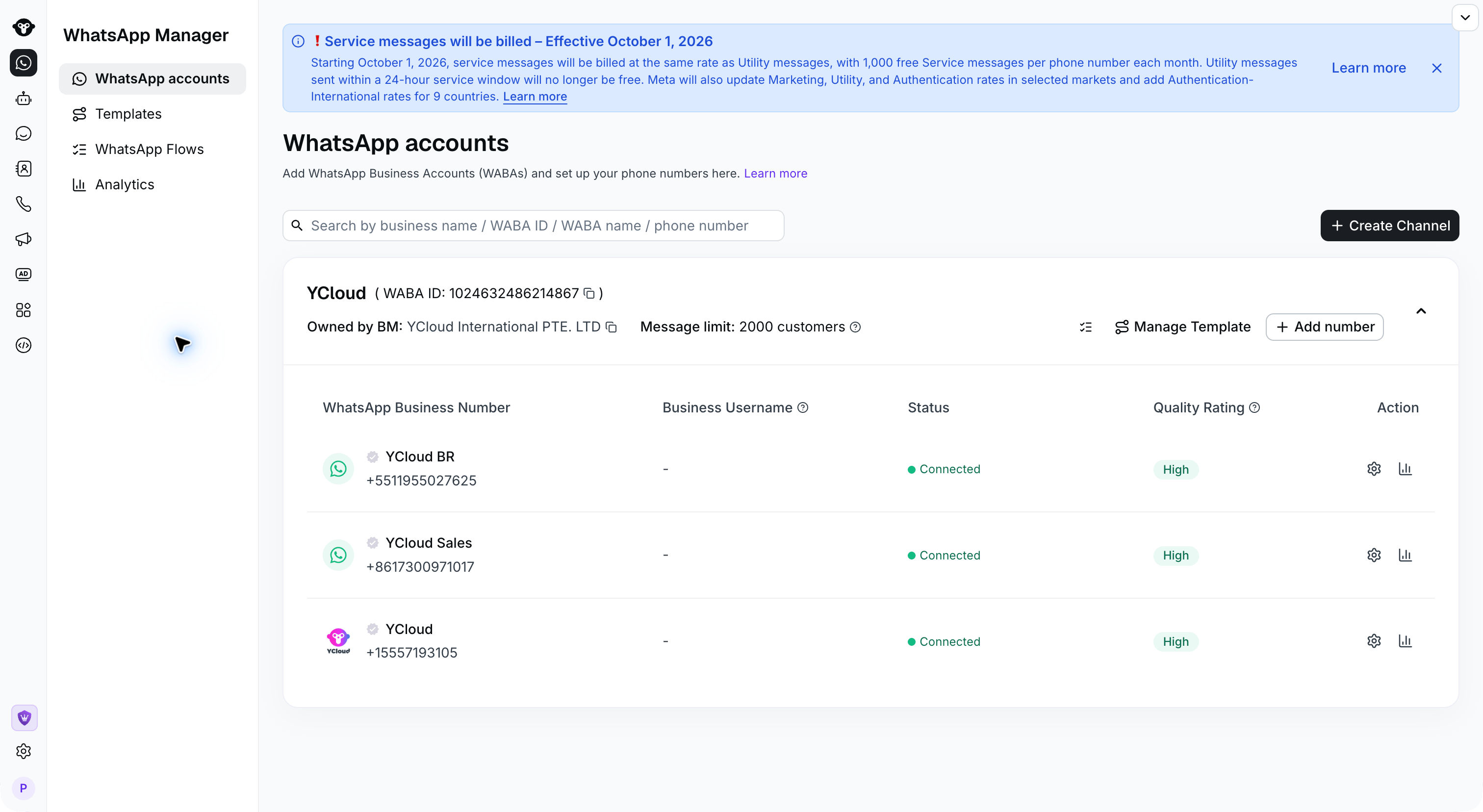
1. 从左侧导航栏前往“模板”。拥有多个 WABA 账户的用户请在右上角切换 WABA 空间。
 2. 从 WhatsApp 账户访问模板。
 ### 第二步:命名并选择模板类型
点击 **新建模板**。选择一个类别,并在创建营销或通用模板时选择 **从头开始** 。
1. 模板名称:模板的名称。名称仅支持数字、小写字母和下划线 \_。
注意:名称具有唯一性,并通过接口发送时调用的也是该名称。
2. 类别:模板的类型。模板分为三种类型,请根据内容进行选择:
1. Utility(通用):交易类模板。用于发送通知消息。
2. Marketing(营销):营销模板。所有带有营销含义的消息,以及所有问候消息。
3. Authentication(身份验证):验证码模板。固定内容,仅支持发送验证码。
有关详细的类别说明,请参阅[模板概述](/zh/documentation/whatsapp-business-platform/messaging/message-templates/index)
### 第二步:命名并选择模板类型
点击 **新建模板**。选择一个类别,并在创建营销或通用模板时选择 **从头开始** 。
1. 模板名称:模板的名称。名称仅支持数字、小写字母和下划线 \_。
注意:名称具有唯一性,并通过接口发送时调用的也是该名称。
2. 类别:模板的类型。模板分为三种类型,请根据内容进行选择:
1. Utility(通用):交易类模板。用于发送通知消息。
2. Marketing(营销):营销模板。所有带有营销含义的消息,以及所有问候消息。
3. Authentication(身份验证):验证码模板。固定内容,仅支持发送验证码。
有关详细的类别说明,请参阅[模板概述](/zh/documentation/whatsapp-business-platform/messaging/message-templates/index)
 ### 第三步:选择语言
一个模板内容可以配置多种语言。点击“添加语言”继续添加。
可以同时编辑多种语言后一并提交。
### 第三步:选择语言
一个模板内容可以配置多种语言。点击“添加语言”继续添加。
可以同时编辑多种语言后一并提交。
 点击语言右侧的“编辑”按钮可编辑或删除该语言。
 ### 第四步:编辑模板内容
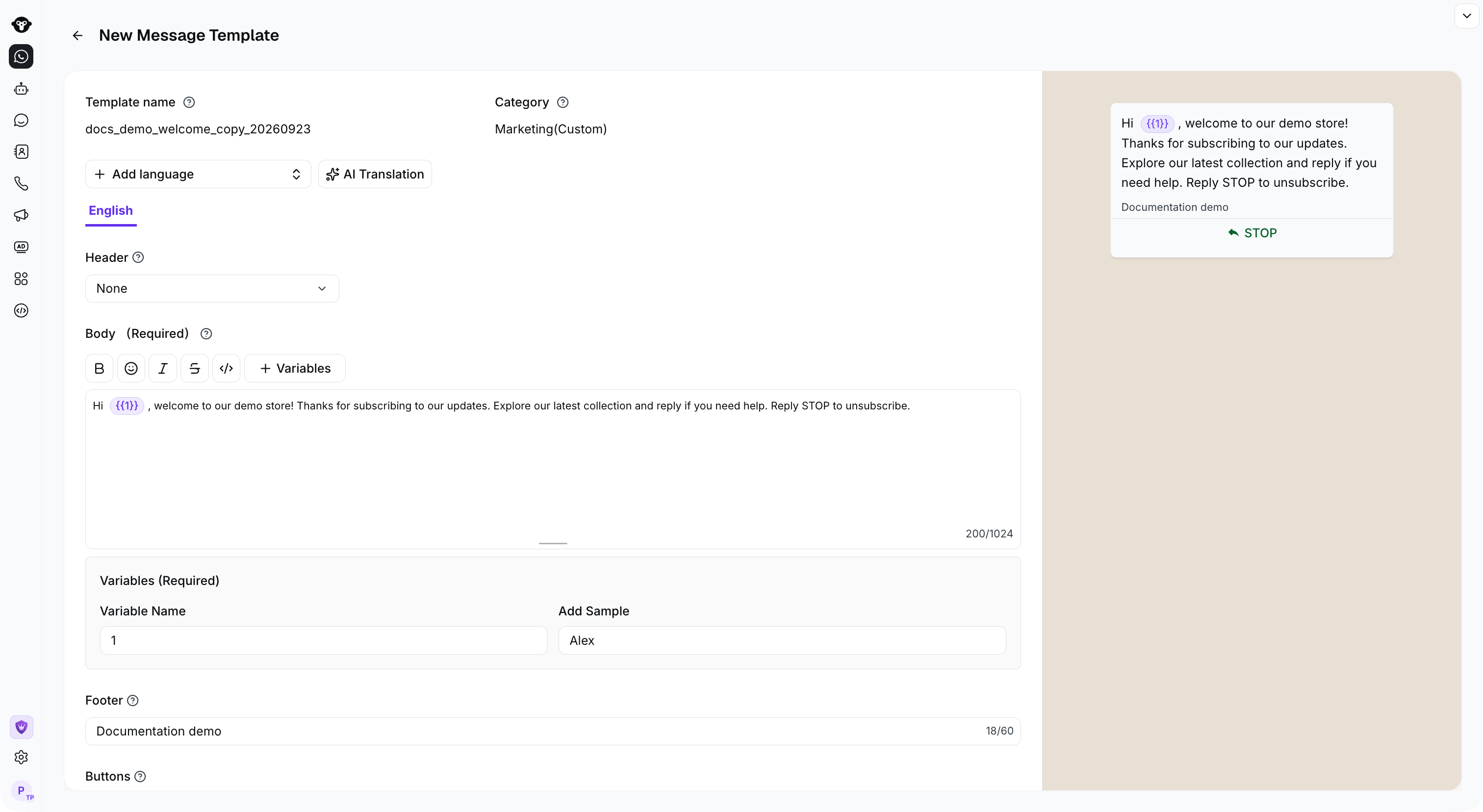
以 **营销** 和 **通知模板** 为例:
1. 页眉(可选):支持的页眉类型包括:文本、图片、视频、文件。
2. 正文(必填):文本内容。支持 emoji、粗体和其他文本样式。
3. 页脚(可选):文本页脚。
4. 按钮(可选)
1. 最多可添加 10 个按钮
2. 按钮类型包括:
1. 快速回复
2. 访问网站
3. 拨打电话号码
4. 复制优惠码
5. 变量:可以在页眉、正文或“访问网站”中添加变量。添加变量时,必须提供示例(Sample)供审核人员判断整个模板的内容。示例仅用于审核,实际下发时必须传入真实的变量值。
### 第四步:编辑模板内容
以 **营销** 和 **通知模板** 为例:
1. 页眉(可选):支持的页眉类型包括:文本、图片、视频、文件。
2. 正文(必填):文本内容。支持 emoji、粗体和其他文本样式。
3. 页脚(可选):文本页脚。
4. 按钮(可选)
1. 最多可添加 10 个按钮
2. 按钮类型包括:
1. 快速回复
2. 访问网站
3. 拨打电话号码
4. 复制优惠码
5. 变量:可以在页眉、正文或“访问网站”中添加变量。添加变量时,必须提供示例(Sample)供审核人员判断整个模板的内容。示例仅用于审核,实际下发时必须传入真实的变量值。
 详细的模板内容可在[消息模板](/zh/documentation/whatsapp-business-platform/messaging/message-templates/template-components-and-formats)文档中查看
 ### 第五步:提交模板
所有语言编辑完成后,滚动到页面底部并点击提交按钮。
### 第五步:提交模板
所有语言编辑完成后,滚动到页面底部并点击提交按钮。
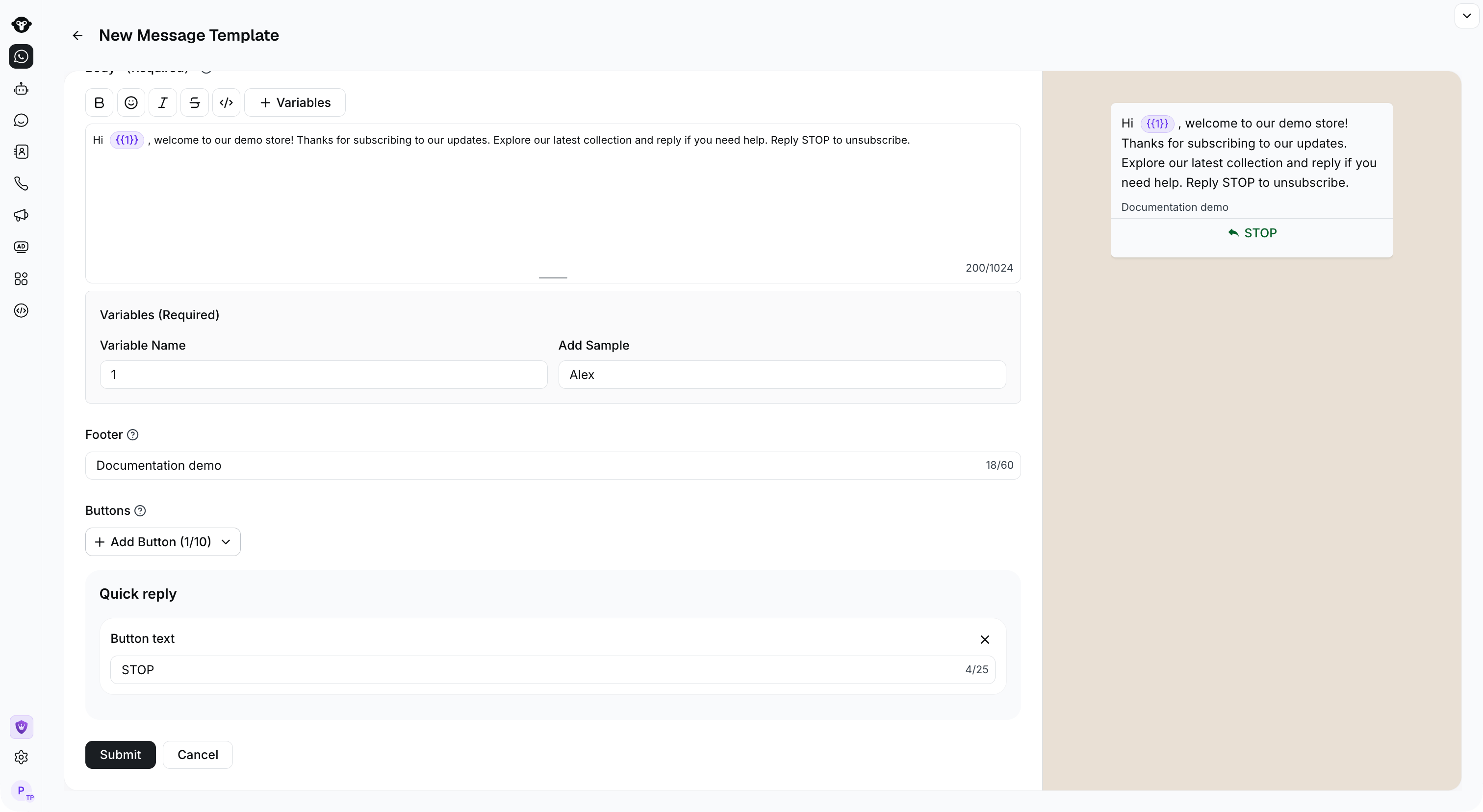 确认模板内容无误后点击“确认”。
 ### 第六步:等待审核
模板由 Meta 审核,请耐心等待。通常审核会在一天内完成。
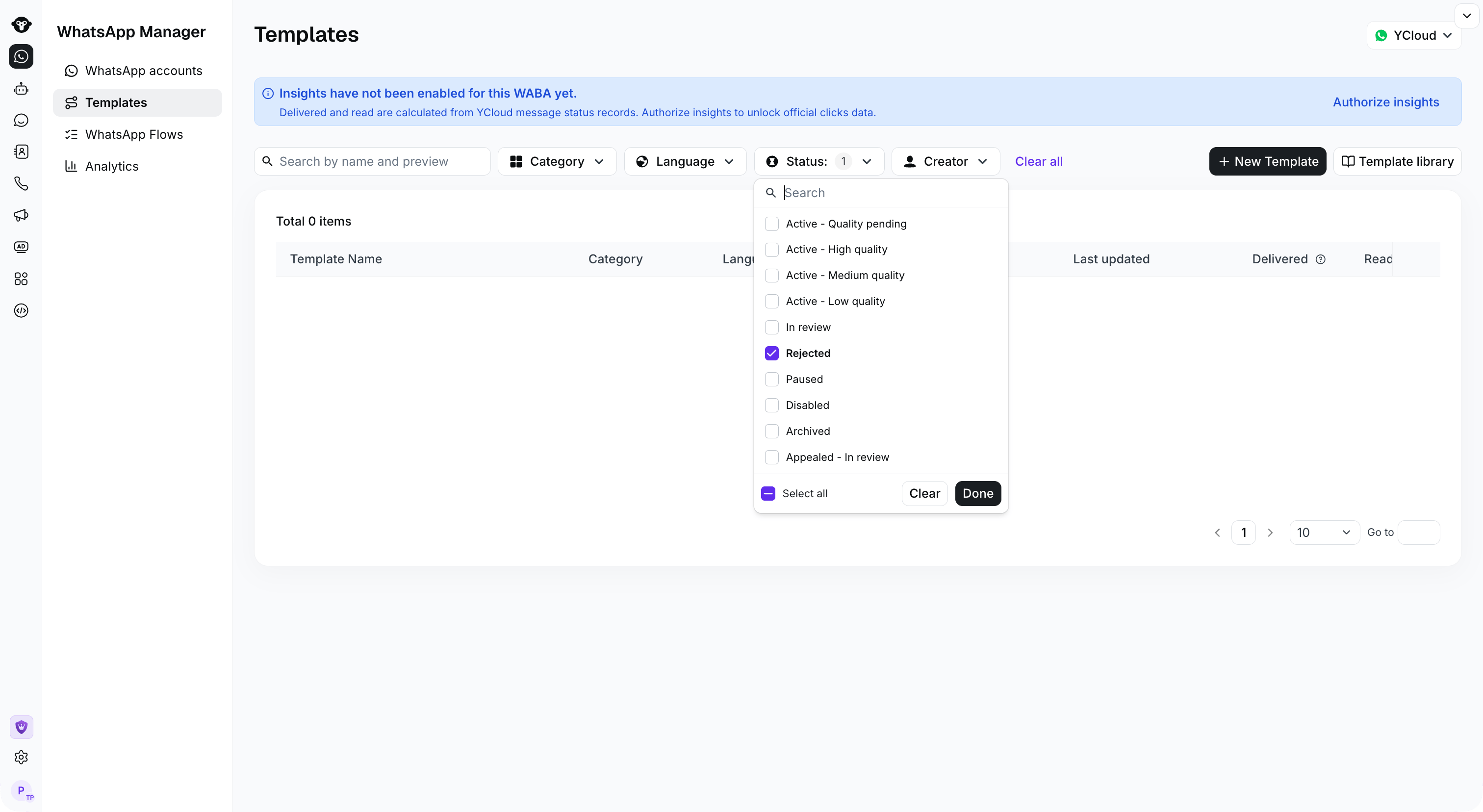
使用 **状态** 筛选器查找 **审核中** 或 **已拒绝** 的模板。如果模板被拒绝,您可以进入编辑页面查看原因,并根据提示修改模板或进行申诉。
### 第六步:等待审核
模板由 Meta 审核,请耐心等待。通常审核会在一天内完成。
使用 **状态** 筛选器查找 **审核中** 或 **已拒绝** 的模板。如果模板被拒绝,您可以进入编辑页面查看原因,并根据提示修改模板或进行申诉。
 ## 创建身份验证模板
创建身份验证模板的步骤与上述相同,本节主要介绍验证码模板的设置。
### 验证码发送方式
验证码的发送方式有 3 种可选:
* [复制验证码](/zh/documentation/whatsapp-business-platform/messaging/message-templates/authentication-message-templates/copy-code-authentication)
* [自动填充](/zh/documentation/whatsapp-business-platform/messaging/message-templates/authentication-message-templates/one-tap-authentication)
* [一键验证(Zero Tap)](/zh/documentation/whatsapp-business-platform/messaging/message-templates/authentication-message-templates/zero-tap-authentication)
#### 复制验证码模板
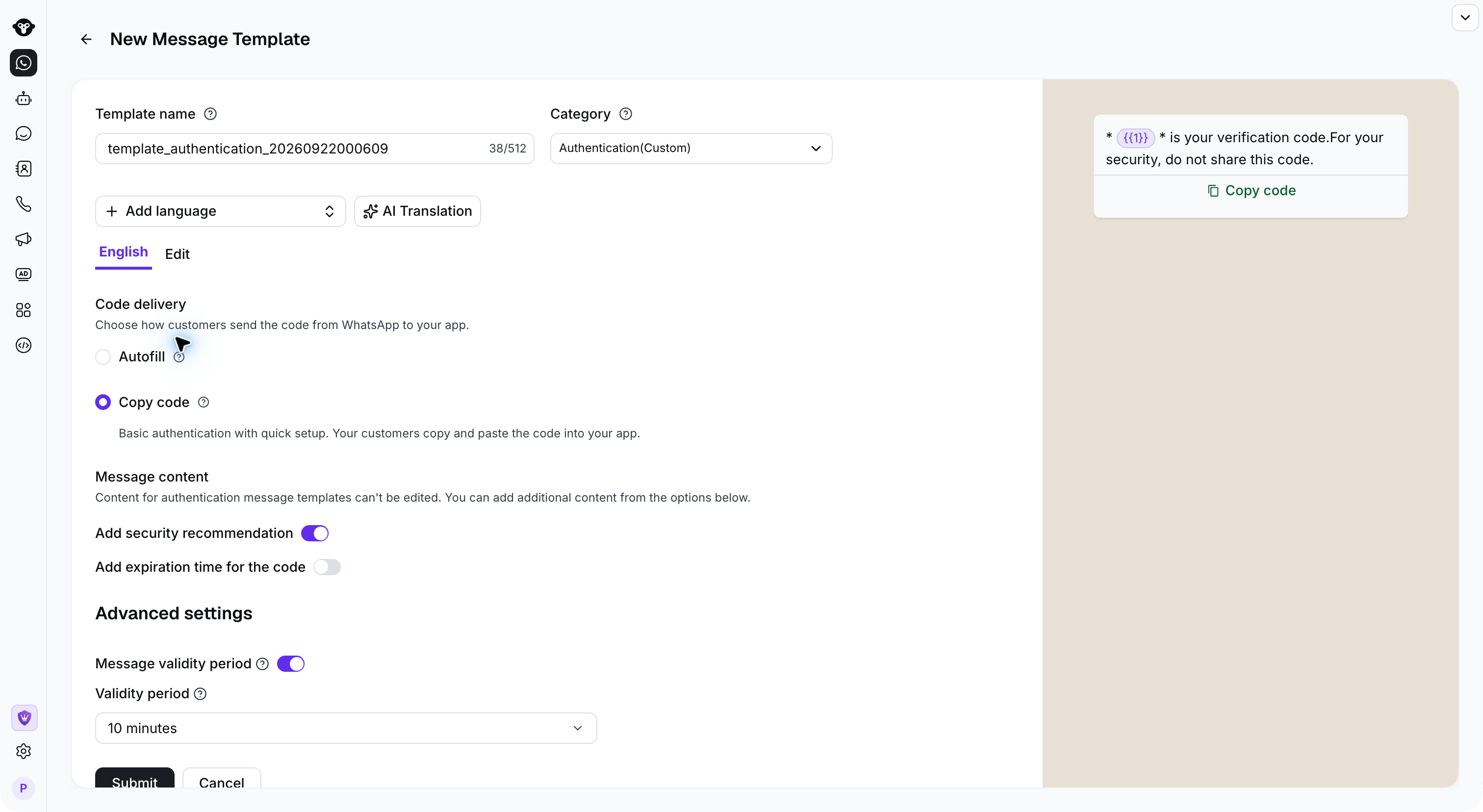
选择“复制验证码”,您可以自定义按钮名称。
## 创建身份验证模板
创建身份验证模板的步骤与上述相同,本节主要介绍验证码模板的设置。
### 验证码发送方式
验证码的发送方式有 3 种可选:
* [复制验证码](/zh/documentation/whatsapp-business-platform/messaging/message-templates/authentication-message-templates/copy-code-authentication)
* [自动填充](/zh/documentation/whatsapp-business-platform/messaging/message-templates/authentication-message-templates/one-tap-authentication)
* [一键验证(Zero Tap)](/zh/documentation/whatsapp-business-platform/messaging/message-templates/authentication-message-templates/zero-tap-authentication)
#### 复制验证码模板
选择“复制验证码”,您可以自定义按钮名称。
 #### 自动填充模板
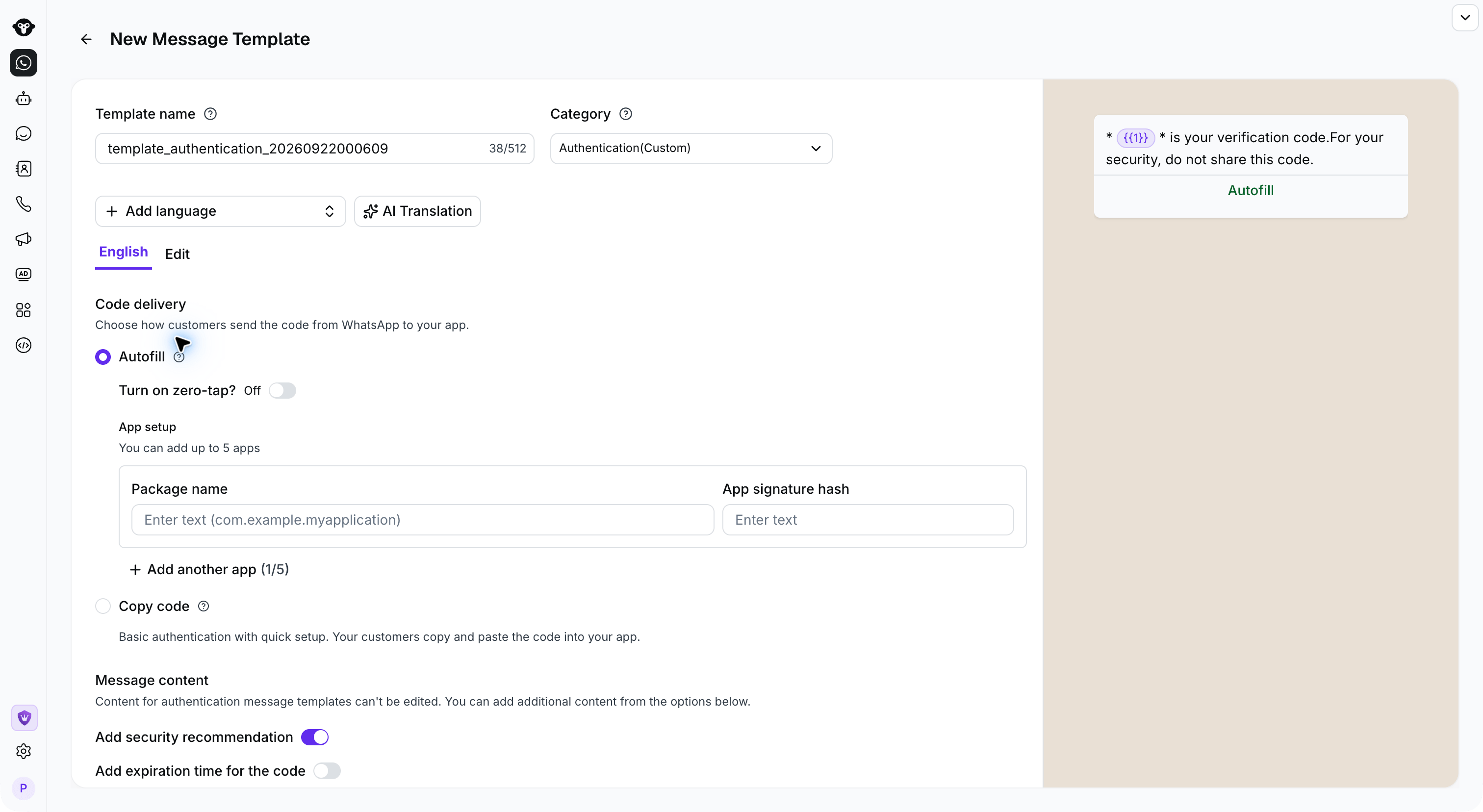
选择 **Autofill** 作为验证码发送方式。您可以自定义按钮文本,并最多添加 5 个应用安装包配置。每个配置都需要填写应用的包名(Package name)和签名哈希值(Signature hash)。
自动填充需要您的应用支持用于一键验证码发送的握手协议。
#### 自动填充模板
选择 **Autofill** 作为验证码发送方式。您可以自定义按钮文本,并最多添加 5 个应用安装包配置。每个配置都需要填写应用的包名(Package name)和签名哈希值(Signature hash)。
自动填充需要您的应用支持用于一键验证码发送的握手协议。
 #### 零点击模板
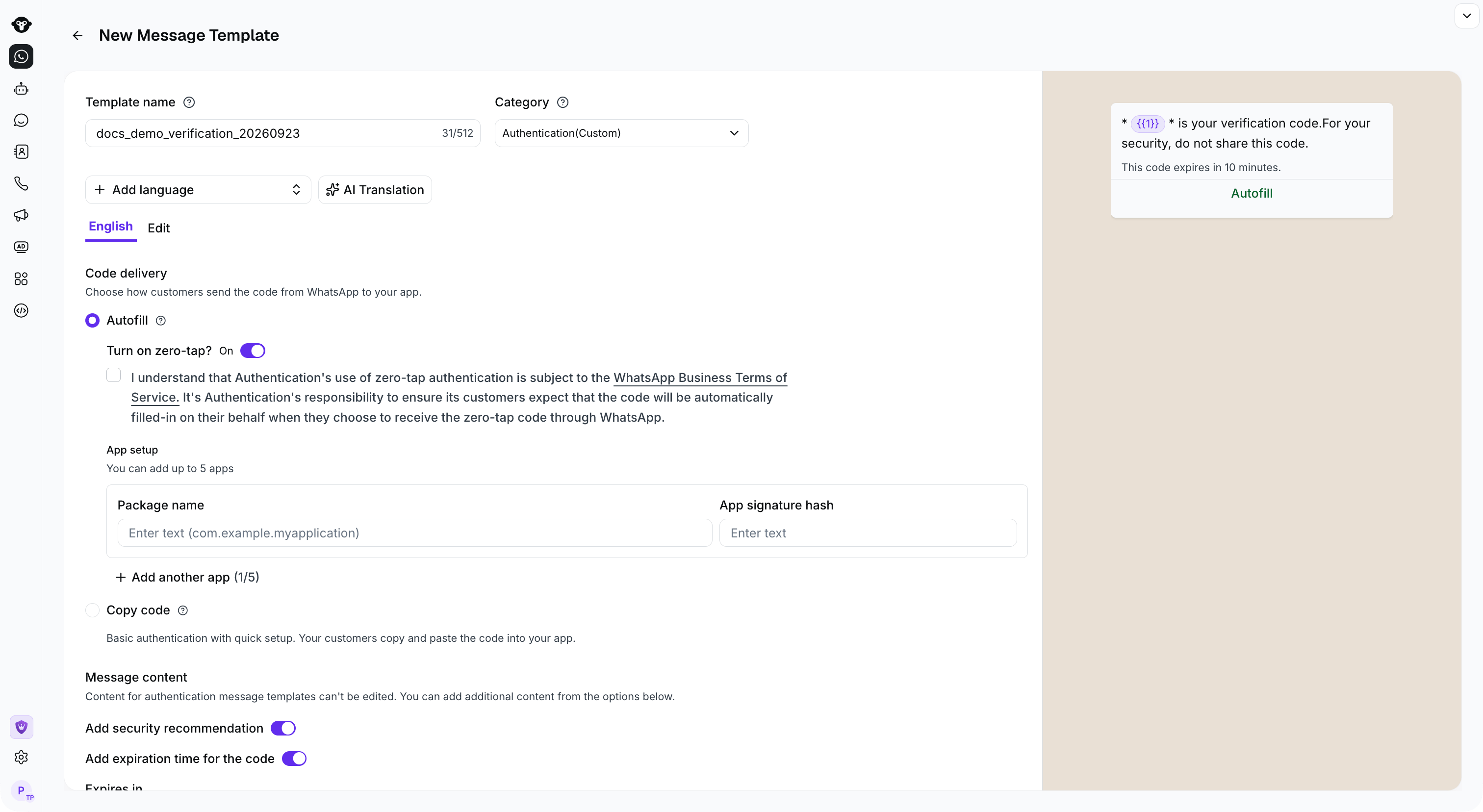
选择 **Zero Tap** 作为验证码发送方式。添加应用的包名和签名哈希值,开启 Zero-tap 选项,并接受适用条款。您最多可以添加 5 个应用安装包配置。
零点击基于自动填充流程构建,因此您的应用也必须支持所需的握手协议。
#### 零点击模板
选择 **Zero Tap** 作为验证码发送方式。添加应用的包名和签名哈希值,开启 Zero-tap 选项,并接受适用条款。您最多可以添加 5 个应用安装包配置。
零点击基于自动填充流程构建,因此您的应用也必须支持所需的握手协议。
 ### 模板内容设置
尽管验证码模板的内容是固定的,您仍然可以通过开关添加验证码有效期限和安全提示。
### 模板内容设置
尽管验证码模板的内容是固定的,您仍然可以通过开关添加验证码有效期限和安全提示。
 ### 消息有效期
在其他情况下,WhatsApp 消息的有效发送窗口最长可达 30 天。对于身份验证消息而言,该时间窗口过长,因为验证码通常在几分钟内失效。
身份验证模板支持设置较短的消息有效期。如果 WhatsApp 无法在有效期内送达消息,将停止尝试发送,且不会产生任何费用。
请将消息有效期设置为小于或等于应用中验证码的实际有效期。
例如,假设您将消息有效期设置为 5 分钟,而应用中的验证码有效期为 10 分钟。如果接收方处于离线状态,且 5 分钟后消息仍在处理中,WhatsApp 将停止尝试发送且不收取费用。如果接收方在 5 分钟窗口过后重新连接并打开 WhatsApp,该消息将不会显示。
配置入口:
### 消息有效期
在其他情况下,WhatsApp 消息的有效发送窗口最长可达 30 天。对于身份验证消息而言,该时间窗口过长,因为验证码通常在几分钟内失效。
身份验证模板支持设置较短的消息有效期。如果 WhatsApp 无法在有效期内送达消息,将停止尝试发送,且不会产生任何费用。
请将消息有效期设置为小于或等于应用中验证码的实际有效期。
例如,假设您将消息有效期设置为 5 分钟,而应用中的验证码有效期为 10 分钟。如果接收方处于离线状态,且 5 分钟后消息仍在处理中,WhatsApp 将停止尝试发送且不收取费用。如果接收方在 5 分钟窗口过后重新连接并打开 WhatsApp,该消息将不会显示。
配置入口:
 This documentation is built and hosted on [Mintlify](https://mintlify.com), a developer documentation platform.