> ## Documentation Index
> Fetch the complete documentation index at: https://docs.ycloud.com/llms.txt
> Use this file to discover all available pages before exploring further.

# 快捷回复

> 使用快捷回复快速响应客户，最大化服务效率

## 什么是快捷回复

在为客户提供几天服务后，您会发现自己经常使用相同的问候语或结束语，或者反复出现一些常见问题。

因此我们推出了快捷回复（Canned Response）来减少重复性工作。您可以将经常发送的消息保存为模板，并通过快捷方式在聊天中快速使用。在收件箱（Inbox）中，管理员有权限设置全公司通用的全局快捷回复。配置完成后，租户下的所有用户都可以在 Inbox 中使用它们。

## 如何创建快捷回复

Inbox 管理员可以创建或修改账户范围内的快捷回复。请按照以下步骤添加新的预设回复。

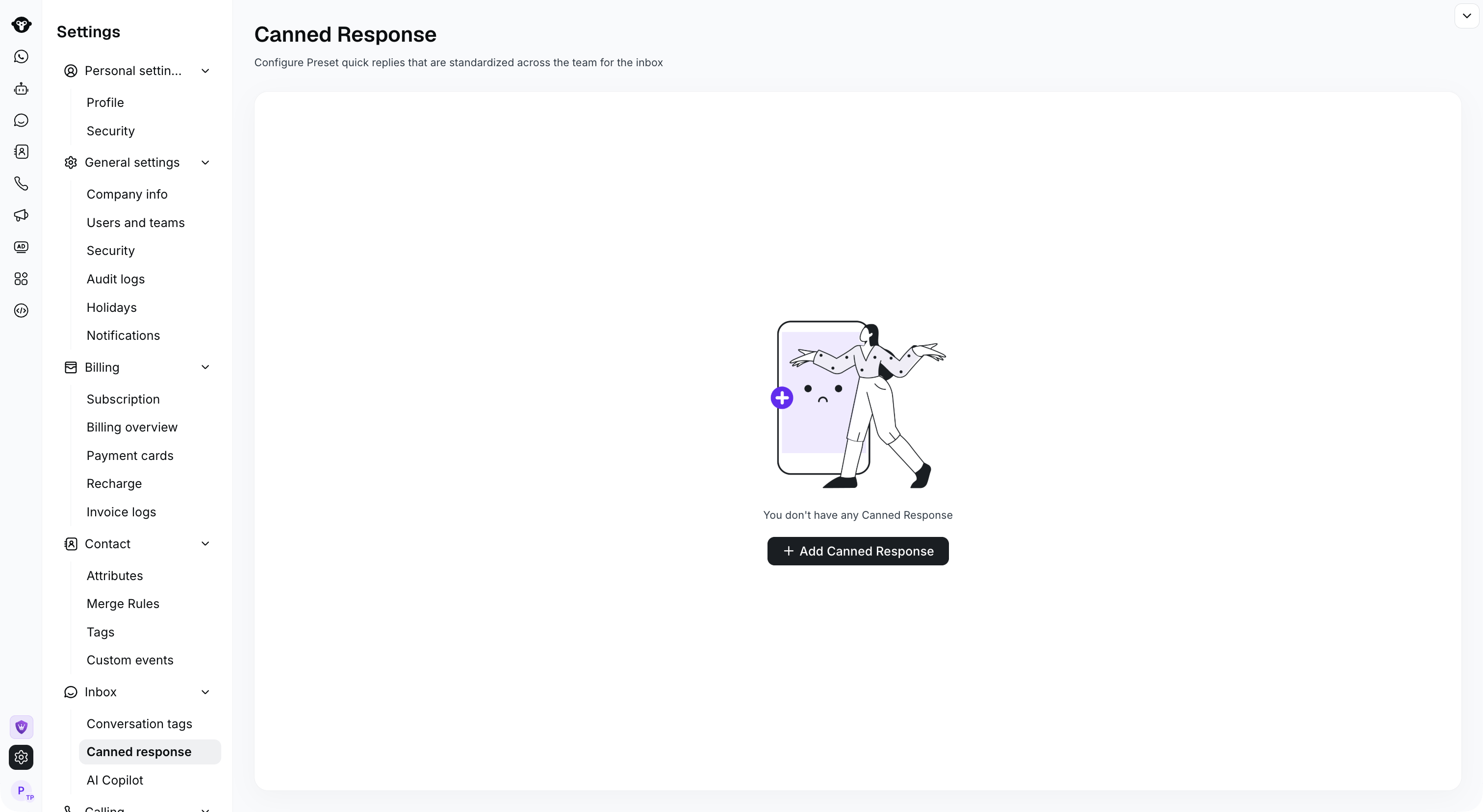
### 步骤 1：前往 设置 > Inbox > 快捷回复

<Frame caption="Go to Settings > Inbox > Canned response and select Add Canned Response.">
  <img src="https://mintcdn.com/lchnan/rmZYWVwRdpR7TJaI/product-assets/english-help-context-2026-09-23/canned-response-entry-context.png?fit=max&auto=format&n=rmZYWVwRdpR7TJaI&q=85&s=707f785e125caad99b745e0af42e7334" alt="包含“添加快捷回复”的完整设置 Inbox 快捷回复页面。" width="3024" height="1656" data-path="product-assets/english-help-context-2026-09-23/canned-response-entry-context.png" />
</Frame>

### 步骤 2：选择“添加快捷回复”并填写必填字段

1. **快捷码**：编写一个便于后续记忆的短代码，用于触发快捷回复短语或文本。每个快捷码必须唯一，最多 150 个字符。
2. **内容**：输入要保存为模板的消息。内容支持标签和 1 个附件。内容最多支持 1024 个字符。
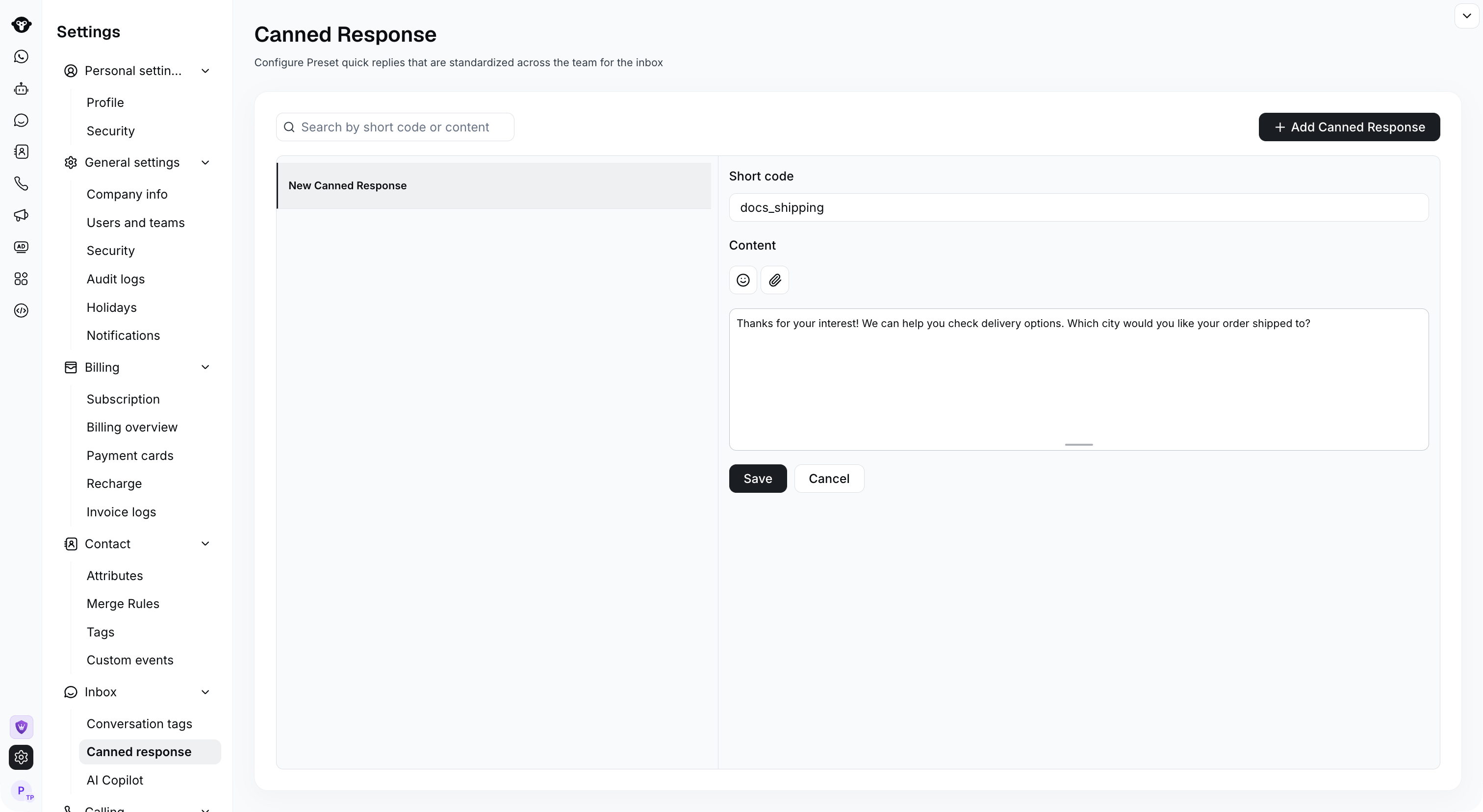
<Frame caption="Enter a unique Short code and the Content to insert in conversations.">
  <img src="https://mintcdn.com/lchnan/rmZYWVwRdpR7TJaI/product-assets/english-help-context-2026-09-23/canned-response-editor-context.png?fit=max&auto=format&n=rmZYWVwRdpR7TJaI&q=85&s=de5ee628c7ac3047ad2c0feb10daf426" alt="包含 docs_shipping 快捷码和回复文本的完整快捷回复编辑器。" width="3024" height="1656" data-path="product-assets/english-help-context-2026-09-23/canned-response-editor-context.png" />
</Frame>

### 步骤 3：保存快捷回复

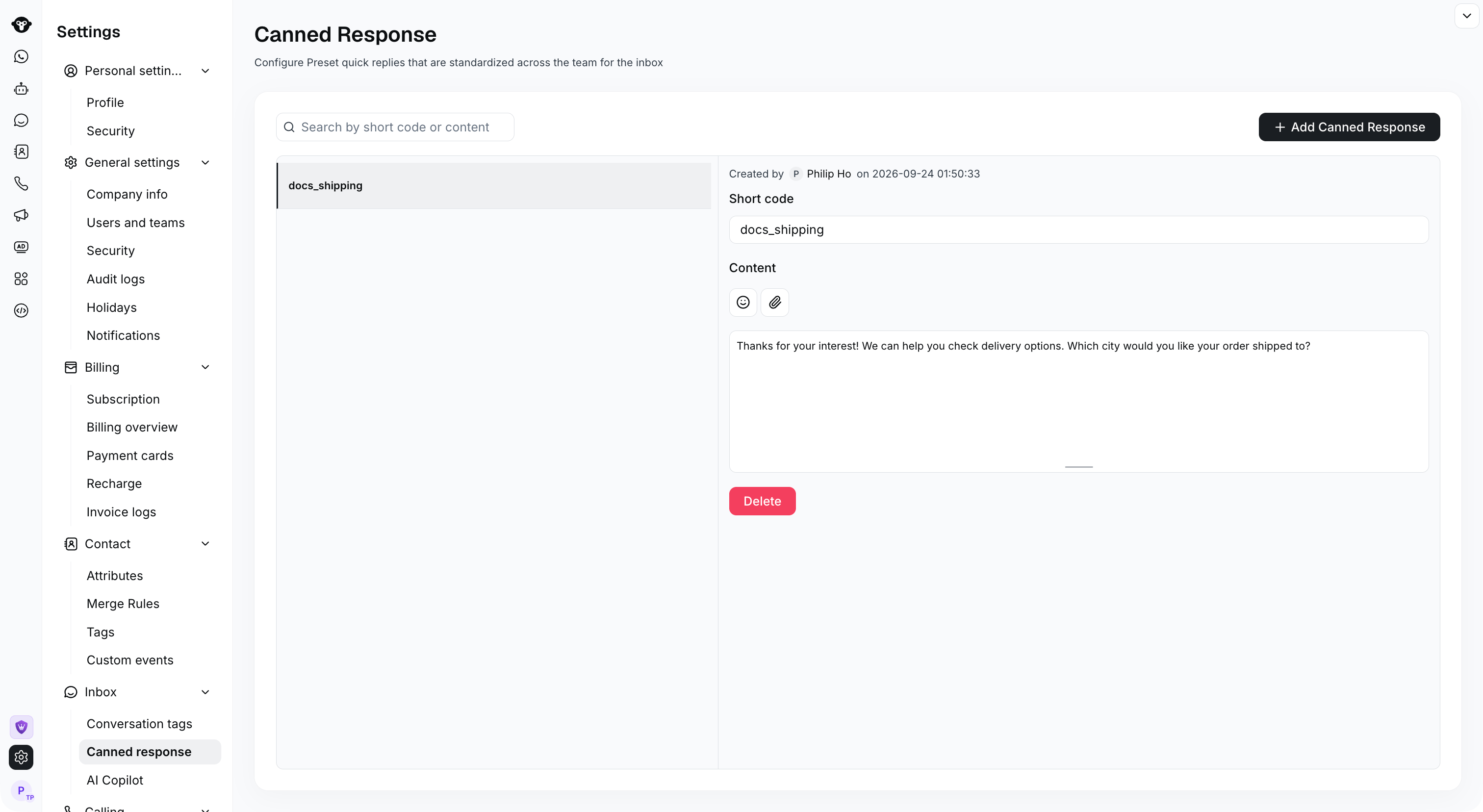
点击底部的“保存”按钮以保存快捷回复。

点击“取消”，此记录将不会被保存。

保存后，您可以点击红色的“删除”按钮来删除此记录。

<Frame caption="After saving, the reply appears in the list with its creator and creation time.">
  <img src="https://mintcdn.com/lchnan/rmZYWVwRdpR7TJaI/product-assets/english-help-context-2026-09-23/canned-response-saved-context.png?fit=max&auto=format&n=rmZYWVwRdpR7TJaI&q=85&s=db1417444abad16b4bddc2bfa1a69011" alt="已保存的 docs_shipping 快捷回复，包含创建者和创建时间。" width="3024" height="1656" data-path="product-assets/english-help-context-2026-09-23/canned-response-saved-context.png" />
</Frame>

## 如何创建公司快捷回复

公司快捷回复可在 设置 > Inbox > 快捷回复 下进行配置。公司快捷回复为全局回复，设置后可供所有客服人员使用。

## 如何使用快捷回复

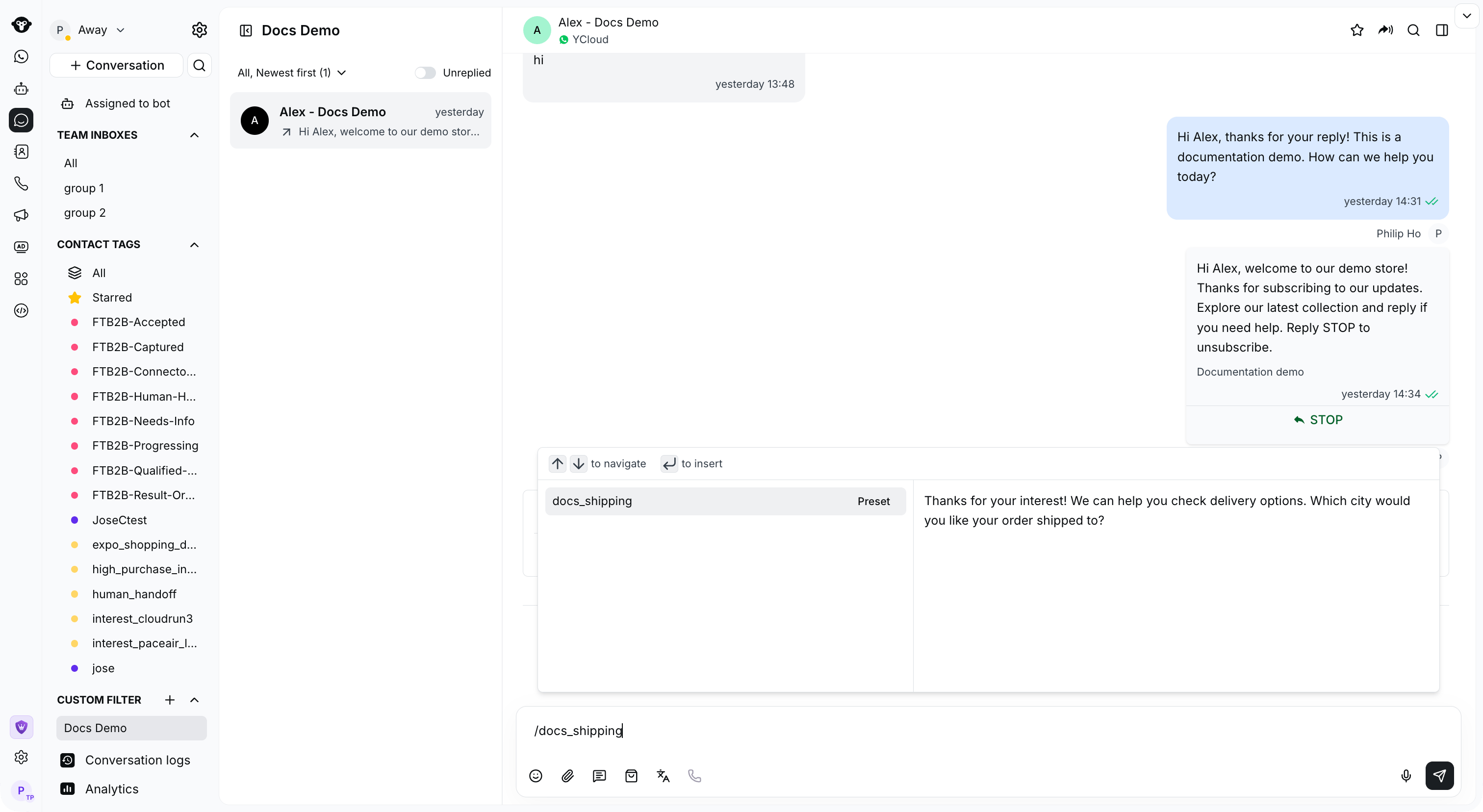
步骤 1：触发快捷回复。在聊天输入框中输入“`/`”。该符号必须位于聊天框的最开头，不能跟在任何文本后面。这将显示所有预设回复的列表。左侧显示快捷回复列表，右侧显示内容预览。

<Frame caption="Type a slash followed by the short code to find and preview the saved reply.">
  <img src="https://mintcdn.com/lchnan/rmZYWVwRdpR7TJaI/product-assets/english-help-context-2026-09-23/canned-response-picker-context.png?fit=max&auto=format&n=rmZYWVwRdpR7TJaI&q=85&s=7594e9080022a092afb716861bc4db13" alt="完整 Inbox 界面，显示输入框上方的 docs_shipping 预设及其预览。" width="3024" height="1656" data-path="product-assets/english-help-context-2026-09-23/canned-response-picker-context.png" />
</Frame>

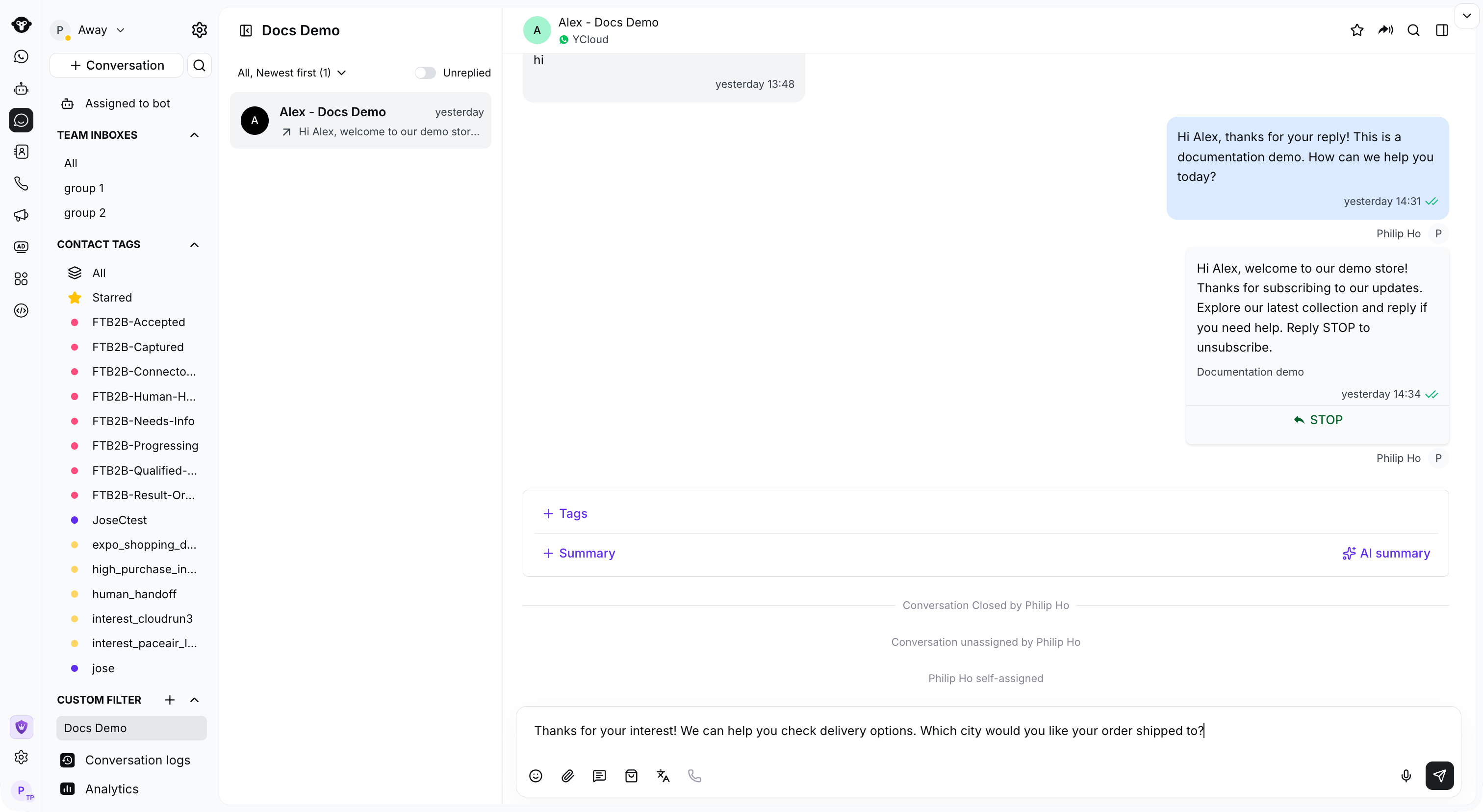
步骤 2：选择快捷回复。您可以用鼠标从左侧列表中选择，如果记得快捷码也可以直接输入。然后使用上下方向键切换选中项，并按 `Enter`，您的文本编辑器就会填入该回复。

<Frame caption="Select the preset or press Enter to insert it, then review the text before sending.">
  <img src="https://mintcdn.com/lchnan/rmZYWVwRdpR7TJaI/product-assets/english-help-context-2026-09-23/canned-response-inserted-context.png?fit=max&auto=format&n=rmZYWVwRdpR7TJaI&q=85&s=b208a54cba7bd39cfc5282e60f541703" alt="选中的快捷回复已插入 Inbox 输入框中，尚未发送。" width="3024" height="1656" data-path="product-assets/english-help-context-2026-09-23/canned-response-inserted-context.png" />
</Frame>


This documentation is built and hosted on [Mintlify](https://mintlify.com), a developer documentation platform.