> ## Documentation Index
> Fetch the complete documentation index at: https://docs.ycloud.com/llms.txt
> Use this file to discover all available pages before exploring further.

# 会话标签

> 使用会话标签为每个会话打上标记，便于快速分类会话并提高会话管理效率

## 什么是会话标签

会话标签是我们为您提供的一款便捷标记工具。当您需要快速标记会话（无论是进行中还是已结束）以进行分类时，可以使用会话标签快速完成标记操作。会话标签支持自定义文本和颜色，让您可以灵活自由地管理会话。

## 如何使用会话标签

### 针对进行中的会话

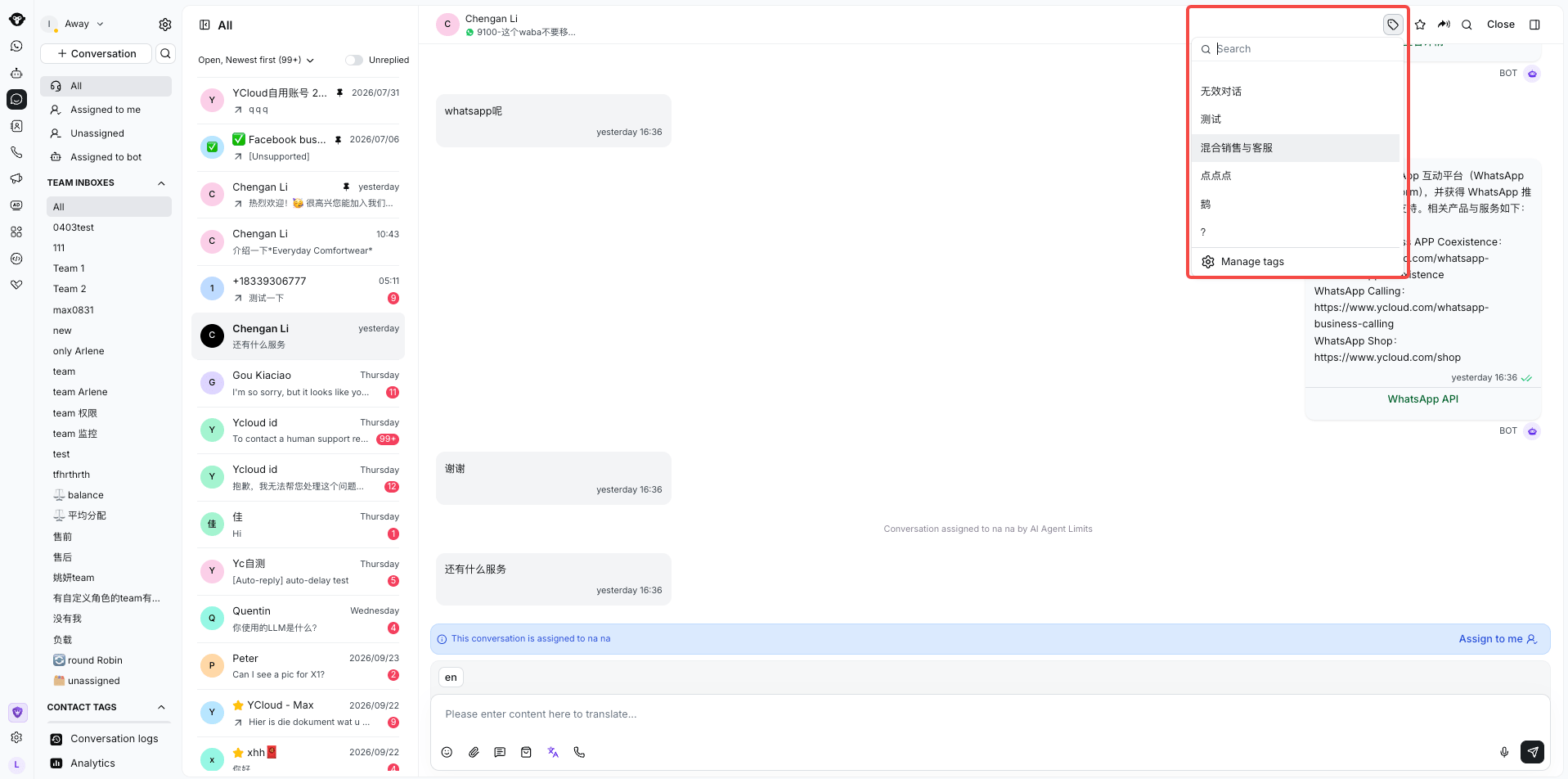
您可以通过点击会话展示区域上方的“添加会话标签”按钮来为会话添加标签。

我们支持从现有标签列表中选择添加，或添加带有自定义文本的标签。

<Frame caption="Select a conversation tag from the picker or open Manage tags.">
  <img src="https://mintcdn.com/lchnan/3_MG7u4sxNnj0E_f/product-assets/english-help-context-2026-09-29/conversation-tags-picker-context.png?fit=max&auto=format&n=3_MG7u4sxNnj0E_f&q=85&s=33a5c22ce57f34d301c1a9b817c0cb30" alt="收件箱会话，已打开会话标签选择器。" width="1917" height="952" data-path="product-assets/english-help-context-2026-09-29/conversation-tags-picker-context.png" />
</Frame>

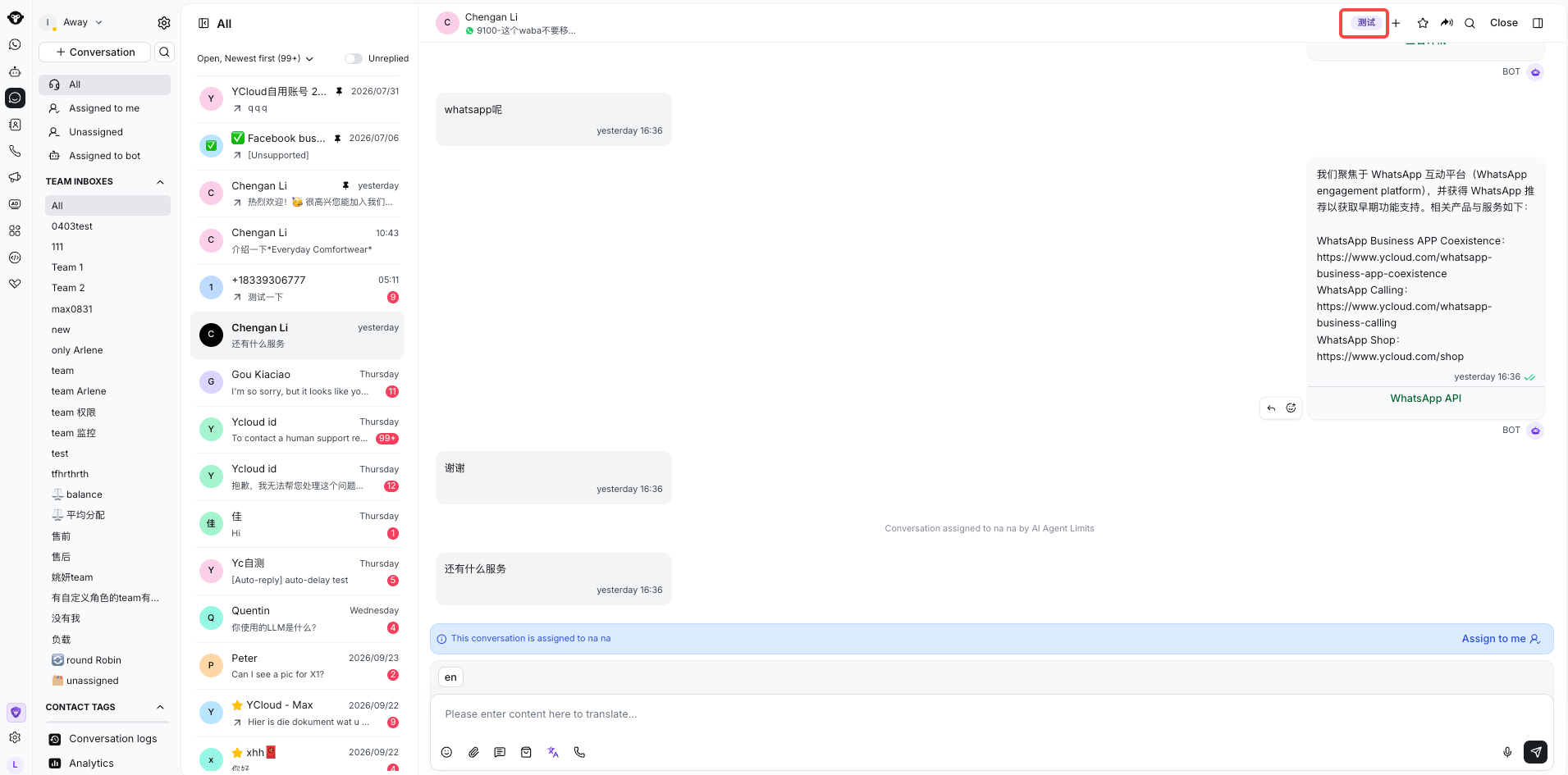
如果您想删除某个特定的会话标签，只需将鼠标悬停在标签上，点击标签右侧出现的删除图标即可删除对应标签。

<Frame caption="The selected conversation tag appears above the conversation.">
  <img src="https://mintcdn.com/lchnan/3_MG7u4sxNnj0E_f/product-assets/english-help-context-2026-09-29/conversation-tag-applied-context.png?fit=max&auto=format&n=3_MG7u4sxNnj0E_f&q=85&s=2802457d0a1c30d14218ef05f67987b1" alt="收件箱会话，聊天区域上方已应用会话标签。" width="1911" height="945" data-path="product-assets/english-help-context-2026-09-29/conversation-tag-applied-context.png" />
</Frame>

### 针对已结束的会话

点击已结束会话下方的 **Tags** 即可选择现有标签或创建新标签。
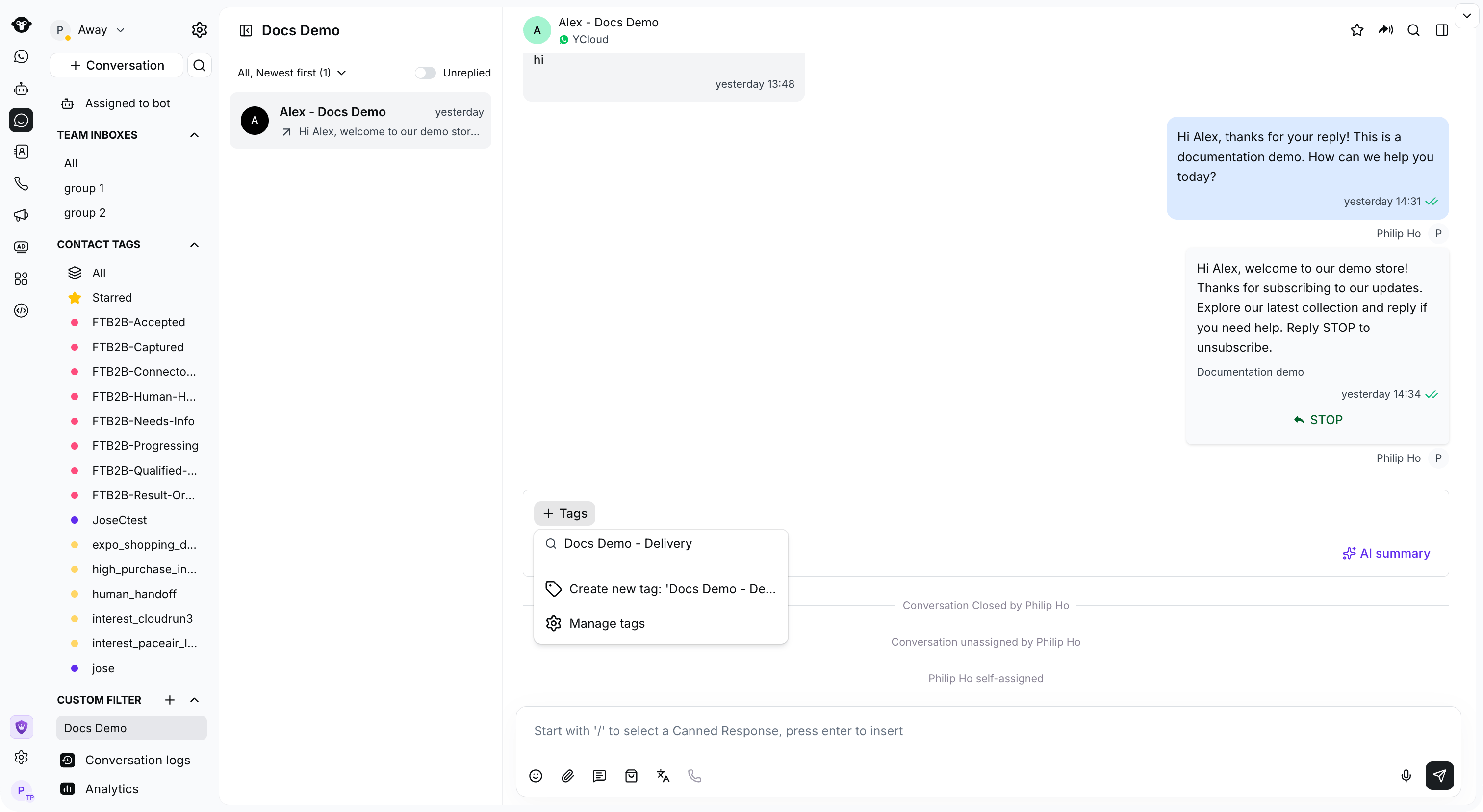
<Frame caption="Use Tags below the closed conversation to select or create a conversation tag.">
  <img src="https://mintcdn.com/lchnan/rmZYWVwRdpR7TJaI/product-assets/english-help-context-2026-09-23/conversation-tags-closed-context.png?fit=max&auto=format&n=rmZYWVwRdpR7TJaI&q=85&s=dccdc1d28630684bd9f8d7a885a9c5fa" alt="已结束的演示会话，已打开标签选择器。" width="3024" height="1656" data-path="product-assets/english-help-context-2026-09-23/conversation-tags-closed-context.png" />
</Frame>

## 如何管理会话标签

### 管理权限

拥有 Admin 和 Inbox manager 角色的用户可以访问会话标签管理页面。

### 管理入口

当您在会话展示区域添加会话标签时，点击列表底部的“管理标签”按钮即可进入会话标签管理页面。

<Frame caption="Select Manage tags from the conversation tag picker to open its settings.">
  <img src="https://mintcdn.com/lchnan/rmZYWVwRdpR7TJaI/product-assets/english-help-context-2026-09-23/conversation-tags-manage-entry-context-annotated.svg?fit=max&auto=format&n=rmZYWVwRdpR7TJaI&q=85&s=88da539b955b926add55e6748f713c63" alt="完整收件箱页面，显示标签选择器底部的“管理标签”。" width="3024" height="1656" data-path="product-assets/english-help-context-2026-09-23/conversation-tags-manage-entry-context-annotated.svg" />
</Frame>

或者，前往 **Settings > Inbox > Conversation tags**。
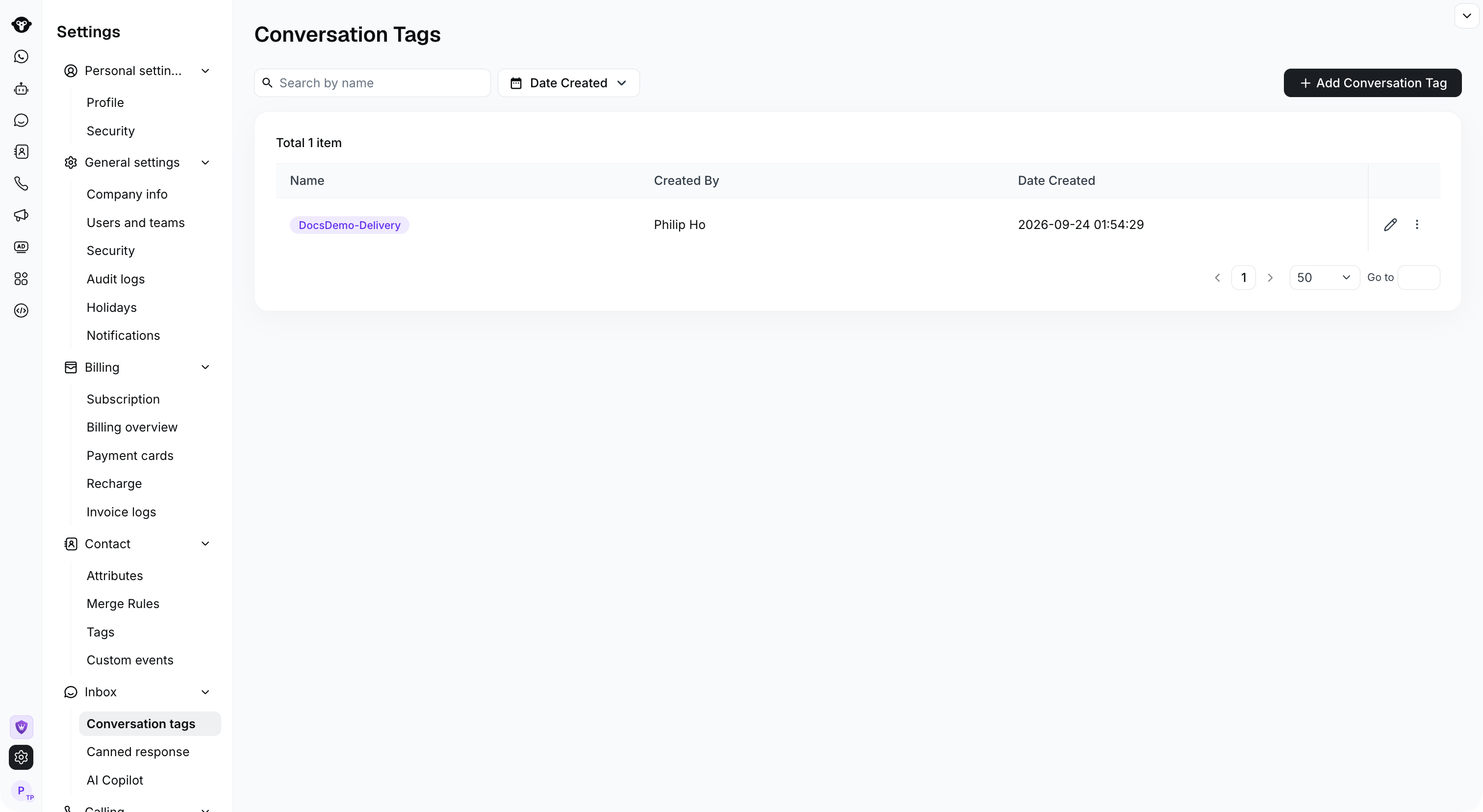
<Frame caption="Open Settings > Inbox > Conversation tags to manage your tags.">
  <img src="https://mintcdn.com/lchnan/rmZYWVwRdpR7TJaI/product-assets/english-help-context-2026-09-23/conversation-tags-settings-context.png?fit=max&auto=format&n=rmZYWVwRdpR7TJaI&q=85&s=aa3690e124f87c2c6af79c68ed98666c" alt="设置中的完整收件箱会话标签页面。" width="3024" height="1656" data-path="product-assets/english-help-context-2026-09-23/conversation-tags-settings-context.png" />
</Frame>

### 管理会话标签

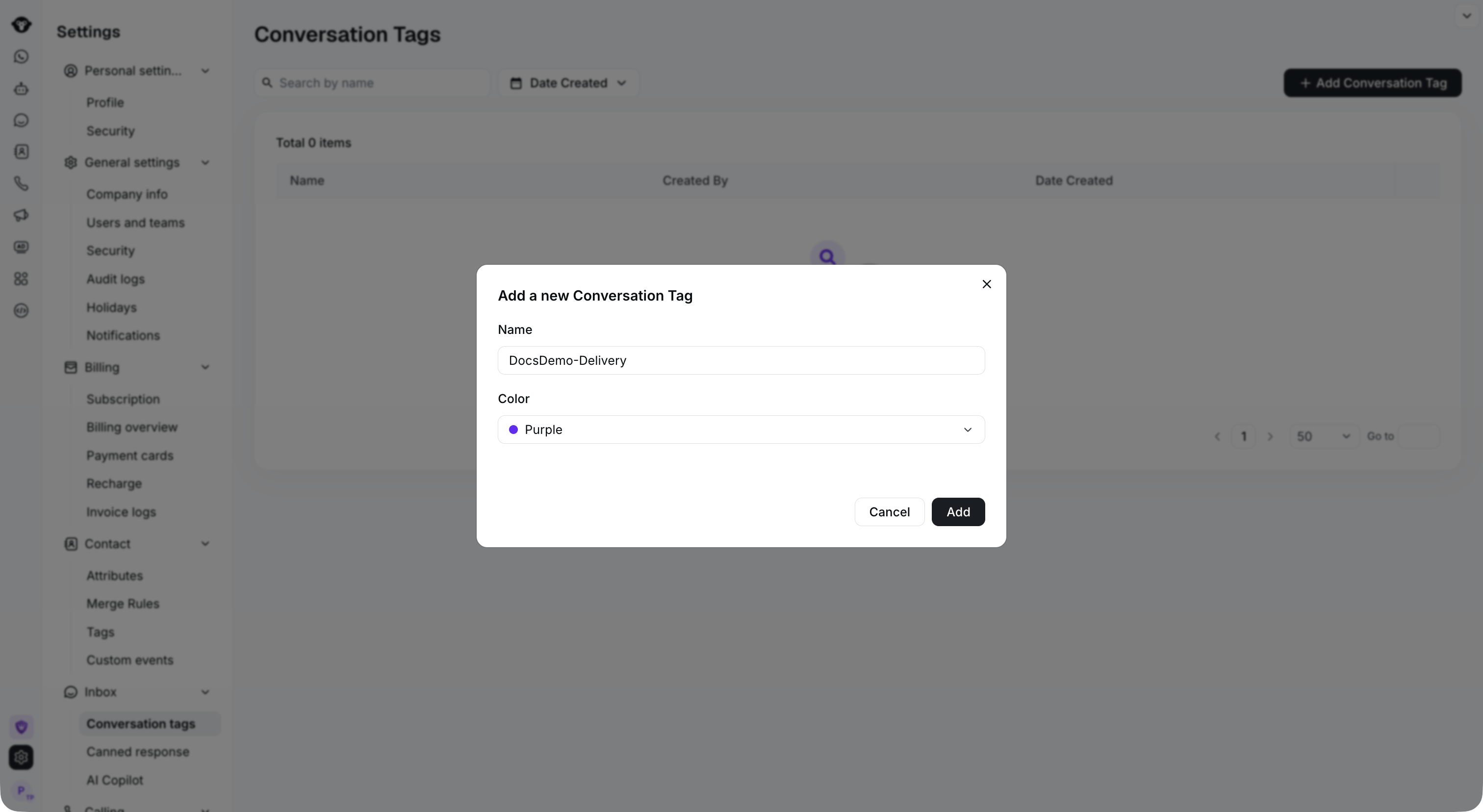
1. 点击“添加会话标签”按钮以添加自定义标签，支持自定义标签文本和颜色。
2. 搜索栏允许您按标签名称和标签创建时间筛选标签。
3. 点击“编辑”按钮即可编辑对应的标签。
4. 点击“删除”按钮即可删除对应的标签。请注意，删除后已在会话中标记的标签也将被删除，请谨慎操作。

<Frame caption="Edit a tag with the pencil icon, or open the row menu to find Delete.">
  <img src="https://mintcdn.com/lchnan/rmZYWVwRdpR7TJaI/product-assets/english-help-context-2026-09-23/conversation-tag-actions-context-annotated.svg?fit=max&auto=format&n=rmZYWVwRdpR7TJaI&q=85&s=89e78fb8adc085b550f18cb6289c2506" alt="会话标签设置，带有行编辑图标和删除菜单。" width="3024" height="1656" data-path="product-assets/english-help-context-2026-09-23/conversation-tag-actions-context-annotated.svg" />
</Frame>

<Frame caption="Select Add Conversation Tag, then enter a name and choose a color.">
  <img src="https://mintcdn.com/lchnan/rmZYWVwRdpR7TJaI/product-assets/english-help-context-2026-09-23/conversation-tag-create-context.png?fit=max&auto=format&n=rmZYWVwRdpR7TJaI&q=85&s=a321cc7602437a33ce5d6a6b07c84b14" alt="创建表单后方的完整会话标签设置页面。" width="3024" height="1656" data-path="product-assets/english-help-context-2026-09-23/conversation-tag-create-context.png" />
</Frame>


This documentation is built and hosted on [Mintlify](https://mintlify.com), a developer documentation platform.