> ## Documentation Index
> Fetch the complete documentation index at: https://docs.ycloud.com/llms.txt
> Use this file to discover all available pages before exploring further.
# 搜索联系人与聊天记录
> Inbox 聊天记录搜索功能使用指南
### 功能简介
Inbox 新增了搜索功能,帮助客服人员快速定位历史对话和联系人信息。支持两种搜索模式:
* **全局搜索**:跨所有会话和联系人进行搜索
* **会话内搜索**:在当前打开的单个会话中搜索历史消息
### 1. 全局搜索 (Web 端)
#### 入口
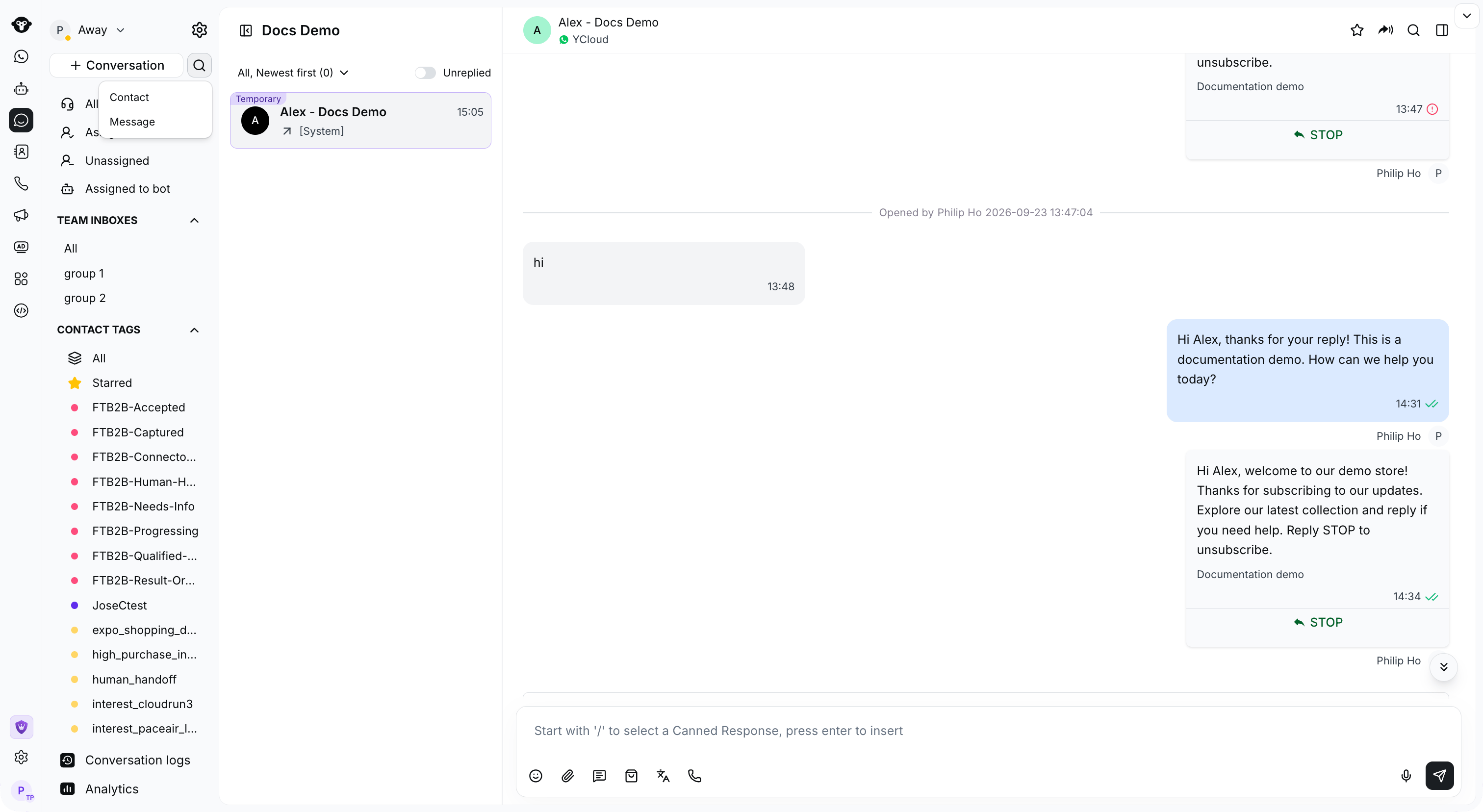
点击 **Conversation** 旁边的搜索图标,并选择搜索模式。
 #### 联系人搜索
从搜索菜单中选择 **Contact** 。 **支持的搜索项:**
* 联系人姓名(模糊搜索,不区分大小写)
* 联系人电话号码(精确匹配)
**结果卡片包含:** 头像首字母、姓名、电话号码、最后一条消息预览、消息时间以及关联的坐席
**点击结果:** 直接跳转至对应会话。
**新建会话:** 无论搜索结果是否为空,页面始终显示“+ Create a new conversation”按钮。点击后将打开新建会话弹窗,并自动填入输入的号码。
#### 联系人搜索
从搜索菜单中选择 **Contact** 。 **支持的搜索项:**
* 联系人姓名(模糊搜索,不区分大小写)
* 联系人电话号码(精确匹配)
**结果卡片包含:** 头像首字母、姓名、电话号码、最后一条消息预览、消息时间以及关联的坐席
**点击结果:** 直接跳转至对应会话。
**新建会话:** 无论搜索结果是否为空,页面始终显示“+ Create a new conversation”按钮。点击后将打开新建会话弹窗,并自动填入输入的号码。
 #### 消息搜索
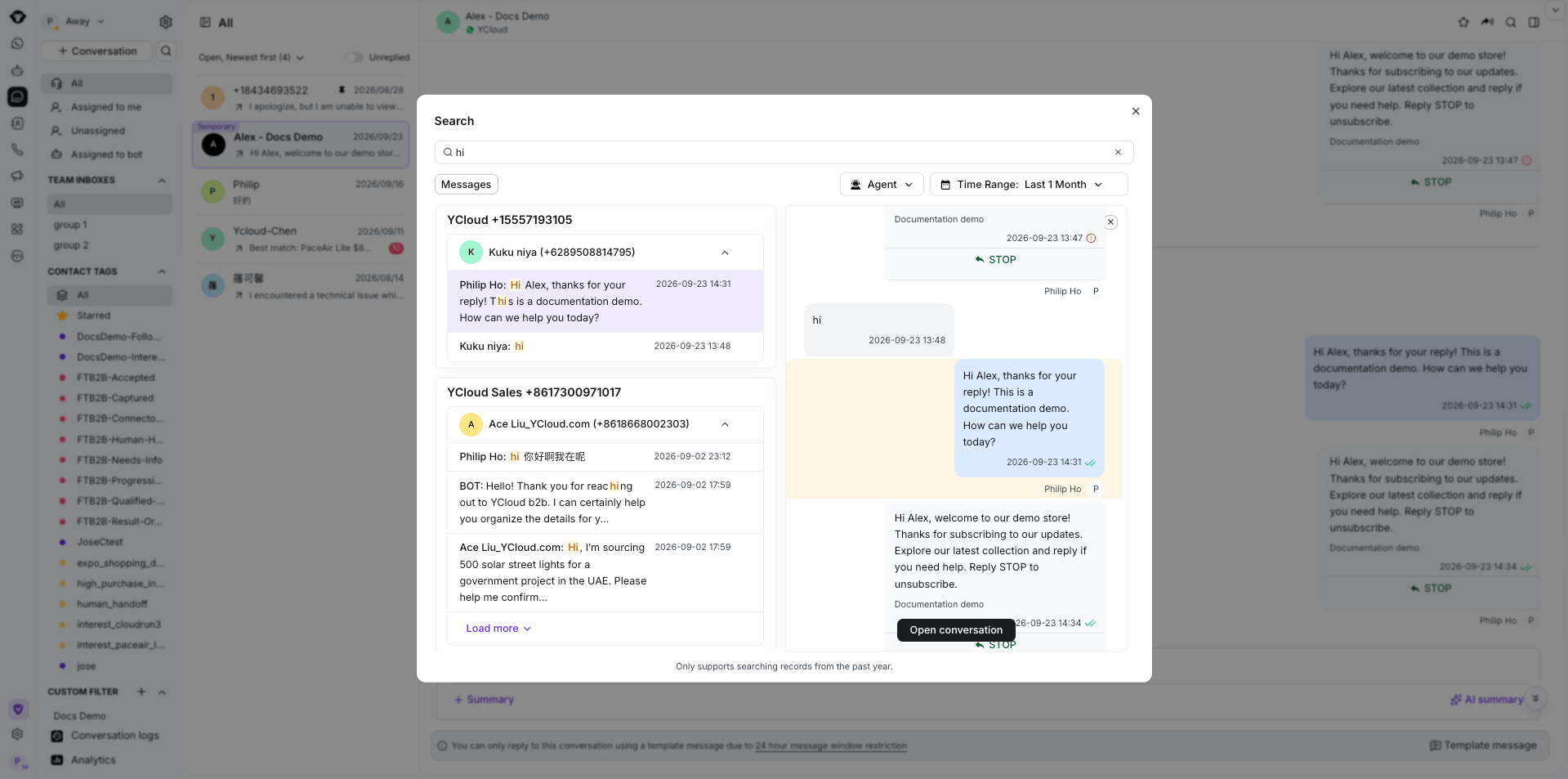
打开 Inbox 中的搜索菜单,选择 **Message** 搜索消息历史。
**支持的搜索项:**
* 文本消息内容
* 图文消息中的文本部分
**搜索时间范围:** 默认支持最近 1 年内的消息记录。**筛选条件:**
* **坐席 (Agent)**:支持模糊搜索,可多选
* **时间**:选择开始时间和结束时间
**结果卡片包含:** 发送人头像首字母、发送人姓名、联系人信息、消息内容片段(关键词高亮)、消息时间
#### 消息搜索
打开 Inbox 中的搜索菜单,选择 **Message** 搜索消息历史。
**支持的搜索项:**
* 文本消息内容
* 图文消息中的文本部分
**搜索时间范围:** 默认支持最近 1 年内的消息记录。**筛选条件:**
* **坐席 (Agent)**:支持模糊搜索,可多选
* **时间**:选择开始时间和结束时间
**结果卡片包含:** 发送人头像首字母、发送人姓名、联系人信息、消息内容片段(关键词高亮)、消息时间
 **点击结果:**
* 点击会话标题行:展开或折叠该会话下的消息列表
* 点击“Jump”按钮:跳转至对应会话
* 点击具体消息行右侧:弹出预览面板,显示该消息前后 24 小时内的上下文
* 点击具体消息的“Jump”按钮:跳转至该消息在对应会话中的位置,消息将高亮显示 2 秒后消失
#### 关闭搜索
点击联系人搜索旁的 **X** ,或消息搜索对话框中的 **Close** ,即可返回 Inbox。
**点击结果:**
* 点击会话标题行:展开或折叠该会话下的消息列表
* 点击“Jump”按钮:跳转至对应会话
* 点击具体消息行右侧:弹出预览面板,显示该消息前后 24 小时内的上下文
* 点击具体消息的“Jump”按钮:跳转至该消息在对应会话中的位置,消息将高亮显示 2 秒后消失
#### 关闭搜索
点击联系人搜索旁的 **X** ,或消息搜索对话框中的 **Close** ,即可返回 Inbox。
 ### 2. 会话内搜索 (Web 端)
#### 入口
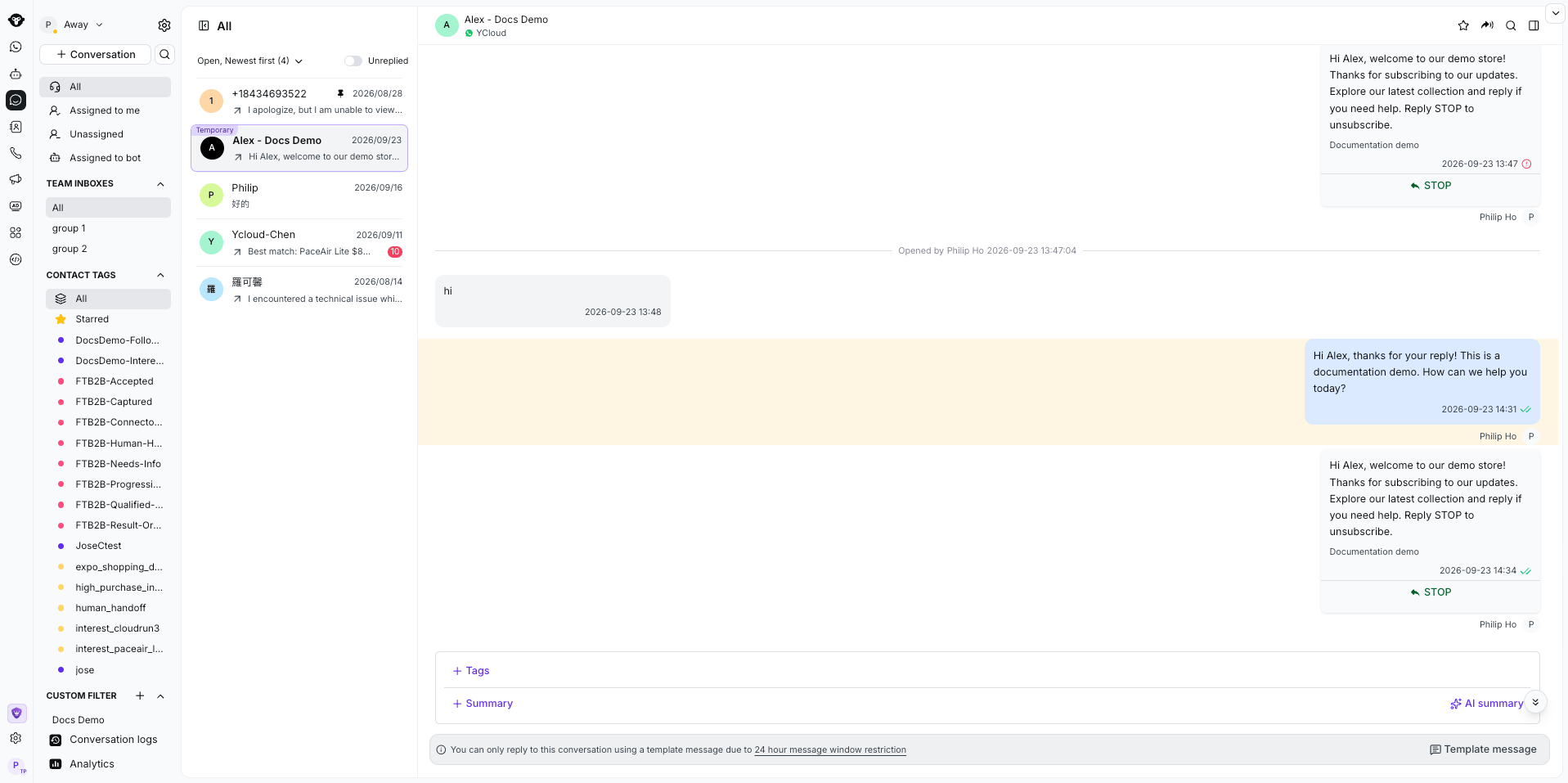
打开任意会话后,点击右侧会话详情区域右上方的搜索图标。
#### 使用方法
1. 点击搜索图标展开搜索框
2. 输入关键词,系统将实时在当前会话的历史消息中进行搜索
3. 鼠标悬停在搜索结果列表中的消息上时,会显示背景色
4. 点击消息,页面将自动跳转并滚动到该消息所在位置
**搜索范围:** 当前会话内的所有历史消息(包括客服和客户发送的消息)
### 2. 会话内搜索 (Web 端)
#### 入口
打开任意会话后,点击右侧会话详情区域右上方的搜索图标。
#### 使用方法
1. 点击搜索图标展开搜索框
2. 输入关键词,系统将实时在当前会话的历史消息中进行搜索
3. 鼠标悬停在搜索结果列表中的消息上时,会显示背景色
4. 点击消息,页面将自动跳转并滚动到该消息所在位置
**搜索范围:** 当前会话内的所有历史消息(包括客服和客户发送的消息)
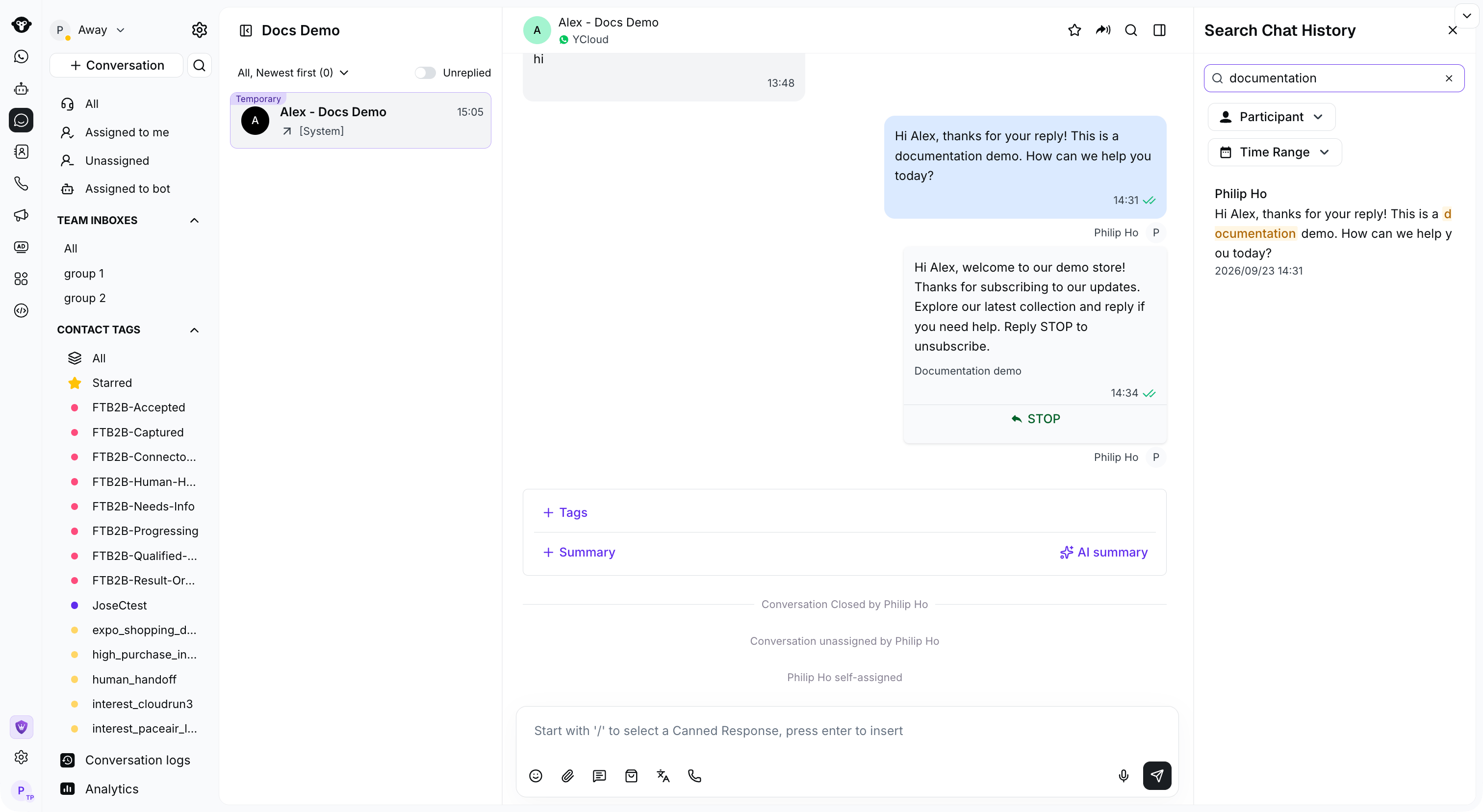 **筛选条件:**
* **参与者 (Participant)**:按发送人筛选消息记录
* **时间**:选择开始时间和结束时间
**高亮规则:**
* 结果列表中当前选中的项目:灰色背景
* 列表中匹配的关键词:以粗体或特殊颜色标记
* 对话框内匹配的条目:以淡黄色高亮显示
**无结果时:** 显示无结果提示,保持搜索框处于打开状态,并允许用户继续修改关键词。
### 3. 移动端搜索
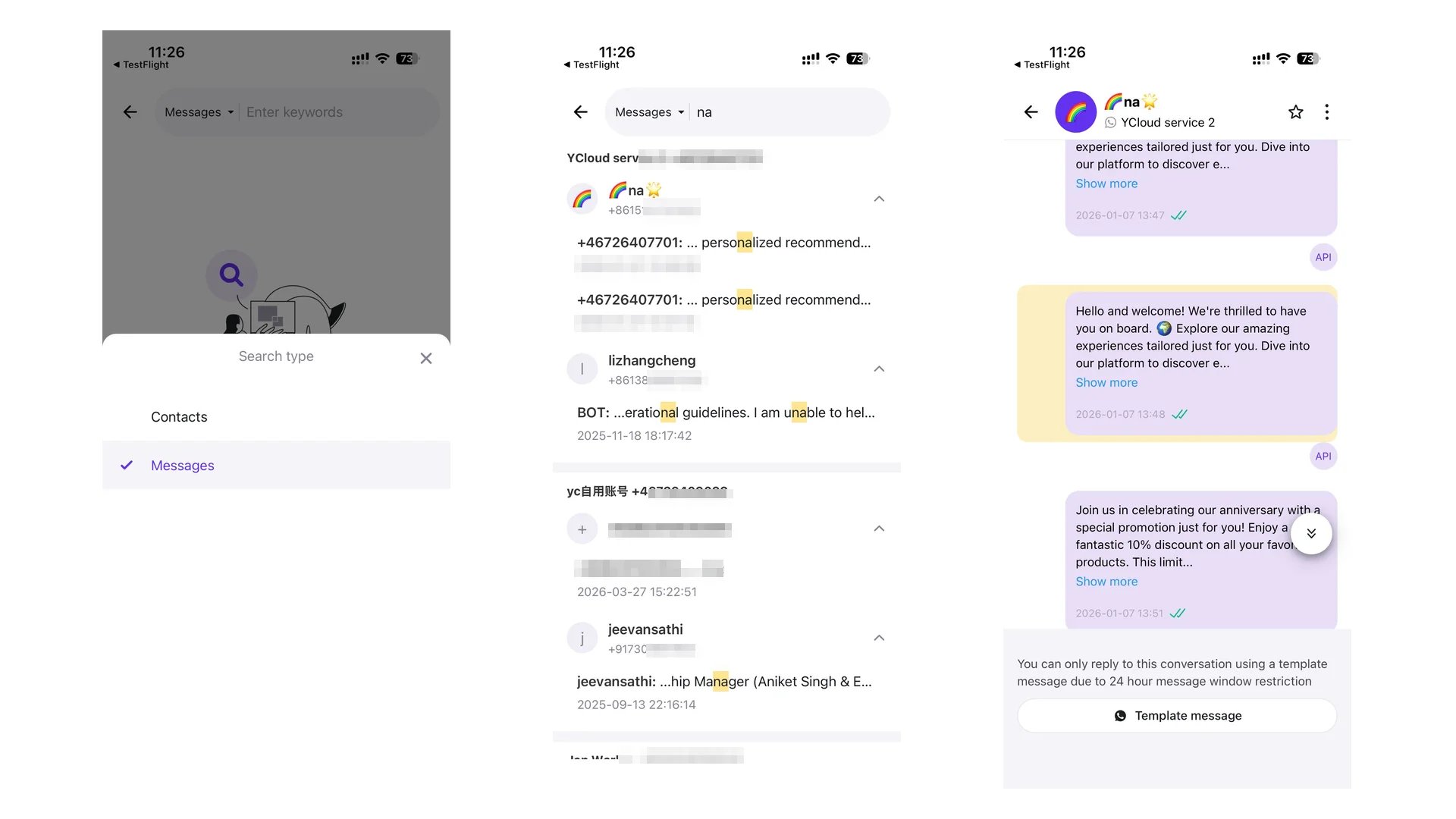
#### 全局搜索
1. 点击搜索按钮,默认进入“Contacts”(联系人)搜索
2. 点击切换按钮可在“Contacts”(联系人)和“Messages”(消息)之间切换
3. 消息搜索仅支持对聊天内容进行模糊搜索, **不** 支持按坐席或时间筛选
4. 搜索时间范围与 Web 端一致(最近 1 年)
**筛选条件:**
* **参与者 (Participant)**:按发送人筛选消息记录
* **时间**:选择开始时间和结束时间
**高亮规则:**
* 结果列表中当前选中的项目:灰色背景
* 列表中匹配的关键词:以粗体或特殊颜色标记
* 对话框内匹配的条目:以淡黄色高亮显示
**无结果时:** 显示无结果提示,保持搜索框处于打开状态,并允许用户继续修改关键词。
### 3. 移动端搜索
#### 全局搜索
1. 点击搜索按钮,默认进入“Contacts”(联系人)搜索
2. 点击切换按钮可在“Contacts”(联系人)和“Messages”(消息)之间切换
3. 消息搜索仅支持对聊天内容进行模糊搜索, **不** 支持按坐席或时间筛选
4. 搜索时间范围与 Web 端一致(最近 1 年)
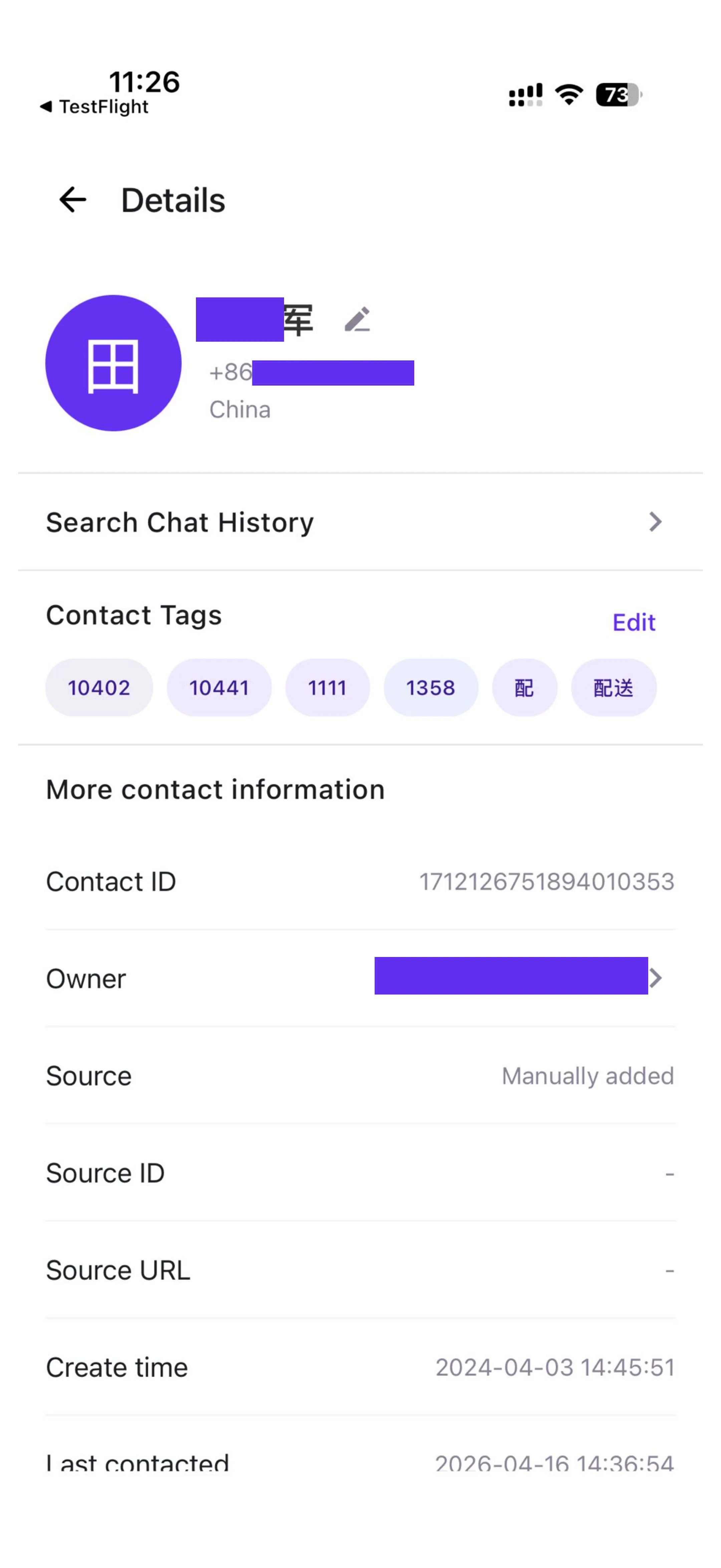
 #### 会话内搜索
1. 进入会话详情页(Details)
2. 点击“Search chat history”按钮进入搜索页面
3. 输入关键词搜索当前会话的内容
4. 点击“Cancel”返回详情页
### 常见问题
**问:至少需要输入多少个字符才能触发搜索?**
答:输入 1 个字符即可触发实时搜索。
**问:消息搜索最远可以追溯多久?**
答:全局搜索功能支持最近 1 年内的消息记录,页面会显示相应提示。会话内的消息搜索没有时间限制。
**问:联系人搜索支持哪些字段?**
答:支持联系人姓名(模糊搜索)和电话号码(精确匹配)。
**问:消息搜索支持哪些内容类型?**
答:支持纯文本消息以及图文消息中的文本部分。目前暂不支持搜索图片内容。
**问:切换联系人/消息标签页后,之前输入的内容还会保留吗?**
答:不会。切换标签页后,输入框中的内容将自动清空,您需要重新输入关键词。
This documentation is built and hosted on [Mintlify](https://mintlify.com), a developer documentation platform.
#### 会话内搜索
1. 进入会话详情页(Details)
2. 点击“Search chat history”按钮进入搜索页面
3. 输入关键词搜索当前会话的内容
4. 点击“Cancel”返回详情页
### 常见问题
**问:至少需要输入多少个字符才能触发搜索?**
答:输入 1 个字符即可触发实时搜索。
**问:消息搜索最远可以追溯多久?**
答:全局搜索功能支持最近 1 年内的消息记录,页面会显示相应提示。会话内的消息搜索没有时间限制。
**问:联系人搜索支持哪些字段?**
答:支持联系人姓名(模糊搜索)和电话号码(精确匹配)。
**问:消息搜索支持哪些内容类型?**
答:支持纯文本消息以及图文消息中的文本部分。目前暂不支持搜索图片内容。
**问:切换联系人/消息标签页后,之前输入的内容还会保留吗?**
答:不会。切换标签页后,输入框中的内容将自动清空,您需要重新输入关键词。
This documentation is built and hosted on [Mintlify](https://mintlify.com), a developer documentation platform.