> ## Documentation Index
> Fetch the complete documentation index at: https://docs.ycloud.com/llms.txt
> Use this file to discover all available pages before exploring further.

# 欢迎消息

> 为新会话配置收件箱和基于规则的 Agent 欢迎消息。

当您希望在客户发起会话时发送一条固定的预设消息，且不受客户发送内容影响时，欢迎消息功能可以满足您的需求。

#### 1. 客服欢迎消息

1. 进入收件箱后，点击状态旁边的 **Inbox settings** 齿轮图标。

<Frame caption="Open Inbox settings using the gear beside your status.">
  <img src="https://mintcdn.com/lchnan/rmZYWVwRdpR7TJaI/product-assets/english-help-context-2026-09-23/inbox-personal-settings-entry-context-annotated.svg?fit=max&auto=format&n=rmZYWVwRdpR7TJaI&q=85&s=449c3fb84419a7f8428441df7af5172a" alt="完整收件箱界面，客服状态旁显示设置齿轮。" width="3024" height="1656" data-path="product-assets/english-help-context-2026-09-23/inbox-personal-settings-entry-context-annotated.svg" />
</Frame>

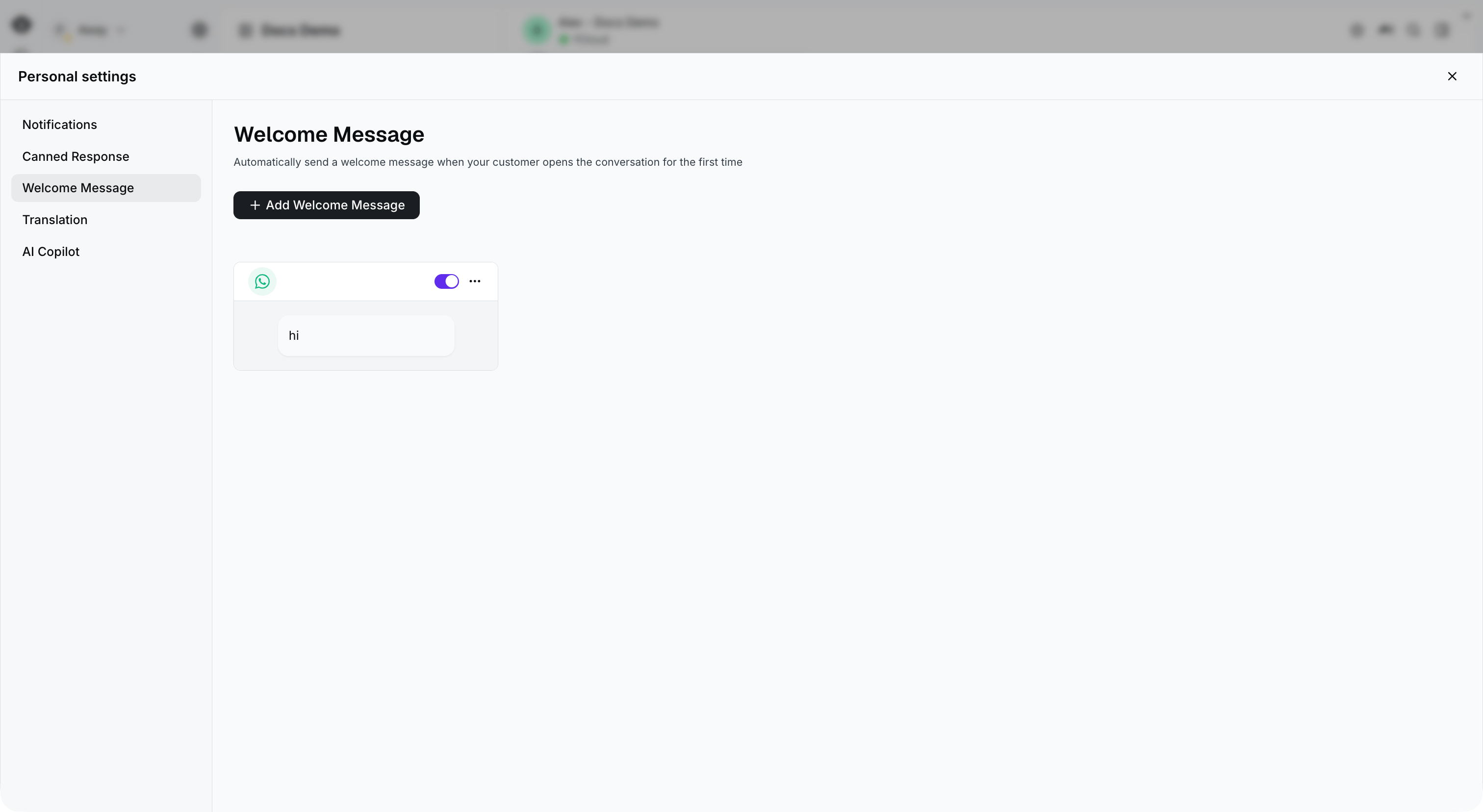
1. 选择 **Welcome Message** 来管理您的欢迎消息。

<Frame caption="Select Welcome Message in Personal settings, then select Add Welcome Message.">
  <img src="https://mintcdn.com/lchnan/rmZYWVwRdpR7TJaI/product-assets/english-help-context-2026-09-23/inbox-welcome-list-context.png?fit=max&auto=format&n=rmZYWVwRdpR7TJaI&q=85&s=be316709a8cdf44d9c2f74368f6db738" alt="完整收件箱个人设置面板中的欢迎消息部分。" width="3024" height="1656" data-path="product-assets/english-help-context-2026-09-23/inbox-welcome-list-context.png" />
</Frame>

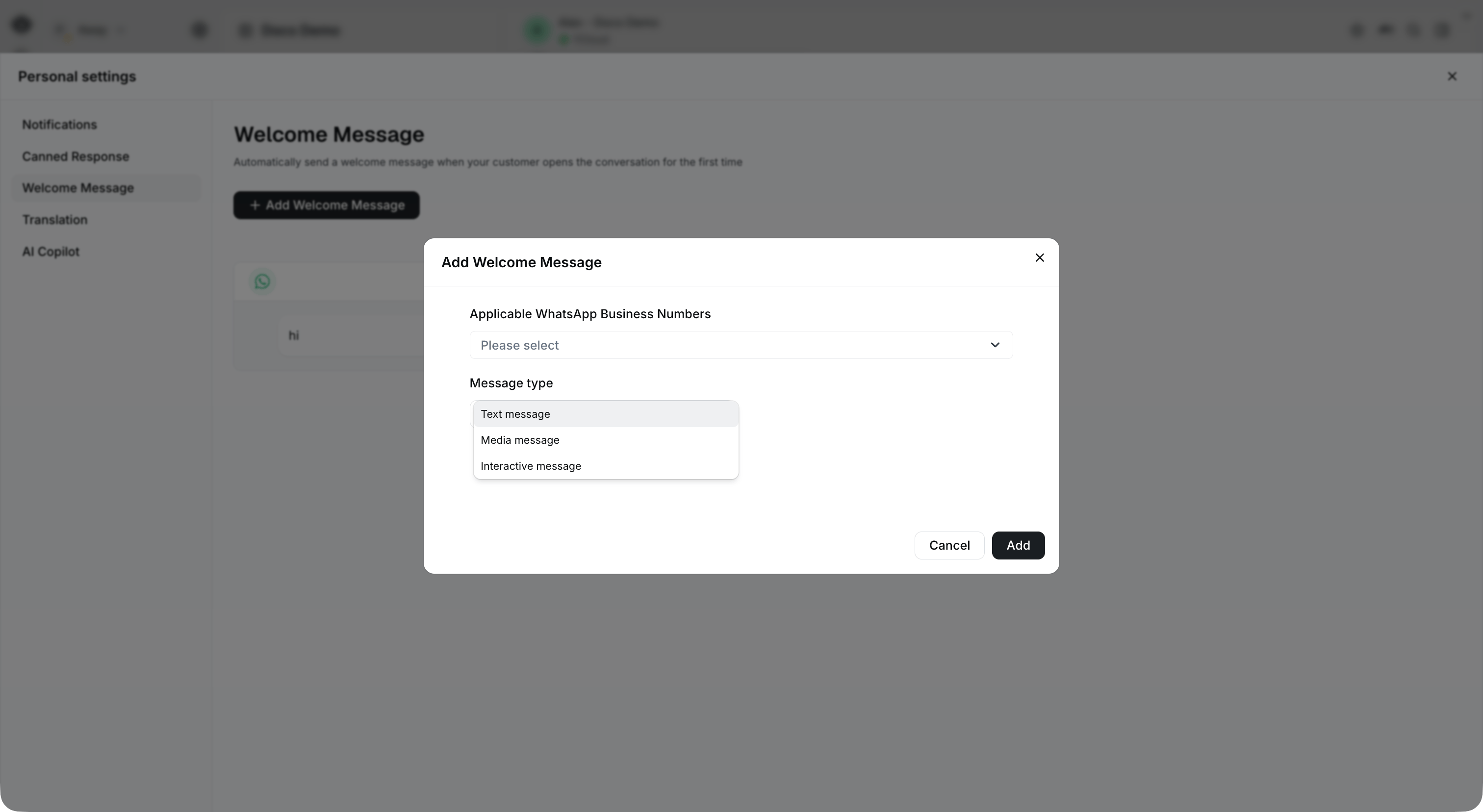
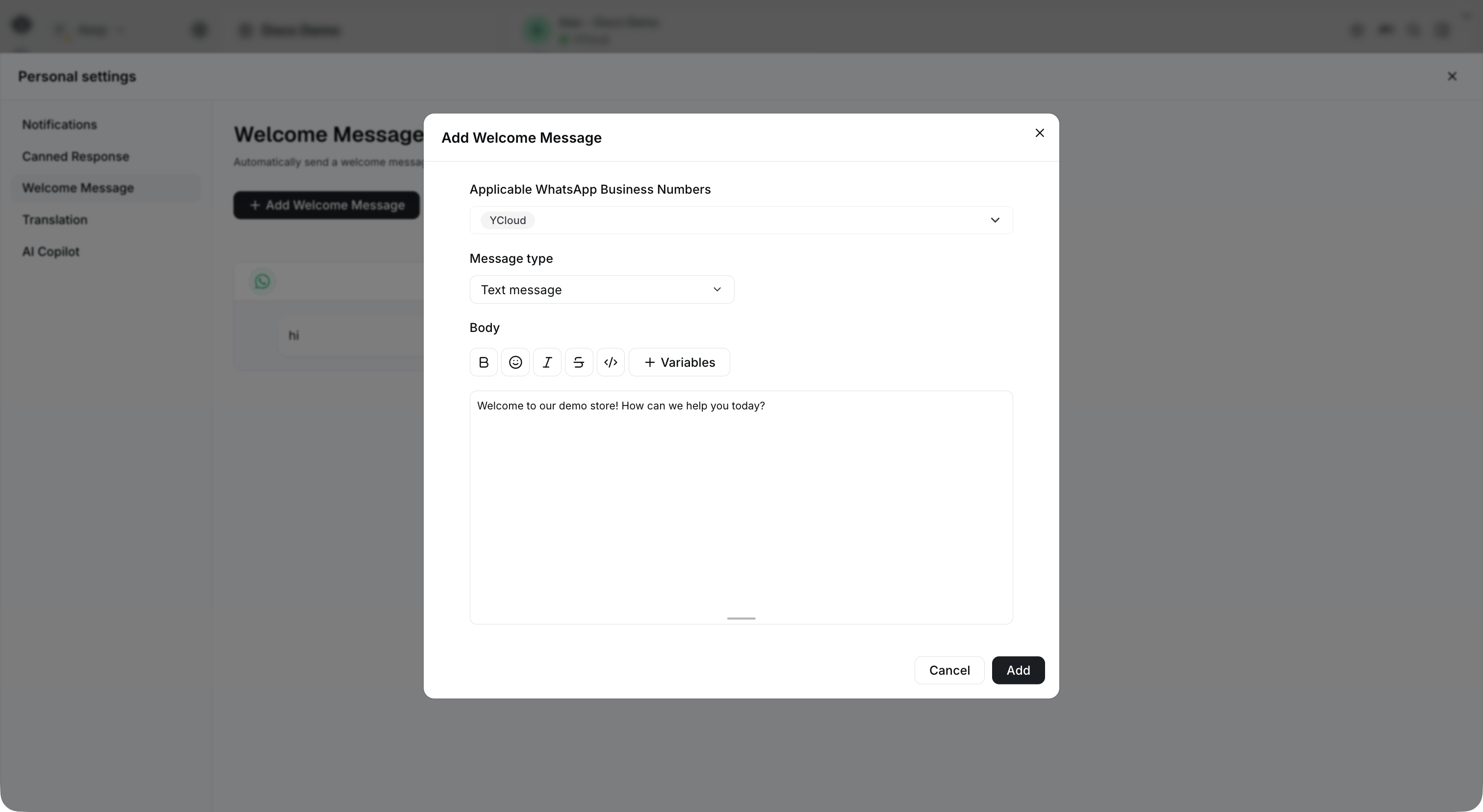
1. 点击 Add Welcome Message 按钮创建新的欢迎消息，然后选择其适用的商业号码。支持三种不同类型的欢迎消息：文本、媒体和交互式消息

<Frame caption="Choose the applicable business numbers and select a message type.">
  <img src="https://mintcdn.com/lchnan/rmZYWVwRdpR7TJaI/product-assets/english-help-context-2026-09-23/inbox-welcome-types-context.png?fit=max&auto=format&n=rmZYWVwRdpR7TJaI&q=85&s=66eee21b8d3d59febd55d182840f96a0" alt="欢迎消息对话框，显示文本、媒体和交互式消息类型。" width="3024" height="1656" data-path="product-assets/english-help-context-2026-09-23/inbox-welcome-types-context.png" />
</Frame>

<Frame caption="For a text message, enter the welcome text in Body. This example has not been saved.">
  <img src="https://mintcdn.com/lchnan/rmZYWVwRdpR7TJaI/product-assets/english-help-context-2026-09-23/inbox-welcome-text-context.png?fit=max&auto=format&n=rmZYWVwRdpR7TJaI&q=85&s=e3763301fe268f78200ee5836e429255" alt="未保存的文本欢迎消息，包含选定的测试商业号码和正文文本。" width="3024" height="1656" data-path="product-assets/english-help-context-2026-09-23/inbox-welcome-text-context.png" />
</Frame>

1. 开启开关以激活欢迎消息。您还可以通过点击右上角的按钮来编辑或删除欢迎消息
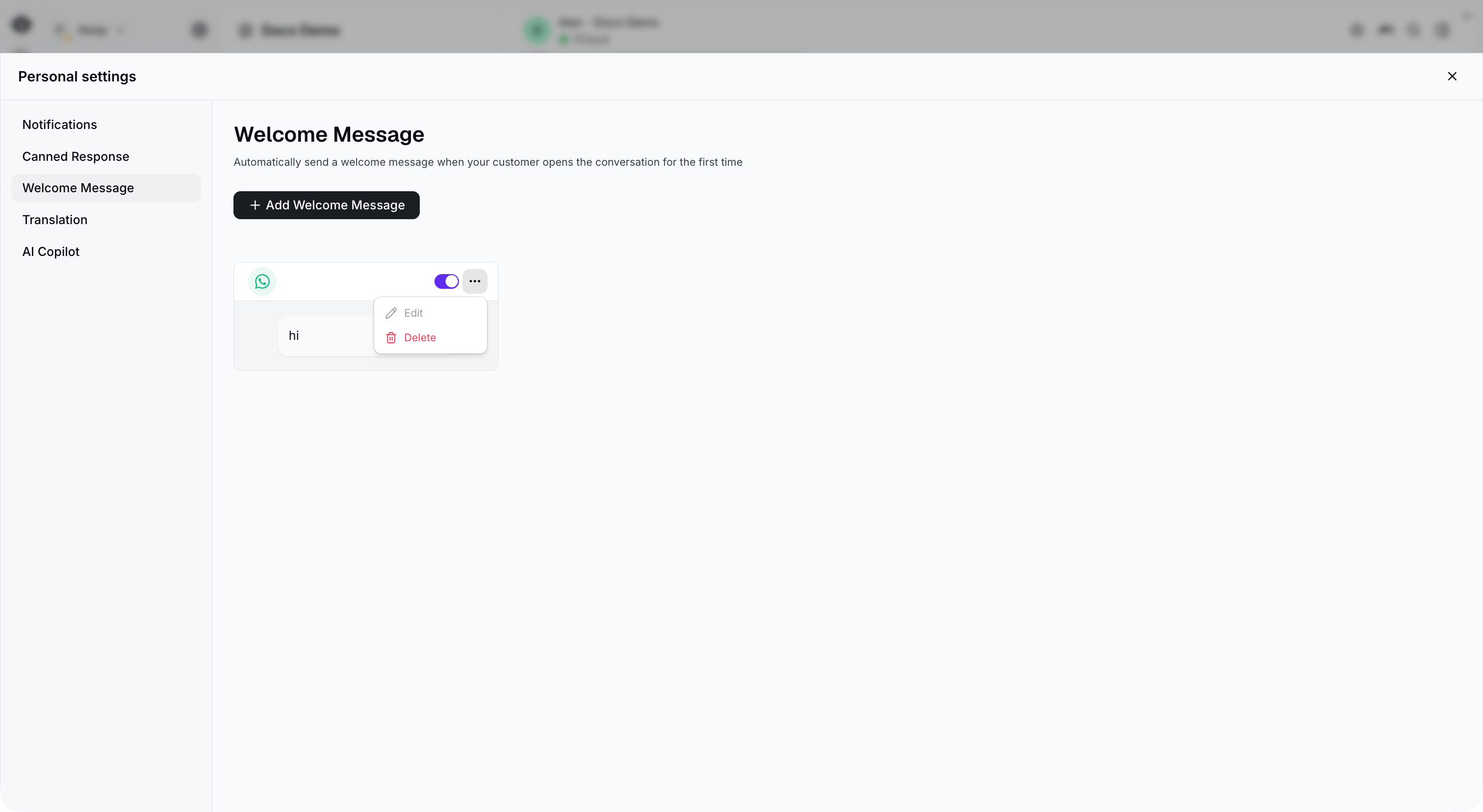
<Frame caption="The switch and actions menu appear at the top right of each welcome message card.">
  <img src="https://mintcdn.com/lchnan/rmZYWVwRdpR7TJaI/product-assets/english-help-context-2026-09-23/inbox-welcome-actions-context.png?fit=max&auto=format&n=rmZYWVwRdpR7TJaI&q=85&s=3b1ba746314f6d7e51d42c9b353cb023" alt="完整的欢迎消息设置，显示启用开关和操作菜单。" width="3024" height="1656" data-path="product-assets/english-help-context-2026-09-23/inbox-welcome-actions-context.png" />
</Frame>

#### 2. 基于规则的 Agent 欢迎消息

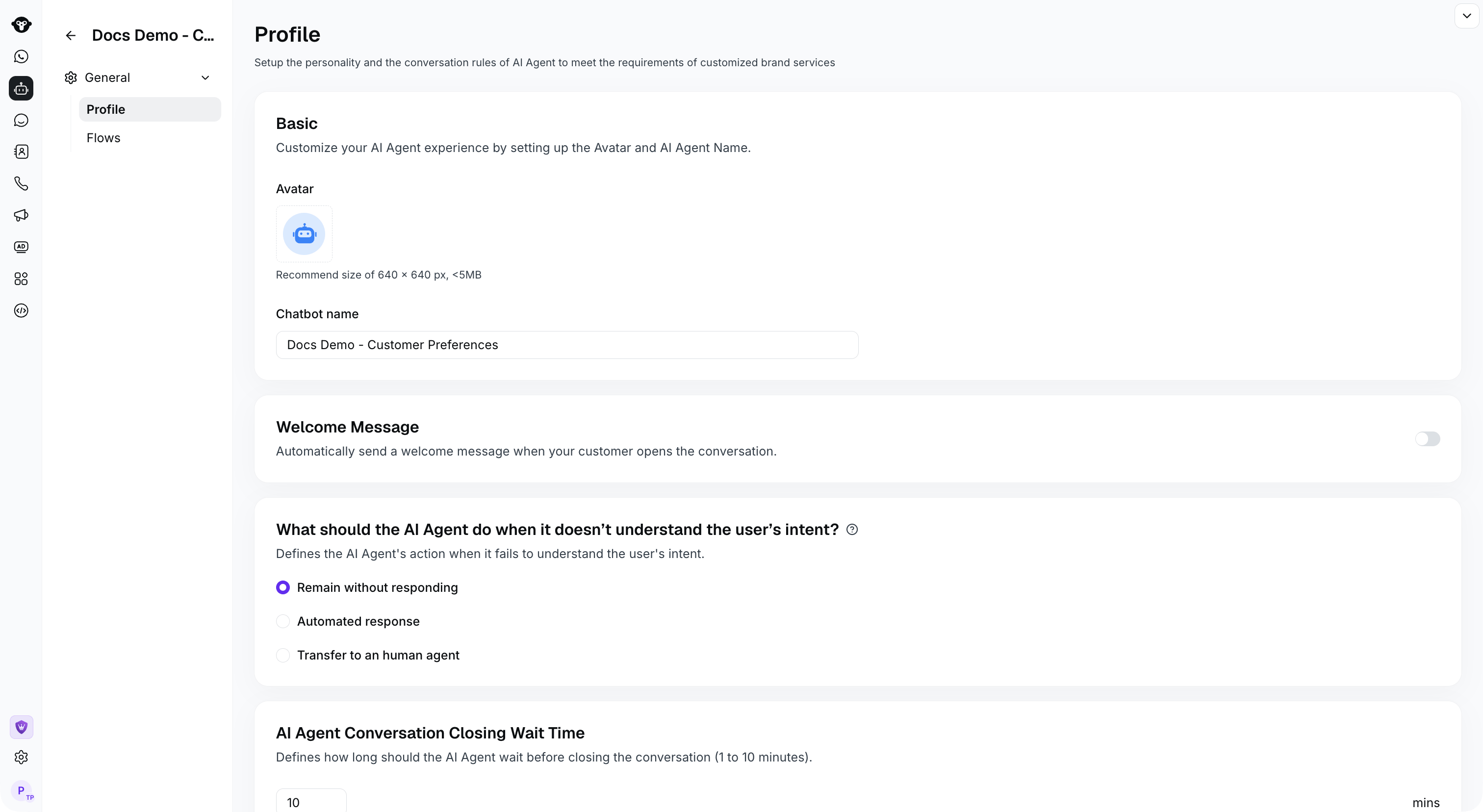
要为基于规则的 Agent 配置欢迎消息，请打开 **AI Agent**，选择 **Rule-based Agent** 标签页和您的 Agent，然后前往 **General > Profile > Welcome Message**。屏幕截图显示演示 Agent 中该设置处于关闭状态；开启它即可为您的 Agent 配置消息。

<Frame caption="Find Welcome Message in the rule-based agent's Profile settings.">
  <img src="https://mintcdn.com/lchnan/TsMGu8UTNQaUw-Rc/product-assets/english-help-demo-2026-09-23/rule-agent-profile.png?fit=max&auto=format&n=TsMGu8UTNQaUw-Rc&q=85&s=29ab23961a1b2eab67cdcc42da544233" alt="完整的基于规则的 Agent 资料页面，显示欢迎消息开关。" width="3024" height="1656" data-path="product-assets/english-help-demo-2026-09-23/rule-agent-profile.png" />
</Frame>


This documentation is built and hosted on [Mintlify](https://mintlify.com), a developer documentation platform.