> ## Documentation Index
> Fetch the complete documentation index at: https://docs.ycloud.com/llms.txt
> Use this file to discover all available pages before exploring further.
# 连接您的 Shopify 店铺
> 将 Shopify 连接到 YCloud,同步符合条件的客户联系人,并使用 Shopify 通知和聊天功能。
# 连接您的 Shopify 店铺
将您的 Shopify 店铺连接到 YCloud,即可手动同步符合条件的客户联系人、根据 Shopify 事件发送 WhatsApp 通知,并在您的店面中添加聊天组件。
## 集成支持的功能
连接店铺后,您可以:
* 将包含电话号码的 Shopify 客户同步到 YCloud 中的 **Contacts** 。
* 针对弃购、COD 订单确认、已发货订单和已取消订单配置 WhatsApp 通知。
* 在您的 Shopify 店面添加 WhatsApp 聊天组件。
## 连接您的店铺
1. 在 YCloud 中,前往 **Integrations** > **Shopify** 并选择 **Install**。
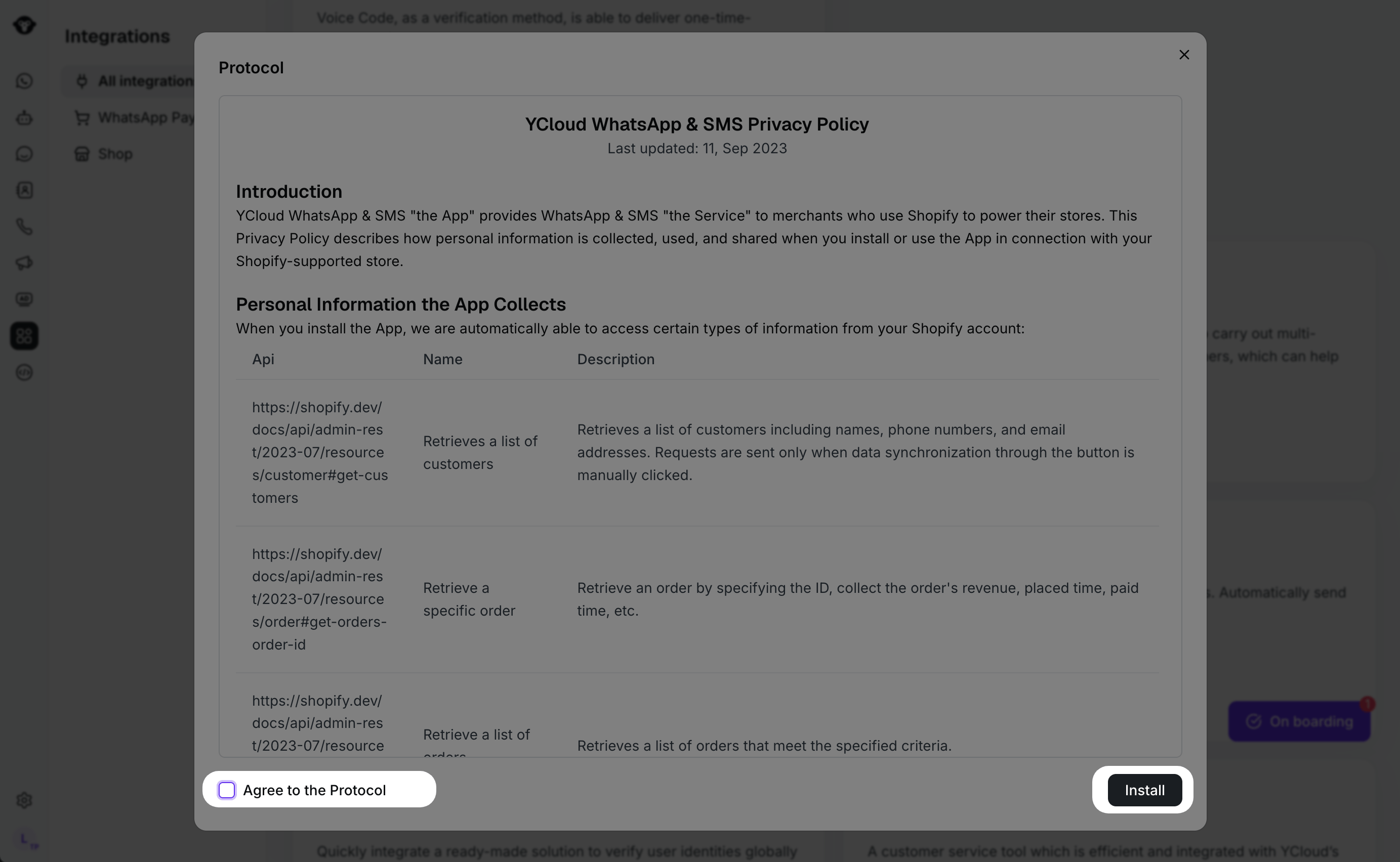
 2. 查看显示的同步协议和隐私声明。准备就绪后,选择 **Install**。
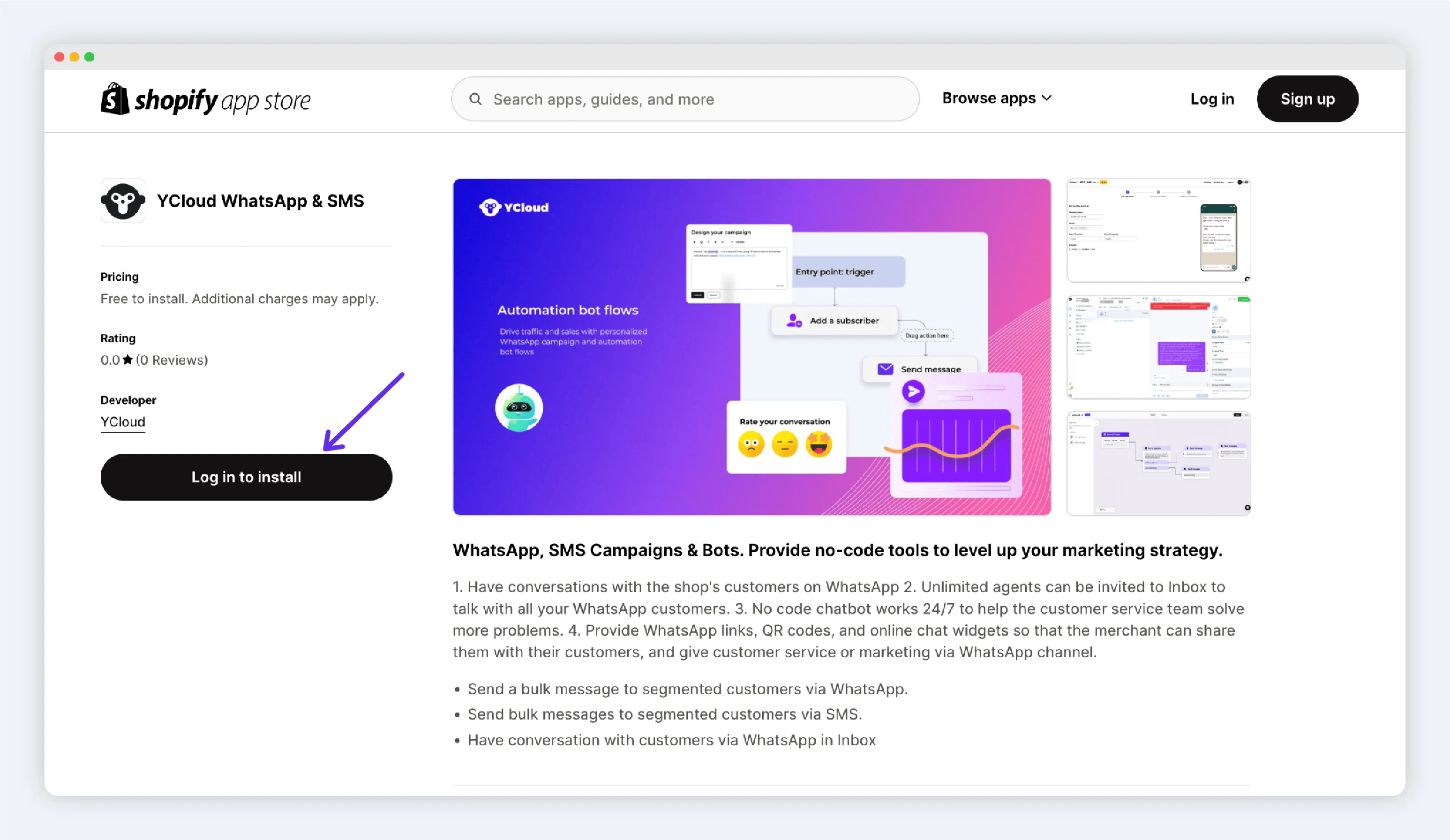
 3. 您将被重定向到 Shopify App Store。为您想要连接的店铺安装 YCloud 应用。
 ## 同步 Shopify 客户
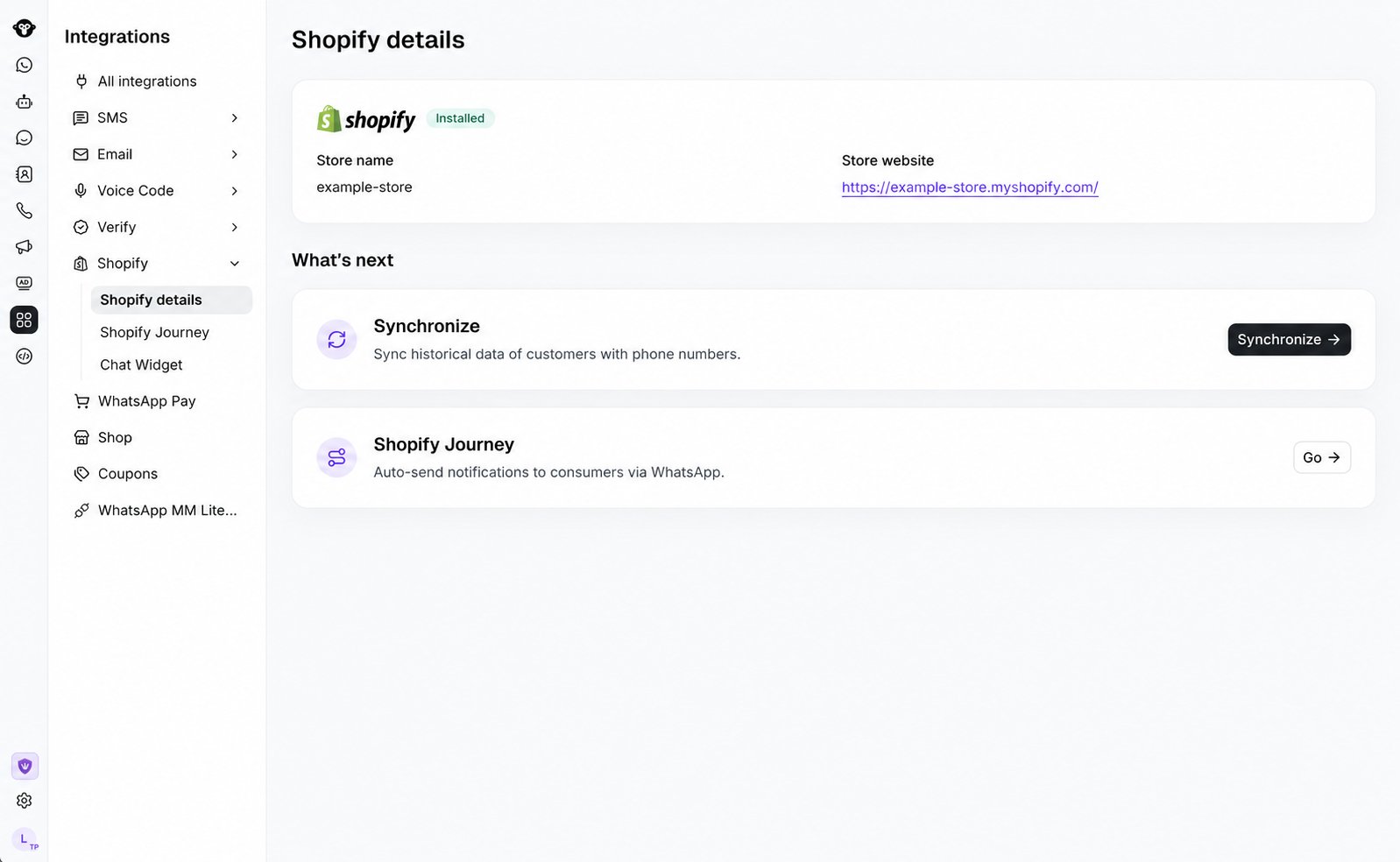
连接店铺后,客户同步为手动操作。
1. 在 YCloud 中打开 Shopify 集成。
2. 启动客户同步并确认显示的同步提示。
3. 在 **Contacts** 中查看已完成的联系人。
当前的历史同步仅包含带有电话号码的 Shopify 客户。
## 同步 Shopify 客户
连接店铺后,客户同步为手动操作。
1. 在 YCloud 中打开 Shopify 集成。
2. 启动客户同步并确认显示的同步提示。
3. 在 **Contacts** 中查看已完成的联系人。
当前的历史同步仅包含带有电话号码的 Shopify 客户。
 ## 使用 Shopify 通知
打开 **Shopify Journey** 以配置适合您店铺的通知场景:
* [挽回弃购](/zh/documentation/integrations/e-commerce/shopify/recover-abandoned-checkouts)
* [确认 COD 订单](/zh/documentation/integrations/e-commerce/shopify/confirm-cod-orders)
* [通知客户订单已取消或已发货](/zh/documentation/integrations/e-commerce/shopify/notify-customers-about-canceled-or-fulfilled-orders)
## 添加聊天组件
使用 YCloud Chatlink 组件让店面访客发起 WhatsApp 对话。请参阅[在您的 Shopify 店铺中添加聊天组件](/zh/documentation/integrations/e-commerce/shopify/add-a-chat-widget-to-your-shopify-store)。
## 常见问题
不会。店铺连接后需手动启动同步。当前的历史同步包含带有电话号码的 Shopify 客户。
您可以同步符合条件的客户联系人、配置四种 WhatsApp 通知场景,并在您的店面添加 WhatsApp 聊天组件。
在 Shopify 管理后台中,前往 **Settings** > **Apps**。对于 YCloud 应用,选择 **…** 按钮,然后选择 **Uninstall**。您可以选择填写卸载原因,然后再次选择 **Uninstall** 予以确认。
有关 Shopify 的完整说明,请参阅[卸载应用](https://help.shopify.com/en/manual/apps/uninstalling-apps)。
This documentation is built and hosted on [Mintlify](https://mintlify.com), a developer documentation platform.
## 使用 Shopify 通知
打开 **Shopify Journey** 以配置适合您店铺的通知场景:
* [挽回弃购](/zh/documentation/integrations/e-commerce/shopify/recover-abandoned-checkouts)
* [确认 COD 订单](/zh/documentation/integrations/e-commerce/shopify/confirm-cod-orders)
* [通知客户订单已取消或已发货](/zh/documentation/integrations/e-commerce/shopify/notify-customers-about-canceled-or-fulfilled-orders)
## 添加聊天组件
使用 YCloud Chatlink 组件让店面访客发起 WhatsApp 对话。请参阅[在您的 Shopify 店铺中添加聊天组件](/zh/documentation/integrations/e-commerce/shopify/add-a-chat-widget-to-your-shopify-store)。
## 常见问题
不会。店铺连接后需手动启动同步。当前的历史同步包含带有电话号码的 Shopify 客户。
您可以同步符合条件的客户联系人、配置四种 WhatsApp 通知场景,并在您的店面添加 WhatsApp 聊天组件。
在 Shopify 管理后台中,前往 **Settings** > **Apps**。对于 YCloud 应用,选择 **…** 按钮,然后选择 **Uninstall**。您可以选择填写卸载原因,然后再次选择 **Uninstall** 予以确认。
有关 Shopify 的完整说明,请参阅[卸载应用](https://help.shopify.com/en/manual/apps/uninstalling-apps)。
This documentation is built and hosted on [Mintlify](https://mintlify.com), a developer documentation platform.