> ## Documentation Index
> Fetch the complete documentation index at: https://docs.ycloud.com/llms.txt
> Use this file to discover all available pages before exploring further.

# 消息状态规则

> 根据联系人是否已读或回复模板消息来对其进行分流通路。

# 消息状态规则

使用 **消息状态规则** ，根据联系人是否 **已读** 或 **回复** 了在同一旅程中之前发送的模板消息来对其进行分流通路。

例如，您可以向已阅读模板但未回复的联系人发送跟进消息。

## 开始之前

在添加消息状态规则之前，请先添加并配置要评估的 **发送模板** 步骤。

您只能选择当前旅程中前面的 **发送模板** 组件所使用的模板。

## 配置规则

1. 在 **发送模板** 步骤后添加 **消息状态规则** 。
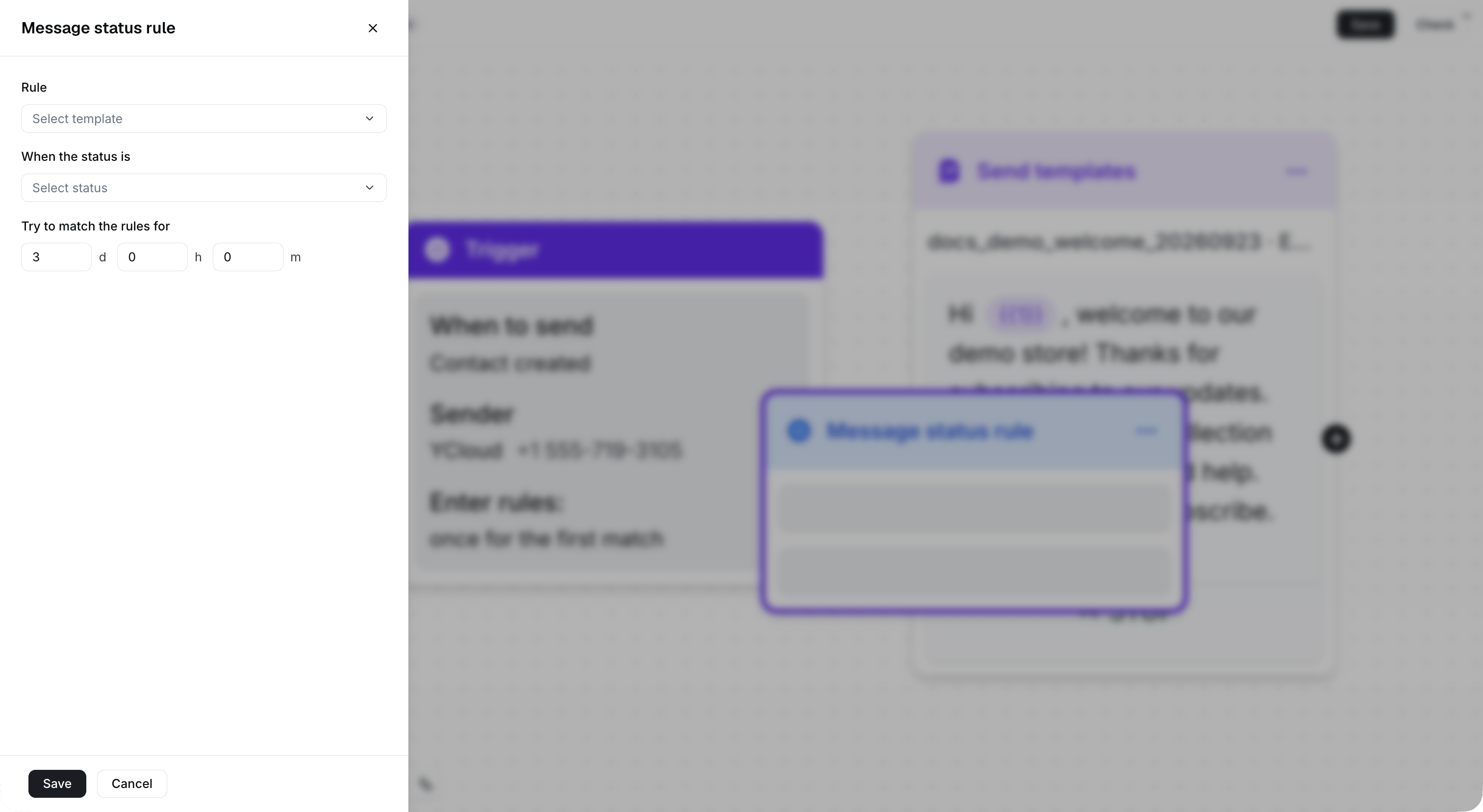
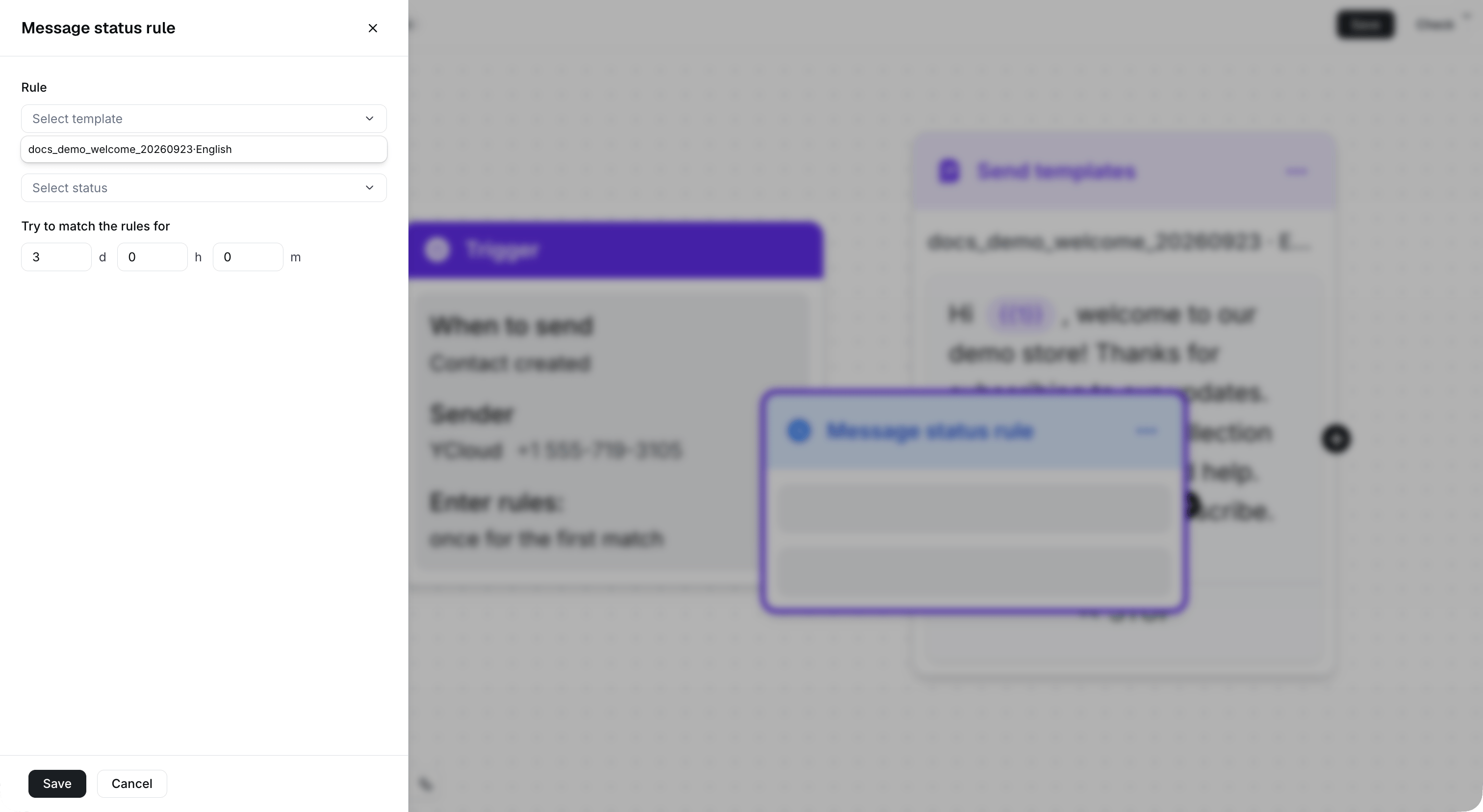
2. 选择要评估的模板消息。
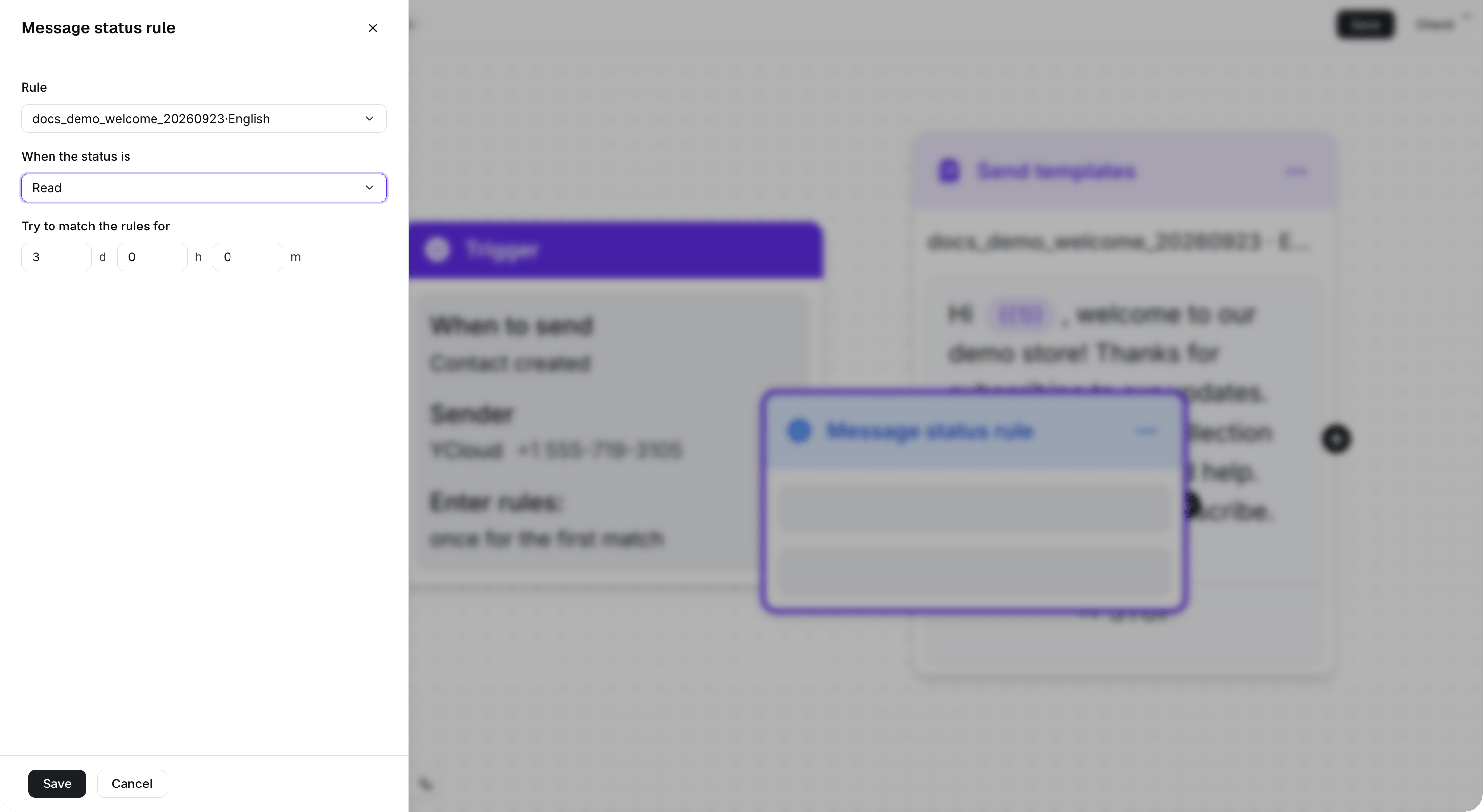
3. 选择 **已读** 或 **已回复** 作为要检查的状态。
4. 设置等待时间。您可以设置 1 分钟到 30 天之间的时间段。
5. 连接两种结果的后续步骤。

该规则包含两个分支：

* 匹配分支在等待期内满足所选状态时执行。
* 未匹配分支在等待期结束且未满足所选状态时执行。
<Frame caption="This example checks whether the selected welcome template is read within three days.">
  <img src="https://mintcdn.com/lchnan/rmZYWVwRdpR7TJaI/product-assets/english-help-context-2026-09-23/journey-status-rule-context.png?fit=max&auto=format&n=rmZYWVwRdpR7TJaI&q=85&s=4a0815d18bd987b74d590910966ae06c" alt="配置为在三天内检查已读状态的消息状态规则。" width="3024" height="1656" data-path="product-assets/english-help-context-2026-09-23/journey-status-rule-context.png" />
</Frame>

## 从“发送模板”步骤添加规则

将鼠标悬停在“发送模板”组件后面的连接点上，然后选择用于检查消息是否已读或已回复的可用选项。旅程将自动添加并连接一个新的消息状态规则。

<Frame caption="Use Read or Replied after the template node to add a connected status rule.">
  <img src="https://mintcdn.com/lchnan/rmZYWVwRdpR7TJaI/product-assets/english-help-context-2026-09-23/journey-status-shortcut-context-annotated.svg?fit=max&auto=format&n=rmZYWVwRdpR7TJaI&q=85&s=172da678016add4397f5ff0dc70ebc29" alt="“发送模板”节点后的“已读”和“已回复”快捷方式。" width="3024" height="1656" data-path="product-assets/english-help-context-2026-09-23/journey-status-shortcut-context-annotated.svg" />
</Frame>

## 手动添加规则

手动添加消息状态规则时，请在组件设置中选择模板消息和状态，然后将其连接到相应的前后步骤。

<Frame caption="Select Message status rule from Step Tools, then configure the template and status.">
  <img src="https://mintcdn.com/lchnan/rmZYWVwRdpR7TJaI/product-assets/english-help-context-2026-09-23/journey-status-manual-context.png?fit=max&auto=format&n=rmZYWVwRdpR7TJaI&q=85&s=3a7d4bff67edc271011abb954f497759" alt="手动添加的消息状态规则及其在旅程上打开的配置抽屉。" width="3024" height="1656" data-path="product-assets/english-help-context-2026-09-23/journey-status-manual-context.png" />
</Frame>

<Frame caption="Select the template used by the preceding Send templates step.">
  <img src="https://mintcdn.com/lchnan/rmZYWVwRdpR7TJaI/product-assets/english-help-context-2026-09-23/journey-status-template-context.png?fit=max&auto=format&n=rmZYWVwRdpR7TJaI&q=85&s=8726717bc4e6558ca331deba9567defc" alt="消息状态规则编辑器中的模板选择。" width="3024" height="1656" data-path="product-assets/english-help-context-2026-09-23/journey-status-template-context.png" />
</Frame>

## 后续步骤

使用匹配和未匹配分支来添加[发送模板](/zh/documentation/journey/components-and-features-introduction/send-template)、[添加标签](/zh/documentation/journey/components-and-features-introduction/add-tag)或其他后续步骤。


This documentation is built and hosted on [Mintlify](https://mintlify.com), a developer documentation platform.