> ## Documentation Index
> Fetch the complete documentation index at: https://docs.ycloud.com/llms.txt
> Use this file to discover all available pages before exploring further.

# 支付设置

> 了解如何在您的 Shop 中配置支付方式。

# 支付设置

<Warning>
  目前，Shop 支持以下支付选项：

  * **货到付款 (COD)**
  * **PayPal 钱包**
</Warning>

***

首次开通 Shop 时，所有支付选项默认处于禁用状态。

您可以根据需要启用它们。

## 添加支付方式

* 前往 **集成 > Shop**，然后在 **支付** 部分点击 **添加** 。
* 选择您希望启用的支付方式。

<Frame caption="Select Add in the Payments section to choose a payment method.">
  <img src="https://mintcdn.com/lchnan/gXEJIQXV2JH2VUQJ/product-assets/english-help-2026-09-22/shop-settings-annotated.svg?fit=max&auto=format&n=gXEJIQXV2JH2VUQJ&q=85&s=67e0f4009aa06c7e3be02d4f306ffbb8" alt="启用任何支付方式之前的 Shop 详情及支付部分。" width="3024" height="1656" data-path="product-assets/english-help-2026-09-22/shop-settings-annotated.svg" />
</Frame>

选择 **添加**，然后选择要启用的支付方式。

<Frame caption="Choose a payment method in Integrations > Shop > Payments. Selecting an option does not activate it.">
  <img src="https://mintcdn.com/lchnan/6u8ntRayC38GXyQF/product-assets/english-help-context-2026-09-25/final-shop-payment-methods-annotated.svg?fit=max&auto=format&n=6u8ntRayC38GXyQF&q=85&s=3a4c5637a033754e3620b407b5d58ed8" alt="包含 PayPal 和货到付款的 Shop 支付方式选择器。" width="3024" height="1656" data-path="product-assets/english-help-context-2026-09-25/final-shop-payment-methods-annotated.svg" />
</Frame>

## 货到付款 (COD)

**启用步骤：**

1. 选择 **货到付款**。
2. 在弹窗中，选择 **启用**。

<Frame caption="Select Cash on delivery, then Activate when you are ready to enable it. This example has not been activated.">
  <img src="https://mintcdn.com/lchnan/6u8ntRayC38GXyQF/product-assets/english-help-context-2026-09-25/final-shop-cod-annotated.svg?fit=max&auto=format&n=6u8ntRayC38GXyQF&q=85&s=ebaf6d4f1ea743fe207256389d015f9e" alt="在当前 Shop 支付方式弹窗中选择货到付款。" width="3024" height="1656" data-path="product-assets/english-help-context-2026-09-25/final-shop-cod-annotated.svg" />
</Frame>

* 启用后：

  * COD 将作为可用的支付选项显示在结账页面。
  * 客户无需预先付款即可下单。
  * 您发货，客户在收到商品时付款。

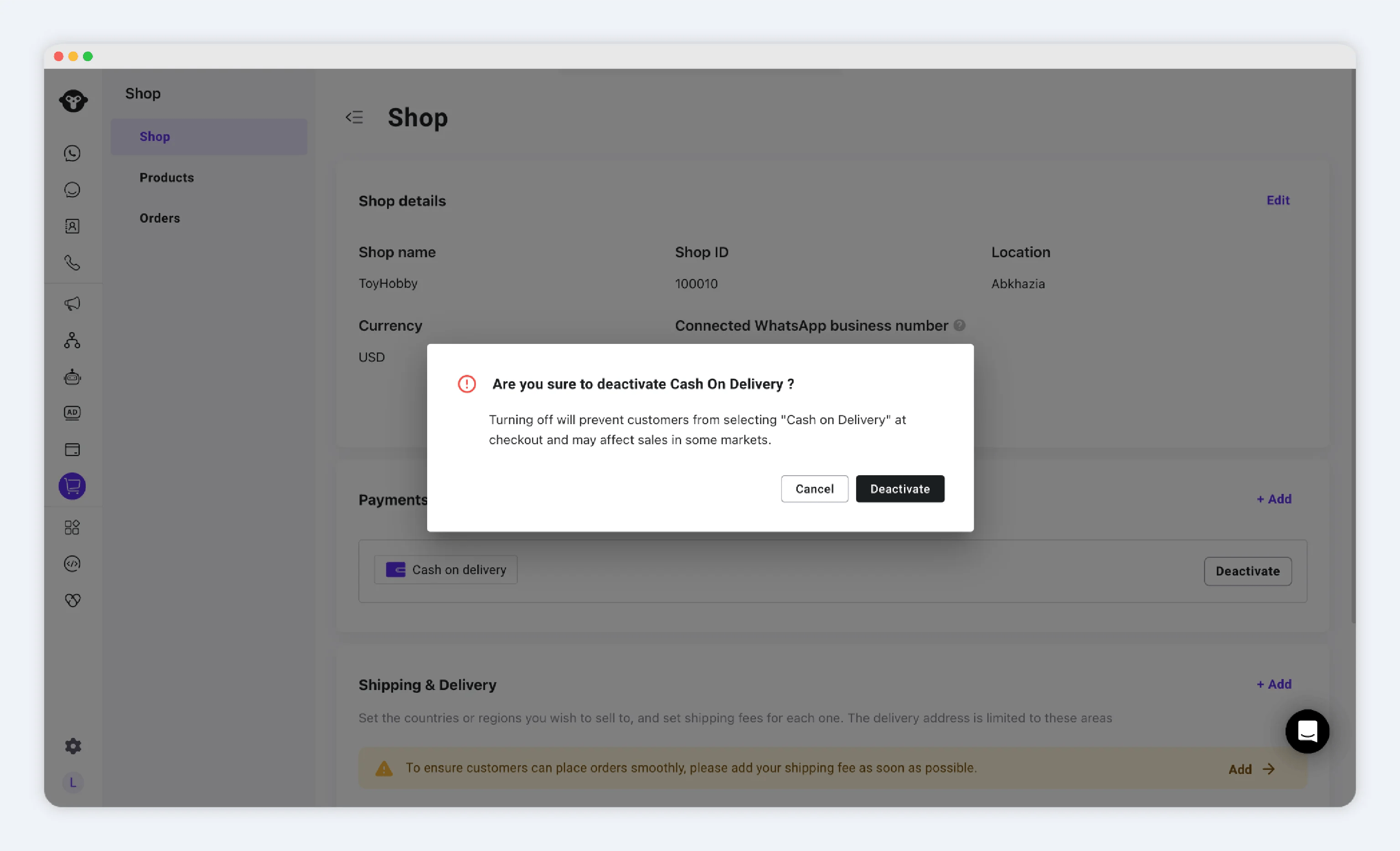
要禁用 COD，请选择 **停用**。

<Frame>
  <img src="https://mintcdn.com/lchnan/WD-ixrYVrqB7b7aQ/product-assets/49700796e0-shop-shopbasic-cod-deavtive-popup.webp?fit=max&auto=format&n=WD-ixrYVrqB7b7aQ&q=85&s=3a58532440d957f52a303e2f2c0eaf27" alt="货到付款停用弹窗" width={760} data-path="product-assets/49700796e0-shop-shopbasic-cod-deavtive-popup.webp" />
</Frame>

COD 将不再出现在结账页面。

## PayPal 钱包

**启用步骤：**

1. 选择 **PayPal**。
2. 选择 **启用**。
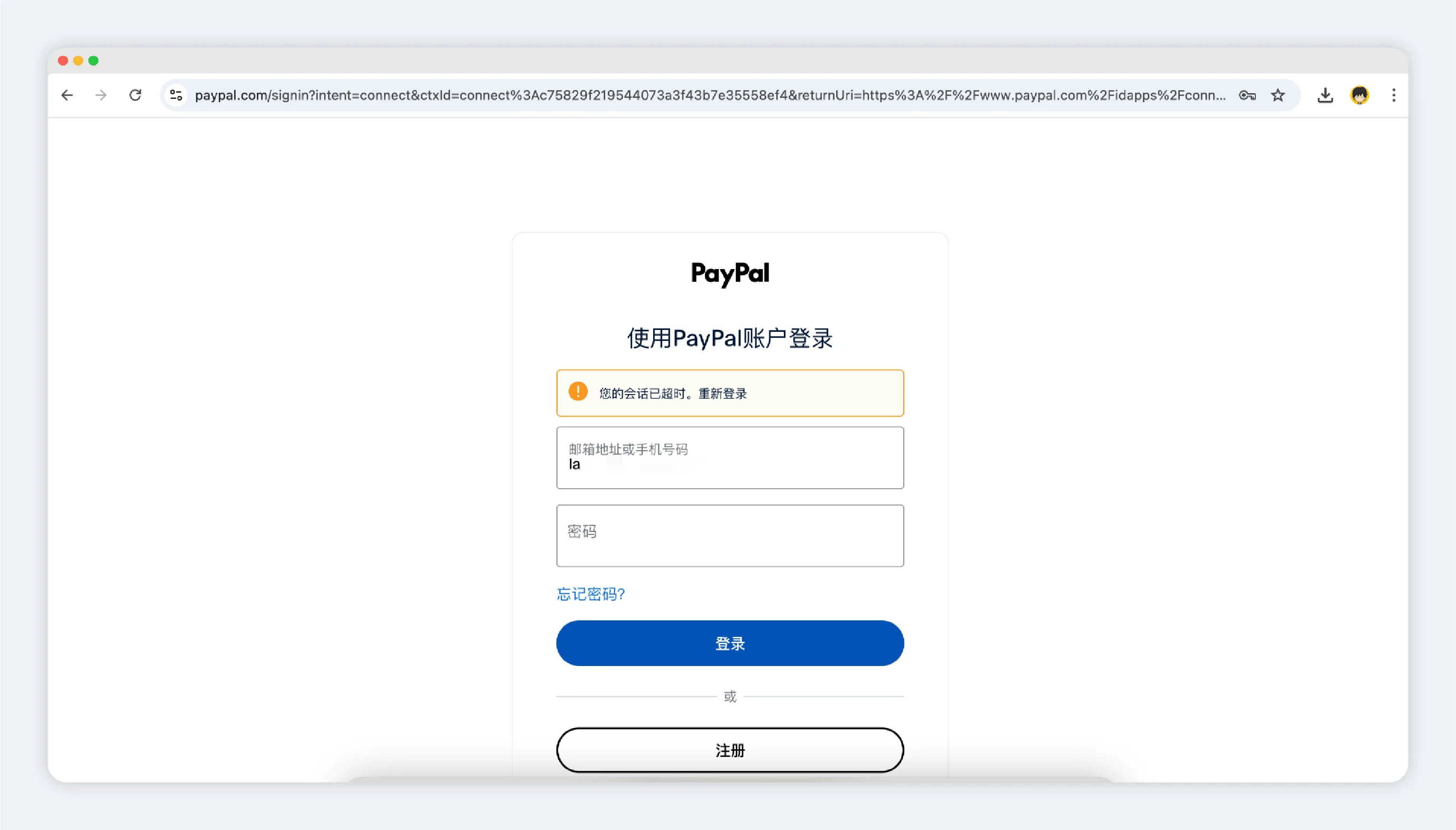
3. 系统将跳转至 PayPal，供您登录并授权连接：
   * 必须使用 **企业 (Business)** PayPal 账户（无法连接个人账户）。

<Frame>
  <img src="https://mintcdn.com/lchnan/9zlgZMZStxEKrVPM/product-assets/06a471d105-payment-paypal-login.webp?fit=max&auto=format&n=9zlgZMZStxEKrVPM&q=85&s=95b685a04b5458247f7e01701acf42e6" alt="PayPal 企业账户授权页面" width={760} data-path="product-assets/06a471d105-payment-paypal-login.webp" />
</Frame>

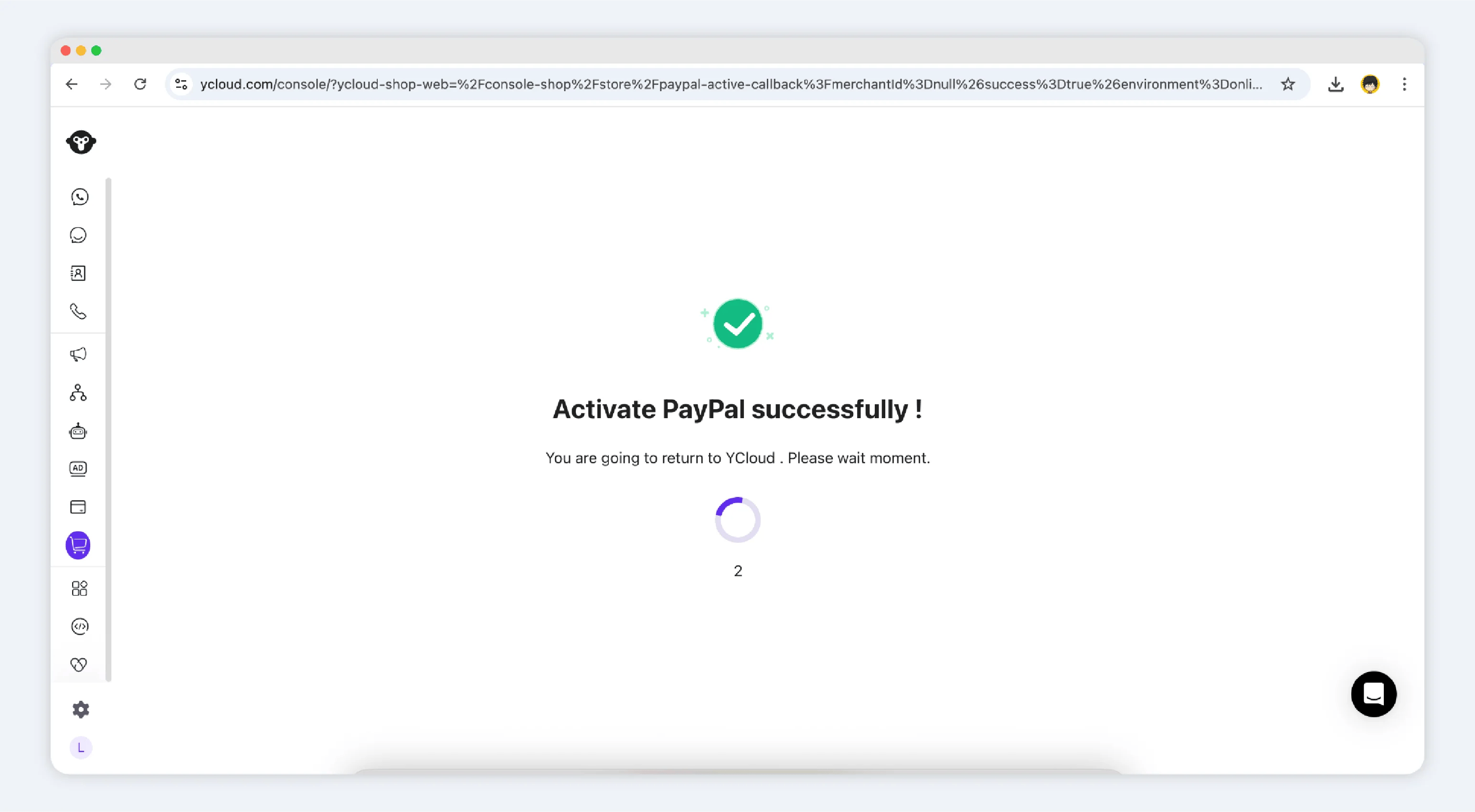
4. 授权完成后，您将返回 Shop 后台，并看到绑定成功的确认信息。

<Frame>
  <img src="https://mintcdn.com/lchnan/NjO13A6gLJKR9m7M/product-assets/82379f4986-paypal-oauth-successfully.webp?fit=max&auto=format&n=NjO13A6gLJKR9m7M&q=85&s=4dfd670e5acf101730d6ebf10c1a7755" alt="PayPal 授权成功确认" width={760} data-path="product-assets/82379f4986-paypal-oauth-successfully.webp" />
</Frame>

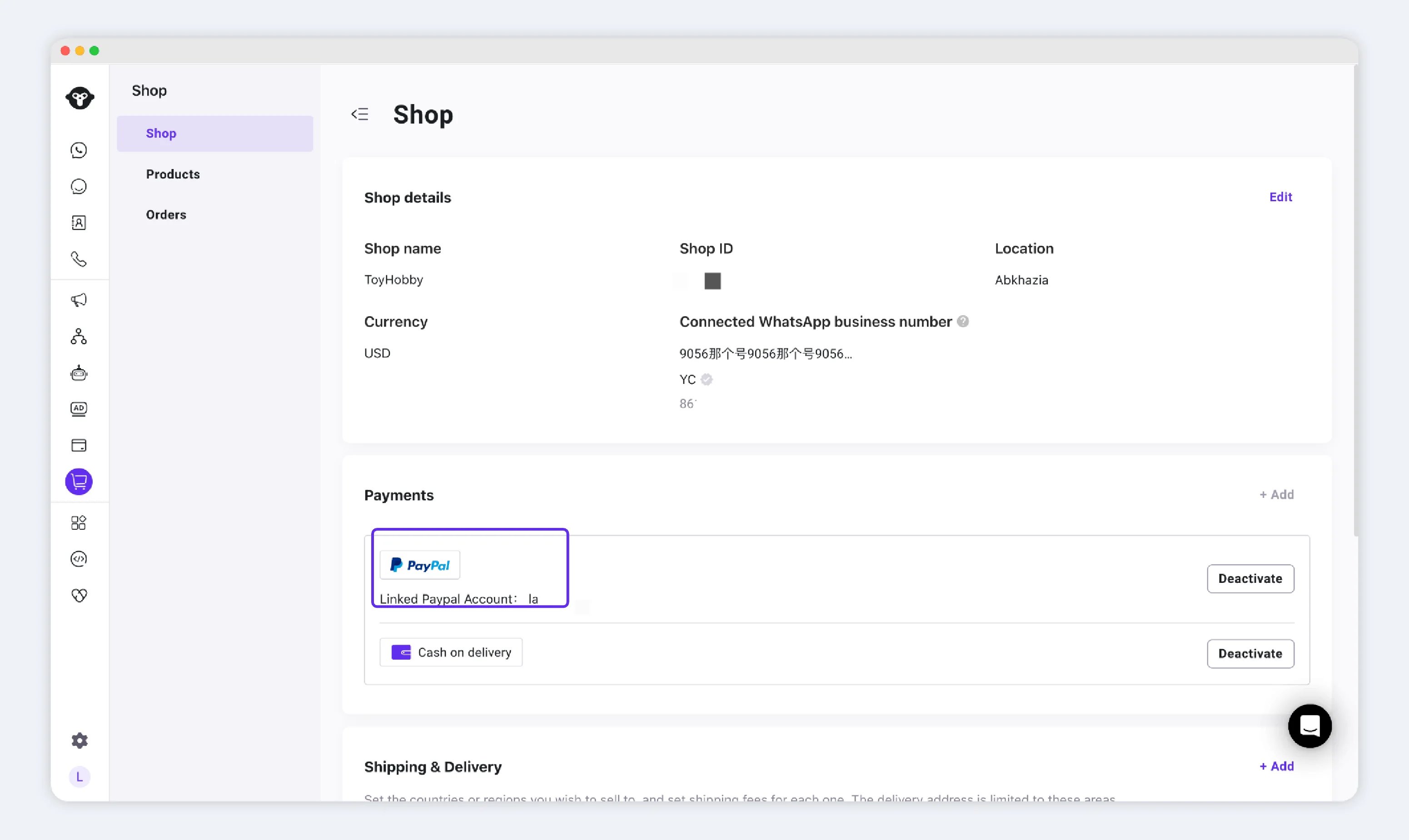
5. 您将在支付部分看到已列出的 PayPal 企业账户。

<Frame>
  <img src="https://mintcdn.com/lchnan/WD-ixrYVrqB7b7aQ/product-assets/3f31c3dc48-shop-shopbase-paypal-active-1.webp?fit=max&auto=format&n=WD-ixrYVrqB7b7aQ&q=85&s=3aface4dbb0a929259d3e5a41261f8f5" alt="Shop 支付设置中已启用 PayPal 钱包" width={760} data-path="product-assets/3f31c3dc48-shop-shopbase-paypal-active-1.webp" />
</Frame>

6. 启用后，PayPal 将作为可用支付选项显示在结账页面。

要停用，只需点击 **停用**，PayPal 就会从客户的支付选项中移除。

完成支付设置后，您可以继续进行：

* [**管理商品**](/zh/documentation/shop/product)
* [**管理订单**](/zh/documentation/shop/orders/index)


This documentation is built and hosted on [Mintlify](https://mintlify.com), a developer documentation platform.