

What it is
Send template, media, interactive, commerce, Flow, and calling messages with annotated request examples.Before you begin
- Store a YCloud API key in a server-side secret.
- Connect the WhatsApp Business Account and phone number used by the request.
- Create and approve any template referenced by a messaging request.
- Replace every placeholder with a value from your own account.
How it works
Choose the scenario that matches the message or template you want to build. Compare its fields with the API Reference, replace the placeholders, and test with a controlled recipient before using the request in production.Request
Each scenario includes a complete message request. The examples use direct sending for fast feedback, but the same message objects can also be queued.Response
A successful send response confirms that YCloud accepted the message request; use message retrieval orwhatsapp.message.updated webhooks to determine the final delivery state.
Use the WhatsApp messaging guide for lifecycle guidance and the API Reference for the complete schema.
Choose an example
Template messages
Send approved templates for authentication, marketing, utility, and commerce use cases.
Free-form messages
Send text, media, location, contact, and reaction messages inside an open customer service window.
Interactive messages
Add lists, buttons, Flows, products, calling, and carousel interactions.
Commerce messages
Send product, order details, order status, and checkout experiences.
Template message examples
The examples below are WhatsApp template message examples. Each template must be created and approved before it can be used to send messages.Authentication template message with one-time password buttons
In this case, you have an Authentication template with Copy Code button, Authentication template with one-tap button, or Zero-tap authentication template, and send a template message:- Contains a one-time password or verification code to be delivered to the customer.
- Contains a copy code button, a one-tap autofill button, or no button at all if using zero-tap.
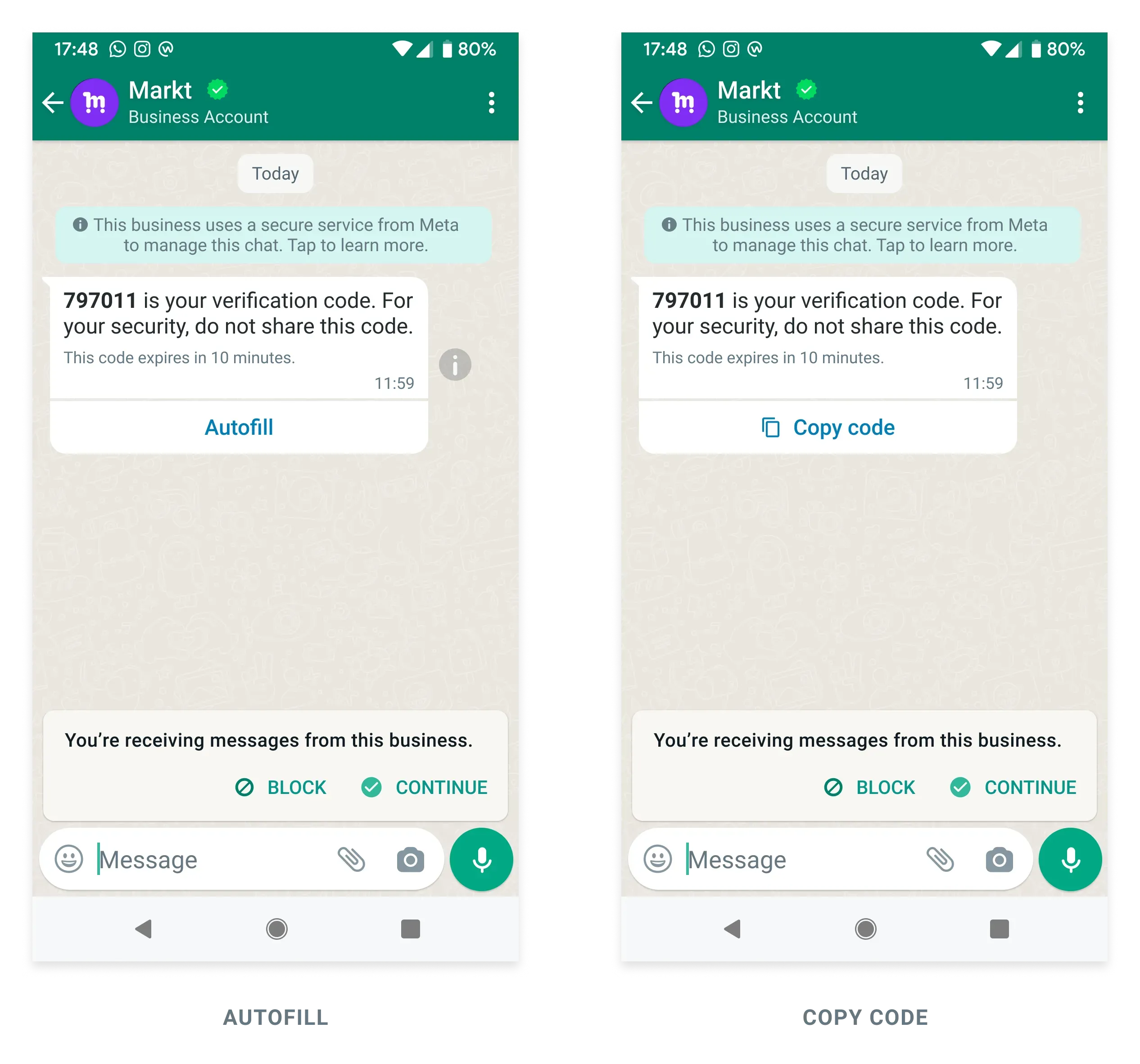
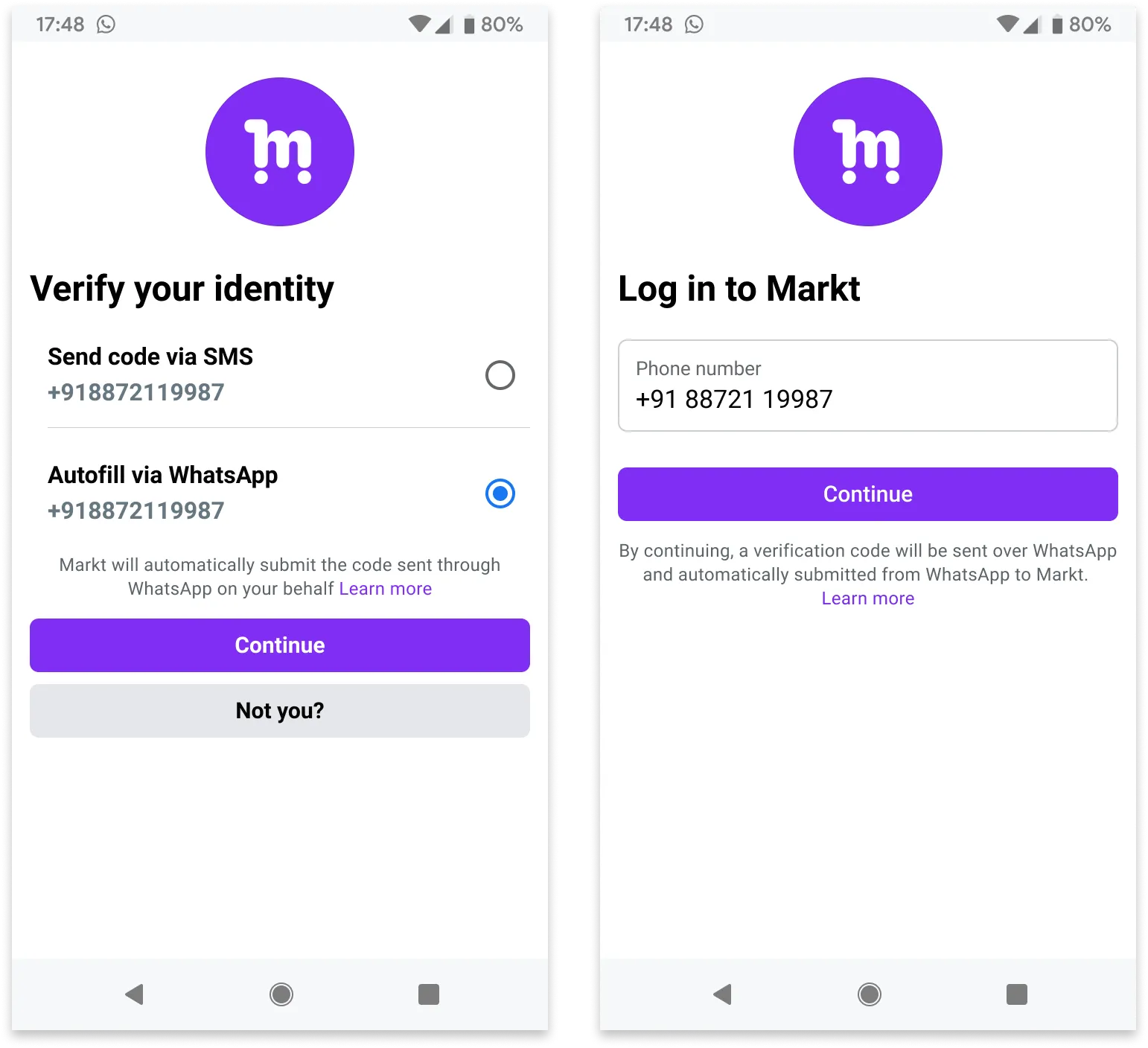
ZERO-TAP
Request
Response
A successful request returns the YCloud message object. An initialaccepted status confirms submission, not final delivery.
id and correlate later whatsapp.message.updated events.
Explanation
- The message body text will contain the verification code found in the body component. On the other hand, the code that is really used when users click the one-tap or copy code buttons is the one in the button component. They ought to be the same in most cases.
Template message with variables
In this case, you have a Utility template with variables in body, and send a template message:- Contains text with 3 variables in the body.
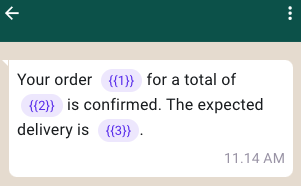
Request
Response
A successful request returns the YCloud message object. An initialaccepted status confirms submission, not final delivery.
id and correlate later whatsapp.message.updated events.
Explanation
- Make sure that the corresponding template has been approved.
- Set the right
typefor messages you send. In this case,typeis set totemplate, and thecomponentsandparametersof the messaging request must match the template.
Template message with image and Quick Reply buttons
In this case, you have a Marketing template with image and Quick Reply buttons, and send a template message:- Contains an image in the header.
- Contains text with 1 variable in the body.
- Contains text in the footer.
- Contains 2 Quick Reply buttons. The maximum number of Quick Reply buttons is 3.
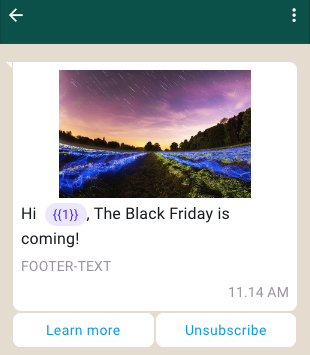
Request
Response
A successful request returns the YCloud message object. An initialaccepted status confirms submission, not final delivery.
id and correlate later whatsapp.message.updated events.
Explanation
- The
captionparameter (Used to describe the specifiedimage,video, ordocumentmedia.) is unsupported intemplateorinteractivemessages. - For more information about header media limitations, see Supported Media Types.
- Use
payloadto track user clicks on buttons. The button payload is not visible, but will be included when a user clicks a button, see also Inbound Template Button message.
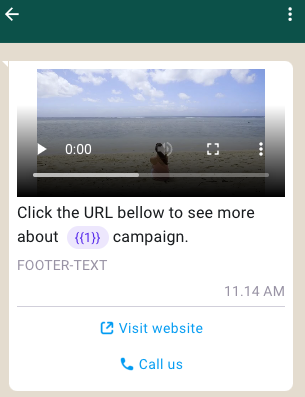
Template message with video and Call To Action buttons
In this case, you have a Marketing template with video and Call To Action buttons, and send a template message:- Contains a video in the header.
- Contains text with 1 variable in the body.
- Contains text in the footer.
- Contains 2 Call To Action buttons: 1
PHONE_NUMBERbutton, and 1URLbutton. TheURLbutton can have at most 1 variable at the end of the URL.
Request
Response
A successful request returns the YCloud message object. An initialaccepted status confirms submission, not final delivery.
id and correlate later whatsapp.message.updated events.
Explanation
- The
captionparameter (Used to describe the specifiedimage,video, ordocumentmedia.) is unsupported intemplateorinteractivemessages.
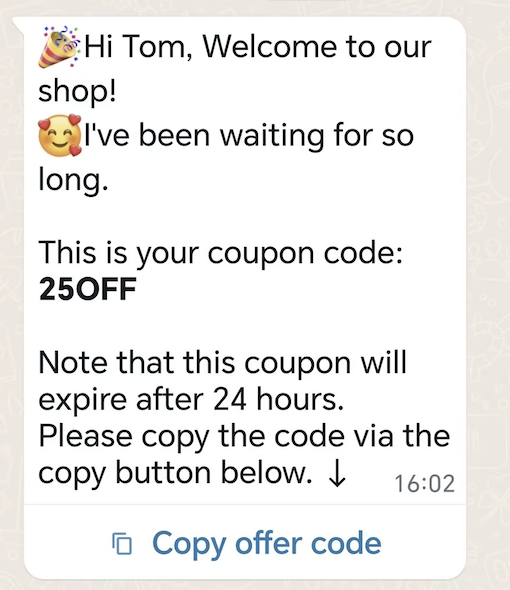
Coupon template message
In this case, you have a Coupon template, and send a template message:- Contains text with 2 variables in the body.
- Contains 1 Copy Code button.
Request
Response
A successful request returns the YCloud message object. An initialaccepted status confirms submission, not final delivery.
id and correlate later whatsapp.message.updated events.
Explanation
- Coupon codes are limited to 20 characters.
- Button text cannot be customized.
Location template message
In this case, you have a Location template, and send a location template message:Request
Response
A successful request returns the YCloud message object. An initialaccepted status confirms submission, not final delivery.
id and correlate later whatsapp.message.updated events.
Explanation
latitudeandlongitudeare required.
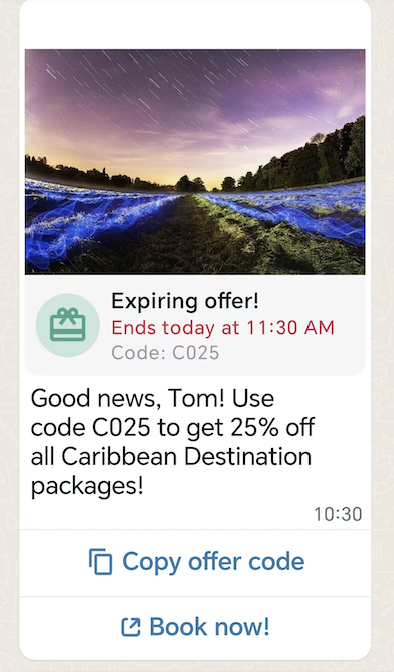
Limited-Time Offer template message
In this case, you have a Limited-Time Offer template, and send a limited-time offer (LTO) template message:- Contains an image in the header.
- Displays expiration dates and running countdown timers for the offer code.
- Contains text with 2 variables in the body.
- Contains 2 buttons: 1
COPY_CODEbutton, and 1URLbutton.
Request
Response
A successful request returns the YCloud message object. An initialaccepted status confirms submission, not final delivery.
id and correlate later whatsapp.message.updated events.
Explanation
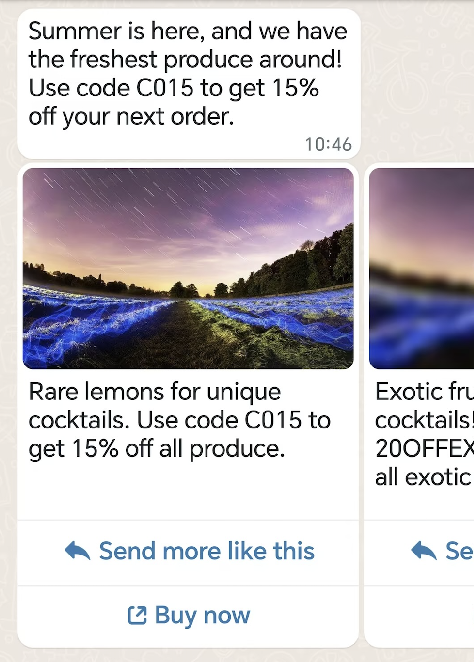
Match the request fields to the selected message type and use the returned message ID for status correlation.Carousel template message
In this case, you have a Carousel template, and send a carousel template message:- Contains text with 2 variables in the body.
- Contains 2 carousel cards in a horizontally scrollable view.
Request
Response
A successful request returns the YCloud message object. An initialaccepted status confirms submission, not final delivery.
id and correlate later whatsapp.message.updated events.
Explanation
- Message bubbles are text-only and support variables. There is no maximum character limit on variables, but it counts against the message bubble limit of 1024 characters.
- Card body text supports variables. There is no maximum character limit on variables, but they count against the card body text limit of 160 characters.
Catalog template message
In this case, you have a Catalog template, and send a message to share your product catalog with customers.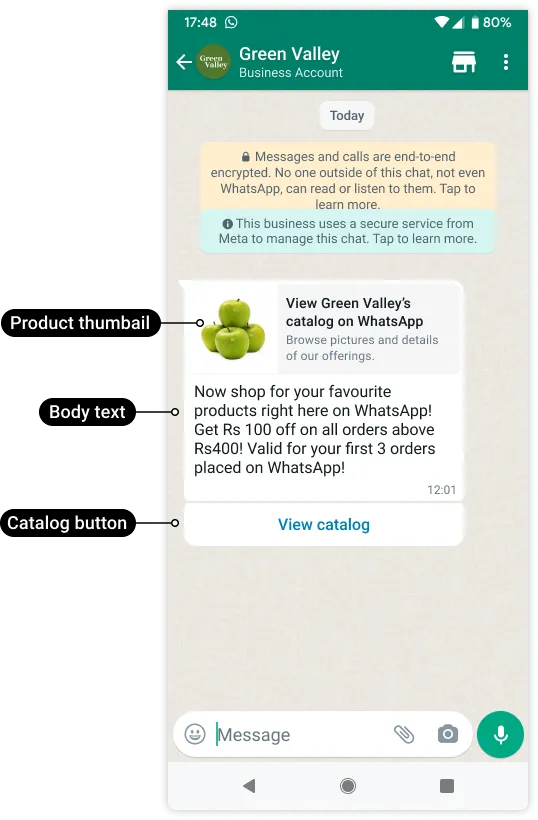
Request
Response
A successful request returns the YCloud message object. An initialaccepted status confirms submission, not final delivery.
id and correlate later whatsapp.message.updated events.
Explanation
thumbnail_product_retailer_idis optional. The SKU number is labeled as Content ID in the Commerce Manager. The thumbnail of this item will be used as the message’s header image. If theparametersobject is omitted, the product image of the first item in your catalog will be used.
MPM template message
In this case, you have an MPM template, and send a message to share products with customers. This example sends an approved template named “abandoned_cart” and injects a variable (the customer’s first name) into the template header and a discount code into the template body. It also defines two sections (“Popular Bundles” and “Premium Packages”) and identifies the products (a total of 3) that should be injected into those sections.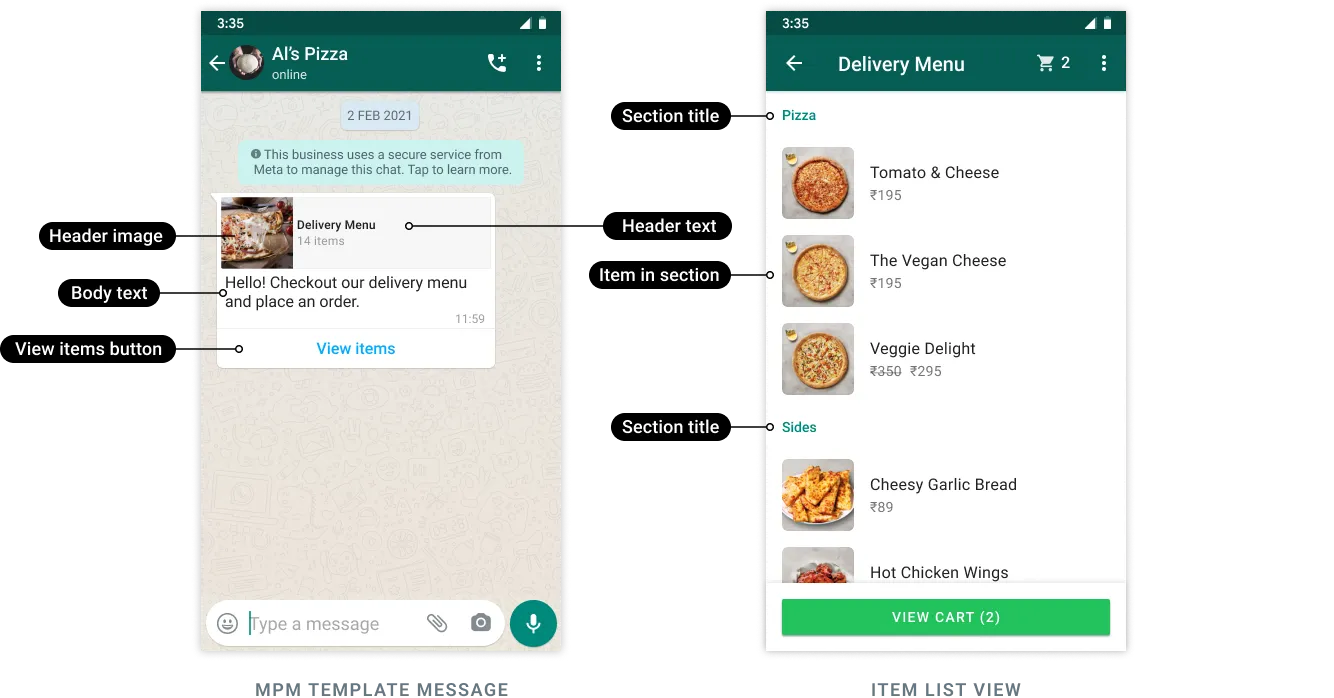
Request
Response
A successful request returns the YCloud message object. An initialaccepted status confirms submission, not final delivery.
id and correlate later whatsapp.message.updated events.
Explanation
- Customers must be using WhatsApp v2.22.24 or greater.
- MPM template messages cannot be forwarded to other customers.
- When a customer adds one or more products to their cart and submits an order, we will send you a webhook that describes the order. See also Inbound Order message.
Flow template message
WhatsApp Flows is a way to build structured interactions for business messaging. With Flows, businesses can define, configure, and customize messages with rich interactions that give customers more structure in the way they communicate.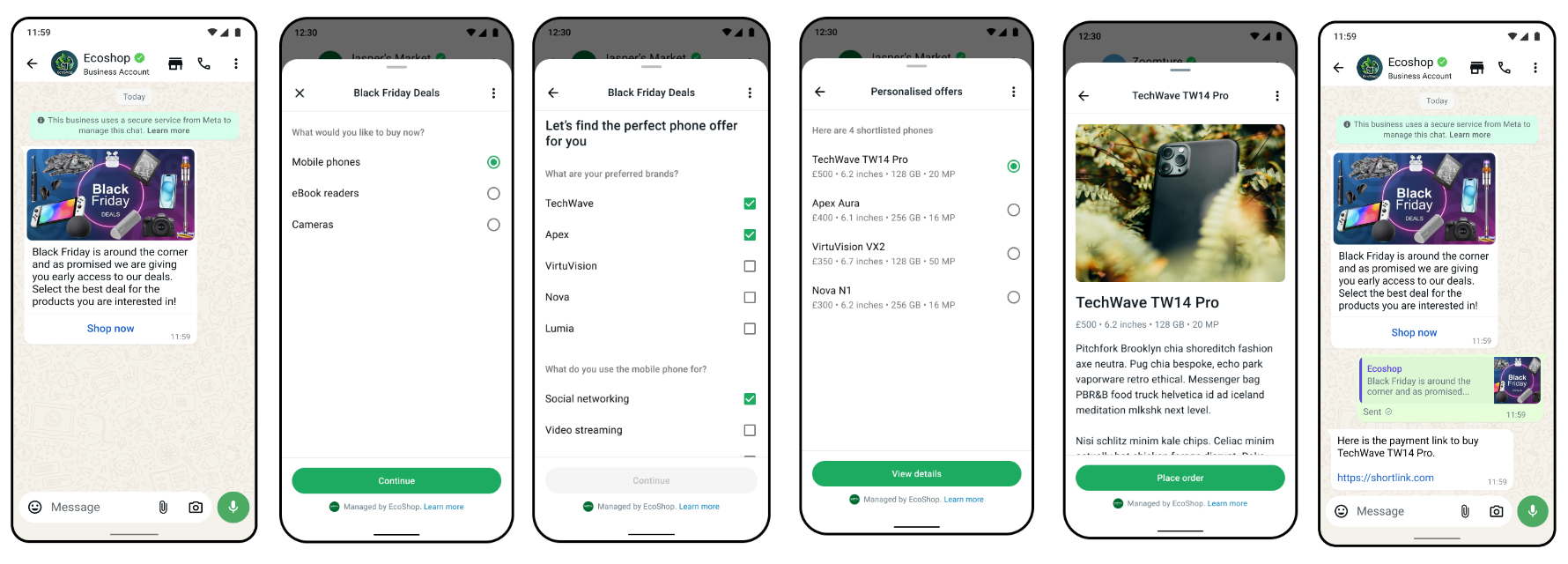 In this case, you send a message with a Flow template:
Request
Response
A successful request returns the YCloud message object. An initialaccepted status confirms submission, not final delivery.
id and correlate later whatsapp.message.updated events.
Explanation
flow_action_datais the JSON object with the data payload for the first screen. See also Send template with Flow - WhatsApp Business Platform.- To send an interactive message with a Flow, see Interactive Flow message.
- To receive Flow Response, see Inbound Interactive Flow Response message.
Order Details template message
Order details template message allows the businesses to send order details message as pre-definedOpen order details call-to-action button component parameters. It supports businesses to send all payment integration (such as UPI Intent, Payment Gateway or Payment Links) integration as button parameters.
Here is an example of sending Payment Gateway in order details template message parameters to prompt the consumer to make a payment.
Request
Response
A successful request returns the YCloud message object. An initialaccepted status confirms submission, not final delivery.
id and correlate later whatsapp.message.updated events.
Explanation
- To learn more about
templateparameters, see also Sending order details template message. - Before you can send order details template messages, create an Order Details template.
- You will be notified via webhooks when the customer attempted and the payment status changed. See Payment transaction updated.
- If no more than 24 hours have passed since the customer last replied to your business phone number, you can also send an Interactive Order Details message instead.
Order Status template message
Order status template is one of the interactive message templates that extends the call-to-action button to support updating order status through a template. It allows the businesses to update the order status outside of the customer session window in use cases such as charging the card for past order and updating about a shipment on order placed in the past. Upon receiving the payment signals, the businesses must update the order status to keep the user up to date. Currently we support the following order status values.Request
Response
A successful request returns the YCloud message object. An initialaccepted status confirms submission, not final delivery.
id and correlate later whatsapp.message.updated events.
Explanation
- To learn more about
templateparameters, see also Sending order status template message. - Before you can send order status template messages, create an Order Status template.
- If no more than 24 hours have passed since the customer last replied to your business phone number, you can also send an Interactive Order Status message instead.
Free-form message examples
The following examples are free-form messages. These messages do not require a pre-approved template and can be sent directly. However, they can only be sent within the 24-hour customer service window, which starts from the customer’s most recent message.Text message
In this case, you send a text message:- Contains only plain text.
- Contains a URL, and includes a preview box in text messages by setting
preview_urltotrue. - Specifies a message (
context.message_id) you reply to.
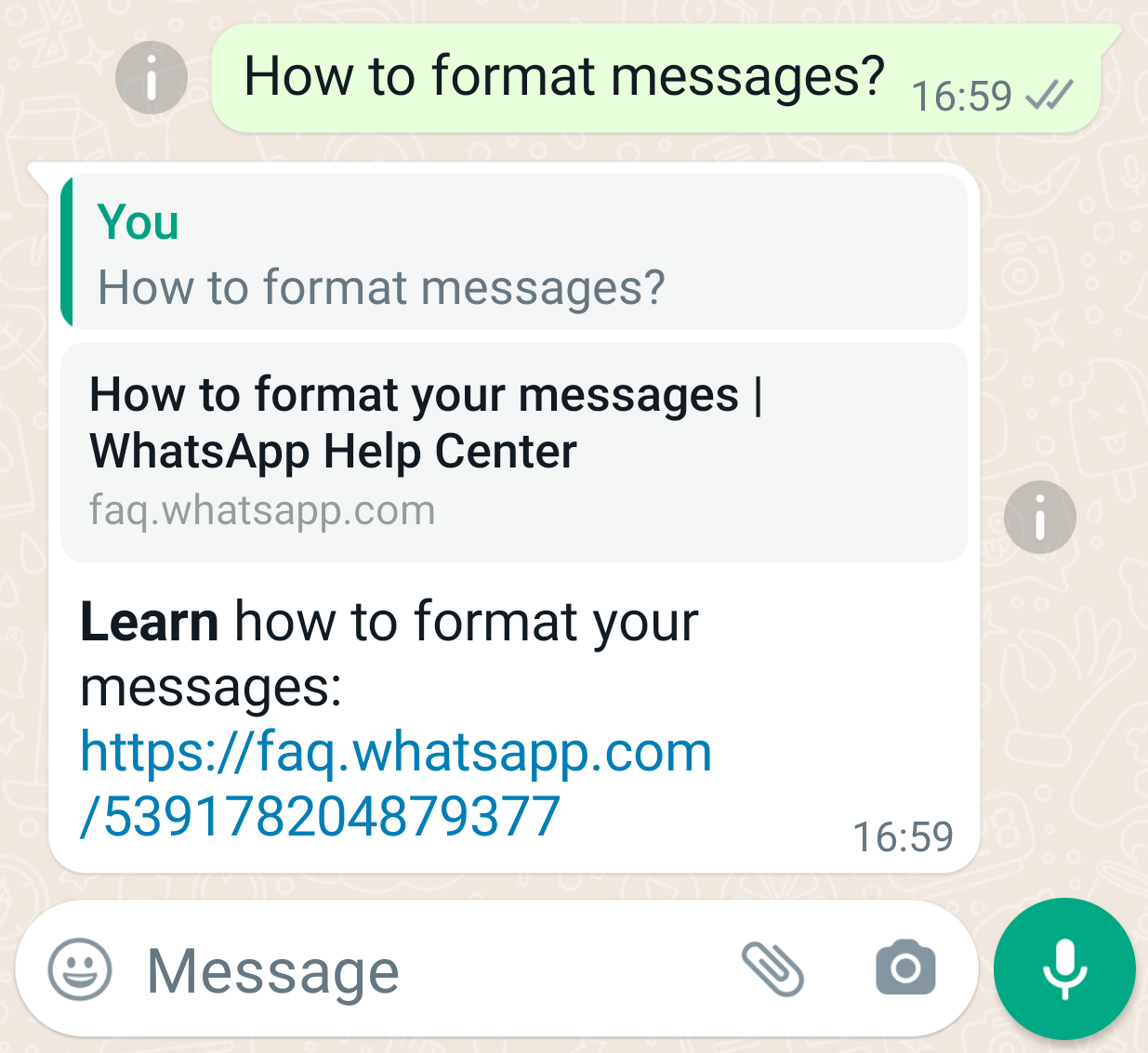
Request
Response
A successful request returns the YCloud message object. An initialaccepted status confirms submission, not final delivery.
id and correlate later whatsapp.message.updated events.
Explanation
- You can only send template messages before the customer replies to your message.
- Use
context.message_idto specify a message you reply to. Please be aware that it’s the original message ID on WhatsApp’s platform, starting withwamid., not the message ID on YCloud. Thewamidcan be found in both YCloud’swhatsappMessageobject (when the status changes tosent) andwhatsappInboundMessageobject. This feature also applies to other types of messages, excepttemplateandstickermessages. - WhatsApp message body supports text formatting, such as Italic, Bold,
Strikethrough, Monospace, Bulleted list, Numbered list, Quote, and Inline code. See also How to format your messages.
Image message
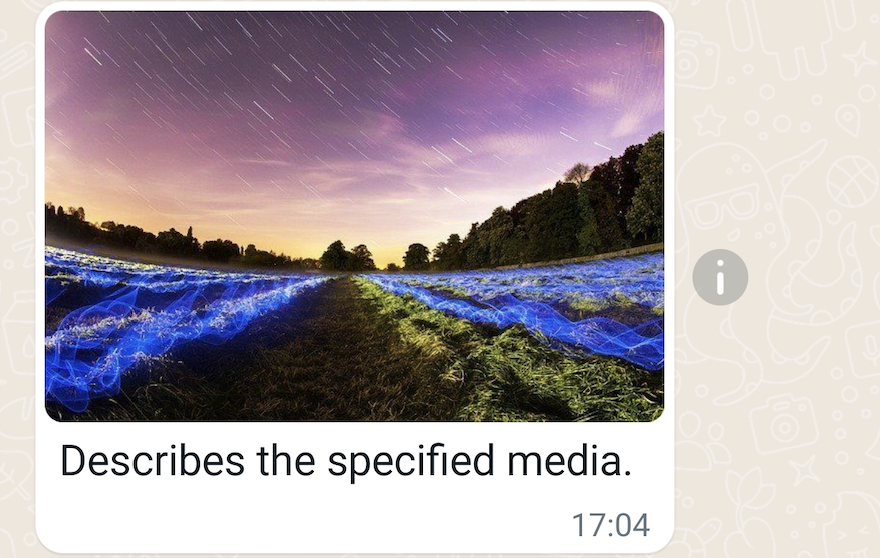
In this case, you send an image message:- Contains an image URL.
- Contains a caption to describe the image.
Request
Response
A successful request returns the YCloud message object. An initialaccepted status confirms submission, not final delivery.
id and correlate later whatsapp.message.updated events.
Explanation
- Supported image types:
image/jpeg,image/png. Images must be 8-bit, RGB or RGBA. - An embedded color profile is required. See also How to Embed the Profile, Embed a color profile in Adobe Photoshop.
- Image size limit: 5MB.
- See also Supported Media Types.
Video message
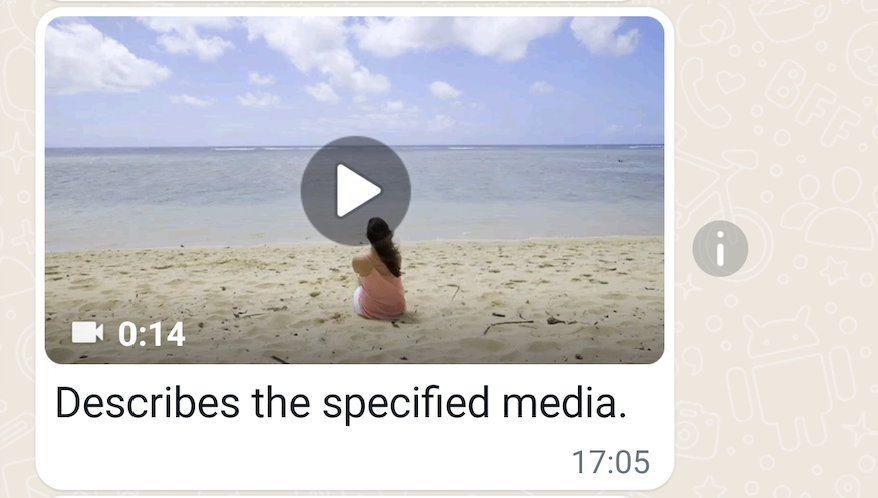
In this case, you send a video message:- Contains a video URL.
- Contains a caption to describe the video.
Request
Response
A successful request returns the YCloud message object. An initialaccepted status confirms submission, not final delivery.
id and correlate later whatsapp.message.updated events.
Explanation
- Supported video types:
video/mp4,video/3gpp.- Only H.264 video codec and AAC audio codec is supported.
- We support videos with a single audio stream or no audio stream.
- The MP4 file format is derived from the ISO base media file format, which is directly derived from the QuickTime file format developed by Apple. But QuickTime video files are not supported, even if you renamed the file extension from
.movto.mp4.
- Video size limit: 16MB.
- See also Supported Media Types.
Audio message
In this case, you send an audio message:- Contains an audio URL.
Request
Response
A successful request returns the YCloud message object. An initialaccepted status confirms submission, not final delivery.
id and correlate later whatsapp.message.updated events.
Explanation
- Supported audio types:
audio/aac,audio/mp4,audio/mpeg,audio/amr,audio/ogg(only opus codecs, baseaudio/oggis not supported). - Audio size limit: 16MB.
- See also Supported Media Types.
captioncan be used forimage,video, anddocumentmedia messages, but is not supported for audio messages.
Document message
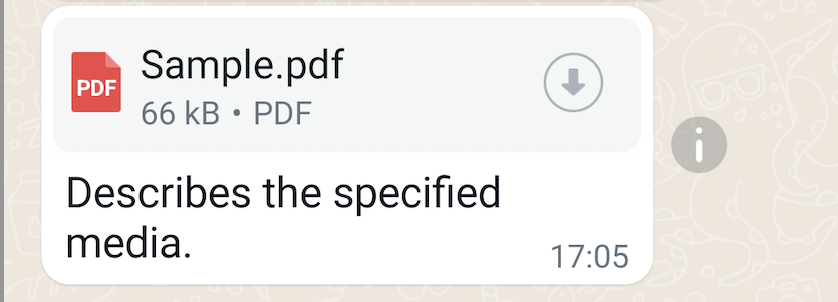
In this case, you send a document message:- Contains a document URL.
- Contains a caption to describe the document.
- Specifies the document filename.
Request
Response
A successful request returns the YCloud message object. An initialaccepted status confirms submission, not final delivery.
id and correlate later whatsapp.message.updated events.
Explanation
- Supported document types:
text/plain,application/pdf,application/vnd.ms-powerpoint,application/msword,application/vnd.ms-excel,application/vnd.openxmlformats-officedocument.wordprocessingml.document,application/vnd.openxmlformats-officedocument.presentationml.presentation,application/vnd.openxmlformats-officedocument.spreadsheetml.sheet. - Document size limit: 100MB.
- See also Supported Media Types.
filenameis only supported for document messages, not supported for any other media messages.
Sticker message
In this case, you send a sticker message:- Contains a sticker URL.
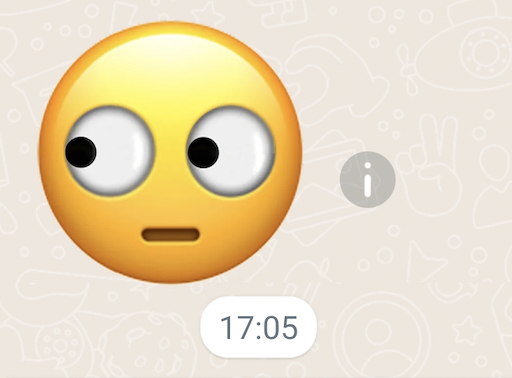
Request
Response
A successful request returns the YCloud message object. An initialaccepted status confirms submission, not final delivery.
id and correlate later whatsapp.message.updated events.
Explanation
- Supported sticker types:
image/webp. Expected dimension: 512x512. - Sticker size limit: 100KB for statics stickers, and 500KB for animated stickers.
- See also Supported Media Types.
Contacts message
In this case, you send a contacts message:- Contains 1 contact with addresses, birthday, emails, name, phones, etc.
Request
Response
A successful request returns the YCloud message object. An initialaccepted status confirms submission, not final delivery.
id and correlate later whatsapp.message.updated events.
Explanation
contacts[].name.formatted_nameis required.
Location message
In this case, you send a location message:- Contains latitude and longitude of the place.
- Contains name and address of the place.
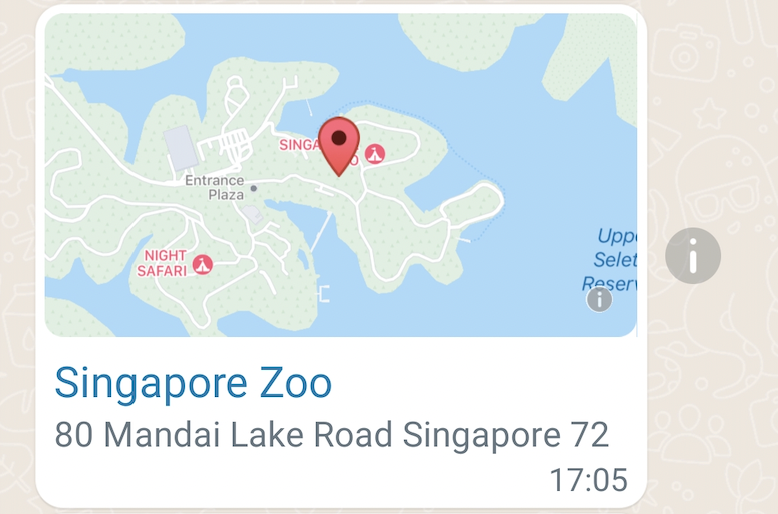
Request
Response
A successful request returns the YCloud message object. An initialaccepted status confirms submission, not final delivery.
id and correlate later whatsapp.message.updated events.
Explanation
latitudeandlongitudeare required.
Reaction message
In this case, you send an emoji reaction message:- Contains the ID of the mentioned message.
- Contains an emoji.
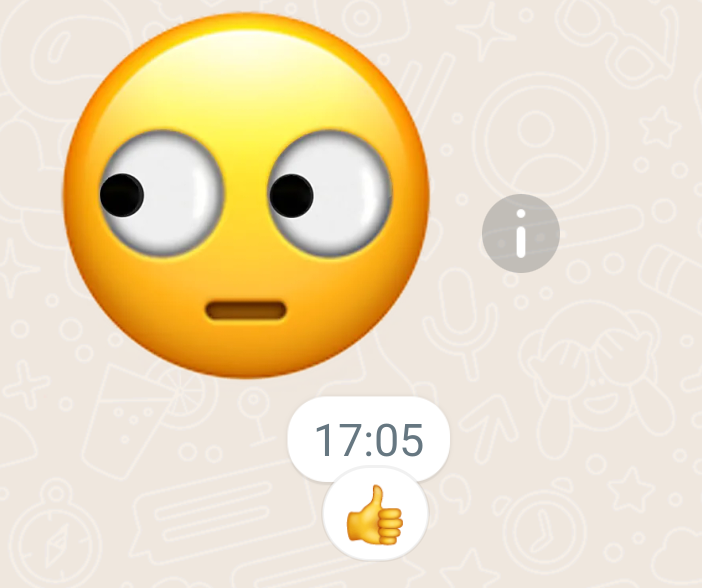
Gives a thumbs up to a message previously sent or received.
Request
Response
A successful request returns the YCloud message object. An initialaccepted status confirms submission, not final delivery.
id and correlate later whatsapp.message.updated events.
Explanation
- The
message_idis the original message ID on WhatsApp’s platform, starting withwamid.. - Set
emojito""if you want to remove the emoji. - Reaction messages do not support read receipts.
Interactive List message
In this case, you send an interactive list message:- Contains header text, body text, and footer text.
- Sets the
interactive.typetolist, and contains a button with 2 sections, and each section has 2 rows.
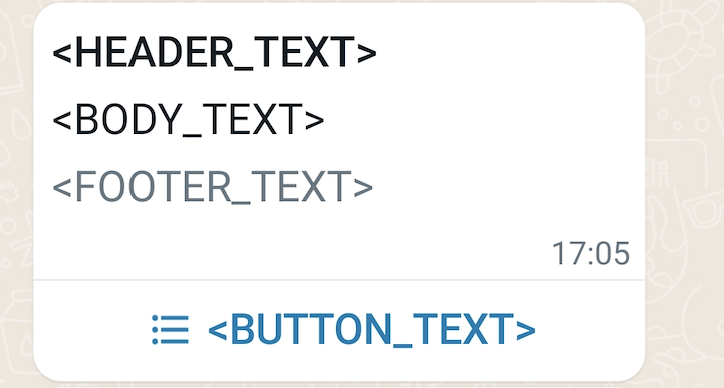 The recipient can select an item from the list by clicking the button: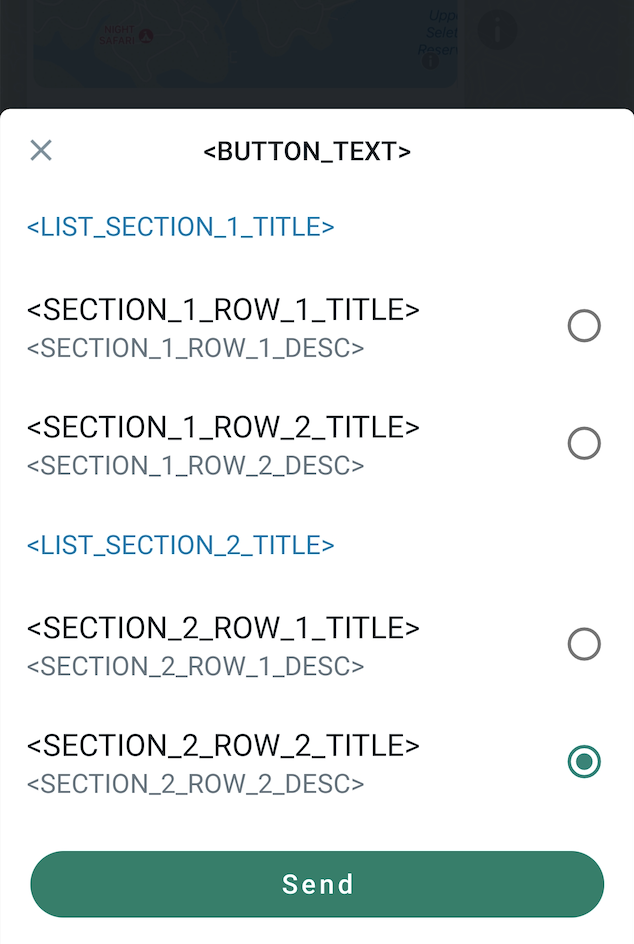
Request
Response
A successful request returns the YCloud message object. An initialaccepted status confirms submission, not final delivery.
id and correlate later whatsapp.message.updated events.
Explanation
- For interactive
listmessages, you need to set a button and set 1 to 10 sections. You can have a total of 10 rows across your sections.
Interactive Button message
In this case, you send an interactive button message:- Contains body text.
- Sets the
interactive.typetobutton, and contains 2 quick reply buttons.
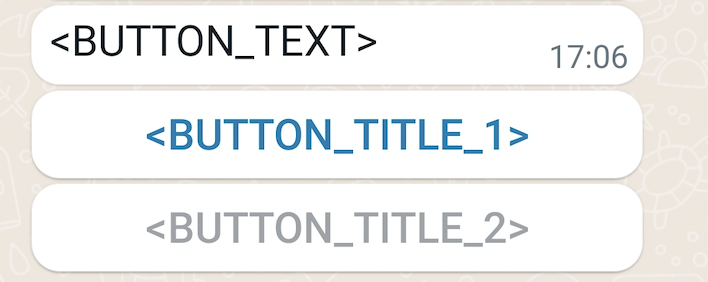
The recipient can click any of the buttons to reply to you a message.
Request
Response
A successful request returns the YCloud message object. An initialaccepted status confirms submission, not final delivery.
id and correlate later whatsapp.message.updated events.
Explanation
- For interactive
buttonsmessages, you need to set at most 3 quick reply buttons.
Interactive CTA URL message
In this case, you send an interactive message with a call-to-action (CTA) URL button:- Contains header, body, and footer text.
- Contains a URL button.
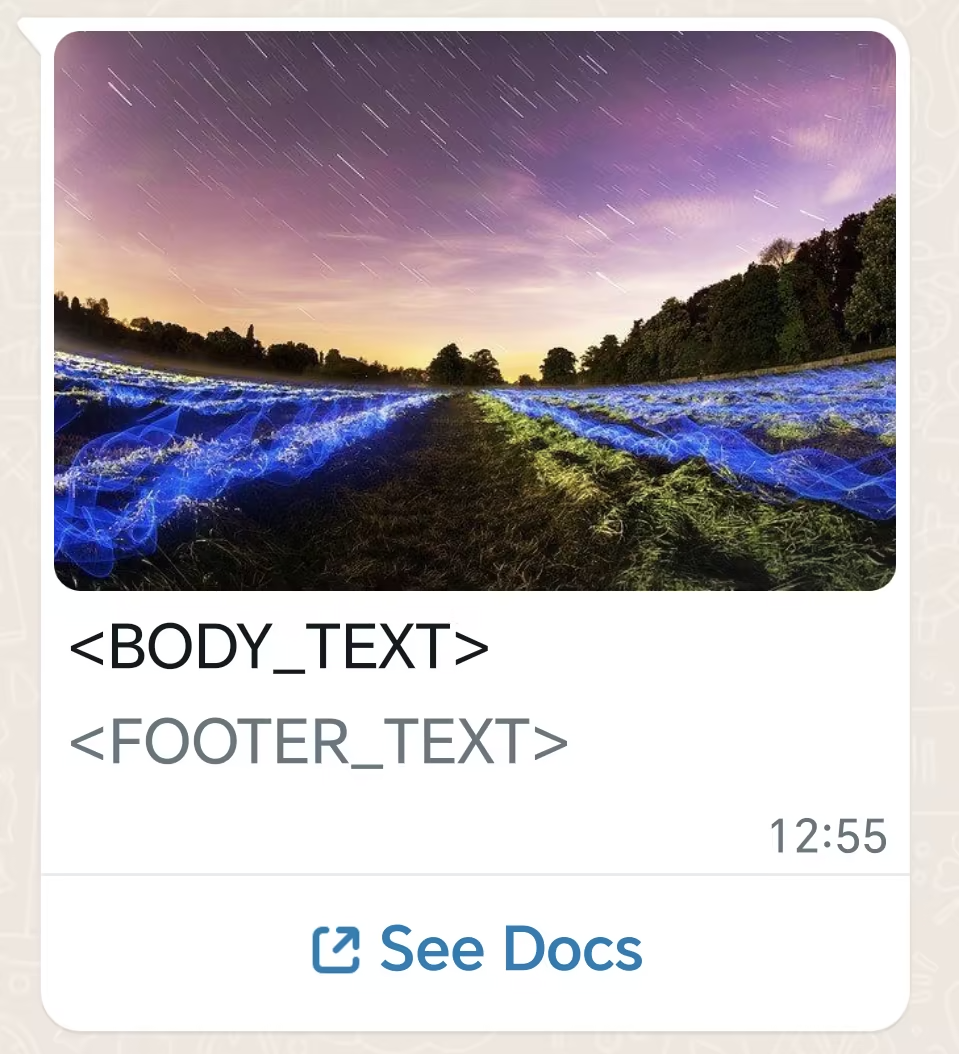
Request
Response
A successful request returns the YCloud message object. An initialaccepted status confirms submission, not final delivery.
id and correlate later whatsapp.message.updated events.
Explanation
- Button text requires a length of at most 20 bytes.
bodyandactionare required.headerandfooterare optional.
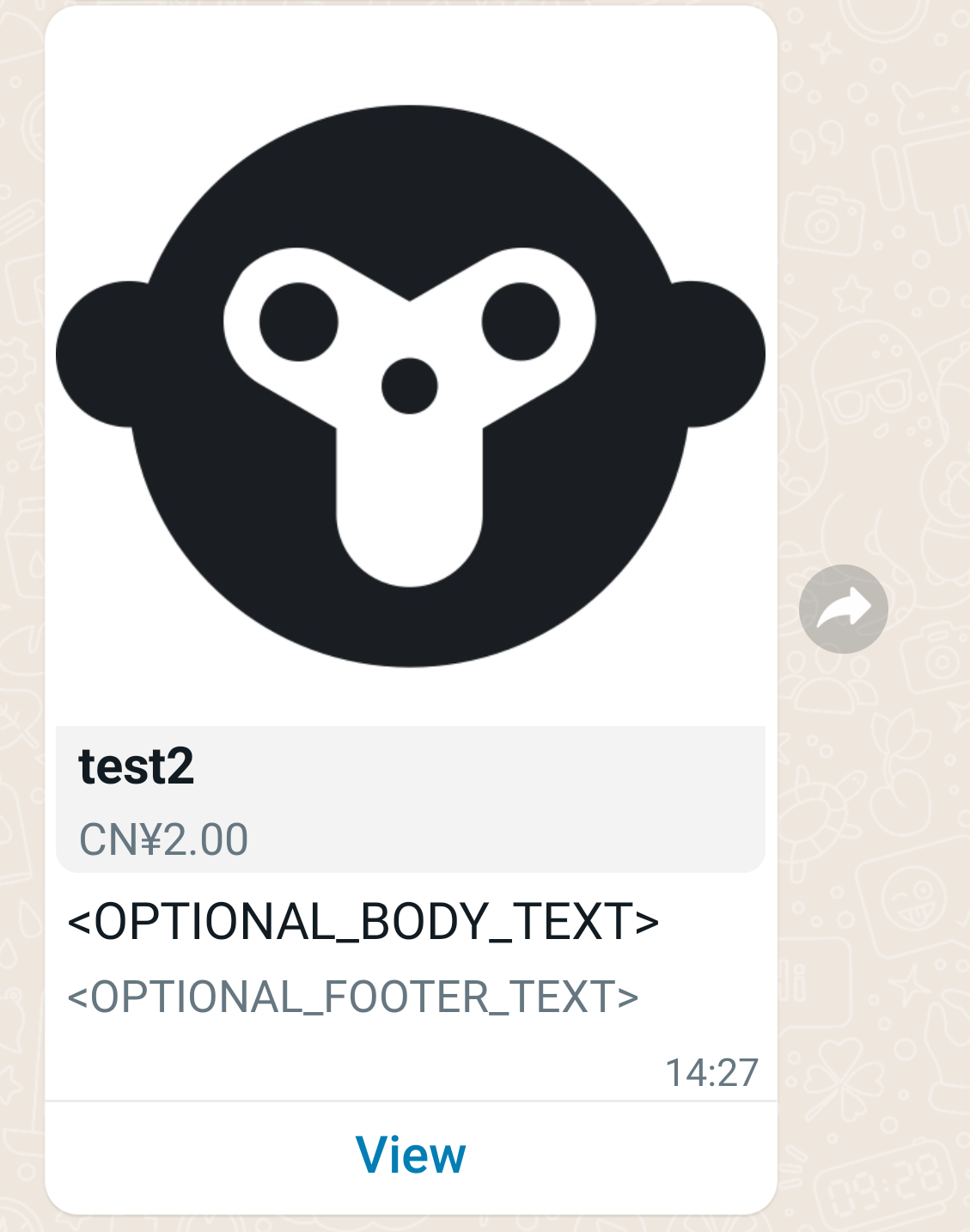
Interactive Single-Product message
In this case, you send an interactive product message:- Contains body text and footer text.
- Sets the
interactive.typetoproduct, and contains an action with product info.
Request
Response
A successful request returns the YCloud message object. An initialaccepted status confirms submission, not final delivery.
id and correlate later whatsapp.message.updated events.
Explanation
- To get product and catalog ID, go to Meta Commerce Manager.
- See also Share Products With Customers.
Interactive Multi-Product message
In this case, you send an interactive product list message:- Contains body text and footer text.
- Sets the
interactive.typetoproduct_list, and contains multi products.
Request
Response
A successful request returns the YCloud message object. An initialaccepted status confirms submission, not final delivery.
id and correlate later whatsapp.message.updated events.
Explanation
- To get product and catalog ID, go to Meta Commerce Manager.
Interactive Catalog message
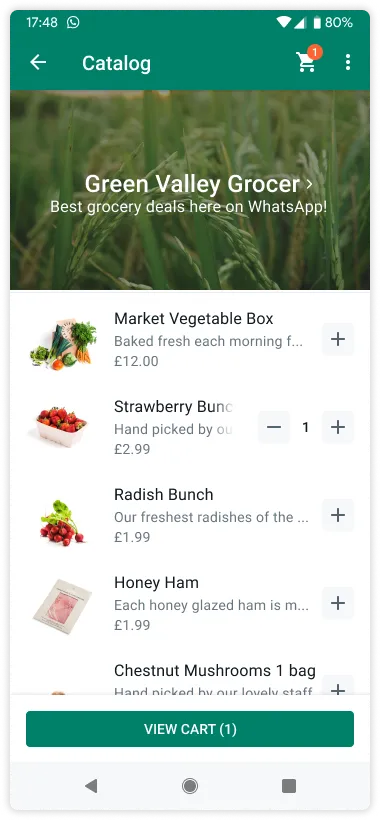
Catalog messages are free-form messages that allow you to showcase your product catalog entirely within WhatsApp. Catalog messages display a product thumbnail header image of your choice, custom body text, a fixed text header, a fixed text sub-header, and a View catalog button.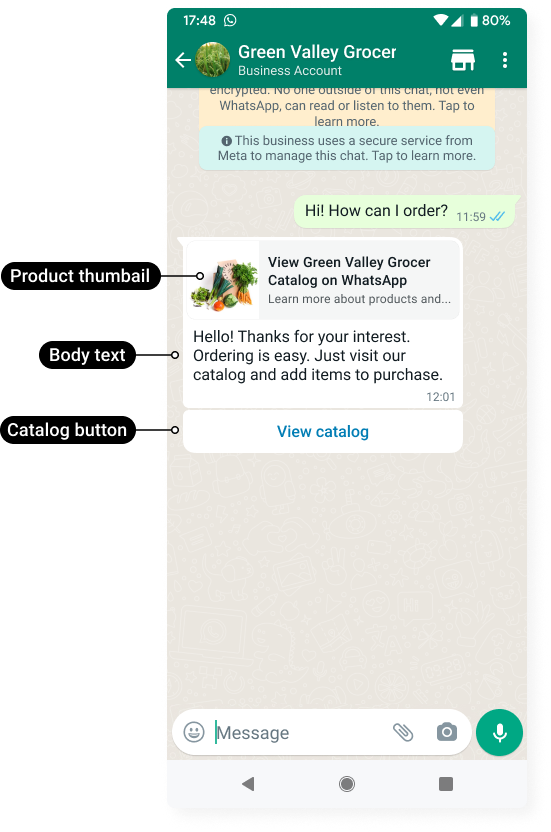 When a customer taps the View catalog button, your product catalog appears within WhatsApp.
Request
Response
A successful request returns the YCloud message object. An initialaccepted status confirms submission, not final delivery.
id and correlate later whatsapp.message.updated events.
Explanation
- You must have inventory uploaded to Meta in an ecommerce catalog connected to your WhatsApp Business Account.
- Enable the shopping cart and the product catalog on a per-business phone number basis. By default, the shopping cart is enabled and the storefront icon is hidden for all business phone numbers associated with a WhatsApp Business Account. Use the Update commerce settings endpoint to enable or disable these features.
Interactive Location Request message
Location request messages are free-form messages displaying body text and a send location button. When a WhatsApp user taps the button, a location sharing screen appears which the user can then use to share their location.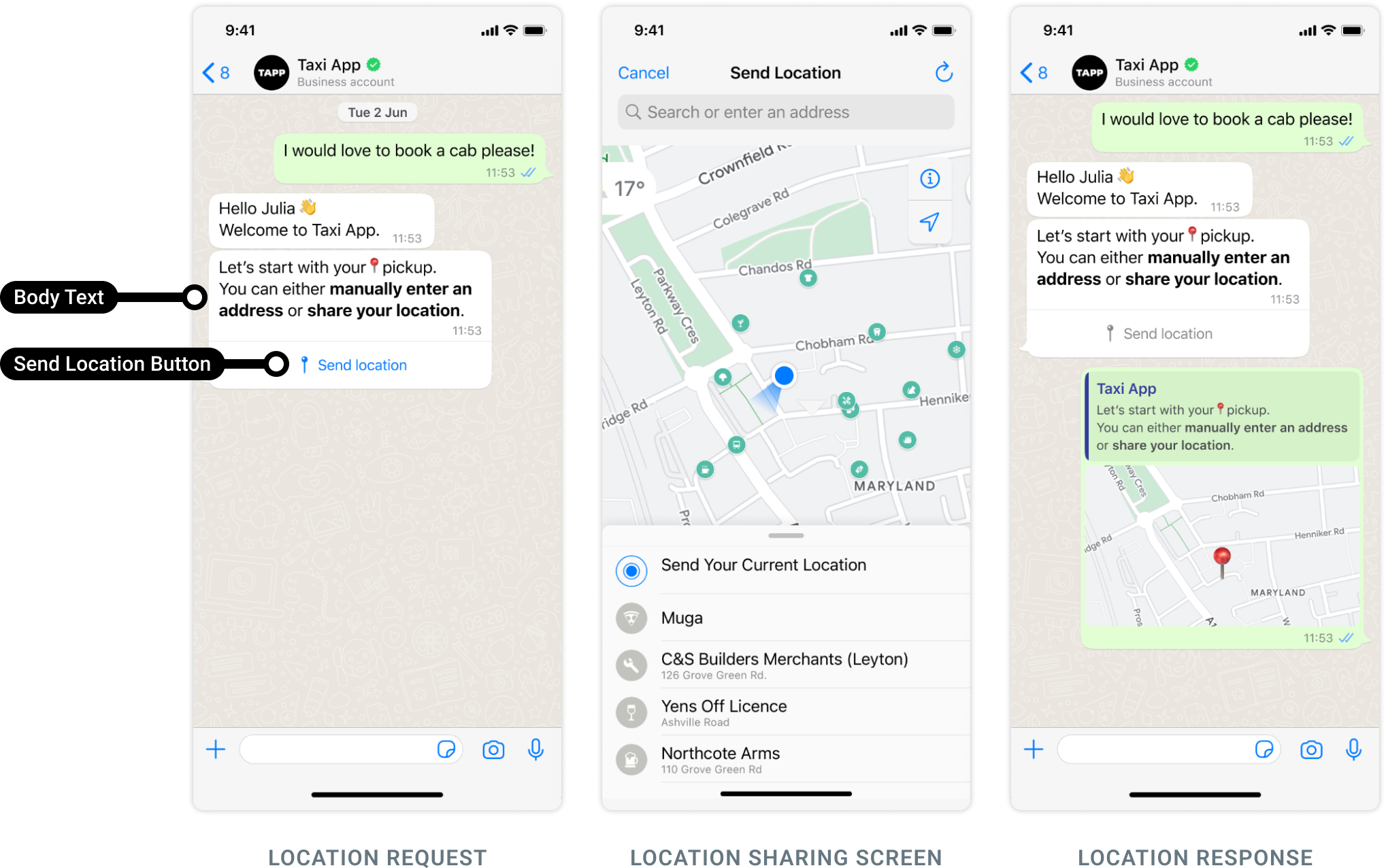
Request
Response
A successful request returns the YCloud message object. An initialaccepted status confirms submission, not final delivery.
id and correlate later whatsapp.message.updated events.
Explanation
- Body text (i.e.,
interactive.body) is required and has a maximum length of 1024 characters. Header and footer are not supported. - Once the user shares their location, a
whatsapp.inbound_message.receivedwebhook is triggered, containing the user’s location details. See also Inbound Location message.
Interactive Flow message
You can send a Message with a Flow in a user-initiated conversation using a Message with a Call To Action (CTA):Request
Response
A successful request returns the YCloud message object. An initialaccepted status confirms submission, not final delivery.
id and correlate later whatsapp.message.updated events.
Explanation
- To send a message with a Flow, we have introduced a new type of the
interactiveobject namedflow. For more information, see Interactive message parameters . - To send a template message with a Flow, see Flow template message.
- To receive Flow Response, see Inbound Interactive Flow Response message.
Interactive Order Details message
Anorder_details message is a new type of interactive message, which always contains the same 4 main components: header, body, footer, and action. Inside the action component, the business includes all the information needed for the customer to complete their payment.
Request
Response
A successful request returns the YCloud message object. An initialaccepted status confirms submission, not final delivery.
id and correlate later whatsapp.message.updated events.
Explanation
- To learn more about
interactiveparameters, see Send Order Details Interactive Message. - If more than 24 hours have passed since the customer last replied to your business phone number, send an Order Details template message instead.
Interactive Order Status message
To notify the customer with updates to an order, you can send an interactive message of type order_status as shown below.Request
Response
A successful request returns the YCloud message object. An initialaccepted status confirms submission, not final delivery.
id and correlate later whatsapp.message.updated events.
Explanation
- To learn more about
interactiveparameters, see Send order status updates. - If more than 24 hours have passed since the customer last replied to your business phone number, send an Order Details template message instead.
- You will be notified via webhooks when the customer attempted and the payment status changed. See Payment transaction updated.
Interactive Voice Call message
Business calls this API to send a message to consumers to raise awareness of the calling support using an inline button embedded within the message. When a consumer clicks that button, it initiates a WhatsApp call to the business number that sent this message. This behavior is the same as a consumer clicking the phone/call icon in the chat title bar. There is no support for the button to WhatsApp call a different phone number.Request
Response
A successful request returns the YCloud message object. An initialaccepted status confirms submission, not final delivery.
id and correlate later whatsapp.message.updated events.
Explanation
Match the request fields to the selected message type and use the returned message ID for status correlation.Interactive media carousel messages
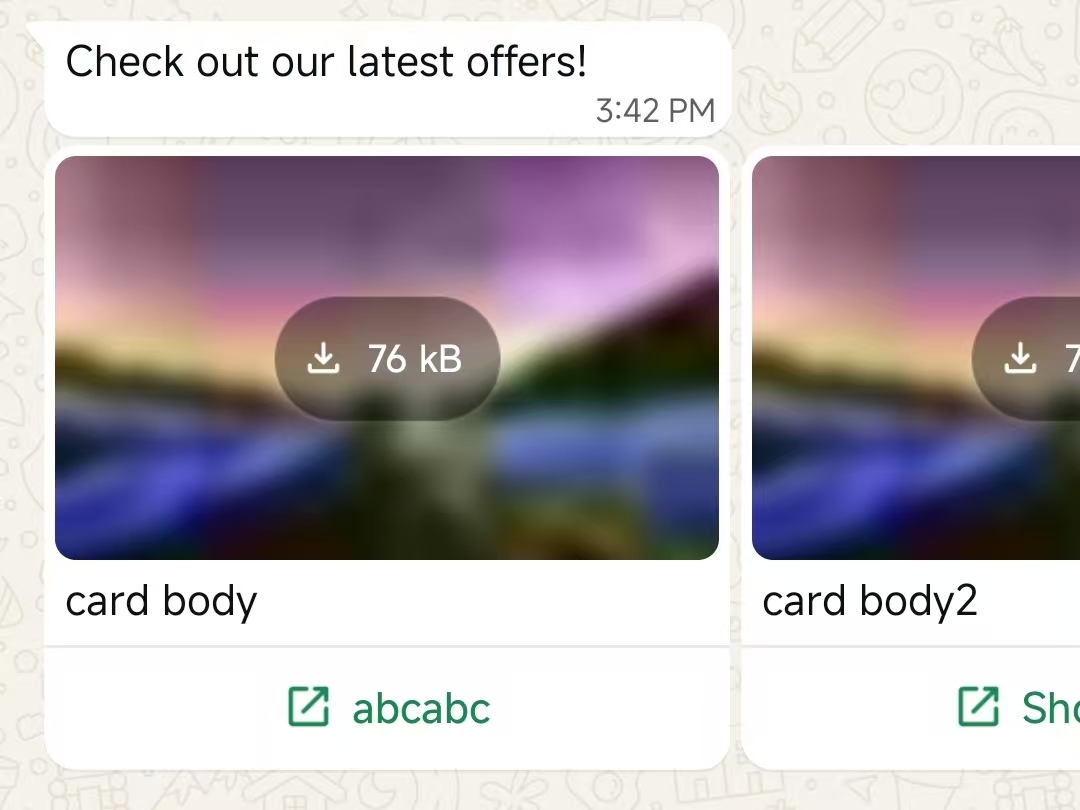
The interactive media carousel message enables businesses to send horizontally scrollable cards with images or videos, each with a call-to-action button, within WhatsApp conversations. This format allows users to browse multiple offers or content in a single message, providing a rich and engaging experience via the WhatsApp Business APIs and mobile clients.interactive.typemust becarouselinteractive.action.cardsmust add at least 2 card objects to your message, and can add a maximum of 10.- The type of each card must be set to
cta_url - all cards must have the same header type (
imageorvideo) - must add a message body(
interactive.body) to the message (max 1024 characters). No header, footer, or buttons are allowed outside the cards. - must have the same structure for all cards(header, body, action).
- card body is optional, but max 160 chars, and up to 2 line breaks.
Request
Response
A successful request returns the YCloud message object. An initialaccepted status confirms submission, not final delivery.
id and correlate later whatsapp.message.updated events.
Explanation
Match the request fields to the selected message type and use the returned message ID for status correlation.Interactive media carousel messages with quick reply buttons
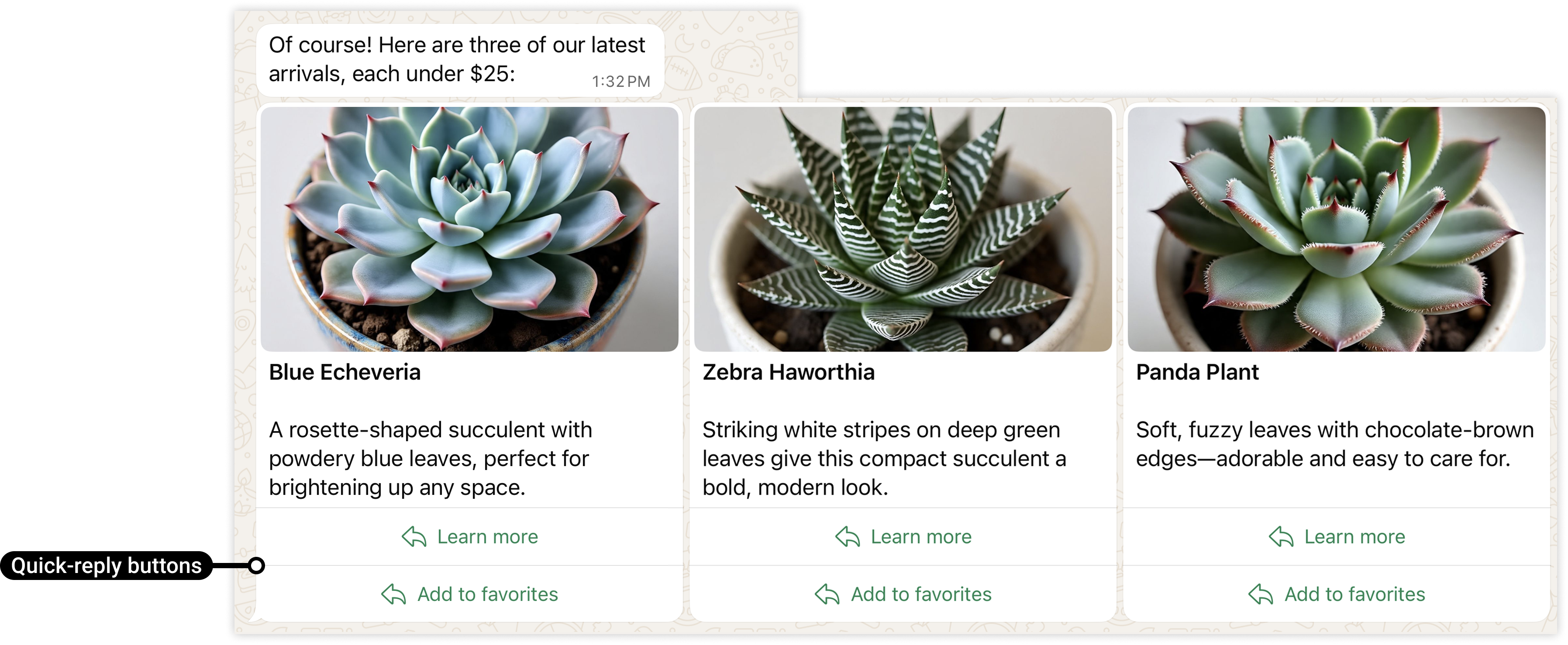
- Cards must include either one URL button, or one or more quick-reply buttons. Button types and numbers must match across all cards (for example, if you define a card with 2 quick-reply buttons, all cards must define exactly 2 quick-reply buttons).
Request
Response
A successful request returns the YCloud message object. An initialaccepted status confirms submission, not final delivery.
id and correlate later whatsapp.message.updated events.
Explanation
Match the request fields to the selected message type and use the returned message ID for status correlation.Checkout Button message
Once your checkout button template has been approved, you can send it in a template messageRequest
Response
A successful request returns the YCloud message object. An initialaccepted status confirms submission, not final delivery.
id and correlate later whatsapp.message.updated events.
Explanation
Match the request fields to the selected message type and use the returned message ID for status correlation.Gif template message
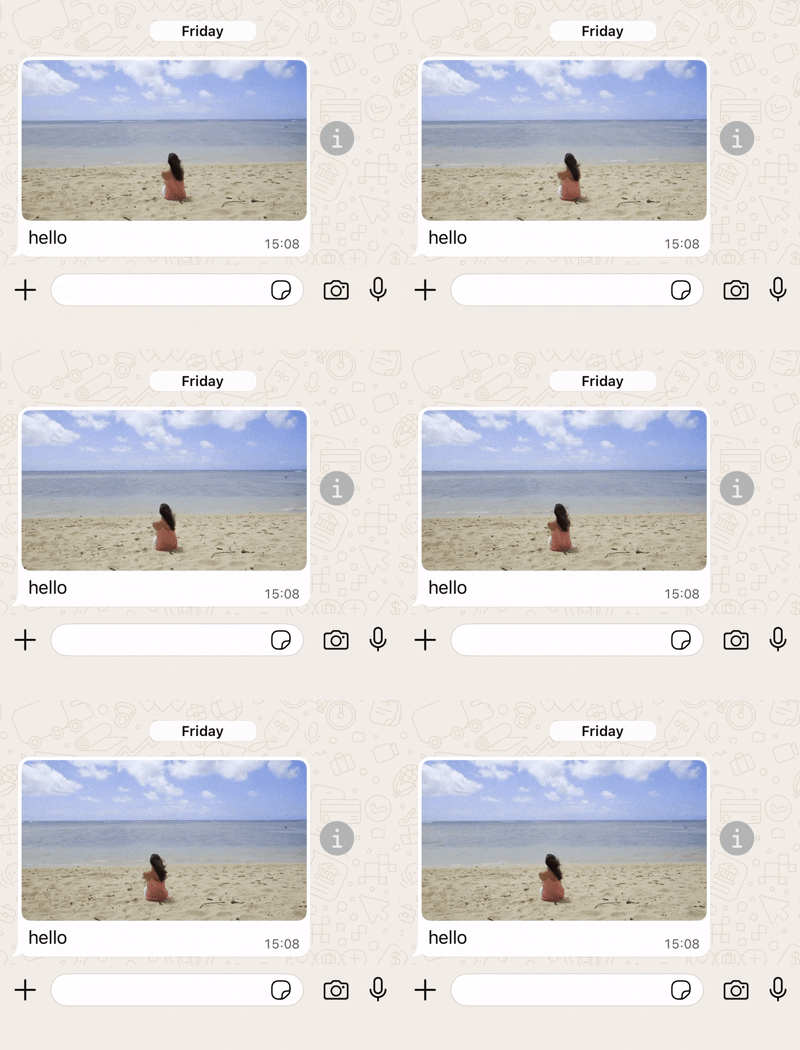
In this case, you send a gif template message:- Contains a gif URL.
Request
Response
A successful request returns the YCloud message object. An initialaccepted status confirms submission, not final delivery.
id and correlate later whatsapp.message.updated events.