

What it is
YCloud’s WhatsApp Calling API manages voice call signaling between a WhatsApp user and a business phone number. Your application exchanges SDP through YCloud, while your WebRTC implementation handles the audio connection. Calls can start in either direction:- User-initiated: A WhatsApp user calls your business. Your application receives an offer and accepts or rejects the call.
- Business-initiated: Your application creates an offer and asks YCloud to call a WhatsApp user.
The Calling API handles call signaling, not the WebRTC media stack. Your application is responsible for peer connection setup, audio capture and playback, SDP generation, and WebRTC resource cleanup.
API map
Calling APIs and webhook events follow the same lifecycle, but they do not form one sequence that applies to every call. Complete the shared setup, then follow the user-initiated or business-initiated flow. Use the call ID,wacid, to correlate every operation and event.
Shared setup
User-initiated calls
Business-initiated calls
Shared call completion
Optional media processing
These tables describe the application workflow. They do not guarantee that webhooks will be delivered in the same order as the rows. Correlate events by
wacid and handle redelivery idempotently.
Before you begin
Before making a Calling request, prepare the following:- A YCloud account API key. Send it in the
X-API-Keyheader. See Authentication. - A WhatsApp Business Account and a business phone number registered with YCloud.
- Calling enabled for that phone number.
- A WebRTC audio implementation that can create and apply SDP offers and answers.
- A YCloud webhook endpoint subscribed to the Calling events used by your integration. See Configure webhooks.
- User calling permission when it is required for a business-initiated call.
How it works
Start by configuring the business phone number. Then exchange SDP according to the call direction. API responses acknowledge individual signaling operations, while webhook events report state changes and the final result. If capture is enabled, separate events indicate when a recording or transcription is ready to download.Request
Configure the business phone number
Calling and capture settings belong to a specific WhatsApp business phone number. Configure them before processing calls.Read Calling settings
UseGET /whatsapp/phoneNumbers/{wabaId}/{phoneNumber}/settings to check whether Calling is enabled and whether the Calling icon is visible:
type, YCloud returns the Calling settings response.
Enable Calling
Save Calling settings withPOST /whatsapp/phoneNumbers/{wabaId}/{phoneNumber}/settings before you start accepting or placing calls:
calling object. Before handling live calls, finish configuring your webhooks and WebRTC sessions.
Configure recording and transcription
Capture settings apply to new API-sourced calls. You can enable recording, transcription, or both.
To read capture settings, use
type=capture:
calling and capture in the same POST request. After validating access to the phone number, YCloud attempts to save each section independently. If either save fails, the other section may already be stored. Read both settings after an error, then retry only the section that still needs an update.
Handle a user-initiated call
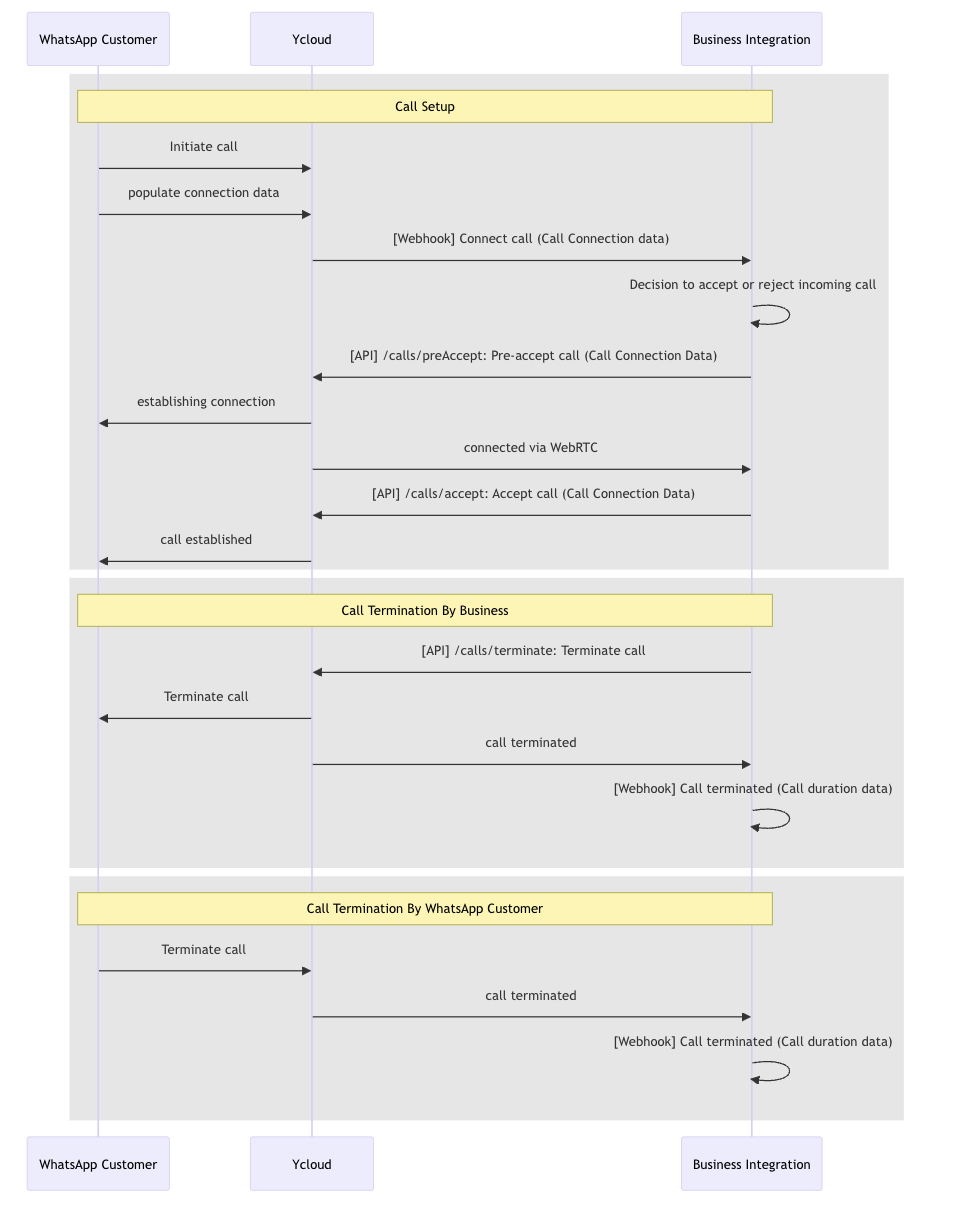 In a user-initiated call, WhatsApp sends the SDP offer. Your application answers that offer and then accepts or rejects the call.
1. Receive the connect event
Subscribe towhatsapp.call.connect. A user-initiated event has direction set to USER_INITIATED and includes an SDP offer.
callingConnect.wacid and callingConnect.phoneId together. Apply the received SDP offer to your WebRTC peer connection and create an SDP answer.
2. Pre-accept the call
Call pre-accept after creating an SDP answer, but before the agent accepts the call. This prepares the media path and can reduce audio clipping when the call is answered. Endpoint:POST /whatsapp/calls/preAccept
3. Accept the call
When the agent answers, send the samephoneId, wacid, SDP type, and SDP answer to the accept endpoint.
Endpoint: POST /whatsapp/calls/accept
whatsapp.call.terminate for the final call result.
The documented inbound acceptance window is approximately 30–60 seconds after
the connect webhook. Accept promptly; an unanswered call ends on the user’s
side with a Not Answered notification and a terminate webhook.
Even if the WebRTC connection is already established, start audio only after
the accept request returns HTTP 200. Starting earlier can clip the first
words; starting too late causes silence.
Reject instead of accepting
If the agent cannot take the inbound call, reject it instead of creating an active session. Endpoint:POST /whatsapp/calls/reject
wacid if one arrives.
Start a business-initiated call
In a business-initiated call, your application creates the SDP offer and sends it to YCloud.Obtain calling permission
Before initiating a call, obtain the user’s calling permission. An interactive permission request can be sent within an eligible customer service window:POST /v2/whatsapp/messages/sendDirectly or enqueue it with
POST /v2/whatsapp/messages.
You can also create a call-permission template. For example, submit this body
to POST /v2/whatsapp/templates, then wait for approval:
callback_permission_status is enabled in the phone number’s calling
settings, a user-initiated call can grant callback permission. A user can also
grant permanent calling permission from the business profile.
Permission replies arrive as whatsapp.inbound_message.received events. Inspect
the interactive.call_permission_reply object, not just whether the permission
request message was delivered:
Do not initiate the call after a rejection or an expired permission. Meta error
138006 means the business number does not have the required calling permission.
For provider error details, see Meta’s Calling errors.
1. Create an SDP offer
Create a local WebRTC peer connection and attach the audio track. Generate the SDP offer, set it as the local description, and wait for that operation to finish before sending the offer to YCloud.2. Connect the call
Endpoint:POST /whatsapp/calls/connect
Provide at least one of
to or recipient. If you send both, YCloud uses to and ignores recipient.
wacid immediately. success: true means the connect operation was accepted; it does not mean the user answered.
3. Apply the answer and track the attempt
YCloud sendswhatsapp.call.connect for the call. For a business-initiated call, the event has direction: BUSINESS_INITIATED and carries the remote SDP answer. Apply that answer as the remote description for the same peer connection.
Subscribe to whatsapp.call.status.updated to track the attempt:
Make event handling idempotent so a redelivery does not repeat agent actions, billing, or cleanup.
Terminate an active call
Call terminate when your application needs to end an active inbound or outbound call. Endpoint:POST /whatsapp/calls/terminate
Response
All five signaling endpoints return the same response shape:wacid identifies the call associated with the operation. success: true confirms that the signaling operation succeeded; it does not confirm that the other participant answered or that the call completed. Use WebRTC state and Calling webhook events for those outcomes.
Process the final call event
whatsapp.call.terminate is the terminal lifecycle event for a call.
When you receive this event, finalize the call record and release any remaining WebRTC resources. An earlier API response does not confirm that the call completed.
Receive recordings and transcriptions
When capture is enabled, media processing continues after the call lifecycle. Recording and transcription have separate terminal events:
The following example shows an available recording:
Download an available asset
Call the media endpoint only after the corresponding event reportsAVAILABLE.
Endpoint: GET /whatsapp/calls/media/{mediaAssetId}
.ogg; transcriptions use .json.
Only the owning YCloud tenant can download an asset. An asset remains available for 30 days from its creation time. Missing, unavailable, expired, or unowned assets return HTTP 404.
Build a reliable webhook receiver
Subscribe your endpoint to the events your integration needs:- Preserve the raw request body and verify
YCloud-Signaturebefore trusting the event. - Persist the event or enqueue durable work.
- Return a successful
2xxresponse promptly. - Deduplicate by the top-level event
id. - Correlate call data by
wacid; keepphoneIdwith it for later operations. - Handle related events that arrive close together, and tolerate redelivery.
Handle errors and recovery
Calling endpoints use YCloud’s standard API error response. See Handle errors for the response structure and retry guidance. Use these checks for common Calling failures:
A request timeout does not prove that the signaling action failed. Before retrying, reconcile the request against webhook events and your current local call state. The action may already have reached WhatsApp.
Integration checklist
- Enable Calling on the correct business phone number.
- Configure and test all required Calling webhook subscriptions.
- Verify webhook signatures and deduplicate events.
- Store
wacid,phoneId, direction, and current state together. - Treat API
successas operation acceptance, not as the final call outcome. - Use
preAcceptonly as preparation; callacceptto answer. - Finalize calls from
whatsapp.call.terminate. - Download captured media only after an
AVAILABLEevent and within 30 days. - Release WebRTC resources on rejection, termination, failure, and local timeout.
- Avoid logging API keys, full SDP, or participant identifiers in general application logs.
Calling API reference
Review the exact request and response schemas for each Calling endpoint.
Webhook payload examples
Inspect the complete Calling event examples generated from the webhook specification.