| Attribute | Description |
|---|---|
| Nickname | The contact's original nickname, usually synced from WhatsApp profile information. |
| Phone number | The contact's primary phone number, usually synced from WhatsApp or entered manually. |
| The contact's email address. | |
| Country / Region | The country or region associated with the contact, usually identified based on the phone number or profile information. |
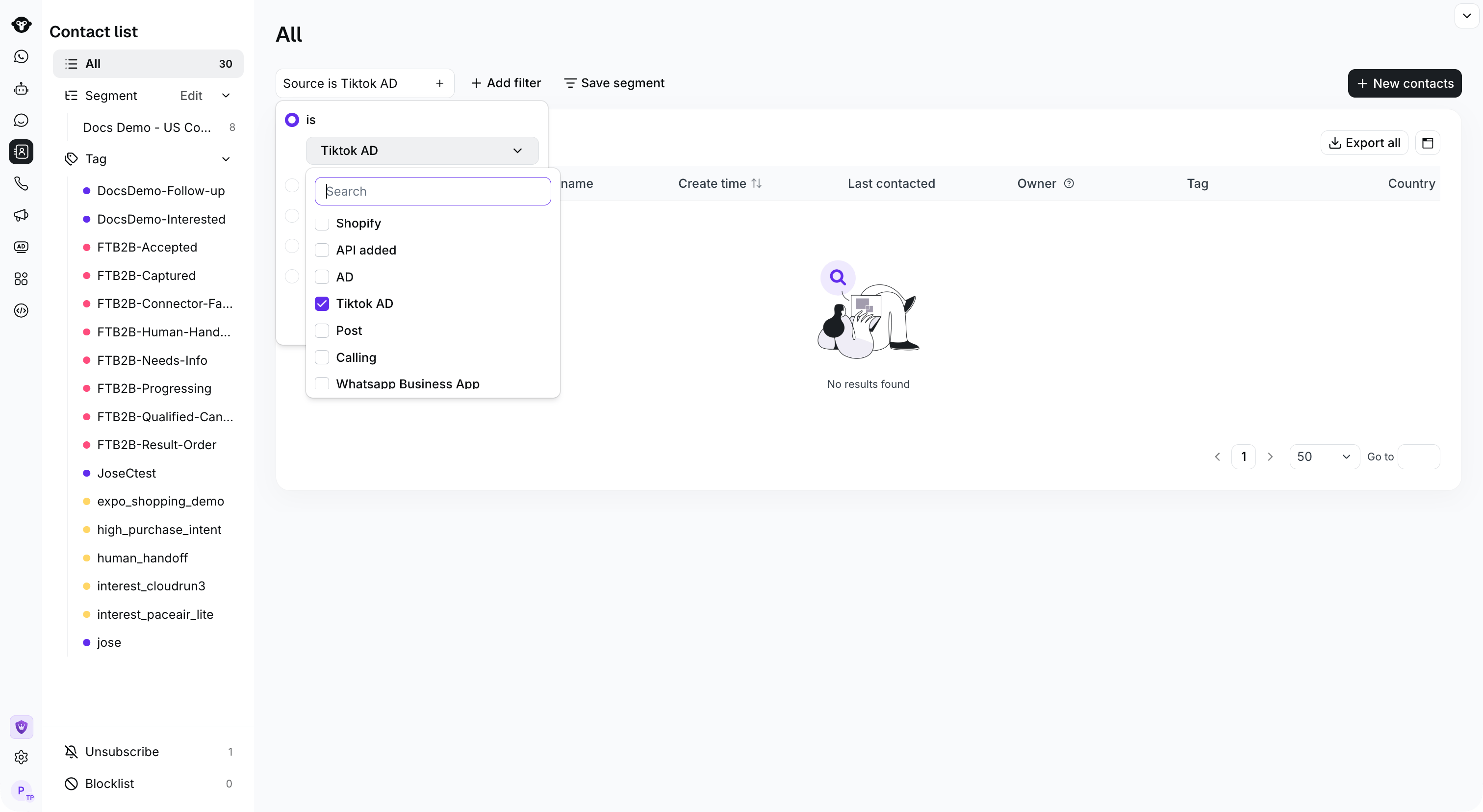
| Source | The contact source, used to indicate whether the contact came from a message, link, import, API, ad, or another entry point. |
| Source ID | The unique identifier of the contact source, usually used to record the original ad source or channel source. |
| Source URL | The original URL associated with the contact source, such as an ad, campaign, or entry link. |
| Tag | Tags assigned to the contact for classification, filtering, and follow-up operations. |
| Owner | The email address of the team member responsible for managing the contact. |
| Create time | The time when the contact was first created in the system. |
| Last contacted | The most recent time when an interaction occurred with this contact. |
| Last connected number | The WhatsApp Business number or channel number most recently used to communicate with this contact. |
| Source | Description |
|---|---|
| Inbound message | The contact connected with your WhatsApp number by sending an inbound message. |
| Link / QR Code | The contact connected with your WhatsApp number through a link or QR code. |
| Manually added | The contact was manually added by a team member. |
| File import | The contact was added through file import. |
| Shopify | The contact was synced from your Shopify store to YCloud through the Shopify integration. |
| API added | The contact connected with your WhatsApp number through the YCloud API. |
| AD | The contact connected with your WhatsApp number through Meta Click-to-WhatsApp ad traffic. Learn more about Meta CTWA Ads. |
| TikTok AD | The contact connected with your WhatsApp number through TikTok Messaging Ads. Learn more about TikTok Messaging Ads. |
| Post | The contact connected with your WhatsApp number through Facebook posts or similar entry points. |
| Calling | The contact connected with your WhatsApp number through WhatsApp Calling. |
| WhatsApp Business App | The contact connected with your WhatsApp number through WhatsApp Business App. |
| Unknown | The system cannot identify how the contact connected with your WhatsApp number, or the source was not recorded in historical data. |
 ### Add a Custom Attribute
If system attributes do not meet your business management needs, you can add custom attributes.
1. Log in to your [YCloud account](https://www.ycloud.com).
2. Go to **Settings > Contact > Attributes**.
3. Click **Add Attribute**.
### Add a Custom Attribute
If system attributes do not meet your business management needs, you can add custom attributes.
1. Log in to your [YCloud account](https://www.ycloud.com).
2. Go to **Settings > Contact > Attributes**.
3. Click **Add Attribute**.
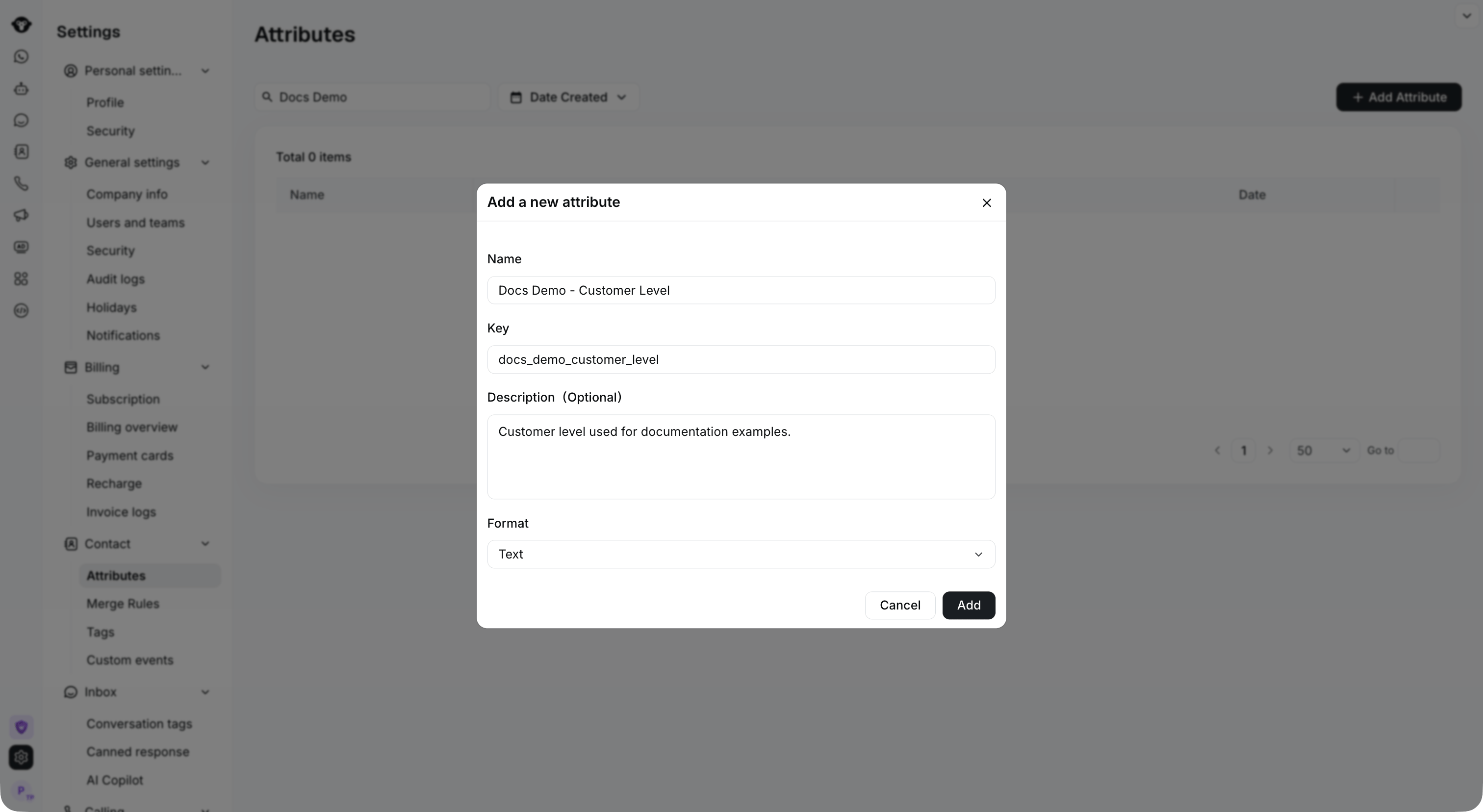 4. Enter the attribute **Name** and a unique **Key**. Optionally add a **Description**, then select a **Format**.
5. Click **Add** to finish.
4. Enter the attribute **Name** and a unique **Key**. Optionally add a **Description**, then select a **Format**.
5. Click **Add** to finish.
 ### Edit or Delete an Attribute
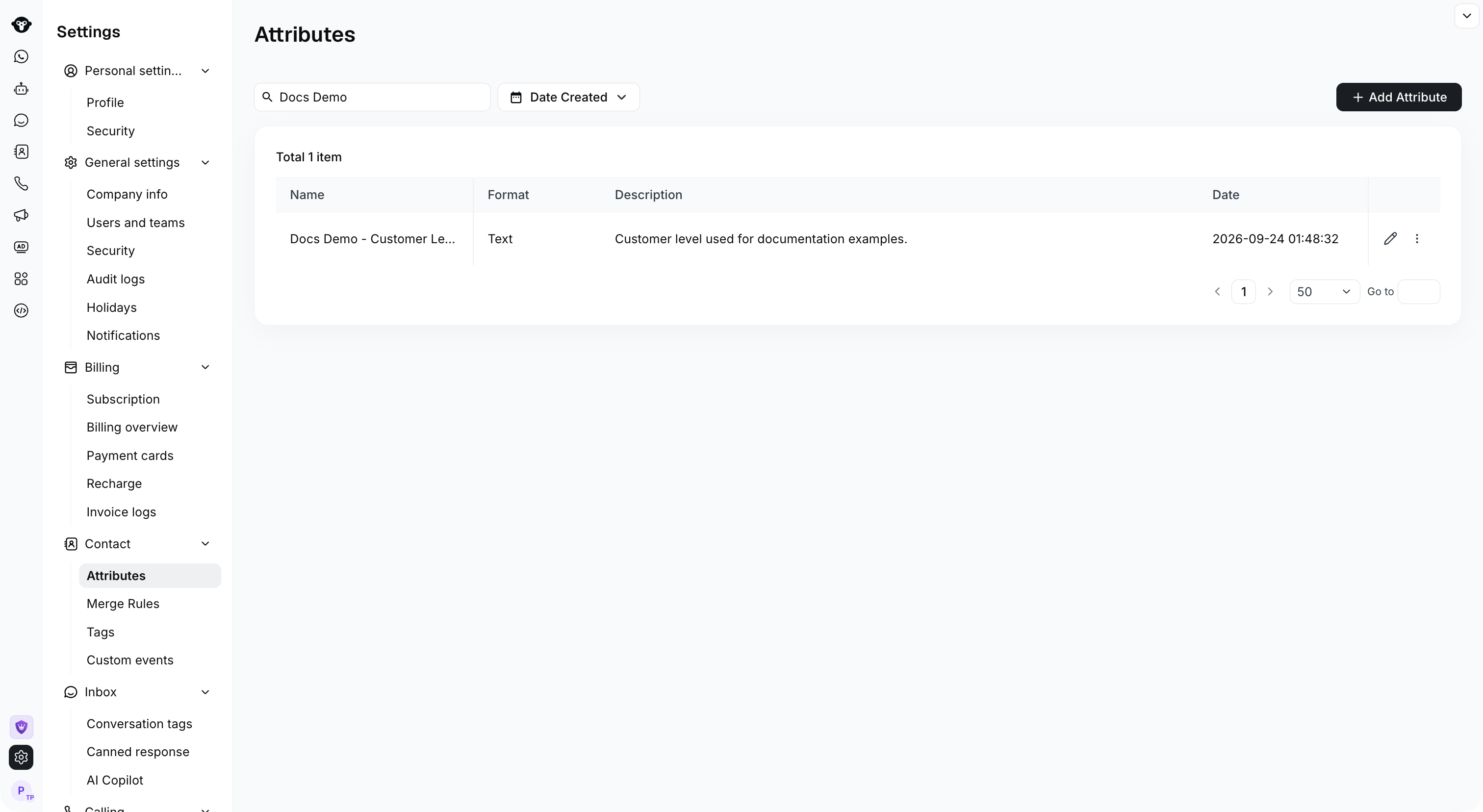
After an attribute is added successfully, you can view it on the **Settings > Contact > Attributes** page. You can also edit or delete it as needed.
### Edit or Delete an Attribute
After an attribute is added successfully, you can view it on the **Settings > Contact > Attributes** page. You can also edit or delete it as needed.
 Before editing or deleting an attribute, check whether it is being used in contact filters, segments, automation workflows, or other operational scenarios, to avoid affecting existing contact management workflows.
This documentation is built and hosted on [Mintlify](https://mintlify.com), a developer documentation platform.
Before editing or deleting an attribute, check whether it is being used in contact filters, segments, automation workflows, or other operational scenarios, to avoid affecting existing contact management workflows.
This documentation is built and hosted on [Mintlify](https://mintlify.com), a developer documentation platform.