

Confirm COD orders
Send a WhatsApp confirmation request when a pending-payment cash-on-delivery (COD) order is created in Shopify. You can track the customer’s quick reply during the tracking period you set.Before you start
- Connect your Shopify store to YCloud.
- Select the WhatsApp Business phone number that will send the confirmation.
- Prepare an approved WhatsApp template with at least one quick-reply button.
Configure the workflow
- In YCloud, go to Integrations > Shopify > Shopify Journey. Open the COD order confirmation workflow and select Edit.
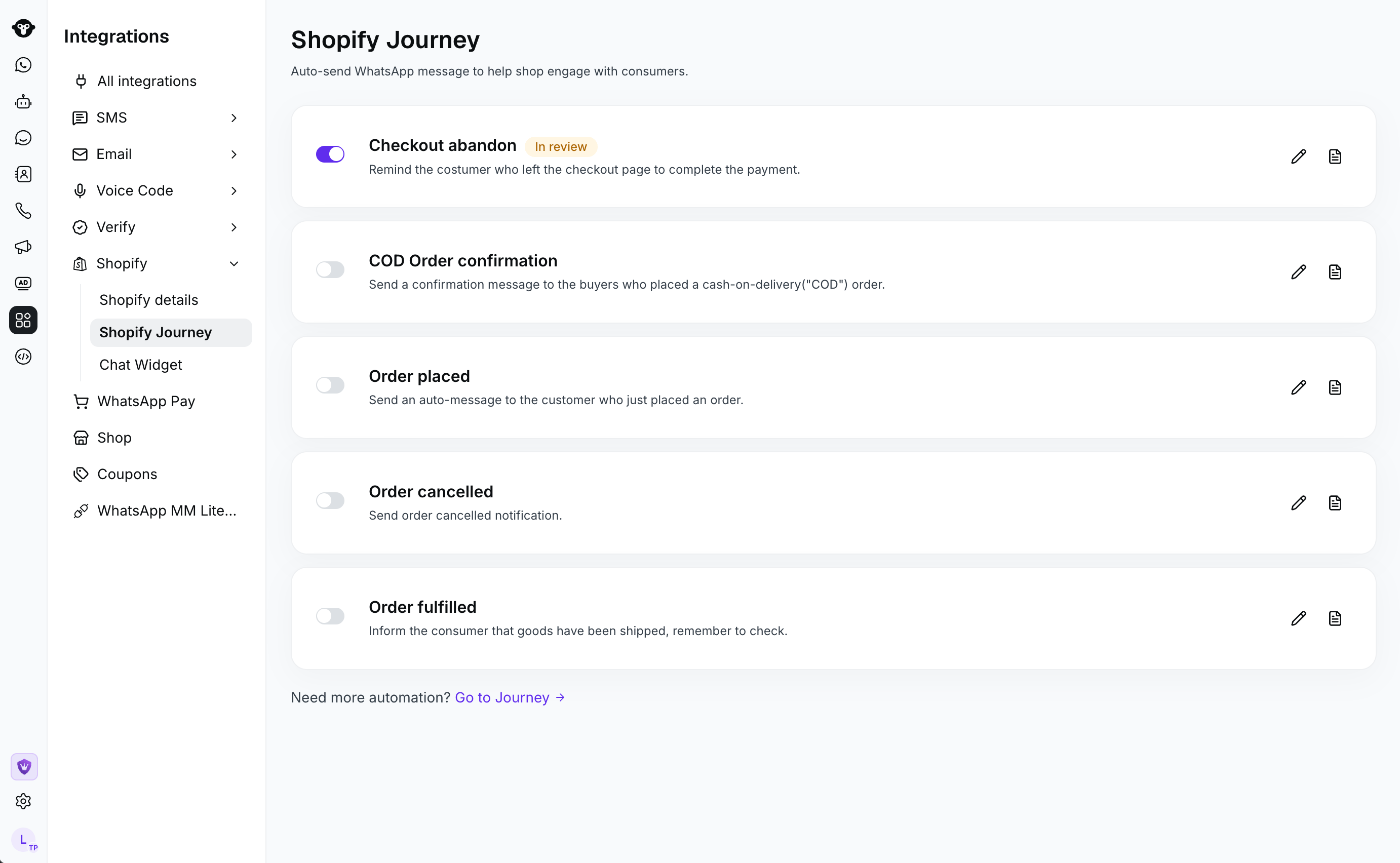
- Choose the WhatsApp Business phone number that will send the request.
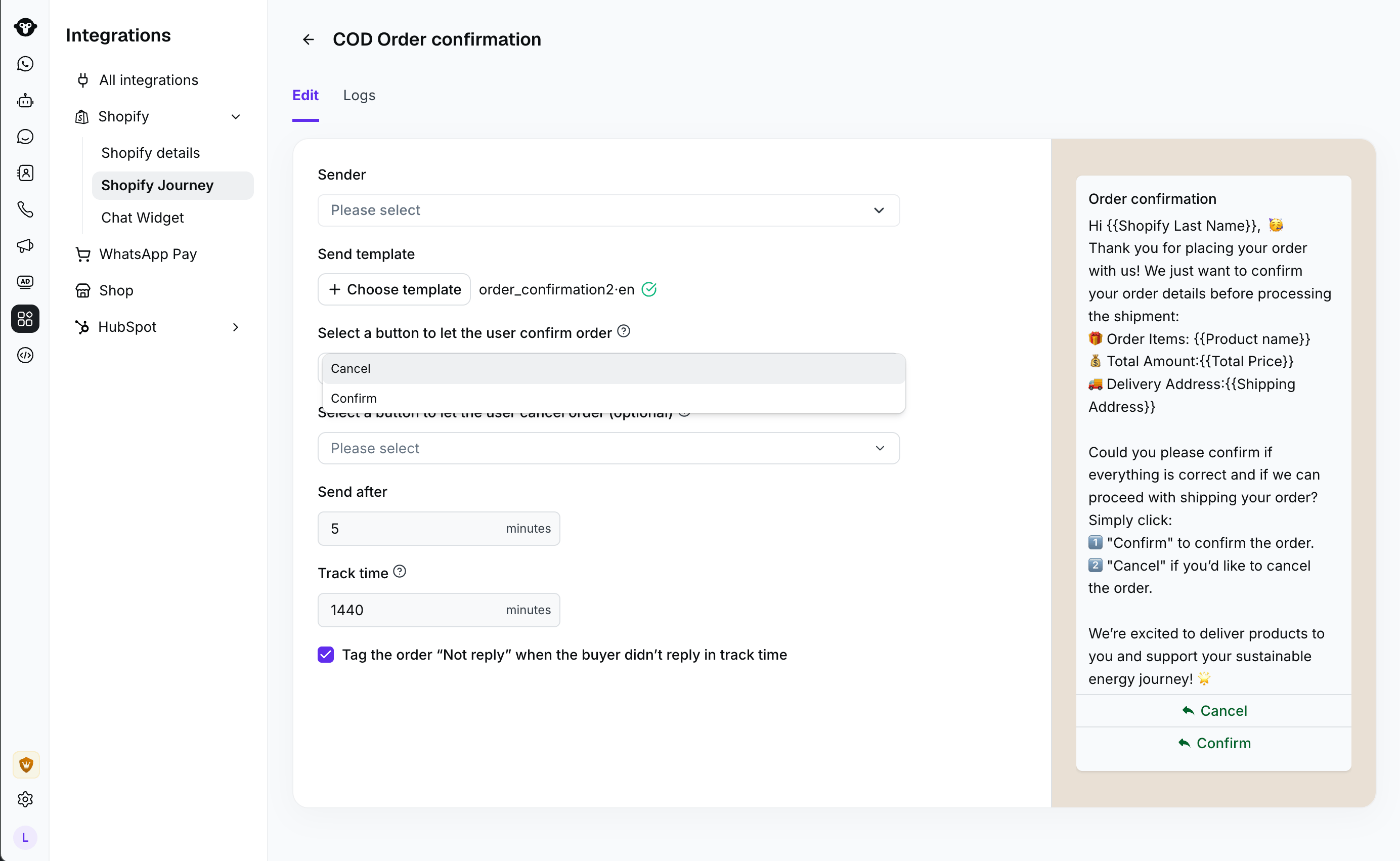
- Choose the confirmation template. If the template contains variables, map the supported Shopify information to them.
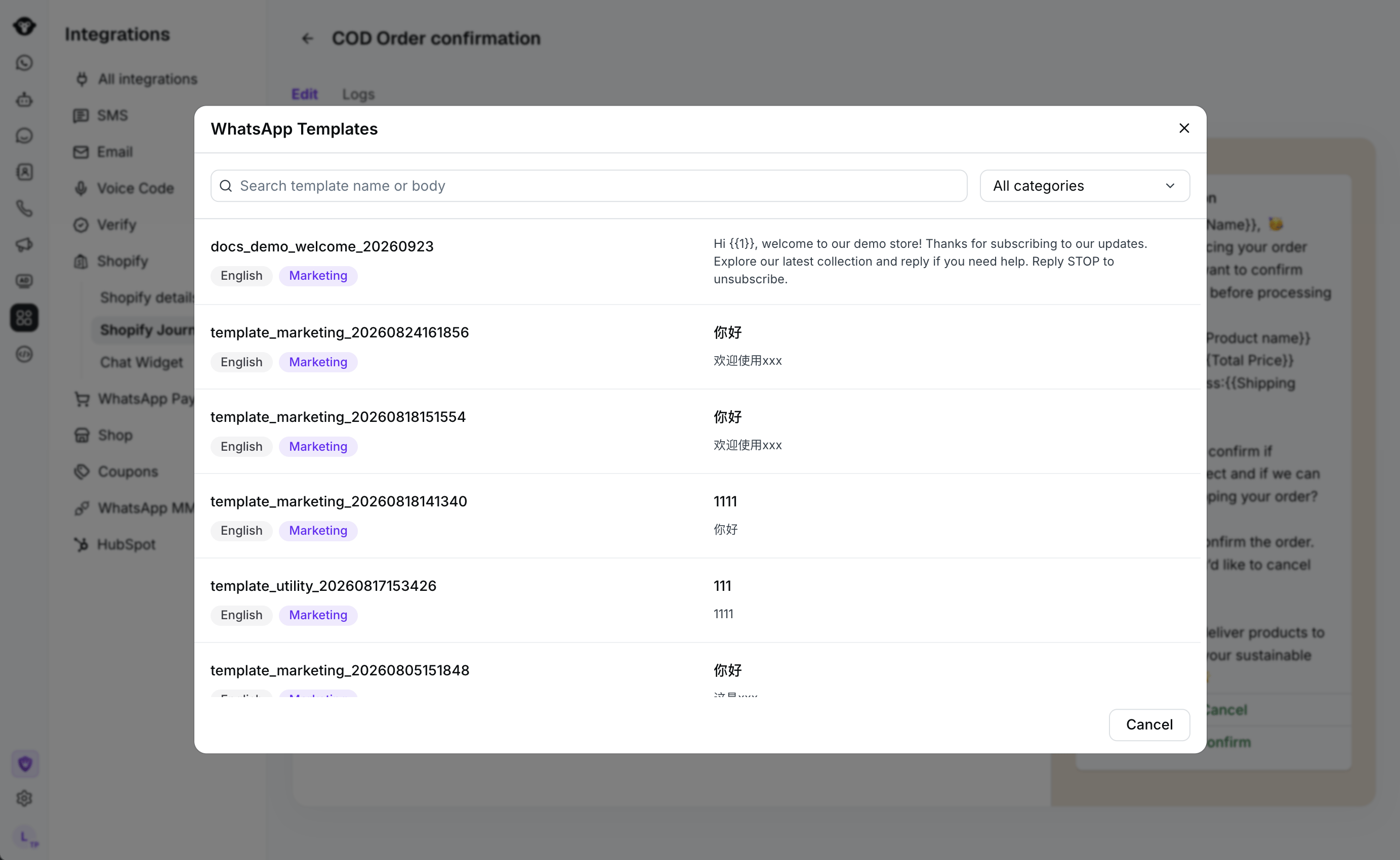
- Configure the quick-reply options that customers can use to submit a confirmation or cancellation response.
- Set when to send the request after the COD order is created, then set the tracking period for customer replies.
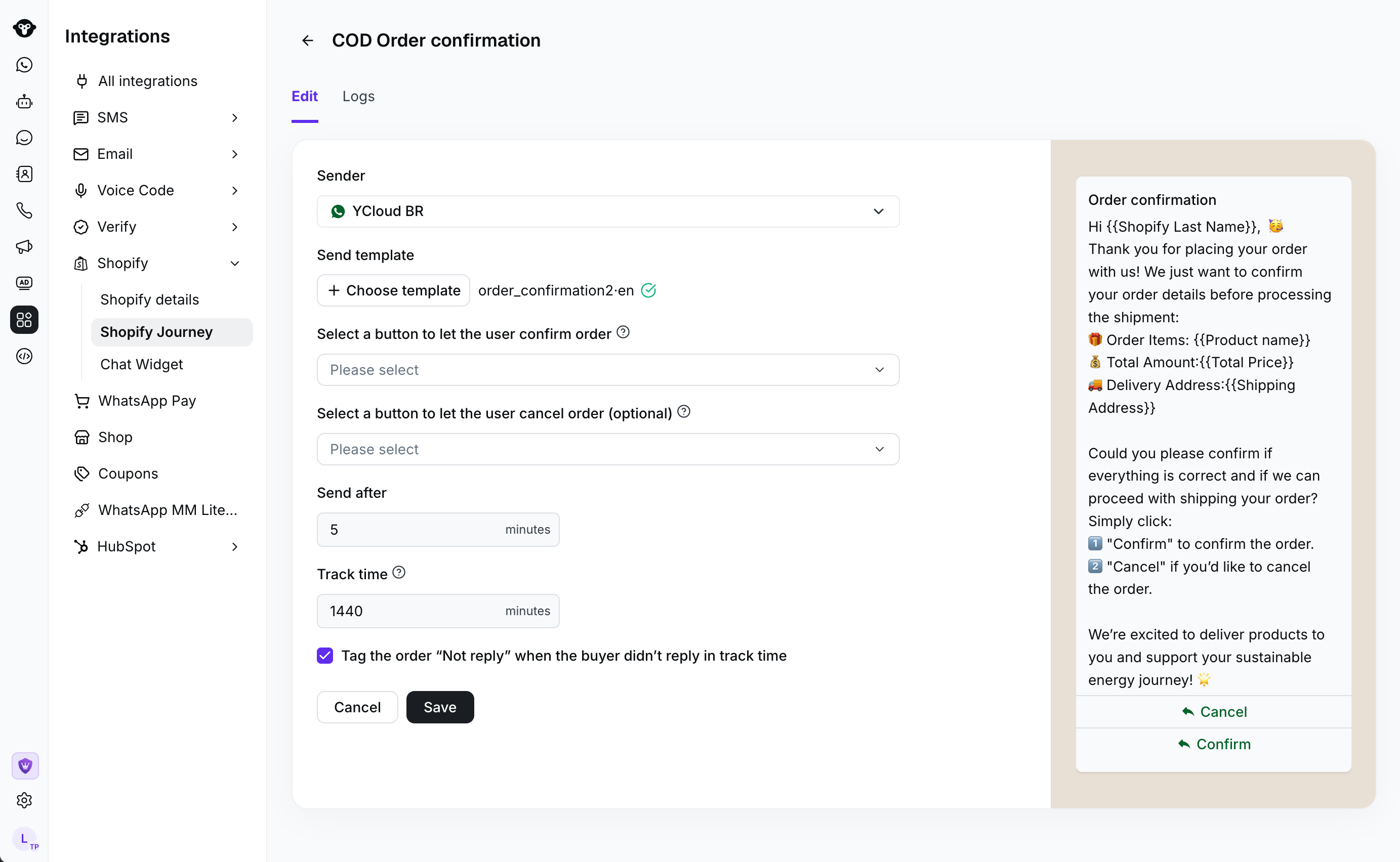
- Select Save, then activate the workflow.
Review activity
Open Logs to review delivery and reply records.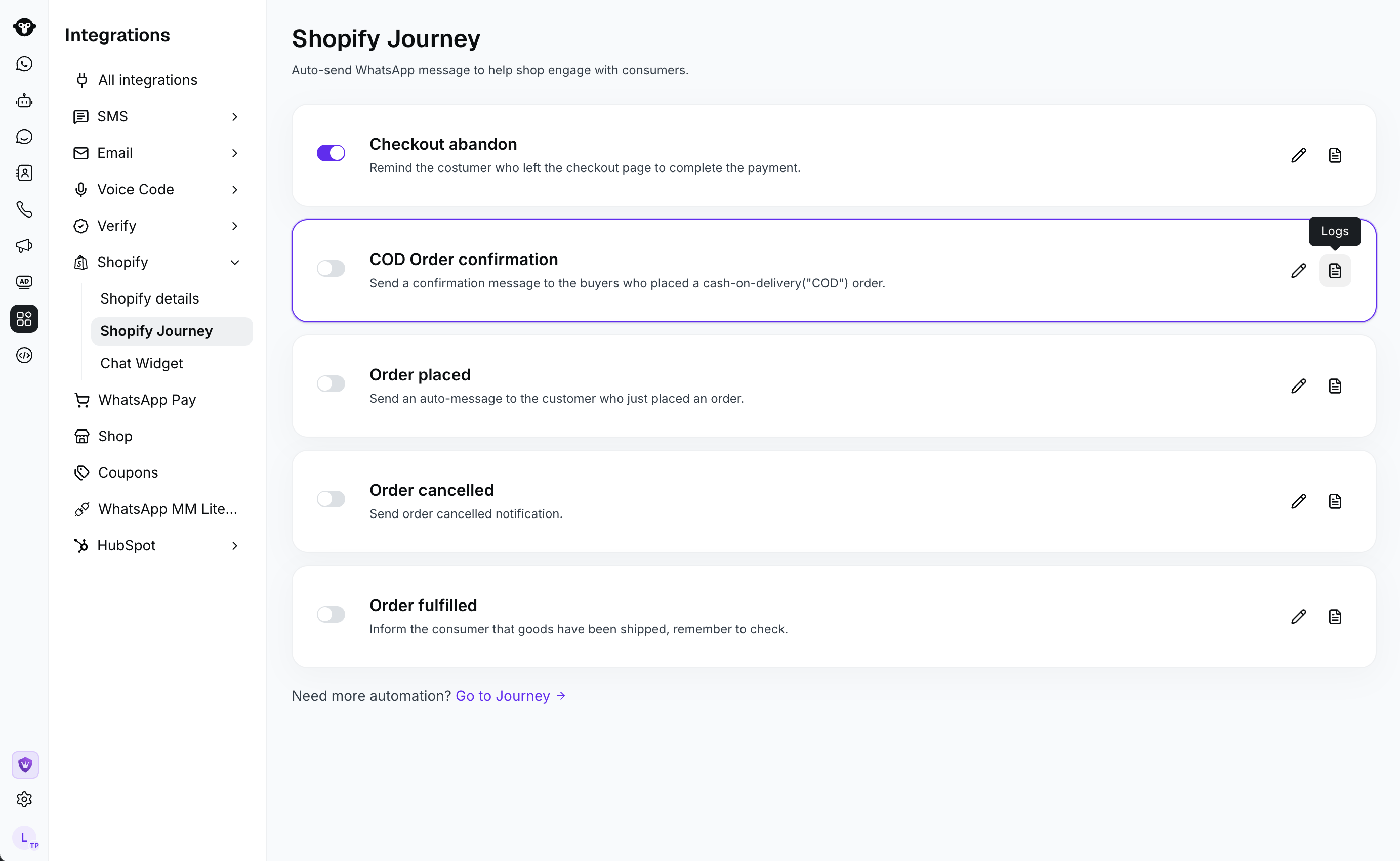
Recommendations
- Send the confirmation promptly enough for the buyer to recognize the order.
- Use unambiguous quick-reply labels so buyers know how to respond.
- Set a tracking period that matches how long your team can act on a response.
Frequently Asked Questions
Which orders enter the COD confirmation workflow?
Which orders enter the COD confirmation workflow?
The workflow processes newly created Shopify orders with pending payment status.