

Start with the event and next action
Make the reason for the message visible. Coupons, recommendations, or promotions mixed into an update can make it marketing. Login codes require authentication templates. See Utility templates.
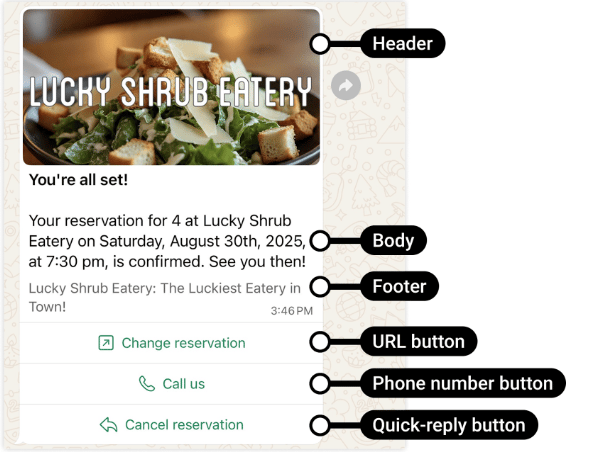
Meta example: a reservation confirmation gives the customer actions relevant to an existing booking.
1. Prepare the sender, permission, and data
Connect your number, confirm permission for the updates, and prepare the event, recipient, transaction reference, variables, and destination links. Check current customer preferences before sending. See Opt-in and Opt-out.2. Create and test a template
- Open Templates → Add Template for the WABA and choose Utility.
- Enter a name, language, and specific update. Use variables for customer or transaction values and provide representative fictional samples.
- Add relevant buttons, such as tracking access, where needed.
- Submit and check approval and category. See Review and lifecycle for rejection or recategorization.
- Use Test a message or Copy as cURL to check language, variables, buttons, and destination pages with a test recipient.
Your order {{1}} has shipped. Estimated delivery: {{2}}., with a tracking button. This is illustrative content, not an approved template. See Create template.
3. Connect the sending workflow
Application event: API- Detect the shipment, refund, or other event server-side. Check that it is current and has not already been processed.
- Select the connected sender, correct recipient, approved template and language, and map this event’s variables.
- Submit asynchronously with
POST /v2/whatsapp/messages, or usePOST /v2/whatsapp/messages/sendDirectlywhen you need a synchronous submission result. Prepare a server-side key and follow Send a WhatsApp message. - Associate the message with the business event and receive later updates through
whatsapp.message.updated. Request success does not confirm receipt.
Optional: Direct Send for eligible businesses
With Direct Send access, you can submit complete utility content for Meta to match or generate templates. Follow the Direct Send guide to check access, submit representative samples, confirm classification, and send with the required fields. This can reduce pre-created template and variable-mapping maintenance. Content, quality, and billing rules still apply; it is not a route for arbitrary messages. Use an approved utility template if access is unavailable.4. Check results
- Use Message logs or callbacks to distinguish sent, delivered, read, and failed.
- Test duplicate and outdated events. Do not retry an old failed-payment warning after payment succeeds.
- Confirm customer replies reach Inbox or the intended processing workflow.
- Investigate failures by reason; approval is not a delivery guarantee.