

Before you begin
Make sure that:- The template has been approved and is available in the template list.
- A connected WhatsApp business phone number is available as the sender.
- You have the recipient’s complete phone number, including the
+sign and country code.
Send a test message
- Open the relevant WABA in the YCloud dashboard.
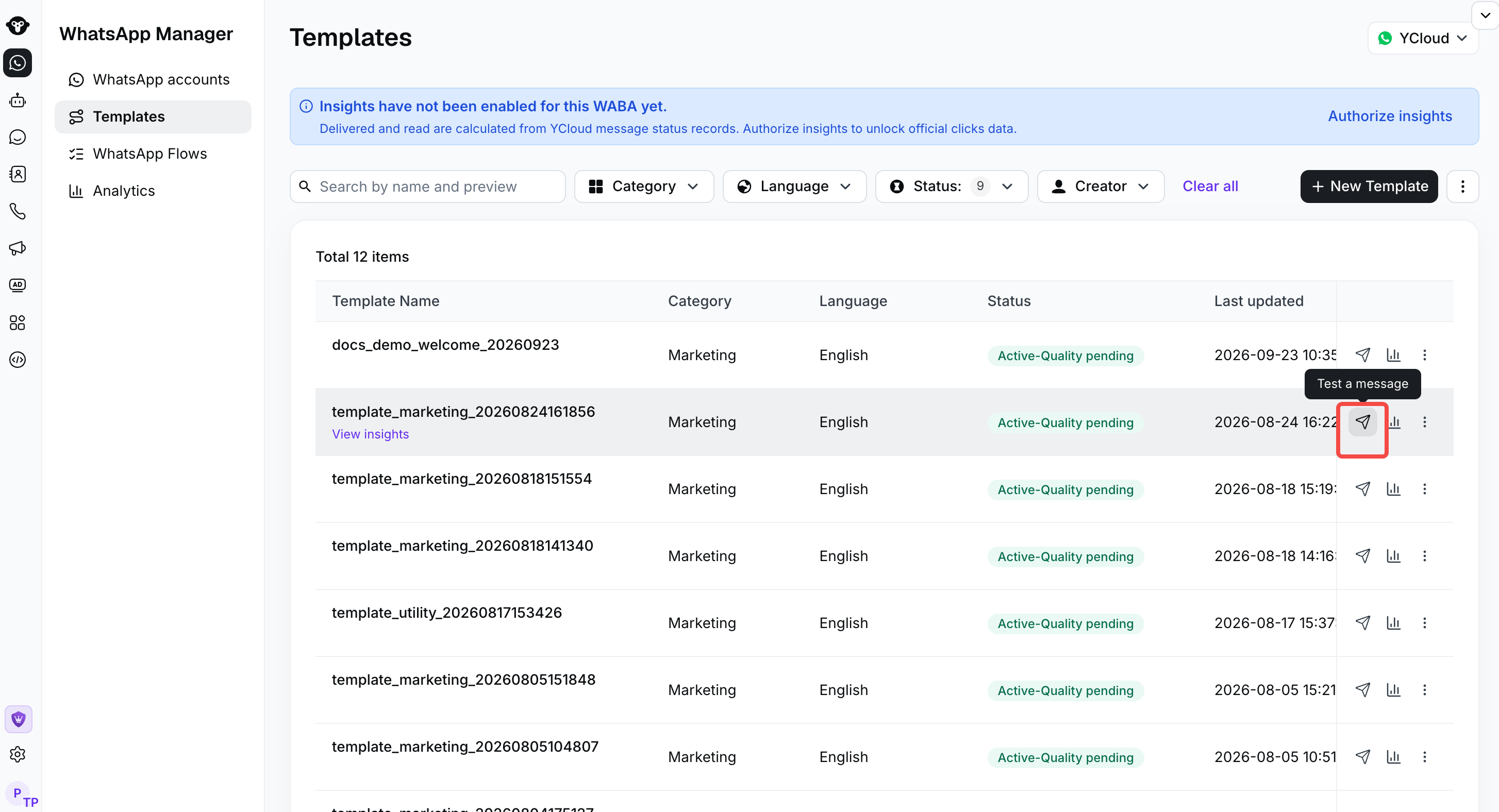
- Go to Manage template to open the template list.
- Find the approved template that you want to test.
- In the Action column, click the paper-plane Test a message icon.
- In the Sender field, select the WhatsApp business phone number that will send the message.
- In the Recipient field, enter the complete destination number, including the
+sign and country code. For example:+62.... - Review the sender and recipient, then click Send test.
The test uses the selected template, language, and sender. Make sure that the sender belongs to the WABA that owns the template.

Select the sending business number and enter the complete test recipient number before sending.
Test from a development environment
For developers who want to test the template through the API, use Copy as cURL. YCloud assembles a complete message-sending example for the selected template, including its name and language.- Find the approved template in the template list.
- In the Action column, click the More icon.
- Select Copy as cURL.
- Copy the generated command.
- Replace these three placeholders:
{{YOUR_API_KEY}}: Your YCloud API key.{{YOUR_SENDER_NUMBER}}: The WhatsApp business phone number that sends the message.{{YOUR_RECIPIENT_NUMBER}}: The complete recipient number, including the+sign and country code.
- Run the updated cURL command in your development or test environment.