

Personal Profile
In “Personal settings > Profile”, you can set your personal information, including your name, avatar, email, and phone number, with the option to change your password.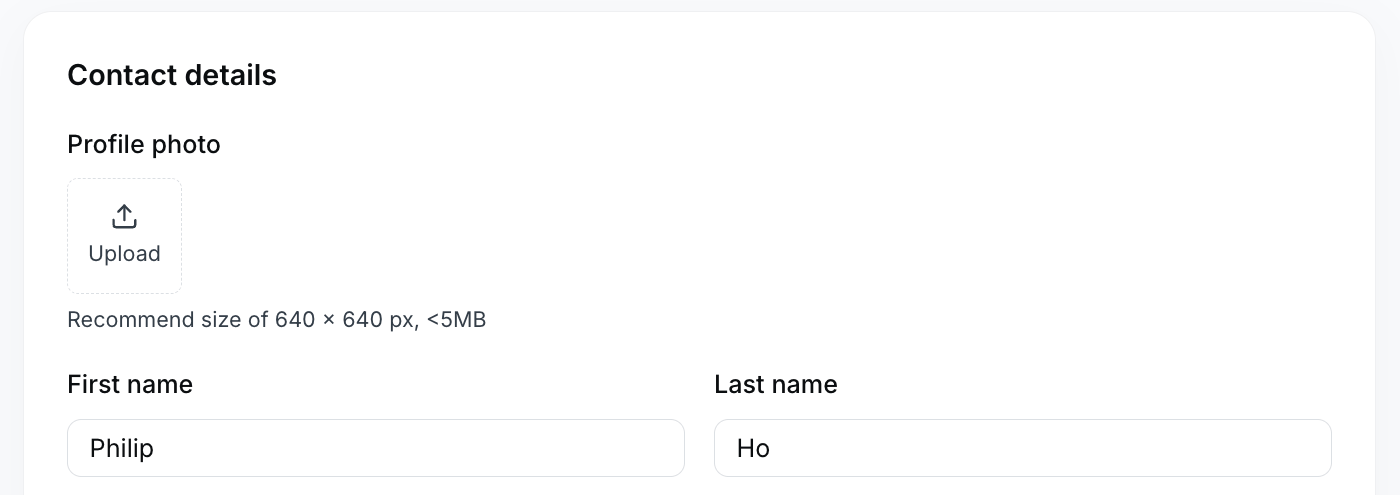
Update your profile photo and name in Profile.
Profile Image
You can choose or upload your preferred profile image in the personal preference settings, making it easier to distinguish during subsequent transfer sessions. Hovering the mouse over the image allows for a larger preview and delete operation. Recommended avatar size is 640 x 640 px, less than 5MB.Please click the save button at the bottom of the area after completing the operation for the changes to take effect.
Name
Set your name here to clearly and accurately identify your identity within the system.Phone Number
Fill in your phone number for necessary 2FA verification to ensure account security. You can click the modify button to change your phone number.Modifying the phone number requires verification of the previous phone number. Please click “Get Code” in the pop-up window to verify the phone number.
Change Language
Switch to the system language of your choice.
Open Languages and choose the language you want to use.
Change Password
Use this feature to update your password and enhance account security.Personal account security
Two-factor authentication (2FA) adds an extra layer of protection when you sign in or perform sensitive operations. Setting path: Click your avatar in the lower-left corner, then go to Personal settings > Security.Verification methods
YCloud supports the following verification methods:- Authenticator App (recommended): Use an authenticator app, such as Google Authenticator, to generate time-based one-time codes. We recommend using this method whenever possible because it does not depend on the delivery of an SMS or email.
- SMS / Email OTP: Receive a one-time password through the phone number or email address registered to your account.
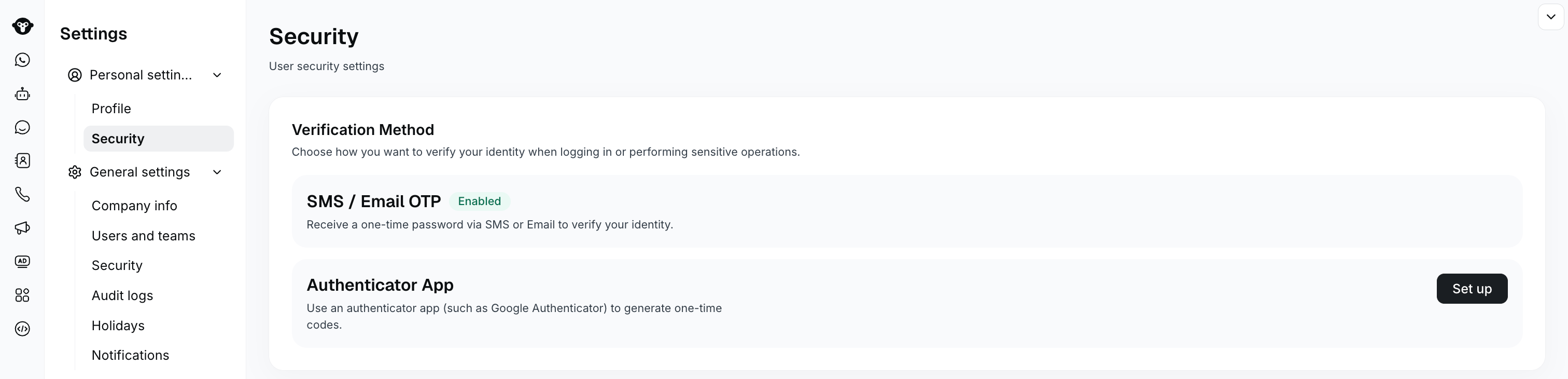
Review available verification methods in Personal settings > Security.