

Why use WhatsApp for verification?
Add another delivery channel alongside SMS
WhatsApp lets customers receive codes over the internet when SMS reception is unreliable. They need WhatsApp and an active internet connection.Reduce code-entry steps
Copy-code buttons reduce manual transcription. One-tap and zero-tap experiences can reduce app switching on supported, integrated Android apps.Optimize the cost of a completed verification
Compare total channel costs per successful verification by market, including authentication rates, applicable authentication-international rates, YCloud charges, and SMS fallback. Meta charges for delivered messages; an undelivered message does not incur the corresponding Meta message fee. Other charges depend on your YCloud plan. See WhatsApp pricing and Meta pricing.Locate drop-off in the verification flow
Track API acceptance, message delivery, and successful verification separately to locate drop-off. Your backend must reject expired, reused, or invalid codes.Before you start
- Sign in to YCloud and connect a WABA and sender.
- Prepare code request, generation, storage, and validation logic. This guide uses the WhatsApp Messages API; your system owns the code lifecycle. For YCloud’s verification service, see Verify.
- Prepare a server-side API key and webhook receiver.
- Use a test recipient who requested the code. A code request is not permission for later marketing.
- Configure an SMS channel and implement the fallback rules in your backend.
1. Choose the code experience
| Experience and integration | Example |
|---|---|
| Copy code Copy in WhatsApp, then paste into your website or app. Works across platforms. Code input and backend validation. | 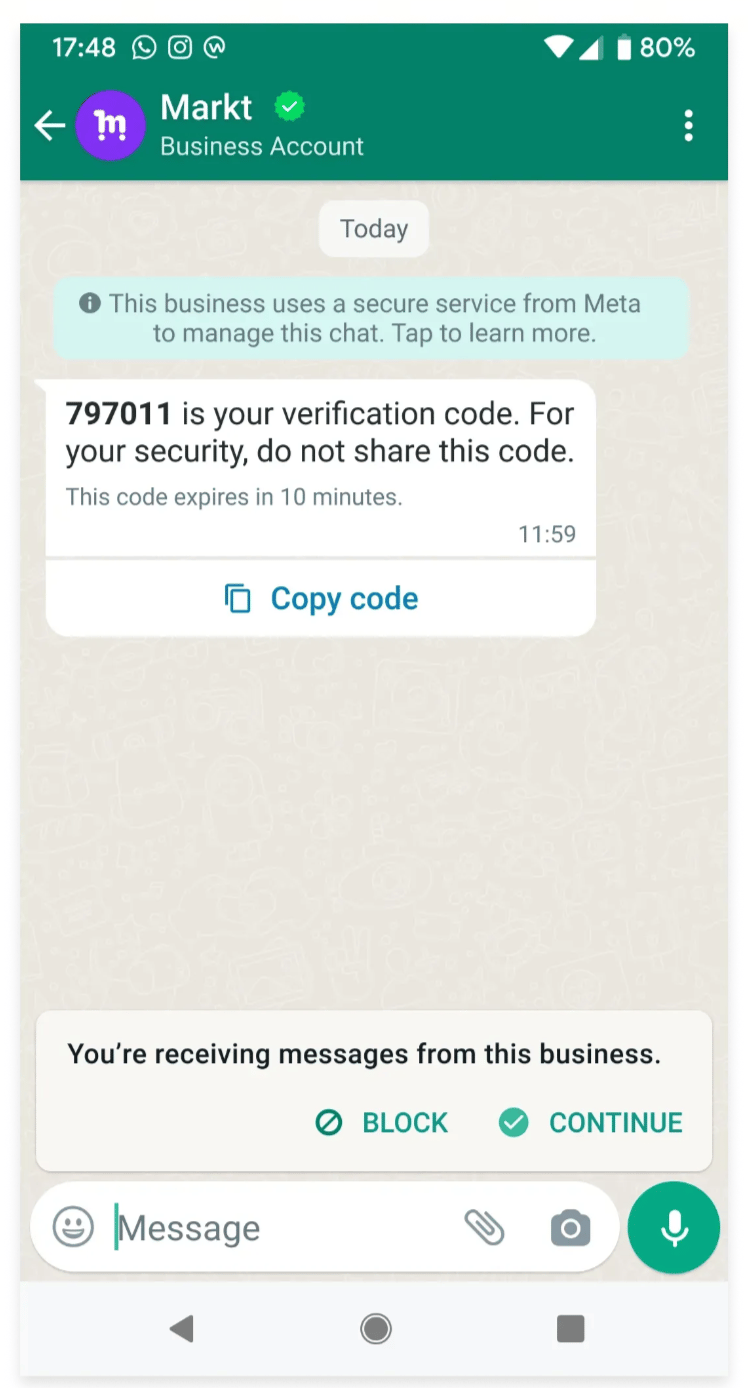 |
| One-tap / Autofill Tap Autofill to pass the code to your Android app. Integrate Meta’s OTP Android SDK and configure your package name and app signing key hash. | 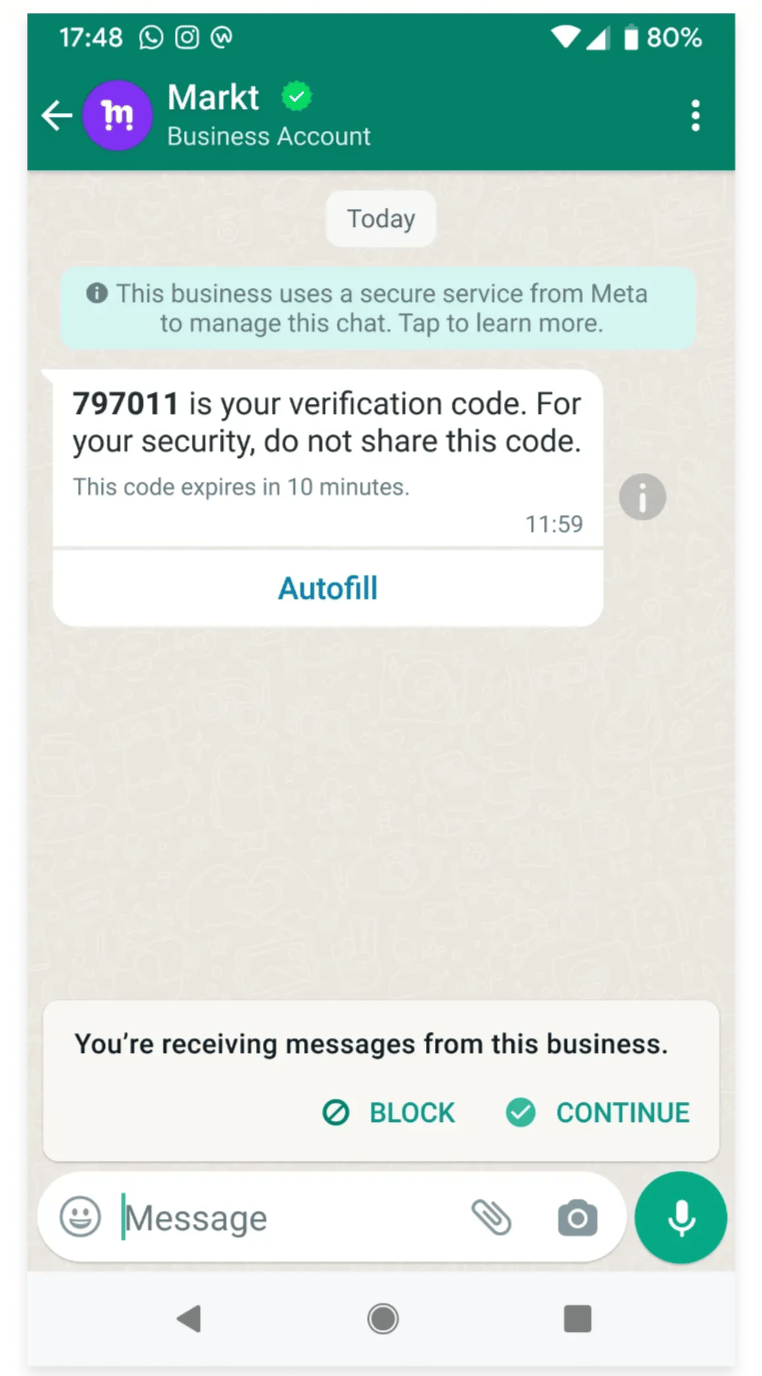 |
| Zero-tap Your Android app receives the code without switching to WhatsApp or tapping a button. Integrate Meta’s OTP Android SDK, configure your package name and app signing key hash, and accept the zero-tap terms. | 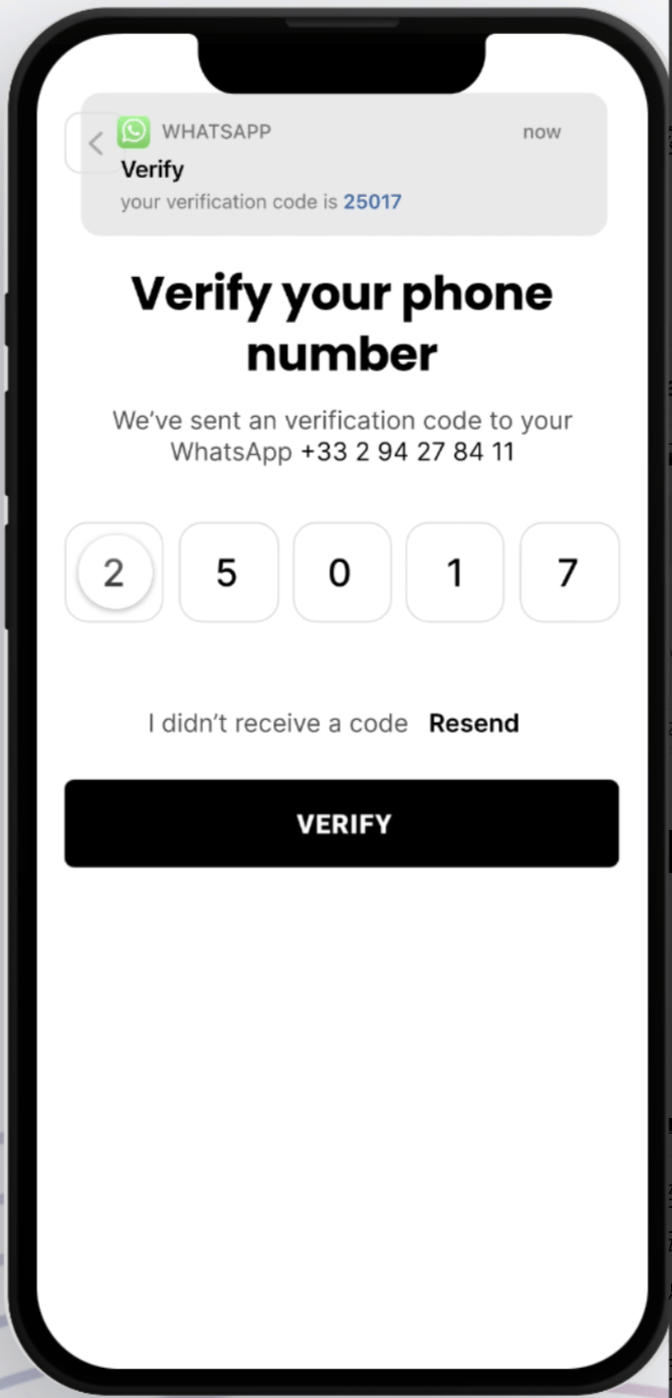 Illustrative code-entry screen. Zero-tap requires Android. |
2. Create an authentication template
Select the WABA, name, and language
Open Templates for the intended WABA in YCloud, select Add Template, and choose Authentication. Use lowercase letters, digits, and underscores for a name such aslogin_verification. Choose your customer’s language and record the exact approved name and language code for sending. See Create template.
Configure the content and code action
Authentication uses preset code text, with supported security and expiry notices. Do not insert ordinary promotional copy, URLs, media, or emojis into the body. Choose Copy code, Autofill, or Zero Tap. For Autofill and Zero Tap, enter the actual Android package name and signing hash and complete the app integration. Zero Tap also requires accepting the applicable terms. For API configuration, use the currentsupported_apps contract rather than older top-level package_name and signature_hash examples. Follow the authentication integration guides for Android SDK and handshake details.
Configure three separate expiry settings
We recommend setting the OTP delivery TTL (
messageSendTtlSeconds) to 30–60 seconds on your authentication template. Keep it within the code’s remaining lifetime. YCloud supports 30–900 seconds, with a 10-minute default for new templates.
The displayed expiry notice supports 1–90 minutes and does not enforce backend expiry. Delivery TTL stops pending delivery attempts; it does not retract messages already delivered. See the YCloud API contract.
Submit and check availability
Submit the template and inspect its actual review status. Send only after it is approved and usable. If rejected, inspect the reason and follow Template review and lifecycle. Do not depend on a fixed approval time.3. Send through the API
Send immediately after the customer requests a code. Choose the submission behavior your flow needs:
Use an approved authentication template with either endpoint.
Prepare the request
- Authenticate server-side with
X-API-Key. - Use E.164 numbers, including country codes, for
fromandto. - Set
typetotemplateand use the approved name and language for the selected WABA. - Supply the same code in the body and OTP button parameters.
- Associate your verification request with the YCloud message ID.
externalIdhelps reconciliation but does not guarantee idempotency.
123456 is fictional and must be generated by your verification system in production:
sub_type: url; do not use an ordinary marketing coupon-code button structure. See Copy-code authentication and Send a WhatsApp message. You can also select More → Copy as cURL on an approved template and check the generated parameters against its configuration.
A successful API response does not confirm delivery. If a request times out, inspect available message records and callbacks before sending again.
4. Receive delivery updates
In Developers → Webhooks, create an endpoint, enter your callback URL, and subscribe towhatsapp.message.updated. Follow the Webhook guide for signature verification, acknowledgements, and retries.
Associate each message ID with its verification request:
Mark verification complete only when your backend validates the code. Handle duplicate and late callbacks without allowing an earlier status to overwrite a later one. Use Message logs for manual investigation.
5. Design the interface and SMS fallback
Make the receiving channel clear
Before submission, say that the code will arrive through WhatsApp. After sending, show a masked destination, waiting message, resend countdown, and available alternatives. Let customers go back and correct the number.| Strategy and experience | Frontend example |
|---|---|
| WhatsApp first, SMS fallback Start with WhatsApp and offer SMS if delivery fails or takes too long. | 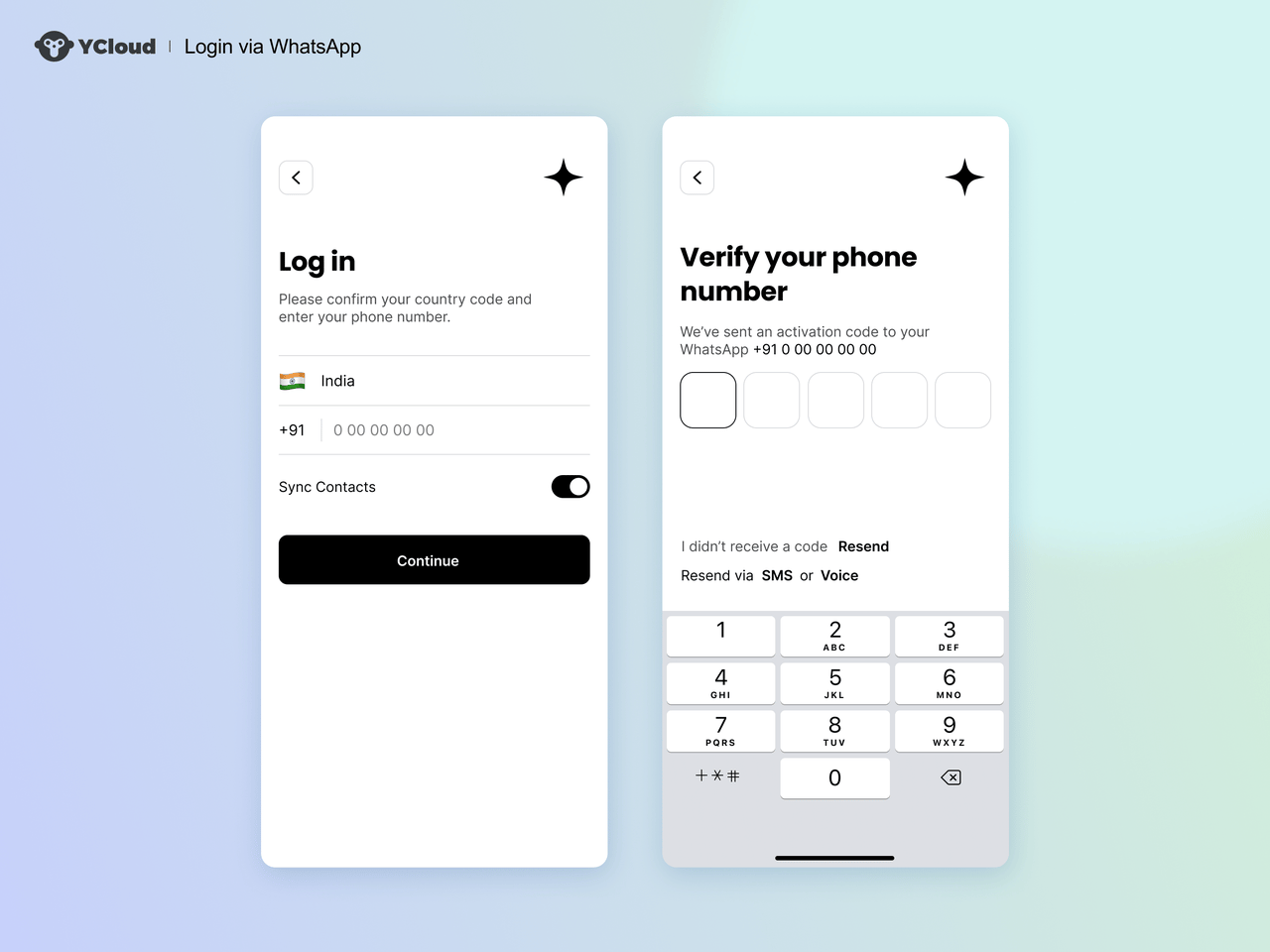 |
| Customer chooses Offer WhatsApp and SMS before sending, then show a resend countdown and code-entry screen. | 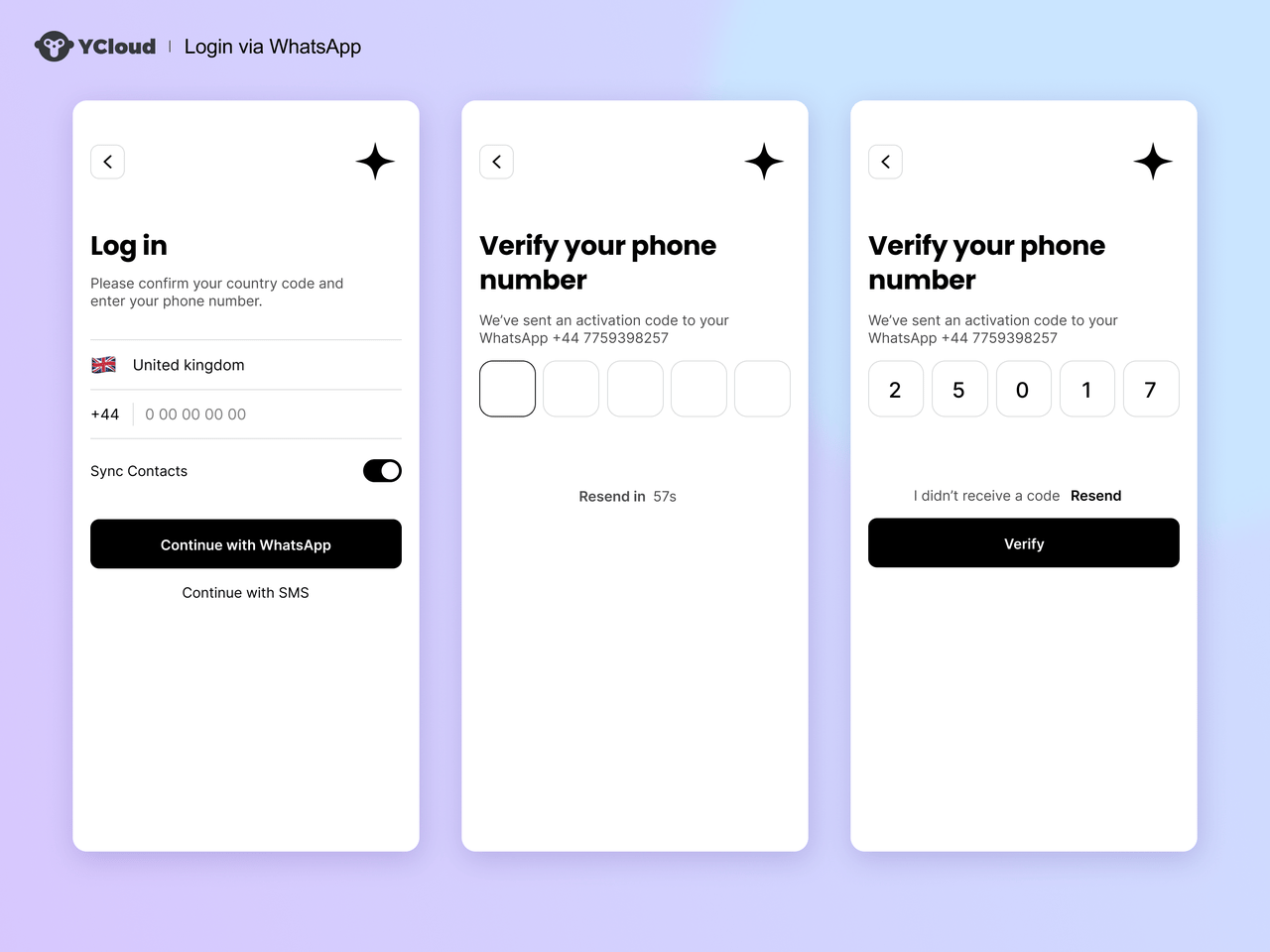 |
Configure SMS fallback
Set the OTP delivery TTL to 30–60 seconds on your WhatsApp authentication template and align your SMS fallback timer with it.
Meta charges for delivered WhatsApp messages. A message that expires without delivery incurs no Meta message fee; SMS charges still apply. A missing delivery webhook alone does not prove nondelivery, so both channels may be charged if WhatsApp was delivered before expiry. See WhatsApp pricing.
Send SMS at most once per verification request, even if callbacks are duplicated or arrive late. Reuse the same unexpired code, or invalidate the old code when issuing a new one. Fallback must not extend the code’s lifetime.
6. Test before launch
After launch, compare delivery rate, delivery latency, verification completion, SMS fallback share, and cost per successful verification by market, channel, and device. Use these results to tune channel priority and waiting thresholds.
Additional scenario: customer-initiated verification
In a customer-initiated verification flow, a customer opens WhatsApp from an app, sends a message containing information for the current verification, then returns to the app. This approach needs a one-time challenge, session binding, expiry, replay protection, and user confirmation.FAQ
How can I check whether WhatsApp is installed on Android or iOS?
On Android, declarecom.whatsapp and com.whatsapp.w4b in your manifest’s package queries, then use Meta’s OTP Android SDK method isWhatsAppInstalled(context) on a WhatsAppOtpHandler instance.
On iOS, use UIApplication.shared.canOpenURL(URL(string: "whatsapp://otp")!) and configure the URL scheme query permissions required by your app.
Installation checks help suggest a channel on the current device. They do not confirm that the entered phone number is registered with WhatsApp. Let customers confirm their WhatsApp number and choose another channel. See Meta’s Android and iOS installation checks.