Connect HubSpot with YCloud to manage WhatsApp conversations alongside your CRM contacts. Set up the connection once, then choose the features your team needs.

What you can do

  • Sync selected YCloud contact data to HubSpot.
  • Sync contact owner changes between YCloud and HubSpot.
  • View selected HubSpot contact data in YCloud Inbox.
  • Open YCloud Inbox from a HubSpot contact to view and handle WhatsApp conversations.
  • Save eligible one-to-one WhatsApp conversations to the HubSpot contact timeline.
  • Send WhatsApp templates through a HubSpot workflow.
This integration is available with YCloud Pro and Enterprise. HubSpot does not require an additional plan for the integration itself. Your HubSpot account must still have the permissions and features needed for the HubSpot actions you want to use.

Connect HubSpot

  1. In YCloud, open Integrations and select HubSpot.
  2. Complete the HubSpot authorization flow to connect your account.
  3. Return to YCloud and check the refreshed HubSpot connection status.
After connecting, configure the settings that support your workflow: contact field mappings, owner mappings, and the HubSpot contact data shown in YCloud Inbox. Review these settings before you begin sending messages or enabling timeline sync.
YCloud Integrations with the HubSpot Install button highlighted.

Select Install on the HubSpot card to begin connecting your account.

YCloud confirmation that the HubSpot account was authorized successfully.

HubSpot account authorization completed.

Sync contacts and owners

Use contact field mappings to choose the contact data that YCloud syncs to HubSpot. The system maintains the mapping between Contact ID and ycloud_contact_id; this mapping is not editable or removable.
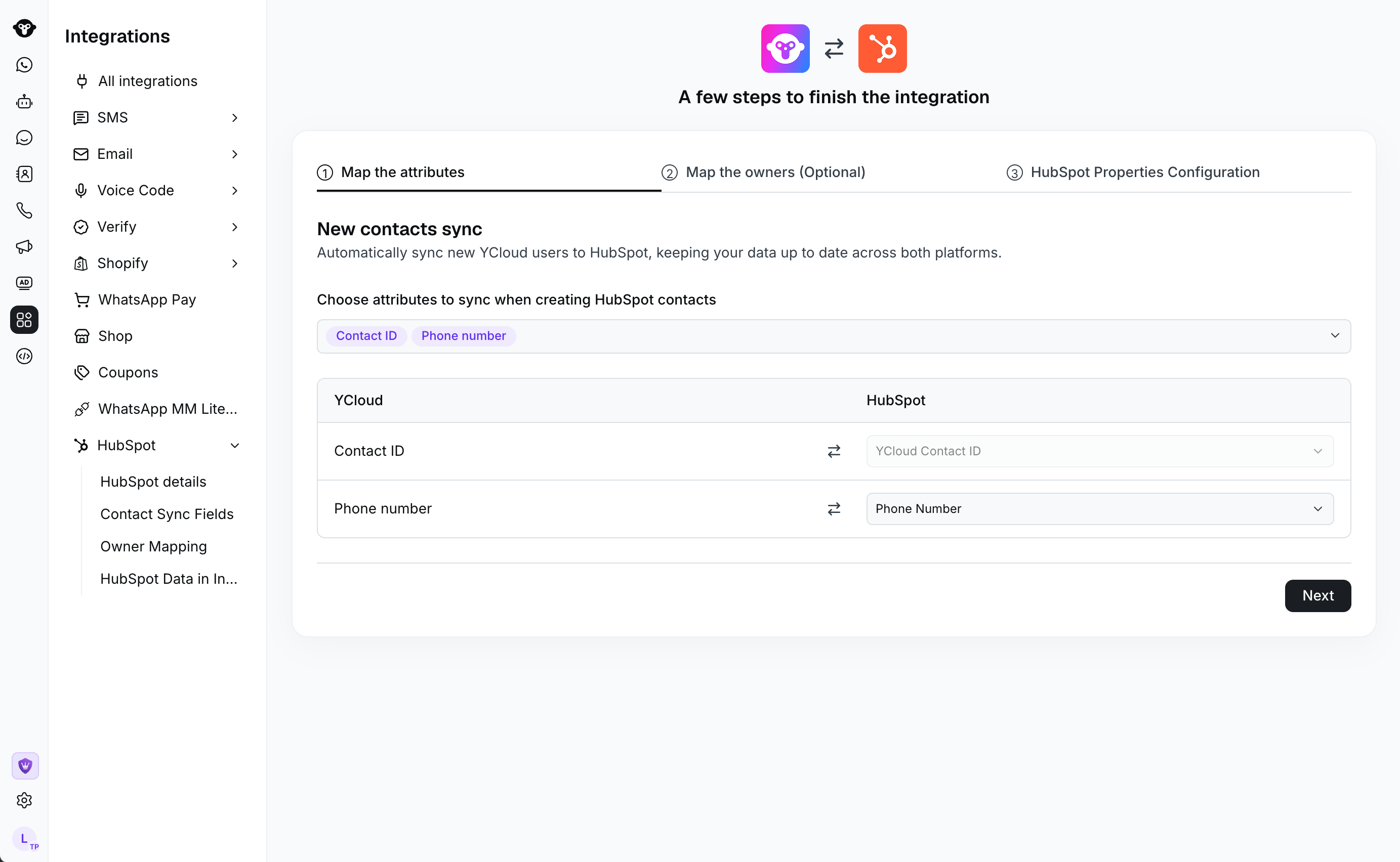
YCloud HubSpot setup showing Contact ID and phone number field mappings.

Choose the contact fields to sync from YCloud to HubSpot.
Contacts without a phone number are supported when they have a valid WhatsApp sending identifier. A phone number is used when it is available. When a contact later receives a phone number, YCloud updates the matching HubSpot contact instead of treating it as a new contact.
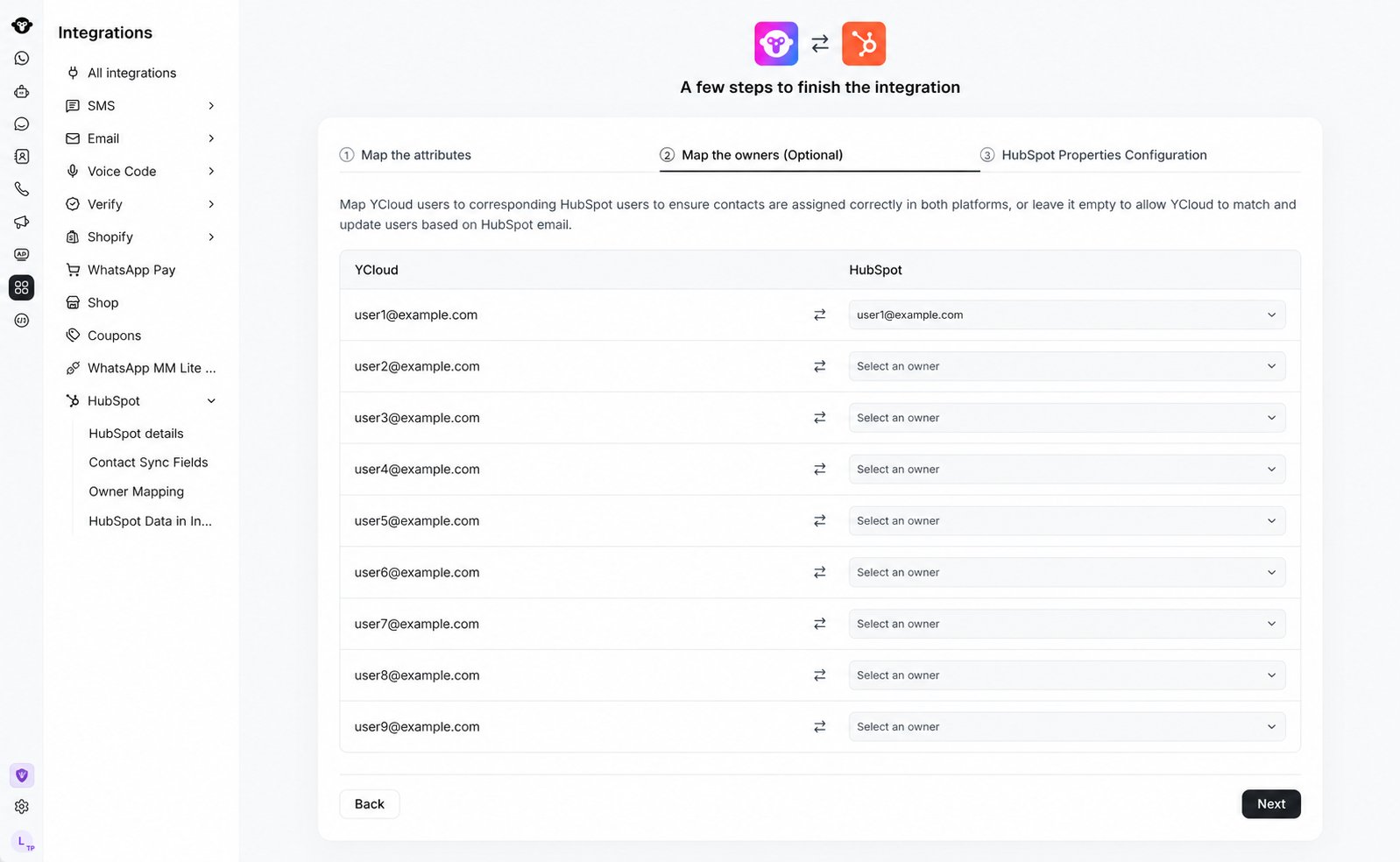
YCloud HubSpot setup showing owner mappings between YCloud users and HubSpot owners.

Map YCloud users to their corresponding HubSpot owners.
Contact owners can sync in both directions. HubSpot owner changes update the YCloud contact owner. To sync a YCloud owner change to HubSpot, configure an owner mapping between the two systems. YCloud must be able to identify one valid owner and match that owner to HubSpot. If it cannot, it skips the owner field while other mapped contact data continues to sync. Removing a YCloud contact owner clears the corresponding HubSpot owner.
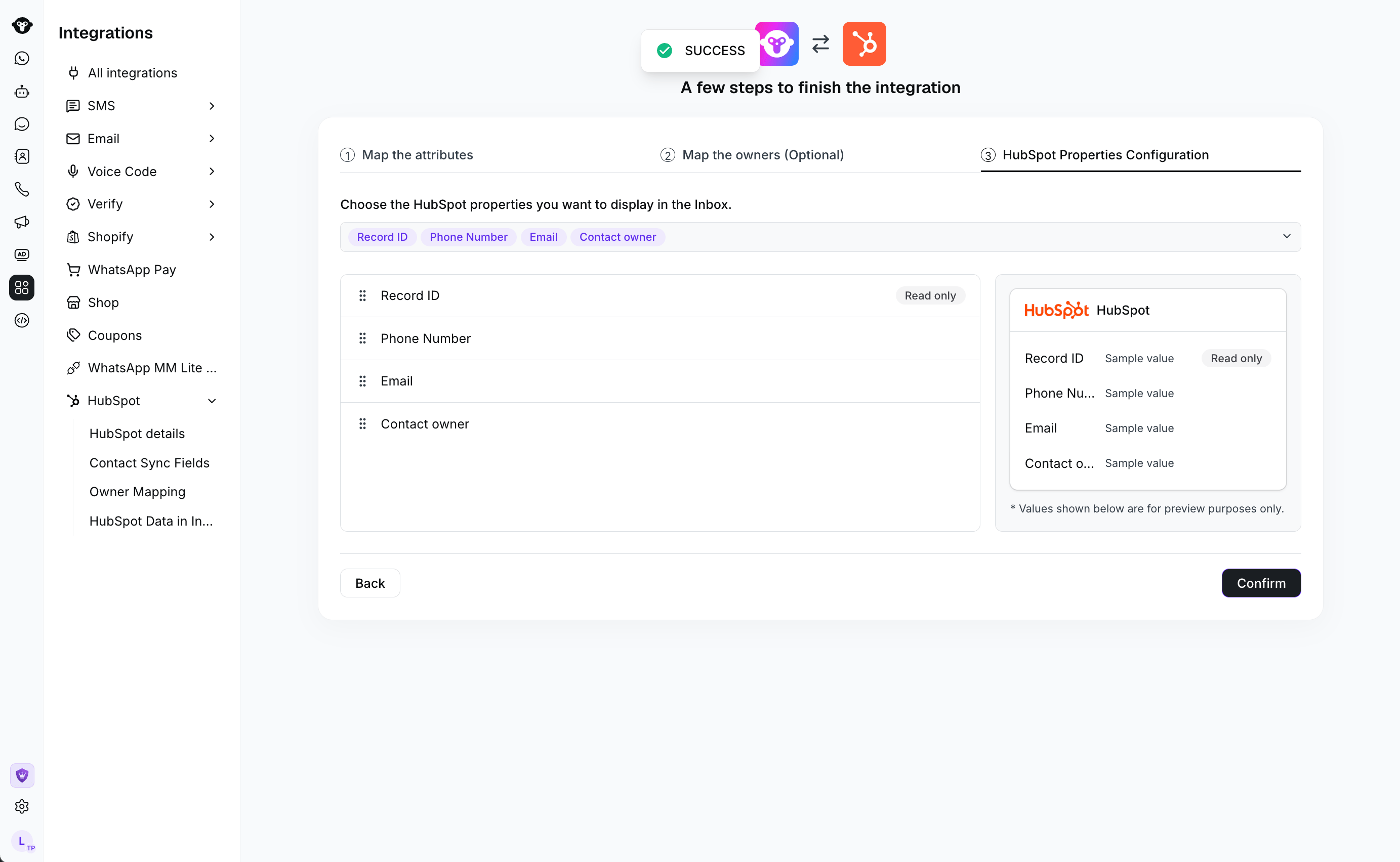
YCloud HubSpot setup showing selected HubSpot properties and the Inbox preview.

Choose the HubSpot properties to display in YCloud Inbox.

Contact ownership and Inbox conversation assignment are separate. A HubSpot owner change updates the YCloud contact owner, but the business number’s assignment rules determine who receives a conversation in YCloud Inbox.

View HubSpot data in YCloud Inbox

You can configure HubSpot contact data to appear in the contact details area of YCloud Inbox. This gives agents HubSpot context while they work in YCloud, without turning every HubSpot property into a YCloud field. This is different from opening YCloud Inbox inside HubSpot. Here, you are working in YCloud and viewing HubSpot information alongside the contact.

Chat in HubSpot

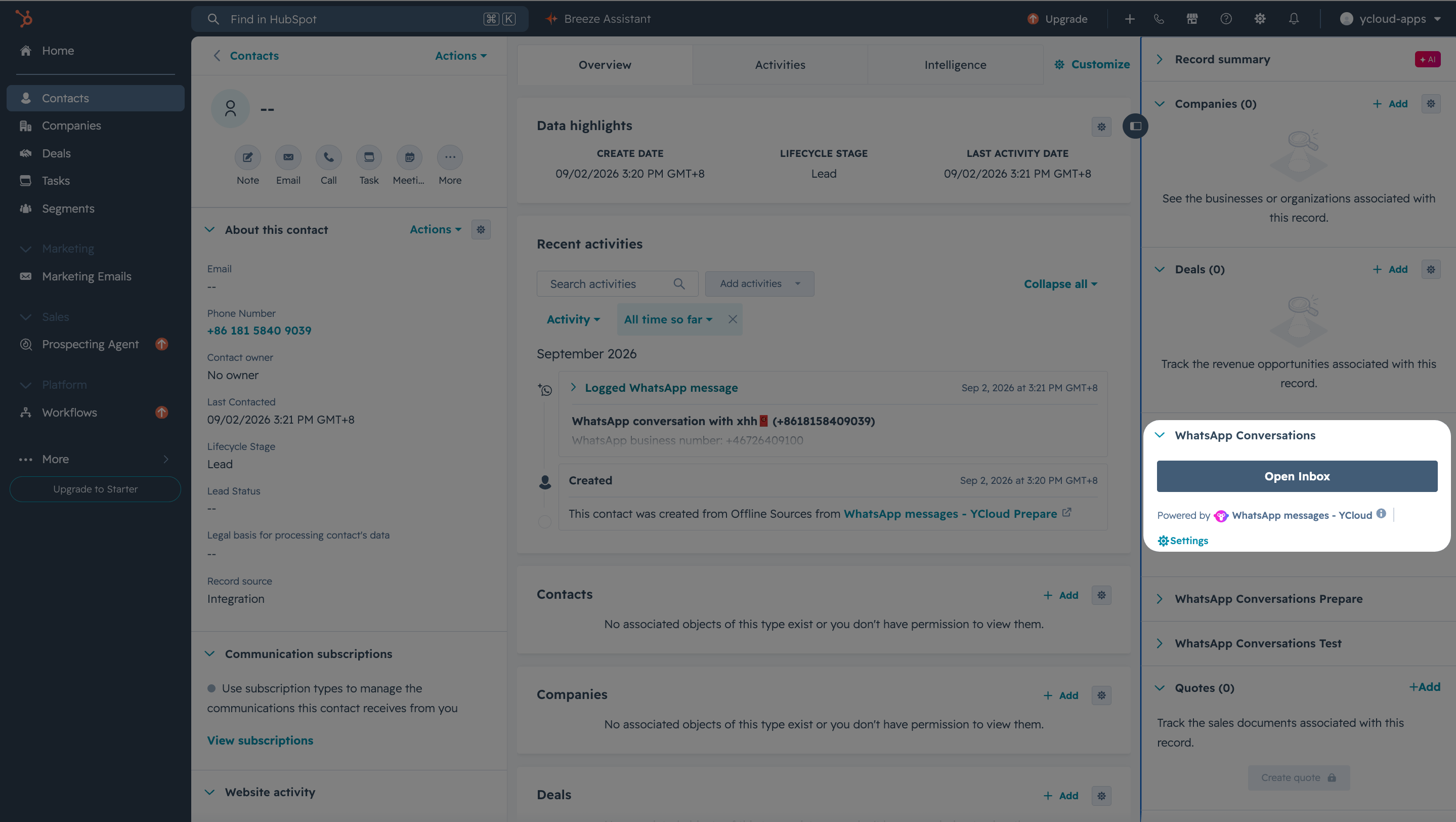
HubSpot contact page with the YCloud Inbox entry point.
From a HubSpot contact, you can open the embedded YCloud Inbox to view and handle that contact’s WhatsApp conversations without switching to the standalone YCloud workspace. Contacts without a phone number can use this experience when they have a valid WhatsApp sending identifier. The embedded Inbox does not support starting or answering calls. Conversation assignment continues to follow the assignment rules for the business number; changing a HubSpot contact owner does not guarantee that an existing conversation moves to that owner.

Sync conversations to timeline

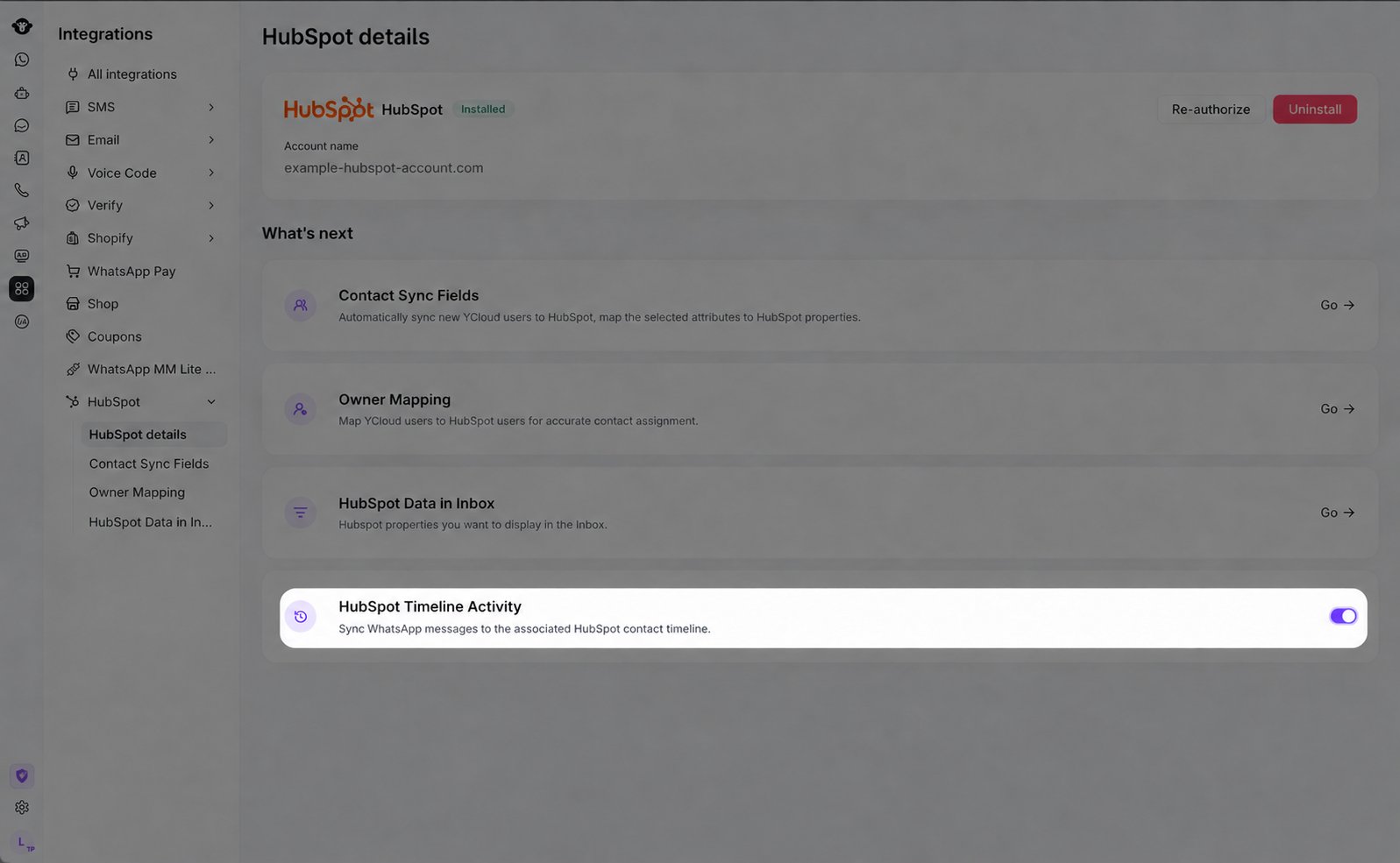
YCloud HubSpot details page with the HubSpot Timeline Activity setting highlighted.

Turn on HubSpot Timeline Activity to sync WhatsApp messages to HubSpot.
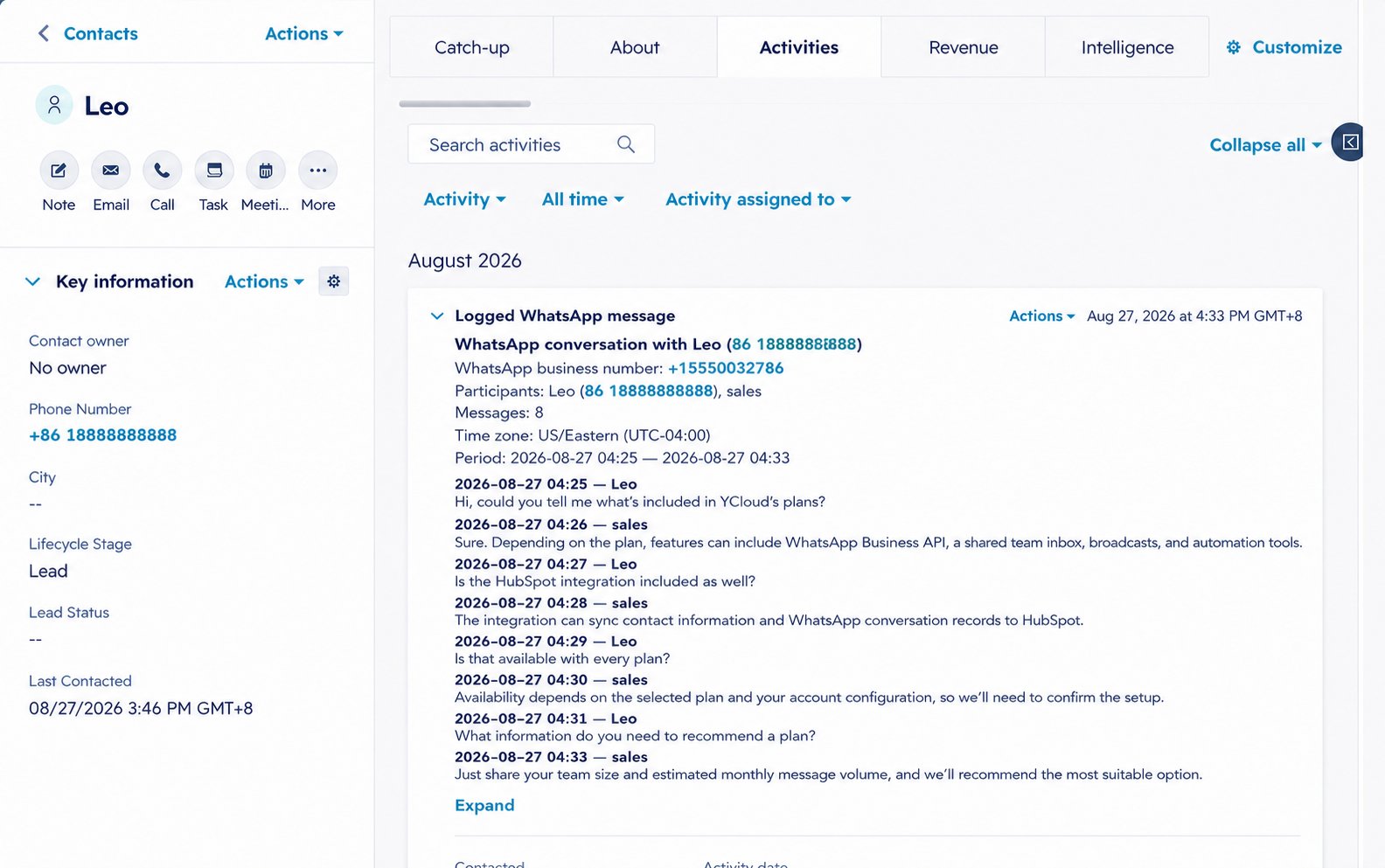
Turn on HubSpot Timeline Activity to save eligible one-to-one WhatsApp messages to the matching HubSpot contact timeline. The integration requires an active HubSpot authorization and a mapped HubSpot contact.
WhatsApp conversation activity shown on a HubSpot contact timeline.
Timeline sync starts with messages created after the most recent time you turn it on. It does not backfill messages created before you enabled it or while it was turned off. Group chats, calling records, Flows, Flow responses, system messages, and SMPP messages are not synced. Synced messages are associated with one HubSpot contact and one WhatsApp business number. Text appears as readable conversation content. Media and complex message types appear as text or type placeholders; YCloud does not upload media files or recreate the full WhatsApp interface in HubSpot. If a record does not appear, confirm that Timeline Activity was enabled before the message was created, the HubSpot authorization is active, the contact is mapped, and the message is within the supported scope.

Send templates from workflows

  1. Add the YCloud WhatsApp template action to a HubSpot workflow.
  2. Configure the sending business number, recipient, approved template, language, and required template variables.
  3. Use a test contact you control to verify the message before activating the workflow for customers.
A contact without a phone number still needs a valid WhatsApp sending identifier. If you cannot find the YCloud action or a message does not send, check the HubSpot connection, your HubSpot permissions and enabled features, the sending number, and the template status.
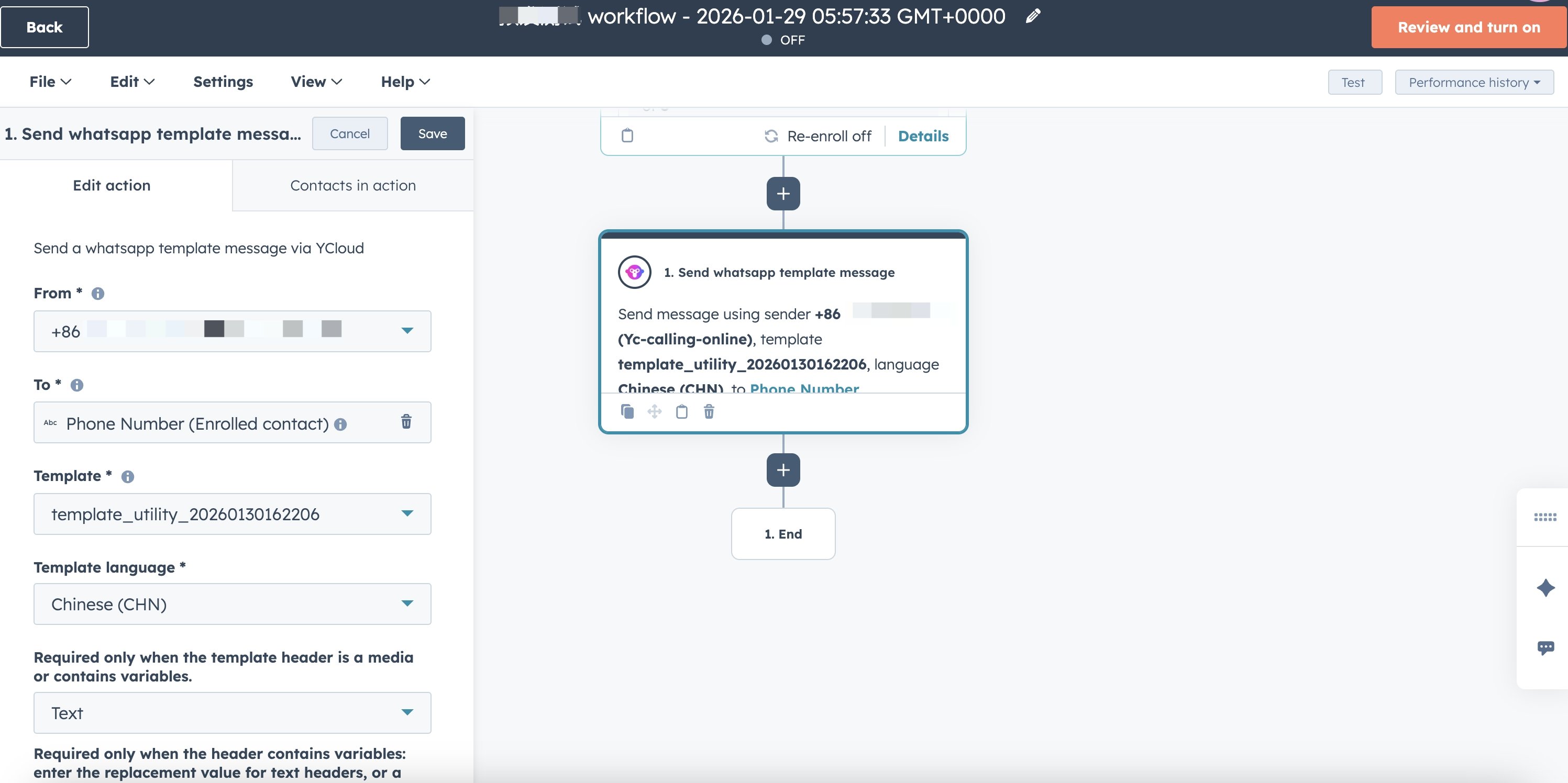
HubSpot workflow editor showing the YCloud WhatsApp template action with sender, recipient, template, and language settings.

Configure the YCloud WhatsApp template action in a HubSpot workflow.

Frequently Asked Questions

The HubSpot integration is available with YCloud Pro and Enterprise.
For changes made in YCloud, check that the contact has one valid owner and that the owner is mapped to a HubSpot owner. If either condition is missing, YCloud skips the owner field while other mapped contact data continues to sync. This sync does not backfill historical owner assignments or resolve simultaneous owner edits in both systems.
Not necessarily. Owner changes sync to the YCloud contact owner. Inbox conversation assignment follows the assignment rules for the business number.
Check that Timeline Activity was already enabled when the message was created, the HubSpot authorization is active, the contact is mapped, and the message is a supported one-to-one message.
Disconnecting removes the HubSpot authorization, owner mappings, contact display settings, and contact field mappings saved in YCloud. Review and configure these settings again after you reconnect.