Product
Before you add products, make sure you have created your store. Learn how to install a store.
Add a product
- Go to Integrations > Shop > Products.
- Select Add new product.

Go to Integrations > Shop > Products, then select Add new product.
- Enter the product information.

The current product form shows Category, Title, Image, and Description. The example has not been saved or published.
Title and description
Customers see the title and description on the product page and in order-related messages.
- Title: Use a clear product name that includes the key use, scenario, keywords, and specifications.
- Description: Add a detailed overview with rich text and images. If you are a reseller, write an original description rather than copying the manufacturer’s text.
Product images
Customers see product images on the product detail page and in order confirmations.
- Select Upload to add images that appear on the product page.
- Use JPG, JPEG, or PNG files smaller than 1 MB.
- Use a square image, such as 450 × 450 px.
- You can add up to 10 images. Delete an existing image before adding an eleventh image.
- Use Preview to check how the images look to customers.
Pricing and inventory
Your shop currency is set when you create the store. Learn more about settlement currency.
- Compare-at price: A reference price shown with a strikethrough. It is for display only.
- Sale price: The price customers pay.
Single-SKU products

Enter inventory and prices in the product editor. The currency comes from your shop settings.
Multi-SKU products

Add a variant name and its options before completing the remaining product information.

Use Availability to control whether each SKU can be purchased. This example shows the existing settings of a demo product.
- Enabled: The SKU is visible and can be purchased.
- Disabled: The SKU is hidden and cannot be ordered.
Category
Select Physical or Virtual.- Physical Product: Requires shipping.
- Virtual Product: Does not require shipping, such as a membership or digital license.
This field is required for catalog integrations.
Product type
For Meta or Google Catalog advertising, select one of these options:- New
- Refurbished
- Used
This field is required for catalog integrations.
Preview and publish products
Only published products are visible to customers.- Use Preview to check product details.
- Select Publish to make the product active and share its link with customers.
Preview a product
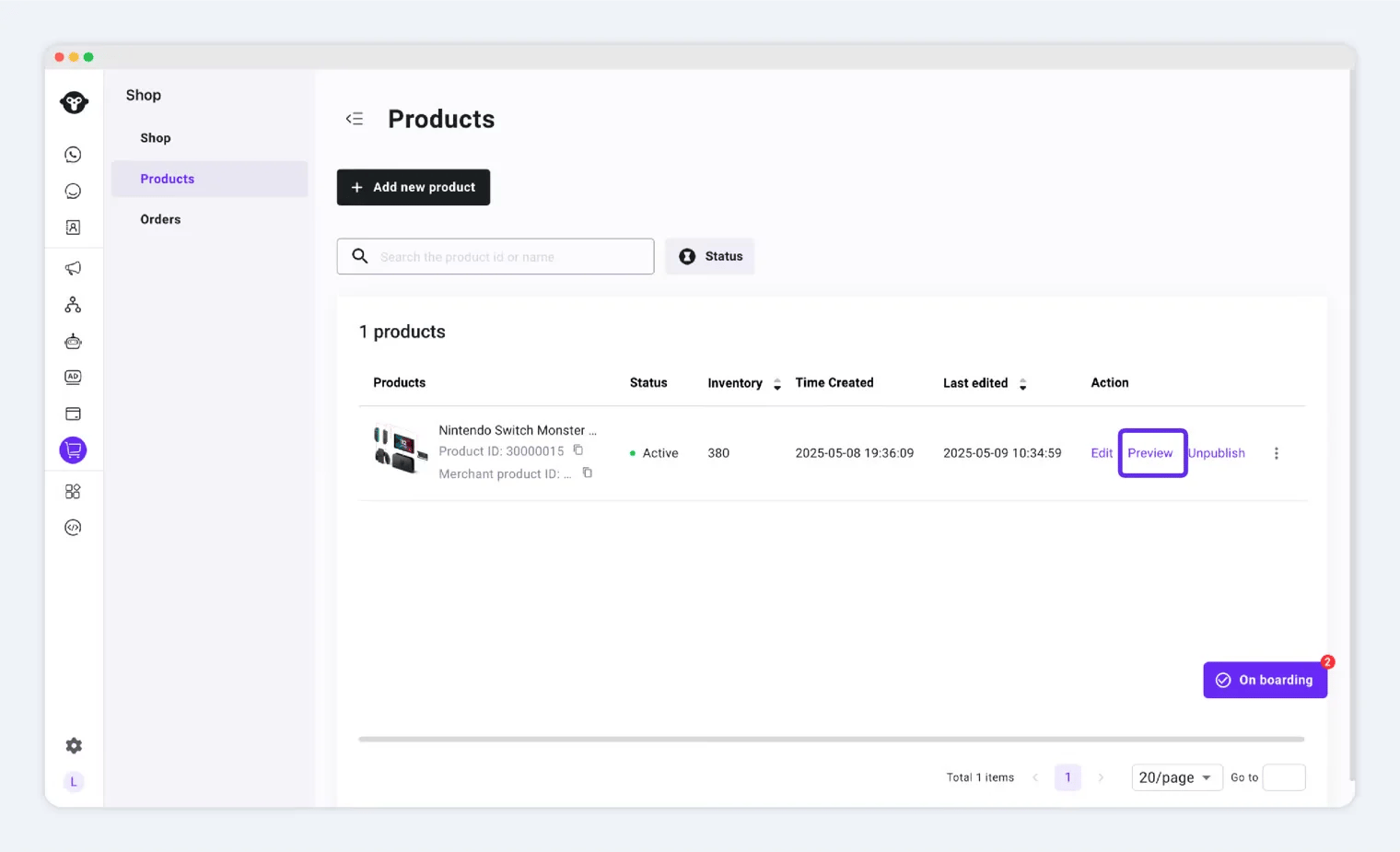
Product status and available actions
New products start as Inactive (Draft).Publish a product
Select Publish to make the product available. The operation succeeds when the status changes to Active.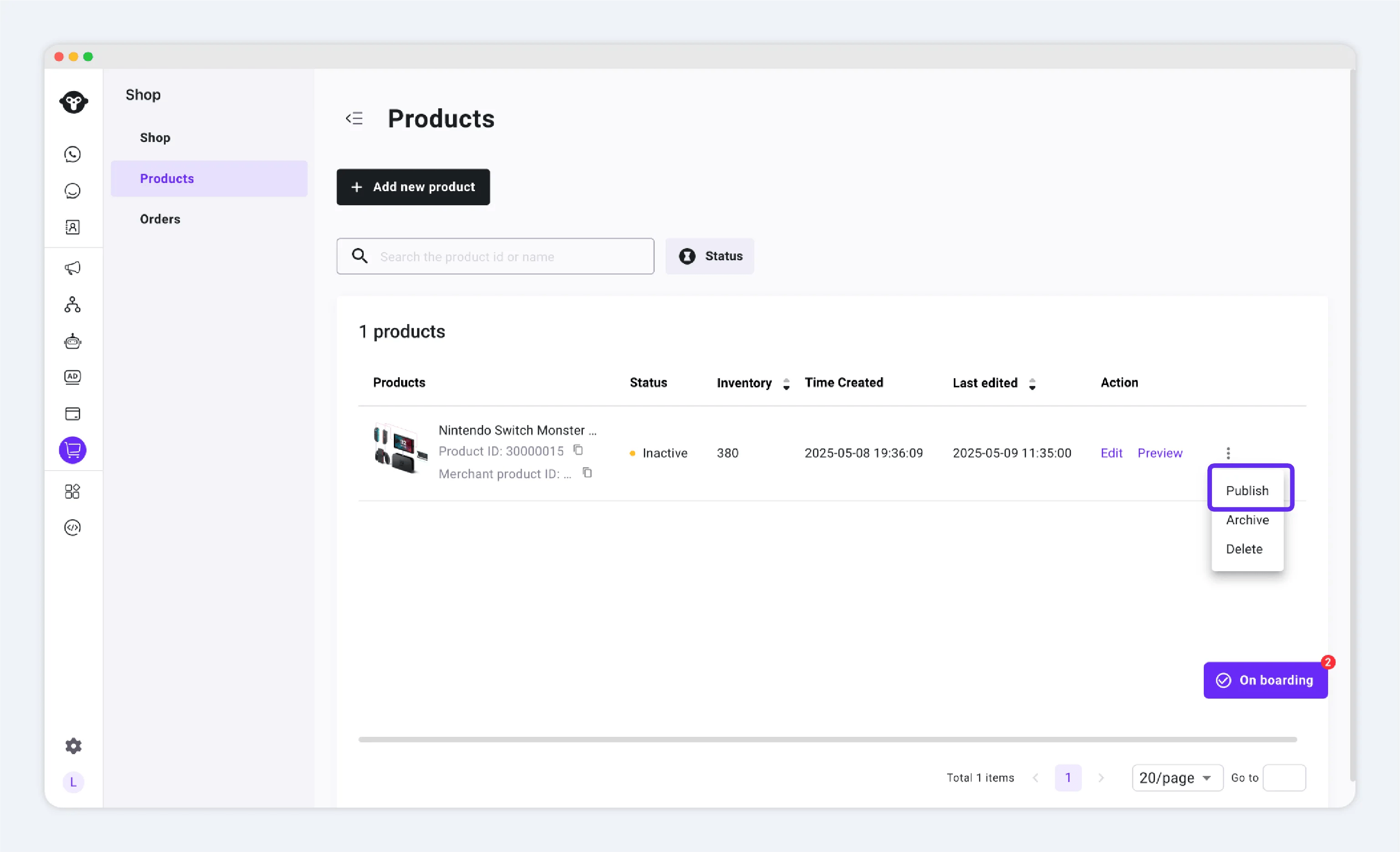
Unpublish a product
When you unpublish a product, customers can no longer view or purchase it.

Scroll the product table to the right to find Unpublish for an active product.
Share a product link on WhatsApp
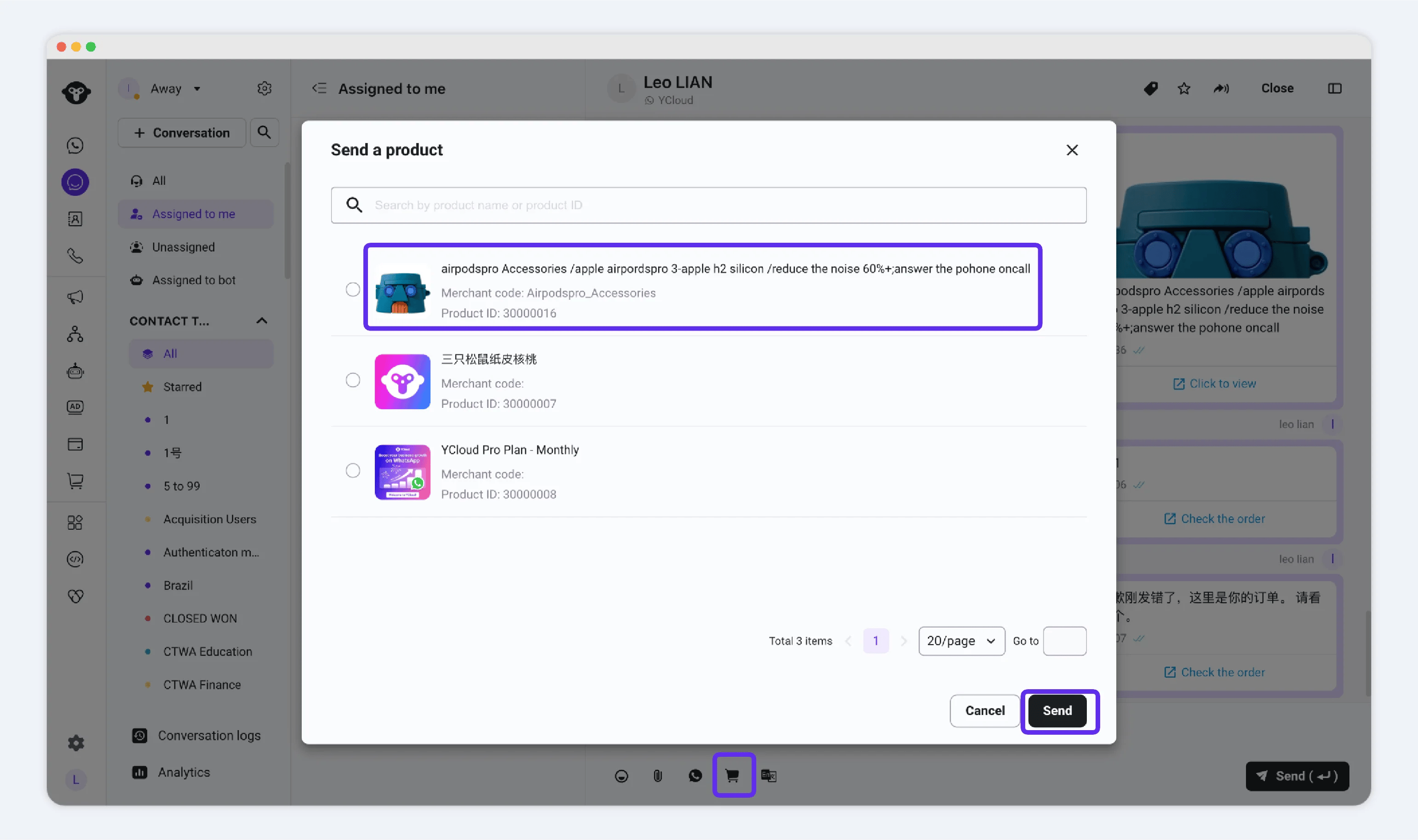
After publishing a product, share its link in WhatsApp so customers can browse and buy it.- In Inbox, open the conversation with the customer.
- Open the menu, select Send a Product, then choose the product to send.
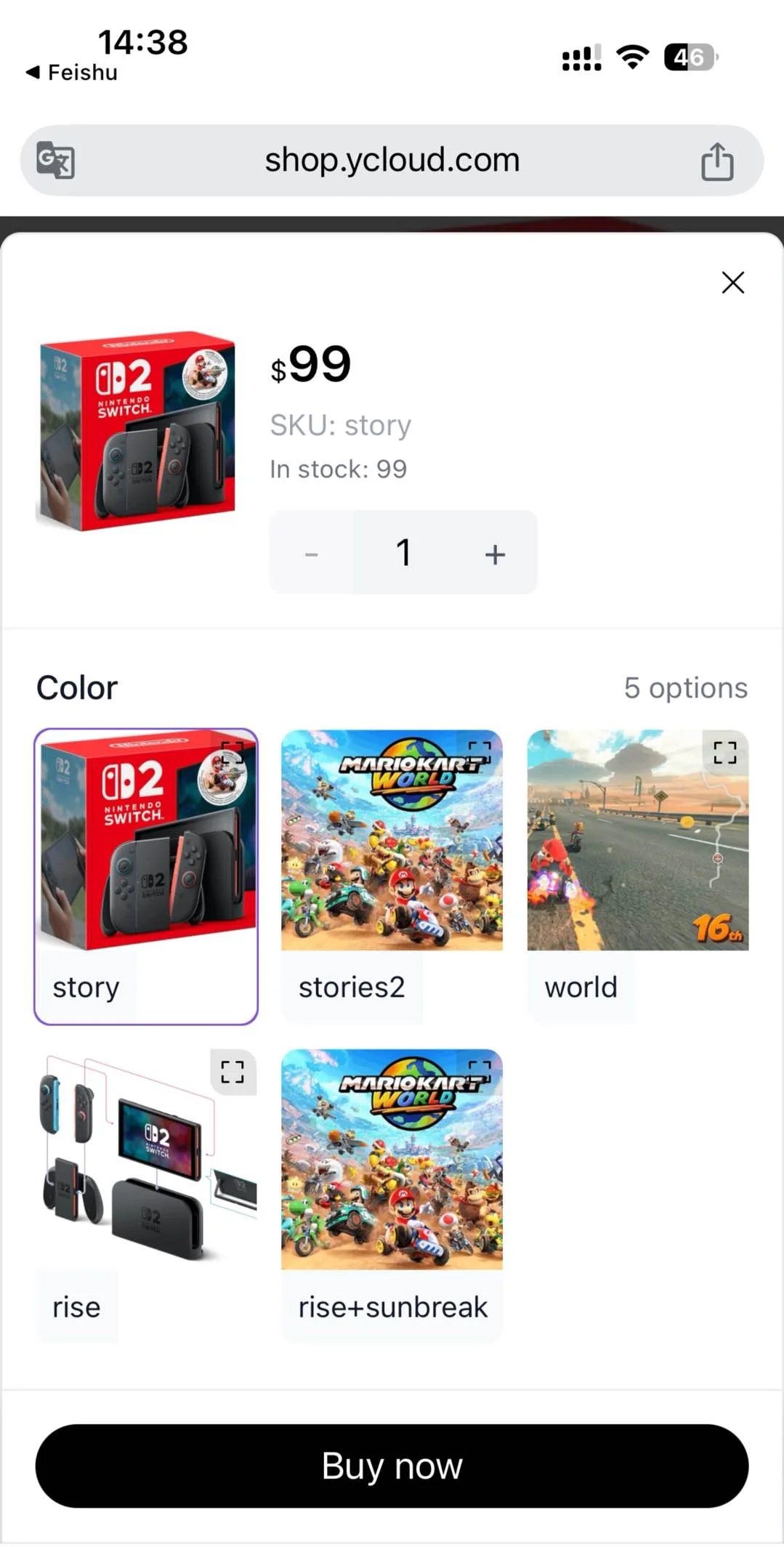
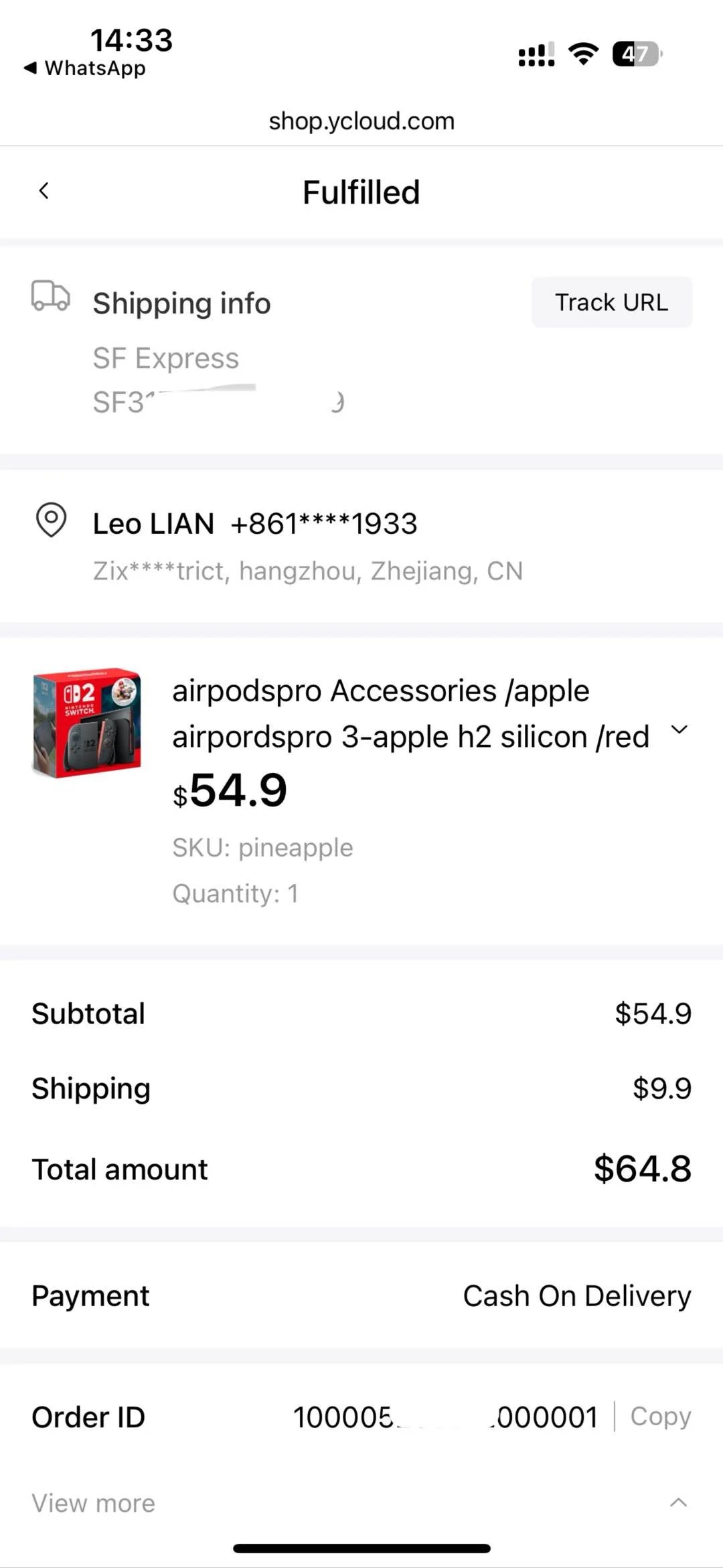
- The customer selects a SKU and completes checkout. Use Orders to fulfill the order after it is placed.
Send a product from Inbox
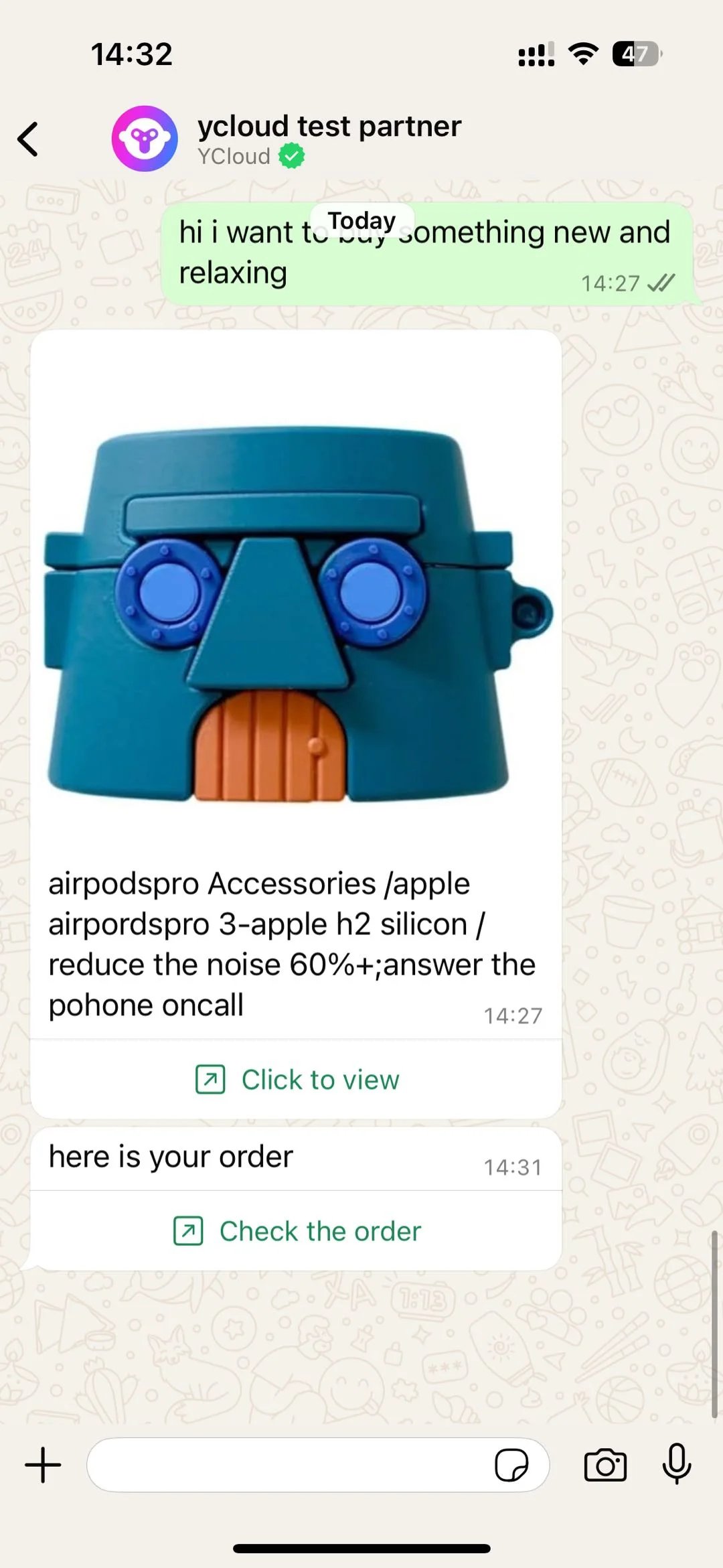
Customer browsing experience
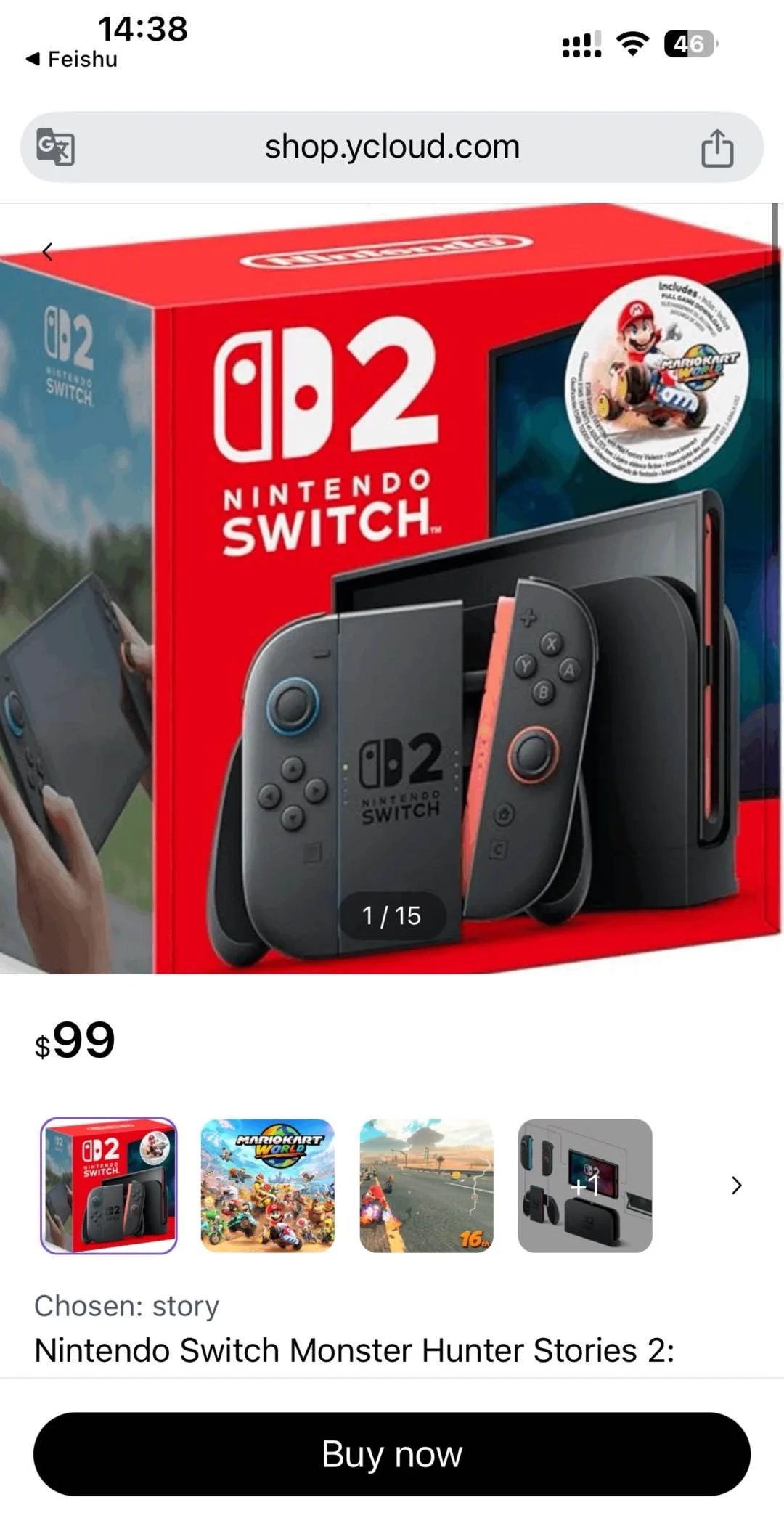
Customer purchase experience