

Payment Settings
When your Shop is first activated, all payment options are disabled by default. You can enable them as needed.
Add a payment method
- Go to Integrations > Shop, then click Add in the Payments section.
- Choose the payment method you wish to enable.

Select Add in the Payments section to choose a payment method.

Choose a payment method in Integrations > Shop > Payments. Selecting an option does not activate it.
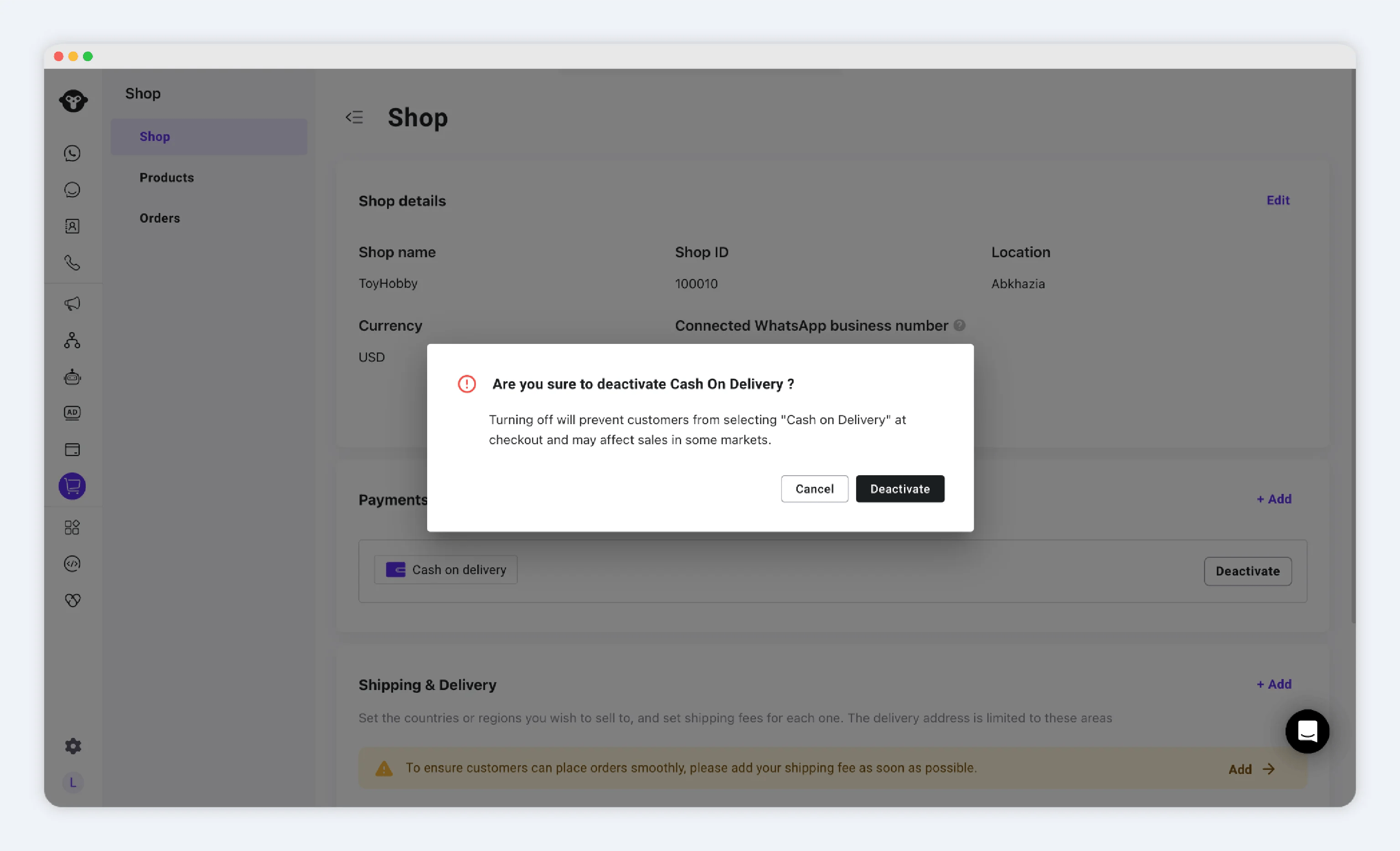
Cash on Delivery (COD)
Activation Steps:- Select Cash on Delivery.
- In the dialog, select Activate.

Select Cash on delivery, then Activate when you are ready to enable it. This example has not been activated.
-
Once activated:
- COD will appear as an available payment option during checkout.
- Customers can place orders without paying upfront.
- You ship the product; they pay upon receipt.
PayPal Wallet
Activation Steps:- Select PayPal.
- Select Activate.
- You are redirected to PayPal to sign in and authorize the connection:
- Must use a Business PayPal account (personal accounts cannot be connected).
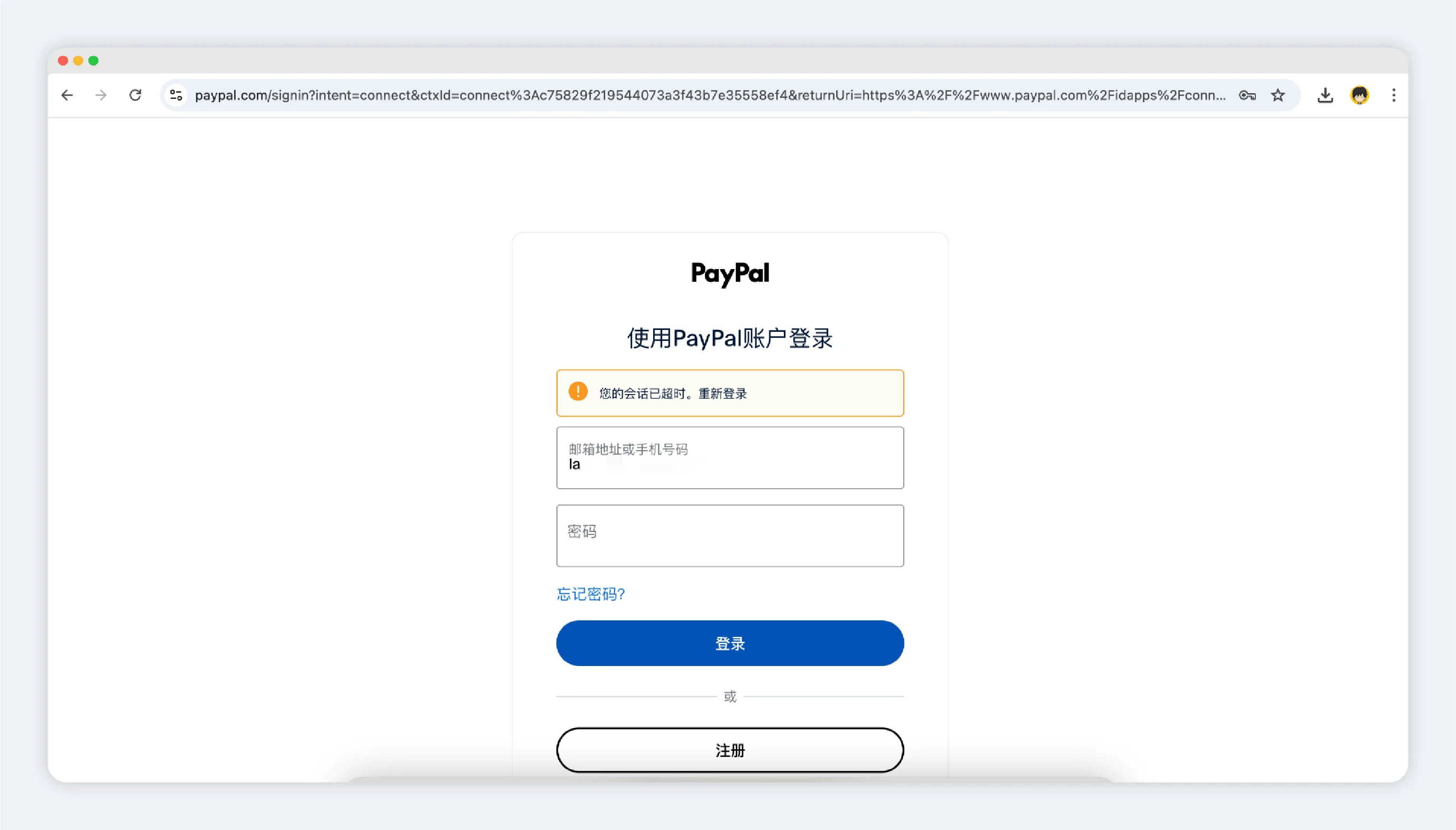
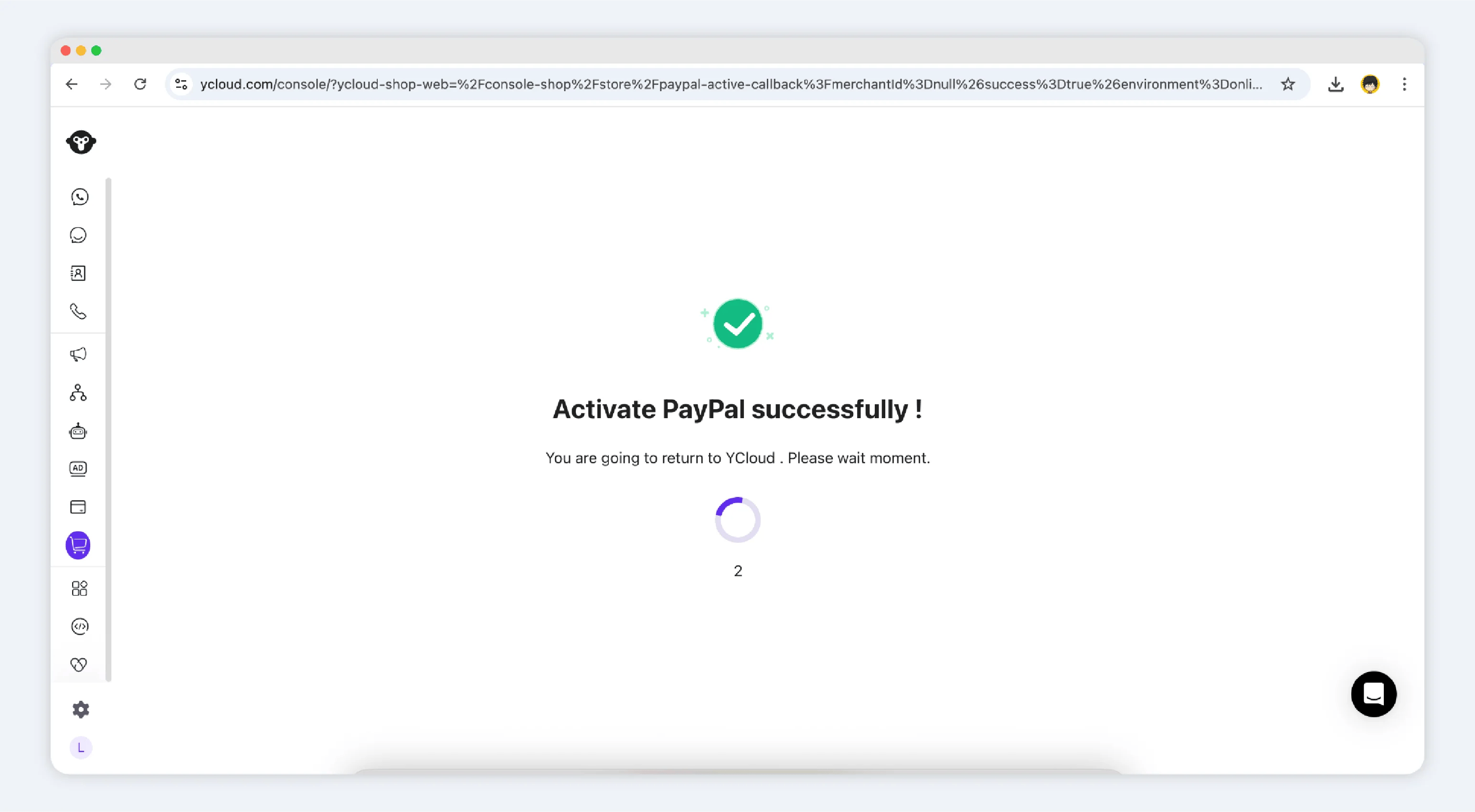
- After authorization, you’ll return to the Shop backend with a confirmation of successful binding.
- You’ll see the PayPal business account listed in the payments section.
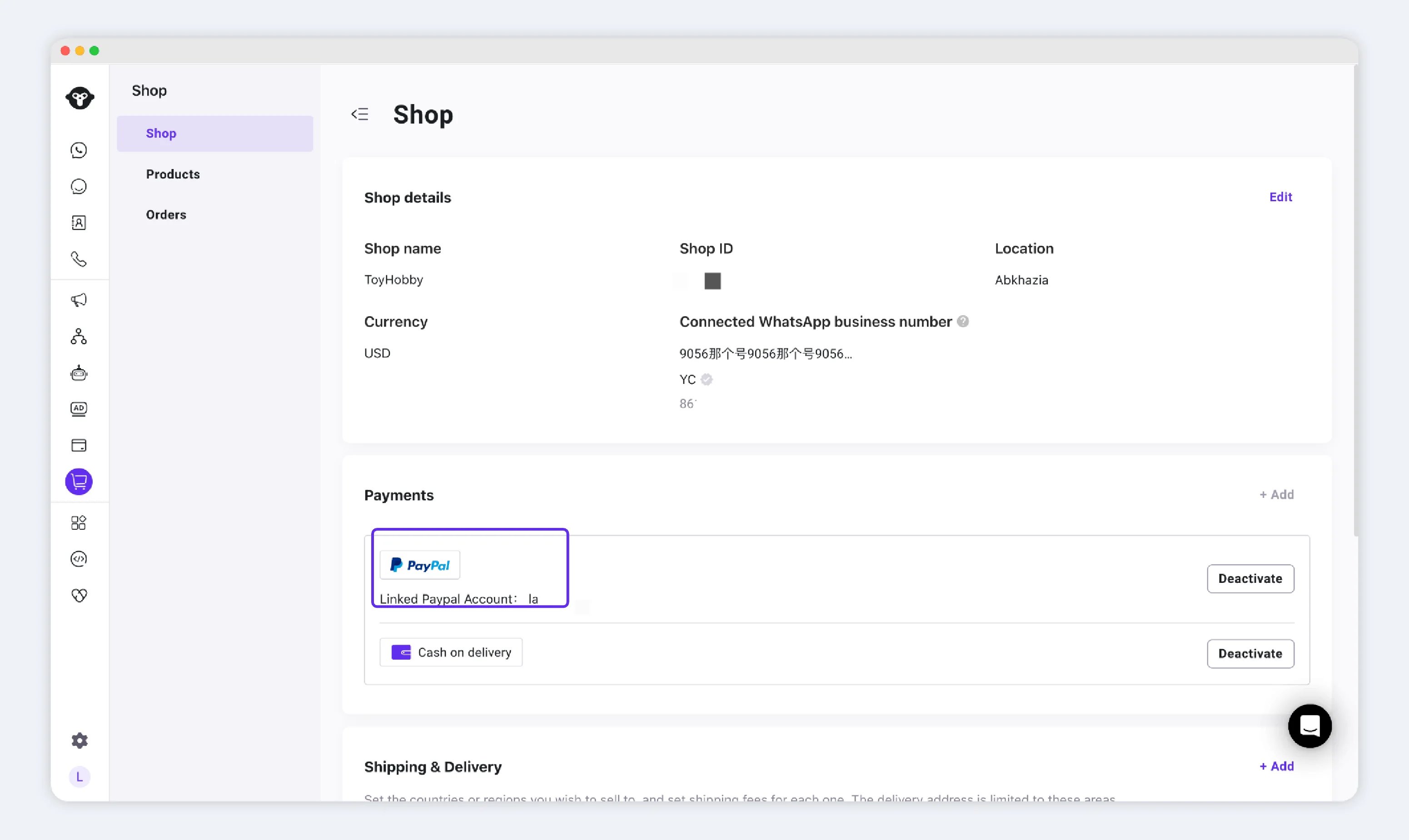
- Once active, PayPal appears as an available payment option during checkout.