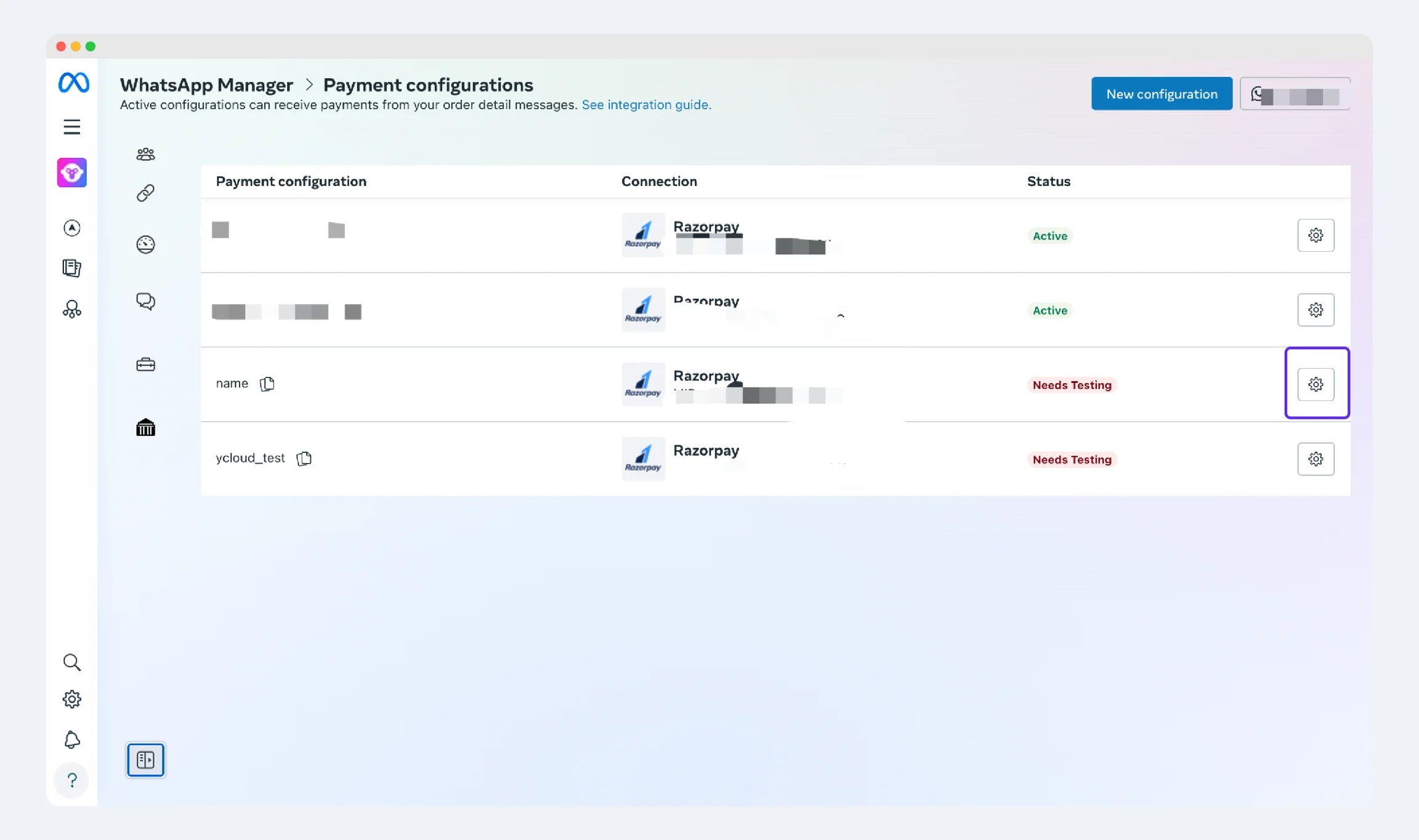
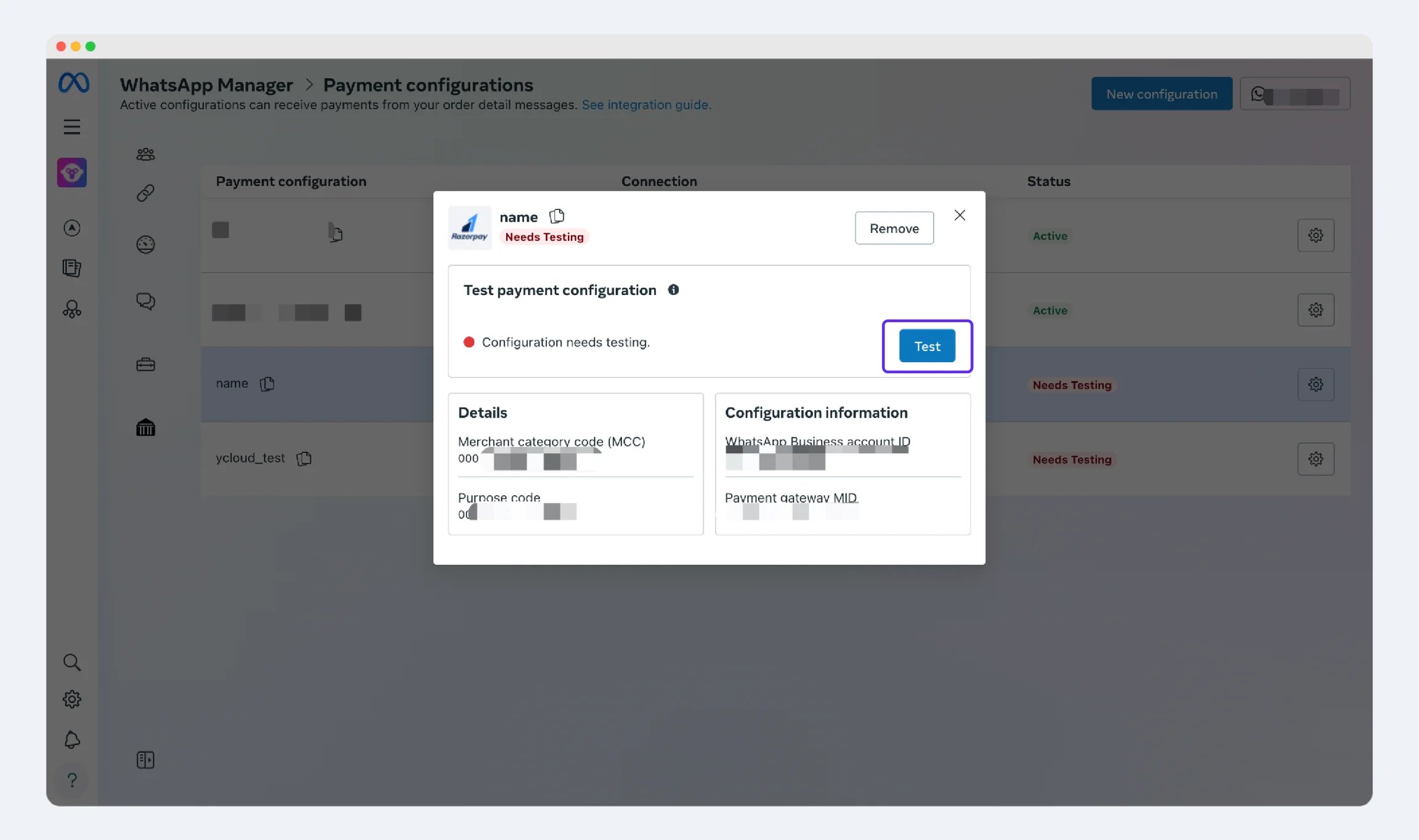
Please note: The following steps require the BM administrator to collaborate with the third-party payment administrator to complete the entire integration process.
Step 1:
Log in to your BM account, click Payment configurations > New configuration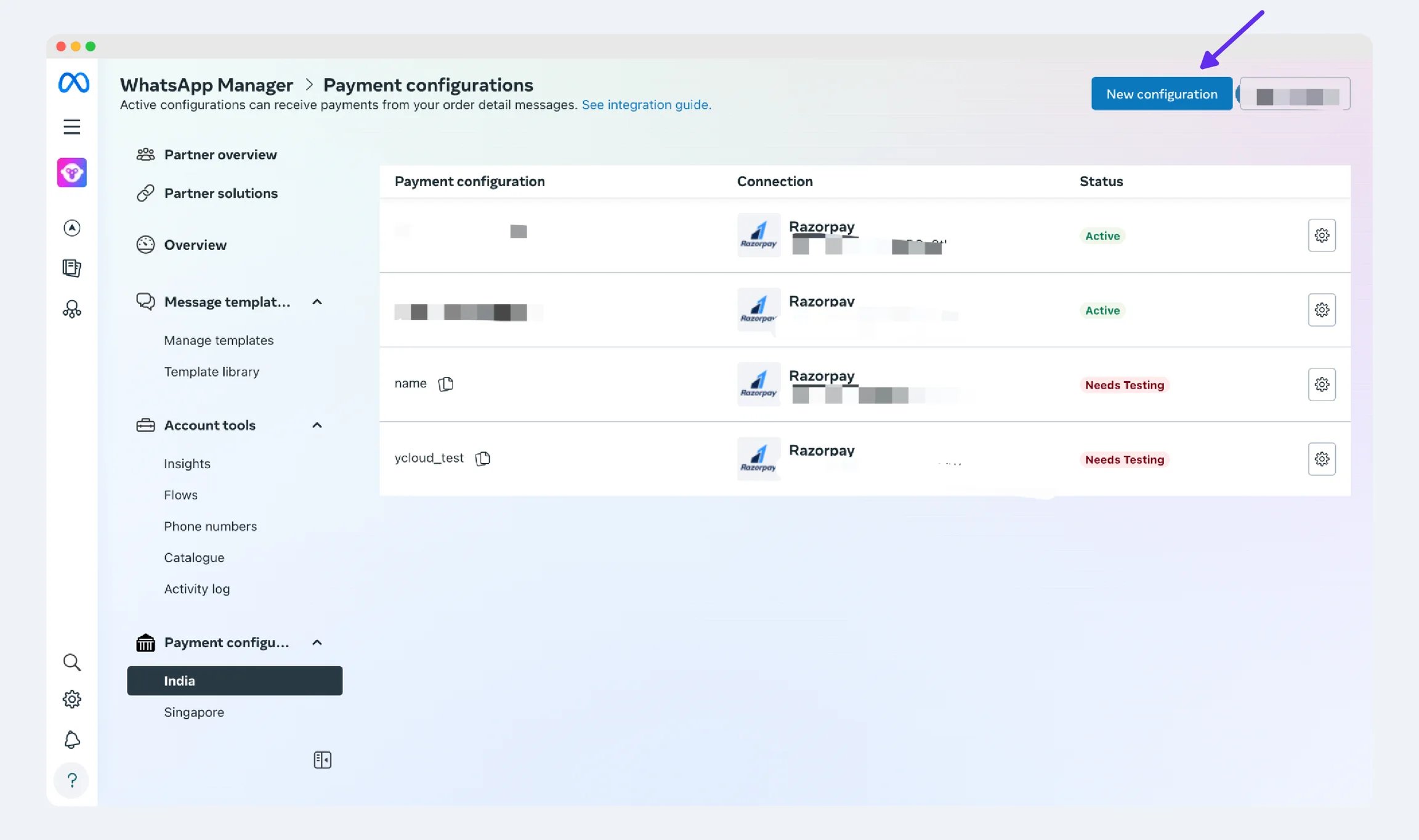
Step 2:
Configure your payment method. Below is an example of Razorpay as a specific third-party payment account.
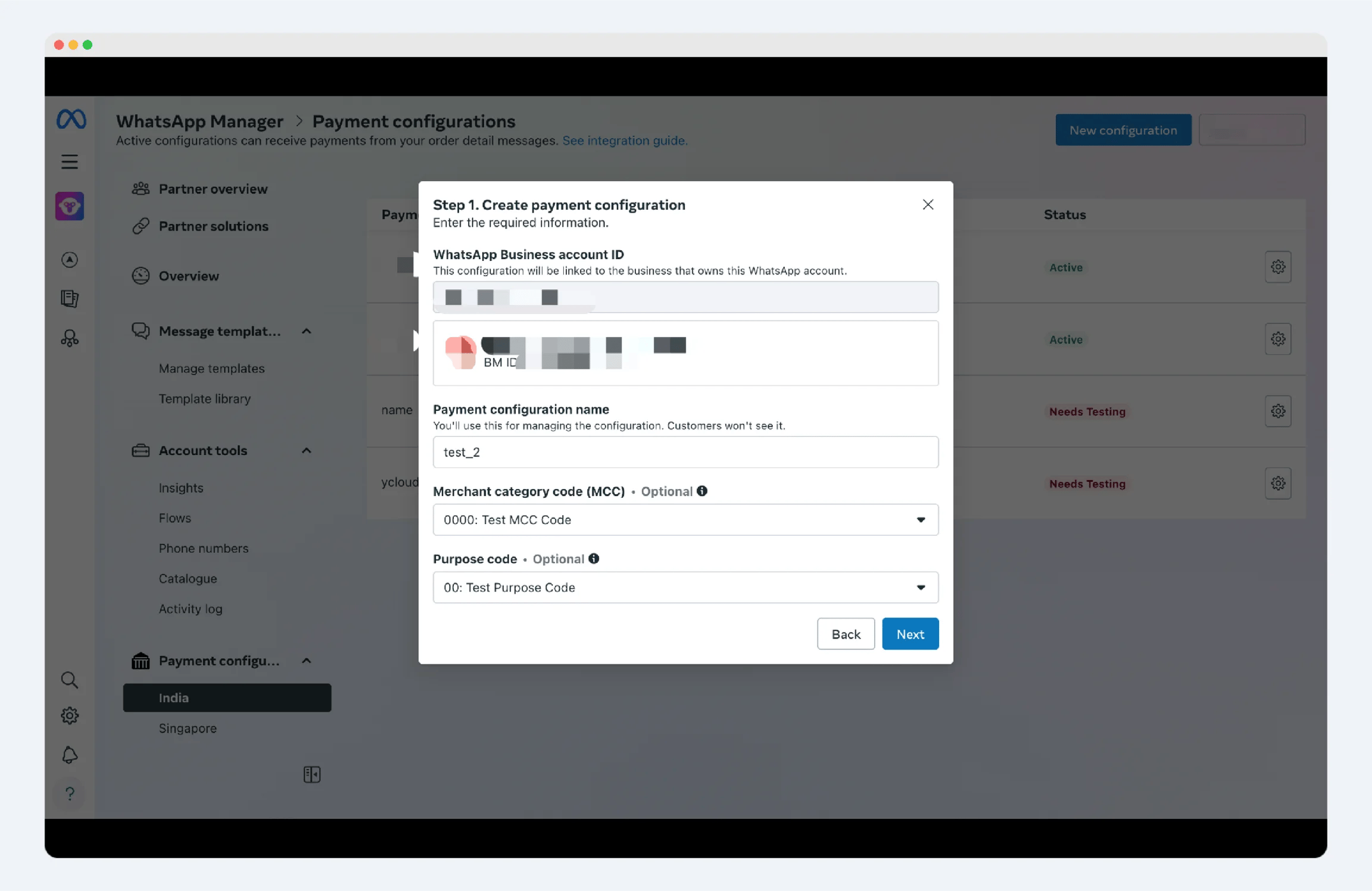
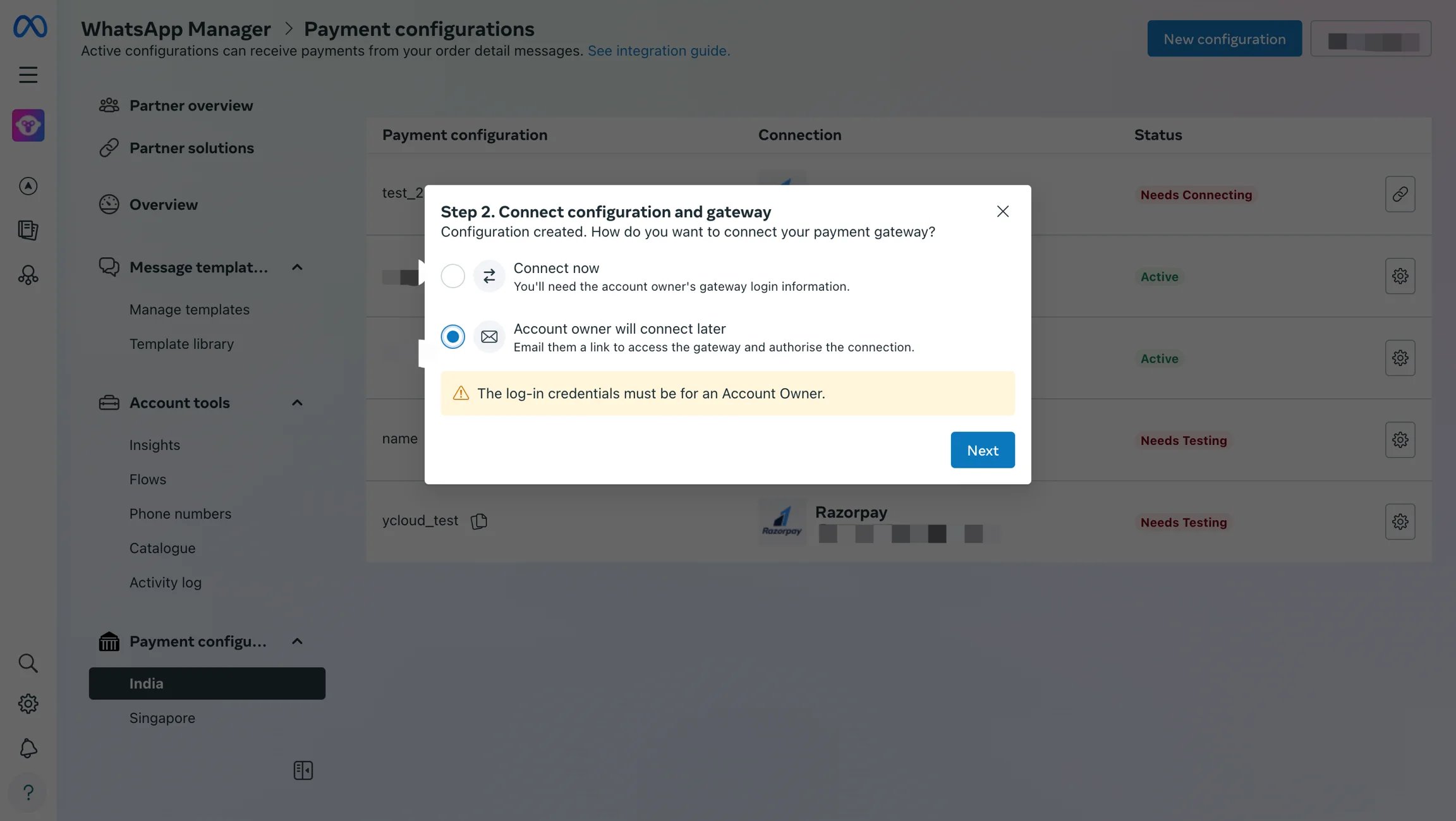
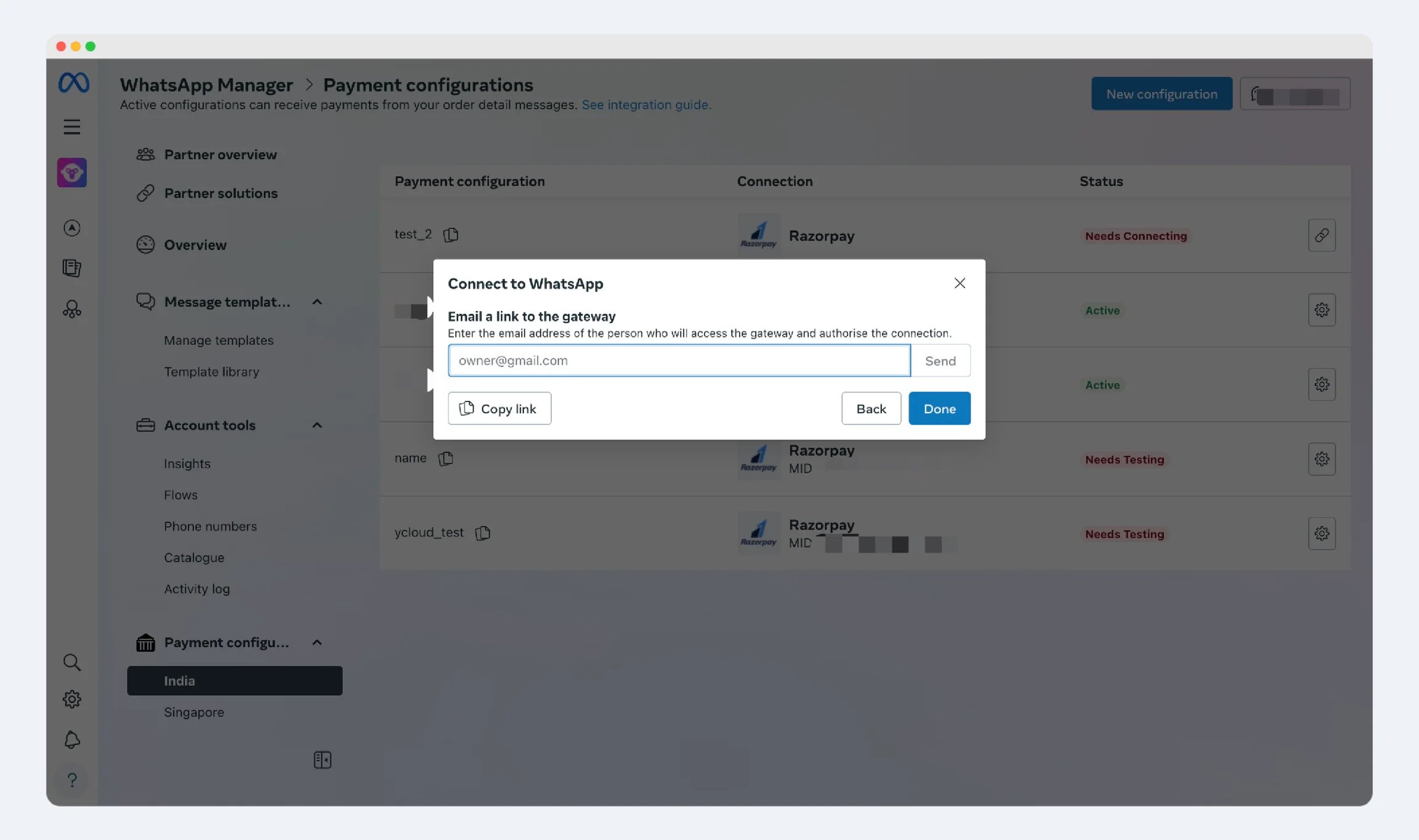
Step 3:
Copy the link and send it to the third-party payment account administrator’s email. After the administrator clicks the link, they will be redirected to the authorization page. Click “Authorize” to complete the authorization.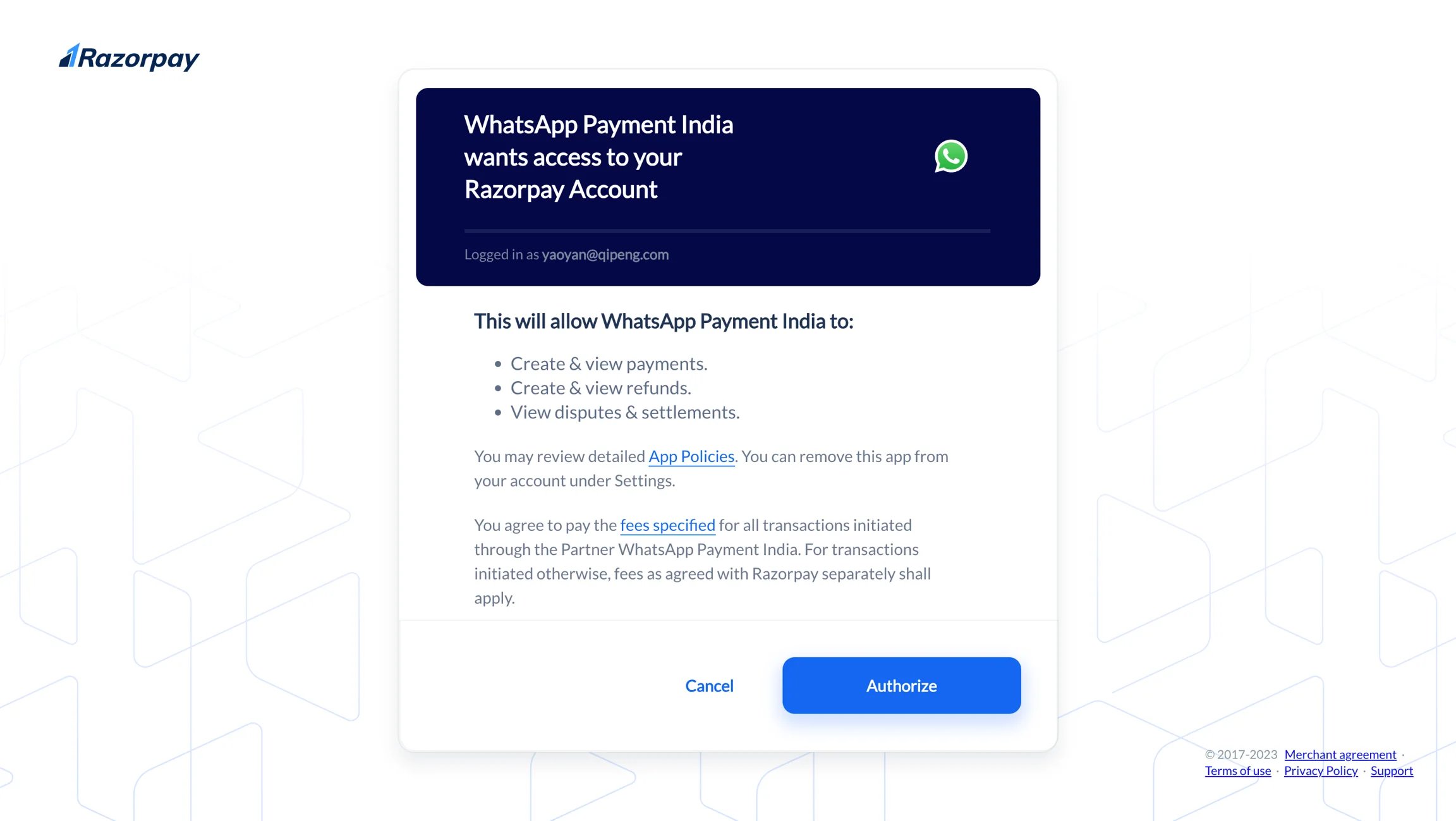
Step 4:
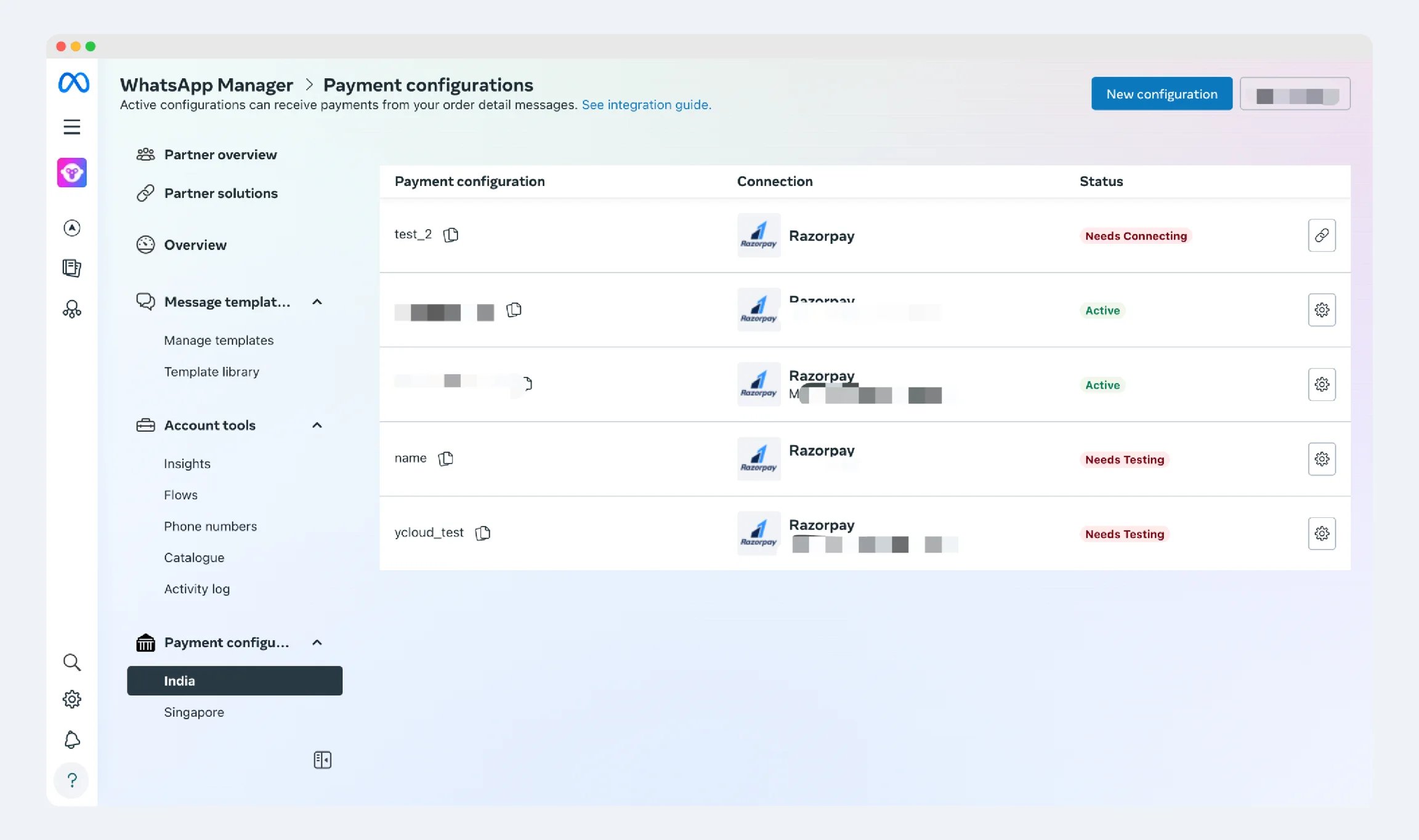
4.1 After the authorization is completed, the status will show “Need Testing.” At this point, the BM account administrator needs to test whether the connection is successful. Once the test is successful, the status will change to “Active.” When the status becomes “Active,” the entire connection process is complete.