

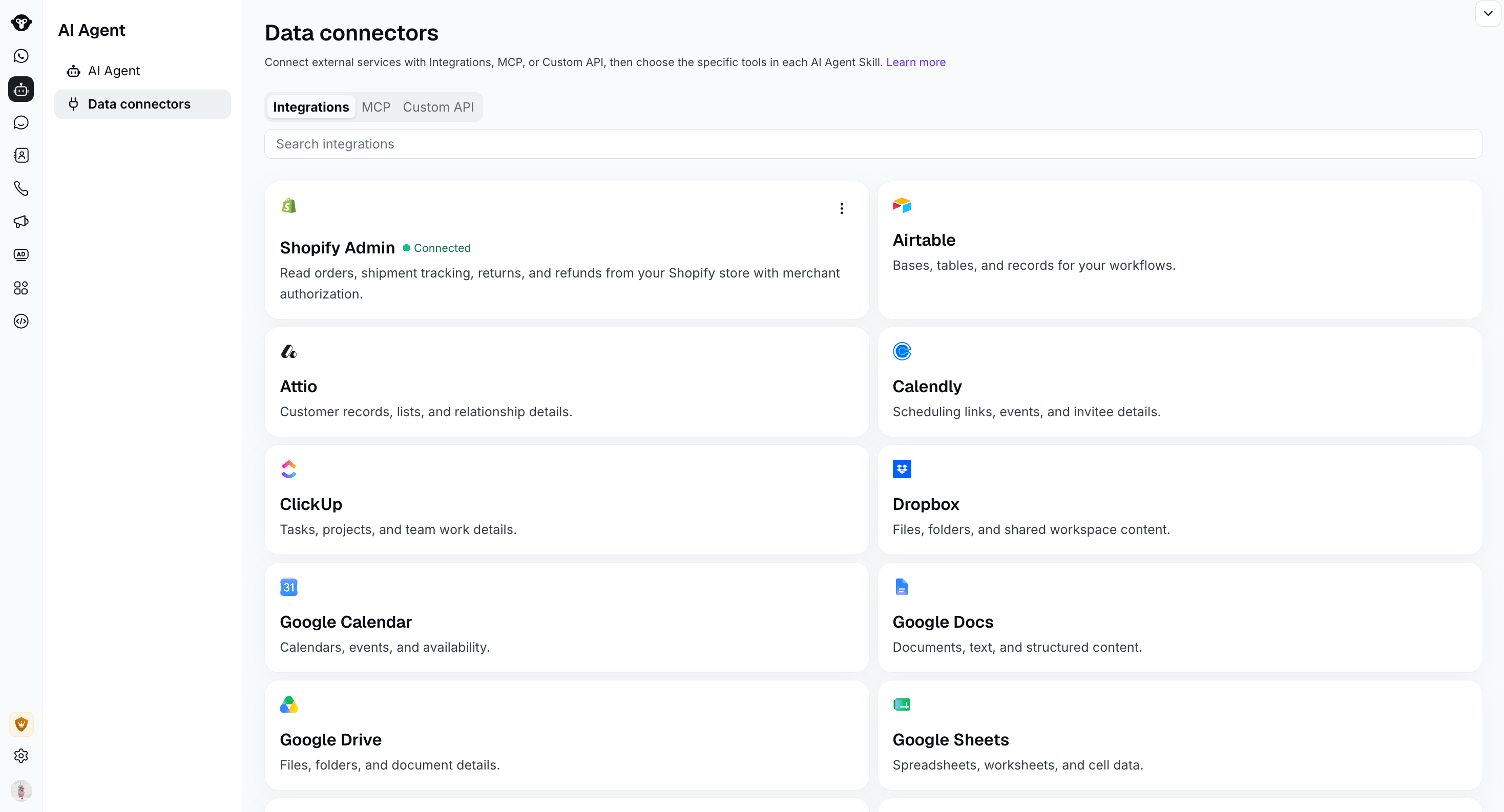
Open AI Agent > Data connectors to view Integrations, MCP servers, and Custom API connectors.
Choose a connector type
The Data connectors page provides three ways to connect an external service:Add connector tools to an AI Agent Skill
Connecting a service does not automatically add every available tool to every AI Agent. Choose the tools each Agent can use in its Skills.- Open the AI Agent you want to configure.
- In Profile, find Skills and select Manage.
- Create a Skill or open an existing one.
- In Step-by-Step instructions, type /.
- Expand the relevant Integration, MCP, or Data connectors group, then select the tool you want to insert.
- Explain when to use the tool, which information to collect, and what to do with its result.
- Save the Skill, test it in Preview, and publish the AI Agent when it is ready.
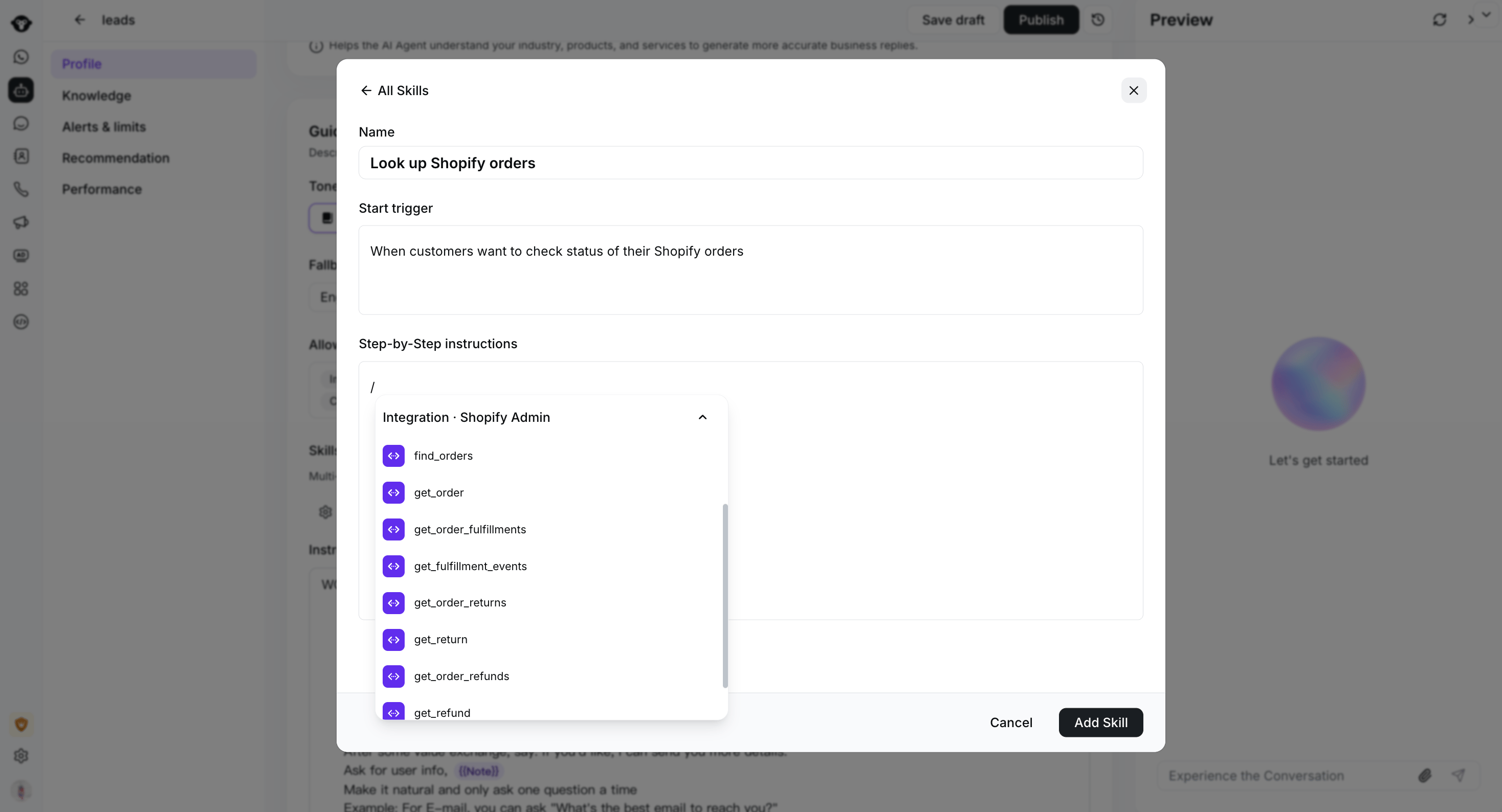
Type / in Step-by-Step instructions, then select a tool from the connected Shopify Admin integration.
Example: Look up a Shopify order
This example creates a Skill that can answer questions about a customer’s Shopify order and shipment.1. Connect Shopify Admin
- Go to AI Agent > Data connectors.
- On the Integrations tab, open Shopify Admin and complete the authorization flow.
- Confirm that the integration shows Connected.
find_ordersto find an order from the information supplied by the customerget_orderto retrieve the selected orderget_order_fulfillmentsto retrieve shipment and fulfillment detailsget_fulfillment_eventsto retrieve shipment-tracking eventsget_order_returnsandget_returnto retrieve return detailsget_order_refundsandget_refundto retrieve refund details
2. Create the Skill
In the AI Agent’s Profile, select Manage under Skills, then create a Skill with the following setup. NameLook up a Shopify orderStart trigger
Use this Skill when a customer asks about the status of a Shopify order, shipment, return, or refund. Do not use it for product recommendations, checkout questions, or requests to modify an order.Step-by-Step instructions
- Ask the customer for the information required to identify the order.
- Type / and insert
find_ordersfrom Integration · Shopify Admin. Use it to find the matching order. - If no order or more than one order matches, ask the customer for additional identifying information. Do not guess which order they mean.
- Insert and use
get_orderfor the matching order. - If the customer asks about shipping, insert and use
get_order_fulfillments. Useget_fulfillment_eventswhen tracking-event details are needed. - If the customer asks about a return or refund, insert the corresponding return or refund tool.
- Summarize only the information returned by the tools. If a tool fails or the requested information is unavailable, explain that you cannot confirm the result and hand off when appropriate.
3. Test before publishing
In Preview, test at least these cases:- One order matches the customer’s information
- No order matches
- Multiple orders match
- Fulfillment or tracking details are unavailable
- The Shopify tool returns an error
- The customer asks the Agent to change an order, which the read-only Shopify Admin integration cannot do
Create a Custom API connector
Use a Custom API connector when you want an AI Agent Skill to call your own HTTPS API. On the Custom API tab, select New data connector. You can also search existing Custom API connectors by name and filter them by status.
Open AI Agent > Data connectors, then select New data connector.
Name and description
Give the connector a name that describes its function, such asretrieve_order. In the description, explain when the connector should be used and what it returns.

Describe the connector's purpose in About before configuring its API request. This draft has not been saved.
Configure the API request
Enter the HTTPS endpoint and select the request method:- GET reads information.
- POST creates information.
- PUT replaces or updates information.
- PATCH updates part of a resource.
- DELETE removes information.

Choose the HTTP method and enter the endpoint URL. This incomplete draft has not sent a request.
HTTP headers
Select Add header, then enter each required header as a key-value pair.
Select Add header and enter each header as a key-value pair. This example has not been saved or sent.
Request body
For requests that send data, enter a valid JSON request body containing the fields required by your API.
Enter valid JSON in Request Body. This fictional order example has not been sent.
Test the response
Select Test request to verify that the connector returns the expected response.
Select Test Request to run the configured API call. No request has been run in this example.
Set the connector live
After a successful test, select Set live. Live Custom API connectors can be selected from the / command menu in Skill instructions. To stop using a Custom API connector, open it and select Set to draft, or turn off its status from the connector list. Review and resolve any listed dependencies before moving it to draft.
Use the Status switch in the list to move a live connector to draft. The switches shown here have not been changed.