

Add a chat widget to your Shopify store
Add a YCloud WhatsApp Chat Widget to a connected Shopify storefront so visitors can start a WhatsApp conversation from your store.Before you start
- Connect your Shopify store to YCloud.
- Connect an available WhatsApp Business phone number in YCloud.
- Create an active Chatlink Widget for that phone number.
Configure the widget
- In YCloud, go to Integrations > Shopify > Chat Widget.
- Select Start using Chat Widget.
- In Configure Widget, select the WhatsApp Business Number and the Chatlink Widget to use.
- Select Save and Continue.
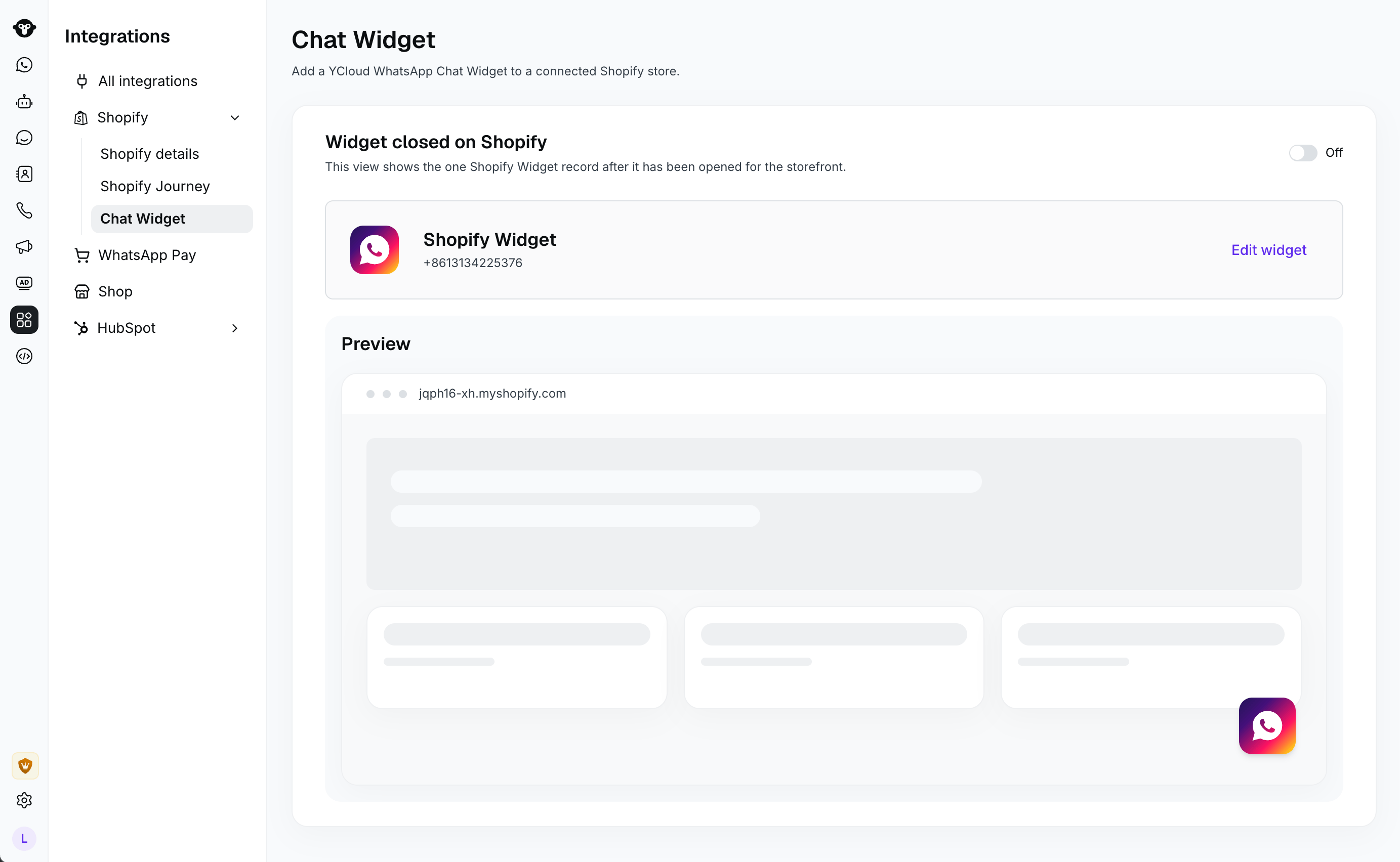
- Turn the widget on.
Enable the Shopify app embed
After you turn on the widget in YCloud, turn on YCloud Chat in Shopify and save your theme. The widget appears on the storefront only after the YCloud Chat app embed is enabled.Verify the widget
Open your storefront and select the WhatsApp button to confirm that it opens the configured chat experience.Troubleshooting
- If YCloud asks you to reauthorize Shopify, select Re-authorize before configuring the widget.
- If no Chatlink Widget is available, create one for the selected WhatsApp Business phone number.
- If the widget does not appear on the storefront, confirm that it is on in YCloud and that YCloud Chat is enabled in Shopify.
Frequently Asked Questions
Can I use any Chat Link for the Shopify widget?
Can I use any Chat Link for the Shopify widget?
Choose an active Chatlink Widget for the selected WhatsApp Business phone number. The widget must remain active for it to be available on your storefront.
Why is the widget enabled in YCloud but missing from my storefront?
Why is the widget enabled in YCloud but missing from my storefront?
Turn on the YCloud Chat app embed in Shopify and save your theme. Both the YCloud widget setting and the Shopify app embed must be enabled.