

Notify customers about canceled or fulfilled orders
Send WhatsApp notifications when Shopify records that an order is canceled or fulfilled. Configure the two workflows separately so each status has the right message.Before you start
- Connect your Shopify store to YCloud.
- Prepare an approved WhatsApp template for each order status.
- Select the WhatsApp Business phone number that will send the notifications.
Configure each workflow
- In YCloud, go to Integrations > Shopify > Shopify Journey. Open either the canceled-order or fulfilled-order workflow.
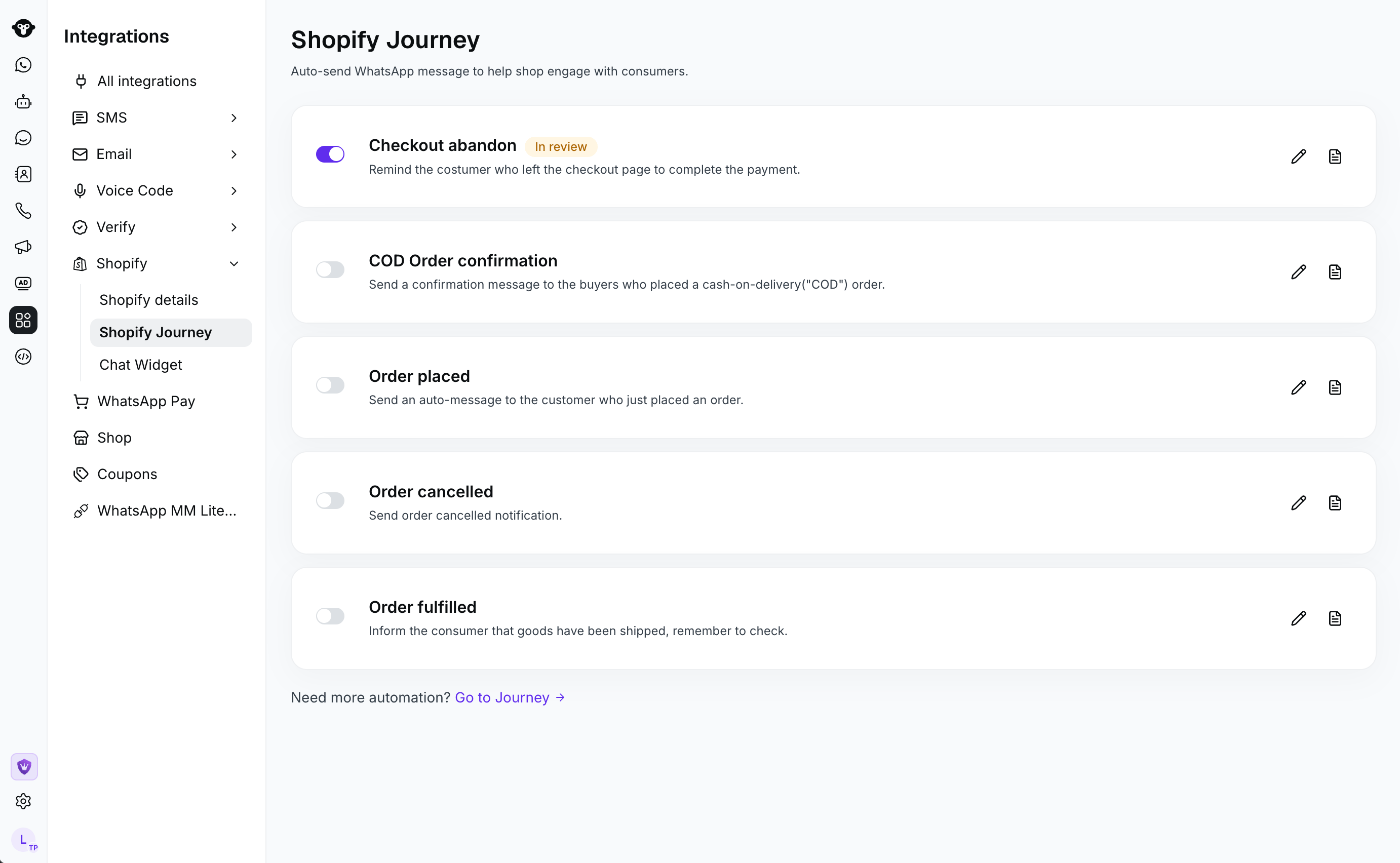
- Select the Sender and Send template for that order status.
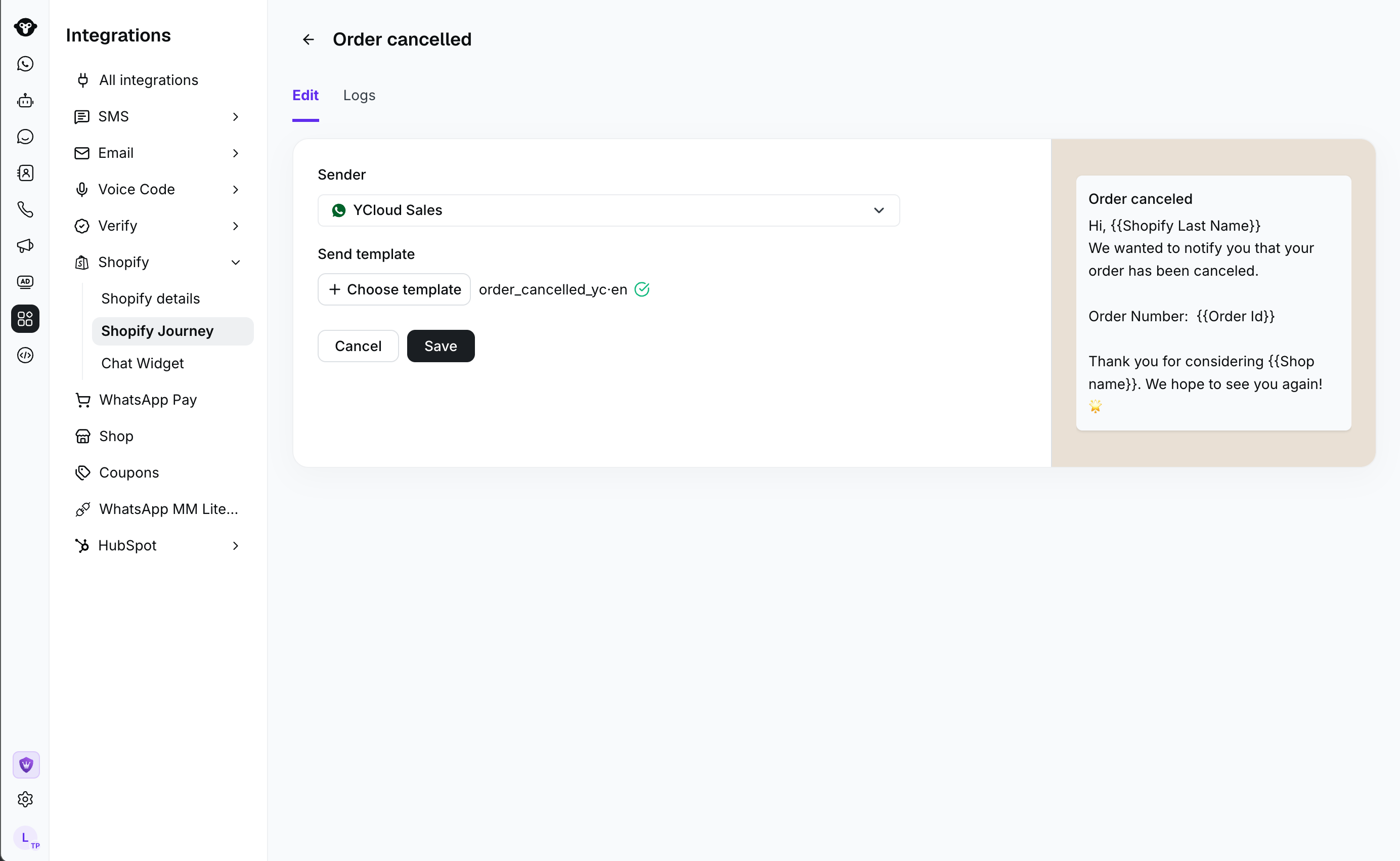
- Select Save, then activate the workflow. Repeat these steps for the other order status.
Review activity
Open Logs to review notification activity.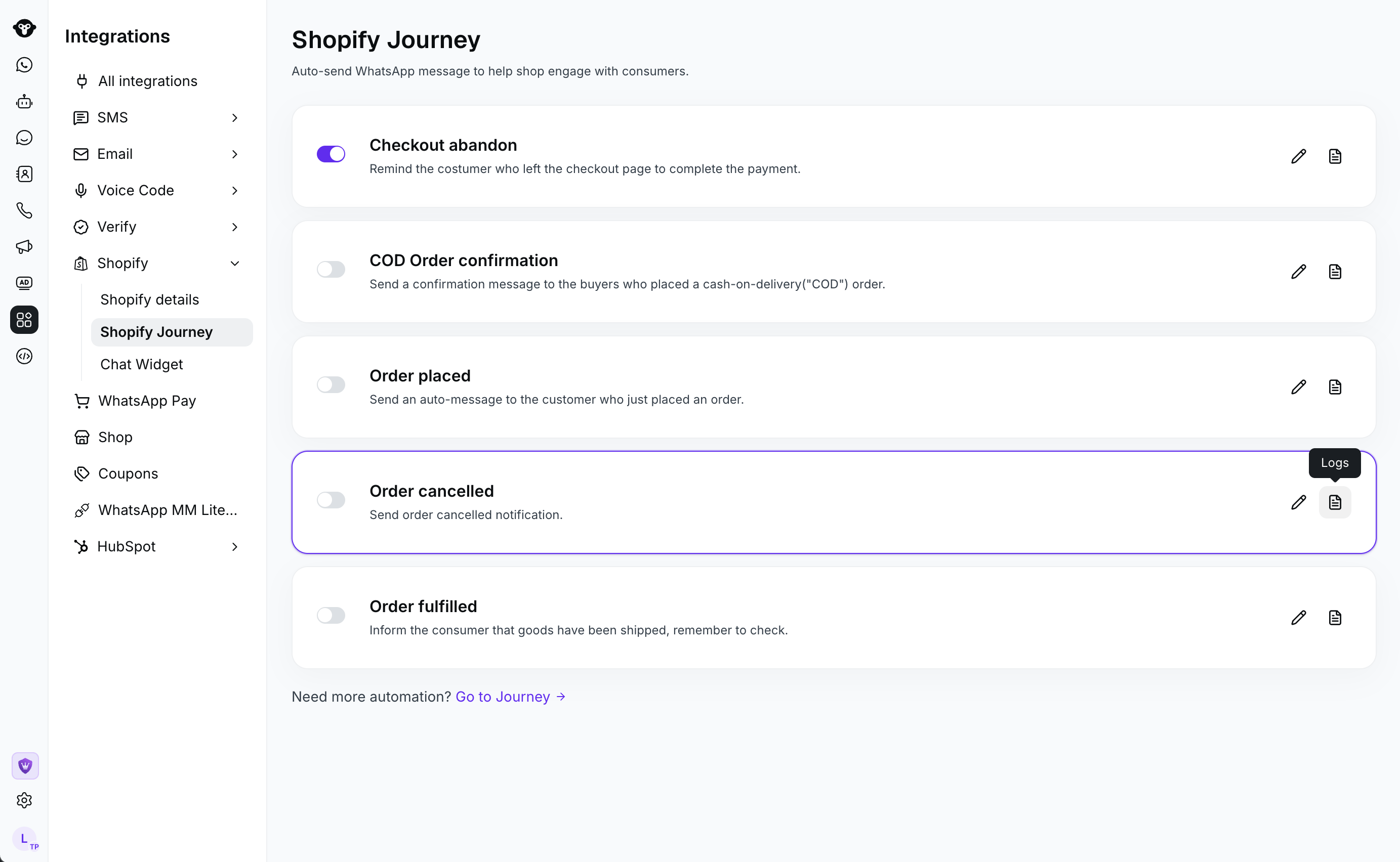
Recommendations
- Use a canceled-order template that clearly states the next customer action, such as contacting support when needed.
- Use a fulfilled-order template to set clear expectations about fulfillment or delivery.
- Activate both workflows only after you have reviewed each sender and template.
Frequently Asked Questions
Can I use different templates for canceled and fulfilled orders?
Can I use different templates for canceled and fulfilled orders?
Yes. Configure each workflow separately so you can use a message that matches the order status.
Where can I review notification activity?
Where can I review notification activity?
Open Logs within the relevant Shopify Journey workflow.