

Connect your Shopify store
Connect your Shopify store to YCloud to manually sync eligible customer contacts, send WhatsApp notifications from Shopify events, and add a chat widget to your storefront.What the integration supports
After you connect your store, you can:- Sync Shopify customers with phone numbers to Contacts in YCloud.
- Configure WhatsApp notifications for abandoned checkouts, COD order confirmations, fulfilled orders, and canceled orders.
- Add a WhatsApp chat widget to your Shopify storefront.
Connect your store
- In YCloud, go to Integrations > Shopify and select Install.

Select Install on the Shopify card to begin connecting your store.
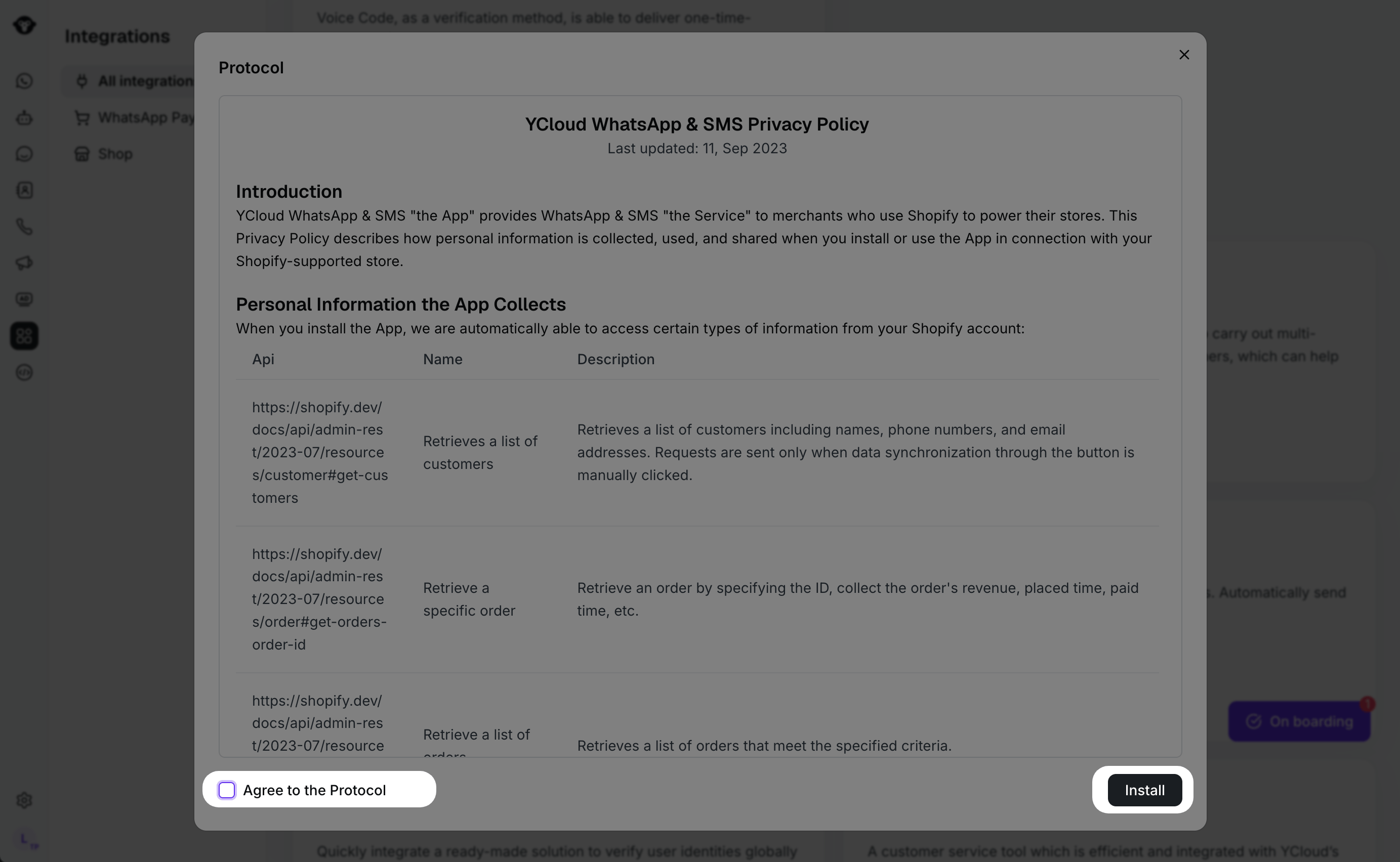
- Review the displayed synchronization agreement and privacy notice. When you are ready, select Install.
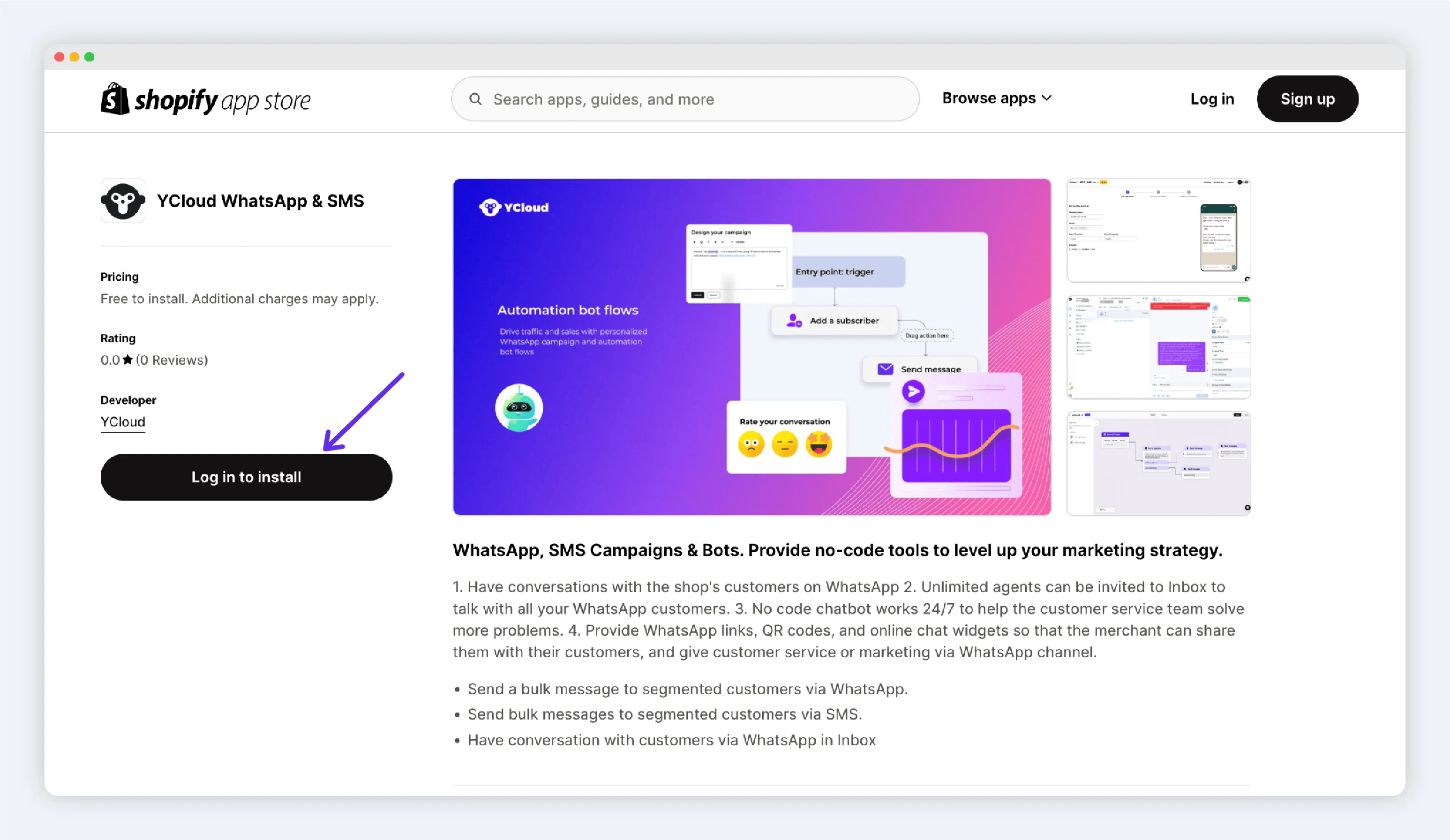
- You will be redirected to the Shopify App Store. Install the YCloud app for the store you want to connect.
Sync Shopify customers
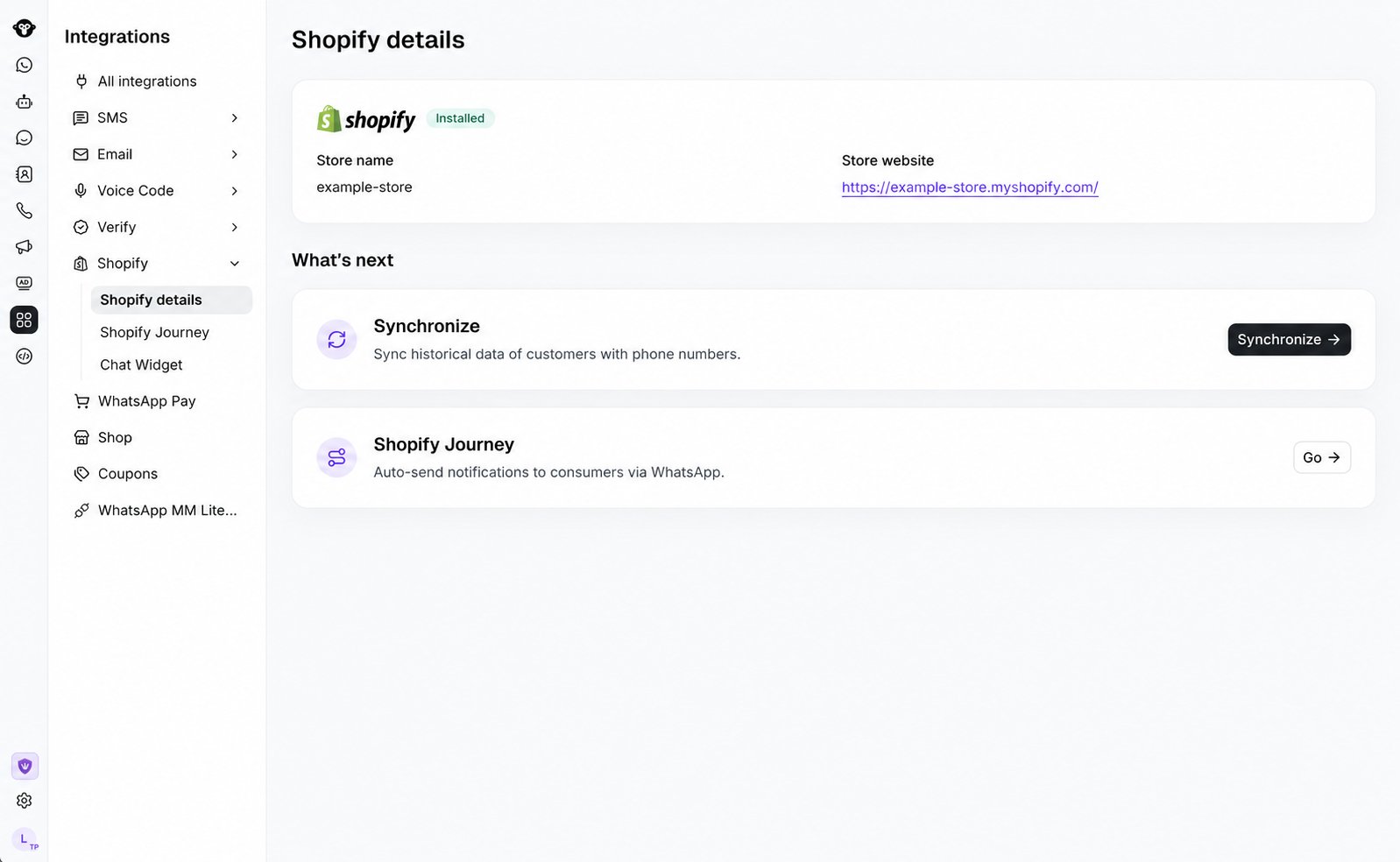
Customer synchronization is a manual action after your store is connected.- Open the Shopify integration in YCloud.
- Start customer synchronization and confirm the displayed sync notice.
- Review the completed contacts in Contacts.
Use Shopify notifications
Open Shopify Journey to configure the notification scenarios that fit your store:Add a chat widget
Use a YCloud Chatlink Widget to let storefront visitors start a WhatsApp conversation. See Add a chat widget to your Shopify store.Frequently Asked Questions
Does connecting a store automatically sync all existing Shopify customers?
Does connecting a store automatically sync all existing Shopify customers?
No. Start the sync manually after the store is connected. The current historical sync includes Shopify customers with phone numbers.
What can I configure after connecting Shopify?
What can I configure after connecting Shopify?
You can sync eligible customer contacts, configure the four WhatsApp notification scenarios, and add a WhatsApp chat widget to your storefront.
How do I uninstall the YCloud app from Shopify?
How do I uninstall the YCloud app from Shopify?
In your Shopify admin, go to Settings > Apps. For the YCloud app, select the … button, then select Uninstall. You can optionally select a reason for uninstalling, then select Uninstall again to confirm.For Shopify’s complete instructions, see Uninstalling apps.