

Send Shopify products and manage orders in Inbox
With a connected Shopify store, agents can send products, find orders, update eligible shipping addresses, and send package tracking information from an Inbox conversation.Before you begin
Connect and authorize your Shopify store in Integrations > Shopify. These features appear when the store is connected and authorization is valid. Product messages and package-tracking messages use the existing WhatsApp conversation. You can send them only while the conversation is within the 24-hour customer service window and the conversation has a bound WhatsApp number.Send a Shopify product
- In the message composer, click Send Shopify product.
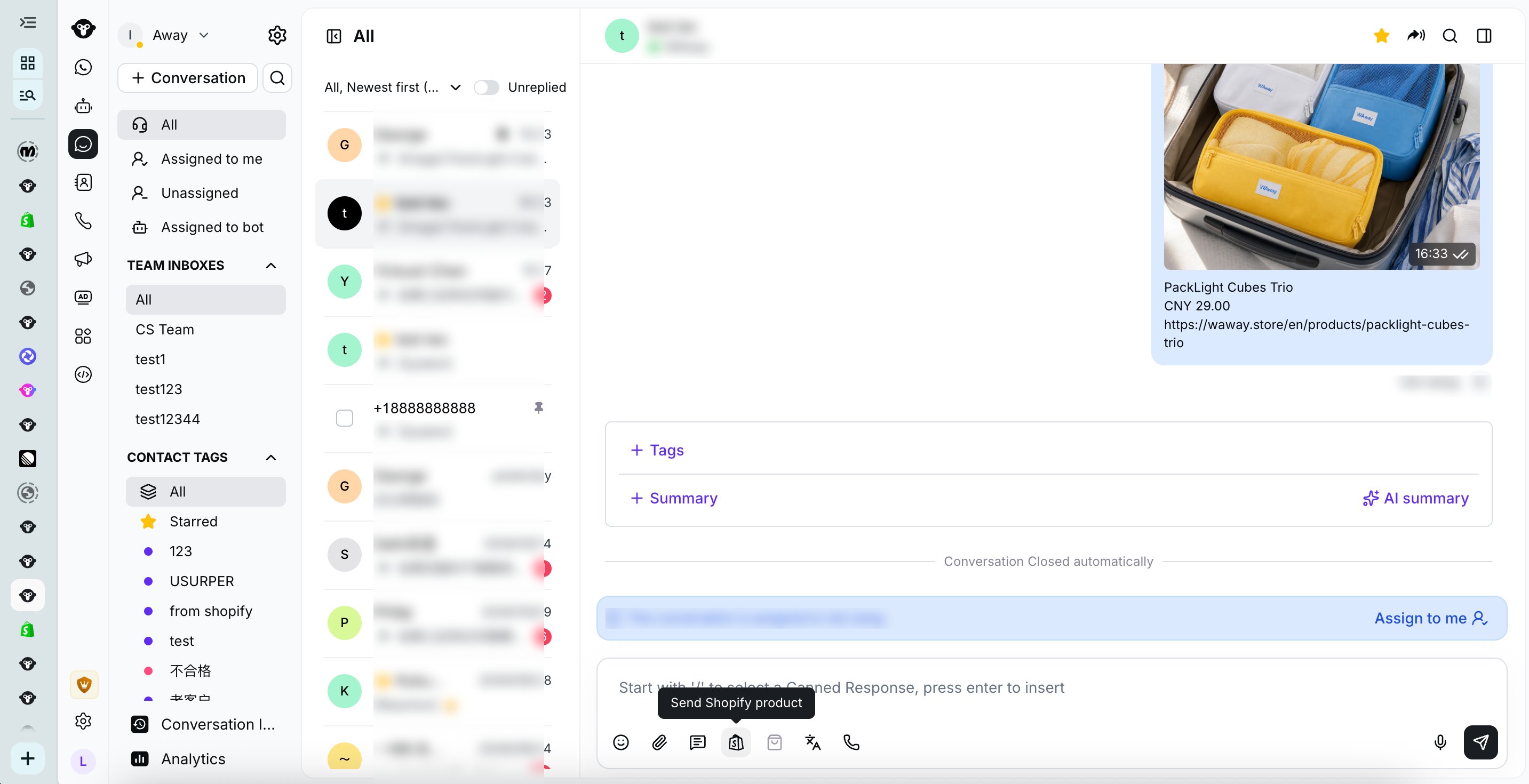
Open the Shopify product picker from an Inbox conversation
- Search by the product title, then select one product. The list shows the product image, title, and price in the store’s currency.
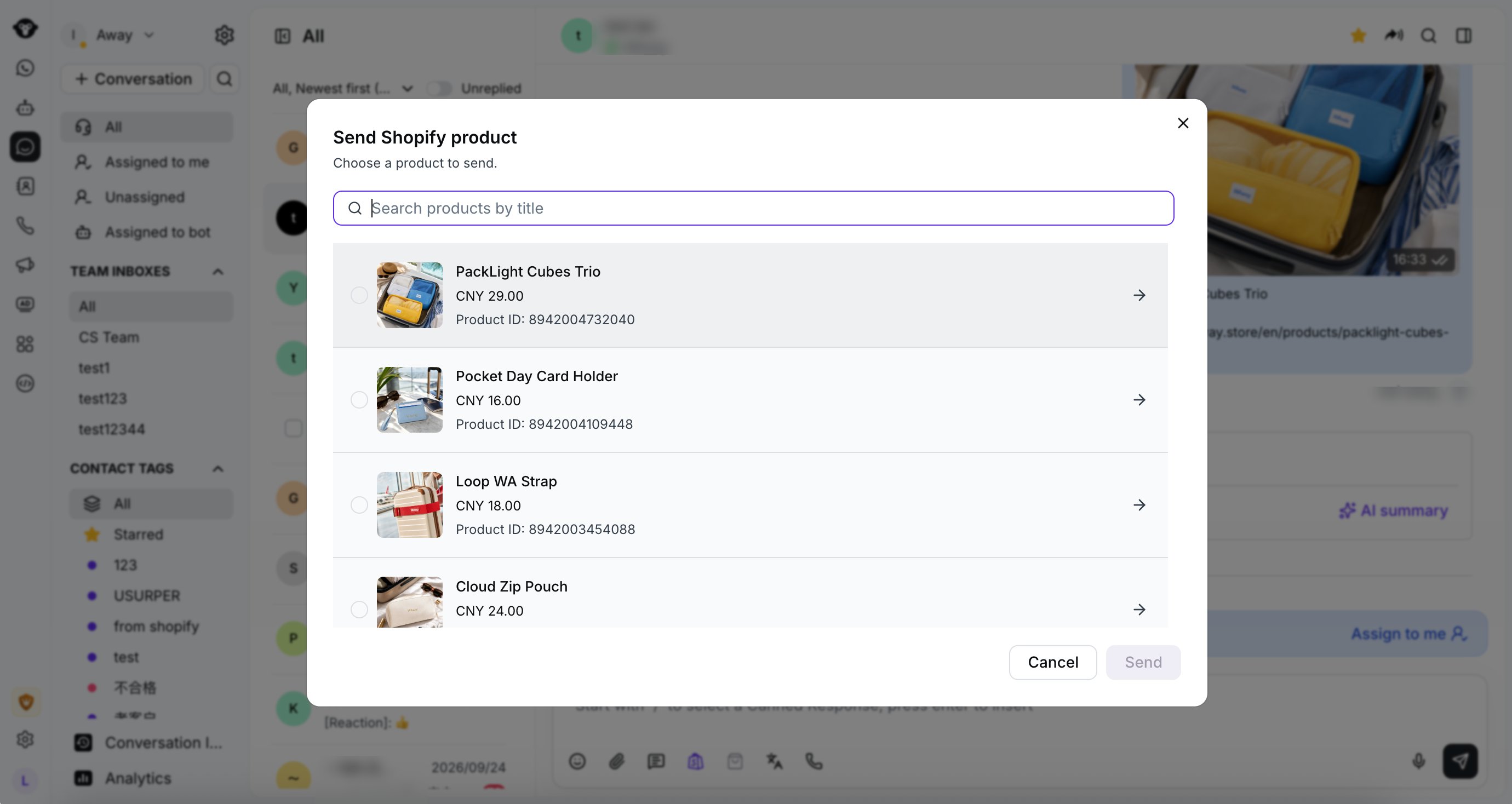
Search Shopify products by title
Send immediately
Select the product and click Send at the bottom to send it immediately.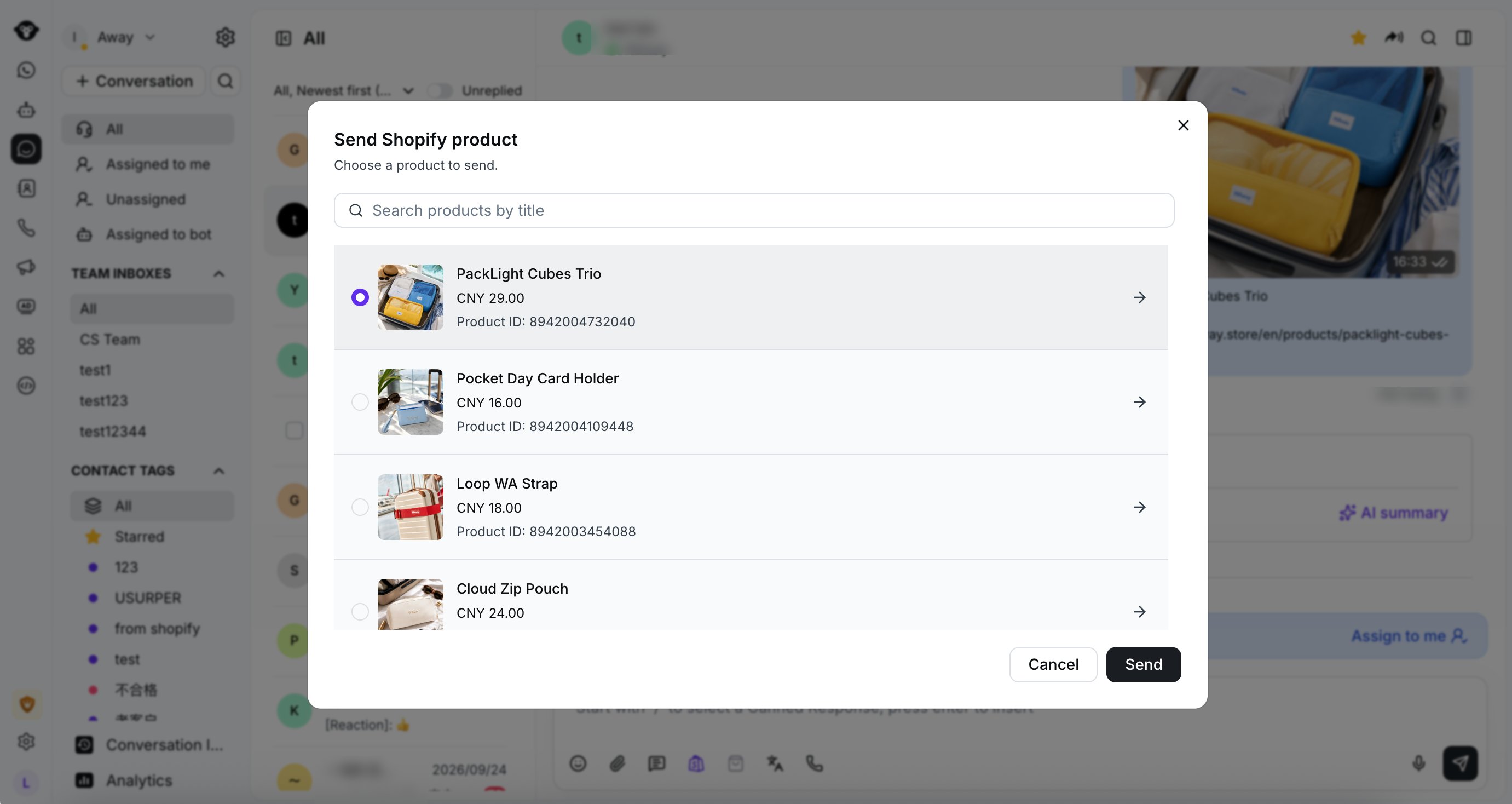
Select a Shopify product and send it immediately
Preview and edit before sending
Click the arrow on the product row to open a preview.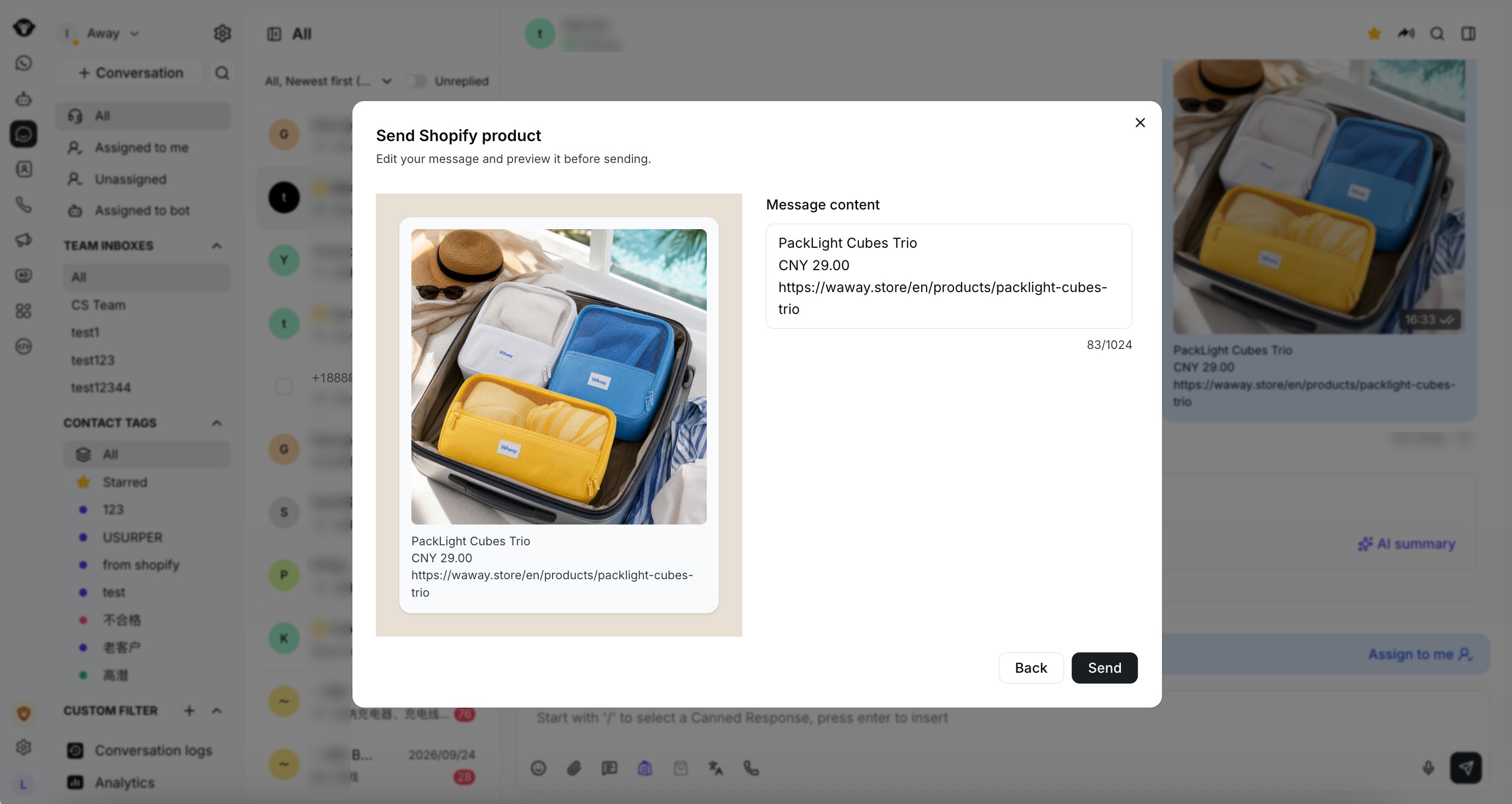
Open a preview of a Shopify product message
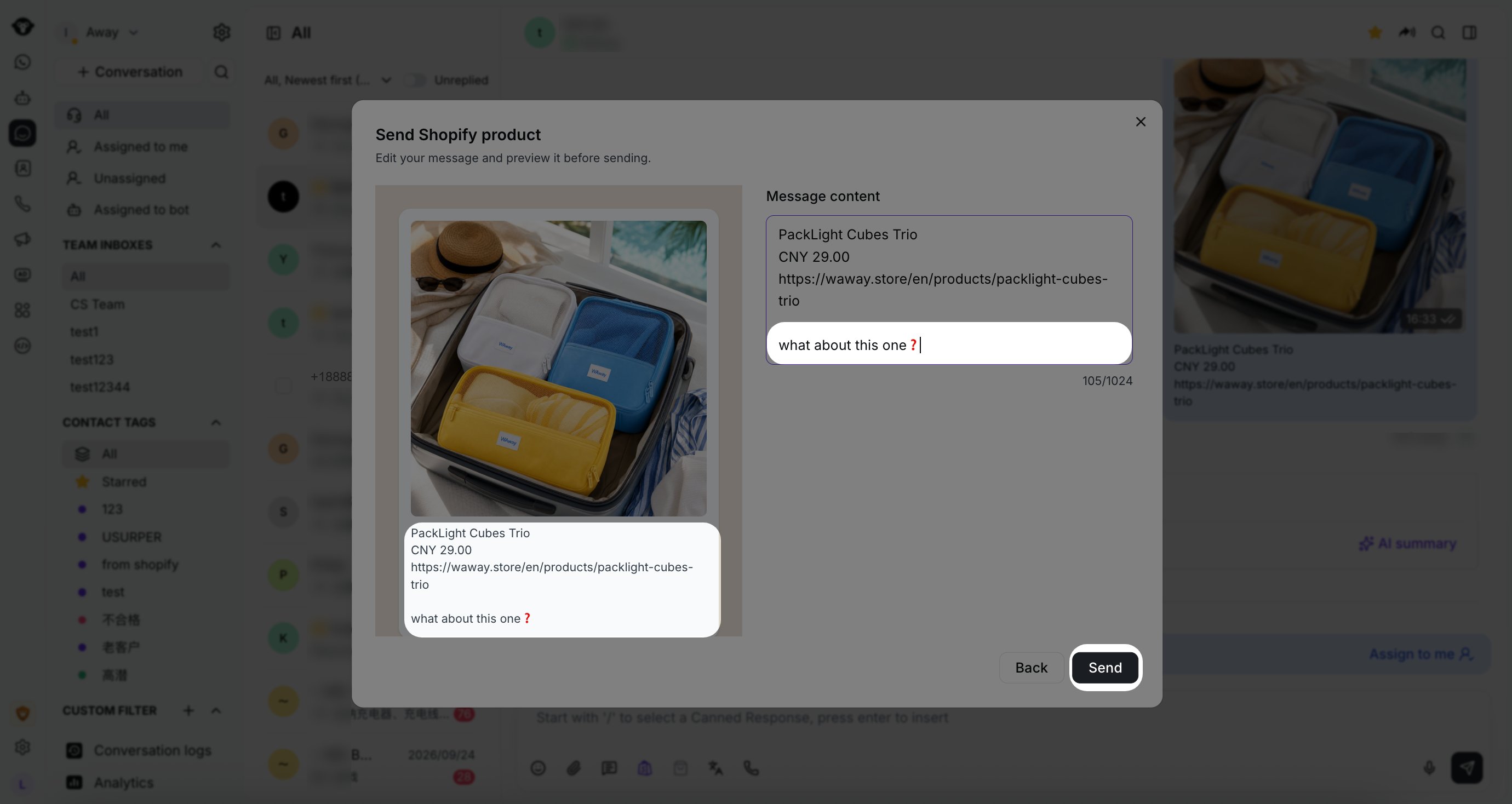
Edit the product message before sending
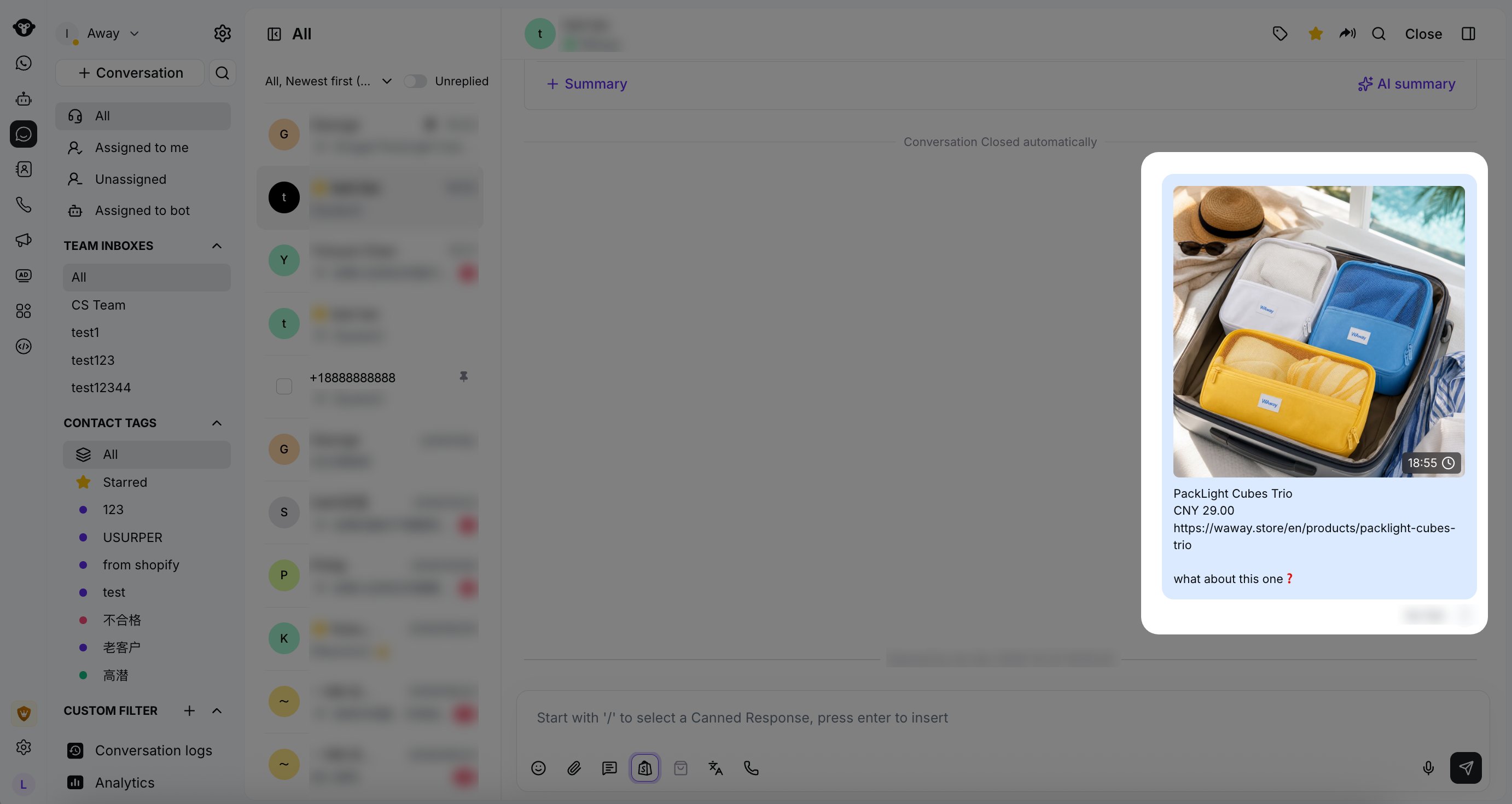
A Shopify product sent in a WhatsApp conversation
Find and review Shopify orders
Open Shopify orders in the contact details panel of an Inbox conversation. When the WhatsApp contact’s phone number matches the phone number on a Shopify customer, sync the contact before looking for that customer’s orders. Inbox then shows the Shopify orders associated with that customer. To find a different order, use Search all orders by order name or email. Enter the order name or the email used to contact the customer for the order. Clear the search to return to that customer’s orders.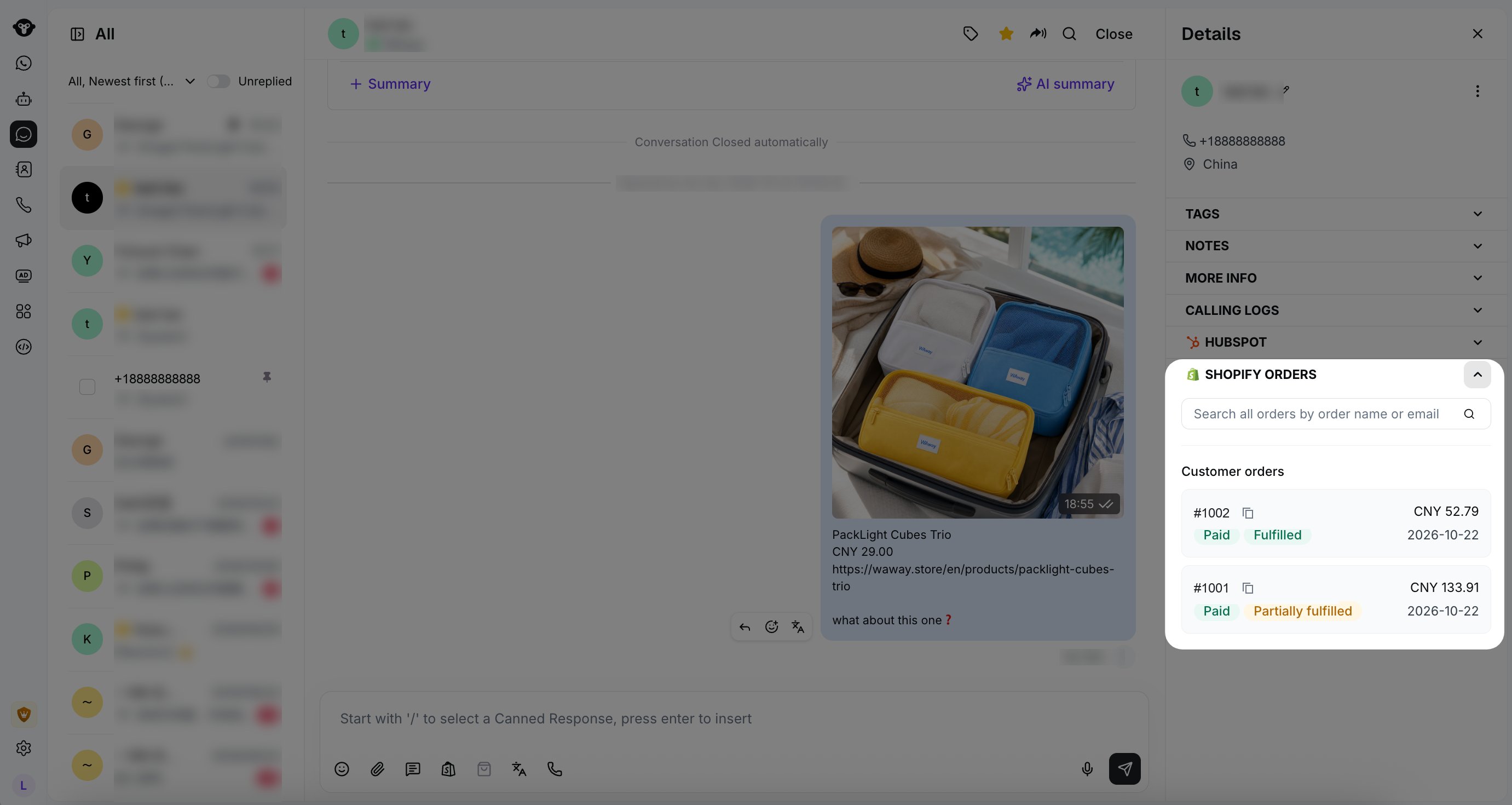
Customer orders and order search in Inbox
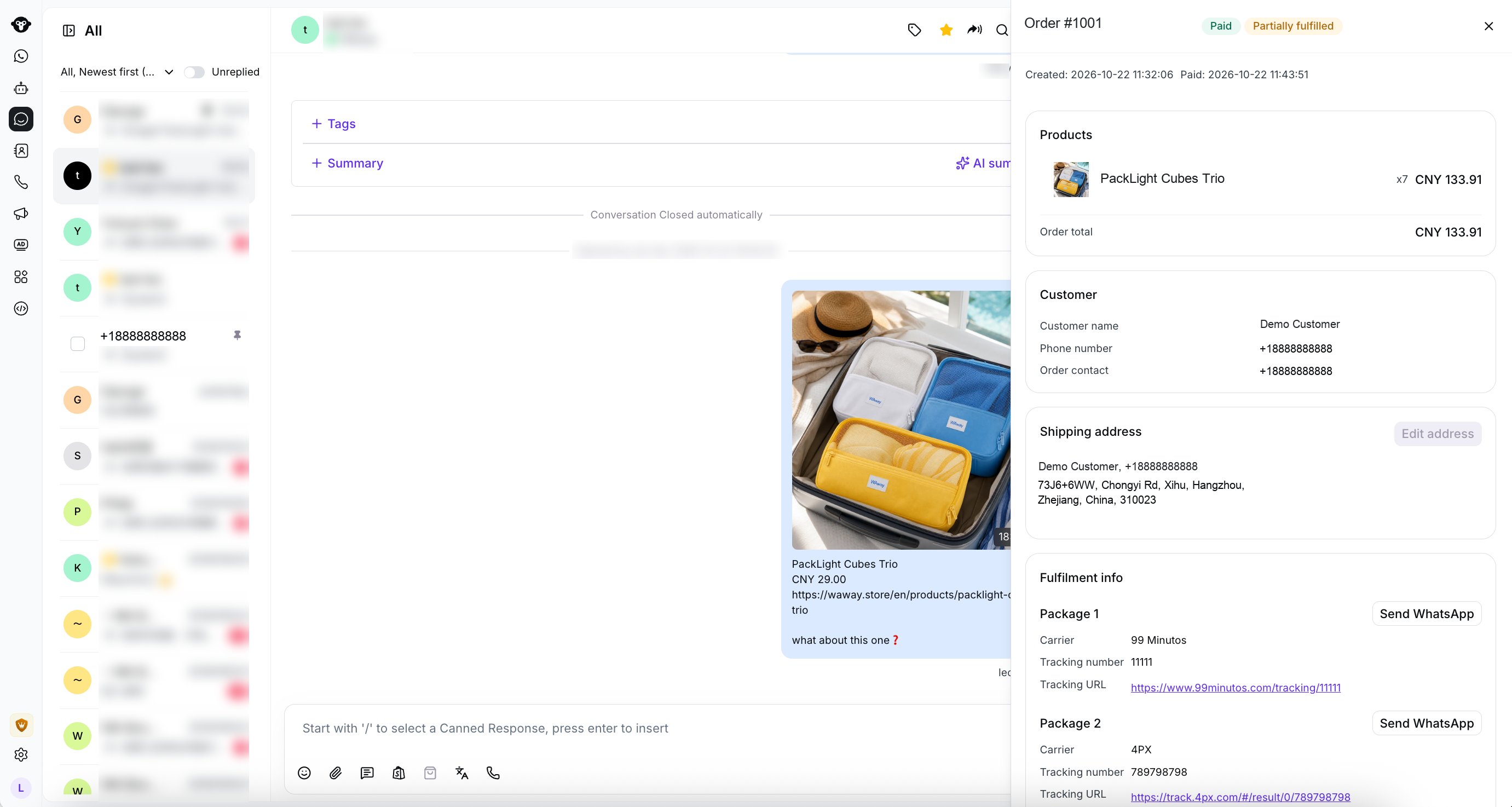
Order details, shipping address, and fulfillment information
Update a shipping address
In an order’s shipping-address section, select Edit address when it is available. This option requires an existing shipping address and no fulfillment entries. Inbox does not add an address to an order that has none. Edit the address, then review the Current address and New address on the confirmation screen. Changed values are identified before you save. Select Back to adjust your edits, Cancel to discard them, or Save changes to submit the new address.Send package tracking information
In Fulfilment info, each package is based on an actual tracking entry. Click Send WhatsApp for the package you want to share. The message includes the order name and any available carrier, tracking number, and tracking URL. Packages without tracking information cannot be sent.Send tracking information for a Shopify package
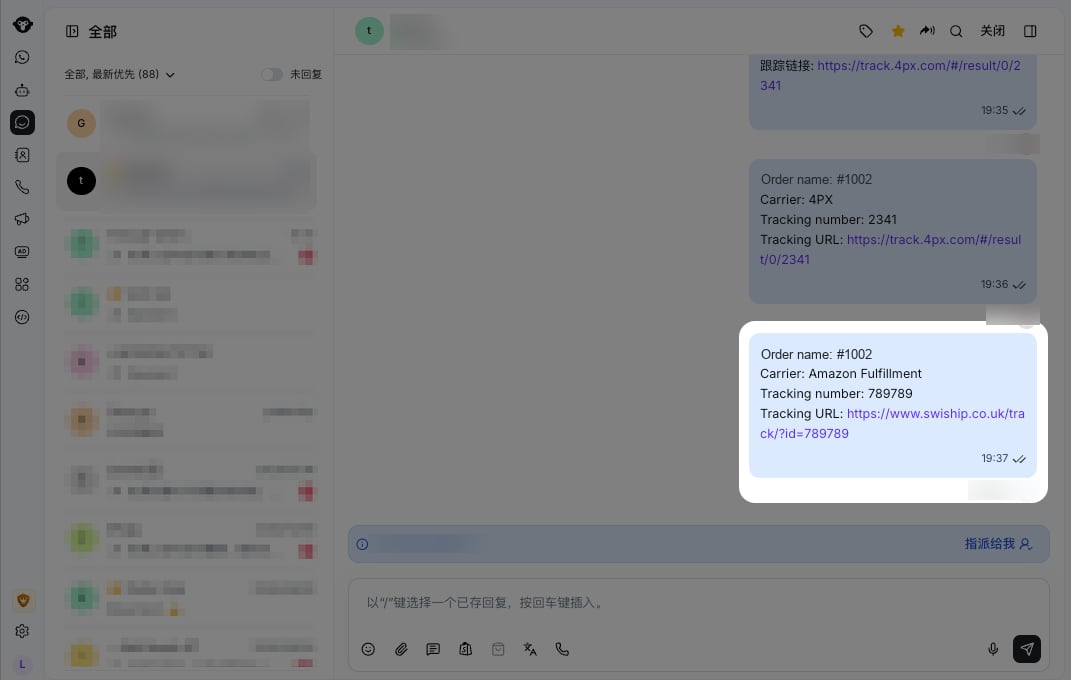
Package tracking information sent in a WhatsApp conversation
Frequently Asked Questions
Why can't I find a product I know exists in Shopify?
Why can't I find a product I know exists in Shopify?
Inbox searches Shopify product titles. Shopify’s title-search behavior may not return every partial phrase, and product descriptions are not searched. Try a more specific word from the product title.
Why don't I see any customer orders?
Why don't I see any customer orders?
Sync the contact when the current WhatsApp phone number matches the phone number on the Shopify customer. If no associated orders appear, search the store by order name or order contact email.
Why can't I edit an order's shipping address?
Why can't I edit an order's shipping address?
Inbox shows Edit address only when the order already has a shipping address and has no fulfillment entries. You can still review the address and package information in the order details.