

- When there are multiple WABAs in the YCloud account, you need to copy the same template to multiple WABAs.
- Within the same WABA, you need to create a template that is not identical but similar in content.
- When a template fails the review due to an incorrect Category selection, you can use the copy template button to create a new template and select the correct Category.
Step 1: Click the Copy Button
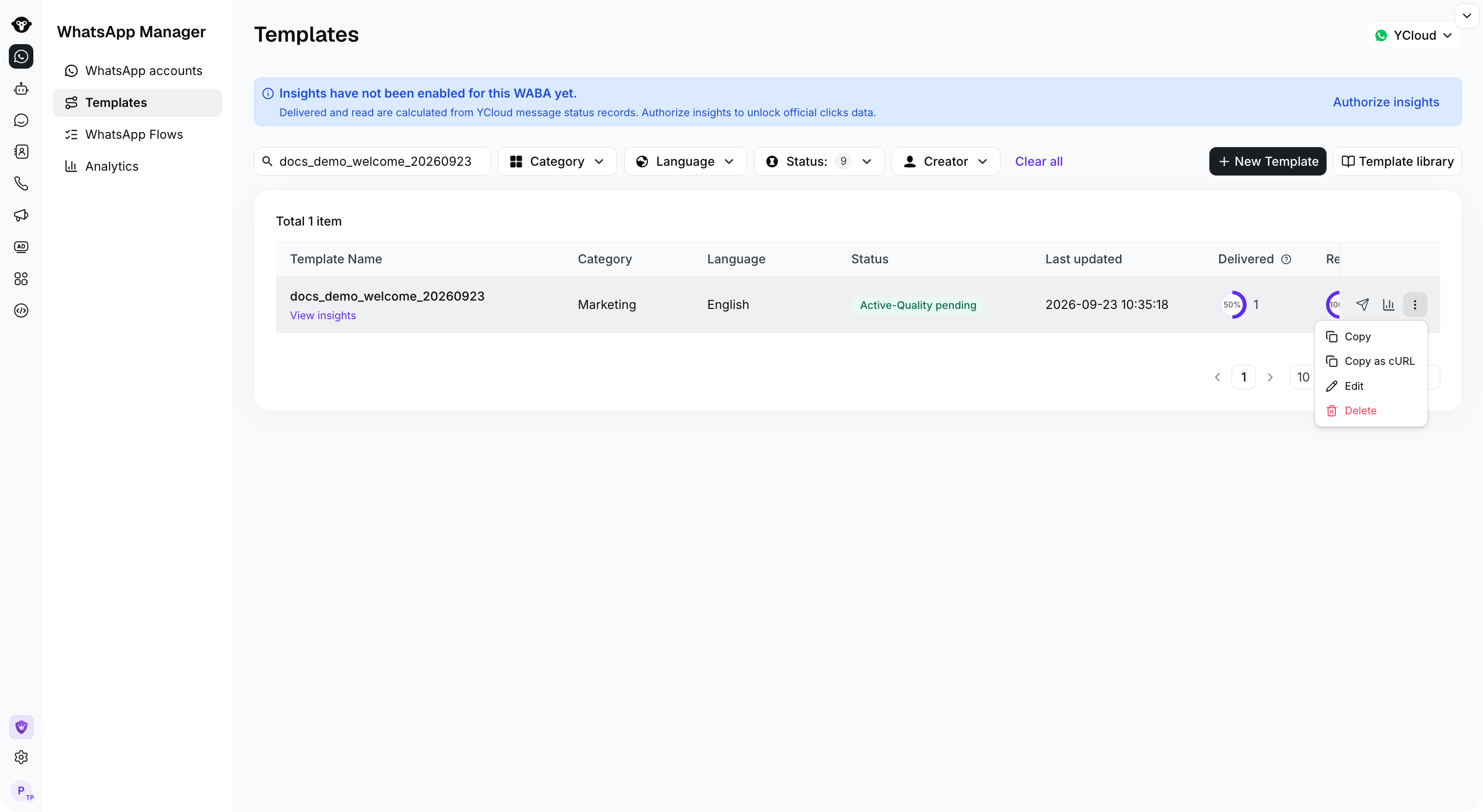
Open the template row actions menu and select Copy.
Step 2: Set Copy Information
- Destination WhatsApp accounts: Target WABA. Select the WABA to which you want to copy the template, or you can choose the current WABA.
- Template name: New template name. Name the new template.
- Category: Template type. It is not recommended to adjust if the template has already been approved.
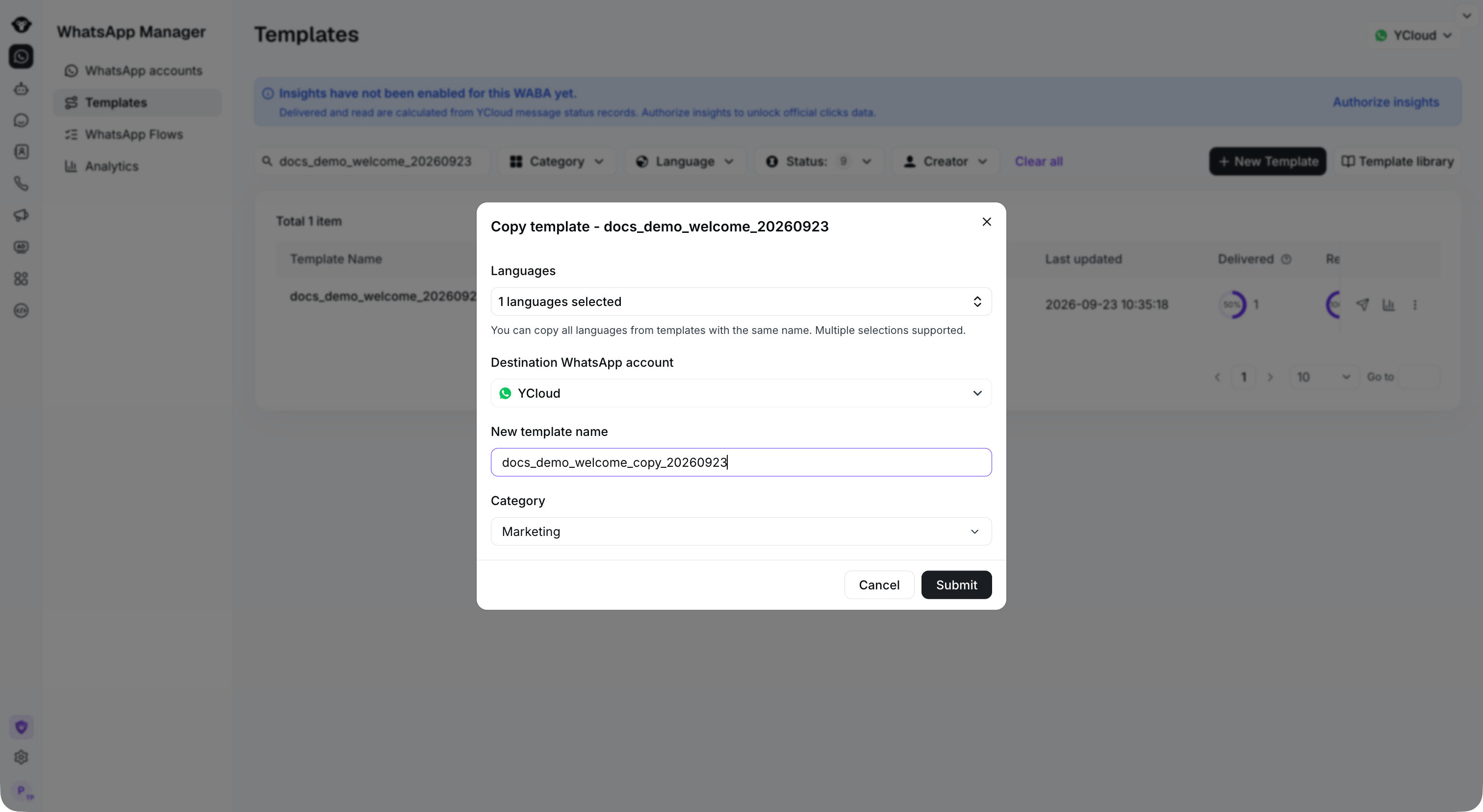
Select the languages and destination account, then enter a new template name and category.
Step 3: Edit the New Template
Enter the new template’s editing page, and after confirming the content is correct, click Submit.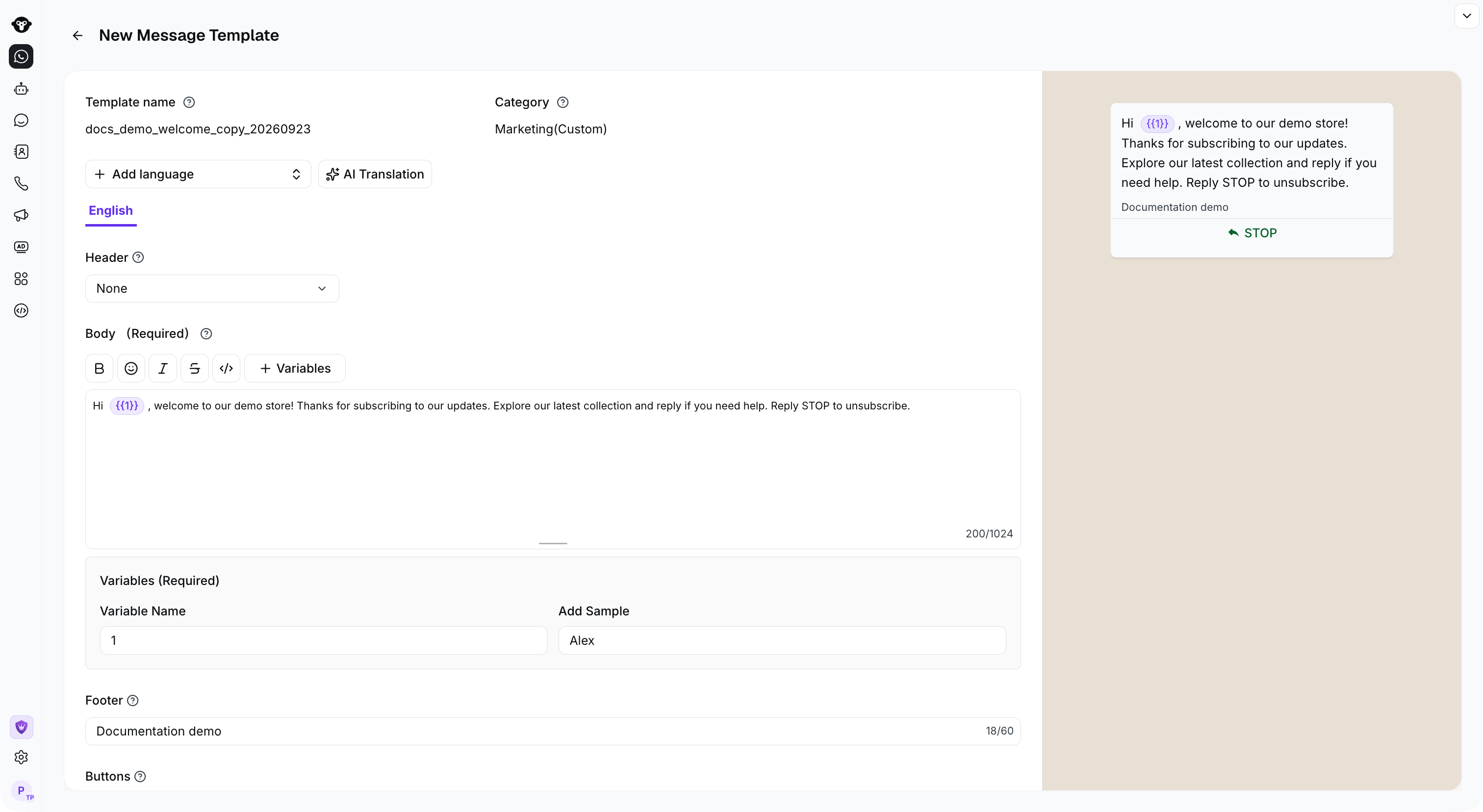
Review the copied content, variables, and preview before submitting the new template.