

TikTok Messaging Ad
Use TikTok ads to start WhatsApp conversations with potential customers. After a customer sends a message, your team can manage the conversation in YCloud Inbox and configure selected outcomes for reporting to TikTok.What you can do
With this workflow, you can:- Connect a TikTok ad account in YCloud.
- Link a WhatsApp Business number that is already connected to YCloud.
- Create the TikTok campaign with the linked number.
- Handle ad-driven conversations in YCloud Inbox.
- Configure event rules that report selected outcomes to TikTok.
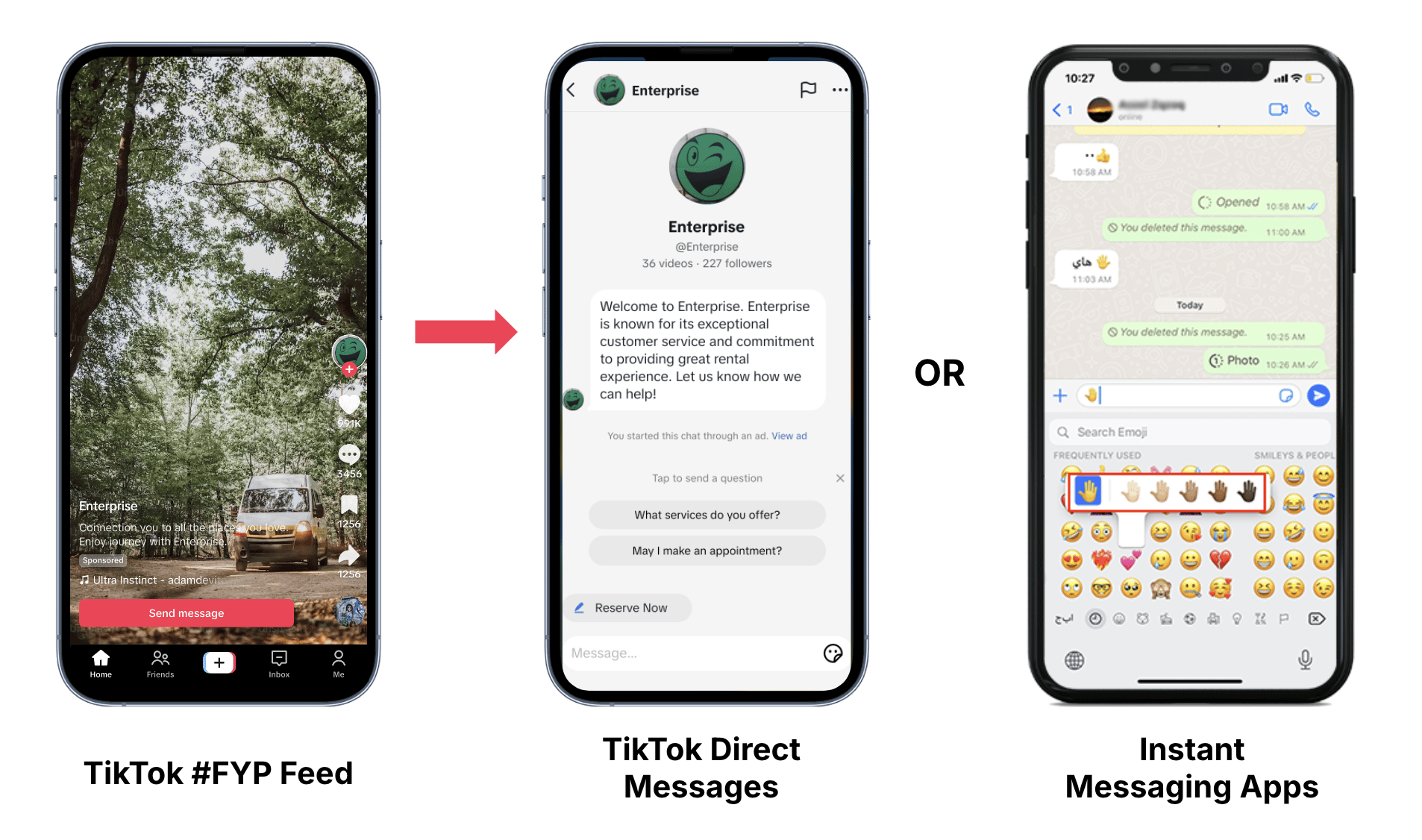
TikTok illustrates both messaging destinations. This guide covers Instant Messaging Ads that open WhatsApp.
Before you start
Make sure you have:- TikTok ad account: Create and manage your messaging ads. Open TikTok Ads Manager
- TikTok user with ad account access: Authorize the TikTok ad account that you will use in YCloud.
- WhatsApp Business number: Receive customer messages from your ads. The number must be connected to YCloud.