

Create TikTok Instant Messaging Ad
Create the campaign in TikTok Ads Manager and use the WhatsApp Business number already linked in YCloud.Before you start, complete Connect TikTok Ad Account. TikTok controls the campaign builder, available options, account eligibility, and review process.
Prepare the YCloud resources
Record the TikTok ad account and the WhatsApp Business number that you linked in YCloud. Use those exact resources when creating the campaign.Create the campaign in TikTok Ads Manager
TikTok Ads Manager determines whether a messaging-to-WhatsApp campaign is available and which setup controls apply to an account. Work with the account administrator to create a campaign using the current TikTok workflow, then select the WhatsApp Business number already linked in YCloud when TikTok requests the messaging destination.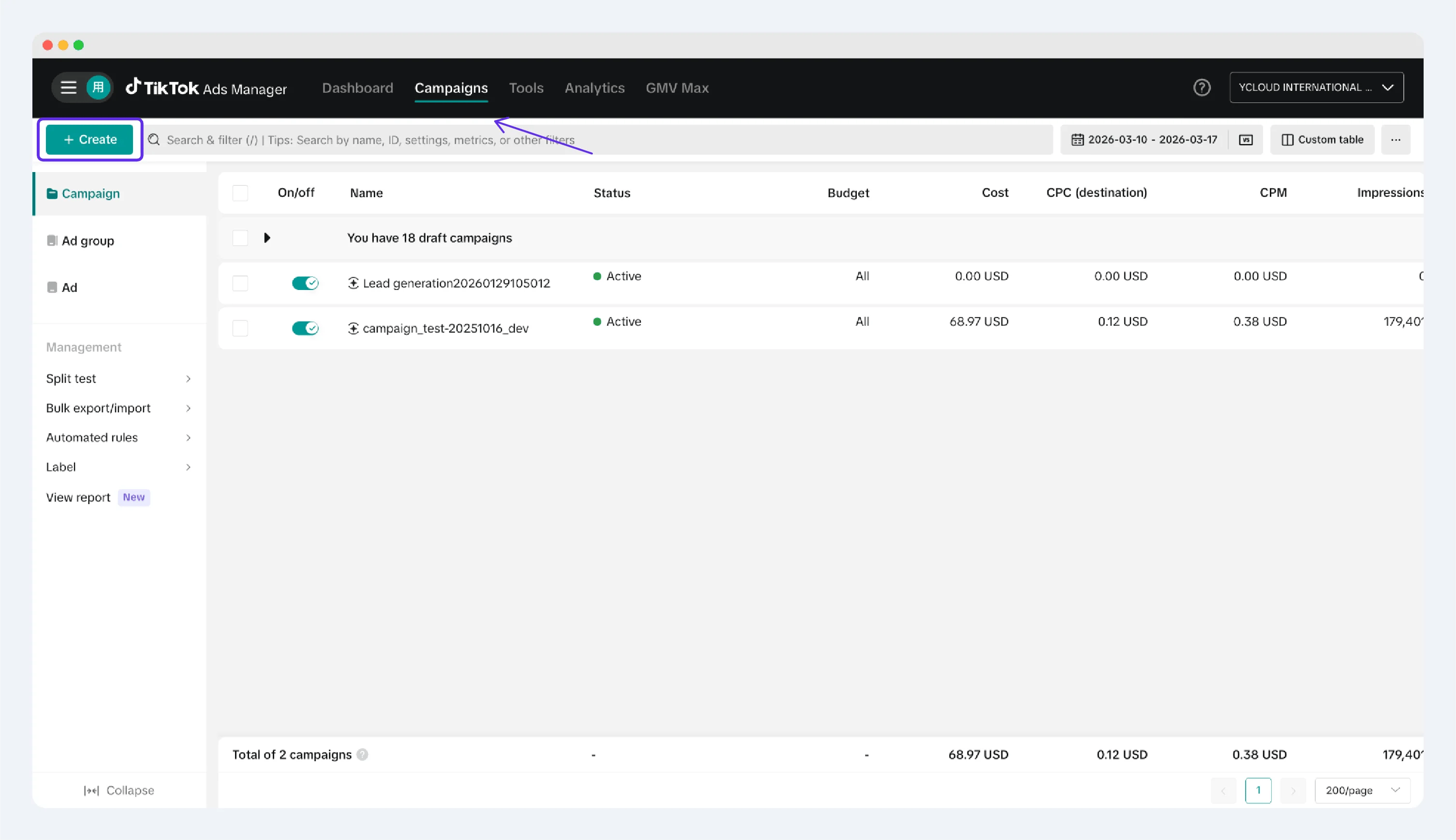
Create a TikTok messaging campaign
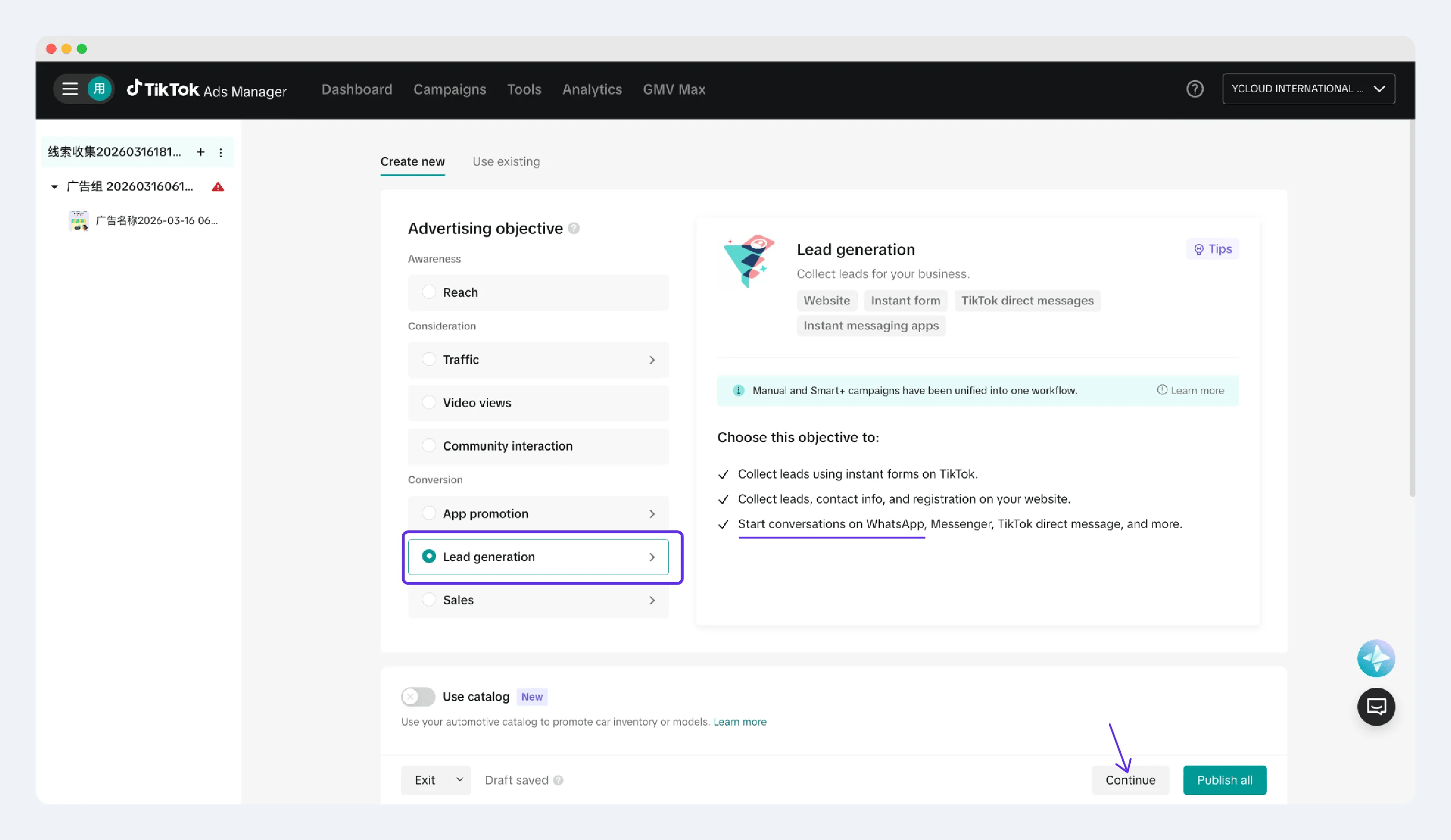
Select the TikTok campaign objective
Choose the optimization goal
For a Click to WhatsApp ad, select Conversations. Do not select Clicks for this scenario.Configure the messaging destination
Use the current TikTok interface to associate the campaign with the linked WhatsApp Business number. If an expected messaging option, number, or event set is unavailable, verify the account’s TikTok eligibility and the YCloud connection instead of choosing a different destination.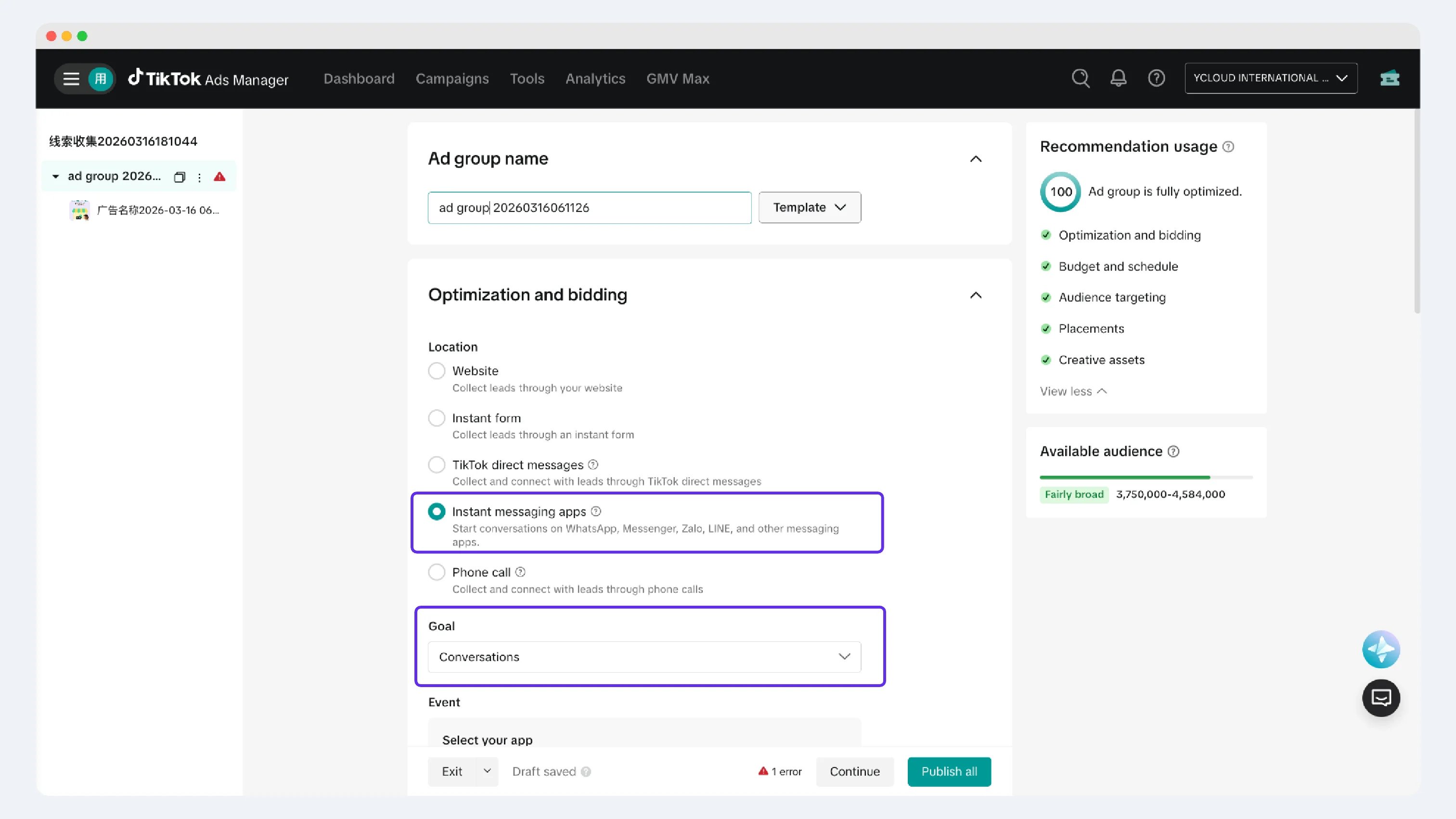
Configure the TikTok messaging destination
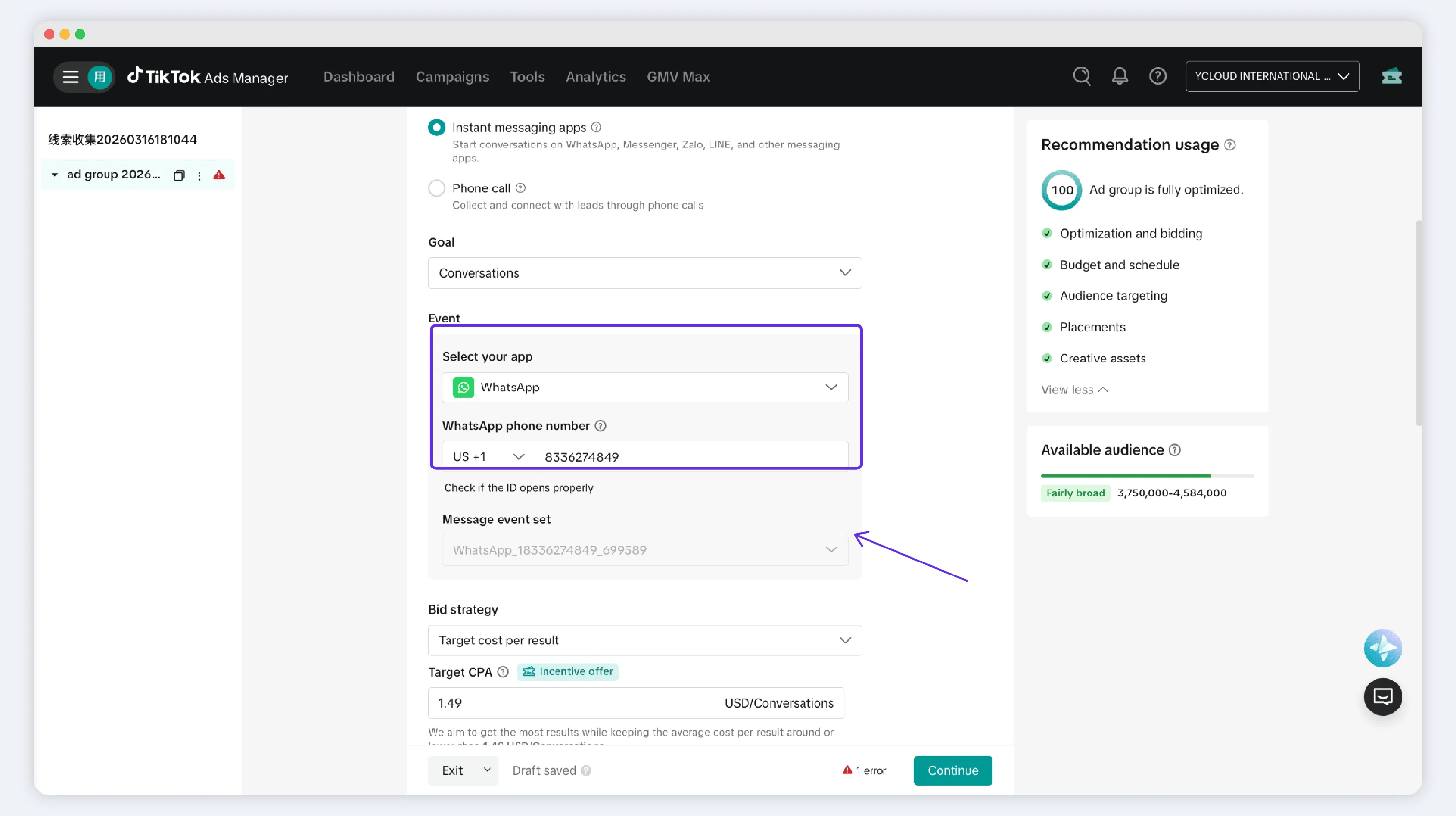
Select the WhatsApp Business number in TikTok Ads Manager
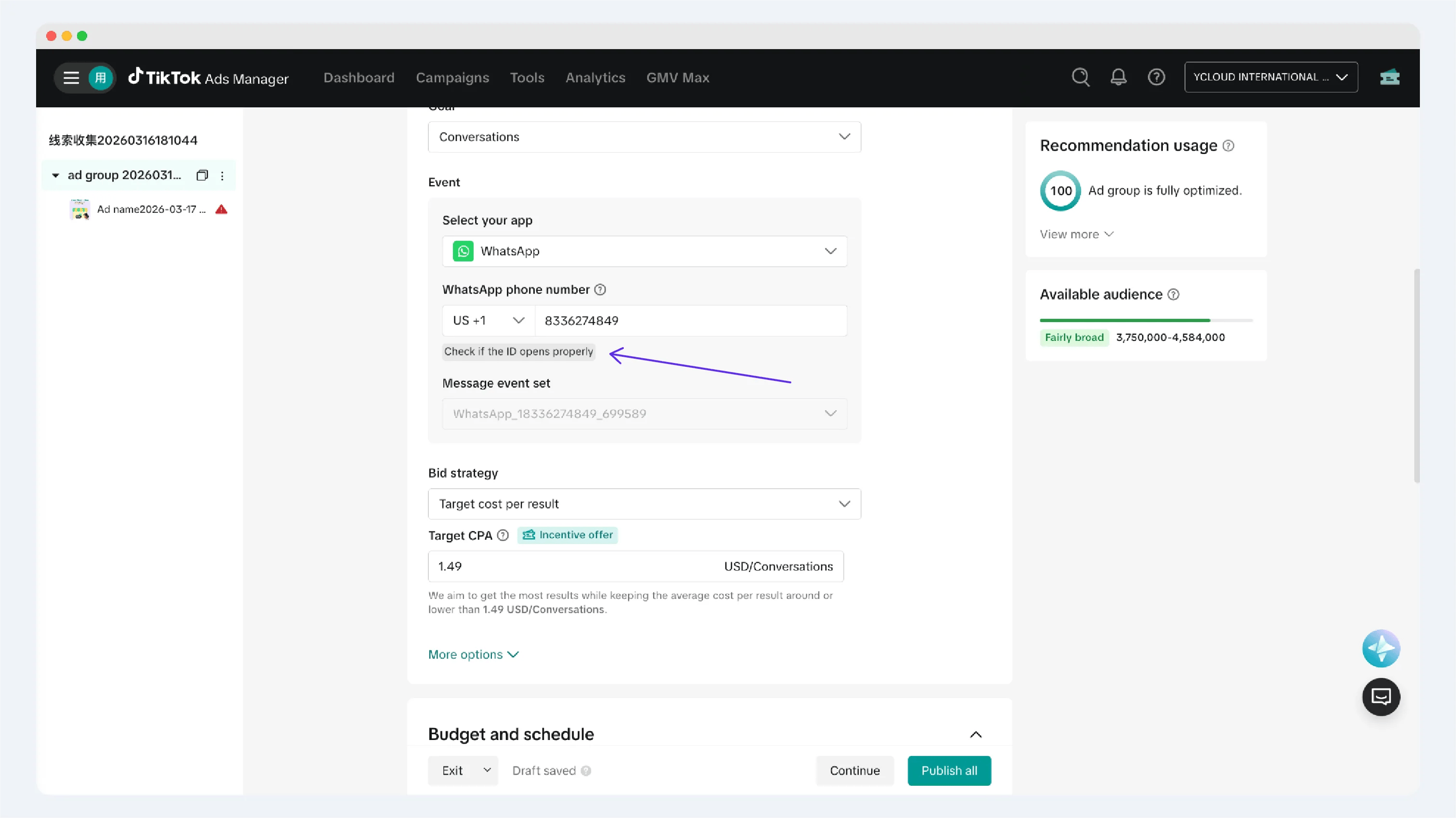
Test the TikTok messaging ad with a QR code
Finish the ad
Complete the creative, delivery, and review actions required by TikTok Ads Manager. Before launch, confirm in the current TikTok interface that the campaign’s selected messaging destination is the WhatsApp Business number linked in YCloud. TikTok controls the review process and timing.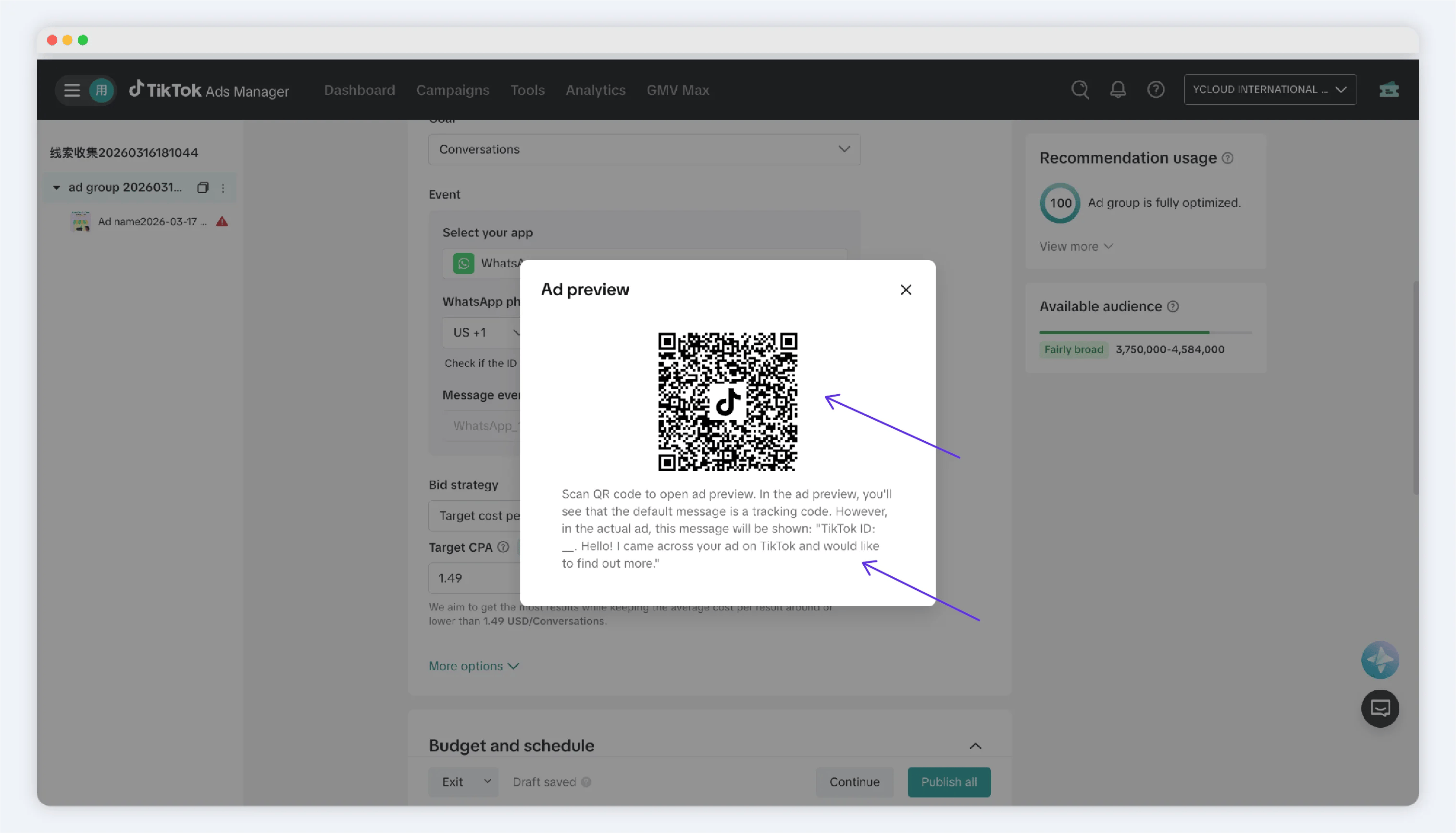
TikTok ad preview that opens WhatsApp