

Connect TikTok Ad Account
Authorize the TikTok ad account in YCloud, then link the WhatsApp Business number that the ads will use.Before you start, make sure the WhatsApp Business number is already connected to YCloud. The TikTok user who authorizes the account needs access to the ad account you intend to use.
Connect the ad account
- In YCloud, open CTWA and start the TikTok ad-account connection flow.
- Sign in to TikTok in the authorization window and approve access for the account you will use.
- Return to YCloud and confirm that the target ad account appears in the account list.

Start with Connect Ad account under TikTok Ads.
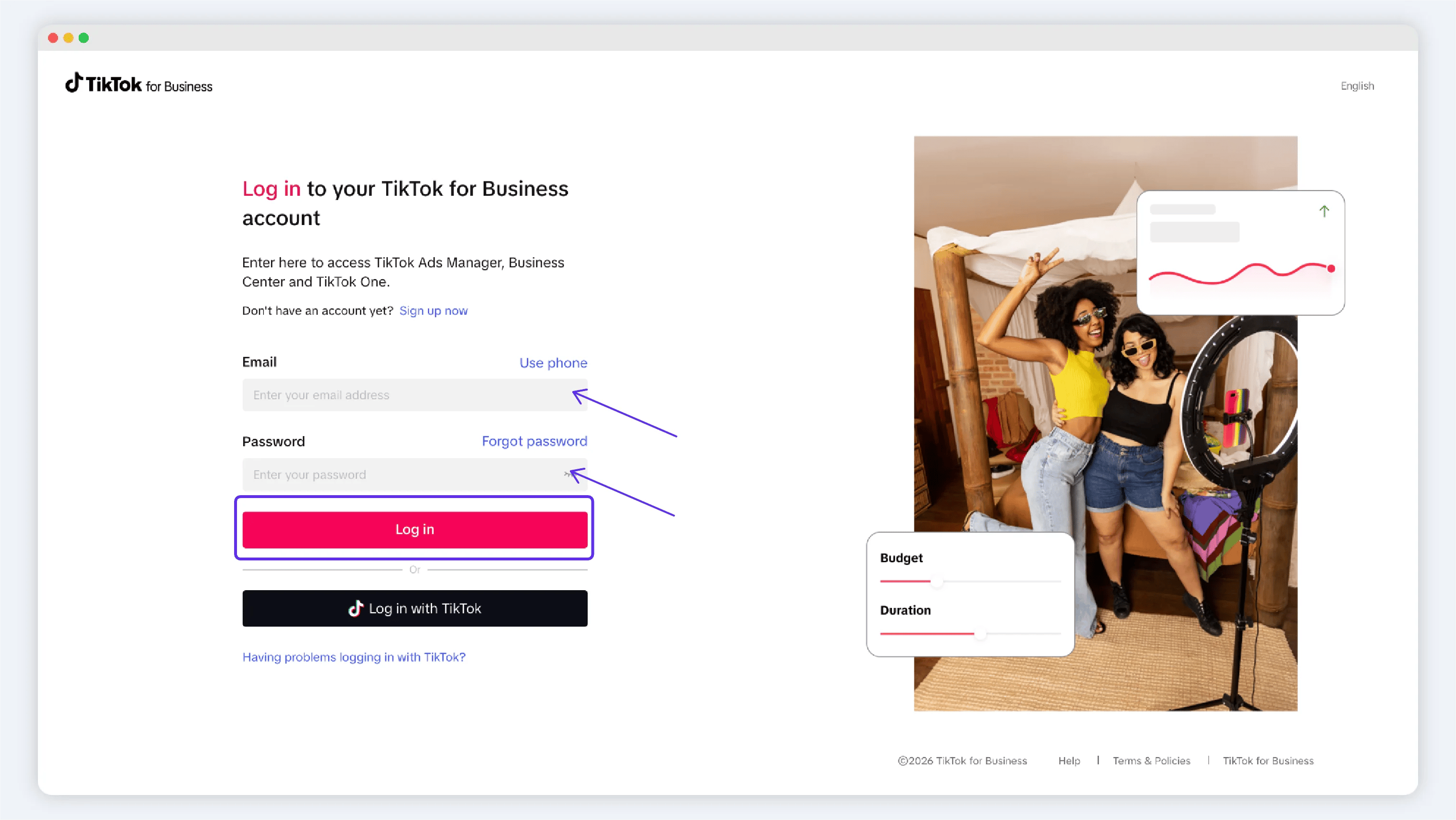
Sign in to the TikTok account that can access the target ad account
Link a WhatsApp Business number
Link the number before you create the ad. YCloud uses the linked number to create and manage the related TikTok messaging event-set configuration.- From the connected account, open the event-set or number-linking flow.
- Confirm the TikTok ad account.
- Select the WhatsApp Business number that will receive ad-driven conversations.
- Submit the configuration and confirm that the event set was created.
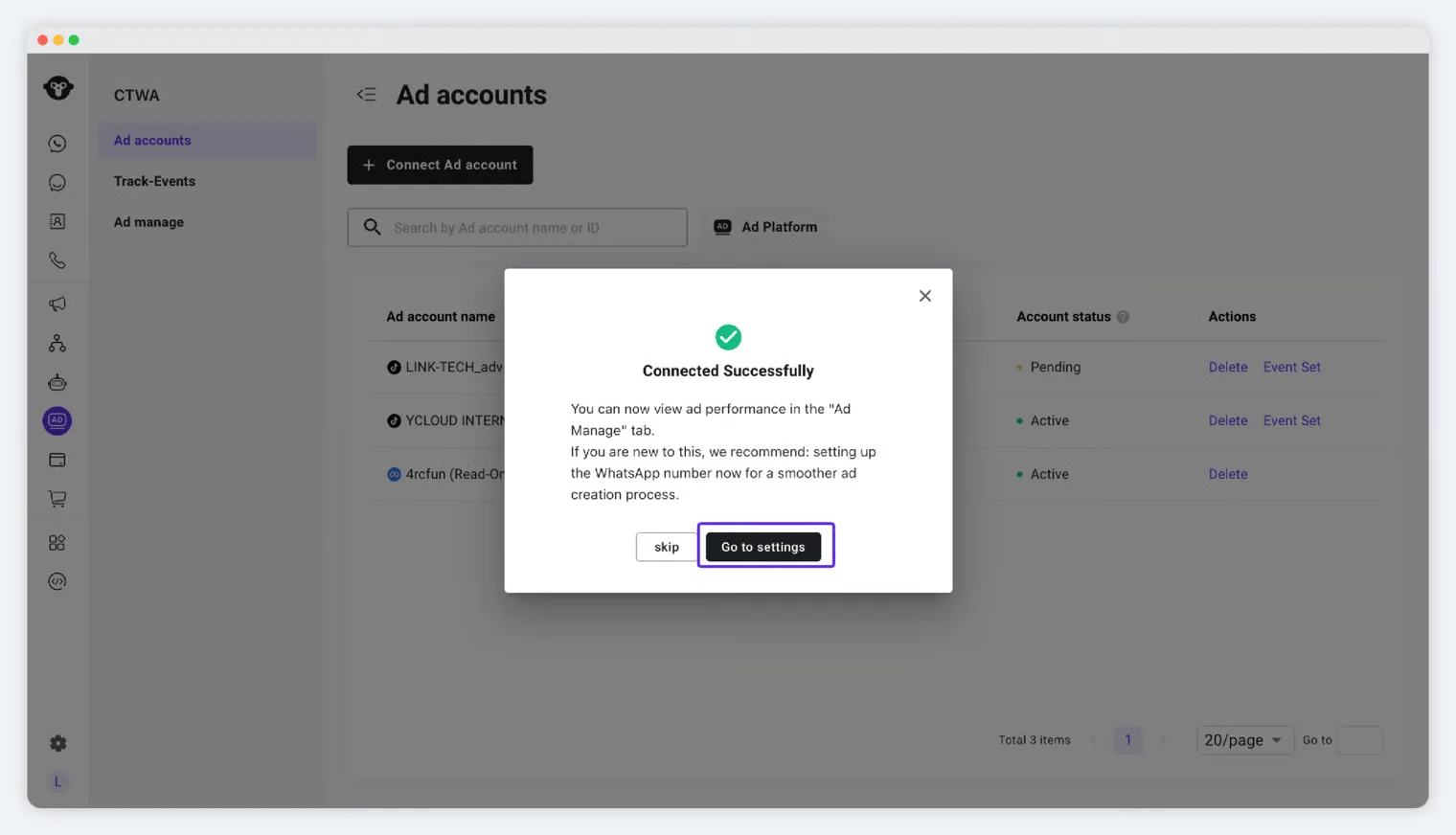
Continue to number linking after connecting the ad account
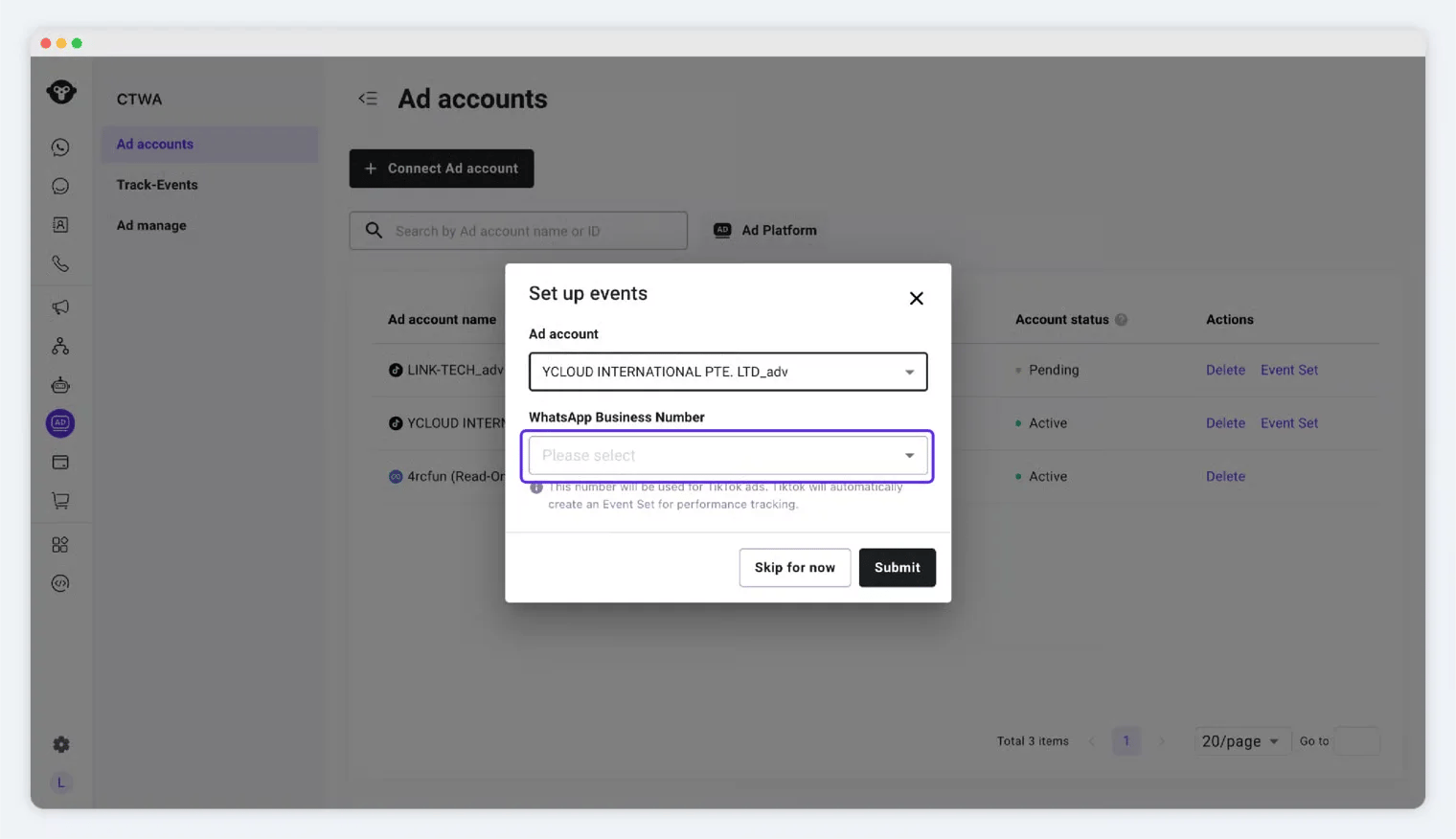
Select the ad account and WhatsApp Business number
Know the number status
Under the same TikTok ad account, a WhatsApp Business number that is already linked is shown as Used. Select a different available number instead of trying to create a second link for the same number.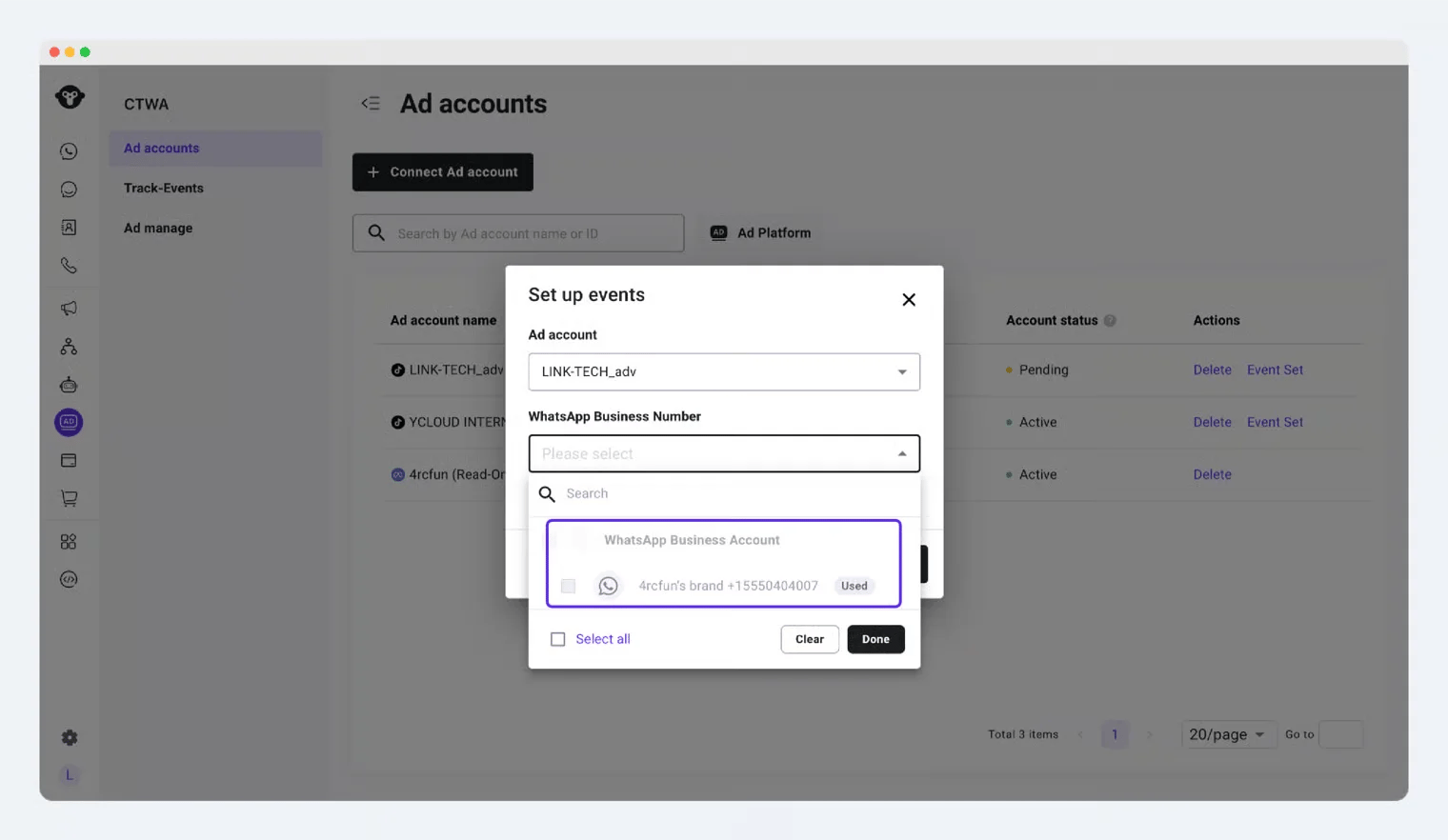
A number already linked to this ad account is unavailable for a duplicate link