

Report Ad Results to TikTok
Use tracking events to report meaningful business outcomes from TikTok messaging ads to TikTok. A tracking event tells YCloud when to report and which business result to report.How event reporting works
A TikTok messaging ad can start a WhatsApp conversation. As you follow up, a customer may become a qualified lead, place an order, complete a payment, or reach another meaningful outcome. A tracking event recognizes that outcome and reports the signal you selected to TikTok. A tracking event has two parts:- Trigger condition: The business activity that tells YCloud when to report the selected signal to TikTok.
- Reported signal: The TikTok event that describes that outcome.
QualifiedLead when an agent applies a Qualified lead contact tag.
You can create multiple tracking events to report different results. Each tracking event reports one selected TikTok signal.
Set up a tracking event
- In YCloud, go to CTWA > Track Events.
- Select the TikTok ad account you want to configure.
- Select Track new event.
- Name the tracking event.
- Choose when to report a signal to TikTok.
- Choose the TikTok signal to report.
- Turn on Report to TikTok, then save the tracking event.
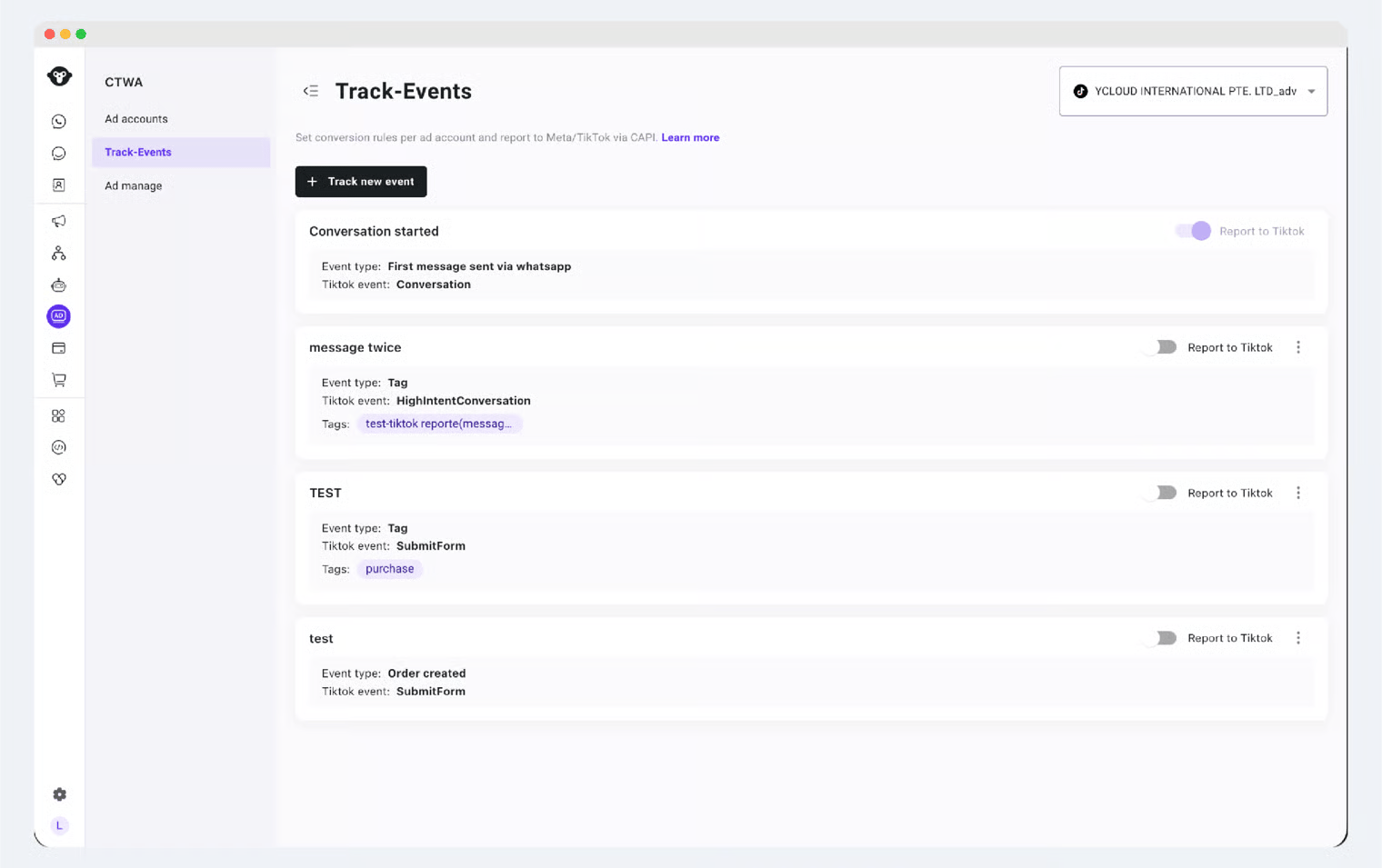
Create a tracking event for a TikTok ad account
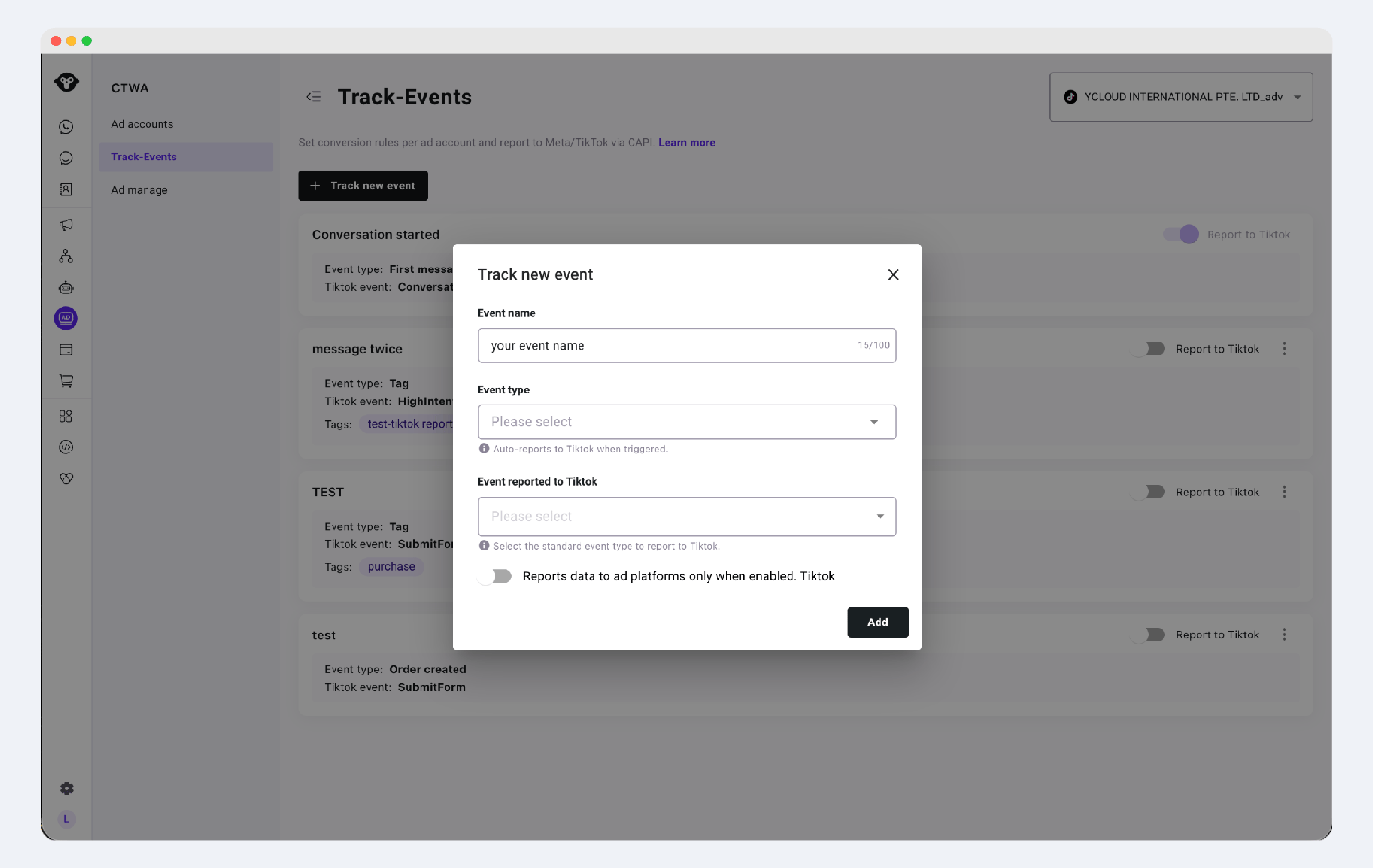
Select the TikTok signal to report
Choose when to report a signal to TikTok
This guide covers the following trigger types. Choose the one that best matches how your business confirms the result:- Contact tag
- Custom event
- Conversation keyword
Contact tag
Use a contact tag when an agent or automation applies a tag after confirming an outcome. For example, reportQualifiedLead after your team adds a Qualified lead tag.
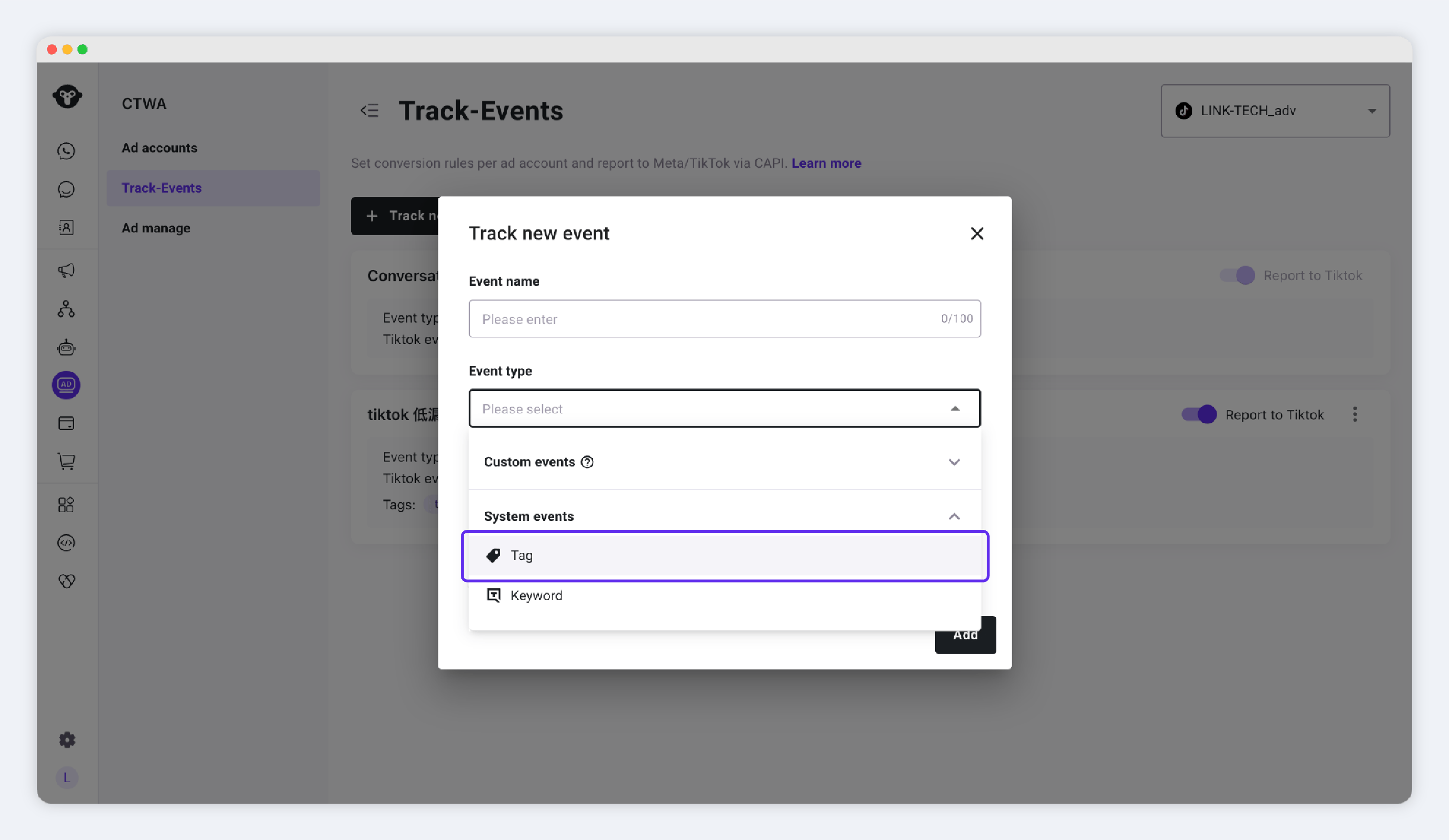
Select a contact tag as the trigger
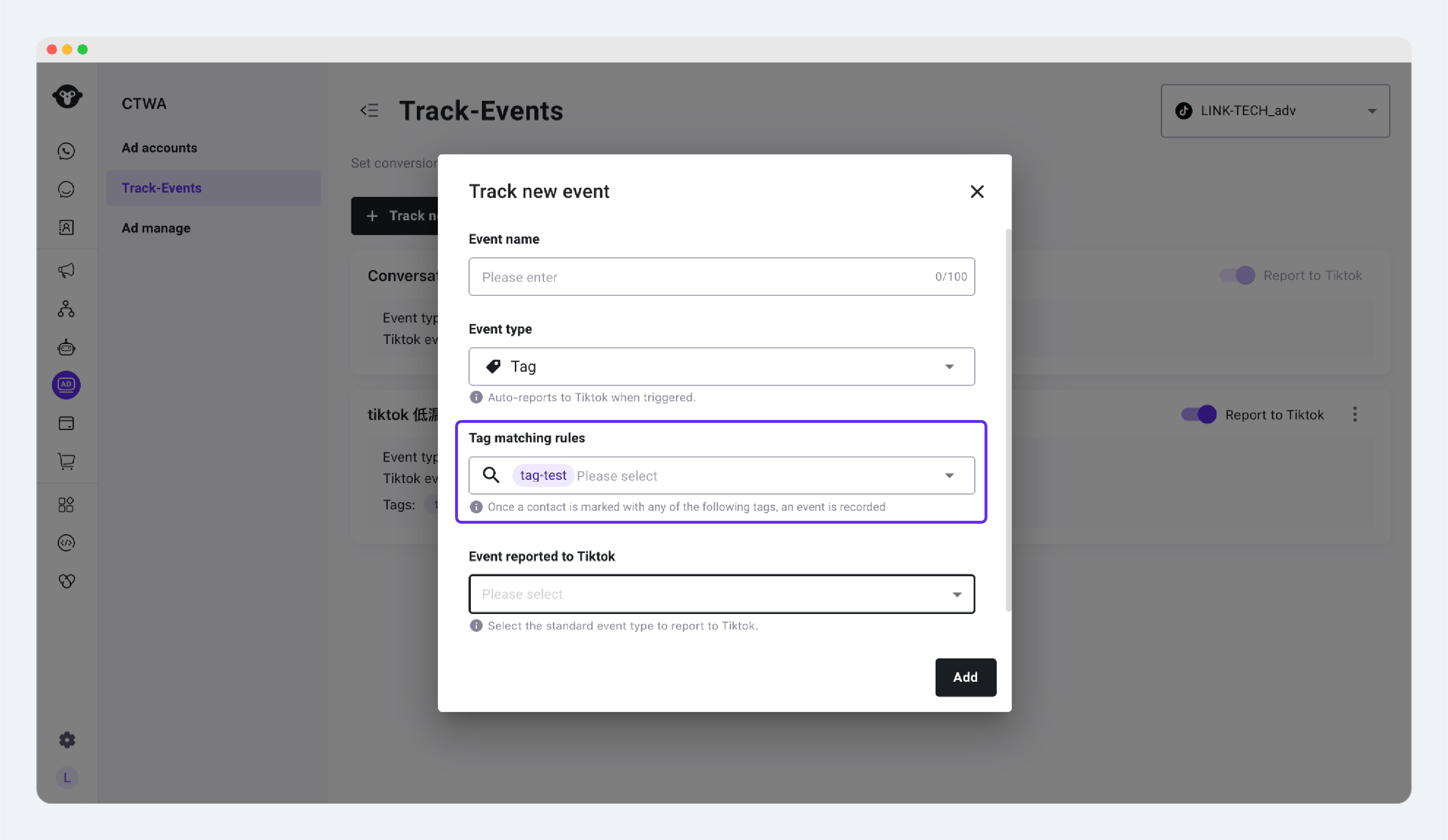
Choose the contact tag that confirms the outcome
Custom event
Use a custom event when your business system can send a confirmed result to YCloud, such as an order being placed or a payment being completed. If the custom event includes properties, you can use its available property values as additional conditions. For a custom event defined withobjectType: CONTACT, you can identify an existing YCloud contact by their saved Meta username using contactUsername, without the leading @. Choose one of the contact ID, phone number, or username for each request. See Track custom events for identifier rules and a username request example.
This identifies the contact associated with the custom event. Reporting to TikTok still requires the relevant ad attribution and a matching rule with Report to TikTok turned on.
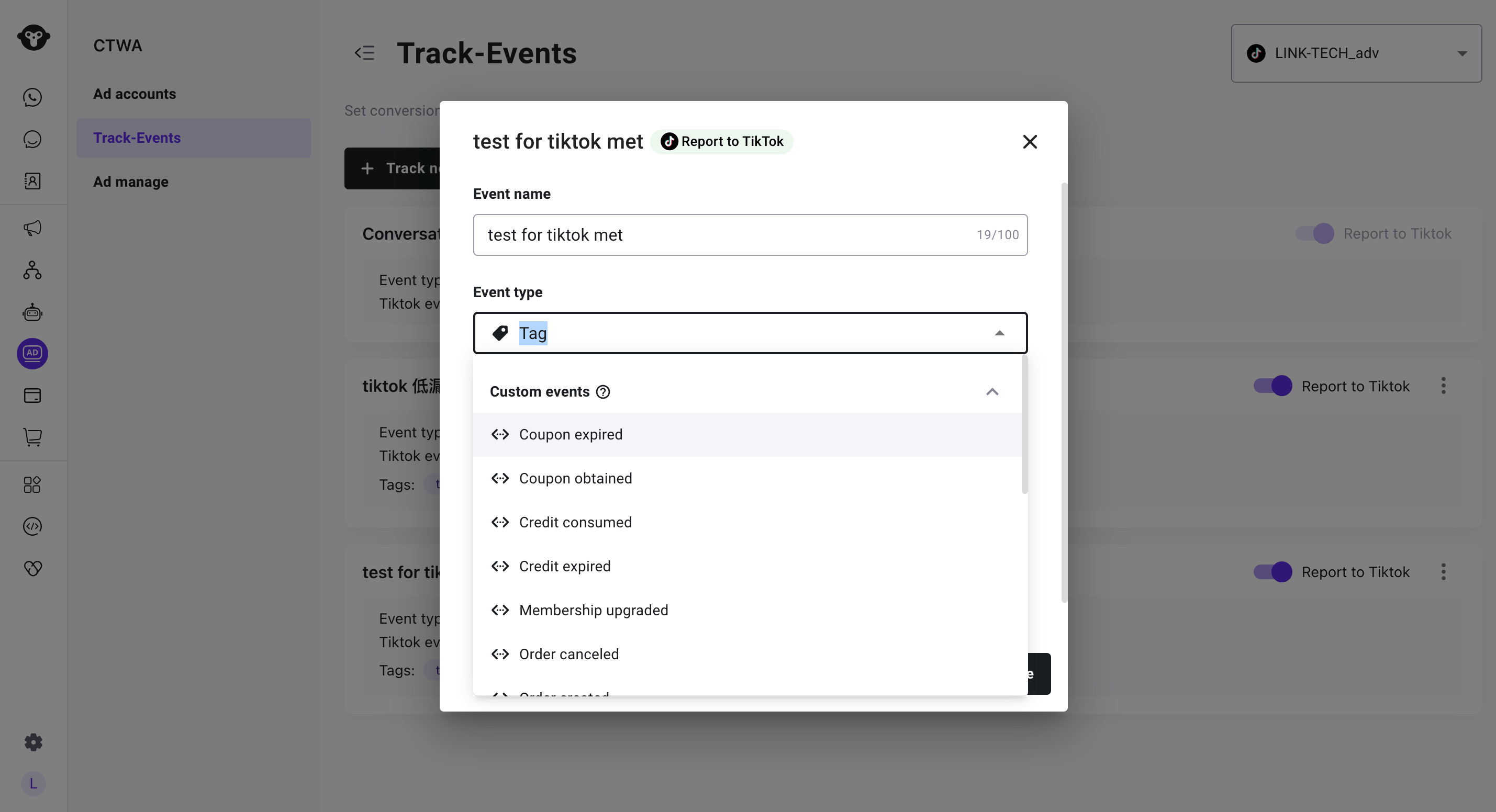
Select a custom event as the trigger
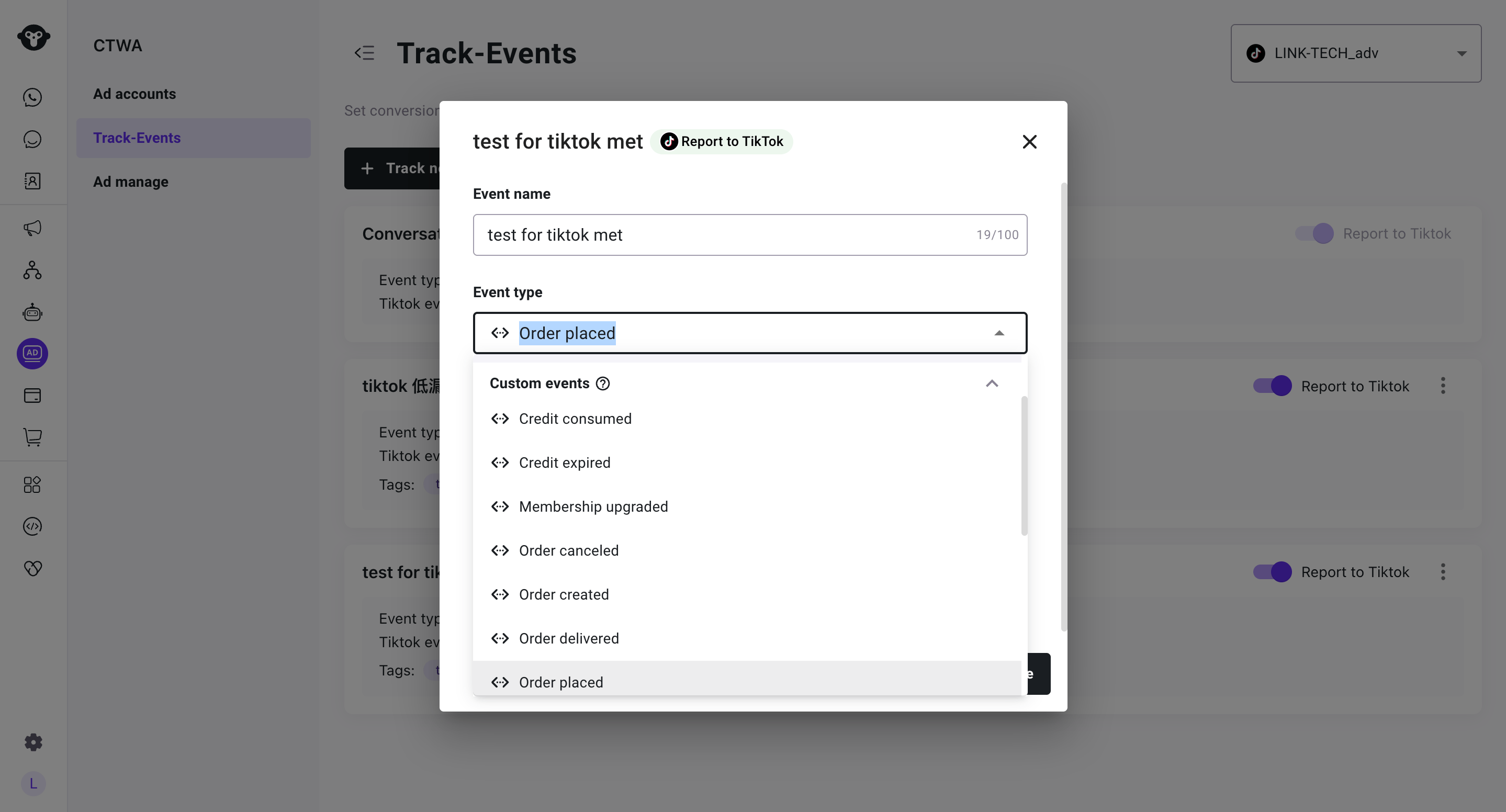
Configure a custom-event trigger
Conversation keyword
Use a keyword when a customer’s message is a clear and reliable signal of intent. For example, use a specific keyword that confirms a customer wants to book an appointment. Avoid broad or ambiguous keywords.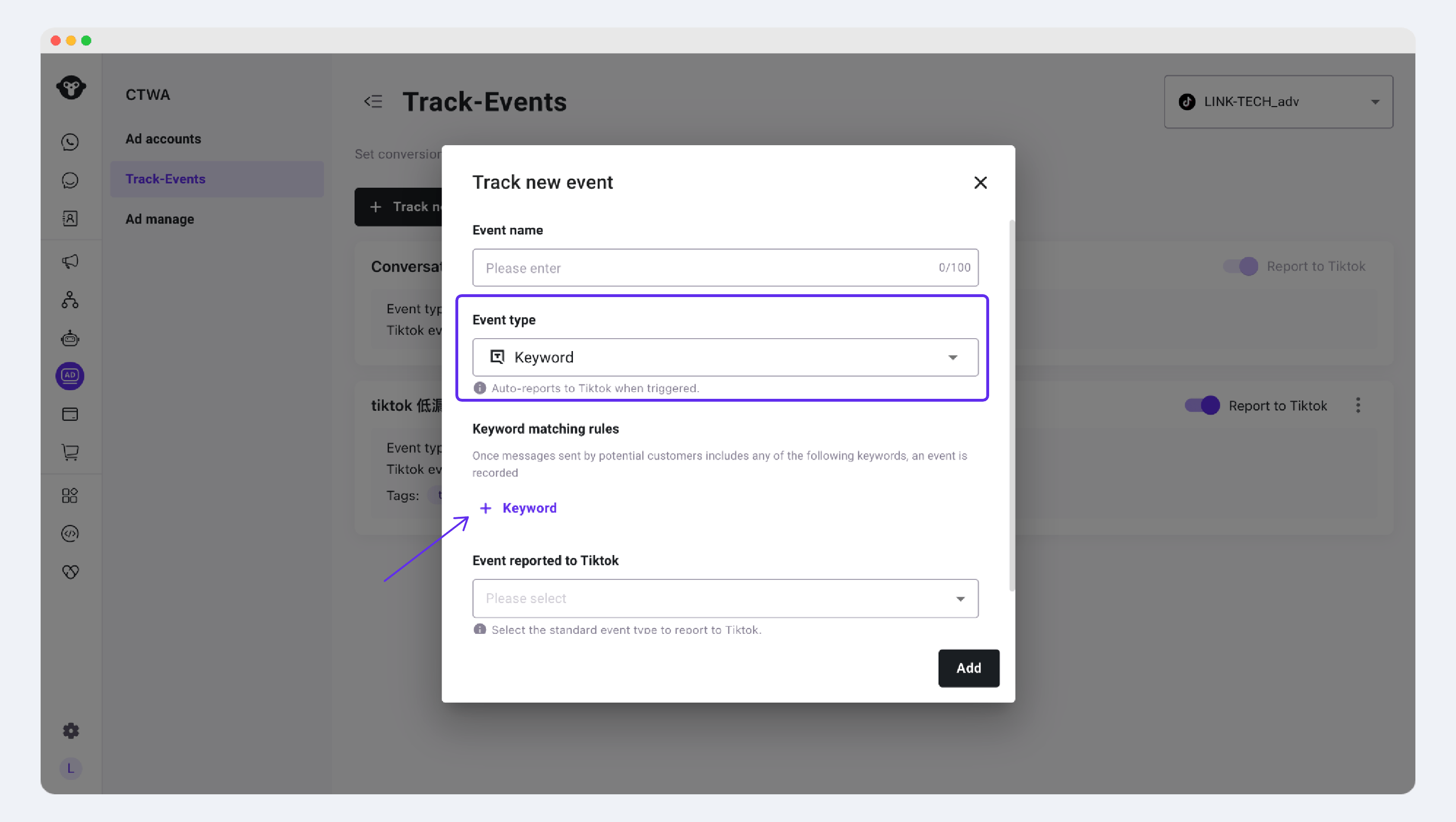
Select conversation keywords as the trigger
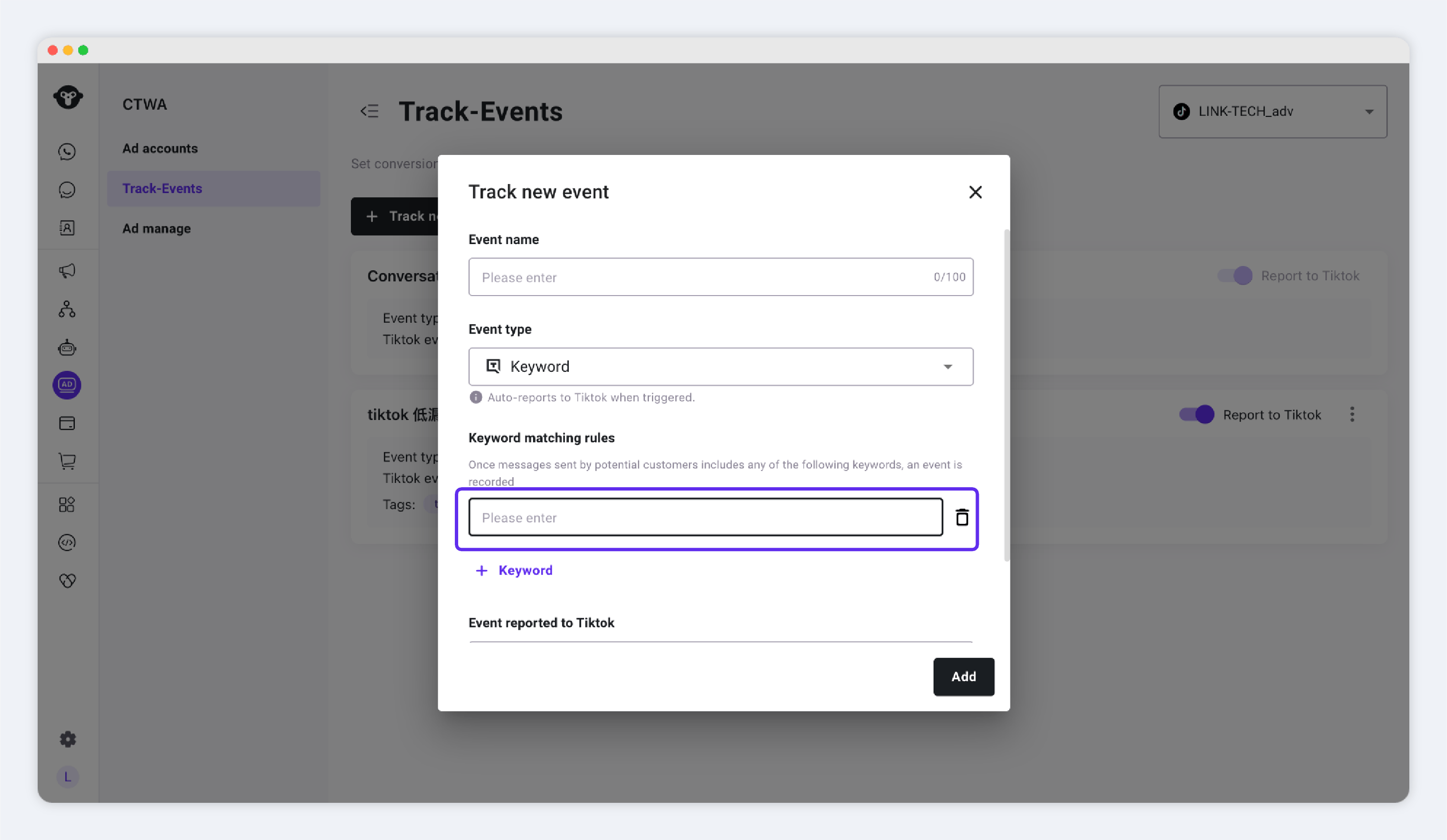
Enter keywords that identify the result
Choose a signal to report to TikTok
Choose the TikTok signal that best represents the confirmed business outcome in your process. The available signals are shown when you create a tracking event.Report more than one signal
You can report multiple signals when your business tracks multiple meaningful outcomes. Create a separate tracking event for each signal. For example, you can reportQualifiedLead when a lead is qualified and CompletePayment when that customer later pays.
A single tracking event reports one TikTok signal. In the current account view, YCloud prevents you from enabling two rules that report the same TikTok signal. Turn off the existing rule before enabling another rule with that signal.
Manage tracking events
In CTWA > Track Events, select your TikTok ad account to manage its tracking events.- Turn Report to TikTok on or off for an editable tracking event.
- Delete a custom tracking event that you no longer need.
- Select Track new event to add another tracking event for a different business result.
- Built-in tracking events are shown dynamically for the selected account. They cannot be turned off or deleted.
Next step
Use CTWA Analysis to review your TikTok ad data and conversation activity in YCloud.Frequently Asked Questions
Can I report more than one business result to TikTok?
Can I report more than one business result to TikTok?
Yes. Create a separate tracking event for each result you want to report. For example, you can report both
QualifiedLead and CompletePayment when they occur at different stages of your customer journey.Which trigger should I use?
Which trigger should I use?
Use a contact tag when an agent or automation confirms the result, a custom event when your own system confirms it, and a conversation keyword when the customer’s message is a reliable signal of intent.
What happens when I turn off Report to TikTok?
What happens when I turn off Report to TikTok?
For an editable tracking event, turning off Report to TikTok stops YCloud from reporting future results triggered by that event to TikTok. You can turn it back on later.
Why can’t I enable another rule with the same TikTok signal?
Why can’t I enable another rule with the same TikTok signal?
In the current account view, YCloud allows one enabled rule for each TikTok signal. Turn off the existing rule before enabling another rule that reports the same signal.