

Step 1: Add Allowed Domains
Log in to the Meta Developer App Dashboard and go to Facebook Login for Business > Settings > Client OAuth settings: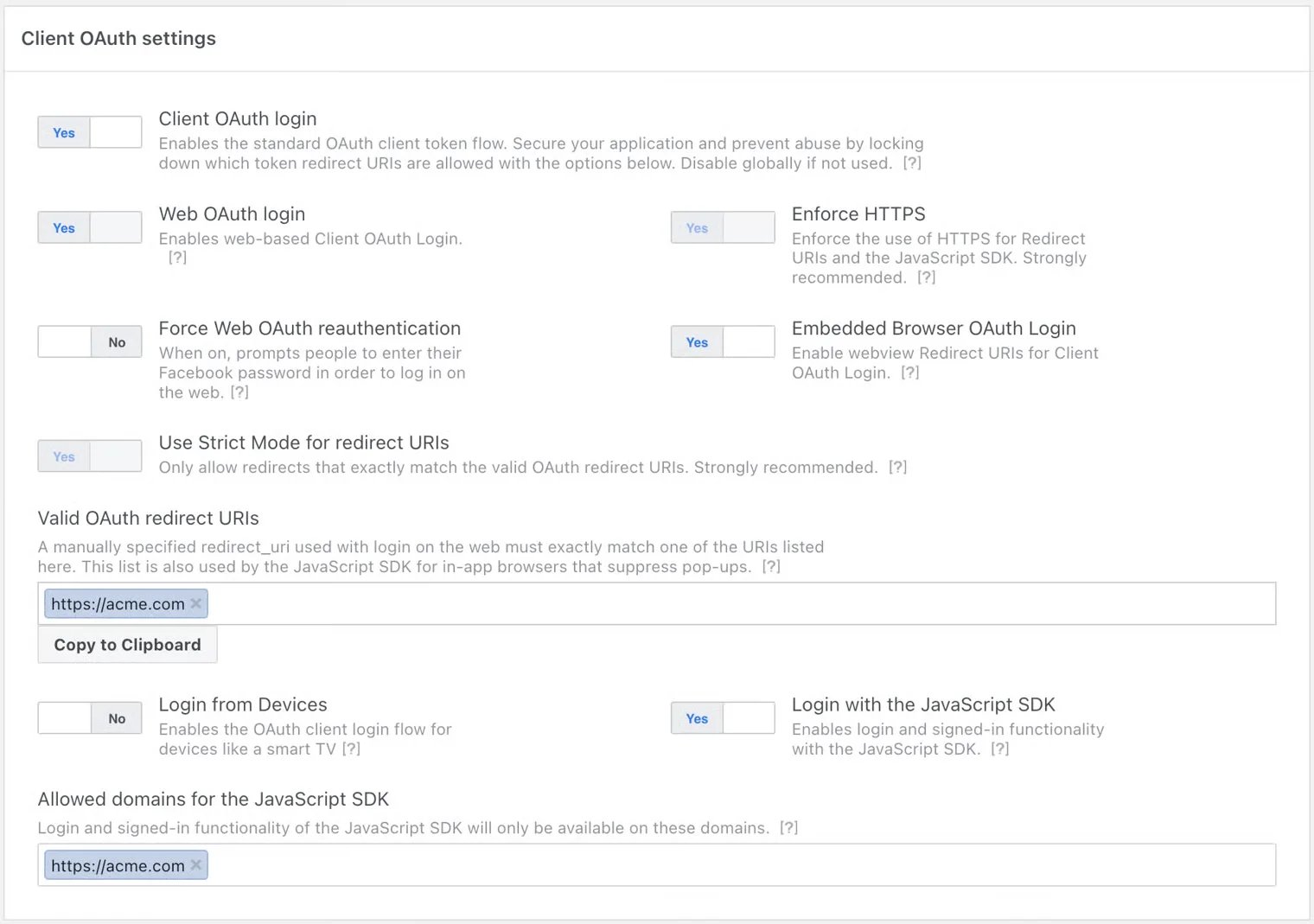
- Client OAuth Login
- Web OAuth Login
- Enforce HTTPS
- Embedded Browser OAuth Login
- Use Strict Mode for redirect URIs
- Login with the JavaScript SDK
- Embedded Signup relies on the JavaScript SDK.
- When enterprise customers complete the Embedded Signup flow, their WABA ID, business phone number ID, and an exchangeable token code are returned to the window that initiated the flow, but only if that page’s domain has been added to both Allowed Domains and Valid OAuth Redirect URIs.
- Add all domains where you plan to deploy Embedded Signup (including test domains in development environments).
- Only HTTPS-enabled domains are supported.
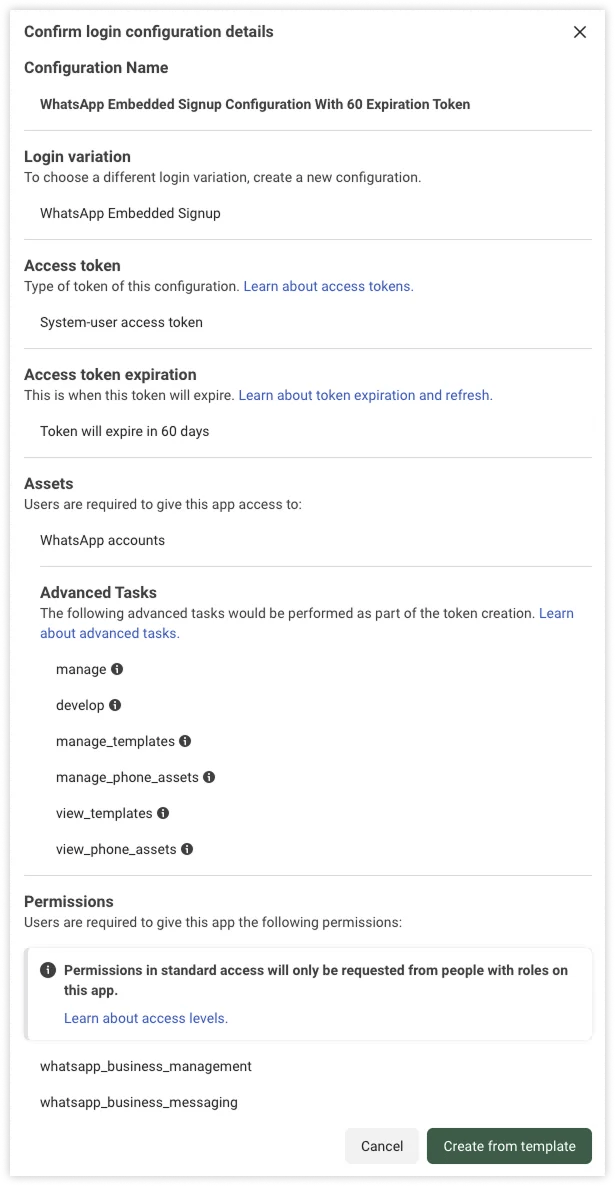
Step 2: Create a Facebook Login for Business Configuration ID
A Facebook Login for Business configuration defines which permissions to request and what additional information to collect when enterprise customers use Embedded Signup. In the console, navigate to Facebook Login for Business > Configurations.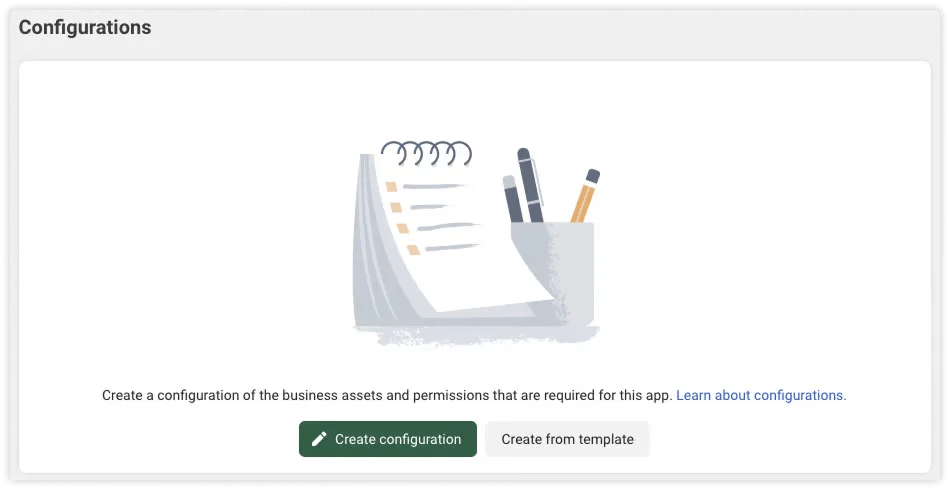
Step 3: Integrate Embedded Signup into Your Website
Add the following HTML and JavaScript code to your website. This is the complete code required to implement Embedded Signup. We recommend building different Embedded Signup flows depending on your solution or customer needs:Embedded Signup – Creating a WhatsApp API Account
1. Create the Embedded Signup Button
- Replace
appId,config_id, andsolutionIDwith real values. - The frontend must pass
waba_idandphone_number_idto your backend to retrieve the WABA and register the number (see below).
waba_id and phone_number_id, and pass them to your backend for subsequent API calls.
Bind WABA
Call the YCloud WABA Binding API, then associate it with the corresponding customer account in your system.
Request example:
paymentMethodAttached is true, it indicates that YCloud has successfully linked a payment method to this WABA. Otherwise, please contact the YCloud Team to resolve the issue.
Register Phone Number
Embedded Signup – WhatsApp Business App Coexistence
1. Create the Embedded Signup Button
2. Retrieve WABA and Bind to YCloud
After customers complete Embedded Signup, your frontend will receivewaba_id. Pass it to your backend for further API calls.
Call the YCloud SMB Bind API. Once successful, associate the WABA with your customer’s account in your system.
FAQ
How to verify whether the Embedded Signup configuration is correct?
How to verify whether the Embedded Signup configuration is correct?
If you have configured the solutionID correctly, customers will see the real name of the Solution Partner during Facebook authorization.
If they do not see it, the configuration has not taken effect.Please make sure that App Review has been completed.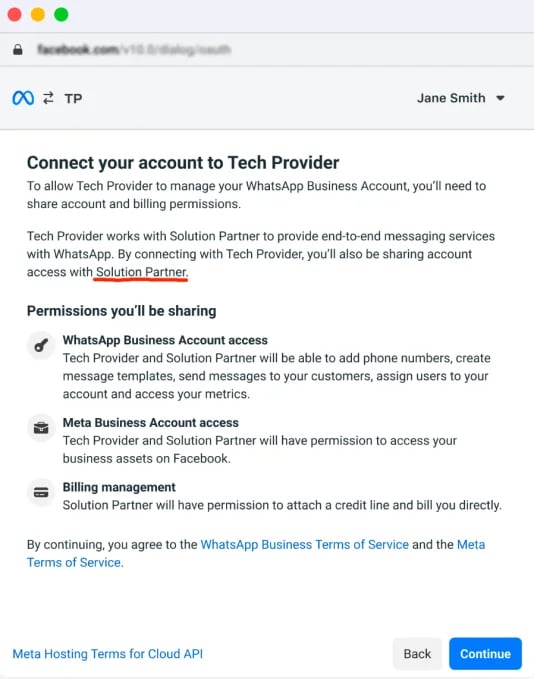
If they do not see it, the configuration has not taken effect.Please make sure that App Review has been completed.
In what cases can YCloud fail to attach a payment method to a WABA?
In what cases can YCloud fail to attach a payment method to a WABA?
This may happen if the user selects an existing WABA instead of creating a new one.
The existing WABA may already have a payment method that has not been removed.
The existing WABA may already have a payment method that has not been removed.
Embedded Signup Error: App not active
Embedded Signup Error: App not active
When opening the Embedded Signup page, the following message may appear:App not active
This app is not currently accessible and the app developer is aware of the issue. You will be able to log in when the app is reactivated.This happens when the app is in Development mode, where only test users have permission (see App Dashboard > App roles > Roles / Test Users).Solution:
Switch the app mode to Live via Meta Apps by opening the corresponding app in the Dashboard.
Alternatively, authorize the current user. See: Assign business assets to people in your business portfolio.
This app is not currently accessible and the app developer is aware of the issue. You will be able to log in when the app is reactivated.This happens when the app is in Development mode, where only test users have permission (see App Dashboard > App roles > Roles / Test Users).Solution:
Switch the app mode to Live via Meta Apps by opening the corresponding app in the Dashboard.
Alternatively, authorize the current user. See: Assign business assets to people in your business portfolio.