

This guide covers the Meta Tech Provider route. If YCloud has enabled Partner Direct Link (TP Lite) for your account, you can use a hosted signup page or SDK button without becoming a Meta partner. Follow the Partner Direct Link guide.
Step 1: Submit a Partnership Application
Visit the YCloud Partner page and submit the application form:https://www.ycloud.com/zh/tech-partner The YCloud business team will contact you within 1 business day.
Step 2: Register a YCloud Account
Before starting, you need to register a YCloud account and provide the email address you used to the YCloud business team. We will grant you Technical Development Partner permissions. Registration link:https://www.ycloud.com/console/#/entry/register
Step 3: Become a Meta Tech Provider
1. Create a Meta Business Portfolio (BM)
If you already have a BM, skip this step. Go to business.facebook.com and use your Facebook credentials to create a Meta Business Suite account. This will generate a Business Portfolio that stores any WhatsApp-related assets you create later.2. Register as a Meta Developer
If you are already registered as a Meta Developer, skip this step. Go to developers.facebook.com, click the Get Started button in the top-right corner, and complete the registration process. This converts your Facebook account into a Meta Developer account, which is required to create applications.3. Create an Application
Go to developers.facebook.com/apps and create a new Business app. This will generate your Meta App ID. For Use case, select “Connect with customers through WhatsApp.”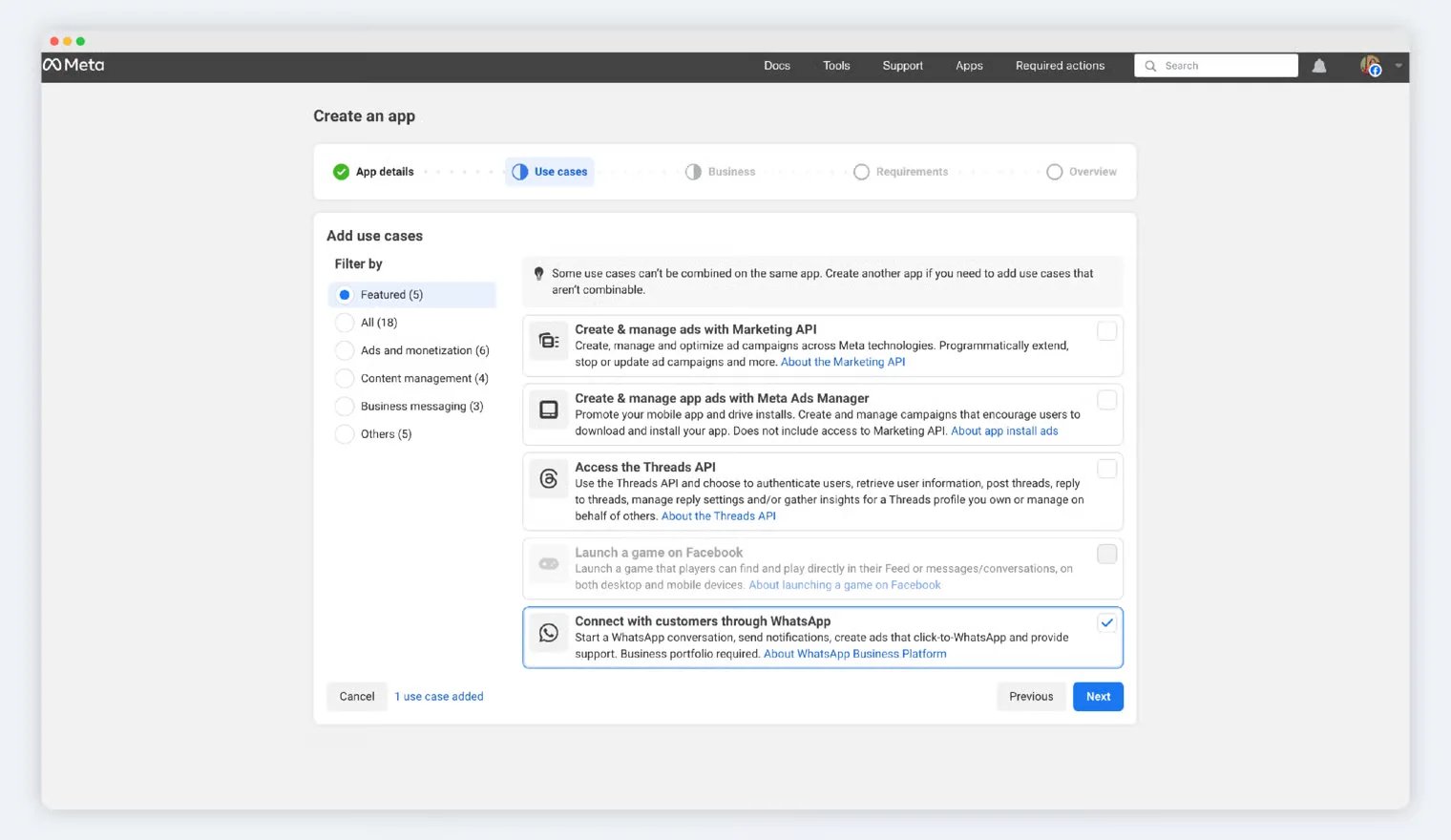
4. Add Basic Data About Your App
In the App Dashboard, navigate to App Settings > Basic and add the following information:- App icon
- Privacy Policy URL
- Category
- Platform
5. Become a Tech Provider
Follow the illustrated flow:Use case > Quickstart > Become a Tech Provider > Start onboarding
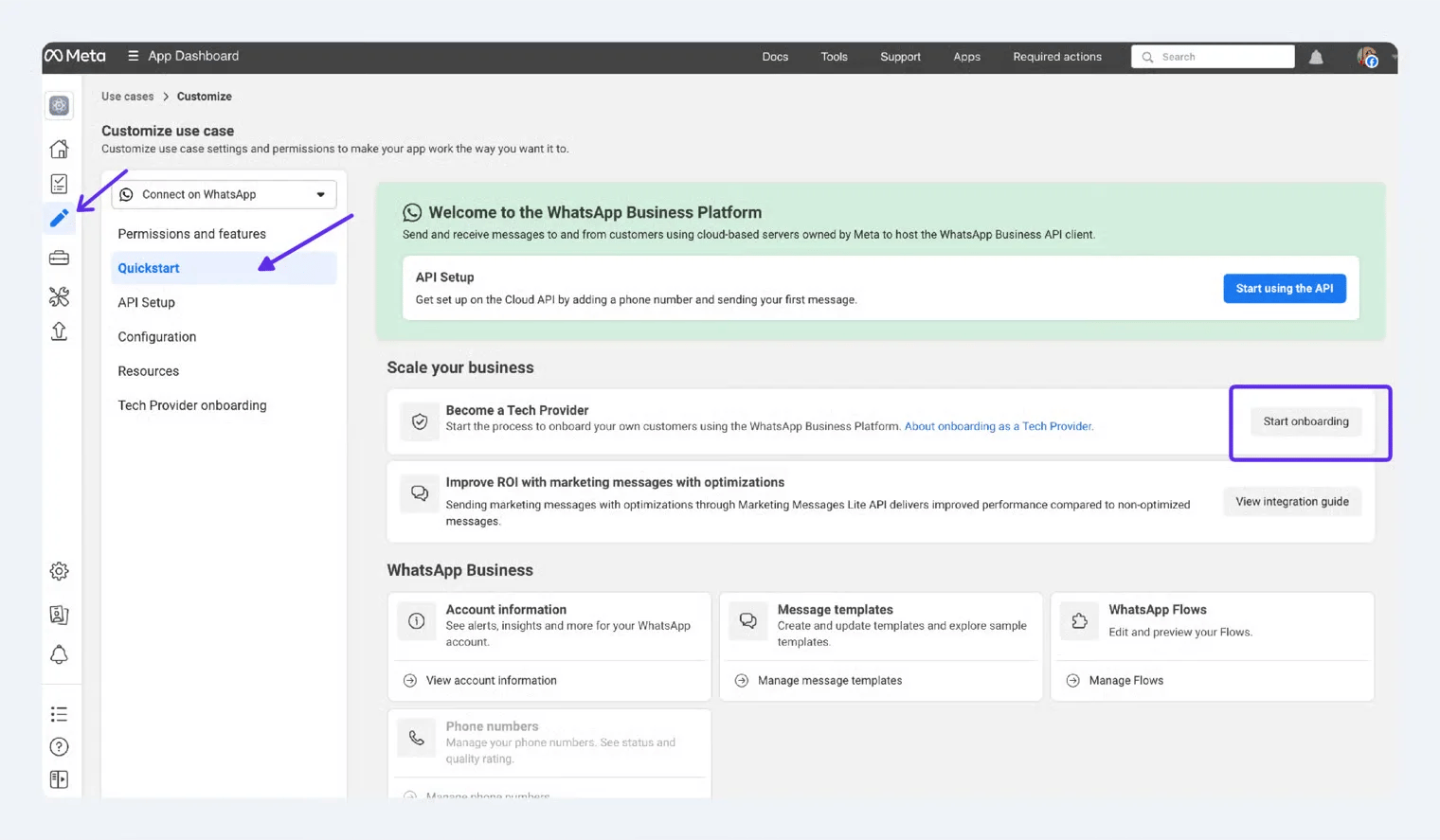
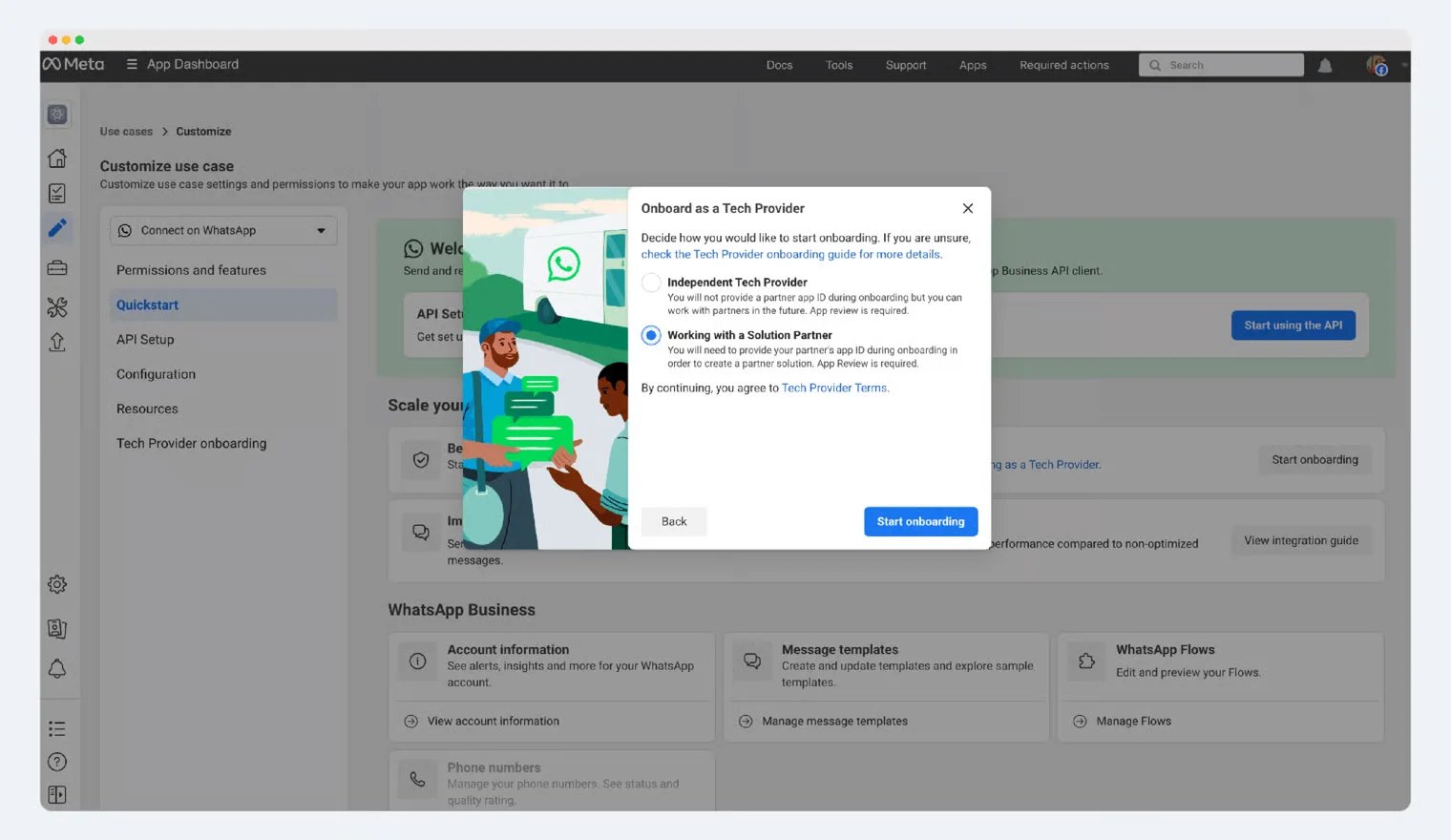
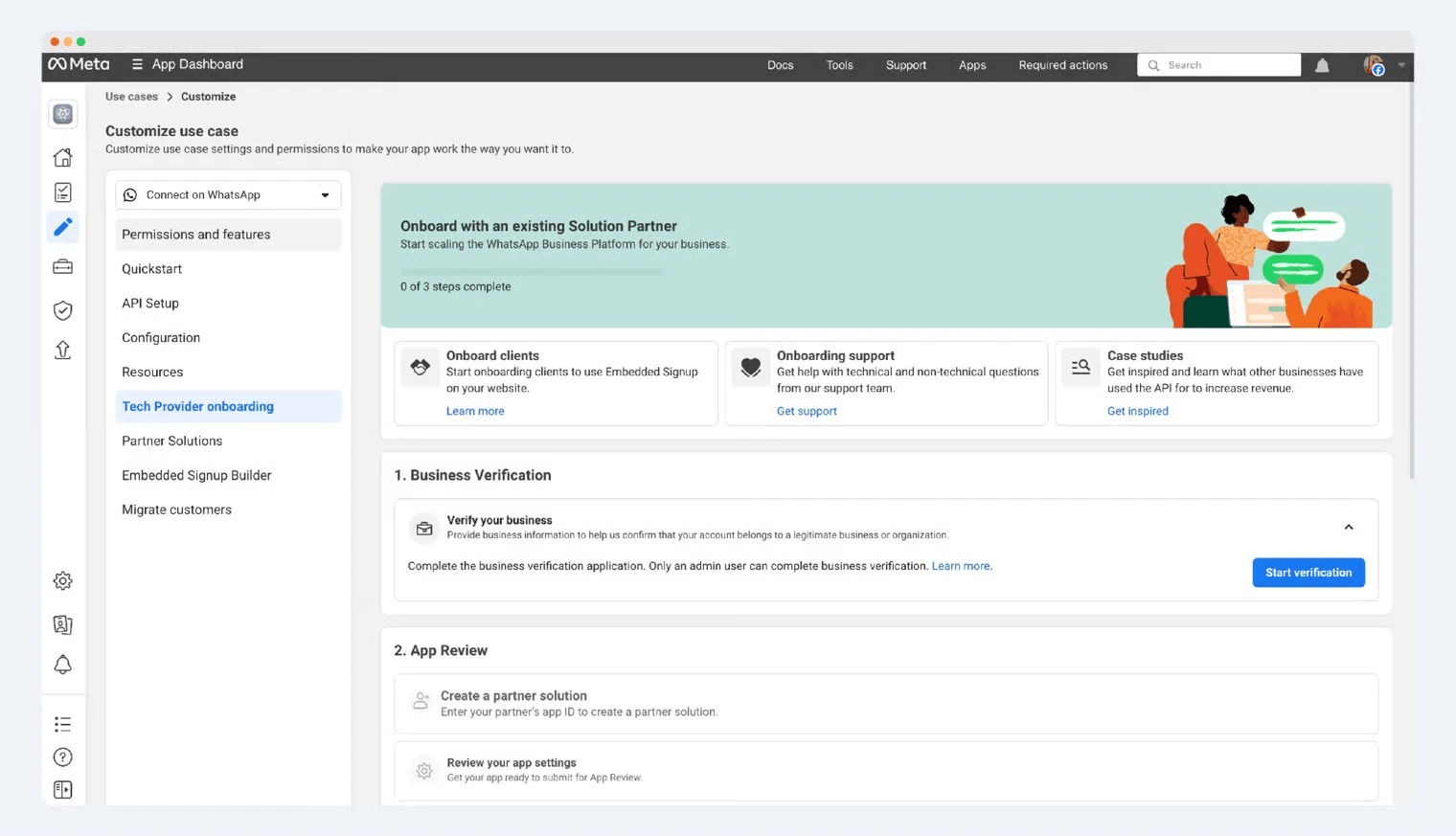
Step 4: Create a Partner Solution
On the Partner solution page, click the “Create a partner solution” button and fill in the partnership details as follows:- Solution name: enter your company name
- YCloud App ID:
2892949377516980 - Permission settings:
For Send messages and make calls, select “Only my partner.”
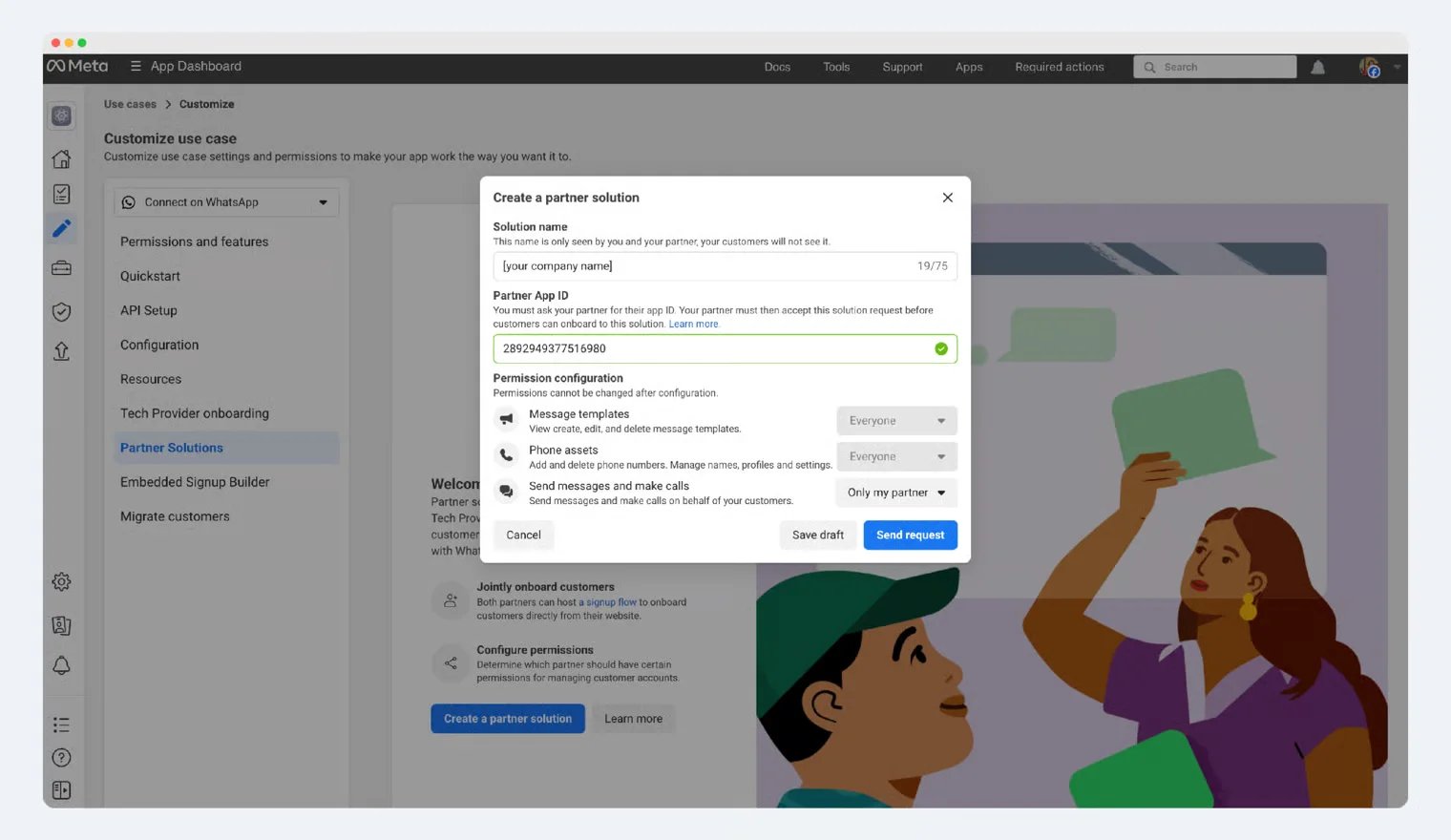
Step 5: Review App Settings
In Use case > Tech Provider onboarding, find App Review, then click the “Review app settings” button.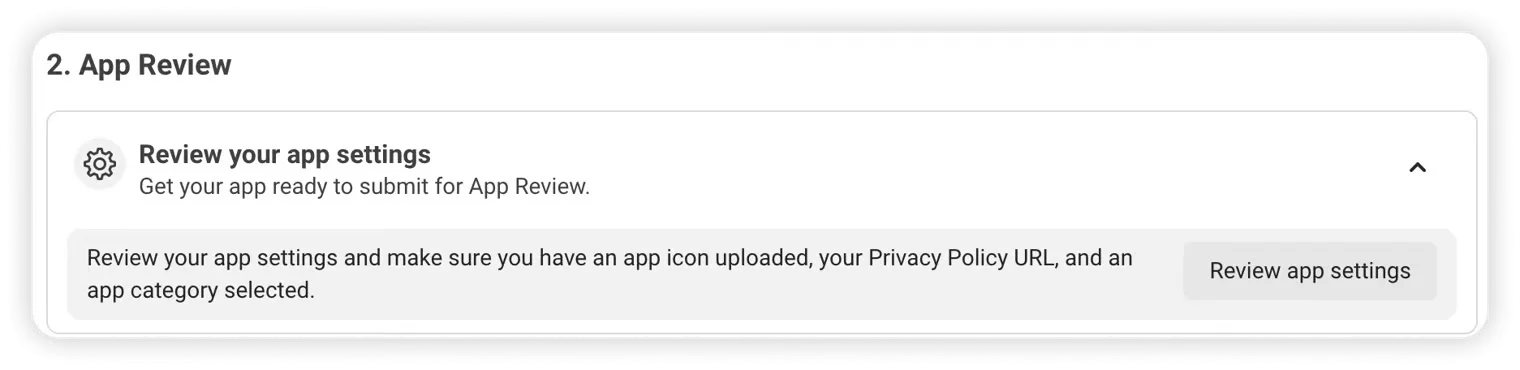
Step 6: Record Videos for App Review
Before this step, you need to complete WhatsApp API integration so that you can demonstrate and record the required videos within your platform. In the Tech Provider Onboarding panel, locate the row labeled “Record video documentation.”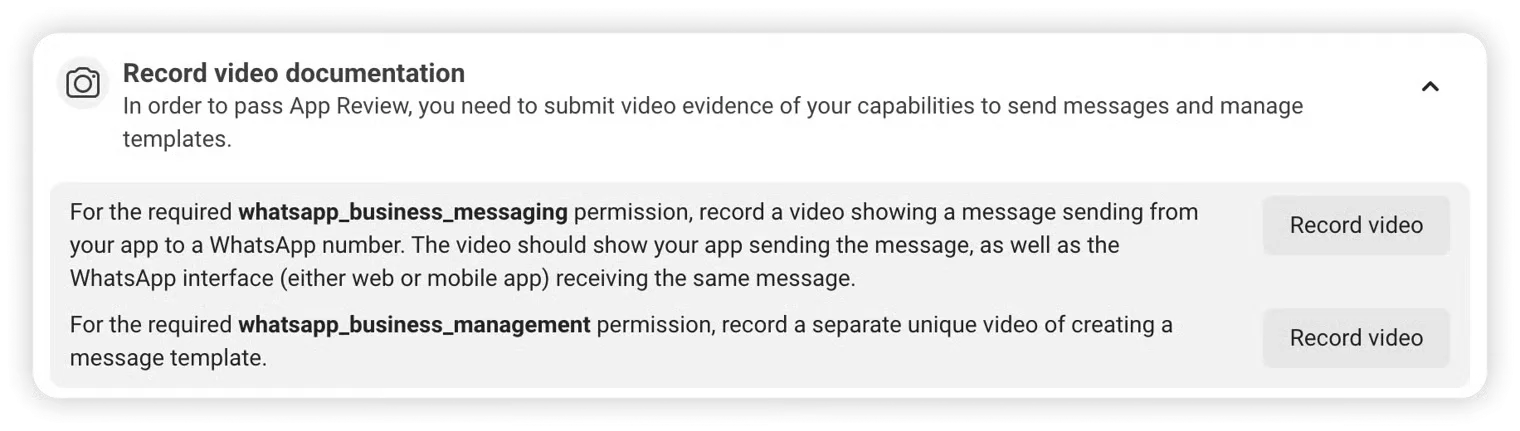
- The first video must show a message created and sent from your application, and received in the WhatsApp client (mobile app or web app).
- The second video must show how your application is used to create message templates.
Step 7: Submit Videos for App Review
In the Tech Provider Onboarding panel, find “Submit documentation for App Review” and click the “Start App Review” button. This process will load the App Review > Requests panel, where you will see an editable App Review request. When describing how your app uses each permission, attach the corresponding screen recording or video created in the previous step. Complete the process and submit your request. The result will be communicated via email and developer notifications, and the status will be updated in the App Review > Requests panel.Step 8: Complete Access Verification
In the Tech Provider Onboarding panel, find the “Access Verification” row and click the “Start Verification” button.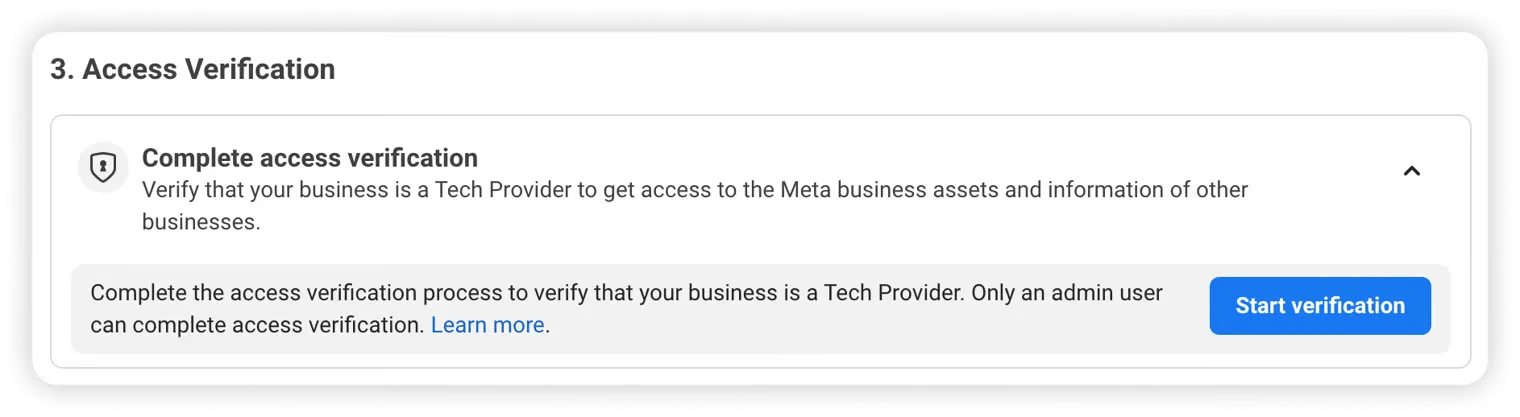
Step 9: Go Live
When everything is ready, you can switch your app mode to Live and inform your enterprise customers how to use it.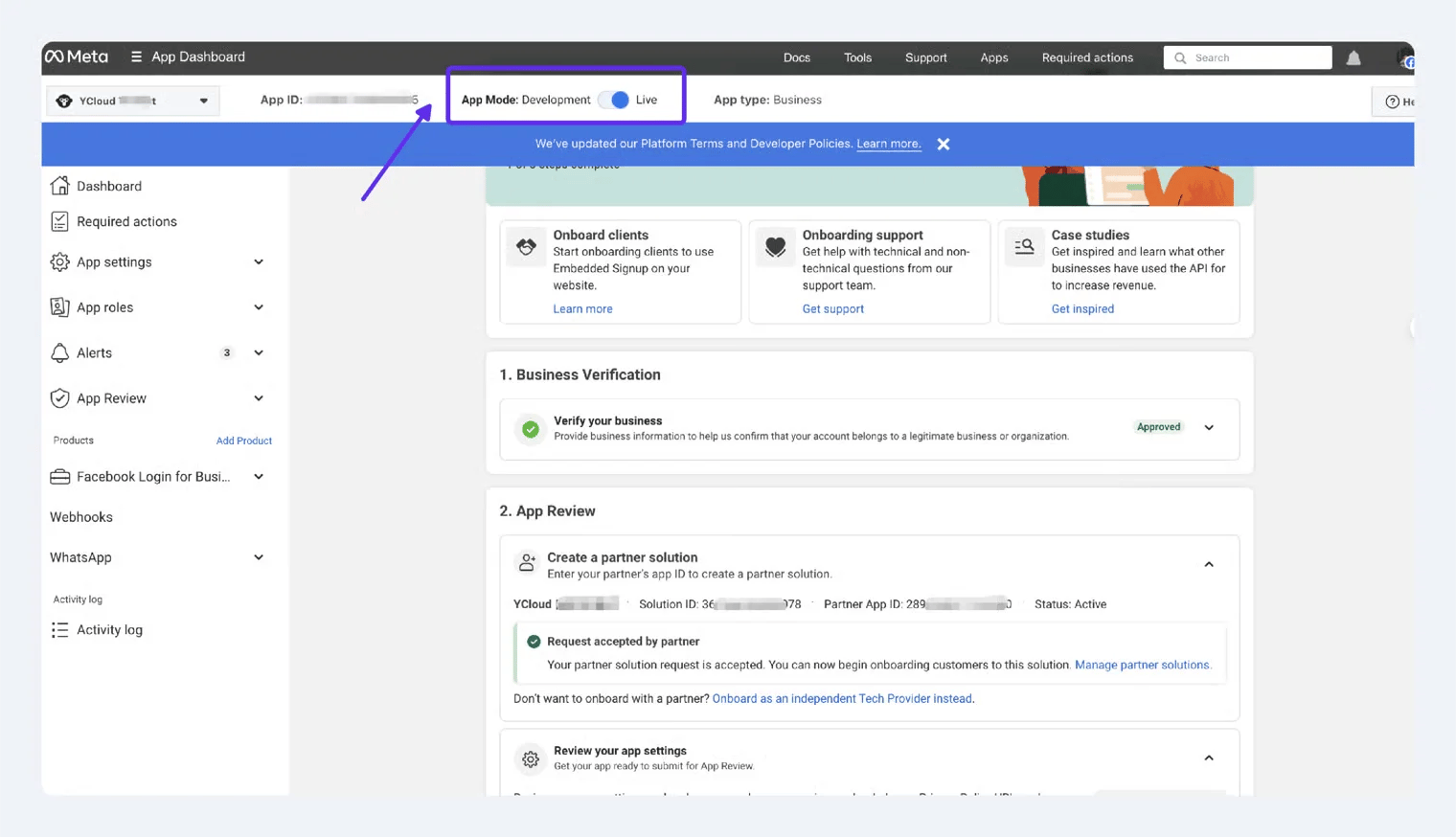
Next Steps
Embedded Signup – Onboard Business Customers
Once your Tech Provider identity is confirmed, you can start attracting business customers through Embedded Signup.Build WhatsApp API Integration
As a YCloud Technical Development Partner, you will be able to use direct APIs to manage onboarded customer WABAs and phone numbers. You will also receive webhooks for messages sent to those numbers.Get an API Key
Log in to the YCloud platform, go to Developers > API key:https://www.ycloud.com/console/#/app/developers/apikey

Open Developers > API key to manage your integration credentials. Existing keys remain masked.
Configure Webhooks
See YCloud Configure webhooks.Subscribe to all WhatsApp-related events (prefixed with
whatsapp.) and integrate them into your system.