商品
在添加商品之前,请确保已创建店铺。了解如何安装店铺。
添加商品
- 前往 Integrations > Shop > Products。
- 选择 Add new product。

Go to Integrations > Shop > Products, then select Add new product.
- 输入商品信息。

The current product form shows Category, Title, Image, and Description. The example has not been saved or published.
标题与描述
客户会在商品页面和订单相关消息中看到标题和描述。
- Title:使用清晰的商品名称,包含主要用途、使用场景、关键词和规格。
- Description:添加包含富文本和图片的详细介绍。如果您是分销商,请撰写原创描述,而非直接复制生产商的文案。
商品图片
客户会在商品详情页和订单确认中看到商品图片。
- 选择 Upload 添加显示在商品页面上的图片。
- 请使用小于 1 MB 的 JPG、JPEG 或 PNG 文件。
- 请使用正方形图片,例如 450 × 450 px。
- 最多可添加 10 张图片。如需添加第 11 张图片,请先删除现有图片。
- 使用 Preview 查看图片在客户面前的展示效果。
定价与库存
店铺币种在创建店铺时设定。详细了解结算币种。
- Compare-at price:划线显示的参考价格。仅用于展示。
- Sale price:客户实际支付的价格。
单 SKU 商品

Enter inventory and prices in the product editor. The currency comes from your shop settings.
多 SKU 商品

Add a variant name and its options before completing the remaining product information.

Use Availability to control whether each SKU can be purchased. This example shows the existing settings of a demo product.
- Enabled:该 SKU 可见且可供购买。
- Disabled:该 SKU 已隐藏,无法下单。
品类
选择 Physical 或 Virtual。- Physical Product:需要物流发货。
- Virtual Product:无需物流发货,例如会员或数字许可证。
此字段为目录集成所必需。
商品类型
对于 Meta 或 Google 目录广告,请选择以下选项之一:- New
- Refurbished
- Used
此字段为目录集成所必需。
预览并发布商品
只有已发布的商品对客户可见。- 使用 Preview 查看商品详情。
- 选择 Publish 使商品生效并向客户分享其链接。
预览商品
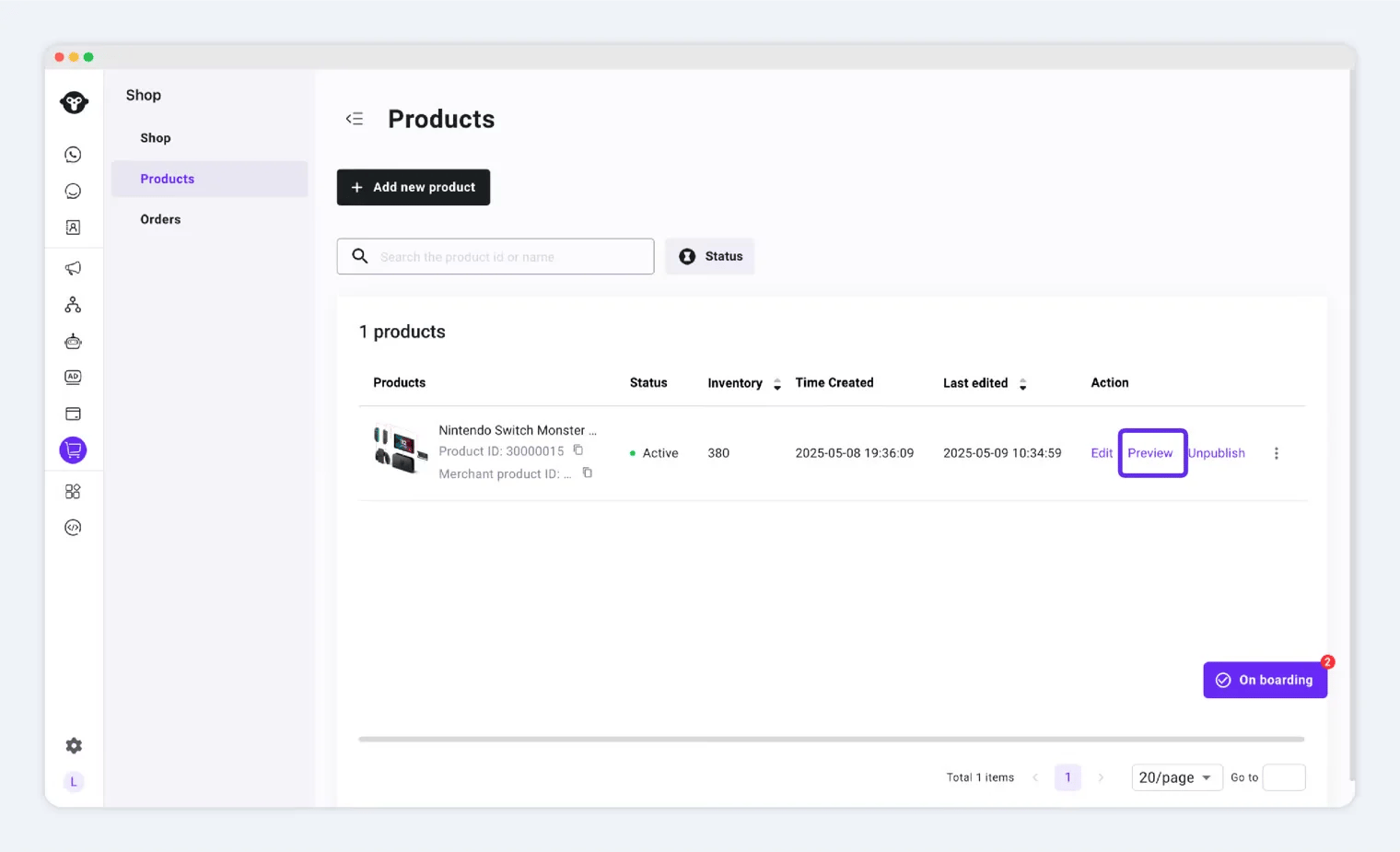
商品状态及可用操作
新商品的初始状态为 Inactive (Draft)。发布商品
选择 Publish 上架商品。当状态变为 Active 时,操作成功。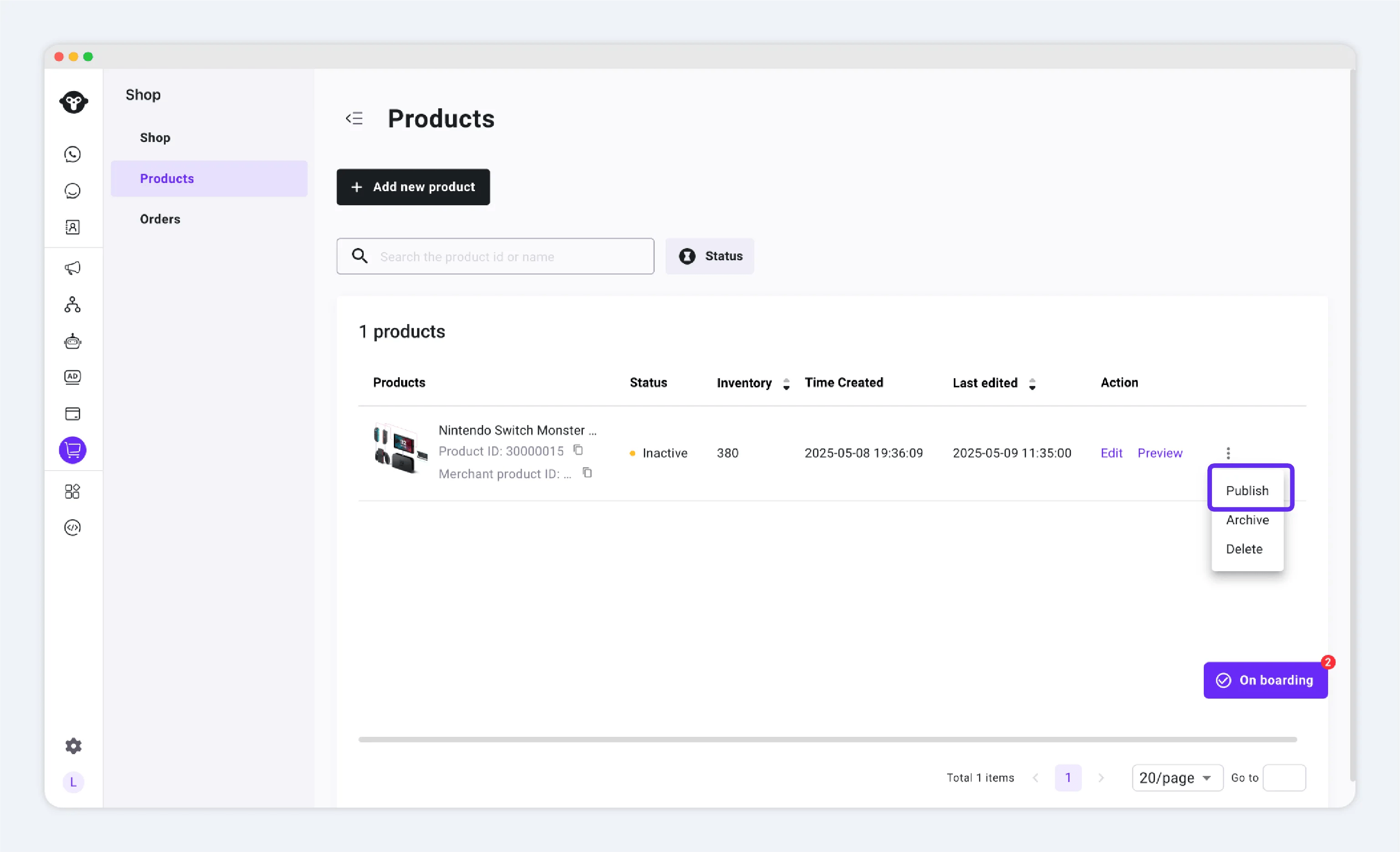
下架商品
下架商品后,客户将无法再查看或购买该商品。

Scroll the product table to the right to find Unpublish for an active product.
在 WhatsApp 上分享商品链接
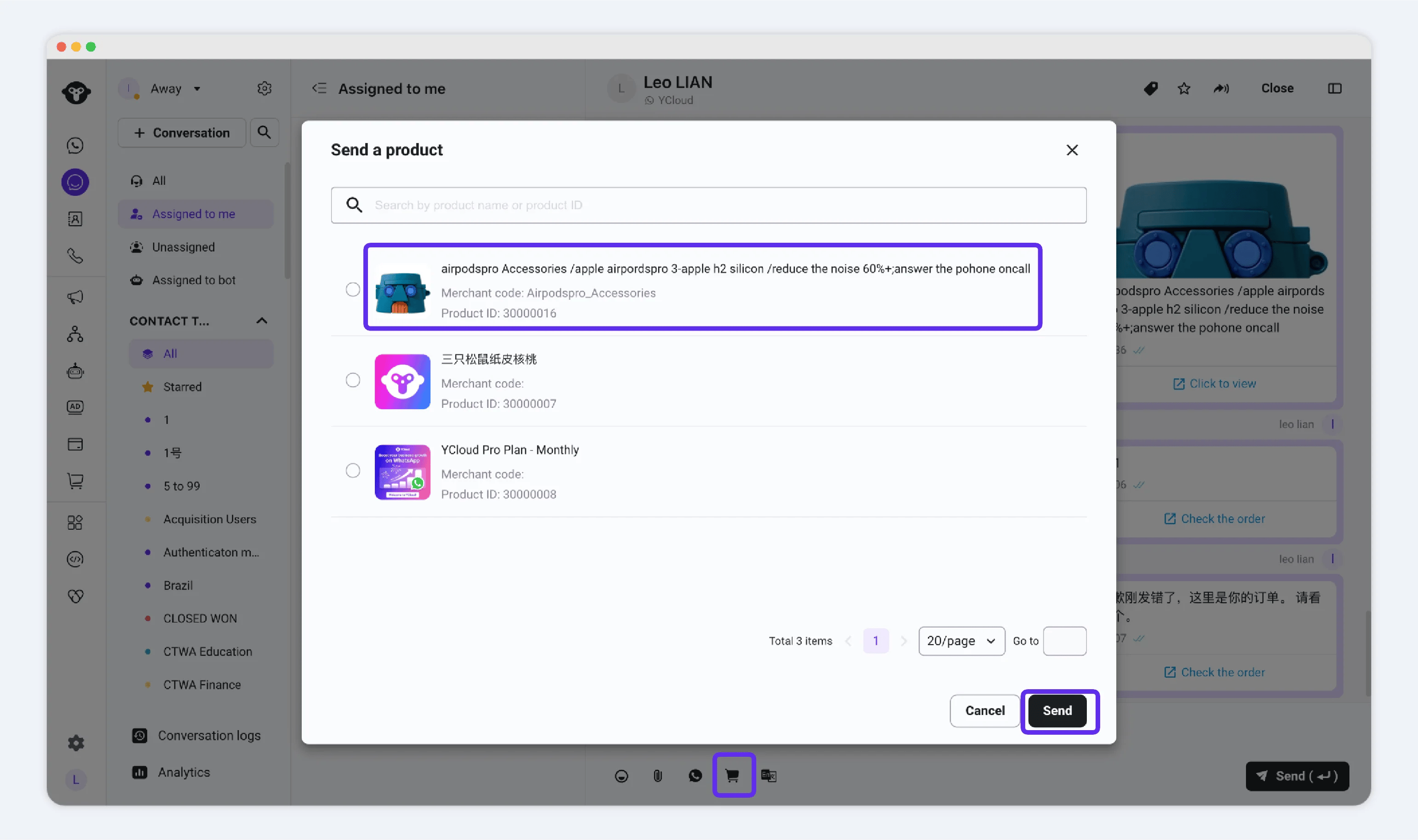
发布商品后,可在 WhatsApp 中分享其链接,方便客户浏览和购买。- 在 Inbox 中打开与客户的对话。
- 打开菜单,选择 Send a Product,然后选择要发送的商品。
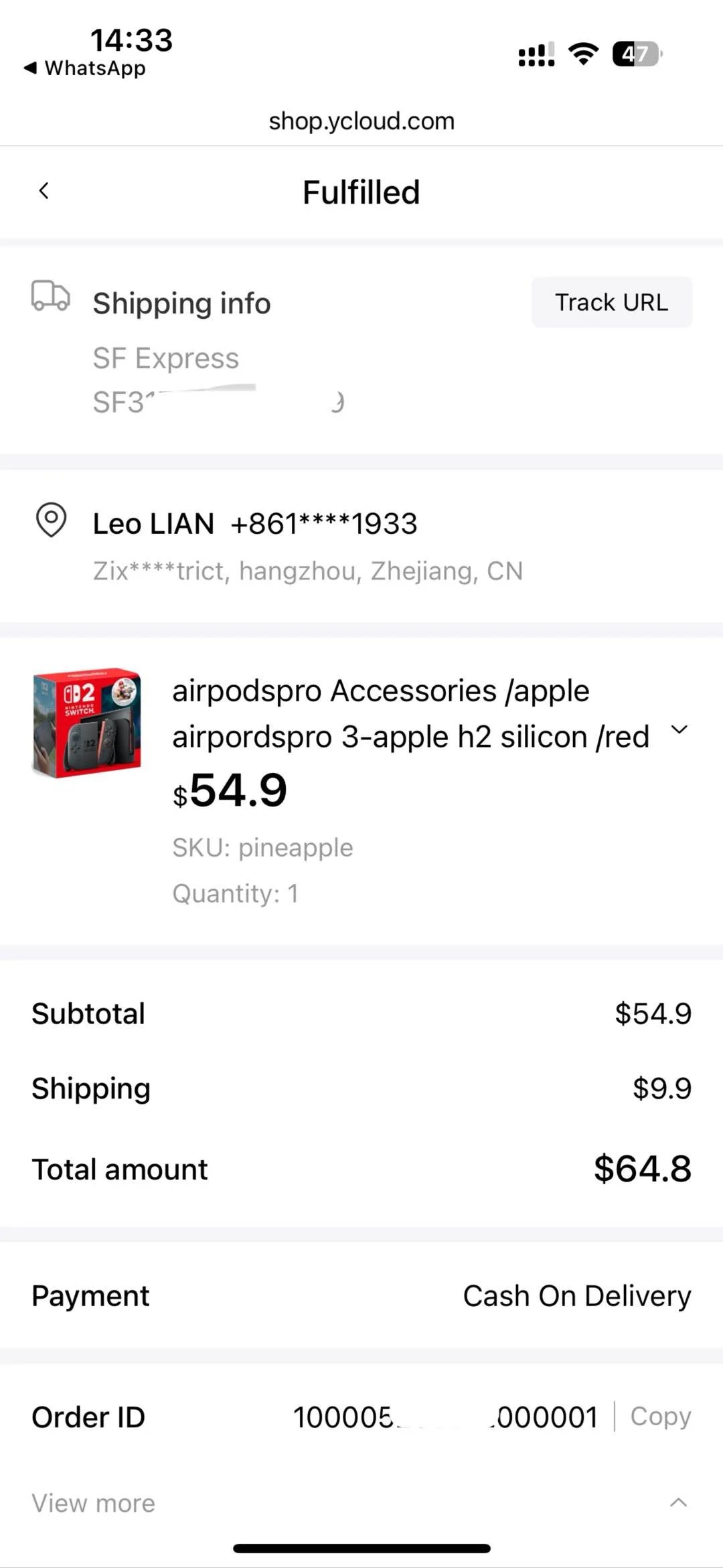
- 客户选择 SKU 并完成结账。下单后,使用订单来履行该订单。
从收件箱发送商品
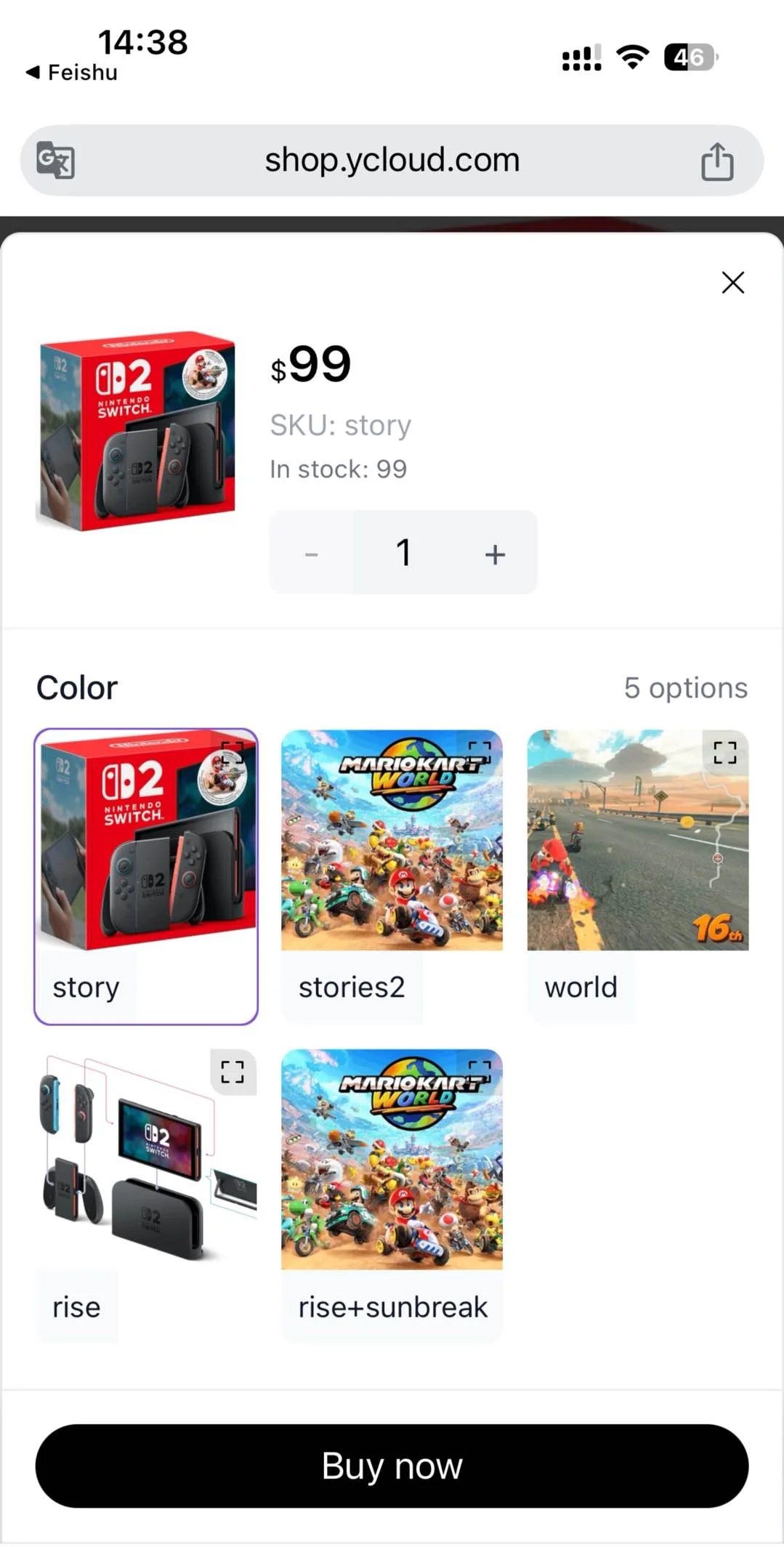
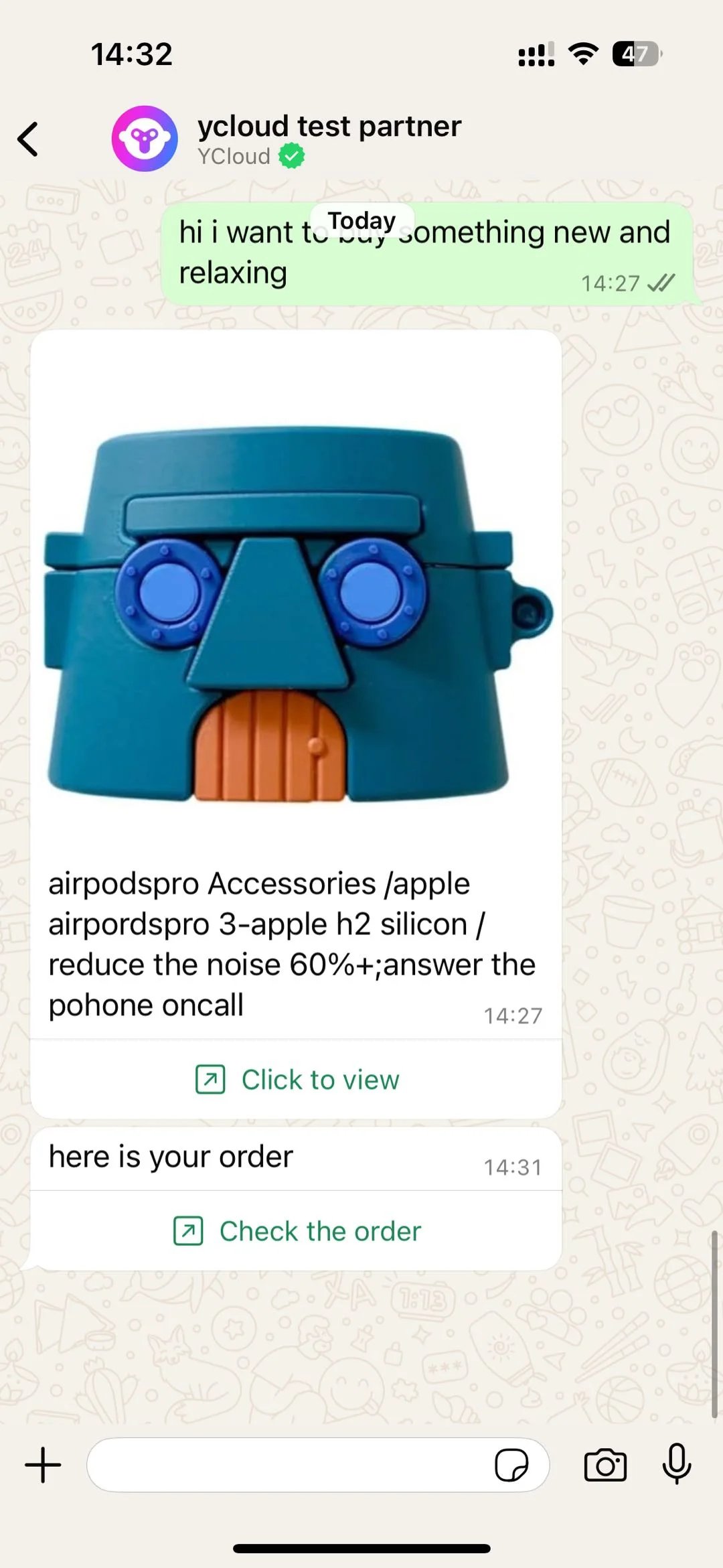
客户浏览体验
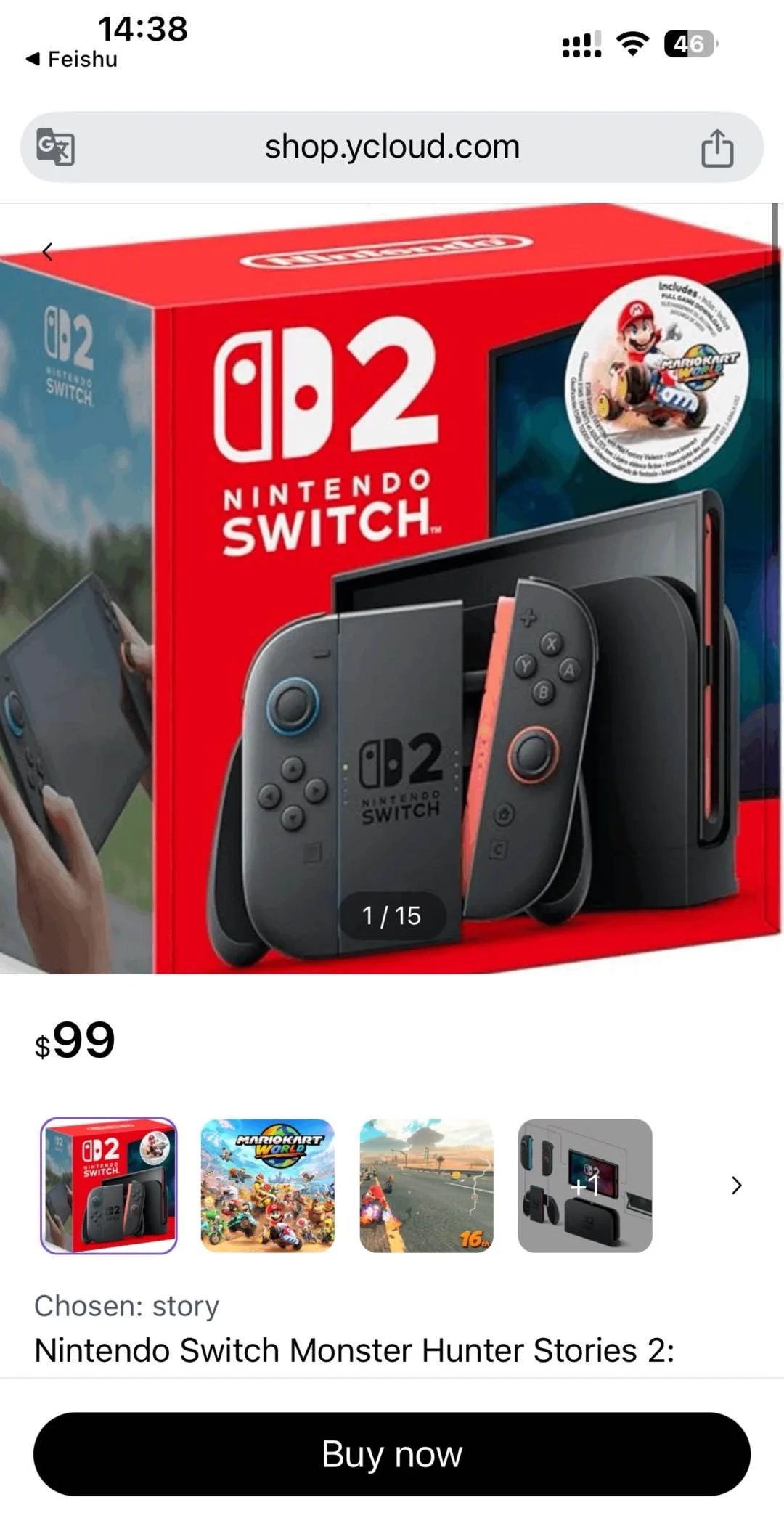
客户购买体验