

Shipping Import
What you can do
- This feature applies only to existing orders in your shop and is used to update their shipment status and logistics information. It does not create new orders for the shop!
- You can update: shipment status, carrier, tracking number, and tracking URL.
- For physical product orders: upon successful import, orders will be marked as Shipped, and logistics information will be visible to customers.
- For virtual/digital product orders: orders are simply marked as Shipped without requiring tracking number or tracking link.
Before you start
To ensure a smooth fulfillment process, complete the following setup first:- Create your shop, add products, set up shipping templates and payment methods (COD / PayPal).
- It’s recommended to familiarize yourself with the Orders → Fulfillment / Mark as Paid (COD) / Refunds & Returns workflow. Review the order workflow.
Download template
On the Shop → Orders page, click Import Shipping Info to open the modal, then click Template.
Select Import Shipping Info on the Orders page. The demo shop shown has no orders.

Download the CSV template before filling in shipping information for existing orders.
- Only CSV format is supported.
- Maximum file size: 15 MB, maximum 1,000 rows.
- Only one file per upload is allowed.
Fields in shipping-import template
Upload & processing
1. Prepare to upload Click Upload, which opens a file selector.
Select Upload after preparing your CSV. No file has been uploaded in this example.
- CSV format
- Up to 15 MB and 1,000 rows
- Only one file per upload
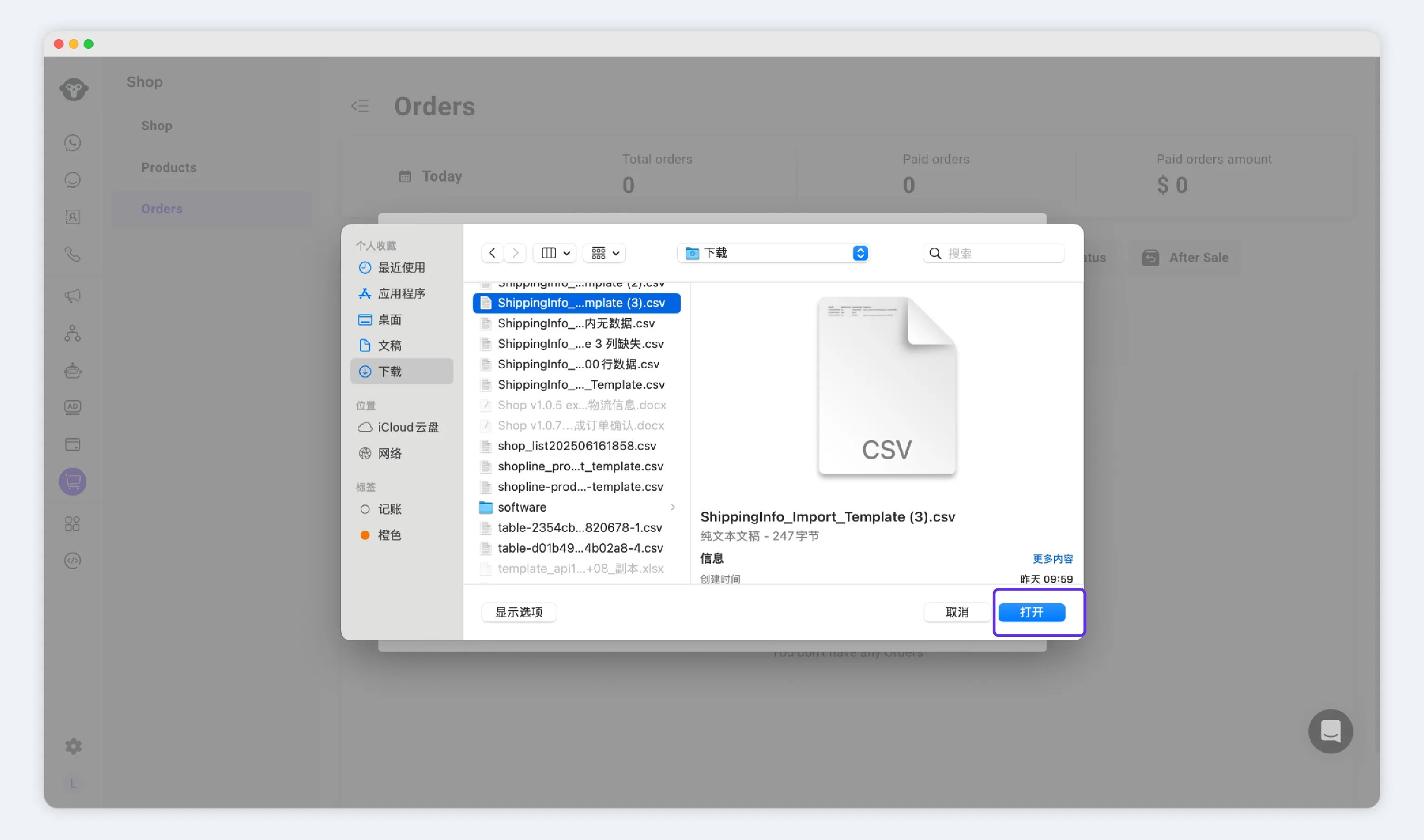
2. Select file, start upload Choose a CSV file and click Open.
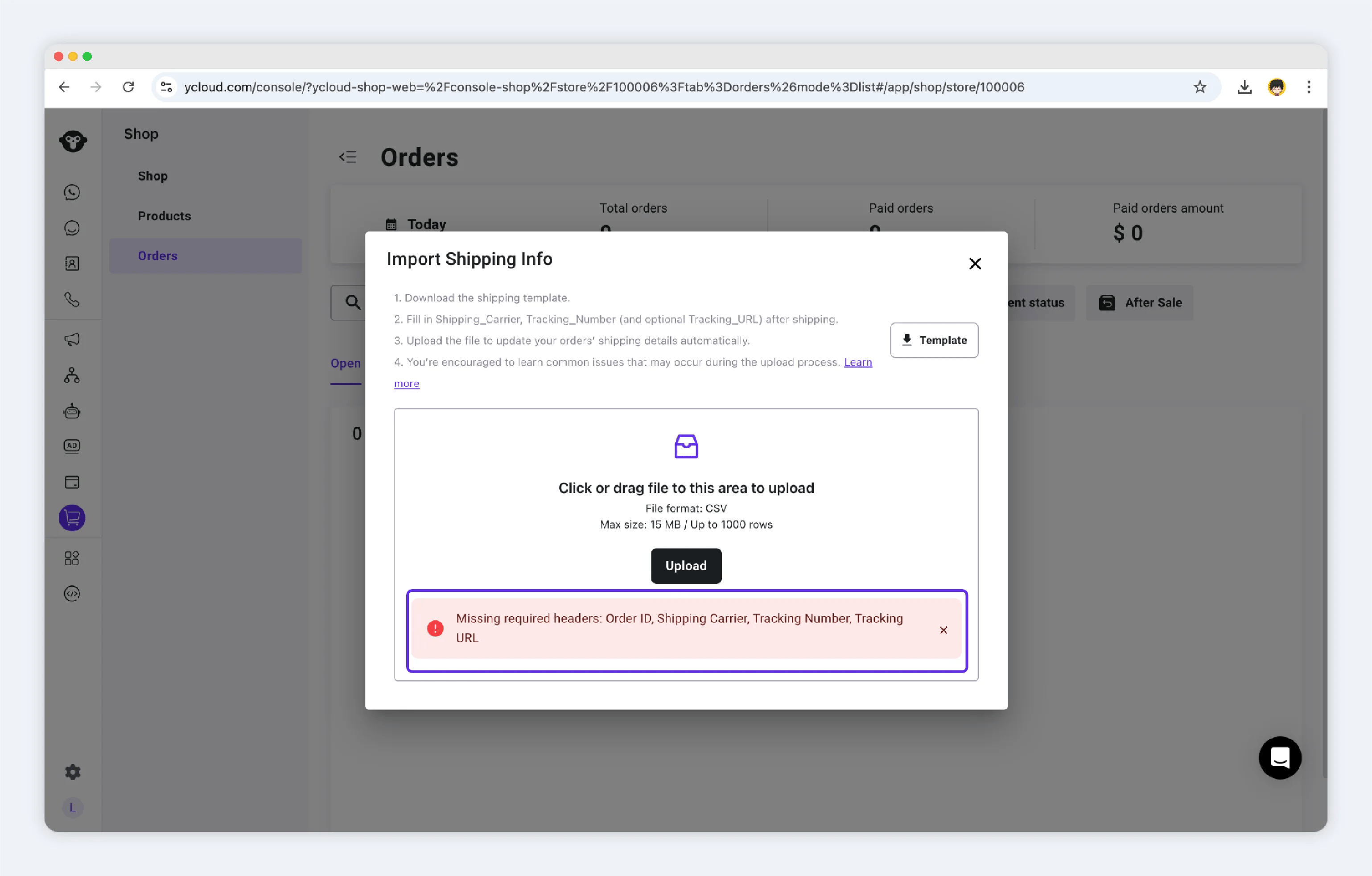
3. File validation fails If the CSV doesn’t meet import requirements, no data will be imported.
You’ll receive a clear error message and need to correct the file.
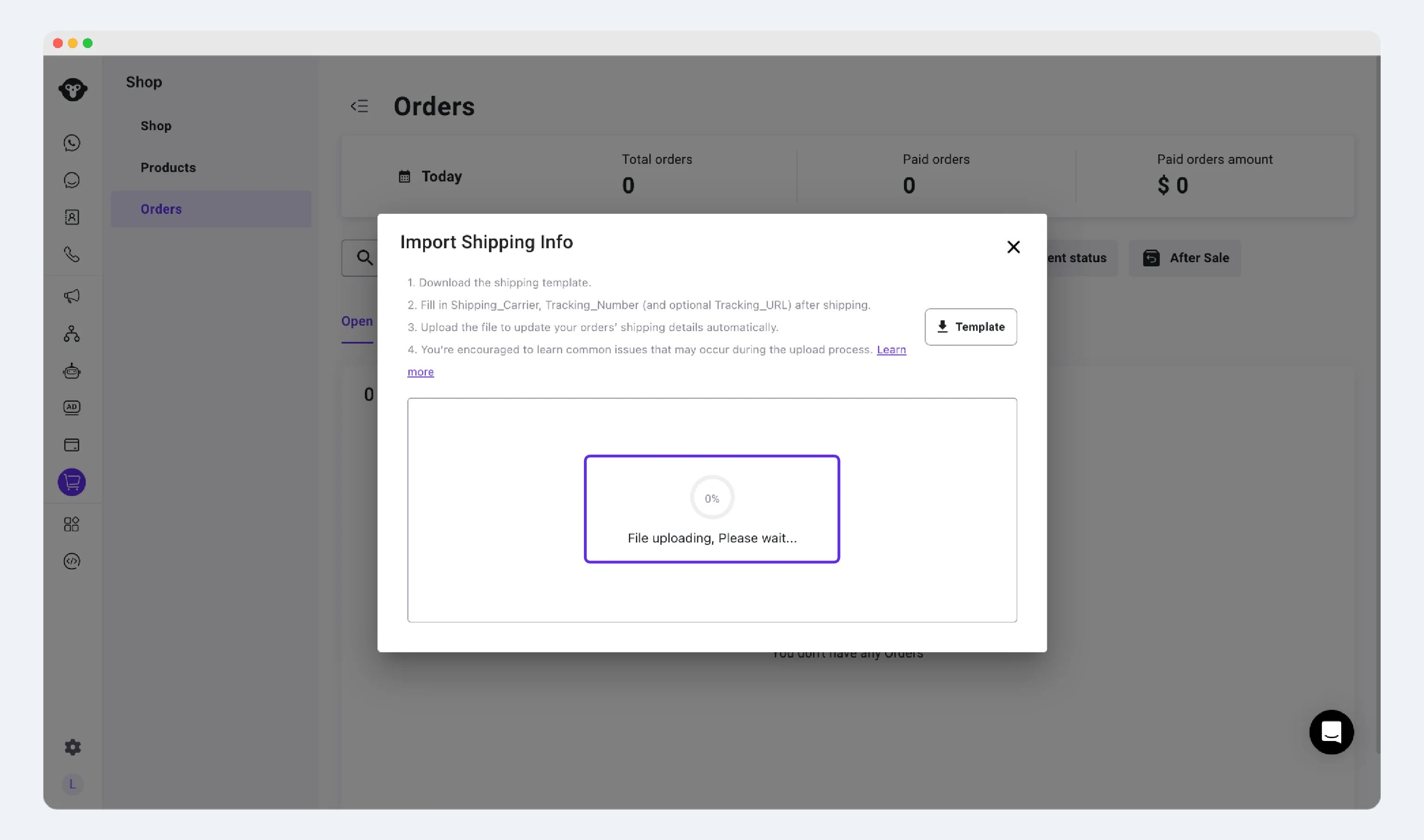
4. File imported successfully After import completes, the system displays:
- Number of success rows
- Number of failed rows
Field descriptions (template columns)
Validation & error report
The system performs both file-level and row-level validations: File-level validation- Missing or mismatched header →
Invalid template header - Non-CSV type →
Unsupported file type - File is empty or has no valid rows →
No valid entries found - File exceeds size or row limits →
Maximum allowed size is 15 MB and 1,000 rows - Uploading multiple files at once →
Please upload only one file at a time
- Empty, not found, or mismatched
Order_ID→Order not found - Duplicate
Order_IDin the file →Duplicate Order ID; skipped - Missing or malformed
Tracking_Numberfor physical items →Invalid Tracking Number - For digital orders, logistics fields are skipped and the order is marked as shipped
If network or system errors occur, the system may show a generic error message—please retry a few minutes later.
Frequently Asked Questions
Can I import again after an order is already marked as Shipped?
Can I import again after an order is already marked as Shipped?
Yes. You can upload the order again in a later import to update its logistics information.
Do virtual or digital products require tracking fields?
Do virtual or digital products require tracking fields?
No. These orders are marked as shipped, and the logistics fields are ignored.
Which payment methods are currently supported?
Which payment methods are currently supported?
Shop supports Cash on Delivery (COD) and PayPal Wallet.
Excel converted a long Order_ID into scientific notation, such as 1.23E+17. How do I avoid that?
Excel converted a long Order_ID into scientific notation, such as 1.23E+17. How do I avoid that?
Set the
Order_ID column to Text, or prepend an apostrophe (') in Excel to preserve the value correctly.What happens to rows with errors during import?
What happens to rows with errors during import?
These rows are skipped, and a failure report is generated with specific error reasons. Correct the rows and upload them again.
What happens if the same Order_ID appears more than once in one file?
What happens if the same Order_ID appears more than once in one file?
Duplicate rows are skipped. Keep one row per
Order_ID. To update logistics information for an order that is already marked as Shipped, upload it again in a later import using a single row.