

YCloud AI Agent provides an integrated AI knowledge base, corpora, and automated workflows. See AI Agent for details.
Overall
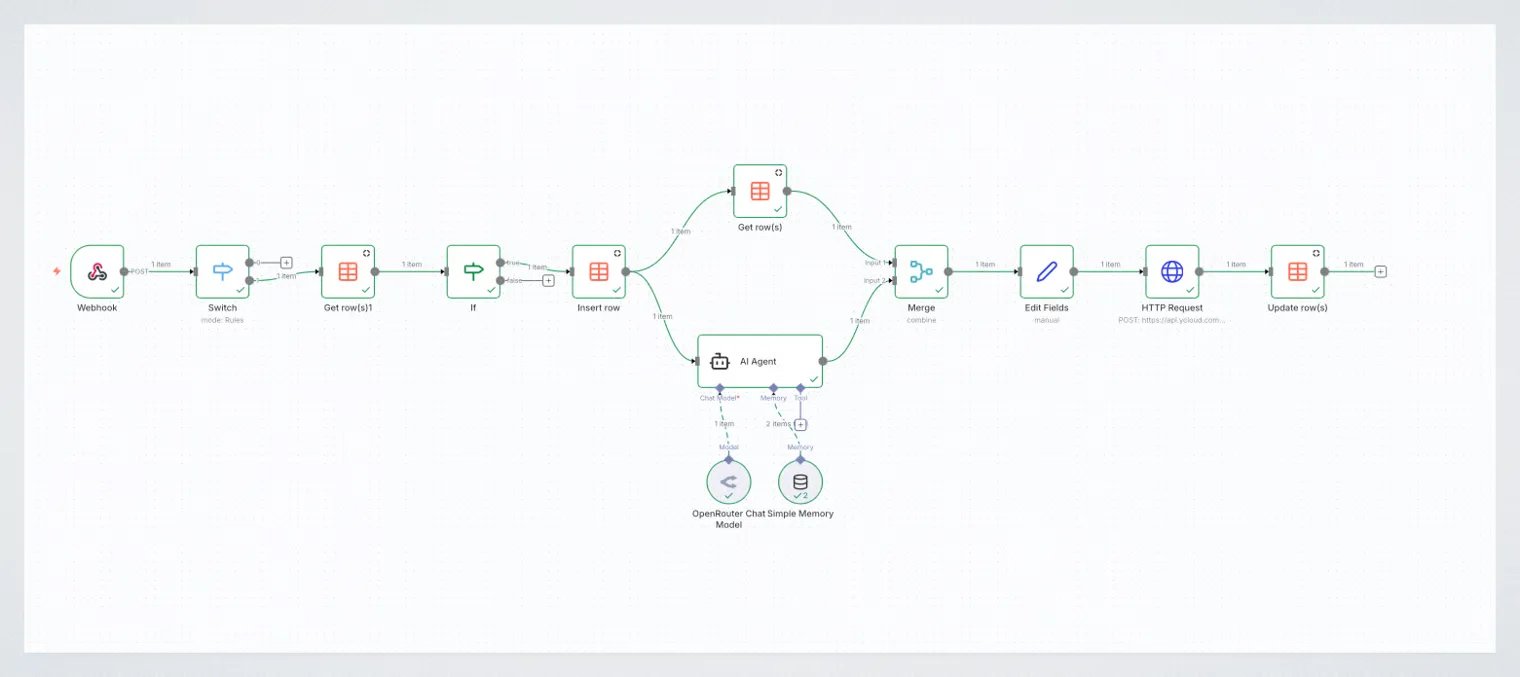
Webhook Event
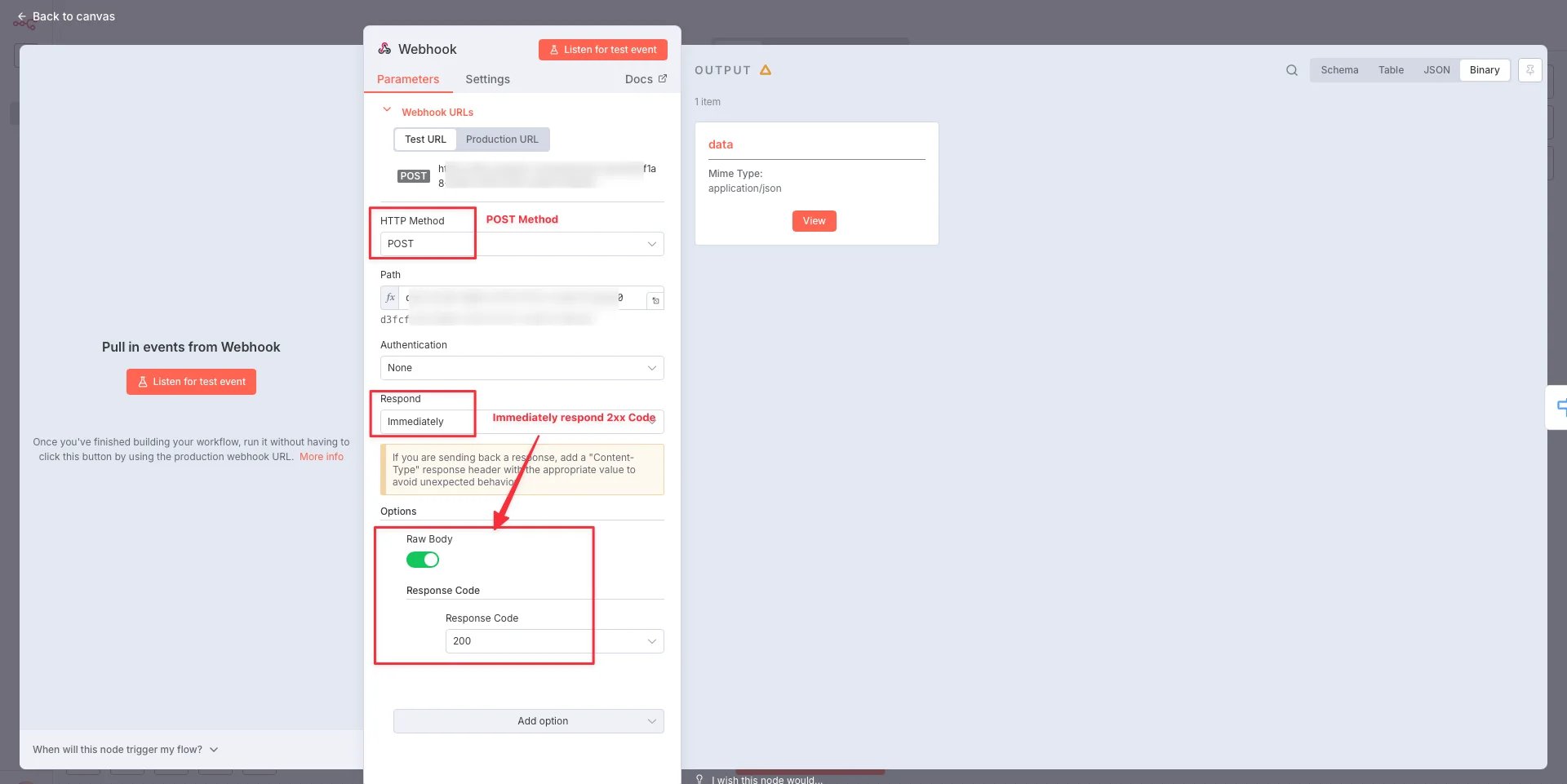
When configuring the Webhook event, please set the HTTP Method to POST, the Response to Immediate Return, and the Response Status Code to 200.Please take care to safeguard your Webhook URL and ensure that only a status code 200 is returned.
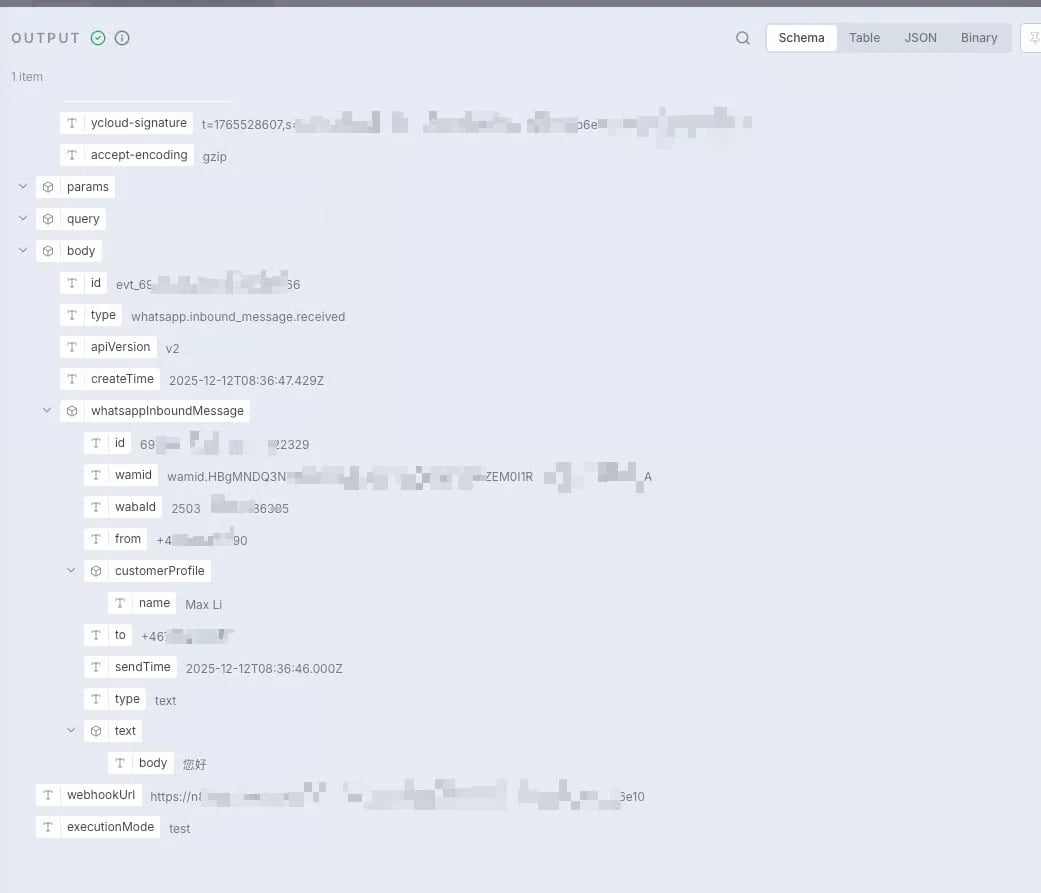
Data Table
Data Table Design
Insert Row
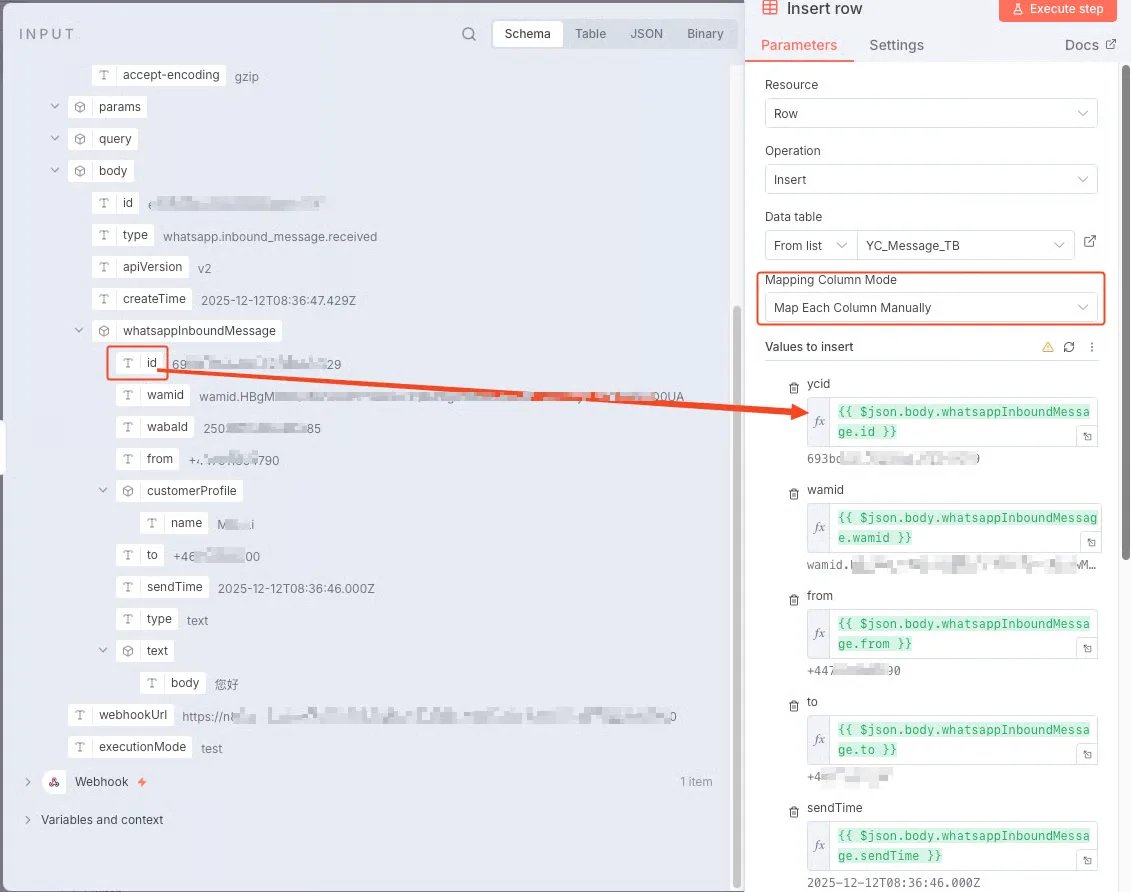
This node is used to write data received via webhooks into a data table for subsequent querying or status management.- Supports manual matching or automatic matching.
- Automatic matching requires field names to be identical.
- You may drag fields directly from the Input panel into configuration items, and n8n will automatically generate the Expression.
Get Row
This node is used to read existing data from the Data Table. The condition can be defind as you want. At this best practice, we use wamid as the matching condition.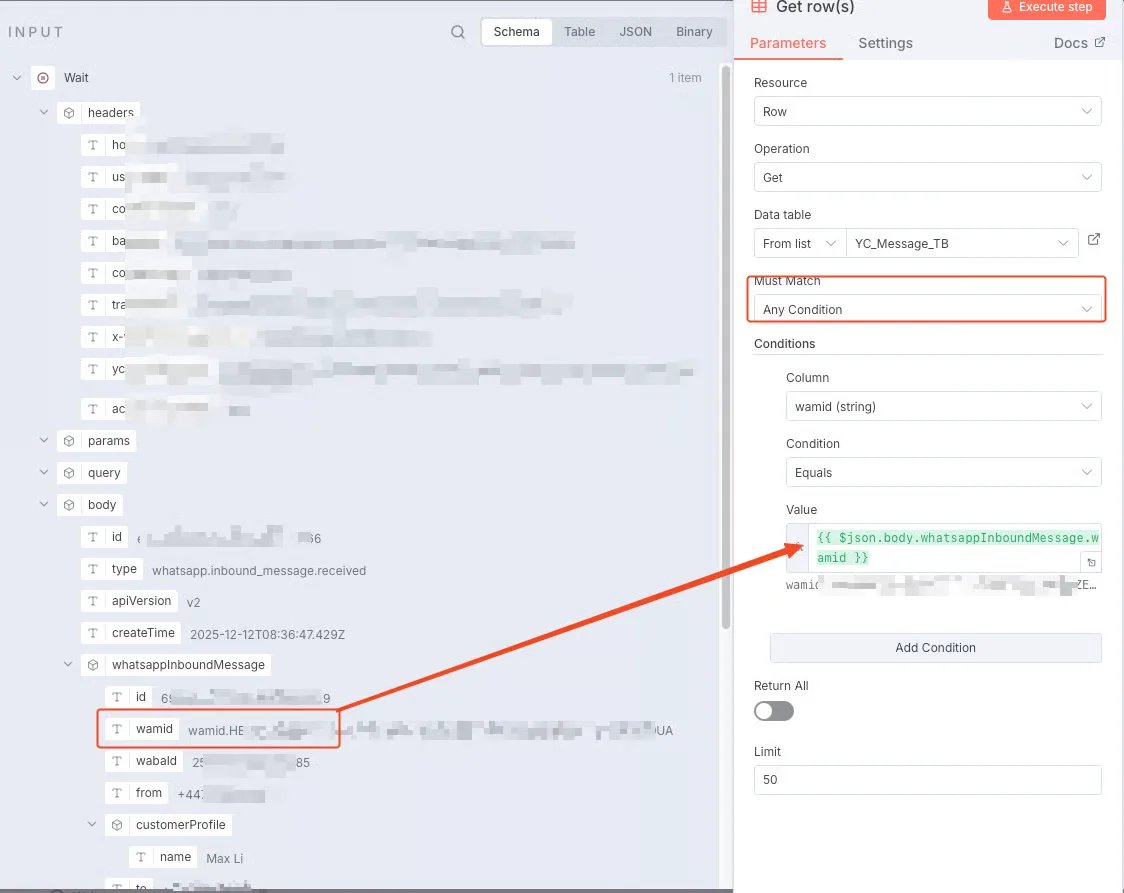
AI Agent
1. Model Config
Before utilising the AI Agent, please configure the corresponding model information (such as OpenRouter, Ollama, etc.) within Credentials. This section will employ OpenRouter for configuration. Screenshots of Credential configuration are omitted here; simply utilise the relevant APIs provided by OpenRouter. You may select your preferred model and return format; for this best practice example, choose grok-3 with TXT format.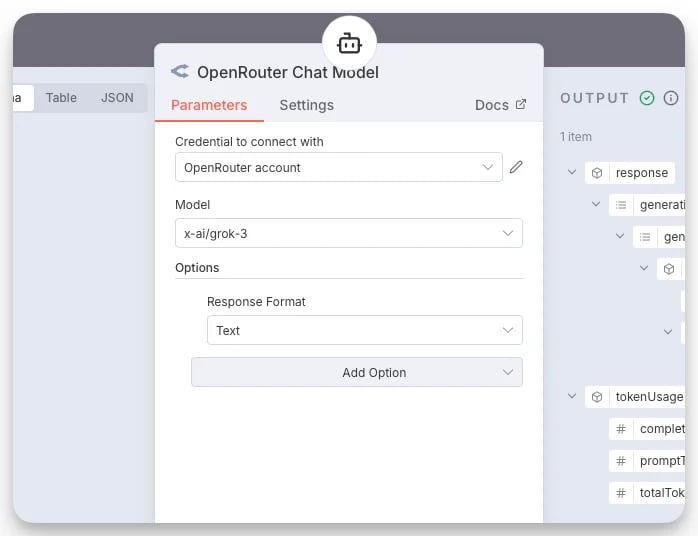
2. AI Agent Node
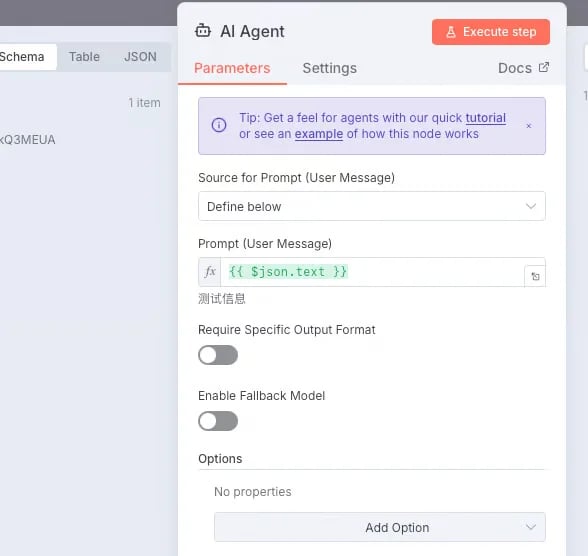
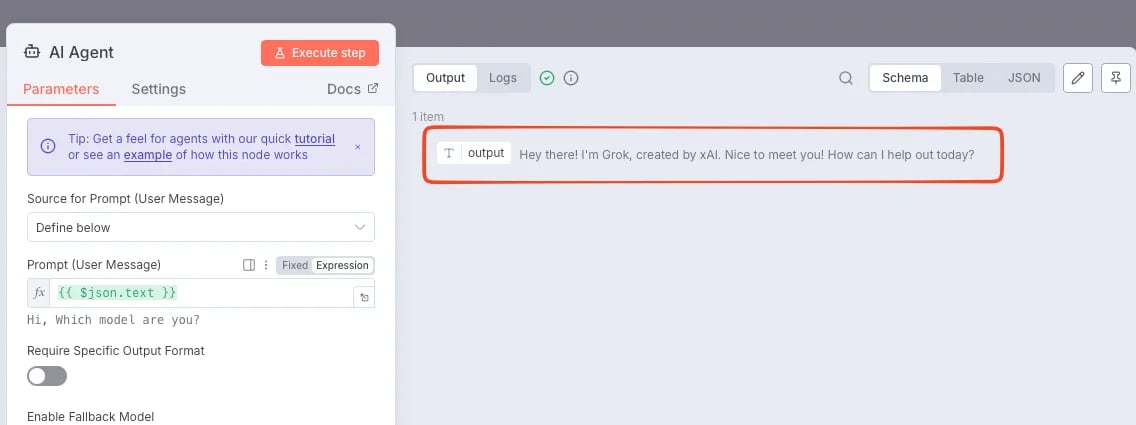
Within the AI Agent node:- Compose the prompt
- Utilise expressions to reference fields from webhooks or data tables as input. You may compose your desired prompt here; no additions are required. The prompt content may be freely customised according to business requirements.
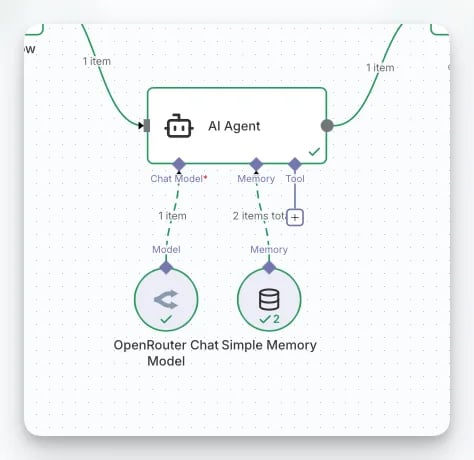
Note: The AI Agent supports an extended memory mechanism (Memory), enabling context management through databases or other storage methods.Here you may view the final output information from the model.
Merge
The Merge node is used to combine the output data from multiple nodes, preparing it for subsequent API requests.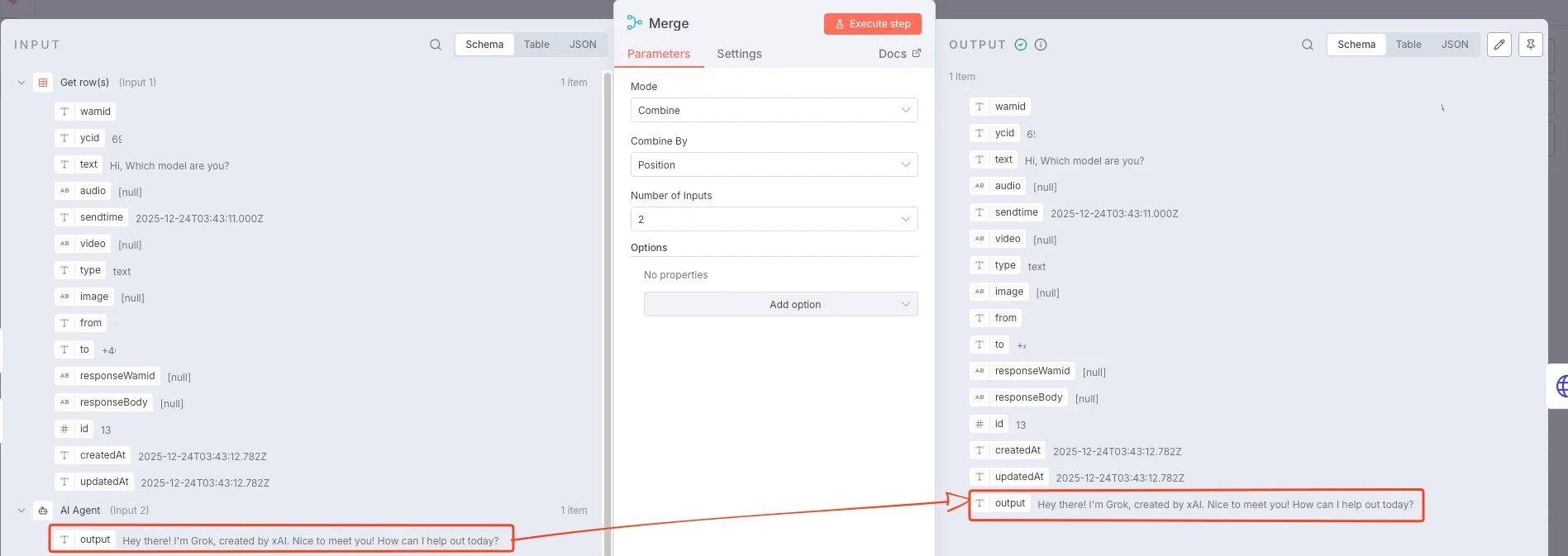
- Append
- Combine
- Merge by Index
HTTP Request
Finally, invoke the YCloud message sending interface via the HTTP Request node.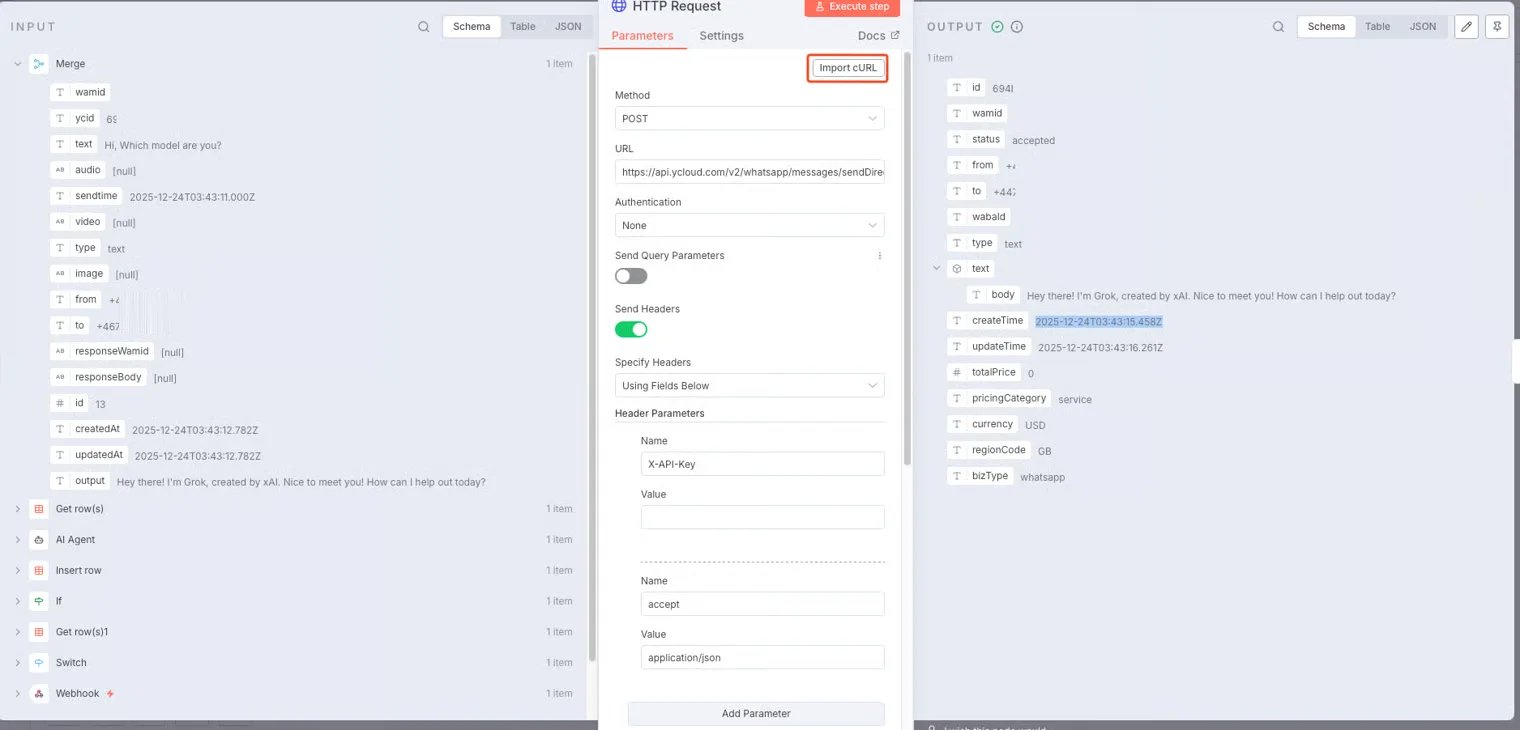
- You can use the cURL examples in the YCloud API reference for rapid configuration. Insert your API key in the
X-API-Keyheader. - Drag the merged field from the previous step into the request body.
- Use Expression to dynamically populate message content, recipients, and other parameters.
Summary
By following the steps above, you can swiftly build an automated reply workflow using n8n to achieve:- Webhook Listening
- Message Data Processing
- LLM Automated Content Generation
- Responding to Users via YCloud API