

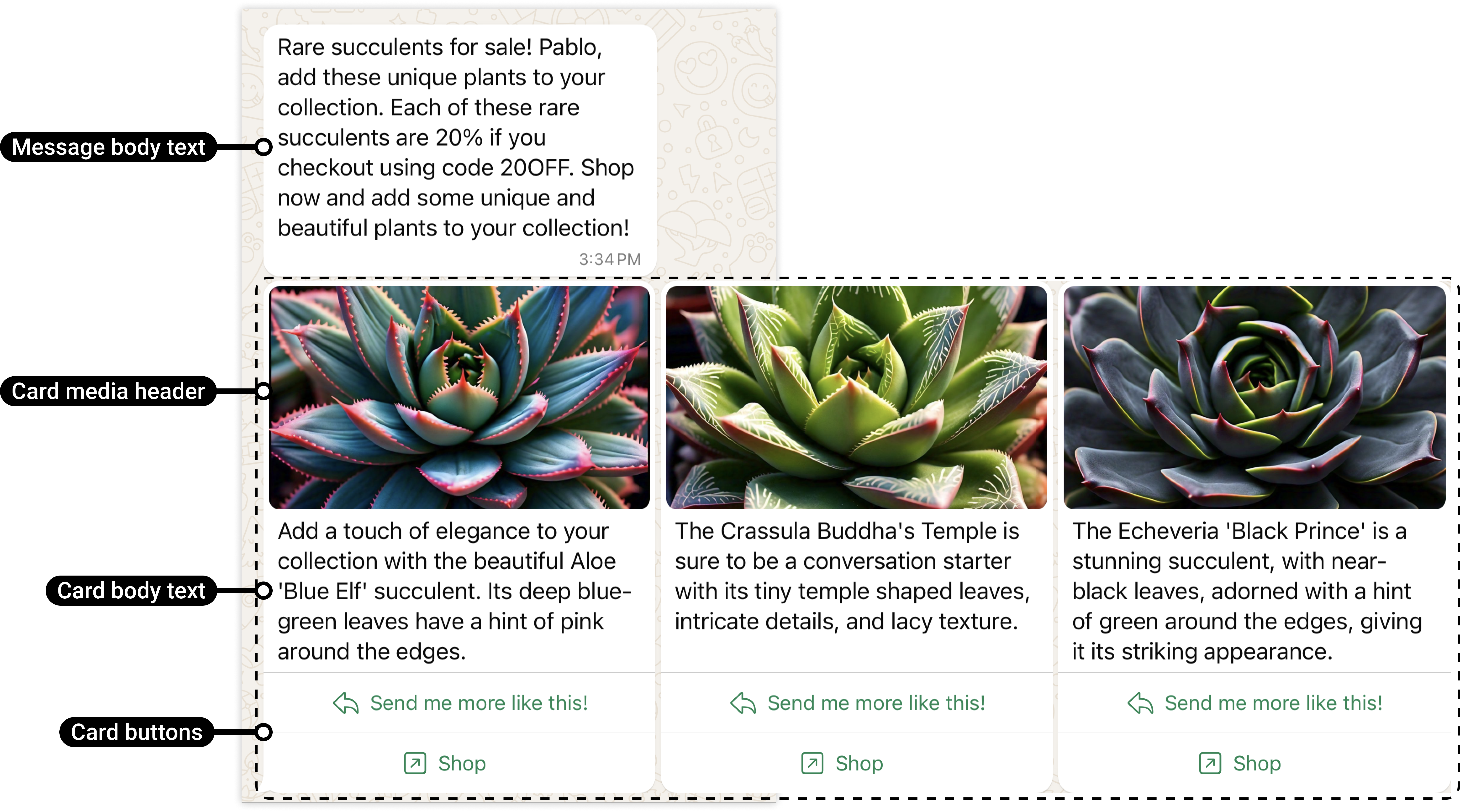
A media carousel combines a shared message with horizontally scrollable cards. Meta labels the components.
Plan the complete card set
Meta requires the cards in one template to share their component structure. If you use card body text, include it across the card set. Do not combine an image-only first card with differently structured later cards.
For a conservative YCloud implementation, include a media header, concise body, and at least one action on every card. The YCloud contract’s high-level description calls some components optional while its component-level descriptions require body and buttons; use the editor’s accepted structure and confirm any bodyless API design before relying on it.
Example: three weekend packages
Use one card each for City, Coast, and Mountains:- Keep the same image proportions and visual treatment.
- Give each card a distinct description and destination.
- Use the same action pattern, such as View package.
- Put the most useful choice first, but make each card understandable independently.
- Ensure the landing page shows the package represented by that card.
Create the template in YCloud
- Open Templates, select the correct WABA, and create a Marketing template.
- Choose the supported media-card carousel format.
- Add the shared body and any required sample values.
- Configure each card’s media, text, and buttons.
- Preview every card and submit the template for review.
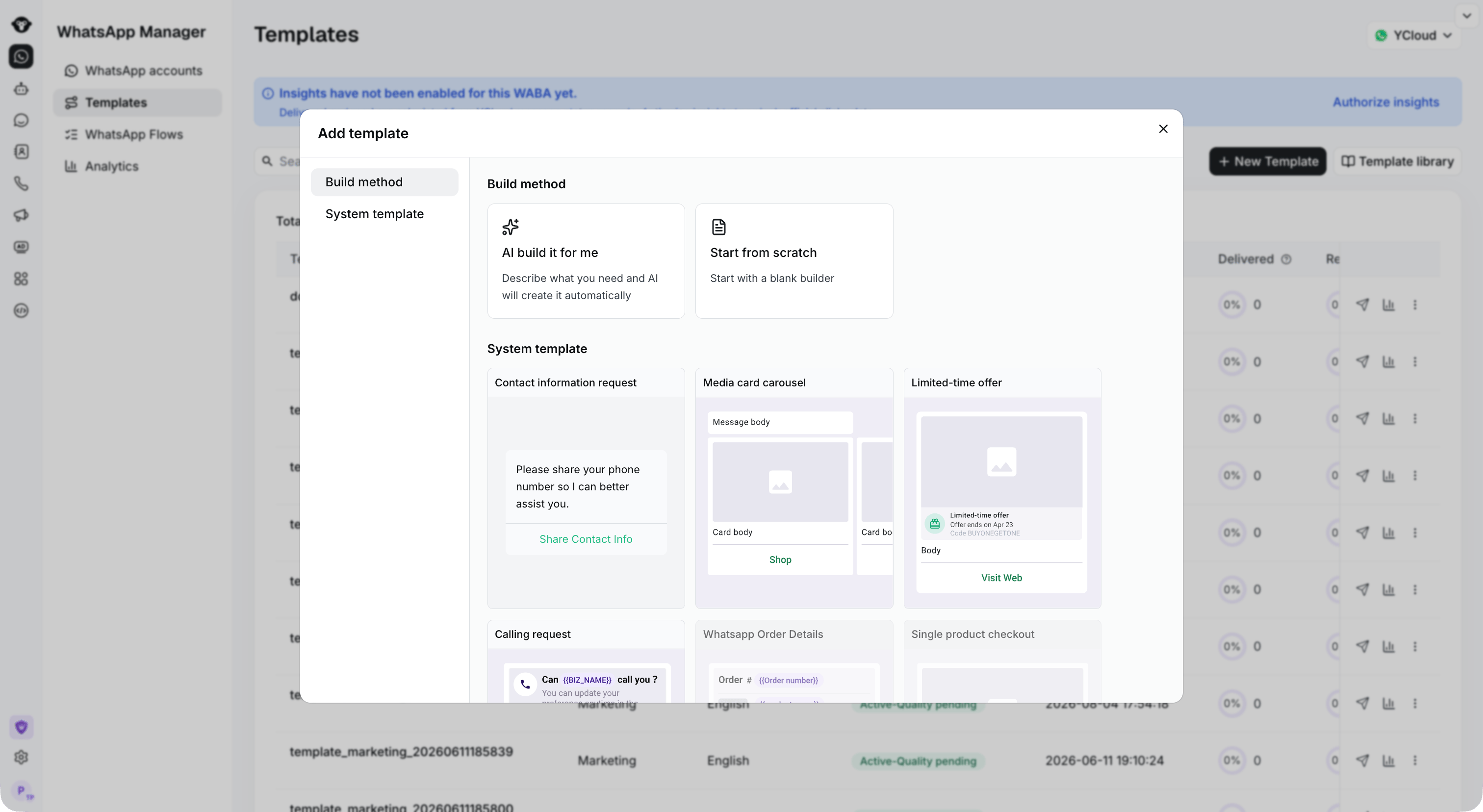
Choose Media card carousel when creating a marketing template.
Map each card when sending
Keep the approved template name, language, card count, media type, and button arrangement. In YCloud’s send contract,card_index starts at 0; the first card is not 1. Each card’s parameters belong to that card’s component.
A common error is placing the second product’s URL under the first card. Test with clearly different sample images and destinations so that mapping mistakes are visible.
Use the supported Campaign, Inbox, or API workflow after approval.