

Respond to Customer Messages
When a customer sends you a message, you can reply immediately and start a chat conversation. Through the filter on the left, the conversation list will display open conversations. Select one of the conversations, and the conversation window will expand on the right.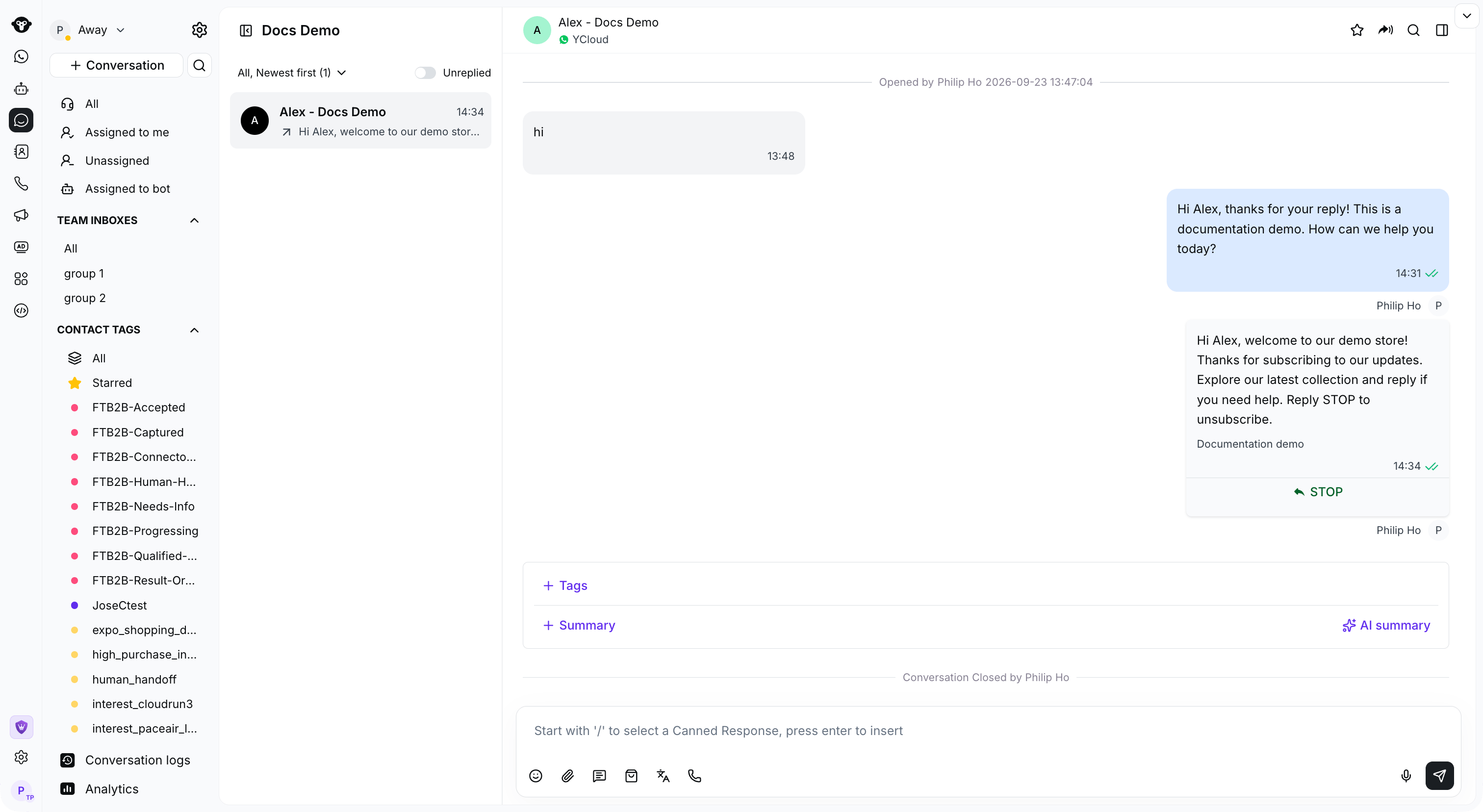
Select a customer conversation to view its history and reply in the message box.
Transfer the Conversation to Yourself
Click Assign to me above the message box to transfer the conversation to yourself.
Click Assign to me above the message box to take ownership of an unassigned conversation.
Start a Conversation with Any User
If you want to send a message to a contact that is not saved in your Inbox, you can search for them and send a WhatsApp template as the first interaction.Step 1: Search for the customer’s phone number
Click the search icon beside Conversation, select Contact, and enter the phone number.
Open Contact search and enter the customer phone number.
Step 2: Click the button below “+ Create a new conversation” to create a new session

Click Create a new conversation below the search results.
Step 3: Select the WhatsApp Business Number to send from
Select your sending number, then click Next.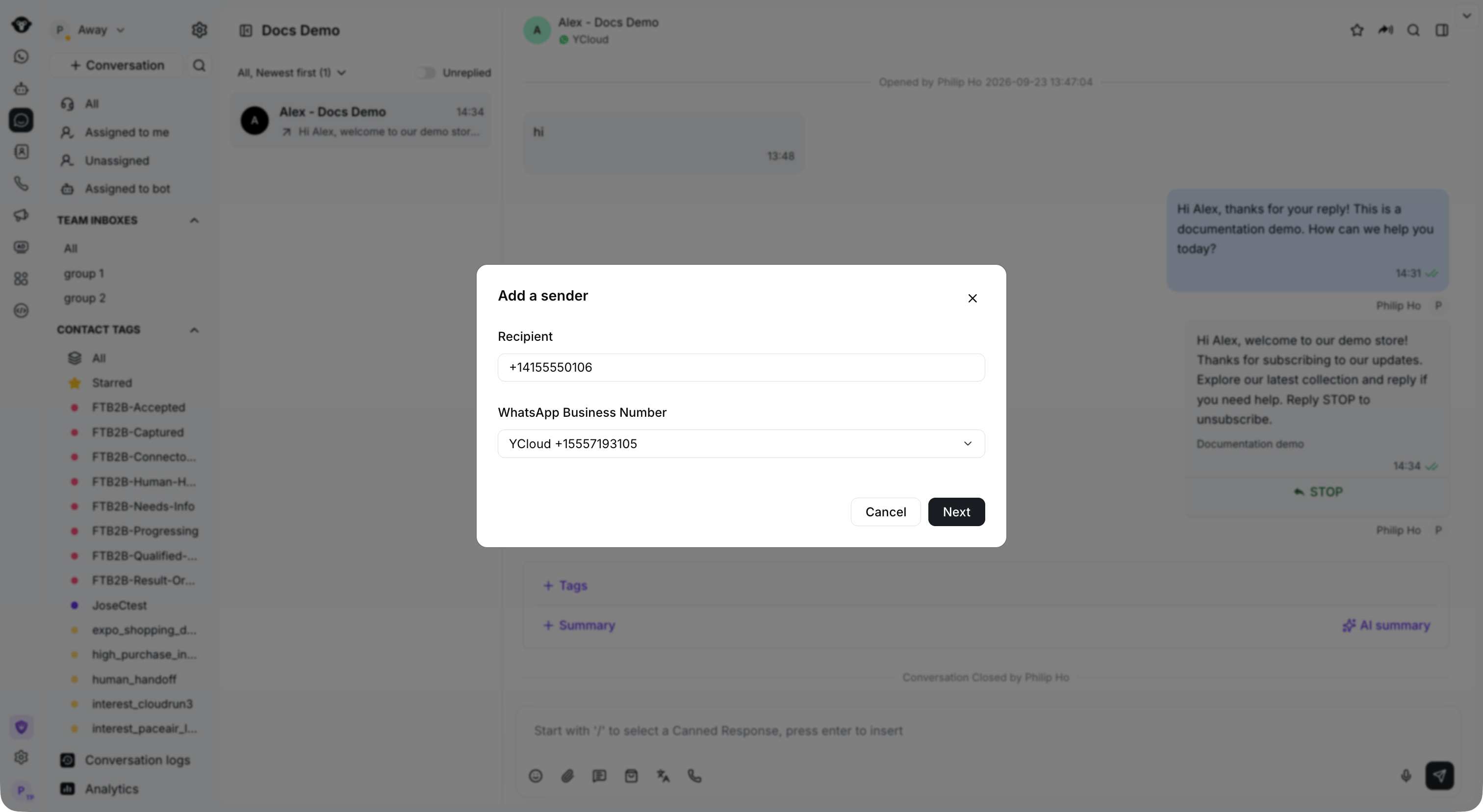
Enter the recipient and select your WhatsApp Business Number.
Step 4: Choose the template to send
Search by template name or body, or filter templates by category, language, or creator.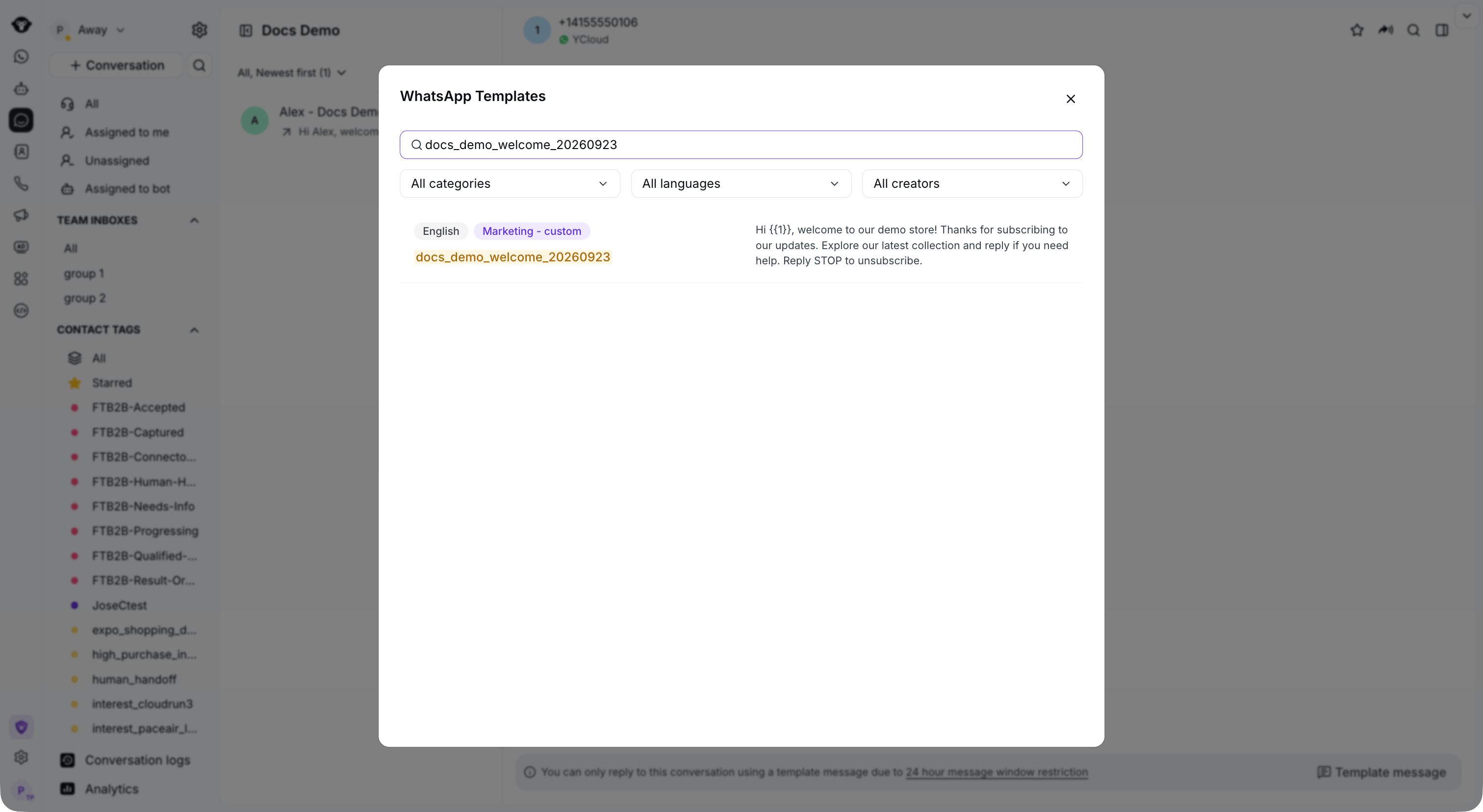
Search for an approved template and filter by category or language.
Step 5: Confirm the template content/set template variables
Check the preview and variable values, then click Send.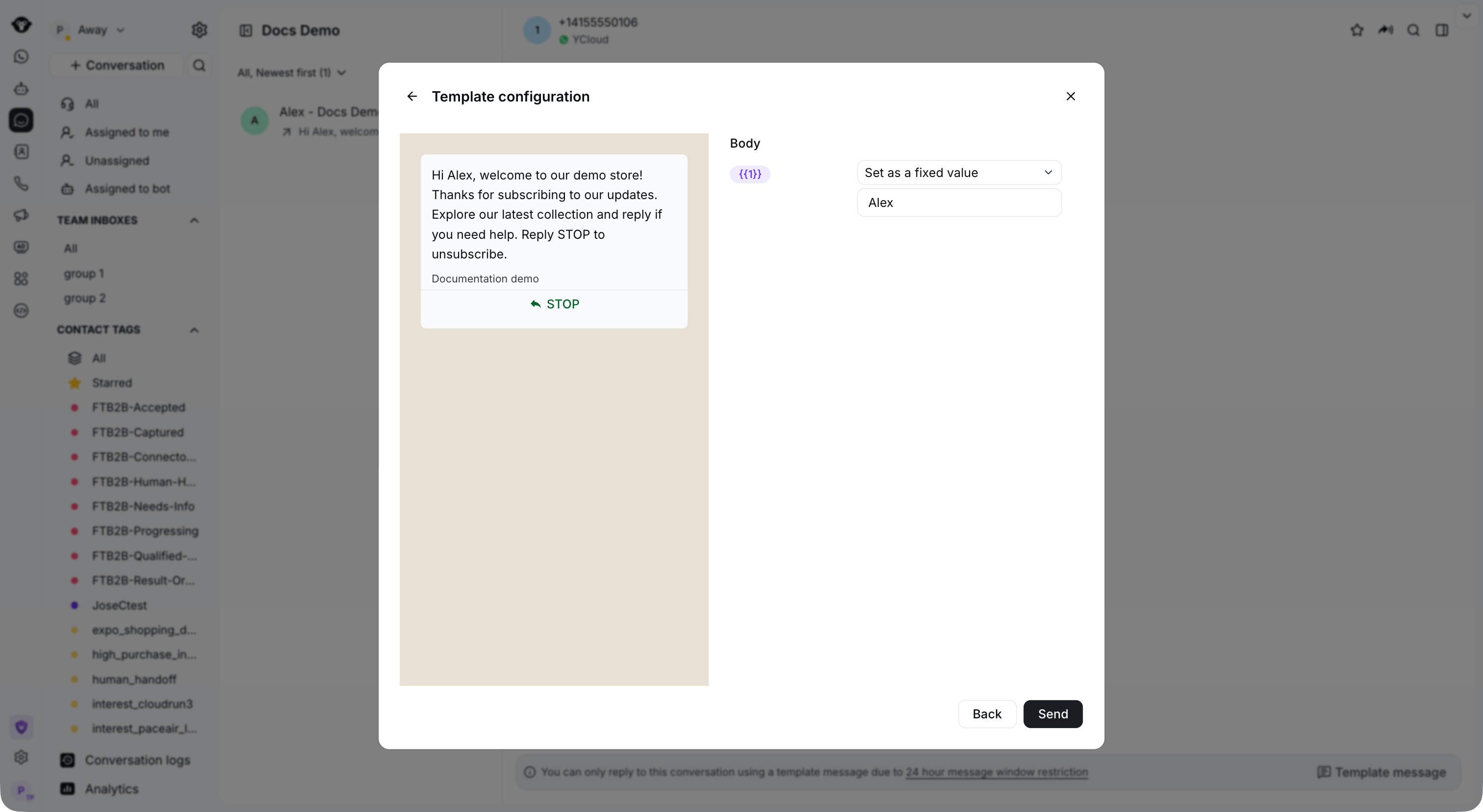
Set the template variables and review the message before sending.