

Invite Customers to Call in
When text messages are not sufficient during a conversation, you can invite the customer to start a voice call, allowing you to resolve issues faster and more efficiently.Inbound calls are free of charge.
1. Send a Call Invitation
Entry point: Click WhatsApp Calling > Ask customer to call
Open WhatsApp calling and choose Ask customer to call in.
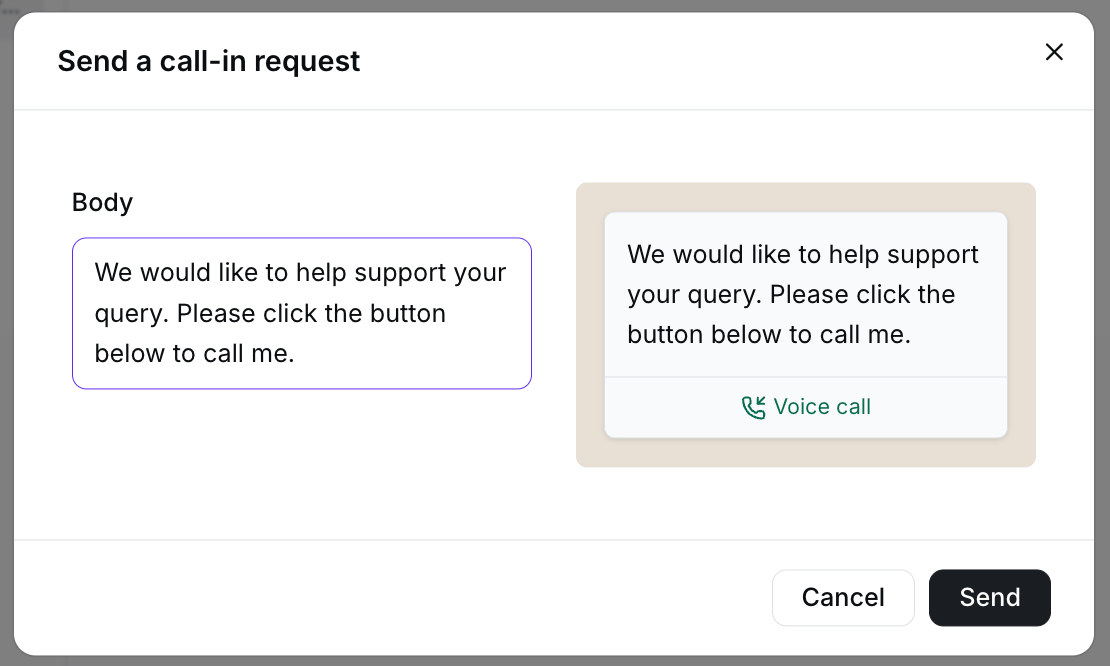
Edit the invitation text and review the preview before sending.
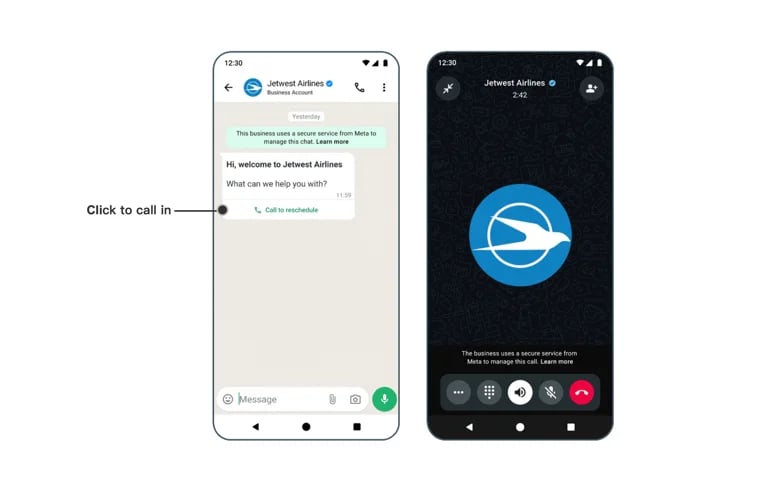
The customer can use the invitation to start a WhatsApp voice call.
2. Answer an Incoming Call
When the customer starts a voice call using the invitation link you sent, you will see a notification in the Inbox.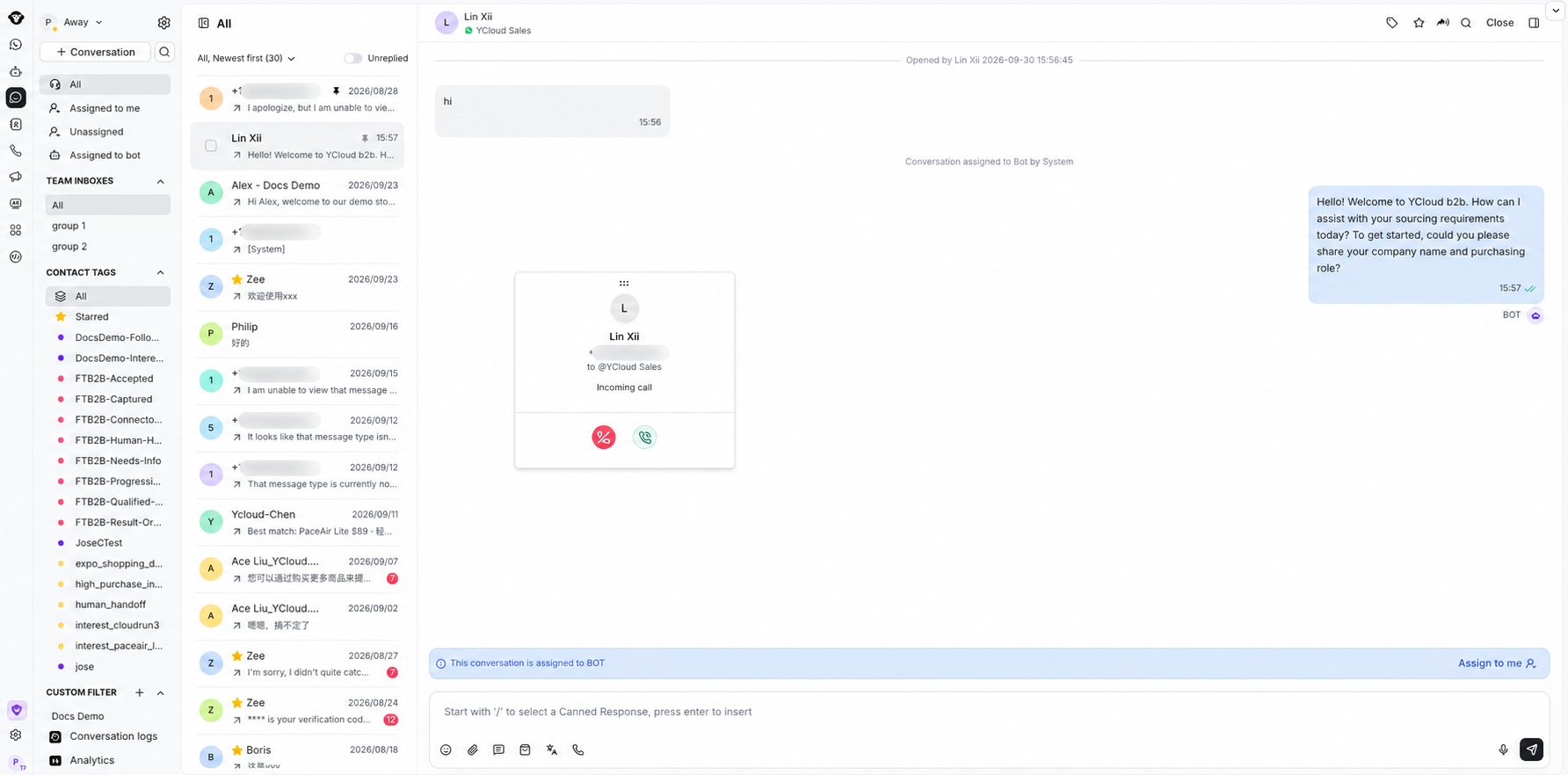
Answer or decline an incoming WhatsApp call from Inbox.
Make an Outbound Call
Before making an outbound call, you must have permission to place calls using the business phone number. Please refer to the relevant documentation for more details. ⚠️ Outbound voice calls are chargeable. For pricing details, please visit: https://www.ycloud.com/pricing#price-table1. Request for Calling permission
Entry point: Click WhatsApp Calling > Call out
Open WhatsApp calling and choose Call out to continue the outbound calling workflow.
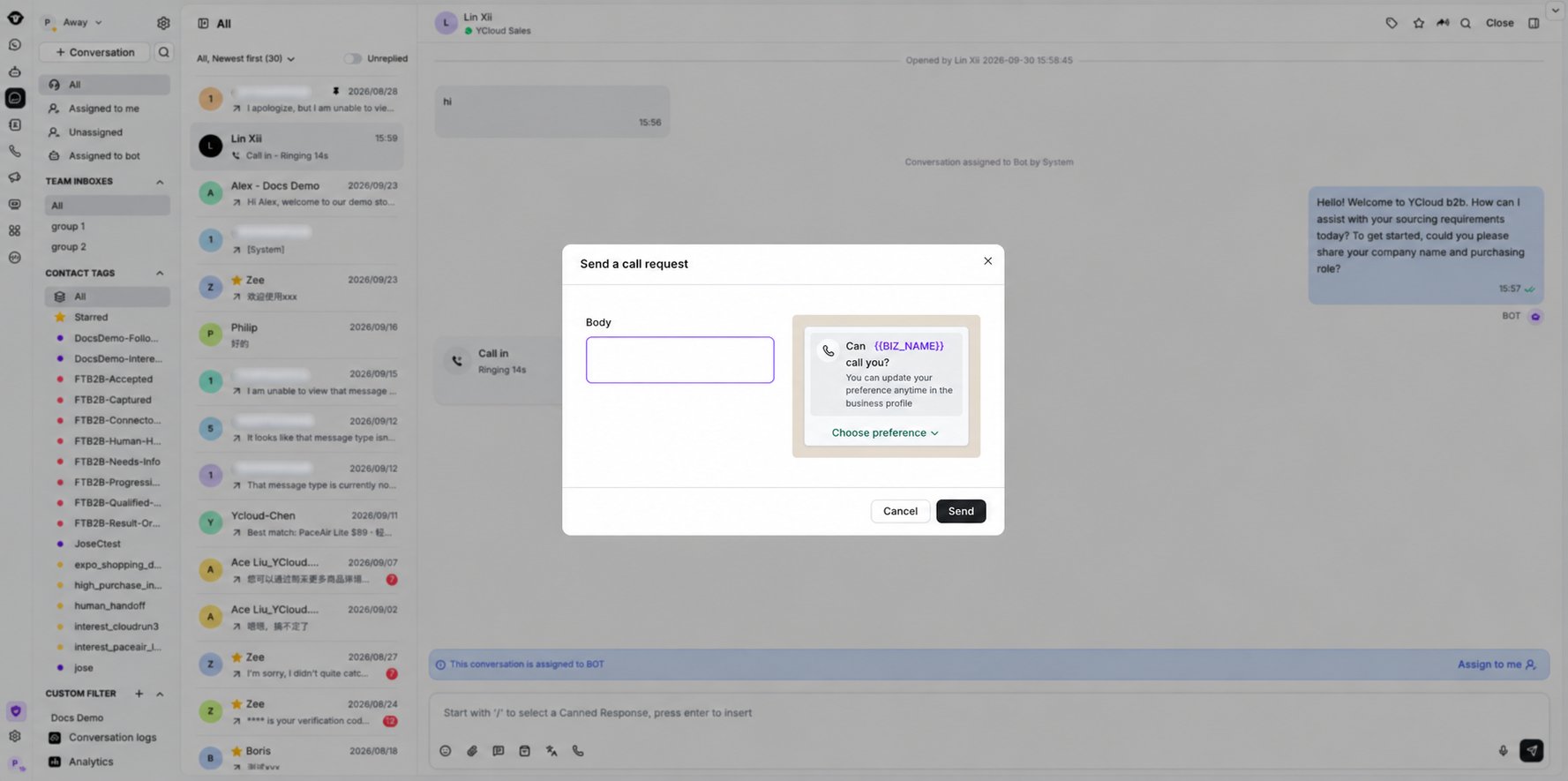
Review the call request message, then select Send.
2. Receive Authorization
Once the customer grants permission, you will receive a system notification in the Inbox.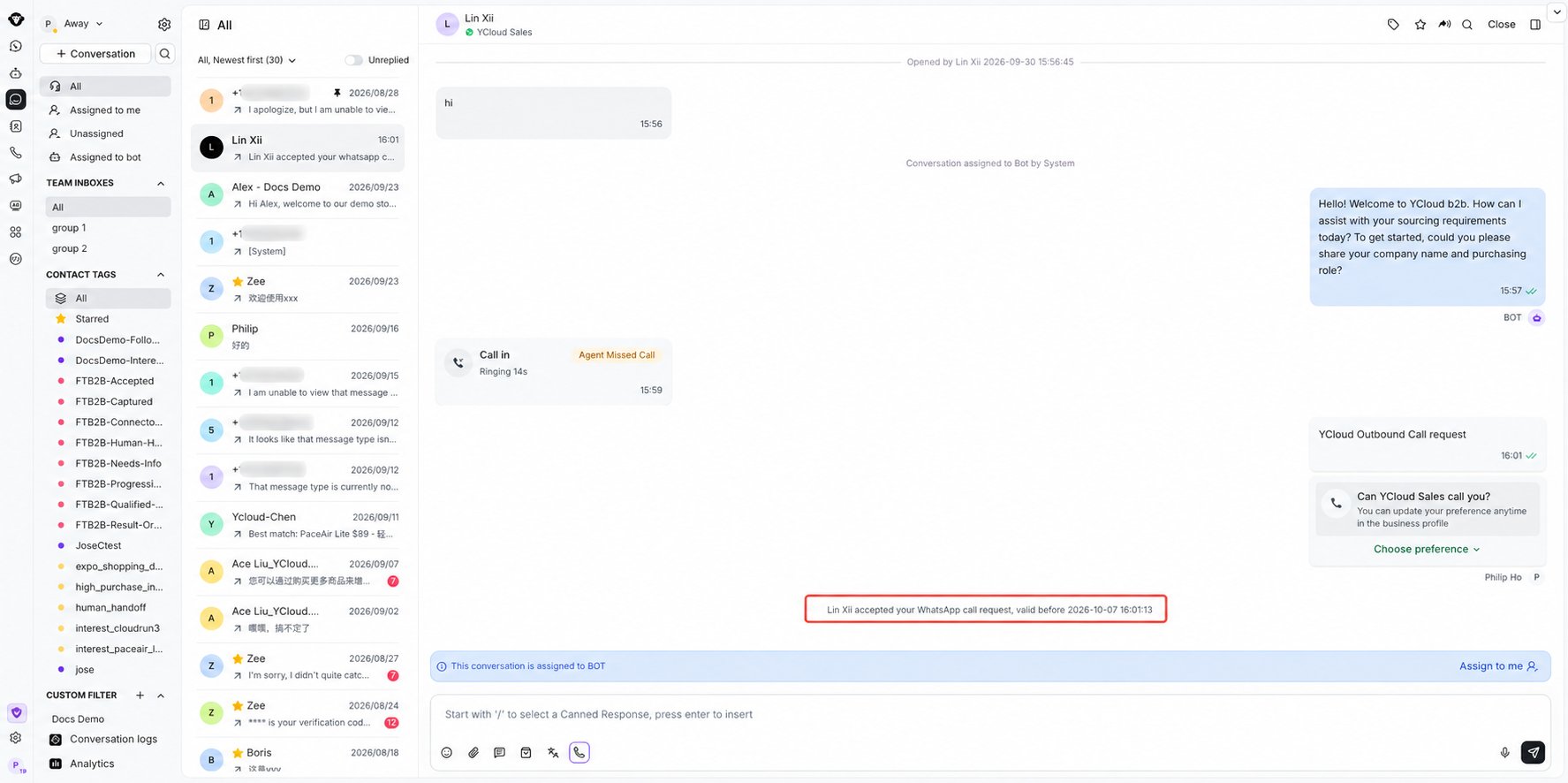
Inbox confirms when the customer accepts the WhatsApp call request.
3. Start the Ountbound Call
After authorization is granted, click the Call out button again to initiate the outbound voice call.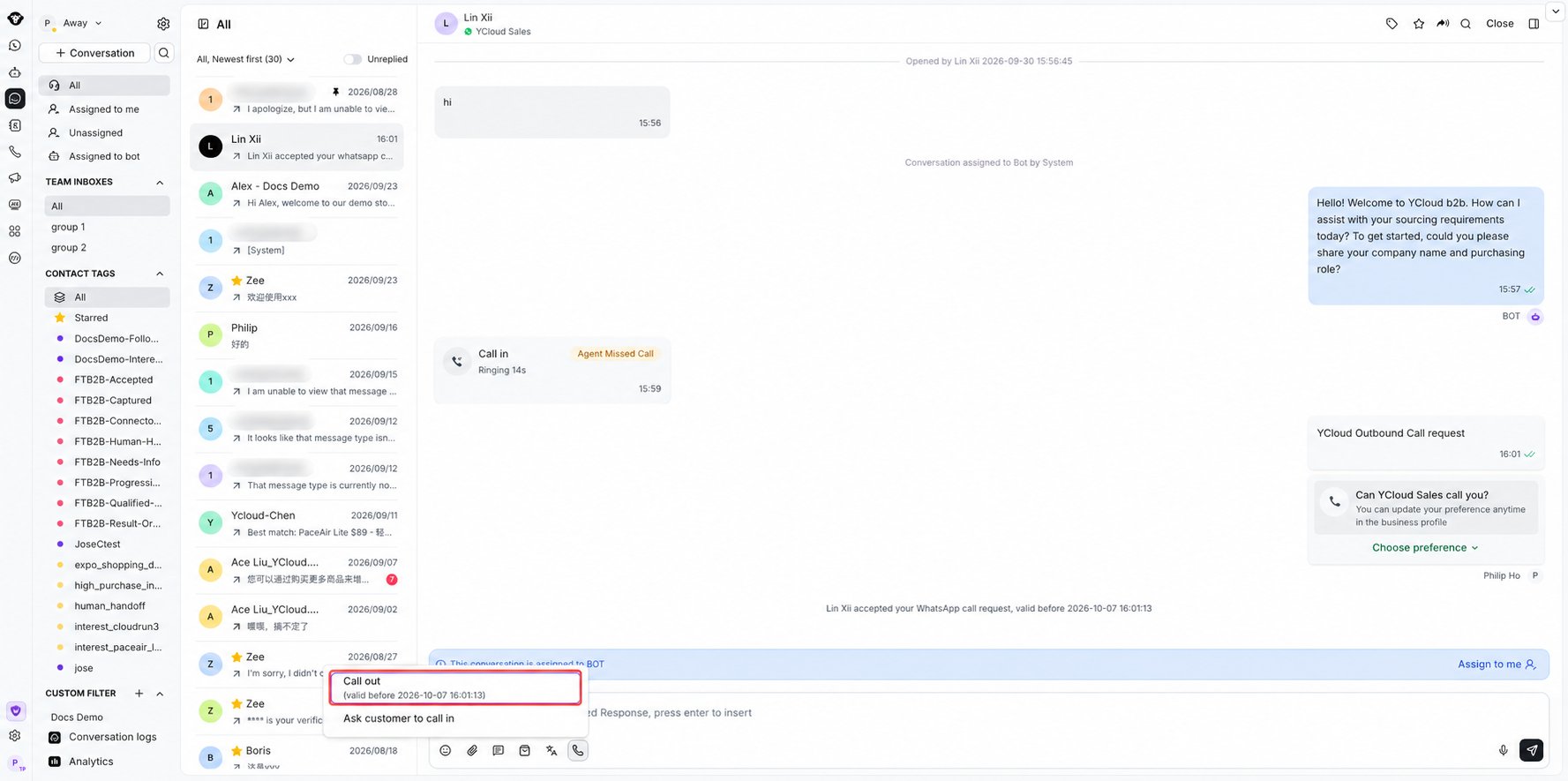
Open WhatsApp calling and select Call out after authorization is granted.
View Call Records
Open the Call Records panel on the right-hand side of the Inbox to view detailed call logs, including call status and duration.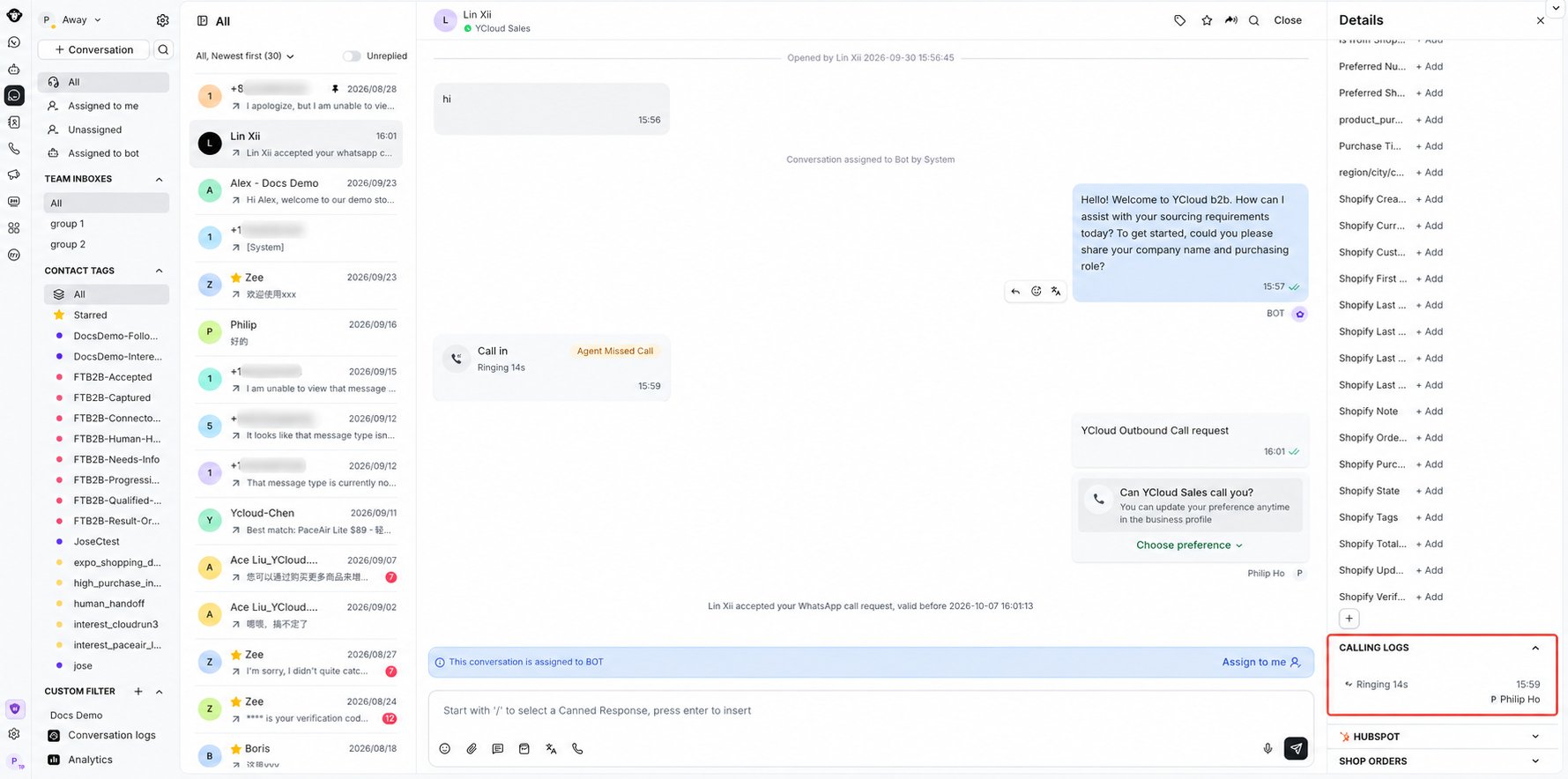
Review call status and duration under Calling logs in the contact details panel.