Function Introduction
The Inbox has added a new search function to help customer service staff quickly locate historical conversations and contact information. It supports two search modes:- Global Search: Search across all conversations and contacts
- Search within conversation: Search historical messages in the currently open single conversation
1. Global Search (Web)
Entrance
Click the search icon beside Conversation and choose a search mode.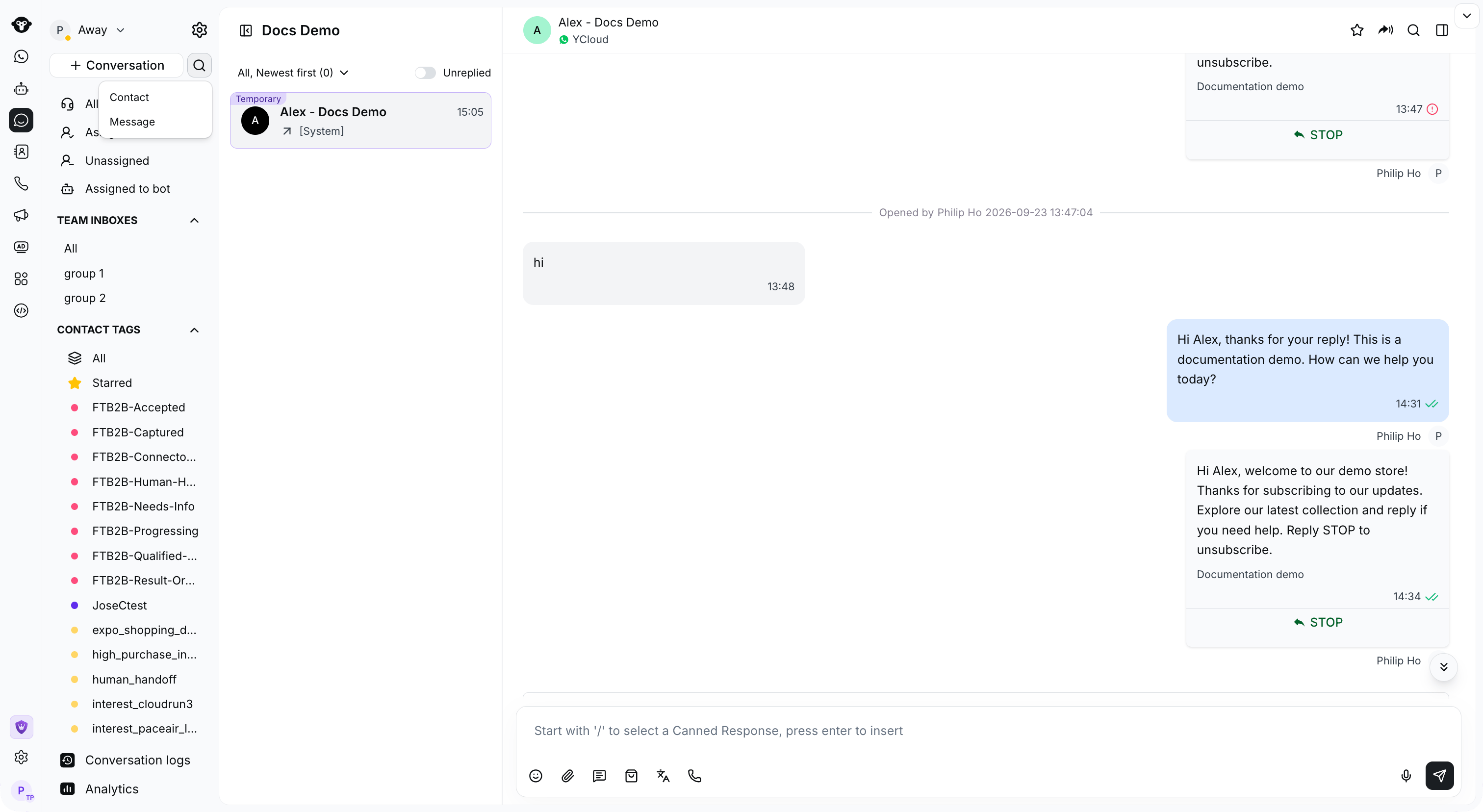
Click the search icon and choose Contact or Message.
Contact Search
Select Contact from the search menu. Supported searches:- Contact Name (Fuzzy Search, Case-Insensitive)
- Contact phone number (exact match)

Search for a contact or create a new conversation from the results.
Message Search
Open the search menu in Inbox and select Message to search message history. Supported searches:- Text message content
- Text part of the graphic message
- Agent: Supports fuzzy search, multiple selection available
- Time: Select the start time and end time

Enter a keyword and use Agent or Time Range to narrow message history. This view is shown before a search is run.
- Click on the conversation title row: Expand or collapse the message list under this conversation
- Click the “Jump” button: Jump to the corresponding conversation
- Click on the right side of a specific message row: A preview panel will pop up, displaying the context within 24 hours before and after that message
- Click the “Jump” button of a specific message: Jump to the position of that message in the corresponding conversation, where the message will be highlighted for 2 seconds and then disappear
Close Search
Click the X beside contact search, or Close in the message-search dialog, to return to Inbox.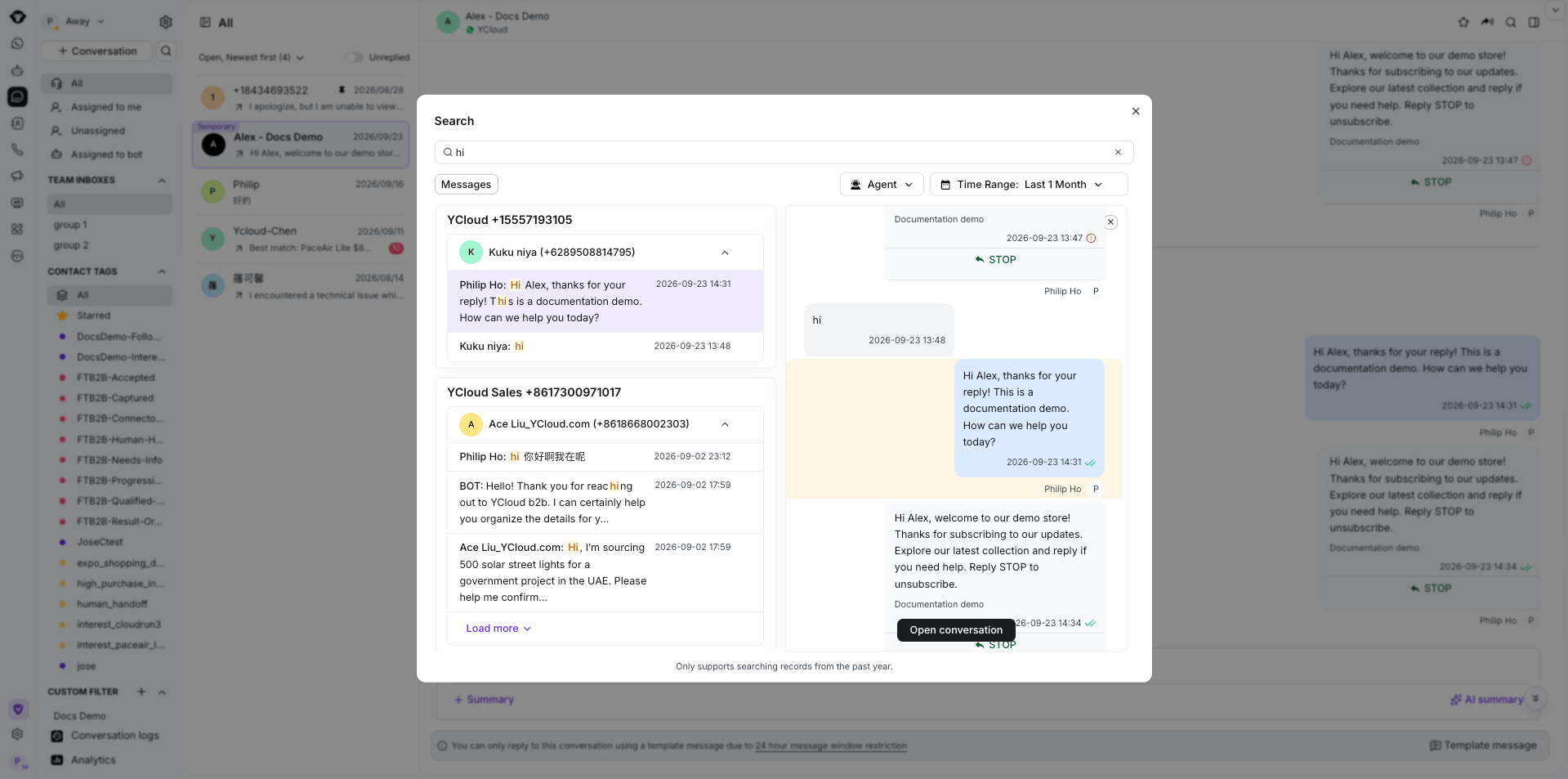
Select the X in the search dialog to close message search.
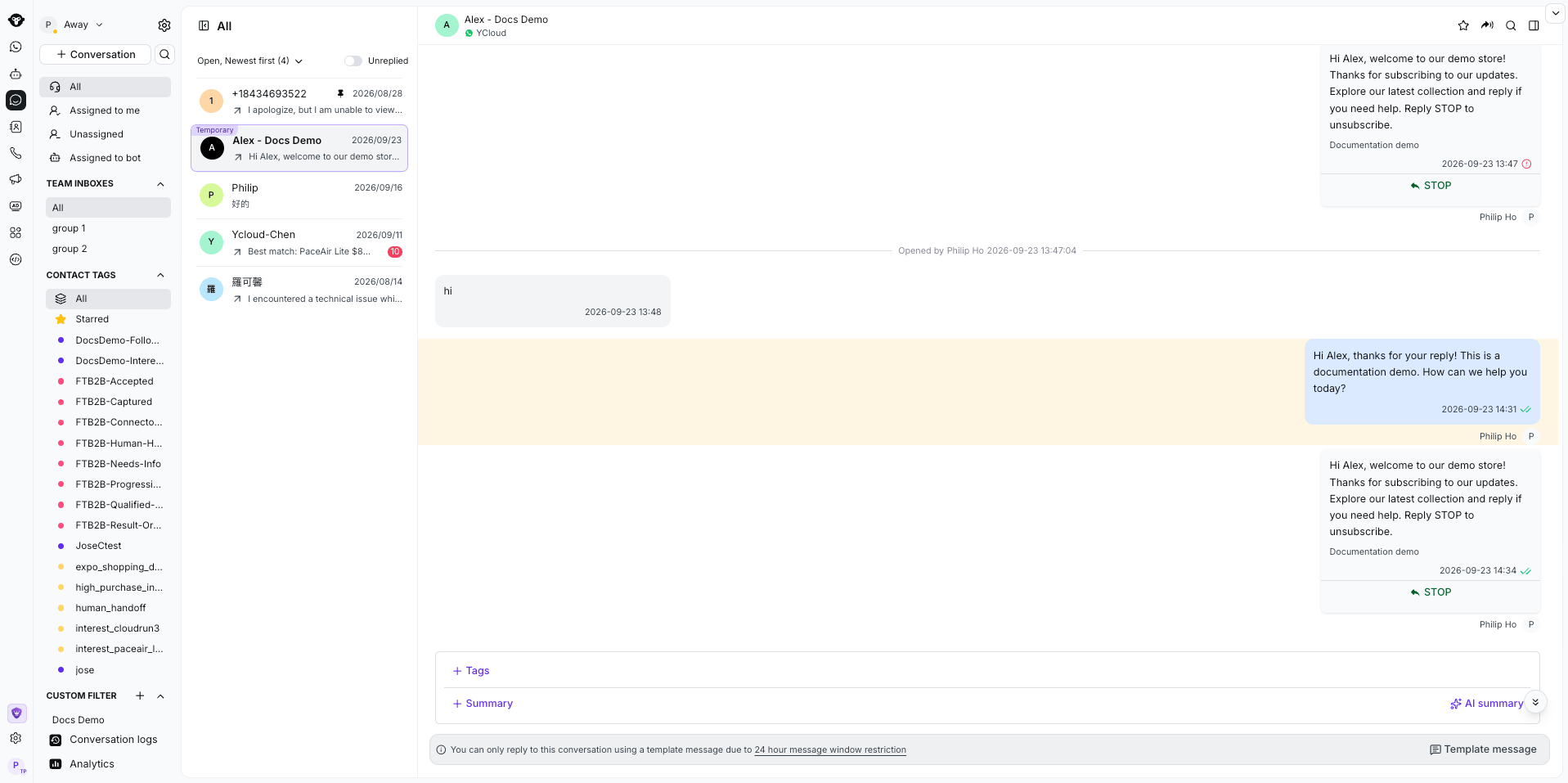
Closing search returns you to the open Inbox conversation.
2. In-conversation Search (Web)
Entrance
After opening any conversation, click the search icon at the top right of the conversation details area on the right.Usage
- Click the search icon to expand the search box
- Enter keywords, and the system will search in the historical messages of the current session in real time
- When hovering over a message in the search results list, a background color is displayed
- Click on a message, and it will automatically jump and scroll to the position of that message
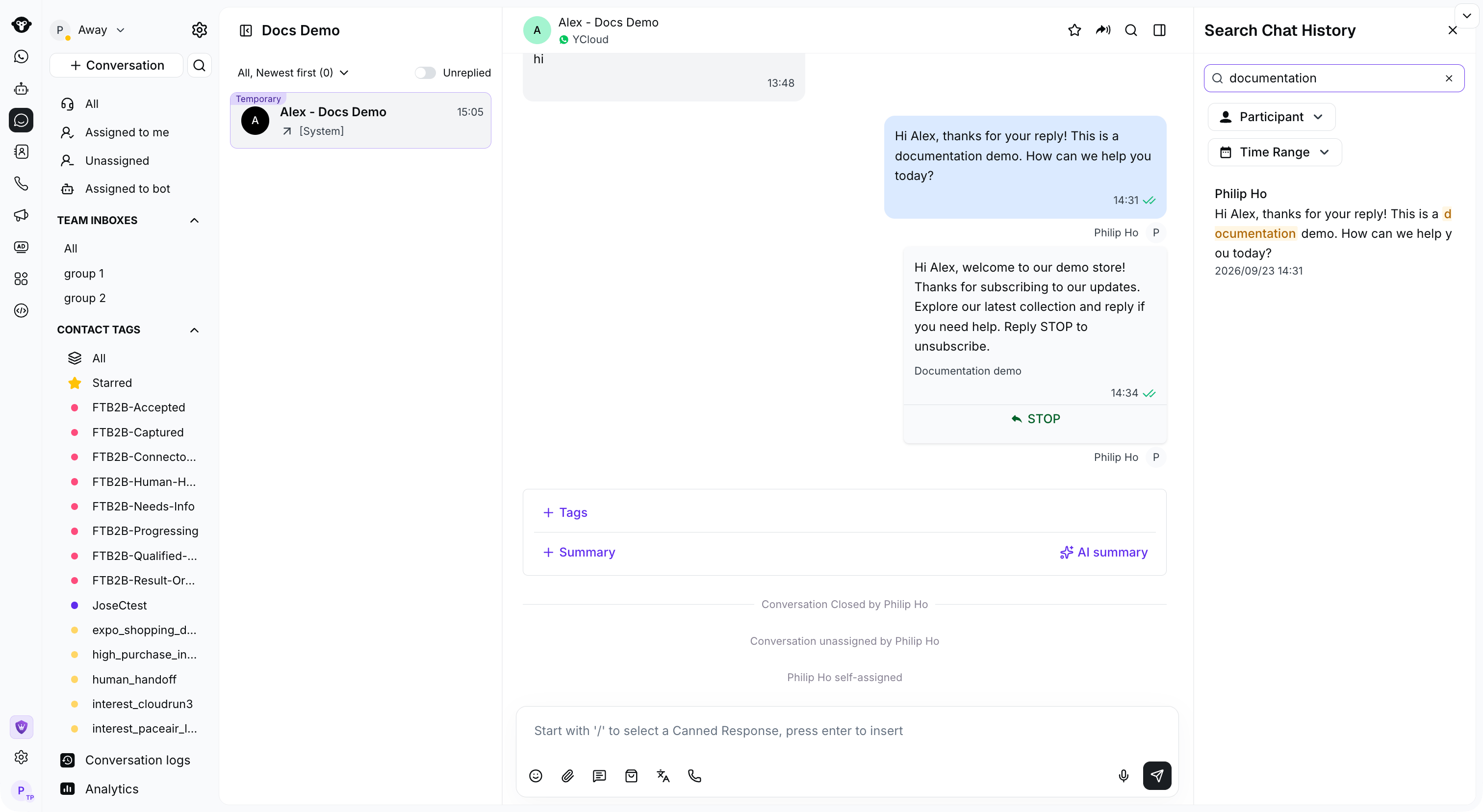
Search within the open conversation and select a result to jump to the message.
- Participant: Filter message records by sender
- Time: Select the start time and end time
- Currently selected item in the result list: gray background
- Keywords matched in the list: marked in bold or special color
- Matching items within the dialog box: highlighted in light yellow
3. Mobile Search
Global Search
- Click the search button, and by default, it will enter the “Contacts” search
- Click the toggle button to switch between “Contacts” and “Messages”
- Message search only supports fuzzy search of chat content, not filtering by Agent or time
- Search time range is consistent with the web version (last 1 year)
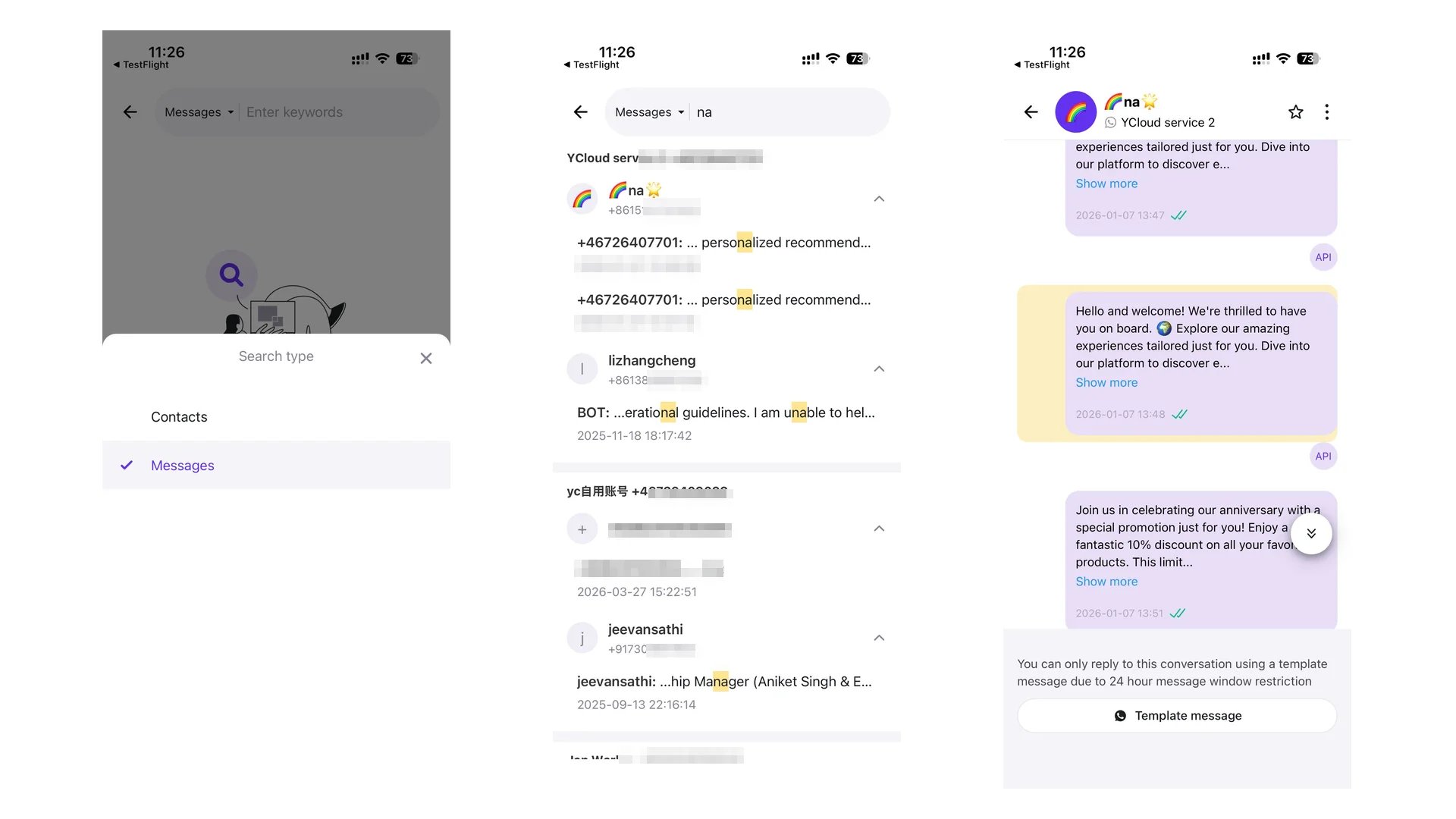
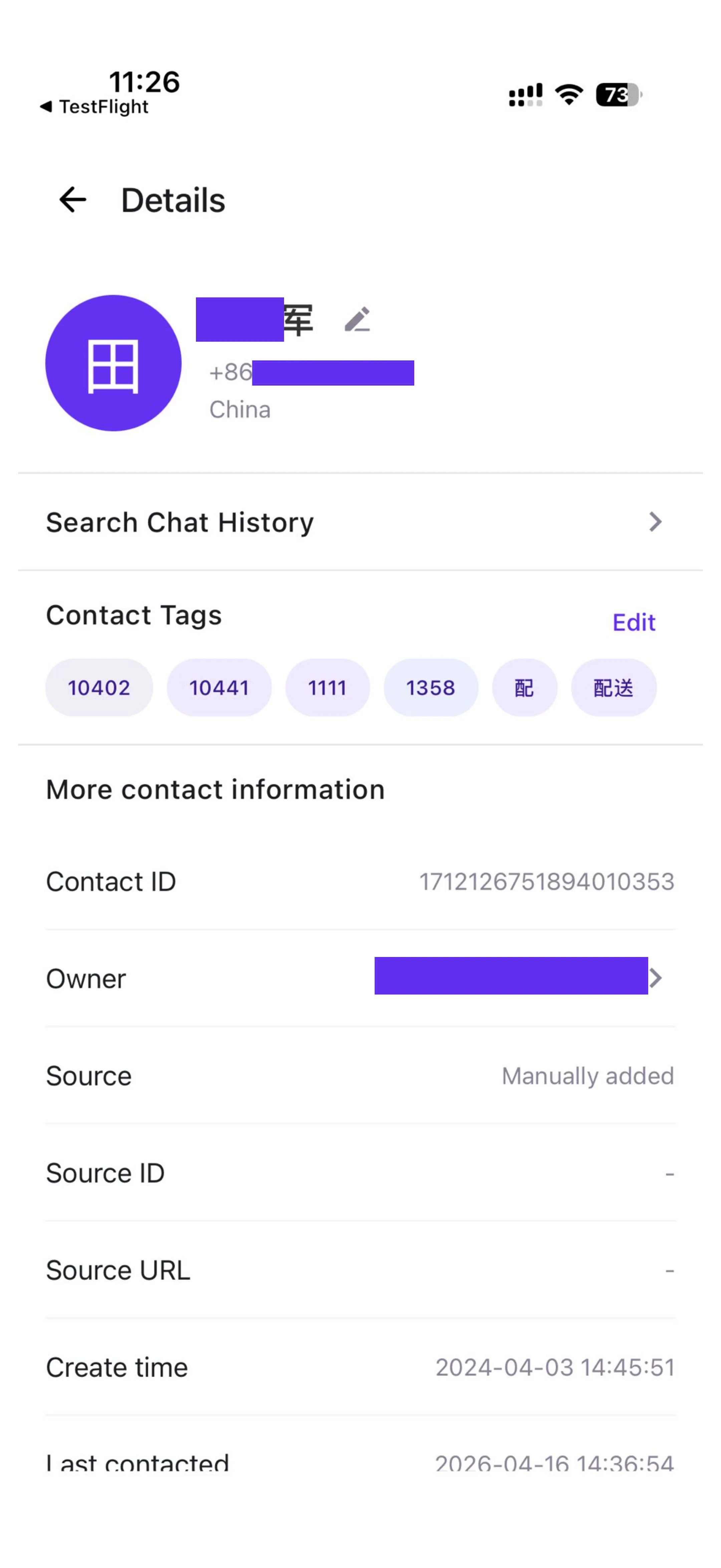
Switch between Contacts and Messages when using global search on mobile.
In-conversation Search
- Enter the Conversation Details Page (Details)
- Click the 「Search chat history」 button to enter the search page
- Enter keywords to search the content of the current session
- Click “Cancel” to return to the details page