

Geographic availability
Before using Max Price, check the locations of your business and recipients. Meta applies different restrictions to optimization features and to messaging itself.
Setting a higher Max Price or a country multiplier does not override geographic restrictions. Meta’s geographic availability guidance explicitly excludes Max Price for recipients in Russia and Belarus; for the EEA and the other markets in the first row, it specifies the restriction in terms of delivery optimizations.
See Meta’s geographic availability of features for the applicable availability and reporting restrictions.
How Max Price works
Distinguish the published rate (also called the list rate or rate card price) from your Max Price:- Under standard fixed pricing, delivered marketing messages are charged at the applicable published rate for the destination market.
- With Max Price enabled, you choose a ceiling at, below, or above that rate. Delivered messages are charged at their individual delivery prices, up to the effective ceiling.
- Setting Max Price equal to the published rate still enables dynamic pricing. It does not mean every delivery is charged at the published rate.
$1.00, a delivery priced at $0.70 costs $0.70. A delivery priced at $1.20 exceeds your ceiling and does not proceed. These amounts illustrate the mechanism, not actual market rates.
Compare fixed pricing and Max Price
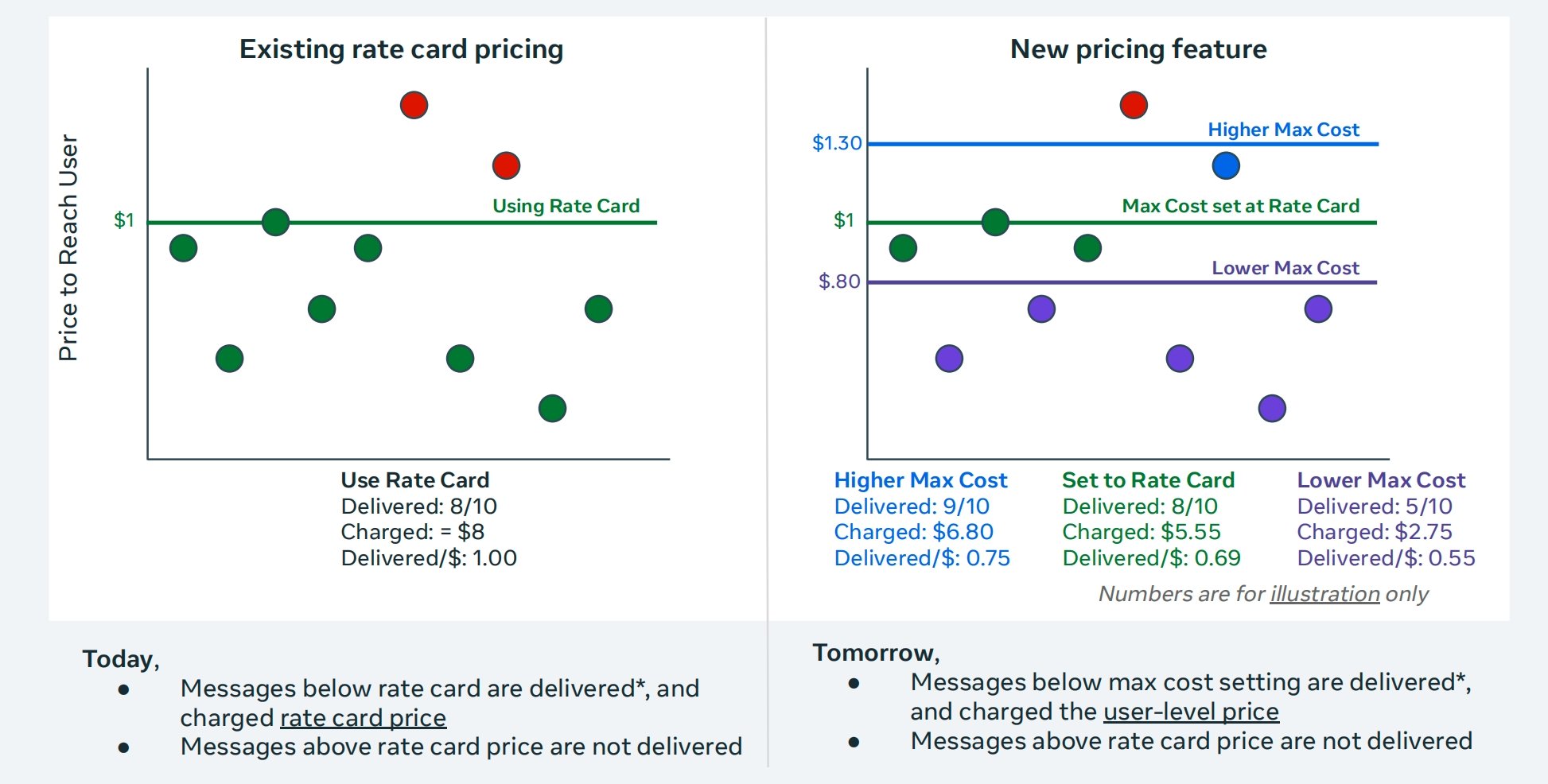
Illustrative comparison of fixed rate card pricing and three Max Price settings. Amounts and delivery counts are examples, not current rates or predicted results.
At the published rate, Max Price reaches the same eight recipients in this example but charges their individual delivery prices. Raising the ceiling to
$1.30 makes one additional recipient reachable. Lowering it to $0.80 reduces cost but also reduces delivery to the same audience.
Read the illustration’s final bullet on the right as “messages above the configured Max Price are not delivered.” The published rate is not the cutoff when you choose a different ceiling. The illustration reverses the unit label: these figures represent average cost per delivered message. Dividing USD 6.80 by 9 rounds to USD 0.76, rather than the USD 0.75 shown. Actual delivery also depends on message quality, recipient message load, and eligibility.
Why delivery prices vary
Meta determines the price for your business, your message, and the specific recipient at send time. Its business overview identifies three main factors:- Customer receptivity: Engagement with your business, including read rates, blocks, and negative feedback, helps indicate whether the recipient welcomes your messages.
- Current message load: Reaching someone who is already receiving many marketing messages can cost more.
- Template quality: Relevant, timely messages that opted-in recipients expect can improve delivery opportunities and may cost less.
How the effective Max Price is calculated
You first set a default Max Price on a marketing template. You can then add country-specific multipliers for destinations that need a different ceiling. When you send an individual message through the API, you can optionally apply one more multiplier for that message:Effective Max Price = template Max Price × country multiplier × per-message multiplier
- Countries without a country adjustment use a multiplier of
1. - API sends without a per-message multiplier use a multiplier of
1. - Bulk Campaigns use the price settings saved on the template. They do not support a per-message multiplier.
Set a Max Price on a template
Choose either the API or the YCloud dashboard when you create the marketing template.Option 1: Use the API
When you create a marketing template, includebidSpec in the request:
- Set
maxBidto the default Max Price. The currency uses your YCloud billing currency. - Optionally add
countryPriceAdjustmentsfor up to 50 countries. - For each country adjustment, provide an ISO 3166-1 alpha-2 country code and a multiplier greater than
0and no more than10. - Submit the template and wait for template review to finish before sending it.
Option 2: Use the YCloud dashboard
- In YCloud, open Templates and create a new Marketing template.
- Complete the template content and sample values.
- Under Advanced settings, turn on Bid specification.
- Enter the Default maximum price.
- Optional: Select Add country, choose a country, and enter its Price multiplier. Review the calculated Effective maximum price and Estimated delivery rate.
- Select Submit and wait for template review to finish.
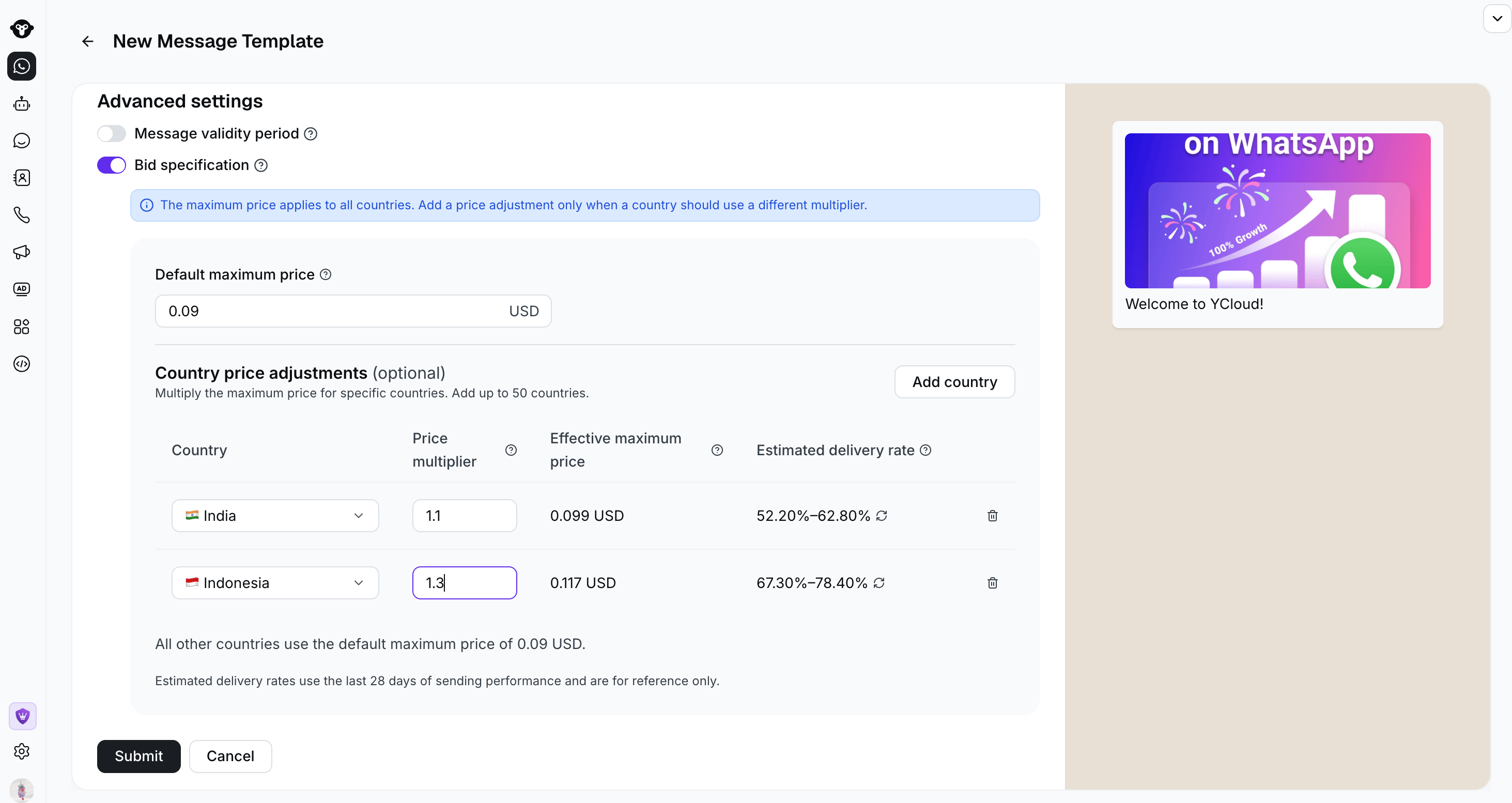
Set the default Max Price and optional country multipliers under Bid specification. The estimated delivery rates are for reference only.
0.09 USD and India has a multiplier of 1.1, the effective Max Price for India is 0.099 USD.
Send messages with a Max Price template
Option 1: Send through the API
Send the approved template with the WhatsApp message API. To use the template’s price settings without another adjustment, omit the message-levelbidSpec. To adjust the effective Max Price for one recipient, set bidSpec.per_message_bid_multiplier to a value greater than 0.
See the Max Price Integration Guide for the send request, effective price rules, reach estimates, and final-charge webhook fields.
Option 2: Send a Bulk Campaign
- In YCloud, go to Outbound > Bulk Campaigns > Add Campaign > WhatsApp.
- Select the sender, a Max Price-enabled template, and its language.
- Review Template bidding prices. The panel shows the final maximum price and estimated delivery rate for each configured country. All other countries use the template’s default Max Price.
- Select Next, choose the recipients, review the campaign, and submit it.
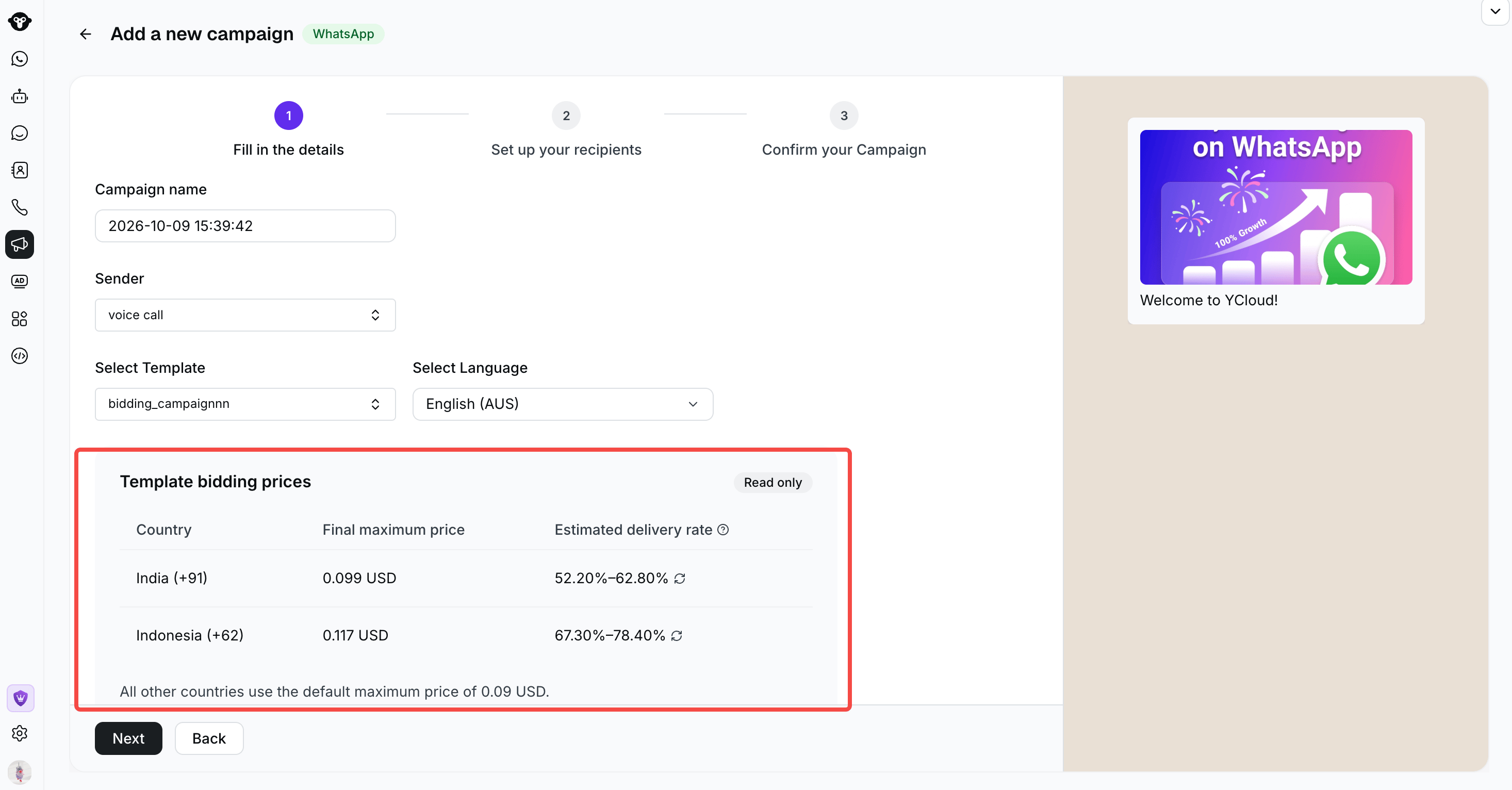
After you select a Max Price-enabled template, the campaign shows its country-level bidding prices and estimated delivery rates as read-only values.
Best practices
Match the ceiling to your campaign objective
Use the destination market’s published rate as a reference, then choose a ceiling based on the value of reaching that audience.
For re-engagement, “expanded reach” means contacting an audience you previously chose not to message because of cost. Lowering Max Price does not improve delivery to an unchanged recipient list.
Keep content quality and audience consent central
Segment by customer interests and engagement, send relevant offers at appropriate times, and respect opt-outs. Monitor read rates, engagement, blocks, and negative feedback alongside price. Improve content and targeting before assuming a higher ceiling will solve weak delivery. For multiple markets, use country multipliers to reflect local rates and expected returns. For different recipient values within a market, use the API’s per-message multiplier. In Bulk Campaigns, choose templates with suitable saved price settings for each audience segment.Estimate, test, and scale gradually
- Establish a baseline. Record delivery rate, average delivery cost, conversions, and profit under your current pricing.
- Compare price levels before sending. Use reach estimates to explore delivery and cost at different ceilings. Estimates are directional signals, not delivery guarantees, quarterly budget plans, or reliable forecasts for peak-season conditions.
- Run a controlled test. Compare similar audience groups, content, and sending windows. Start at the published rate, then test higher or lower ceilings where the expected business value supports them.
- Measure actual outcomes. Calculate average delivery cost as total delivery charges divided by delivered messages. For API sends, use the final-charge webhook fields described in the Max Price Integration Guide. Track conversions and profit as well as delivery rate.
- Adjust and expand gradually. Increase volume only when actual results meet your targets. Review total spend separately: more deliveries can increase campaign cost even when the average cost per delivery falls.