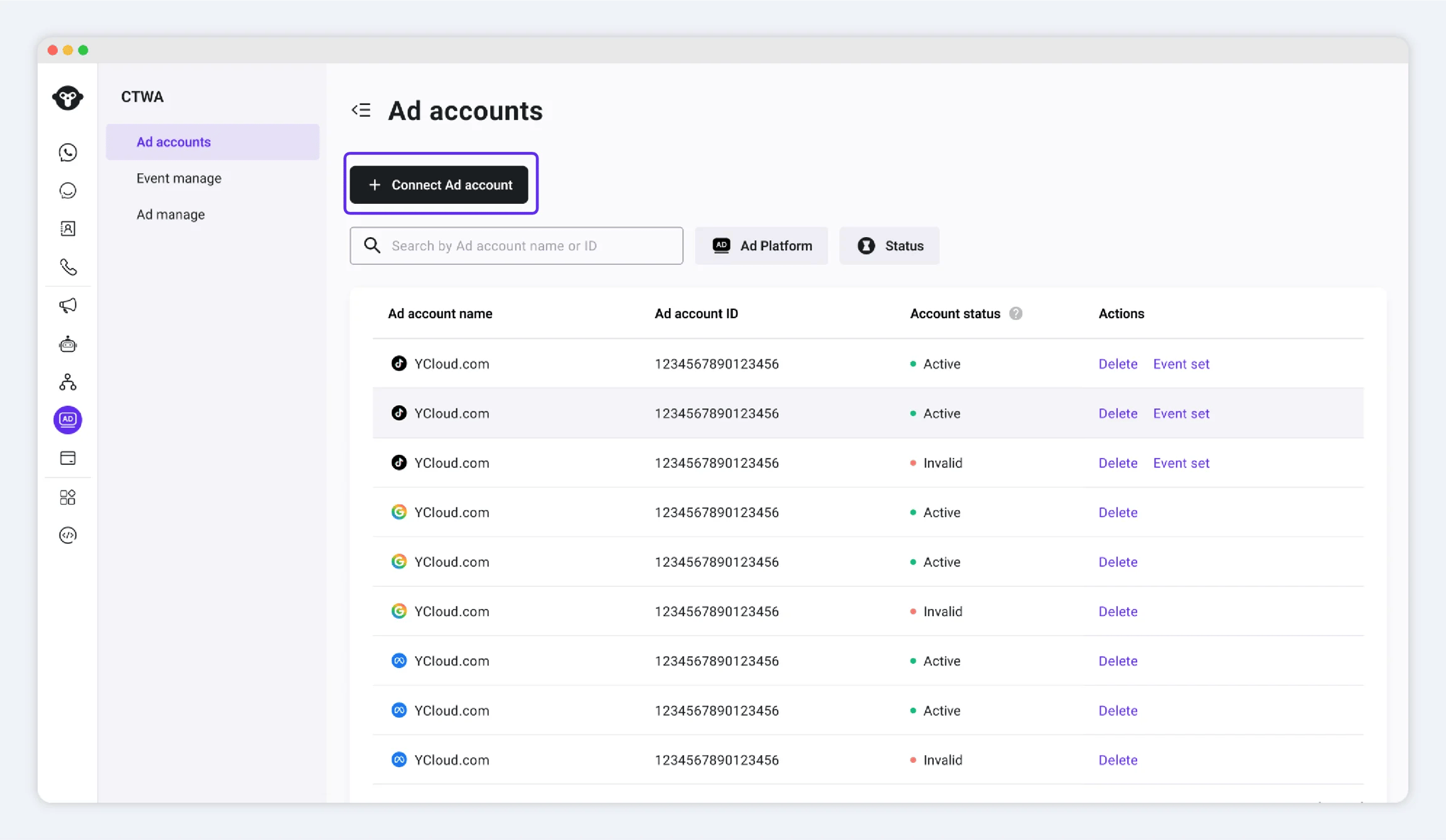
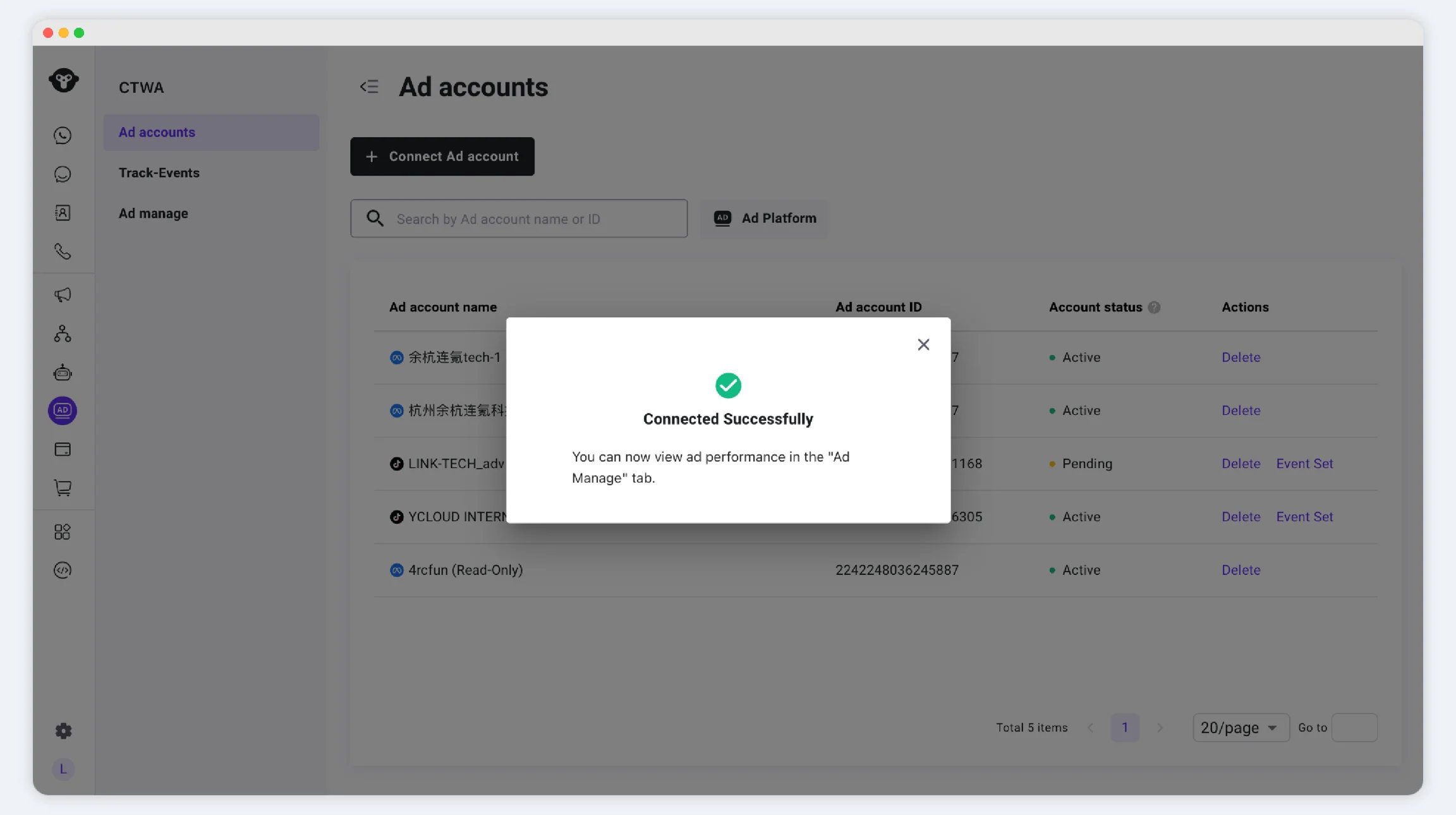
Connect the Meta ad account you plan to use for Click to WhatsApp (CTWA) ads to YCloud. Connecting your account is required before you can view ad data in YCloud or, when needed, report conversion results from ad traffic to Meta.
The Facebook account used for authorization. It must have all currently available permissions under Partial access for the ad account you want to connect.
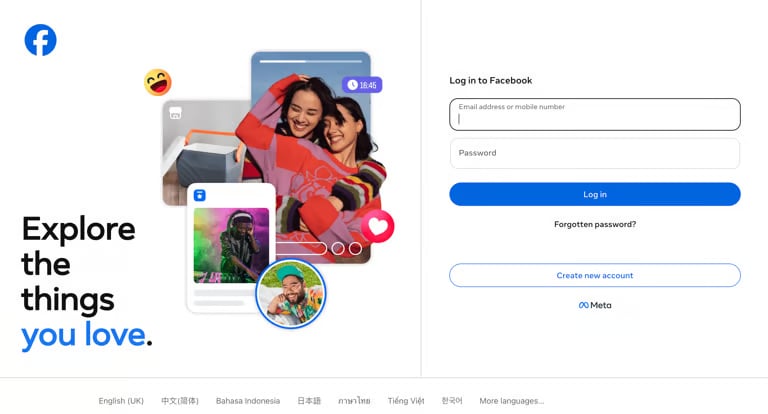
Sign in with the Facebook account used for authorization.
Sign in to Meta with the Facebook account used for authorization.
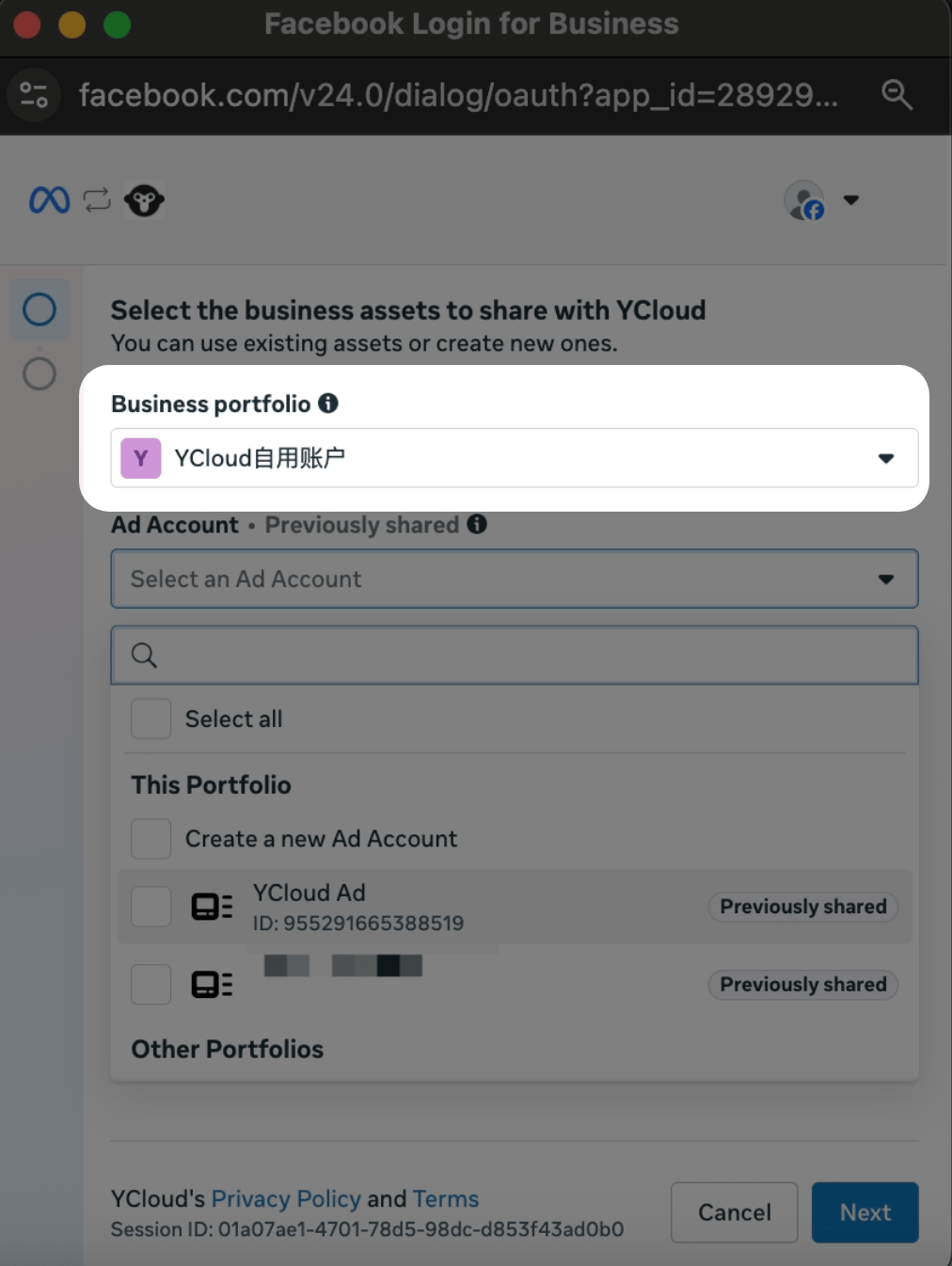
Select the business portfolio you want to use.
Select the business portfolio for this connection.
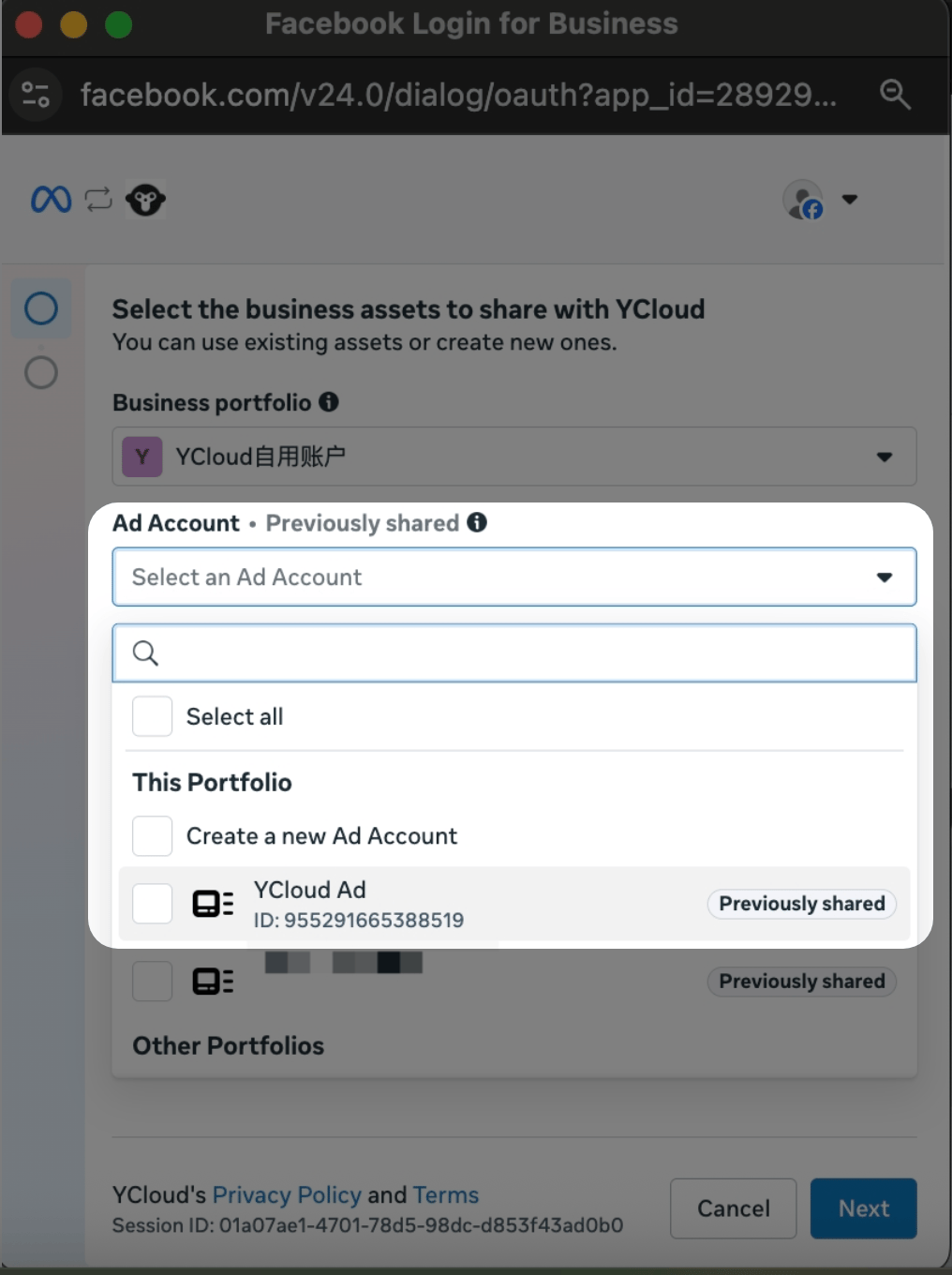
Select the ad accounts you want to connect to YCloud. You can select more than one account.
Select the Meta ad accounts to connect to YCloud.
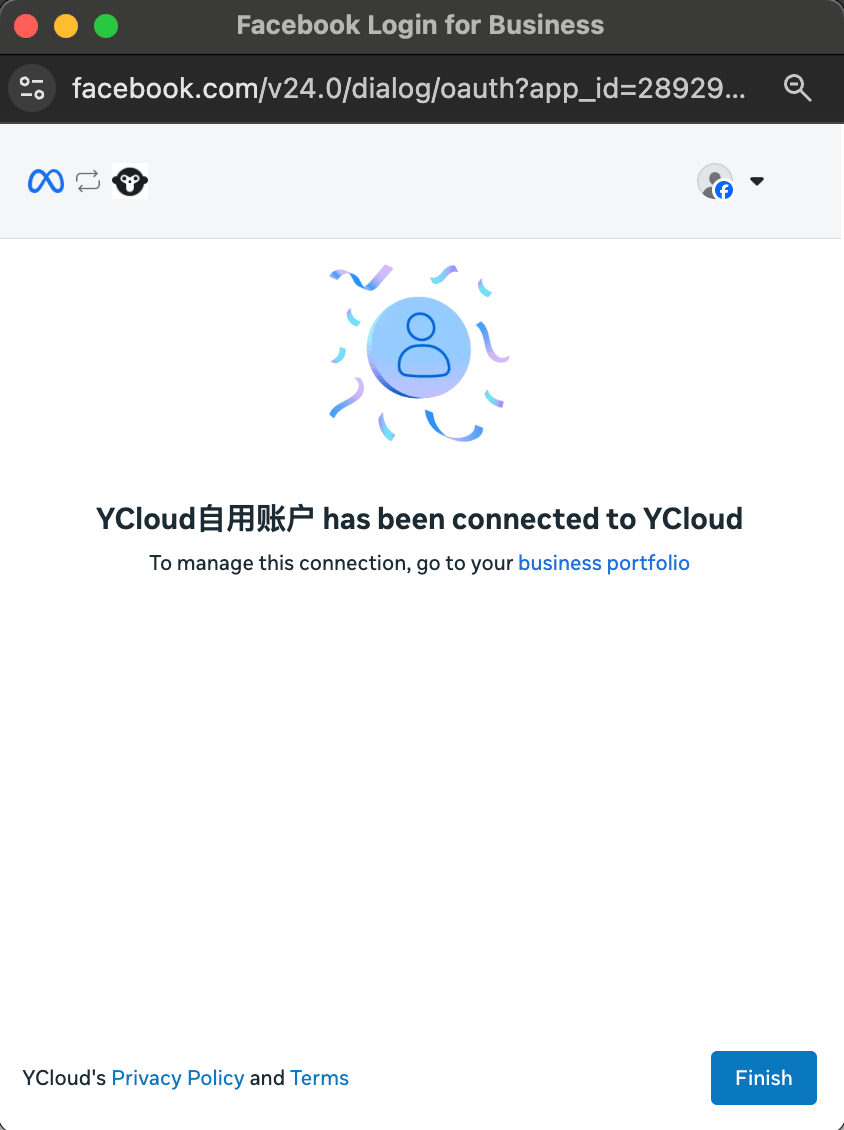
Ad accounts that have already been authorized to YCloud are selected by default. Clearing an account’s selection revokes YCloud’s authorization for that accountClick Continue to finish authorization, then click Finish to return to YCloud.
Finish authorization in Meta and return to YCloud.
The Meta authorization page displays only assets that the Facebook account you are currently signed in to can access. Check the following two situations.
1. Your Facebook account does not have access to the ad account
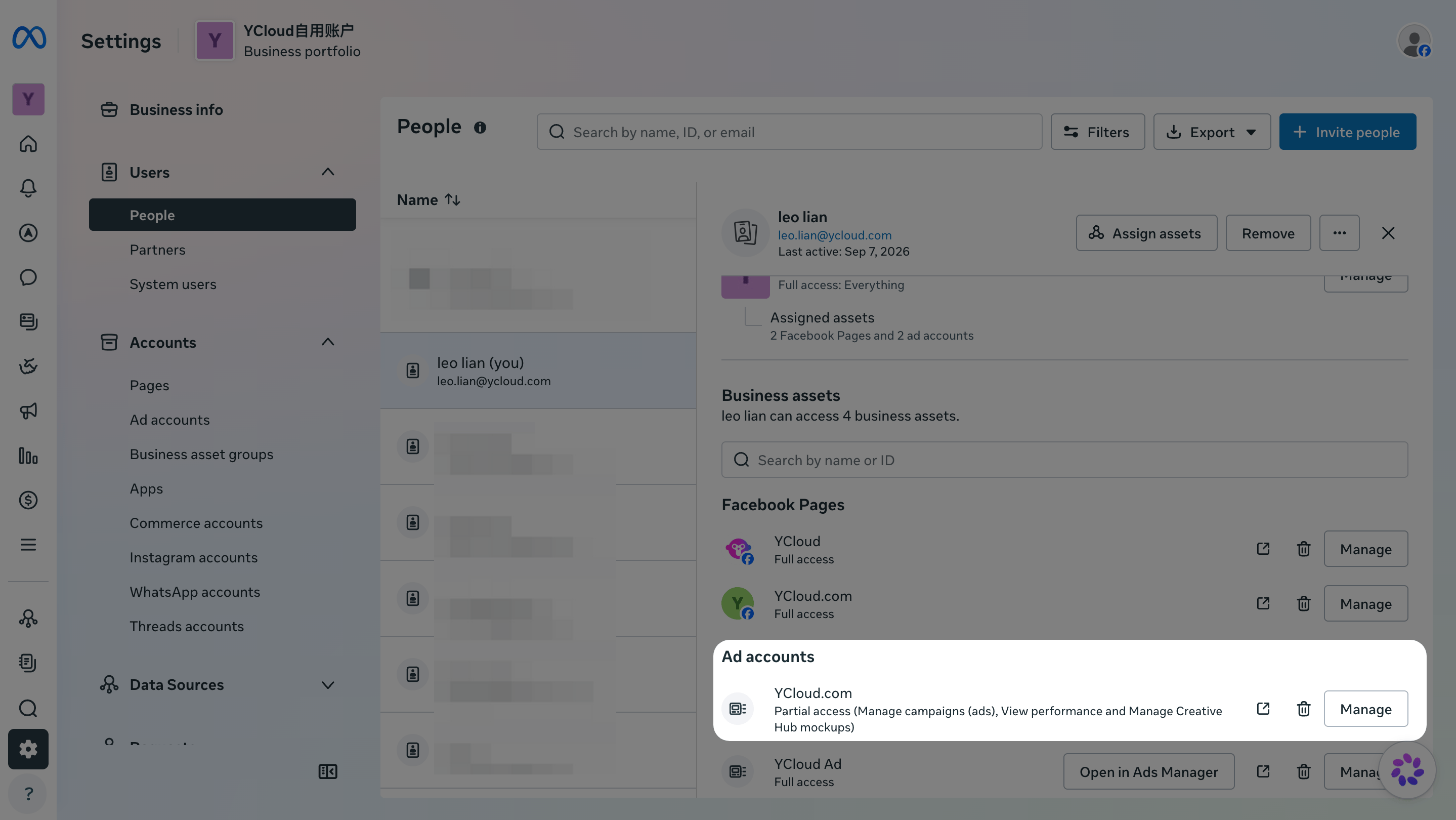
In Meta Business Settings, go to Users > People. Select the Facebook account you use to authorize YCloud, then check whether the target ad account has been assigned to it.
Check whether the Facebook account has access to the ad account.
This confirms that the Facebook account has been assigned to the ad account.
If the ad account is assigned and all currently available permissions under Partial access are enabled, return to YCloud and try connecting again.
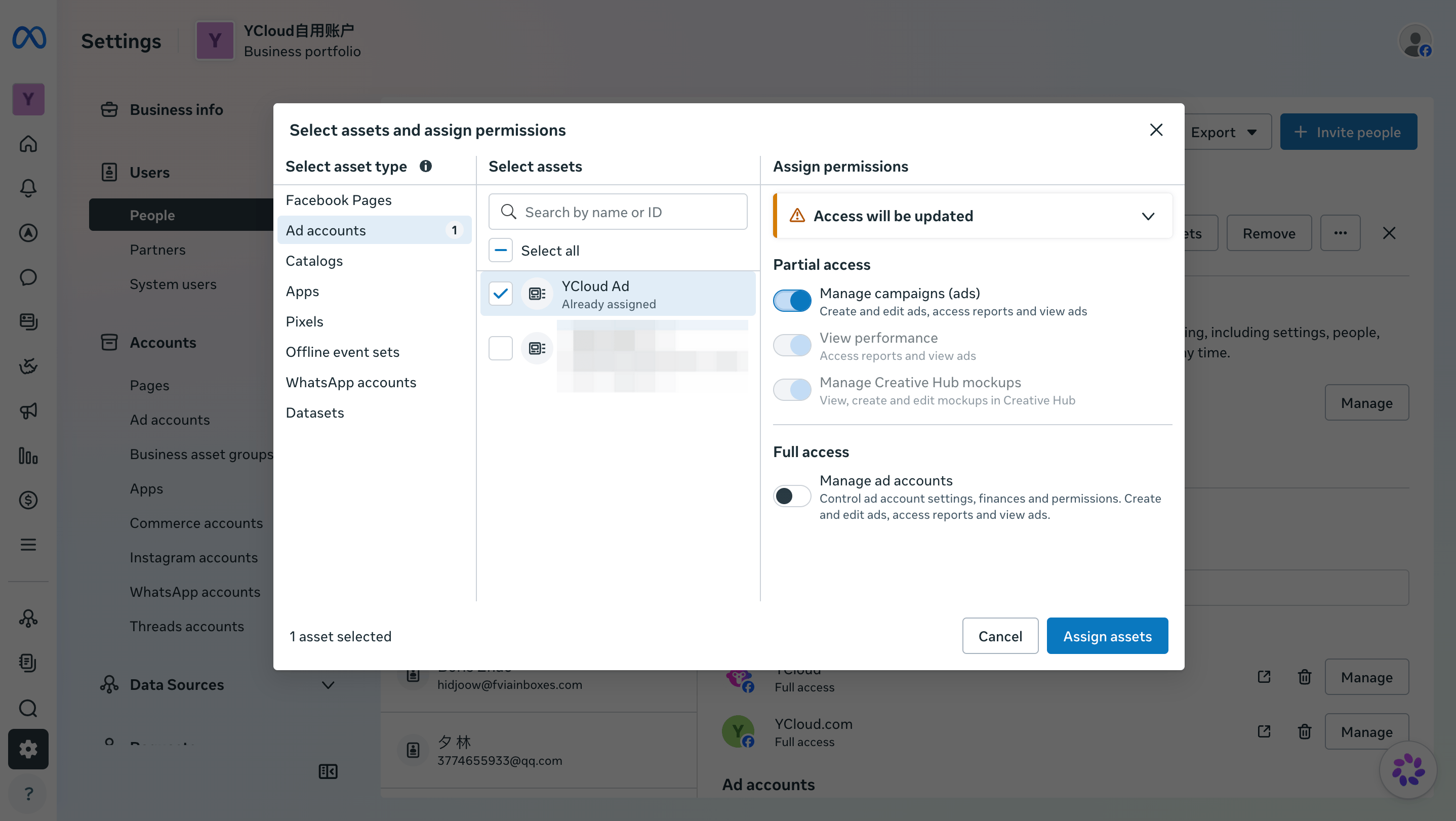
If the ad account is not assigned, or not all currently available permissions under Partial access are enabled, select Add assets > Ad accounts. Add the target ad account, enable all currently available permissions under Partial access, and save your changes.
Add an ad account to the Facebook account used for authorization.
2. The ad account owner has not shared the ad account with your business portfolio
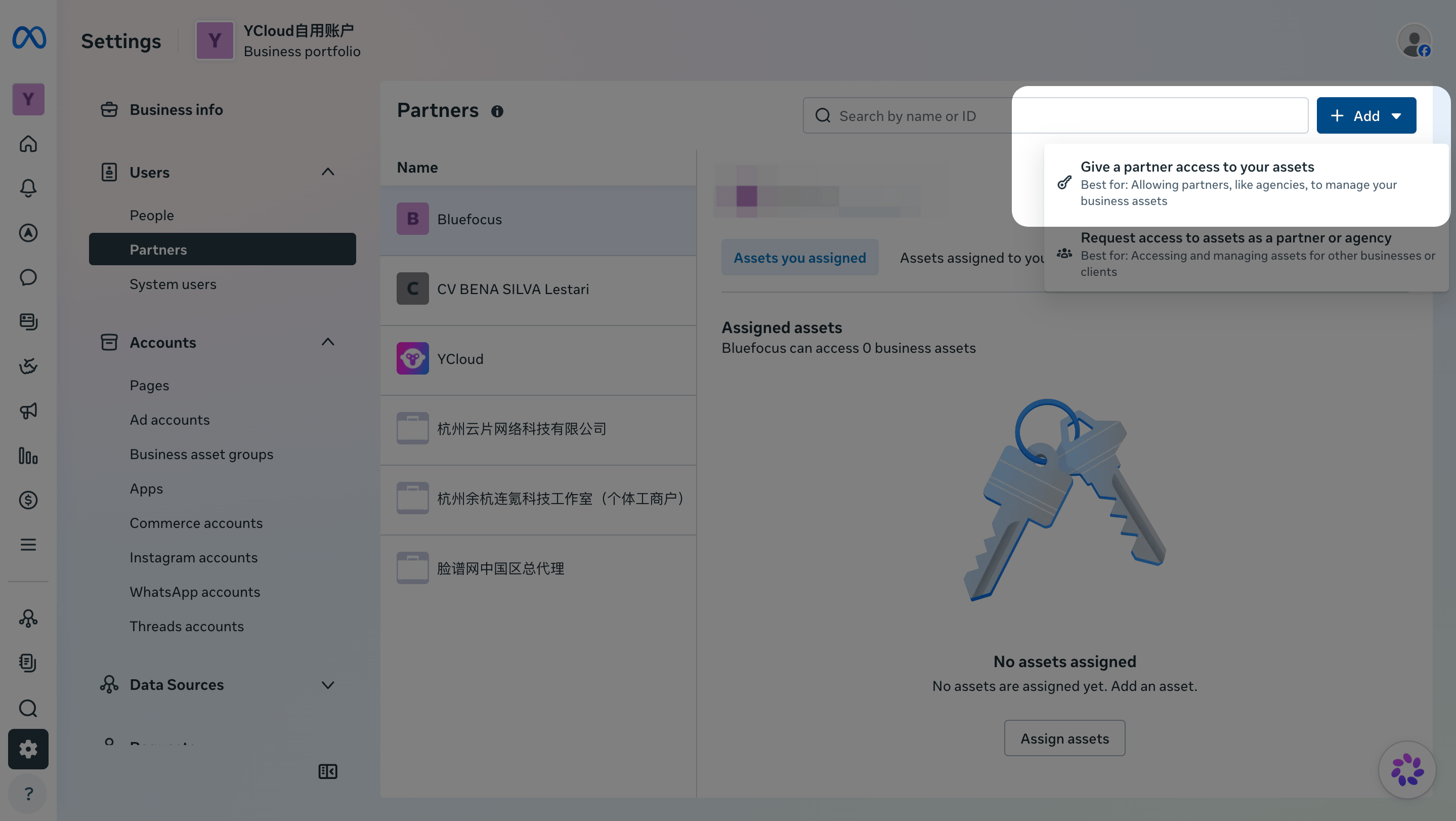
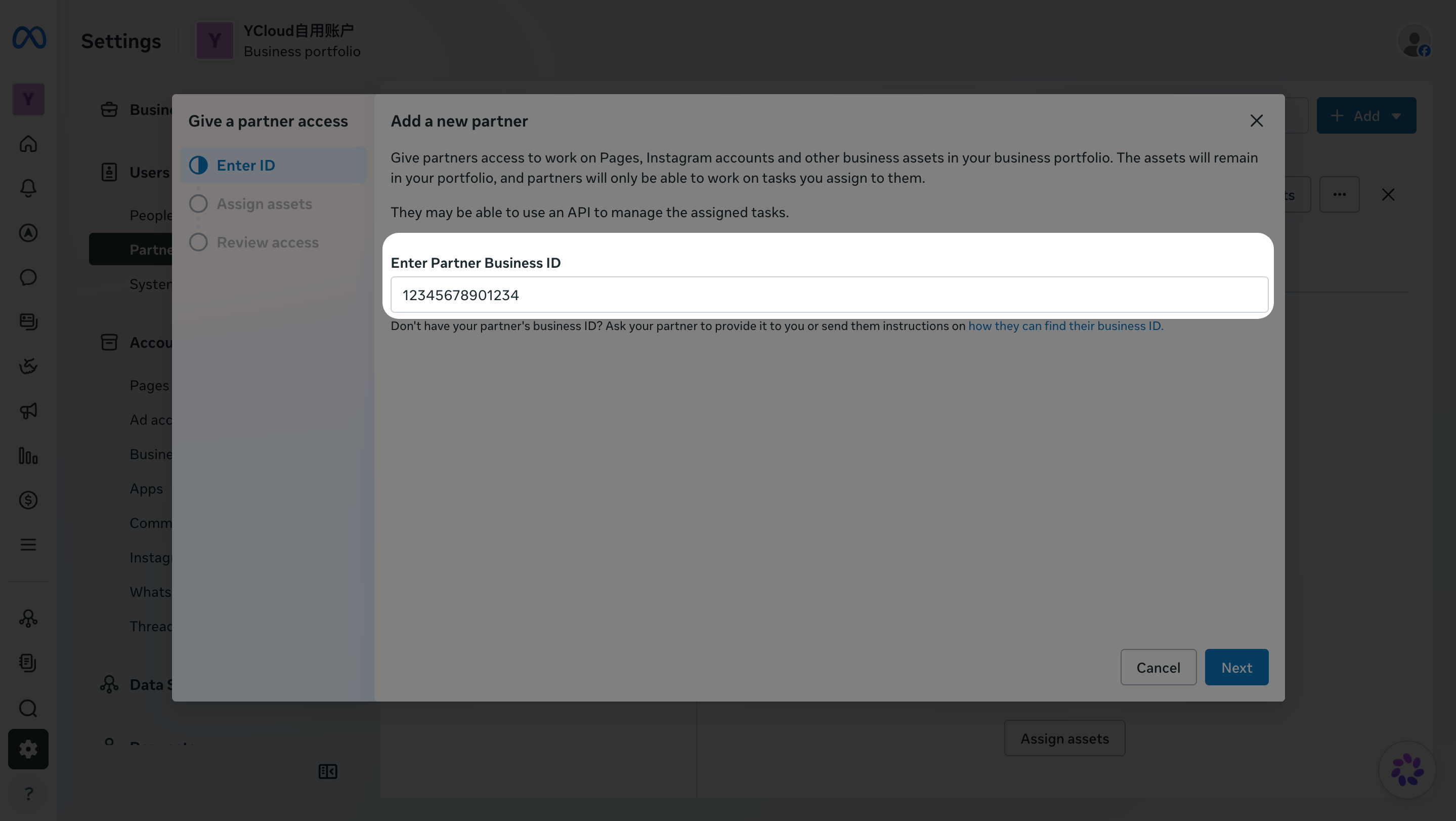
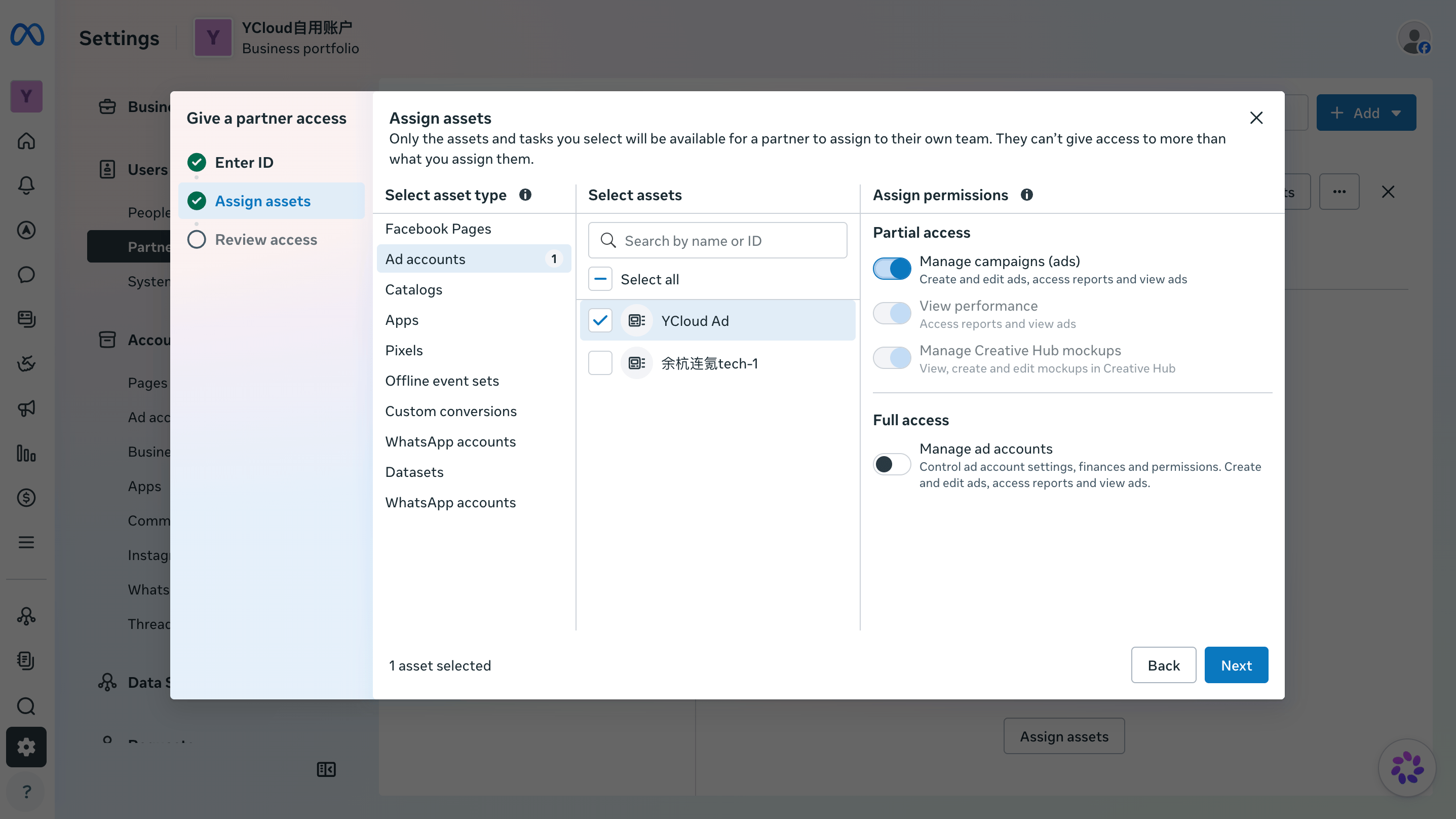
If your ad account was set up by an agency or another business portfolio, copy your Business portfolio ID from Meta Business Settings > Business info and send it to the agency.Ask the agency to go to Meta Business Settings > Users > Partners > Add > Give a partner access to your assets. The agency should share the ad account with your business portfolio, select Ad accounts and the target account, and enable all currently available permissions under Partial access.
Start sharing an ad account with a partner.
Enter the customer's Business portfolio ID.
Select the ad account and permissions to share.
After the account is shared, follow the steps in situation 1 to confirm that the Facebook account you use to authorize YCloud has access to the ad account. Then try connecting again.
How do I remove YCloud's access to a Meta ad account?
Remove access in Meta:
Click on Settings at the bottom of the left-hand sidebar.
Under the Users section, click on Partners.
Select YCloud from your list of partners.
Go to the Assets you assigned tab on the right side.
Locate the specific ad account you wish to disconnect.
Click the Remove (trash can icon) next to that specific account only.
Confirm the removal in the pop-up window.
Do NOT click the Remove button at the very top of the partner page, as that will delete the entire partnership and disconnect all three accounts.
{"docsConfig":{"theme":"mint","$schema":"https://mintlify.com/docs.json","name":"YCloud Docs","description":"YCloud product documentation, API reference, and webhook payload documentation.","colors":{"primary":"#602DED","light":"#FD4C7D","dark":"#1a1e22"},"logo":{"light":"https://mintcdn.com/lchnan/AXn0jsI-c5aPnOMW/logo/light.png?fit=max\u0026auto=format\u0026n=AXn0jsI-c5aPnOMW\u0026q=85\u0026s=0865e4207d765d07a769c29bc819adbe","dark":"https://mintcdn.com/lchnan/AXn0jsI-c5aPnOMW/logo/dark.png?fit=max\u0026auto=format\u0026n=AXn0jsI-c5aPnOMW\u0026q=85\u0026s=1bafffbe886c0ac13b0409dc90d446f8","href":"https://www.ycloud.com"},"favicon":"https://mintcdn.com/lchnan/AXn0jsI-c5aPnOMW/favicon.png?fit=max\u0026auto=format\u0026n=AXn0jsI-c5aPnOMW\u0026q=85\u0026s=1eed9e0b562f4b06368d2b8185b801b4","api":{"openapi":["openapi/endpoints/ycloud-api-v2.yaml","openapi/webhooks/testing-webhooks.yaml"],"params":{"expanded":"closed"},"playground":{"display":"interactive"},"examples":{"defaults":"required","prefill":true,"autogenerate":false},"url":"full"},"background":{"color":{"light":"#ffffff"}},"navbar":{"links":[{"href":"https://www.ycloud.com/customer-support","label":"Support"},{"href":"https://www.ycloud.com/pricing","label":"Pricing"}],"primary":{"type":"button","label":"Dashboard","href":"https://www.ycloud.com/console"}},"seo":{"indexing":"all"},"fonts":{"heading":{"family":"Inter","weight":650},"body":{"family":"Inter","weight":450}},"icons":{"library":"fontawesome"},"styling":{"codeblocks":{"theme":{"light":"github-light","dark":"github-dark"}},"latex":true},"errors":{"404":{"redirect":true}},"contextual":{"options":["copy","view","chatgpt","claude","perplexity","mcp","cursor","vscode"],"display":"header"},"markdown":{"schema":true},"navigation":{"languages":[{"language":"en","default":true,"href":"en/documentation/overview"},{"language":"zh","href":"zh/documentation/overview"},{"language":"es","href":"es/documentation/overview"},{"language":"pt","href":"pt/documentation/overview"},{"language":"ru","href":"ru/documentation/overview"}]}},"deployment":{"deploymentMetadataValue":{"subdomain":"lchnan","hasAudioNarration":false,"actualSubdomain":"lchnan","customDomains":["docs.ycloud.com"],"gitSource":{"type":"github","owner":"ycloud-developers","repo":"ycloud_docs","deployBranch":"main","contentDirectory":"","isPrivate":true,"mountPath":"","label":""},"chroma":{"collectionId":"38a7c79a-935e-44ce-8ac4-771d9347bc89","liveDeploymentHistoryId":"6ae201baf9cefd8f8d7a475b","schemaVersion":"v3","latestBuiltDeploymentHistoryId":"6ae201baf9cefd8f8d7a475b"},"feedback":{"thumbs":true,"agentFeedback":true},"entitlements":{"AI_CHAT":{"status":"DISABLED"}},"buildId":"6ae201baf9cefd8f8d7a475b","clientVersion":"0.0.4006","searchFilterCounts":[{"language":"en","tag":"Documentation","count":242},{"language":"es","tag":"Documentación","count":241},{"language":"pt","tag":"Documentação","count":241},{"language":"ru","tag":"Документация","count":241},{"language":"zh","tag":"产品文档","count":241},{"language":"default","tag":"API Reference","count":165},{"language":"default","tag":"Endpoints","count":165},{"language":"en","tag":"API Reference","count":68},{"language":"es","tag":"Referencia de la API","count":68},{"language":"pt","tag":"Referência da API","count":68},{"language":"ru","tag":"Справочник API","count":68},{"language":"zh","tag":"API 参考","count":68},{"language":"en","tag":"Guides","count":63},{"language":"es","tag":"Guías","count":63},{"language":"pt","tag":"Guias","count":63},{"language":"ru","tag":"Руководства","count":63},{"language":"zh","tag":"指南","count":63},{"language":"default","tag":"Meta Business Agent","count":63},{"language":"en","tag":"Channels","count":60},{"language":"es","tag":"Gestión de cuentas de WhatsApp","count":54},{"language":"pt","tag":"Gerenciamento de contas do WhatsApp","count":54},{"language":"ru","tag":"Управление аккаунтами WhatsApp","count":54},{"language":"zh","tag":"WhatsApp 账号管理","count":54},{"language":"en","tag":"Integrations","count":44},{"language":"es","tag":"Integraciones","count":44},{"language":"pt","tag":"Integrações","count":44},{"language":"ru","tag":"Интеграции","count":44},{"language":"zh","tag":"集成","count":44},{"language":"default","tag":"Configure","count":43},{"language":"en","tag":"WhatsApp Business Platform","count":40},{"language":"es","tag":"WhatsApp Business Platform","count":40},{"language":"pt","tag":"WhatsApp Business Platform","count":40},{"language":"ru","tag":"Платформа WhatsApp Business","count":40},{"language":"zh","tag":"WhatsApp 商业平台","count":40},{"language":"es","tag":"Canales","count":32},{"language":"pt","tag":"Canais","count":32},{"language":"ru","tag":"Каналы","count":32},{"language":"zh","tag":"渠道","count":32},{"language":"en","tag":"Examples","count":28},{"language":"en","tag":"WhatsApp Accounts Management","count":28},{"language":"es","tag":"Ejemplos","count":28},{"language":"pt","tag":"Exemplos","count":28},{"language":"ru","tag":"Примеры","count":28},{"language":"zh","tag":"示例","count":28},{"language":"en","tag":"Webhook examples","count":25},{"language":"en","tag":"Agents","count":25},{"language":"es","tag":"Ejemplos de Webhook","count":25},{"language":"es","tag":"Agentes","count":25},{"language":"pt","tag":"Exemplos de Webhook","count":25},{"language":"pt","tag":"Agentes","count":25},{"language":"ru","tag":"Примеры Webhook","count":25},{"language":"ru","tag":"Агенты","count":25},{"language":"zh","tag":"Webhook 示例","count":25},{"language":"zh","tag":"智能体","count":25},{"language":"default","tag":"WhatsApp Phone Numbers","count":15},{"language":"default","tag":"WhatsApp Groups","count":12},{"language":"default","tag":"Contacts","count":10},{"language":"default","tag":"Operate","count":10},{"language":"default","tag":"Connectors","count":10},{"language":"default","tag":"Onboard","count":9}],"searchSettings":{"isFiltersEnabled":true}},"assistantConfig":{"enableAskAiButton":false,"enableStarterQuestions":false,"enableContextualStarterQuestions":false,"enableAskAiSearchBar":true},"basePath":"","hasChatPermissions":false,"hasWebMcpPermissions":false,"toggles":[{"name":"kill-isr","enabled":true,"variant":{"name":"disabled","enabled":false,"feature_enabled":true},"impressionData":false},{"name":"agent-mintlify-slack","enabled":true,"variant":{"name":"disabled","enabled":false,"feature_enabled":true},"impressionData":false},{"name":"editor-v7-file-tree","enabled":true,"variant":{"name":"disabled","enabled":false,"feature_enabled":true},"impressionData":false},{"name":"agent-integrations-settings","enabled":true,"variant":{"name":"disabled","enabled":false,"feature_enabled":true},"impressionData":false},{"name":"automations-pr-grouping","enabled":true,"variant":{"name":"disabled","enabled":false,"feature_enabled":true},"impressionData":false},{"name":"custom-prefix","enabled":true,"variant":{"name":"disabled","enabled":false,"feature_enabled":true},"impressionData":false},{"name":"analytics-v7","enabled":true,"variant":{"name":"disabled","enabled":false,"feature_enabled":true},"impressionData":false},{"name":"user-flows-analytics","enabled":true,"variant":{"name":"disabled","enabled":false,"feature_enabled":true},"impressionData":false},{"name":"no-publish-flow","enabled":true,"variant":{"name":"disabled","enabled":false,"feature_enabled":true},"impressionData":false},{"name":"workos-onboarding","enabled":true,"variant":{"name":"disabled","enabled":false,"feature_enabled":true},"impressionData":false},{"name":"llms-txt-v2","enabled":true,"variant":{"name":"disabled","enabled":false,"feature_enabled":true},"impressionData":false},{"name":"pause-universal-search-reconcile","enabled":true,"variant":{"name":"disabled","enabled":false,"feature_enabled":true},"impressionData":false},{"name":"snapshot-serving-live","enabled":true,"variant":{"name":"disabled","enabled":false,"feature_enabled":true},"impressionData":false},{"name":"stripTemperatureMiddleware","enabled":true,"variant":{"name":"disabled","enabled":false,"feature_enabled":true},"impressionData":false},{"name":"per-site-search-delta","enabled":true,"variant":{"name":"disabled","enabled":false,"feature_enabled":true},"impressionData":false},{"name":"support-platform-pylon-zendesk","enabled":true,"variant":{"name":"disabled","enabled":false,"feature_enabled":true},"impressionData":false},{"name":"snapshot-serving","enabled":true,"variant":{"name":"disabled","enabled":false,"feature_enabled":true},"impressionData":false},{"name":"instant-rollback","enabled":true,"variant":{"name":"disabled","enabled":false,"feature_enabled":true},"impressionData":false},{"name":"granular-notifications-server","enabled":true,"variant":{"name":"disabled","enabled":false,"feature_enabled":true},"impressionData":false},{"name":"granular-notifications","enabled":true,"variant":{"name":"disabled","enabled":false,"feature_enabled":true},"impressionData":false},{"name":"editor-private-page-search","enabled":true,"variant":{"name":"disabled","enabled":false,"feature_enabled":true},"impressionData":false},{"name":"automations-fable","enabled":true,"variant":{"name":"disabled","enabled":false,"feature_enabled":true},"impressionData":false},{"name":"fixed-ai-action-pricing","enabled":true,"variant":{"name":"disabled","enabled":false,"feature_enabled":true},"impressionData":false},{"name":"automation-resolve-merge-conflict","enabled":true,"variant":{"name":"disabled","enabled":false,"feature_enabled":true},"impressionData":false},{"name":"scoped-publishing","enabled":true,"variant":{"name":"disabled","enabled":false,"feature_enabled":true},"impressionData":false},{"name":"mintql","enabled":true,"variant":{"name":"disabled","enabled":false,"feature_enabled":true},"impressionData":false},{"name":"page-level-analytics","enabled":true,"variant":{"name":"disabled","enabled":false,"feature_enabled":true},"impressionData":false},{"name":"editor-version-history-v2","enabled":true,"variant":{"name":"disabled","enabled":false,"feature_enabled":true},"impressionData":false},{"name":"editor-nav-generations","enabled":true,"variant":{"name":"disabled","enabled":false,"feature_enabled":true},"impressionData":false},{"name":"billing-page-v2","enabled":true,"variant":{"name":"disabled","enabled":false,"feature_enabled":true},"impressionData":false},{"name":"workspace-projects","enabled":true,"variant":{"name":"disabled","enabled":false,"feature_enabled":true},"impressionData":false},{"name":"assistant-v5","enabled":true,"variant":{"name":"disabled","enabled":false,"feature_enabled":true},"impressionData":false},{"name":"byok-sep-25","enabled":true,"variant":{"name":"disabled","enabled":false,"feature_enabled":true},"impressionData":false},{"name":"fork-pr-previews","enabled":true,"variant":{"name":"disabled","enabled":false,"feature_enabled":true},"impressionData":false},{"name":"revalidation-jwt","enabled":true,"variant":{"name":"disabled","enabled":false,"feature_enabled":true},"impressionData":false},{"name":"vite-origin","enabled":true,"variant":{"name":"disabled","enabled":false,"feature_enabled":true},"impressionData":false},{"name":"editor-agent-model-picker","enabled":true,"variant":{"name":"disabled","enabled":false,"feature_enabled":true},"impressionData":false},{"name":"billing-updated-9-15","enabled":true,"variant":{"name":"disabled","enabled":false,"feature_enabled":true},"impressionData":false},{"name":"workos-sso-scim","enabled":true,"variant":{"name":"disabled","enabled":false,"feature_enabled":true},"impressionData":false},{"name":"hobby-abuse-scan","enabled":true,"variant":{"name":"disabled","enabled":false,"feature_enabled":true},"impressionData":false},{"name":"dashboard-inbox","enabled":true,"variant":{"name":"disabled","enabled":false,"feature_enabled":true},"impressionData":false},{"name":"workos-signup","enabled":true,"variant":{"name":"disabled","enabled":false,"feature_enabled":true},"impressionData":false},{"name":"workos-enabled","enabled":true,"variant":{"name":"disabled","enabled":false,"feature_enabled":true},"impressionData":false}],"privacy":{"consentBanner":{"enabled":true}},"googleFontsInlined":false},"customCss":[],"page":{"pagePath":"en/documentation/ctwa-click-to-whatsapp-ad/meta-ctwa-ads/connect-a-meta-ad-account","slug":"/en/documentation/ctwa-click-to-whatsapp-ad/meta-ctwa-ads/connect-a-meta-ad-account","pageMetadata":{"title":"Connect a Meta Ad Account","description":"Connect your Meta ad account to YCloud for Click to WhatsApp ads.","sidebarTitle":"Connect a Meta Ad Account","icon":"meta","href":"/en/documentation/ctwa-click-to-whatsapp-ad/meta-ctwa-ads/connect-a-meta-ad-account"},"description":{"compiledSource":"\"use strict\";\nconst {jsx: _jsx} = arguments[0];\nconst {useMDXComponents: _provideComponents} = arguments[0];\nfunction _createMdxContent(props) {\n const _components = {\n p: \"p\",\n ..._provideComponents(),\n ...props.components\n };\n return _jsx(_components.p, {\n children: \"Connect your Meta ad account to YCloud for Click to WhatsApp ads.\"\n });\n}\nfunction MDXContent(props = {}) {\n const {wrapper: MDXLayout} = {\n ..._provideComponents(),\n ...props.components\n };\n return MDXLayout ? _jsx(MDXLayout, {\n ...props,\n children: _jsx(_createMdxContent, {\n ...props\n })\n }) : _createMdxContent(props);\n}\nreturn {\n default: MDXContent\n};\n","frontmatter":{},"scope":{}},"pageType":"default","mdx":{"mdxSource":{"compiledSource":"\"use strict\";const{Fragment:_Fragment,jsx:_jsx,jsxs:_jsxs}=arguments[0];const{useMDXComponents:_provideComponents}=arguments[0];function _createMdxContent(props){const _components={a:`a`,blockquote:`blockquote`,code:`code`,li:`li`,ol:`ol`,p:`p`,strong:`strong`,ul:`ul`,..._provideComponents(),...props.components},{Accordion,Frame,Heading,OptimizedImage,Warning}=_components;if(!Accordion)_missingMdxReference(`Accordion`,true);if(!Frame)_missingMdxReference(`Frame`,true);if(!Heading)_missingMdxReference(`Heading`,true);if(!OptimizedImage)_missingMdxReference(`OptimizedImage`,true);if(!Warning)_missingMdxReference(`Warning`,true);return _jsxs(_Fragment,{children:[_jsx(Heading,{level:`1`,id:`connect-a-meta-ad-account`,children:`Connect a Meta Ad Account`}),`\n`,_jsx(_components.p,{children:`Connect the Meta ad account you plan to use for Click to WhatsApp (CTWA) ads to YCloud. Connecting your account is required before you can view ad data in YCloud or, when needed, report conversion results from ad traffic to Meta.`}),`\n`,_jsx(Heading,{level:`2`,id:`before-you-begin`,children:`Before you begin`}),`\n`,_jsxs(_components.ul,{children:[`\n`,_jsx(_components.li,{children:`A Meta ad account for your CTWA ads.`}),`\n`,_jsx(_components.li,{children:`The Facebook account used for authorization. It must have all currently available permissions under Partial access for the ad account you want to connect.`}),`\n`]}),`\n`,_jsx(Heading,{level:`2`,id:`start-in-ycloud`,children:`Start in YCloud`}),`\n`,_jsxs(_components.p,{children:[`For your first connection, go to `,_jsx(_components.code,{children:`CTWA`}),` and click `,_jsx(_components.strong,{children:`Connect Ad Account (Meta Ads)`}),`.`]}),`\n`,_jsx(Frame,{caption:`Start with Connect Ad account under Meta Ads.`,children:_jsx(OptimizedImage,{src:`https://mintcdn.com/lchnan/gXEJIQXV2JH2VUQJ/product-assets/english-help-2026-09-22/ctwa-connect-annotated.svg?fit=max\u0026auto=format\u0026n=gXEJIQXV2JH2VUQJ\u0026q=85\u0026s=623c664e5c1903f213c77262d411823c`,alt:`CTWA connection page highlighting Connect Ad account under Meta Ads.`,\"data-og-width\":`3024`,width:`3024`,\"data-og-height\":`1656`,height:`1656`,\"data-path\":`product-assets/english-help-2026-09-22/ctwa-connect-annotated.svg`,\"data-optimize\":`true`,\"data-opv\":`3`,srcset:`https://mintcdn.com/lchnan/gXEJIQXV2JH2VUQJ/product-assets/english-help-2026-09-22/ctwa-connect-annotated.svg?w=280\u0026fit=max\u0026auto=format\u0026n=gXEJIQXV2JH2VUQJ\u0026q=85\u0026s=1126d5661d0b22f32ffaca915efe0c3d 280w, https://mintcdn.com/lchnan/gXEJIQXV2JH2VUQJ/product-assets/english-help-2026-09-22/ctwa-connect-annotated.svg?w=560\u0026fit=max\u0026auto=format\u0026n=gXEJIQXV2JH2VUQJ\u0026q=85\u0026s=7565cb15aa7468444e04b70095477389 560w, https://mintcdn.com/lchnan/gXEJIQXV2JH2VUQJ/product-assets/english-help-2026-09-22/ctwa-connect-annotated.svg?w=840\u0026fit=max\u0026auto=format\u0026n=gXEJIQXV2JH2VUQJ\u0026q=85\u0026s=16414b99655fb3d61894354321a385a1 840w, https://mintcdn.com/lchnan/gXEJIQXV2JH2VUQJ/product-assets/english-help-2026-09-22/ctwa-connect-annotated.svg?w=1100\u0026fit=max\u0026auto=format\u0026n=gXEJIQXV2JH2VUQJ\u0026q=85\u0026s=977ea2c4d418a1ca844f369d2b2850f1 1100w, https://mintcdn.com/lchnan/gXEJIQXV2JH2VUQJ/product-assets/english-help-2026-09-22/ctwa-connect-annotated.svg?w=1650\u0026fit=max\u0026auto=format\u0026n=gXEJIQXV2JH2VUQJ\u0026q=85\u0026s=86f4ce5283c2f6545d9f0845089e172f 1650w, https://mintcdn.com/lchnan/gXEJIQXV2JH2VUQJ/product-assets/english-help-2026-09-22/ctwa-connect-annotated.svg?w=2500\u0026fit=max\u0026auto=format\u0026n=gXEJIQXV2JH2VUQJ\u0026q=85\u0026s=8e20eaf7184aedefc413ec4547bb2143 2500w`})}),`\n`,_jsxs(_components.p,{children:[`If you have already connected an ad account, go to `,_jsx(_components.code,{children:`CTWA > Ad Account`}),` and click `,_jsx(_components.strong,{children:`Connect Ad Account`}),`.`]}),`\n`,_jsx(Frame,{caption:`Connect another Meta ad account.`,children:_jsx(OptimizedImage,{src:`https://mintcdn.com/lchnan/lvclTnj-aATUy1vF/images/ctwa-ad-account=-not-0.webp?fit=max\u0026auto=format\u0026n=lvclTnj-aATUy1vF\u0026q=85\u0026s=9df4726327dc2f90f93a3e0c6af6173d`,alt:`CTWA Ad Account page with the Connect Ad Account button.`,\"data-og-width\":`2304`,width:`2304`,\"data-og-height\":`1339`,height:`1339`,\"data-path\":`images/ctwa-ad-account=-not-0.webp`,\"data-optimize\":`true`,\"data-opv\":`3`,srcset:`https://mintcdn.com/lchnan/lvclTnj-aATUy1vF/images/ctwa-ad-account=-not-0.webp?w=280\u0026fit=max\u0026auto=format\u0026n=lvclTnj-aATUy1vF\u0026q=85\u0026s=d93ca8e536dc48650fd3f8ff11ae145f 280w, https://mintcdn.com/lchnan/lvclTnj-aATUy1vF/images/ctwa-ad-account=-not-0.webp?w=560\u0026fit=max\u0026auto=format\u0026n=lvclTnj-aATUy1vF\u0026q=85\u0026s=29d074210c6857165d34c2bd4c7b9b08 560w, https://mintcdn.com/lchnan/lvclTnj-aATUy1vF/images/ctwa-ad-account=-not-0.webp?w=840\u0026fit=max\u0026auto=format\u0026n=lvclTnj-aATUy1vF\u0026q=85\u0026s=b5f9a455a0af529012025737dc763151 840w, https://mintcdn.com/lchnan/lvclTnj-aATUy1vF/images/ctwa-ad-account=-not-0.webp?w=1100\u0026fit=max\u0026auto=format\u0026n=lvclTnj-aATUy1vF\u0026q=85\u0026s=fa5f210744e63ffcb0f6b2732f65cba5 1100w, https://mintcdn.com/lchnan/lvclTnj-aATUy1vF/images/ctwa-ad-account=-not-0.webp?w=1650\u0026fit=max\u0026auto=format\u0026n=lvclTnj-aATUy1vF\u0026q=85\u0026s=16bb952661e022ed449cba15bfc4ffc8 1650w, https://mintcdn.com/lchnan/lvclTnj-aATUy1vF/images/ctwa-ad-account=-not-0.webp?w=2500\u0026fit=max\u0026auto=format\u0026n=lvclTnj-aATUy1vF\u0026q=85\u0026s=179a98c814285fd15977223c18273dfc 2500w`})}),`\n`,_jsx(Heading,{level:`2`,id:`complete-authorization-in-meta`,children:`Complete authorization in Meta`}),`\n`,_jsxs(_components.ol,{children:[`\n`,_jsx(_components.li,{children:`Sign in with the Facebook account used for authorization.`}),`\n`]}),`\n`,_jsx(Frame,{caption:`Sign in to Meta with the Facebook account used for authorization.`,children:_jsx(OptimizedImage,{src:`https://mintcdn.com/lchnan/lvclTnj-aATUy1vF/images/image-7.png?fit=max\u0026auto=format\u0026n=lvclTnj-aATUy1vF\u0026q=85\u0026s=76da4f8b1e4f607e669d87ada2e4d4f0`,alt:`Meta authorization sign-in page.`,\"data-og-width\":`768`,width:`768`,\"data-og-height\":`414`,height:`414`,\"data-path\":`images/image-7.png`,\"data-optimize\":`true`,\"data-opv\":`3`,srcset:`https://mintcdn.com/lchnan/lvclTnj-aATUy1vF/images/image-7.png?w=280\u0026fit=max\u0026auto=format\u0026n=lvclTnj-aATUy1vF\u0026q=85\u0026s=15b4afc453755659b8efad50ede80bda 280w, https://mintcdn.com/lchnan/lvclTnj-aATUy1vF/images/image-7.png?w=560\u0026fit=max\u0026auto=format\u0026n=lvclTnj-aATUy1vF\u0026q=85\u0026s=0f012649c451929f98f9fde3d5fc7e1c 560w, https://mintcdn.com/lchnan/lvclTnj-aATUy1vF/images/image-7.png?w=840\u0026fit=max\u0026auto=format\u0026n=lvclTnj-aATUy1vF\u0026q=85\u0026s=d70962a9085c110c8f5f56ea666ea4db 840w, https://mintcdn.com/lchnan/lvclTnj-aATUy1vF/images/image-7.png?w=1100\u0026fit=max\u0026auto=format\u0026n=lvclTnj-aATUy1vF\u0026q=85\u0026s=fd5414682f5a018e2aecb1b82ea5805f 1100w, https://mintcdn.com/lchnan/lvclTnj-aATUy1vF/images/image-7.png?w=1650\u0026fit=max\u0026auto=format\u0026n=lvclTnj-aATUy1vF\u0026q=85\u0026s=8172323bef455988636c076418d64247 1650w, https://mintcdn.com/lchnan/lvclTnj-aATUy1vF/images/image-7.png?w=2500\u0026fit=max\u0026auto=format\u0026n=lvclTnj-aATUy1vF\u0026q=85\u0026s=e743914c4e30196874d7f57b449baba5 2500w`})}),`\n`,_jsxs(_components.ol,{start:`2`,children:[`\n`,_jsx(_components.li,{children:`Select the business portfolio you want to use.`}),`\n`]}),`\n`,_jsx(`div`,{style:{maxWidth:`480px`,margin:`0 auto`},children:_jsx(Frame,{caption:`Select the business portfolio for this connection.`,children:_jsx(OptimizedImage,{src:`https://mintcdn.com/lchnan/lvclTnj-aATUy1vF/images/ctwa-choose-business-portfolio.png?fit=max\u0026auto=format\u0026n=lvclTnj-aATUy1vF\u0026q=85\u0026s=ec39a061b24c2aca16db680880546a56`,alt:`Meta authorization page for selecting a business portfolio.`,\"data-og-width\":`1012`,width:`1012`,\"data-og-height\":`1346`,height:`1346`,\"data-path\":`images/ctwa-choose-business-portfolio.png`,\"data-optimize\":`true`,\"data-opv\":`3`,srcset:`https://mintcdn.com/lchnan/lvclTnj-aATUy1vF/images/ctwa-choose-business-portfolio.png?w=280\u0026fit=max\u0026auto=format\u0026n=lvclTnj-aATUy1vF\u0026q=85\u0026s=d48331853fe85d2b93338393c9e8df67 280w, https://mintcdn.com/lchnan/lvclTnj-aATUy1vF/images/ctwa-choose-business-portfolio.png?w=560\u0026fit=max\u0026auto=format\u0026n=lvclTnj-aATUy1vF\u0026q=85\u0026s=2ca3a06c83ec59447824e65de634fa77 560w, https://mintcdn.com/lchnan/lvclTnj-aATUy1vF/images/ctwa-choose-business-portfolio.png?w=840\u0026fit=max\u0026auto=format\u0026n=lvclTnj-aATUy1vF\u0026q=85\u0026s=9b8528356eb5dfa416fbd336fba57a27 840w, https://mintcdn.com/lchnan/lvclTnj-aATUy1vF/images/ctwa-choose-business-portfolio.png?w=1100\u0026fit=max\u0026auto=format\u0026n=lvclTnj-aATUy1vF\u0026q=85\u0026s=2f80f62b4423230f2010f74acd00bf62 1100w, https://mintcdn.com/lchnan/lvclTnj-aATUy1vF/images/ctwa-choose-business-portfolio.png?w=1650\u0026fit=max\u0026auto=format\u0026n=lvclTnj-aATUy1vF\u0026q=85\u0026s=420eabc3452cbe40b0a10613091300ca 1650w, https://mintcdn.com/lchnan/lvclTnj-aATUy1vF/images/ctwa-choose-business-portfolio.png?w=2500\u0026fit=max\u0026auto=format\u0026n=lvclTnj-aATUy1vF\u0026q=85\u0026s=f2b67526121bf58a03e31834a8afacaf 2500w`})})}),`\n`,_jsxs(_components.ol,{start:`3`,children:[`\n`,_jsx(_components.li,{children:`Select the ad accounts you want to connect to YCloud. You can select more than one account.`}),`\n`]}),`\n`,_jsx(`div`,{style:{maxWidth:`480px`,margin:`0 auto`},children:_jsx(Frame,{caption:`Select the Meta ad accounts to connect to YCloud.`,children:_jsx(OptimizedImage,{src:`https://mintcdn.com/lchnan/lvclTnj-aATUy1vF/images/ctwa-ad-account-choose-ad-account.png?fit=max\u0026auto=format\u0026n=lvclTnj-aATUy1vF\u0026q=85\u0026s=38ef5ca7107daef5e104059325e0ac12`,alt:`Meta authorization page for selecting the ad accounts to connect to YCloud.`,\"data-og-width\":`1016`,width:`1016`,\"data-og-height\":`1360`,height:`1360`,\"data-path\":`images/ctwa-ad-account-choose-ad-account.png`,\"data-optimize\":`true`,\"data-opv\":`3`,srcset:`https://mintcdn.com/lchnan/lvclTnj-aATUy1vF/images/ctwa-ad-account-choose-ad-account.png?w=280\u0026fit=max\u0026auto=format\u0026n=lvclTnj-aATUy1vF\u0026q=85\u0026s=a7edcc899eea18238c6e12b83458c16d 280w, https://mintcdn.com/lchnan/lvclTnj-aATUy1vF/images/ctwa-ad-account-choose-ad-account.png?w=560\u0026fit=max\u0026auto=format\u0026n=lvclTnj-aATUy1vF\u0026q=85\u0026s=74d2094bb6e1642be0c67f2ea4a800d0 560w, https://mintcdn.com/lchnan/lvclTnj-aATUy1vF/images/ctwa-ad-account-choose-ad-account.png?w=840\u0026fit=max\u0026auto=format\u0026n=lvclTnj-aATUy1vF\u0026q=85\u0026s=7ffc892b297ee6614131a7e26625dcb8 840w, https://mintcdn.com/lchnan/lvclTnj-aATUy1vF/images/ctwa-ad-account-choose-ad-account.png?w=1100\u0026fit=max\u0026auto=format\u0026n=lvclTnj-aATUy1vF\u0026q=85\u0026s=9b88f36ebce23a395fe50c1519400801 1100w, https://mintcdn.com/lchnan/lvclTnj-aATUy1vF/images/ctwa-ad-account-choose-ad-account.png?w=1650\u0026fit=max\u0026auto=format\u0026n=lvclTnj-aATUy1vF\u0026q=85\u0026s=3a04ec7baa4722742d3440dac7f84502 1650w, https://mintcdn.com/lchnan/lvclTnj-aATUy1vF/images/ctwa-ad-account-choose-ad-account.png?w=2500\u0026fit=max\u0026auto=format\u0026n=lvclTnj-aATUy1vF\u0026q=85\u0026s=0d0c27cf5f13035cf9464691d10f51a5 2500w`})})}),`\n`,_jsx(_components.p,{children:`Ad accounts that have already been authorized to YCloud are selected by default. Clearing an account’s selection revokes YCloud’s authorization for that account`}),`\n`,_jsxs(_components.p,{children:[`Click `,_jsx(_components.strong,{children:`Continue`}),` to finish authorization, then click `,_jsx(_components.strong,{children:`Finish`}),` to return to YCloud.`]}),`\n`,_jsx(`div`,{style:{maxWidth:`480px`,margin:`0 auto`},children:_jsx(Frame,{caption:`Finish authorization in Meta and return to YCloud.`,children:_jsx(OptimizedImage,{src:`https://mintcdn.com/lchnan/lvclTnj-aATUy1vF/images/ad-account-connected-meta-1.png?fit=max\u0026auto=format\u0026n=lvclTnj-aATUy1vF\u0026q=85\u0026s=63618df6de7505566e01b744c85df997`,alt:`Meta authorization confirmation page.`,\"data-og-width\":`844`,width:`844`,\"data-og-height\":`1130`,height:`1130`,\"data-path\":`images/ad-account-connected-meta-1.png`,\"data-optimize\":`true`,\"data-opv\":`3`,srcset:`https://mintcdn.com/lchnan/lvclTnj-aATUy1vF/images/ad-account-connected-meta-1.png?w=280\u0026fit=max\u0026auto=format\u0026n=lvclTnj-aATUy1vF\u0026q=85\u0026s=36caea65ed2fb7542086842f8c0f4959 280w, https://mintcdn.com/lchnan/lvclTnj-aATUy1vF/images/ad-account-connected-meta-1.png?w=560\u0026fit=max\u0026auto=format\u0026n=lvclTnj-aATUy1vF\u0026q=85\u0026s=3d80b5048b7bf2744d6b9cf2e6357c16 560w, https://mintcdn.com/lchnan/lvclTnj-aATUy1vF/images/ad-account-connected-meta-1.png?w=840\u0026fit=max\u0026auto=format\u0026n=lvclTnj-aATUy1vF\u0026q=85\u0026s=5aa392a80f943800d1ecd71035cccb51 840w, https://mintcdn.com/lchnan/lvclTnj-aATUy1vF/images/ad-account-connected-meta-1.png?w=1100\u0026fit=max\u0026auto=format\u0026n=lvclTnj-aATUy1vF\u0026q=85\u0026s=d8d6edfe194b2ce6aa88b9b317640d4b 1100w, https://mintcdn.com/lchnan/lvclTnj-aATUy1vF/images/ad-account-connected-meta-1.png?w=1650\u0026fit=max\u0026auto=format\u0026n=lvclTnj-aATUy1vF\u0026q=85\u0026s=f5a52385ba608f4aec2c0729d1c58a52 1650w, https://mintcdn.com/lchnan/lvclTnj-aATUy1vF/images/ad-account-connected-meta-1.png?w=2500\u0026fit=max\u0026auto=format\u0026n=lvclTnj-aATUy1vF\u0026q=85\u0026s=092590d8b15f36648415d2d05e86cd01 2500w`})})}),`\n`,_jsx(Heading,{level:`2`,id:`confirm-the-connection`,children:`Confirm the connection`}),`\n`,_jsxs(_components.p,{children:[`Return to YCloud and go to `,_jsx(_components.code,{children:`CTWA > Ad Account`}),`. If the ad account appears in the list, the connection is successful.`]}),`\n`,_jsx(Frame,{caption:`Confirm that your Meta ad account is connected in YCloud.`,children:_jsx(OptimizedImage,{src:`https://mintcdn.com/lchnan/lvclTnj-aATUy1vF/images/ctwa-meta-ad-account-connected-successfully.webp?fit=max\u0026auto=format\u0026n=lvclTnj-aATUy1vF\u0026q=85\u0026s=2156ded9c3442acbfbf3540502c42c46`,alt:`CTWA Ad Account list showing a connected Meta ad account.`,\"data-og-width\":`2304`,width:`2304`,\"data-og-height\":`1290`,height:`1290`,\"data-path\":`images/ctwa-meta-ad-account-connected-successfully.webp`,\"data-optimize\":`true`,\"data-opv\":`3`,srcset:`https://mintcdn.com/lchnan/lvclTnj-aATUy1vF/images/ctwa-meta-ad-account-connected-successfully.webp?w=280\u0026fit=max\u0026auto=format\u0026n=lvclTnj-aATUy1vF\u0026q=85\u0026s=3e046eb5905e33f22edfd489655d5d9d 280w, https://mintcdn.com/lchnan/lvclTnj-aATUy1vF/images/ctwa-meta-ad-account-connected-successfully.webp?w=560\u0026fit=max\u0026auto=format\u0026n=lvclTnj-aATUy1vF\u0026q=85\u0026s=1175f5a53b79323b3f23244dd3096d82 560w, https://mintcdn.com/lchnan/lvclTnj-aATUy1vF/images/ctwa-meta-ad-account-connected-successfully.webp?w=840\u0026fit=max\u0026auto=format\u0026n=lvclTnj-aATUy1vF\u0026q=85\u0026s=63cdfe42a4fda2758a3092099eaadbae 840w, https://mintcdn.com/lchnan/lvclTnj-aATUy1vF/images/ctwa-meta-ad-account-connected-successfully.webp?w=1100\u0026fit=max\u0026auto=format\u0026n=lvclTnj-aATUy1vF\u0026q=85\u0026s=1262aea1341d76bb8366d28bb67d149d 1100w, https://mintcdn.com/lchnan/lvclTnj-aATUy1vF/images/ctwa-meta-ad-account-connected-successfully.webp?w=1650\u0026fit=max\u0026auto=format\u0026n=lvclTnj-aATUy1vF\u0026q=85\u0026s=620b56998bfdbd9ed0ee07fa78af69ea 1650w, https://mintcdn.com/lchnan/lvclTnj-aATUy1vF/images/ctwa-meta-ad-account-connected-successfully.webp?w=2500\u0026fit=max\u0026auto=format\u0026n=lvclTnj-aATUy1vF\u0026q=85\u0026s=7d905d0971a405f45d94ab5af721204f 2500w`})}),`\n`,_jsx(Heading,{level:`2`,id:`next-steps`,children:`Next steps`}),`\n`,_jsx(_components.p,{children:`Create your ads in Meta Ads Manager.`}),`\n`,_jsxs(_components.ul,{children:[`\n`,_jsx(_components.li,{children:_jsx(_components.a,{href:`/en/documentation/ctwa-click-to-whatsapp-ad/meta-ctwa-ads/create-a-click-to-whatsapp-ad`,children:`Create a Click to WhatsApp Ad`})}),`\n`,_jsx(_components.li,{children:_jsx(_components.a,{href:`/en/documentation/ctwa-click-to-whatsapp-ad/meta-ctwa-ads/report-ctwa-ad-results-to-meta`,children:`Measure your Meta CTWA ads`})}),`\n`]}),`\n`,_jsx(_components.p,{children:`After your ad is live`}),`\n`,_jsxs(_components.ul,{children:[`\n`,_jsx(_components.li,{children:_jsx(_components.a,{href:`/en/documentation/ctwa-click-to-whatsapp-ad/receive-ctwa-visitors`,children:`Handle CTWA conversations`})}),`\n`,_jsx(_components.li,{children:_jsx(_components.a,{href:`/en/documentation/ctwa-click-to-whatsapp-ad/ctwa-analysis`,children:`View CTWA data`})}),`\n`]}),`\n`,_jsx(Heading,{level:`2`,id:`frequently-asked-questions`,children:`Frequently Asked Questions`}),`\n`,_jsxs(Accordion,{title:`Why can’t I see the ad account I want to connect?`,id:`why-cant-i-see-the-ad-account-i-want-to-connect`,children:[_jsx(_components.p,{children:`The Meta authorization page displays only assets that the Facebook account you are currently signed in to can access. Check the following two situations.`}),_jsx(Heading,{level:`3`,id:`1-your-facebook-account-does-not-have-access-to-the-ad-account`,children:`1. Your Facebook account does not have access to the ad account`}),_jsxs(_components.p,{children:[`In Meta Business Settings, go to `,_jsx(_components.strong,{children:`Users > People`}),`. `,_jsx(`br`,{}),`Select the Facebook account you use to authorize YCloud, then check whether the target ad account has been assigned to it.`]}),_jsx(Frame,{caption:`Check whether the Facebook account has access to the ad account.`,children:_jsx(OptimizedImage,{src:`https://mintcdn.com/lchnan/lvclTnj-aATUy1vF/images/bm-users-people-ad-account.png?fit=max\u0026auto=format\u0026n=lvclTnj-aATUy1vF\u0026q=85\u0026s=45094491f320e75c6c16ea6da2cc89d1`,alt:`Meta Business Settings showing a Facebook account with access to an ad account.`,\"data-og-width\":`2878`,width:`2878`,\"data-og-height\":`1620`,height:`1620`,\"data-path\":`images/bm-users-people-ad-account.png`,\"data-optimize\":`true`,\"data-opv\":`3`,srcset:`https://mintcdn.com/lchnan/lvclTnj-aATUy1vF/images/bm-users-people-ad-account.png?w=280\u0026fit=max\u0026auto=format\u0026n=lvclTnj-aATUy1vF\u0026q=85\u0026s=bb9199859991859b3d2ad754461fd052 280w, https://mintcdn.com/lchnan/lvclTnj-aATUy1vF/images/bm-users-people-ad-account.png?w=560\u0026fit=max\u0026auto=format\u0026n=lvclTnj-aATUy1vF\u0026q=85\u0026s=6a131d5cbbca734f085c6851446a7a51 560w, https://mintcdn.com/lchnan/lvclTnj-aATUy1vF/images/bm-users-people-ad-account.png?w=840\u0026fit=max\u0026auto=format\u0026n=lvclTnj-aATUy1vF\u0026q=85\u0026s=138d00a027139a8245a8b41109c01ffb 840w, https://mintcdn.com/lchnan/lvclTnj-aATUy1vF/images/bm-users-people-ad-account.png?w=1100\u0026fit=max\u0026auto=format\u0026n=lvclTnj-aATUy1vF\u0026q=85\u0026s=6ead307e6f9a3d6d22aee1df47c34354 1100w, https://mintcdn.com/lchnan/lvclTnj-aATUy1vF/images/bm-users-people-ad-account.png?w=1650\u0026fit=max\u0026auto=format\u0026n=lvclTnj-aATUy1vF\u0026q=85\u0026s=c892413c4d776b19d981503c1b11ea5f 1650w, https://mintcdn.com/lchnan/lvclTnj-aATUy1vF/images/bm-users-people-ad-account.png?w=2500\u0026fit=max\u0026auto=format\u0026n=lvclTnj-aATUy1vF\u0026q=85\u0026s=9d870ce73fd0767a852bcb2f84749579 2500w`})}),_jsxs(_components.blockquote,{children:[`\n`,_jsx(_components.p,{children:`This confirms that the Facebook account has been assigned to the ad account.`}),`\n`]}),_jsx(_components.p,{children:`If the ad account is assigned and all currently available permissions under Partial access are enabled, return to YCloud and try connecting again.`}),_jsxs(_components.blockquote,{children:[`\n`,_jsxs(_components.p,{children:[`If the ad account is not assigned, or not all currently available permissions under Partial access are enabled, select `,_jsx(_components.strong,{children:`Add assets > Ad accounts`}),`. Add the target ad account, enable all currently available permissions under Partial access, and save your changes.`]}),`\n`]}),_jsx(Frame,{caption:`Add an ad account to the Facebook account used for authorization.`,children:_jsx(OptimizedImage,{src:`https://mintcdn.com/lchnan/lvclTnj-aATUy1vF/images/bm-users-people-add-assets-ad-account.png?fit=max\u0026auto=format\u0026n=lvclTnj-aATUy1vF\u0026q=85\u0026s=82b89304baa92e9dedbe86918dabbd3f`,alt:`Meta Business Settings for adding an ad account to a Facebook account.`,\"data-og-width\":`2876`,width:`2876`,\"data-og-height\":`1622`,height:`1622`,\"data-path\":`images/bm-users-people-add-assets-ad-account.png`,\"data-optimize\":`true`,\"data-opv\":`3`,srcset:`https://mintcdn.com/lchnan/lvclTnj-aATUy1vF/images/bm-users-people-add-assets-ad-account.png?w=280\u0026fit=max\u0026auto=format\u0026n=lvclTnj-aATUy1vF\u0026q=85\u0026s=949e52201fcd83d62b690b2639ab4bd3 280w, https://mintcdn.com/lchnan/lvclTnj-aATUy1vF/images/bm-users-people-add-assets-ad-account.png?w=560\u0026fit=max\u0026auto=format\u0026n=lvclTnj-aATUy1vF\u0026q=85\u0026s=80b8684fa3a6a86742410bb05204c4ab 560w, https://mintcdn.com/lchnan/lvclTnj-aATUy1vF/images/bm-users-people-add-assets-ad-account.png?w=840\u0026fit=max\u0026auto=format\u0026n=lvclTnj-aATUy1vF\u0026q=85\u0026s=f00743dd545250edaaf4000928d234ba 840w, https://mintcdn.com/lchnan/lvclTnj-aATUy1vF/images/bm-users-people-add-assets-ad-account.png?w=1100\u0026fit=max\u0026auto=format\u0026n=lvclTnj-aATUy1vF\u0026q=85\u0026s=fec03463dd385aa691d0585d67ae0394 1100w, https://mintcdn.com/lchnan/lvclTnj-aATUy1vF/images/bm-users-people-add-assets-ad-account.png?w=1650\u0026fit=max\u0026auto=format\u0026n=lvclTnj-aATUy1vF\u0026q=85\u0026s=e6672c9632099ffa5e61327ee6355a8e 1650w, https://mintcdn.com/lchnan/lvclTnj-aATUy1vF/images/bm-users-people-add-assets-ad-account.png?w=2500\u0026fit=max\u0026auto=format\u0026n=lvclTnj-aATUy1vF\u0026q=85\u0026s=59c4de99d3c3d6c861c7f066909cb1ed 2500w`})}),_jsx(Heading,{level:`3`,id:`2-the-ad-account-owner-has-not-shared-the-ad-account-with-your-business-portfolio`,children:`2. The ad account owner has not shared the ad account with your business portfolio`}),_jsxs(_components.p,{children:[`If your ad account was set up by an agency or another\\xA0`,_jsx(_components.code,{children:`business portfolio`}),`, copy your `,_jsx(_components.strong,{children:`Business portfolio ID`}),` from `,_jsx(_components.strong,{children:`Meta Business Settings > Business info`}),` and send it to the agency.`]}),_jsxs(_components.p,{children:[`Ask the agency to go to `,_jsx(_components.strong,{children:`Meta Business Settings > Users > Partners > Add > Give a partner access to your assets`}),`. The agency should share the ad account with your business portfolio, select `,_jsx(_components.strong,{children:`Ad accounts`}),` and the target account, and enable all currently available permissions under Partial access.`]}),_jsx(Frame,{caption:`Start sharing an ad account with a partner.`,children:_jsx(OptimizedImage,{src:`https://mintcdn.com/lchnan/lvclTnj-aATUy1vF/images/bm-users-partners-add-give-partner-access.png?fit=max\u0026auto=format\u0026n=lvclTnj-aATUy1vF\u0026q=85\u0026s=16d69c456ead1a3734f55931bb177082`,alt:`Meta Business Settings Partners page with the option to give a partner access to assets.`,\"data-og-width\":`2878`,width:`2878`,\"data-og-height\":`1622`,height:`1622`,\"data-path\":`images/bm-users-partners-add-give-partner-access.png`,\"data-optimize\":`true`,\"data-opv\":`3`,srcset:`https://mintcdn.com/lchnan/lvclTnj-aATUy1vF/images/bm-users-partners-add-give-partner-access.png?w=280\u0026fit=max\u0026auto=format\u0026n=lvclTnj-aATUy1vF\u0026q=85\u0026s=14f09953f922008ab09e6e0a5f4af8bb 280w, https://mintcdn.com/lchnan/lvclTnj-aATUy1vF/images/bm-users-partners-add-give-partner-access.png?w=560\u0026fit=max\u0026auto=format\u0026n=lvclTnj-aATUy1vF\u0026q=85\u0026s=bf5f886ceb3011395bcdef6f2d78dfb5 560w, https://mintcdn.com/lchnan/lvclTnj-aATUy1vF/images/bm-users-partners-add-give-partner-access.png?w=840\u0026fit=max\u0026auto=format\u0026n=lvclTnj-aATUy1vF\u0026q=85\u0026s=6338fc6b6efe106ed28c4c47e01d10e9 840w, https://mintcdn.com/lchnan/lvclTnj-aATUy1vF/images/bm-users-partners-add-give-partner-access.png?w=1100\u0026fit=max\u0026auto=format\u0026n=lvclTnj-aATUy1vF\u0026q=85\u0026s=426faf6ceb3f2fdbc91d30d4d93af1f9 1100w, https://mintcdn.com/lchnan/lvclTnj-aATUy1vF/images/bm-users-partners-add-give-partner-access.png?w=1650\u0026fit=max\u0026auto=format\u0026n=lvclTnj-aATUy1vF\u0026q=85\u0026s=c808cbb9e1661d9849d208463445a275 1650w, https://mintcdn.com/lchnan/lvclTnj-aATUy1vF/images/bm-users-partners-add-give-partner-access.png?w=2500\u0026fit=max\u0026auto=format\u0026n=lvclTnj-aATUy1vF\u0026q=85\u0026s=e173af75ec622eef049d0f03e2710a49 2500w`})}),_jsx(Frame,{caption:`Enter the customer's Business portfolio ID.`,children:_jsx(OptimizedImage,{src:`https://mintcdn.com/lchnan/lvclTnj-aATUy1vF/images/bm-add-bm-id-1.png?fit=max\u0026auto=format\u0026n=lvclTnj-aATUy1vF\u0026q=85\u0026s=027977aacbcffad2896223eb337a9e9b`,alt:`Meta dialog for entering a partner Business portfolio ID.`,\"data-og-width\":`2878`,width:`2878`,\"data-og-height\":`1622`,height:`1622`,\"data-path\":`images/bm-add-bm-id-1.png`,\"data-optimize\":`true`,\"data-opv\":`3`,srcset:`https://mintcdn.com/lchnan/lvclTnj-aATUy1vF/images/bm-add-bm-id-1.png?w=280\u0026fit=max\u0026auto=format\u0026n=lvclTnj-aATUy1vF\u0026q=85\u0026s=a92b654fb43e8b28582bc75936732eef 280w, https://mintcdn.com/lchnan/lvclTnj-aATUy1vF/images/bm-add-bm-id-1.png?w=560\u0026fit=max\u0026auto=format\u0026n=lvclTnj-aATUy1vF\u0026q=85\u0026s=fbb7e2297f9b57f408a67a30bd0110e1 560w, https://mintcdn.com/lchnan/lvclTnj-aATUy1vF/images/bm-add-bm-id-1.png?w=840\u0026fit=max\u0026auto=format\u0026n=lvclTnj-aATUy1vF\u0026q=85\u0026s=4dd7c7e141deb4d474dfe3a86dbb6756 840w, https://mintcdn.com/lchnan/lvclTnj-aATUy1vF/images/bm-add-bm-id-1.png?w=1100\u0026fit=max\u0026auto=format\u0026n=lvclTnj-aATUy1vF\u0026q=85\u0026s=60bcc3eecb63c3091a1ea551d89249d5 1100w, https://mintcdn.com/lchnan/lvclTnj-aATUy1vF/images/bm-add-bm-id-1.png?w=1650\u0026fit=max\u0026auto=format\u0026n=lvclTnj-aATUy1vF\u0026q=85\u0026s=7b866c684b2439bd3a0f01283d05498f 1650w, https://mintcdn.com/lchnan/lvclTnj-aATUy1vF/images/bm-add-bm-id-1.png?w=2500\u0026fit=max\u0026auto=format\u0026n=lvclTnj-aATUy1vF\u0026q=85\u0026s=6de0403b052f608153c36a24b2106d8c 2500w`})}),_jsx(Frame,{caption:`Select the ad account and permissions to share.`,children:_jsx(OptimizedImage,{src:`https://mintcdn.com/lchnan/lvclTnj-aATUy1vF/images/bm-users-add-partner-assets-ad-account.png?fit=max\u0026auto=format\u0026n=lvclTnj-aATUy1vF\u0026q=85\u0026s=97543e48c835d6750bf333fb7a7a8d8b`,alt:`Meta dialog for selecting an ad account and permissions to share with a partner.`,\"data-og-width\":`2874`,width:`2874`,\"data-og-height\":`1616`,height:`1616`,\"data-path\":`images/bm-users-add-partner-assets-ad-account.png`,\"data-optimize\":`true`,\"data-opv\":`3`,srcset:`https://mintcdn.com/lchnan/lvclTnj-aATUy1vF/images/bm-users-add-partner-assets-ad-account.png?w=280\u0026fit=max\u0026auto=format\u0026n=lvclTnj-aATUy1vF\u0026q=85\u0026s=c7bf0113c868e95d9f7aa8e53440ea77 280w, https://mintcdn.com/lchnan/lvclTnj-aATUy1vF/images/bm-users-add-partner-assets-ad-account.png?w=560\u0026fit=max\u0026auto=format\u0026n=lvclTnj-aATUy1vF\u0026q=85\u0026s=565ee7706566cc8c388316887affb090 560w, https://mintcdn.com/lchnan/lvclTnj-aATUy1vF/images/bm-users-add-partner-assets-ad-account.png?w=840\u0026fit=max\u0026auto=format\u0026n=lvclTnj-aATUy1vF\u0026q=85\u0026s=13f2f017d951b33bf03ec93215d76460 840w, https://mintcdn.com/lchnan/lvclTnj-aATUy1vF/images/bm-users-add-partner-assets-ad-account.png?w=1100\u0026fit=max\u0026auto=format\u0026n=lvclTnj-aATUy1vF\u0026q=85\u0026s=81e9415ccefbeaa1e2bc7a76f2caf386 1100w, https://mintcdn.com/lchnan/lvclTnj-aATUy1vF/images/bm-users-add-partner-assets-ad-account.png?w=1650\u0026fit=max\u0026auto=format\u0026n=lvclTnj-aATUy1vF\u0026q=85\u0026s=6b0493f55f3ff5616a59140f33df611c 1650w, https://mintcdn.com/lchnan/lvclTnj-aATUy1vF/images/bm-users-add-partner-assets-ad-account.png?w=2500\u0026fit=max\u0026auto=format\u0026n=lvclTnj-aATUy1vF\u0026q=85\u0026s=de7e7705f0fb97299842c1c02d1d53d8 2500w`})}),_jsx(_components.p,{children:`After the account is shared, follow the steps in situation 1 to confirm that the Facebook account you use to authorize YCloud has access to the ad account. Then try connecting again.`})]}),`\n`,_jsxs(Accordion,{title:`How do I remove YCloud's access to a Meta ad account?`,id:`how-do-i-remove-yclouds-access-to-a-meta-ad-account`,children:[_jsx(_components.p,{children:`Remove access in Meta:`}),_jsxs(_components.ol,{children:[`\n`,_jsxs(_components.li,{children:[`Click on `,_jsx(_components.strong,{children:`Settings`}),` at the bottom of the left-hand sidebar.`]}),`\n`,_jsxs(_components.li,{children:[`Under the `,_jsx(_components.strong,{children:`Users`}),` section, click on `,_jsx(_components.strong,{children:`Partners`}),`.`]}),`\n`,_jsxs(_components.li,{children:[`Select `,_jsx(_components.strong,{children:`YCloud`}),` from your list of partners.`]}),`\n`,_jsxs(_components.li,{children:[`Go to the `,_jsx(_components.strong,{children:`Assets you assigned`}),` tab on the right side.`]}),`\n`,_jsx(_components.li,{children:`Locate the specific ad account you wish to disconnect.`}),`\n`,_jsxs(_components.li,{children:[`Click the `,_jsx(_components.strong,{children:`Remove`}),` (trash can icon) next to that specific account only.`]}),`\n`,_jsx(_components.li,{children:`Confirm the removal in the pop-up window.`}),`\n`]}),_jsx(Warning,{children:_jsxs(_components.p,{children:[`Do `,_jsx(_components.strong,{children:`NOT`}),` click the `,_jsx(_components.strong,{children:`Remove`}),` button at the very top of the partner page, as that will delete the entire partnership and disconnect all three accounts.`]})})]})]})}function MDXContent(props={}){const{wrapper:MDXLayout}={..._provideComponents(),...props.components};return MDXLayout?_jsx(MDXLayout,{...props,children:_jsx(_createMdxContent,{...props})}):_createMdxContent(props)}return{default:MDXContent};function _missingMdxReference(id,component){throw new Error(`Expected `+(component?`component`:`object`)+\" `\"+id+\"` to be defined: you likely forgot to import, pass, or provide it.\")}","frontmatter":{},"scope":{"codeStyling":{"theme":{"light":"github-light","dark":"github-dark"}},"config":{},"pageMetadata":{"title":"Connect a Meta Ad Account","description":"Connect your Meta ad account to YCloud for Click to WhatsApp ads.","sidebarTitle":"Connect a Meta Ad Account","icon":"meta","href":"/en/documentation/ctwa-click-to-whatsapp-ad/meta-ctwa-ads/connect-a-meta-ad-account"}}},"mdxSourceWithNoJs":null},"mdxExtracts":{"tableOfContents":[{"title":"Connect a Meta Ad Account","slug":"connect-a-meta-ad-account","depth":1,"children":[]},{"title":"Before you begin","slug":"before-you-begin","depth":2,"children":[]},{"title":"Start in YCloud","slug":"start-in-ycloud","depth":2,"children":[]},{"title":"Complete authorization in Meta","slug":"complete-authorization-in-meta","depth":2,"children":[]},{"title":"Confirm the connection","slug":"confirm-the-connection","depth":2,"children":[]},{"title":"Next steps","slug":"next-steps","depth":2,"children":[]},{"title":"Frequently Asked Questions","slug":"frequently-asked-questions","depth":2,"children":[]}],"codeExamples":{}},"jsLinks":[],"subdomain":"lchnan","siteName":"YCloud Docs","title":"Connect a Meta Ad Account - YCloud Docs","navMaps":{"firstHrefInVersion":{},"firstHrefInLanguage":{"en":{"href":"/en/documentation/ctwa-click-to-whatsapp-ad/meta-ctwa-ads/connect-a-meta-ad-account","matchLevel":0},"zh":{"href":"/zh/documentation/ctwa-click-to-whatsapp-ad/meta-ctwa-ads/connect-a-meta-ad-account","matchLevel":1},"es":{"href":"/es/documentation/ctwa-click-to-whatsapp-ad/meta-ctwa-ads/connect-a-meta-ad-account","matchLevel":1},"pt":{"href":"/pt/documentation/ctwa-click-to-whatsapp-ad/meta-ctwa-ads/connect-a-meta-ad-account","matchLevel":1},"ru":{"href":"/ru/documentation/ctwa-click-to-whatsapp-ad/meta-ctwa-ads/connect-a-meta-ad-account","matchLevel":1}}},"lastModified":"2026-09-30T06:50:20.090Z","originalFileLocation":"en/documentation/ctwa-click-to-whatsapp-ad/meta-ctwa-ads/connect-a-meta-ad-account.mdx","locale":"en"},"headHtml":"\u003cscript data-mint-head>(function(){var d=document.documentElement,p=null;if(!p){try{p=localStorage.getItem(\"isDarkMode\")}catch(e){}if(p==='true')p='dark';else if(p==='false')p='light';if(p!=='light'\u0026\u0026p!=='dark'\u0026\u0026p!=='system')p=\"system\"}var r=p==='system'?(matchMedia(\"(prefers-color-scheme: dark)\").matches?'dark':'light'):p;d.classList.remove(r==='dark'?'light':'dark');d.classList.add(r);d.setAttribute(\"data-theme-preference\",p)})();\u003c/script>\u003cmeta data-mint-head name=\"description\" content=\"Connect your Meta ad account to YCloud for Click to WhatsApp ads.\">\u003cmeta data-mint-head name=\"application-name\" content=\"YCloud Docs\">\u003cmeta data-mint-head name=\"generator\" content=\"Mintlify\">\u003clink data-mint-head rel=\"icon\" type=\"image/png\" sizes=\"192x192\" href=\"/mintlify-assets/_mintlify/favicons/lchnan/g_kuIVCsIE9hrH5P/_generated/favicon/android-chrome-192x192.png\" media=\"(prefers-color-scheme: light)\">\u003clink data-mint-head rel=\"apple-touch-icon\" type=\"image/png\" sizes=\"180x180\" href=\"/mintlify-assets/_mintlify/favicons/lchnan/g_kuIVCsIE9hrH5P/_generated/favicon/apple-touch-icon.png\">\u003clink data-mint-head rel=\"icon\" type=\"image/png\" sizes=\"16x16\" href=\"/mintlify-assets/_mintlify/favicons/lchnan/g_kuIVCsIE9hrH5P/_generated/favicon/favicon-16x16.png\" media=\"(prefers-color-scheme: light)\">\u003clink data-mint-head rel=\"icon\" type=\"image/png\" sizes=\"32x32\" href=\"/mintlify-assets/_mintlify/favicons/lchnan/g_kuIVCsIE9hrH5P/_generated/favicon/favicon-32x32.png\" media=\"(prefers-color-scheme: light)\">\u003clink data-mint-head rel=\"shortcut icon\" type=\"image/x-icon\" href=\"/mintlify-assets/_mintlify/favicons/lchnan/g_kuIVCsIE9hrH5P/_generated/favicon/favicon.ico\" media=\"(prefers-color-scheme: light)\">\u003clink data-mint-head rel=\"icon\" type=\"image/png\" sizes=\"192x192\" href=\"/mintlify-assets/_mintlify/favicons/lchnan/g_kuIVCsIE9hrH5P/_generated/favicon-dark/android-chrome-192x192.png\" media=\"(prefers-color-scheme: dark)\">\u003clink data-mint-head rel=\"icon\" type=\"image/png\" sizes=\"16x16\" href=\"/mintlify-assets/_mintlify/favicons/lchnan/g_kuIVCsIE9hrH5P/_generated/favicon-dark/favicon-16x16.png\" media=\"(prefers-color-scheme: dark)\">\u003clink data-mint-head rel=\"icon\" type=\"image/png\" sizes=\"32x32\" href=\"/mintlify-assets/_mintlify/favicons/lchnan/g_kuIVCsIE9hrH5P/_generated/favicon-dark/favicon-32x32.png\" media=\"(prefers-color-scheme: dark)\">\u003clink data-mint-head rel=\"shortcut icon\" type=\"image/x-icon\" href=\"/mintlify-assets/_mintlify/favicons/lchnan/g_kuIVCsIE9hrH5P/_generated/favicon-dark/favicon.ico\" media=\"(prefers-color-scheme: dark)\">\u003cmeta data-mint-head property=\"og:title\" content=\"Connect a Meta Ad Account - YCloud Docs\">\u003cmeta data-mint-head property=\"og:description\" content=\"Connect your Meta ad account to YCloud for Click to WhatsApp ads.\">\u003cmeta data-mint-head property=\"og:site_name\" content=\"YCloud Docs\">\u003cmeta data-mint-head property=\"og:url\" content=\"https://docs.ycloud.com/en/documentation/ctwa-click-to-whatsapp-ad/meta-ctwa-ads/connect-a-meta-ad-account\">\u003cmeta data-mint-head property=\"og:type\" content=\"website\">\u003cmeta data-mint-head property=\"og:image\" content=\"https://lchnan.mintlify.app/_mintlify/api/og/v2?division=Meta+CTWA+Ads\u0026amp;title=Connect+a+Meta+Ad+Account\u0026amp;description=Connect+your+Meta+ad+account+to+YCloud+for+Click+to+WhatsApp+ads.\u0026amp;theme=7e639de6347778391fbe3ad7\u0026amp;signature=5cfeb85b6d8eb90577e01136dfc824459233a6a2be1ba14338a20143a76c6f55\">\u003cmeta data-mint-head property=\"og:image:width\" content=\"1200\">\u003cmeta data-mint-head property=\"og:image:height\" content=\"630\">\u003cmeta data-mint-head name=\"twitter:card\" content=\"summary_large_image\">\u003cmeta data-mint-head name=\"twitter:title\" content=\"Connect a Meta Ad Account - YCloud Docs\">\u003cmeta data-mint-head name=\"twitter:description\" content=\"Connect your Meta ad account to YCloud for Click to WhatsApp ads.\">\u003cmeta data-mint-head name=\"twitter:image\" content=\"https://lchnan.mintlify.app/_mintlify/api/og/v2?division=Meta+CTWA+Ads\u0026amp;title=Connect+a+Meta+Ad+Account\u0026amp;description=Connect+your+Meta+ad+account+to+YCloud+for+Click+to+WhatsApp+ads.\u0026amp;theme=7e639de6347778391fbe3ad7\u0026amp;signature=5cfeb85b6d8eb90577e01136dfc824459233a6a2be1ba14338a20143a76c6f55\">\u003cmeta data-mint-head name=\"twitter:image:width\" content=\"1200\">\u003cmeta data-mint-head name=\"twitter:image:height\" content=\"630\">\u003cmeta data-mint-head name=\"msapplication-config\" content=\"/mintlify-assets/_mintlify/favicons/lchnan/g_kuIVCsIE9hrH5P/_generated/favicon/browserconfig.xml\">\u003cmeta data-mint-head name=\"apple-mobile-web-app-title\" content=\"YCloud Docs\">\u003cmeta data-mint-head name=\"msapplication-TileColor\" content=\"#602DED\">\u003clink data-mint-head rel=\"canonical\" href=\"https://docs.ycloud.com/en/documentation/ctwa-click-to-whatsapp-ad/meta-ctwa-ads/connect-a-meta-ad-account\">\u003clink data-mint-head rel=\"alternate\" type=\"application/xml\" href=\"/sitemap.xml\">\u003clink data-mint-head rel=\"alternate\" type=\"text/markdown\" href=\"/en/documentation/ctwa-click-to-whatsapp-ad/meta-ctwa-ads/connect-a-meta-ad-account.md\">\u003clink data-mint-head rel=\"alternate\" hreflang=\"en\" href=\"https://docs.ycloud.com/en/documentation/ctwa-click-to-whatsapp-ad/meta-ctwa-ads/connect-a-meta-ad-account\">\u003clink data-mint-head rel=\"alternate\" hreflang=\"zh\" href=\"https://docs.ycloud.com/zh/documentation/ctwa-click-to-whatsapp-ad/meta-ctwa-ads/connect-a-meta-ad-account\">\u003clink data-mint-head rel=\"alternate\" hreflang=\"es\" href=\"https://docs.ycloud.com/es/documentation/ctwa-click-to-whatsapp-ad/meta-ctwa-ads/connect-a-meta-ad-account\">\u003clink data-mint-head rel=\"alternate\" hreflang=\"pt\" href=\"https://docs.ycloud.com/pt/documentation/ctwa-click-to-whatsapp-ad/meta-ctwa-ads/connect-a-meta-ad-account\">\u003clink data-mint-head rel=\"alternate\" hreflang=\"ru\" href=\"https://docs.ycloud.com/ru/documentation/ctwa-click-to-whatsapp-ad/meta-ctwa-ads/connect-a-meta-ad-account\">\u003clink data-mint-head rel=\"alternate\" hreflang=\"x-default\" href=\"https://docs.ycloud.com/en/documentation/ctwa-click-to-whatsapp-ad/meta-ctwa-ads/connect-a-meta-ad-account\">\u003cscript data-mint-head type=\"application/ld+json\">{\"@context\":\"https://schema.org\",\"@graph\":[{\"@type\":\"Organization\",\"@id\":\"https://docs.ycloud.com/#organization\",\"name\":\"YCloud Docs\",\"url\":\"https://docs.ycloud.com\",\"logo\":{\"@type\":\"ImageObject\",\"url\":\"https://mintcdn.com/lchnan/AXn0jsI-c5aPnOMW/logo/light.png?fit=max\u0026auto=format\u0026n=AXn0jsI-c5aPnOMW\u0026q=85\u0026s=0865e4207d765d07a769c29bc819adbe\"}},{\"@type\":\"WebSite\",\"@id\":\"https://docs.ycloud.com#website\",\"name\":\"YCloud Docs\",\"url\":\"https://docs.ycloud.com\",\"publisher\":{\"@id\":\"https://docs.ycloud.com/#organization\"}},{\"@type\":\"WebPage\",\"@id\":\"https://docs.ycloud.com/en/documentation/ctwa-click-to-whatsapp-ad/meta-ctwa-ads/connect-a-meta-ad-account#webpage\",\"url\":\"https://docs.ycloud.com/en/documentation/ctwa-click-to-whatsapp-ad/meta-ctwa-ads/connect-a-meta-ad-account\",\"name\":\"Connect a Meta Ad Account\",\"description\":\"Connect your Meta ad account to YCloud for Click to WhatsApp ads.\",\"dateModified\":\"2026-09-30T06:50:20.090Z\",\"isPartOf\":{\"@id\":\"https://docs.ycloud.com#website\"},\"breadcrumb\":{\"@id\":\"https://docs.ycloud.com/en/documentation/ctwa-click-to-whatsapp-ad/meta-ctwa-ads/connect-a-meta-ad-account#breadcrumb\"}},{\"@type\":\"BreadcrumbList\",\"@id\":\"https://docs.ycloud.com/en/documentation/ctwa-click-to-whatsapp-ad/meta-ctwa-ads/connect-a-meta-ad-account#breadcrumb\",\"itemListElement\":[{\"@type\":\"ListItem\",\"position\":1,\"name\":\"CTWA (Click to WhatsApp Ad)\",\"item\":\"https://docs.ycloud.com/en/documentation/ctwa-click-to-whatsapp-ad/ctwa-introduction\"},{\"@type\":\"ListItem\",\"position\":2,\"name\":\"Meta CTWA Ads\",\"item\":\"https://docs.ycloud.com/en/documentation/ctwa-click-to-whatsapp-ad/meta-ctwa-ads/index\"},{\"@type\":\"ListItem\",\"position\":3,\"name\":\"Connect a Meta Ad Account\",\"item\":\"https://docs.ycloud.com/en/documentation/ctwa-click-to-whatsapp-ad/meta-ctwa-ads/connect-a-meta-ad-account\"}]},{\"@type\":[\"Article\",\"TechArticle\"],\"@id\":\"https://docs.ycloud.com/en/documentation/ctwa-click-to-whatsapp-ad/meta-ctwa-ads/connect-a-meta-ad-account#article\",\"headline\":\"Connect a Meta Ad Account\",\"name\":\"Connect a Meta Ad Account\",\"description\":\"Connect your Meta ad account to YCloud for Click to WhatsApp ads.\",\"url\":\"https://docs.ycloud.com/en/documentation/ctwa-click-to-whatsapp-ad/meta-ctwa-ads/connect-a-meta-ad-account\",\"mainEntityOfPage\":{\"@id\":\"https://docs.ycloud.com/en/documentation/ctwa-click-to-whatsapp-ad/meta-ctwa-ads/connect-a-meta-ad-account#webpage\"},\"dateModified\":\"2026-09-30T06:50:20.090Z\",\"publisher\":{\"@id\":\"https://docs.ycloud.com/#organization\"},\"isPartOf\":{\"@id\":\"https://docs.ycloud.com#website\"}}]}\u003c/script>\u003cscript data-mint-head type=\"application/ld+json\">{\"@context\":\"https://schema.org\",\"@type\":\"WebSite\",\"name\":\"YCloud Docs\",\"creator\":{\"@type\":\"Organization\",\"name\":\"Mintlify\",\"url\":\"https://mintlify.com\"}}\u003c/script>","siteName":"YCloud Docs","nav":{"global":null,"languages":[{"language":"en","default":true,"tabs":[{"tab":"Documentation","icon":"book-open","groups":[{"group":"Overview","pages":[{"title":"Welcome to YCloud Docs","href":"/en/documentation/overview"},{"group":"Update Log","pages":[{"title":"Update Log","href":"/en/documentation/overview/update-log/index"},{"title":"WhatsApp pricing update and Message limit changes on Oct.","href":"/en/documentation/overview/update-log/whatsapp-pricing-update-and-message-limit-changes-on-oct"}]}]},{"group":"Quick Start","pages":[{"title":"Connect WhatsApp to YCloud","href":"/en/documentation/quick-start/connect-whatsapp-to-ycloud"},{"title":"Send verification codes via WhatsApp","href":"/en/documentation/quick-start/send-verification-codes-via-whatsapp"},{"title":"Send utility messages via WhatsApp","href":"/en/documentation/quick-start/send-utility-messages-via-whatsapp"},{"title":"Acquire customers with Click-to-WhatsApp ads","href":"/en/documentation/quick-start/acquire-customers-with-click-to-whatsapp-ads"},{"title":"Run marketing campaigns via WhatsApp","href":"/en/documentation/quick-start/run-marketing-campaigns-via-whatsapp"},{"title":"Set up customer support via WhatsApp","href":"/en/documentation/quick-start/set-up-customer-support-via-whatsapp"}]},{"group":"WhatsApp Business Platform","pages":[{"title":"Overview","href":"/en/documentation/whatsapp-business-platform/overview"},{"group":"Accounts and business identity","pages":[{"title":"Account structure and WABAs","href":"/en/documentation/whatsapp-business-platform/accounts-and-business-identity/account-structure-and-wabas"},{"title":"Business phone numbers","href":"/en/documentation/whatsapp-business-platform/accounts-and-business-identity/business-phone-numbers"},{"title":"Business verification","href":"/en/documentation/whatsapp-business-platform/accounts-and-business-identity/business-verification"},{"title":"Official Business Accounts","href":"/en/documentation/whatsapp-business-platform/accounts-and-business-identity/official-business-accounts"},{"title":"WhatsApp Business App coexistence","href":"/en/documentation/whatsapp-business-platform/accounts-and-business-identity/whatsapp-business-app-coexistence"}]},{"group":"Messaging","pages":[{"title":"How messaging works","href":"/en/documentation/whatsapp-business-platform/messaging/how-messaging-works"},{"group":"Message templates","pages":[{"title":"Template overview","href":"/en/documentation/whatsapp-business-platform/messaging/message-templates/index"},{"title":"Marketing templates","href":"/en/documentation/whatsapp-business-platform/messaging/message-templates/marketing-templates"},{"title":"Utility templates","href":"/en/documentation/whatsapp-business-platform/messaging/message-templates/utility-templates"},{"title":"Authentication templates","href":"/en/documentation/whatsapp-business-platform/messaging/message-templates/authentication-message-templates/index"},{"title":"Template components and formats","href":"/en/documentation/whatsapp-business-platform/messaging/message-templates/template-components-and-formats"},{"title":"Template review and lifecycle","href":"/en/documentation/whatsapp-business-platform/messaging/message-templates/template-review-and-lifecycle"},{"group":"Authentication Message Templates","hidden":true,"pages":[{"title":"Copy-code authentication","href":"/en/documentation/whatsapp-business-platform/messaging/message-templates/authentication-message-templates/copy-code-authentication"},{"title":"One-tap authentication","href":"/en/documentation/whatsapp-business-platform/messaging/message-templates/authentication-message-templates/one-tap-authentication"},{"title":"Zero-tap authentication","href":"/en/documentation/whatsapp-business-platform/messaging/message-templates/authentication-message-templates/zero-tap-authentication"}]},{"title":"Catalog templates","hidden":true,"href":"/en/documentation/whatsapp-business-platform/messaging/message-templates/catalog-templates"},{"title":"Carousel templates","hidden":true,"href":"/en/documentation/whatsapp-business-platform/messaging/message-templates/carousel-templates"},{"title":"Coupon-code templates","hidden":true,"href":"/en/documentation/whatsapp-business-platform/messaging/message-templates/coupon-code-templates"},{"title":"Limited-time offer templates","hidden":true,"href":"/en/documentation/whatsapp-business-platform/messaging/message-templates/limited-time-offer-templates"},{"title":"Multi-product templates","hidden":true,"href":"/en/documentation/whatsapp-business-platform/messaging/message-templates/multi-product-templates"}]},{"title":"Service messages","href":"/en/documentation/whatsapp-business-platform/messaging/service-messages"},{"title":"Message delivery statuses","href":"/en/documentation/whatsapp-business-platform/messaging/message-delivery-statuses"}]},{"group":"Pricing, limits, and quality","pages":[{"title":"WhatsApp pricing","href":"/en/documentation/whatsapp-business-platform/pricing-limits-and-quality/whatsapp-pricing"},{"title":"Authentication-international rates","href":"/en/documentation/whatsapp-business-platform/pricing-limits-and-quality/authentication-international-rates"},{"title":"Max Price for WhatsApp marketing messages","href":"/en/documentation/whatsapp-business-platform/pricing-limits-and-quality/max-price-for-marketing-messages"},{"title":"Messaging limits and throughput","href":"/en/documentation/whatsapp-business-platform/pricing-limits-and-quality/messaging-limits-and-throughput"},{"title":"Quality and delivery controls","href":"/en/documentation/whatsapp-business-platform/pricing-limits-and-quality/quality-and-delivery-controls"}]},{"group":"Consent, policies, and account health","pages":[{"title":"Customer opt-in","href":"/en/documentation/whatsapp-business-platform/consent-policies-and-account-health/customer-opt-in"},{"title":"Customer opt-out","href":"/en/documentation/whatsapp-business-platform/consent-policies-and-account-health/customer-opt-out"},{"title":"Business and commerce policies","href":"/en/documentation/whatsapp-business-platform/consent-policies-and-account-health/business-and-commerce-policies"},{"title":"Account restrictions and appeals","href":"/en/documentation/whatsapp-business-platform/consent-policies-and-account-health/account-restrictions-and-appeals"}]},{"group":"More WhatsApp Features","pages":[{"title":"WhatsApp Flows","href":"/en/documentation/whatsapp-business-platform/more-whatsapp-features/whatsapp-flows/index"},{"title":"WhatsApp Calling","href":"/en/documentation/whatsapp-business-platform/more-whatsapp-features/whatsapp-calling"},{"title":"WhatsApp Groups","href":"/en/documentation/whatsapp-business-platform/more-whatsapp-features/whatsapp-groups"},{"title":"Catalogs and commerce","href":"/en/documentation/whatsapp-business-platform/more-whatsapp-features/catalogs-and-commerce"},{"title":"Click-to-WhatsApp ads","href":"/en/documentation/whatsapp-business-platform/more-whatsapp-features/click-to-whatsapp-ads"}]},{"group":"WhatsApp Flows","hidden":true,"pages":[{"title":"Create a WhatsApp Flow","href":"/en/documentation/whatsapp-business-platform/more-whatsapp-features/whatsapp-flows/create-a-whatsapp-flow"},{"title":"Send a WhatsApp Flow","href":"/en/documentation/whatsapp-business-platform/more-whatsapp-features/whatsapp-flows/send-a-whatsapp-flow"},{"title":"Review WhatsApp Flow submissions","href":"/en/documentation/whatsapp-business-platform/more-whatsapp-features/whatsapp-flows/review-whatsapp-flow-submissions"}]}]},{"group":"Channels","pages":[{"group":"WhatsApp Accounts Management","pages":[{"group":"WhatsApp business account","pages":[{"title":"Create WABA via Embedded Sign-up","href":"/en/documentation/channels/whatsapp-accounts-management/business-accounts/create-waba-via-embedded-sign-up"},{"title":"Add Numbers","href":"/en/documentation/channels/whatsapp-accounts-management/business-accounts/add-numbers"},{"title":"Number Migration","href":"/en/documentation/channels/whatsapp-accounts-management/business-accounts/number-migration"},{"title":"Remove WhatsApp business accounts","href":"/en/documentation/channels/whatsapp-accounts-management/business-accounts/remove-whatsapp-business-accounts"}]},{"group":"WhatsApp Business App Coexistence","pages":[{"title":"Onboard WhatsApp business app","href":"/en/documentation/channels/whatsapp-accounts-management/coexistence/onboard-whatsapp-business-app"},{"title":"Off-board WhatsApp Business App","href":"/en/documentation/channels/whatsapp-accounts-management/coexistence/off-board-whatsapp-business-app"},{"title":"Coexistence accounts migration","href":"/en/documentation/channels/whatsapp-accounts-management/coexistence/coexistence-accounts-migration"}]},{"group":"Template Management","pages":[{"group":"Create Template","pages":[{"title":"Create Template","href":"/en/documentation/channels/whatsapp-accounts-management/template-management/create-template/index"},{"title":"Create WhatsApp Flows Template","href":"/en/documentation/channels/whatsapp-accounts-management/template-management/create-template/create-whatsapp-flows-template"},{"title":"Create WhatsApp Pay Template","href":"/en/documentation/channels/whatsapp-accounts-management/template-management/create-template/create-whatsapp-pay-template"},{"title":"AI generates marketing templates","href":"/en/documentation/channels/whatsapp-accounts-management/template-management/create-template/ai-generates-marketing-templates"}]},{"title":"Template Library","sidebarTitle":"Template Library","href":"/en/documentation/channels/whatsapp-accounts-management/template-management/template-library"},{"title":"Test a message","sidebarTitle":"Test a message","href":"/en/documentation/channels/whatsapp-accounts-management/template-management/test-a-message"},{"title":"Copy Template","href":"/en/documentation/channels/whatsapp-accounts-management/template-management/copy-template"},{"title":"Template Analytics","href":"/en/documentation/channels/whatsapp-accounts-management/template-management/template-analytics"}]},{"group":"Phone Number Management","pages":[{"title":"Phone Number Management","href":"/en/documentation/channels/whatsapp-accounts-management/phone-number-management/index"},{"title":"Edit Phone Number Display Name ","href":"/en/documentation/channels/whatsapp-accounts-management/phone-number-management/edit-phone-number-display-name"},{"title":"Edit Phone Number Remark Name","href":"/untitled-page"},{"title":"Claim a Business Username","href":"/en/documentation/channels/whatsapp-accounts-management/phone-number-management/claim-a-business-username"},{"title":"Phone Number Profile Settings","href":"/en/documentation/channels/whatsapp-accounts-management/phone-number-management/phone-number-profile-settings"},{"title":"Authority","href":"/en/documentation/channels/whatsapp-accounts-management/phone-number-management/authority"},{"title":"Conversation Assignment Rules","href":"/en/documentation/channels/whatsapp-accounts-management/phone-number-management/conversation-assignment-rules"},{"title":"Automation","href":"/en/documentation/channels/whatsapp-accounts-management/phone-number-management/automation"},{"title":"Chat Links","href":"/en/documentation/channels/whatsapp-accounts-management/phone-number-management/chat-links"}]},{"title":"Account Disabling and Handling","href":"/en/documentation/channels/whatsapp-accounts-management/account-disabling-and-handling"},{"group":"Data Analysis","pages":[{"title":"Message Overview","href":"/en/documentation/channels/whatsapp-accounts-management/data-analysis/message-overview"},{"title":"Message Logs","href":"/en/documentation/channels/whatsapp-accounts-management/data-analysis/message-logs"},{"title":"Calling Logs","href":"/en/documentation/channels/whatsapp-accounts-management/data-analysis/calling-logs"}]}]}]},{"group":"Inbox","pages":[{"group":"Getting Started","pages":[{"title":"Inbox Introduction","href":"/en/documentation/inbox/inbox-introduction"},{"title":"Quick start with Inbox","href":"/en/documentation/inbox/quick-start-with-inbox"},{"title":"Admin Guide","href":"/en/documentation/inbox/admin-guide"},{"title":"Customer Support Guide","href":"/en/documentation/inbox/customer-support-guide"},{"title":"Inbox Mobile App","href":"/en/documentation/inbox/inbox-mobile-app"}]},{"group":"Conversations","pages":[{"title":"Initiate New Chat","href":"/en/documentation/inbox/initiate-new-chat"},{"title":"Search contacts \u0026 chat history","href":"/en/documentation/inbox/search-contacts-and-chat-history"},{"title":"Unsupported messages in Inbox","href":"/en/documentation/inbox/unsupported-messages-in-inbox"},{"title":"Message Translation","href":"/en/documentation/inbox/message-translation"},{"title":"WhatsApp Calling in Inbox","href":"/en/documentation/inbox/whatsapp-calling-in-inbox"},{"title":"AI Copilot","href":"/en/documentation/inbox/ai-copilot"}]},{"group":"Configuration","pages":[{"title":"Canned Response","href":"/en/documentation/inbox/canned-response"},{"title":"Welcome Messages","href":"/en/documentation/inbox/welcome-messages"},{"title":"Conversation Tags","href":"/en/documentation/inbox/conversation-tags"}]},{"group":"Analytics","pages":[{"title":"Conversation Logs","href":"/en/documentation/inbox/conversation-logs"},{"title":"Inbox Analytics","href":"/en/documentation/inbox/inbox-analytics"}]},{"group":"Best Practices","pages":[{"title":"Best Practices","href":"/en/documentation/inbox/best-practices/index"},{"title":"How Sales Teams Use Inbox","href":"/en/documentation/inbox/best-practices/how-sales-teams-use-inbox"},{"title":"How Service Teams Use Inbox","href":"/en/documentation/inbox/best-practices/how-service-teams-use-inbox"}]}]},{"group":"Contact","pages":[{"title":"Contact Management","href":"/en/documentation/contact/contact-management"},{"title":"Create/Import Contacts","href":"/en/documentation/contact/create-import-contacts"},{"title":"Contact Segments","href":"/en/documentation/contact/contact-segments"},{"title":"Contact Merge Rules","href":"/en/documentation/contact/contact-merge-rules"},{"title":"Bulk Operations","href":"/en/documentation/contact/bulk-operations"},{"title":"Unsubscribe List","href":"/en/documentation/contact/unsubscribe-list"},{"group":"Contact Settings","pages":[{"title":"Contact Settings","href":"/en/documentation/contact/contact-settings/index"},{"title":"Contact Attribute Settings","href":"/en/documentation/contact/contact-settings/contact-attribute-settings"},{"title":"Contact Tag Settings","href":"/en/documentation/contact/contact-settings/contact-tag-settings"},{"title":"Contact Event","href":"/en/documentation/contact/contact-settings/contact-event"}]},{"title":"Owner Assignment Settings (Agent/Sales Assignment)","href":"/en/documentation/contact/owner-assignment-settings-agent-sales-assignment"}]},{"group":"Calling","pages":[{"group":"Getting Started","pages":[{"title":"Overview","href":"/en/documentation/calling/overview"},{"title":"Quick start with Calling","href":"/en/documentation/calling/quick-start-with-calling"},{"title":"Admin Guide","href":"/en/documentation/calling/admin-guide"},{"title":"Agent Guide","href":"/en/documentation/calling/agent-guide"},{"title":"Outbound Calling Guide","href":"/en/documentation/calling/outbound-calling-guide"}]},{"title":"Recording and Transcription","href":"/en/documentation/calling/recording-and-transcription"},{"title":"Calling Logs","href":"/en/documentation/calling/calling-logs"}]},{"group":"Campaign","pages":[{"title":"Create a WhatsApp Marketing Campaign","href":"/en/documentation/campaign/create-a-whatsapp-marketing-campaign"},{"title":"Track button clicks","href":"/en/documentation/campaign/track-button-clicks"},{"title":"Analyze Campaign data","href":"/en/documentation/campaign/analyze-campaign-data"}]},{"group":"Journey","pages":[{"title":"Journey introduction","href":"/en/documentation/journey/journey-introduction"},{"title":"Create a journey","href":"/en/documentation/journey/create-a-journey"},{"group":"Components and Features Introduction","pages":[{"title":"Journey components","href":"/en/documentation/journey/components-and-features-introduction/index"},{"title":"Trigger","href":"/en/documentation/journey/components-and-features-introduction/trigger"},{"title":"Send template","href":"/en/documentation/journey/components-and-features-introduction/send-template"},{"title":"Message status rule","href":"/en/documentation/journey/components-and-features-introduction/message-status-rule"},{"title":"Add tag","href":"/en/documentation/journey/components-and-features-introduction/add-tag"},{"title":"Wait","href":"/en/documentation/journey/components-and-features-introduction/wait"},{"title":"Goal and Exit Rule","href":"/en/documentation/journey/components-and-features-introduction/goal-and-exit-rule"}]},{"title":"Journey best practices","href":"/en/documentation/journey/journey-best-practices"}]},{"group":"Agents","pages":[{"title":"Create an agent","href":"/en/documentation/agents/create-an-agent"},{"group":"AI Agent","pages":[{"title":"What is AI Agent","sidebarTitle":"What is AI Agent","href":"/en/documentation/agents/ai-agent/what-is-ai-agent"},{"title":"How to Create and Configure an AI Agent","sidebarTitle":"Create and Configure an AI Agent","href":"/en/documentation/agents/ai-agent/how-to-create-and-configure-an-ai-agent"},{"title":"AI Profile","sidebarTitle":"AI Profile","href":"/en/documentation/agents/ai-agent/ai-profile"},{"group":"AI Knowledge Base","pages":[{"title":"AI Knowledge Base","href":"/en/documentation/agents/ai-agent/ai-knowledge-base"},{"title":"Connect external app content","href":"/en/documentation/agents/ai-agent/connect-external-app-content"}]},{"title":"AI Skills","sidebarTitle":"AI Skills","href":"/en/documentation/agents/ai-agent/ai-skills"},{"title":"AI Recommendations","sidebarTitle":"AI Recommendations","href":"/en/documentation/agents/ai-agent/ai-recommendations"},{"title":"AI Performance","sidebarTitle":"AI Performance","href":"/en/documentation/agents/ai-agent/ai-performance"},{"title":"Best Practices for YCloud AI Agent","sidebarTitle":"YCloud AI Agent Best Practices","href":"/en/documentation/agents/ai-agent/best-practices/best-practices-for-ycloud-ai-agent"},{"title":"AI Guidance Best Practice","href":"/en/documentation/agents/ai-agent/best-practices/ai-guidance-best-practice"}]},{"group":"Rule-based Agent","pages":[{"title":"Rule-based Agent","href":"/en/documentation/agents/rule-based-agent/rule-based-agent"},{"title":"Create a Flow","href":"/en/documentation/agents/rule-based-agent/create-a-flow"},{"group":"Flow Components","pages":[{"title":"Rule-based Agent Flow Components","href":"/en/documentation/agents/rule-based-agent/flow-components/index"},{"title":"Trigger","href":"/en/documentation/agents/rule-based-agent/flow-components/trigger"},{"title":"Ask a Question","href":"/en/documentation/agents/rule-based-agent/flow-components/ask-a-question"},{"title":"Send Messages","href":"/en/documentation/agents/rule-based-agent/flow-components/send-messages"},{"title":"Agent Takeover","href":"/en/documentation/agents/rule-based-agent/flow-components/agent-takeover"},{"title":"Unsubscribe","href":"/en/documentation/agents/rule-based-agent/flow-components/unsubscribe"},{"title":"Branch","href":"/en/documentation/agents/rule-based-agent/flow-components/branch"},{"title":"Send Shopify orders","href":"/en/documentation/agents/rule-based-agent/flow-components/send-shopify-orders"}]},{"title":"Rule-based Agent Analytics","sidebarTitle":"Rule-based Agent Analytics","href":"/en/documentation/agents/rule-based-agent/rule-based-agent-analytics"},{"title":"Automatically Add Customers to Unsubscribe List","href":"/en/documentation/agents/rule-based-agent/best-practices/automatically-add-customers-to-unsubscribe-list"}]},{"title":"External Agent","href":"/en/documentation/agents/external-agent"},{"title":"Best Practices","href":"/en/documentation/agents/best-practices/index"}]},{"group":"CTWA (Click to WhatsApp Ad)","pages":[{"title":"CTWA Introduction","href":"/en/documentation/ctwa-click-to-whatsapp-ad/ctwa-introduction"},{"group":"Meta CTWA Ads","pages":[{"title":"Meta CTWA Ads","description":"This page is designed to help you understand the prerequisites, key account relationships, and the full setup flow for Meta CTWA ads.","sidebarTitle":"Overview","icon":"meta","href":"/en/documentation/ctwa-click-to-whatsapp-ad/meta-ctwa-ads/index"},{"title":"Connect a Meta Ad Account","sidebarTitle":"Connect a Meta Ad Account","icon":"meta","href":"/en/documentation/ctwa-click-to-whatsapp-ad/meta-ctwa-ads/connect-a-meta-ad-account"},{"title":"Create a Click-to-WhatsApp Ad","description":"Create a Click-to-WhatsApp ad in Meta Ads Manager and start WhatsApp conversations with customers.","sidebarTitle":"Create a Click-to-WhatsApp Ad","icon":"meta","href":"/en/documentation/ctwa-click-to-whatsapp-ad/meta-ctwa-ads/create-a-click-to-whatsapp-ad"},{"title":"Report CTWA Ad Results to Meta","icon":"meta","sidebarTitle":"Report Ad Results to Meta","href":"/en/documentation/ctwa-click-to-whatsapp-ad/meta-ctwa-ads/report-ctwa-ad-results-to-meta"}]},{"group":"TikTok Messaging Ad","pages":[{"title":"TikTok Messaging Ad","icon":"tiktok","href":"/en/documentation/ctwa-click-to-whatsapp-ad/tiktok-messaging-ad/index"},{"title":"Connect TikTok Ad Account","icon":"tiktok","href":"/en/documentation/ctwa-click-to-whatsapp-ad/tiktok-messaging-ad/connect-tiktok-ad-account"},{"title":"Create TikTok Instant Messaging Ad","icon":"tiktok","href":"/en/documentation/ctwa-click-to-whatsapp-ad/tiktok-messaging-ad/create-tiktok-instant-messaging-ad"},{"title":"Report Ad Results to TikTok","icon":"tiktok","sidebarTitle":"Report Ad Results to TikTok","href":"/en/documentation/ctwa-click-to-whatsapp-ad/tiktok-messaging-ad/report-ad-results-to-tiktok"}]},{"title":"Receive CTWA Visitors","href":"/en/documentation/ctwa-click-to-whatsapp-ad/receive-ctwa-visitors"},{"title":"CTWA Analysis","href":"/en/documentation/ctwa-click-to-whatsapp-ad/ctwa-analysis"}]},{"group":"Shop","pages":[{"title":"Shop Overview","href":"/en/documentation/shop/overview"},{"title":"Install Shop","href":"/en/documentation/shop/install-shop"},{"title":"Shipping Settings","href":"/en/documentation/shop/shipping-settings"},{"title":"Payment Settings","href":"/en/documentation/shop/payment-settings"},{"title":"Product","href":"/en/documentation/shop/product"},{"group":"Order","pages":[{"title":"Order","href":"/en/documentation/shop/orders/index"},{"title":"Shipping Import","href":"/en/documentation/shop/orders/shipping-import"}]}]},{"group":"WhatsApp pay","pages":[{"title":"Overview","href":"/en/documentation/whatsapp-pay/overview"},{"title":"Link Your Payment Account","href":"/en/documentation/whatsapp-pay/link-your-payment-account"},{"title":"Send order detail \u0026 checkout button message","href":"/en/documentation/whatsapp-pay/send-order-detail-and-checkout-button-message"},{"title":"Update order status","href":"/en/documentation/whatsapp-pay/update-order-status"}]},{"group":"Integrations","pages":[{"group":"Channels","pages":[{"title":"Channels","href":"/en/documentation/integrations/channels/index"},{"group":"Global SMS","pages":[{"title":"Global SMS","href":"/en/documentation/integrations/channels/global-sms/index"},{"title":"Getting Started","href":"/en/documentation/integrations/channels/global-sms/getting-started"},{"title":"SMS Basic Principles","href":"/en/documentation/integrations/channels/global-sms/sms-basic-principles"},{"group":"SMS Features","pages":[{"title":"SMS Features","href":"/en/documentation/integrations/channels/global-sms/sms-features/index"},{"title":"API Interface","href":"/en/documentation/integrations/channels/global-sms/sms-features/api-interface"},{"title":"SMPP","href":"/en/documentation/integrations/channels/global-sms/sms-features/smpp"},{"title":"Mass Messaging","href":"/en/documentation/integrations/channels/global-sms/sms-features/mass-messaging"},{"title":"Sender ID","href":"/en/documentation/integrations/channels/global-sms/sms-features/sender-id"}]}]},{"group":"Verify","pages":[{"title":"Verify","href":"/en/documentation/integrations/channels/verify/index"},{"title":"Getting Started","href":"/en/documentation/integrations/channels/verify/getting-started"},{"group":"Verification Features","pages":[{"title":"Verification Features","href":"/en/documentation/integrations/channels/verify/verification-features/index"},{"title":"Verification Message Templates","href":"/en/documentation/integrations/channels/verify/verification-features/verification-message-templates"},{"title":"Security Settings","href":"/en/documentation/integrations/channels/verify/verification-features/security-settings"},{"title":"Verification Analysis","href":"/en/documentation/integrations/channels/verify/verification-features/verification-analysis"},{"title":"Custom OTP","href":"/en/documentation/integrations/channels/verify/verification-features/custom-otp"}]},{"group":"Best Practices for Verification","pages":[{"title":"Best Practices for Verification","href":"/en/documentation/integrations/channels/verify/best-practices-for-verification/index"},{"title":"Best Practices","href":"/en/documentation/integrations/channels/verify/best-practices-for-verification/best-practices"},{"title":"Verification Channel Selection","href":"/en/documentation/integrations/channels/verify/best-practices-for-verification/verification-channel-selection"},{"title":"Verification via WhatsApp","href":"/en/documentation/integrations/channels/verify/best-practices-for-verification/verification-via-whatsapp"},{"title":"Preventing Fraud and Invalid Registrations","href":"/en/documentation/integrations/channels/verify/best-practices-for-verification/preventing-fraud-and-invalid-registrations"}]}]},{"group":"Email","pages":[{"title":"Email","href":"/en/documentation/integrations/channels/email/index"},{"title":"Getting Started","href":"/en/documentation/integrations/channels/email/getting-started"},{"title":"Basic Principles","href":"/en/documentation/integrations/channels/email/basic-principles"},{"group":"Email Features","pages":[{"title":"Email Features","href":"/en/documentation/integrations/channels/email/email-features/index"},{"title":"Domain Configuration","href":"/en/documentation/integrations/channels/email/email-features/domain-configuration"},{"title":"Send emails via API","href":"/en/documentation/integrations/channels/email/email-features/send-emails-via-api"},{"title":"Monitoring and Optimization","href":"/en/documentation/integrations/channels/email/email-features/monitoring-and-optimization"}]},{"group":"Best Practices for Email","pages":[{"title":"Best Practices for Email","href":"/en/documentation/integrations/channels/email/best-practices-for-email/index"},{"title":"Separate Marketing Subdomain","href":"/en/documentation/integrations/channels/email/best-practices-for-email/separate-marketing-subdomain"},{"title":"Warm-up Sending","href":"/en/documentation/integrations/channels/email/best-practices-for-email/warm-up-sending"}]},{"title":"Email Template Samples","href":"/en/documentation/integrations/channels/email/email-template-samples"}]}]},{"group":"Coupons","pages":[{"title":"Coupon Tool Usage","href":"/en/documentation/integrations/coupons/coupon-tool-usage"}]},{"group":"Shopify","pages":[{"title":"Connect your Shopify store","sidebarTitle":"Connect your Shopify store","icon":"shopify","href":"/en/documentation/integrations/e-commerce/shopify/index"},{"title":"Send Shopify products and manage orders in Inbox","sidebarTitle":"Shopify in Inbox","icon":"shopify","href":"/en/documentation/integrations/e-commerce/shopify/use-shopify-in-inbox"},{"group":"Automate Shopify notifications","pages":[{"title":"Recover abandoned checkouts","sidebarTitle":"Recover abandoned checkouts","href":"/en/documentation/integrations/e-commerce/shopify/recover-abandoned-checkouts"},{"title":"Confirm COD orders","sidebarTitle":"Confirm COD orders","href":"/en/documentation/integrations/e-commerce/shopify/confirm-cod-orders"},{"title":"Notify customers about canceled or fulfilled orders","sidebarTitle":"Notify customers about canceled or fulfilled orders","href":"/en/documentation/integrations/e-commerce/shopify/notify-customers-about-canceled-or-fulfilled-orders"}]},{"title":"Add a chat widget to your Shopify store","sidebarTitle":"Add a chat widget to your Shopify store","icon":"shopify","href":"/en/documentation/integrations/e-commerce/shopify/add-a-chat-widget-to-your-shopify-store"}]},{"title":"HubSpot","icon":"hubspot","href":"/en/documentation/integrations/hubspot"},{"title":"MM Lite API","href":"/en/documentation/integrations/mm-lite-api"},{"title":"Messenger marketing","href":"/en/documentation/integrations/messenger-marketing"},{"title":"Data connectors","href":"/en/documentation/integrations/data-connectors"},{"title":"Freshdesk","href":"/en/documentation/integrations/freshdesk"}]},{"group":"Developer","pages":[{"title":"Manage API keys","sidebarTitle":"API key management","href":"/en/documentation/developer/manage-api-keys"},{"title":"Configure an IP whitelist","sidebarTitle":"IP whitelist","href":"/en/documentation/developer/configure-an-ip-whitelist"},{"title":"Create and configure a custom app","href":"/en/documentation/developer/create-and-configure-a-custom-app"},{"title":"Webhooks","href":"/en/documentation/developer/webhooks"},{"group":"Integrate With n8n","pages":[{"title":"Integrate With n8n","href":"/en/documentation/developer/integrate-with-n8n/index"},{"title":"Best Practice: AI Auto-Reply","hidden":true,"href":"/en/documentation/developer/integrate-with-n8n/best-practice-ai-auto-reply"},{"title":"Example 1: AI auto-reply","hidden":true,"href":"/en/documentation/developer/integrate-with-n8n/example-1-ai-auto-reply"}]}]},{"group":"Account Management","pages":[{"title":"Company Info","sidebarTitle":"Company Info","href":"/en/documentation/account-management/company-info"},{"title":"Users and Teams","href":"/en/documentation/account-management/users-and-teams"},{"title":"Visual Agent","href":"/en/documentation/account-management/visual-agent"},{"title":"Personal Preferences Settings","href":"/en/documentation/account-management/personal-preferences-settings"},{"title":"Security and Privacy","href":"/en/documentation/account-management/security-and-privacy"},{"title":"Notification \u0026 Alert","href":"/en/documentation/account-management/notification-and-alert"}]},{"group":"Pricing and Billing","pages":[{"title":"Billing overview","href":"/en/documentation/pricing-and-billing/billing-overview"},{"title":"WhatsApp pricing and billing","href":"/en/documentation/pricing-and-billing/whatsapp-pricing-and-billing"},{"title":"Manage subscriptions and add-ons","href":"/en/documentation/pricing-and-billing/manage-subscriptions-and-add-ons"},{"title":"Billing and Recharge","href":"/en/documentation/pricing-and-billing/billing-and-recharge"},{"title":"Set up billing notifications","href":"/en/documentation/pricing-and-billing/set-up-billing-notifications"},{"title":"Invoices","href":"/en/documentation/pricing-and-billing/invoices"},{"title":"Payment methods and cards","href":"/en/documentation/pricing-and-billing/payment-methods-and-cards"}]},{"group":"Partnership","pages":[{"title":"Partner Documentation","href":"/en/documentation/partnership/partner-documentation"}]},{"group":"Support","pages":[{"title":"YCloud Support Team","href":"/en/documentation/support/ycloud-support-team"},{"title":"Meta Support","href":"/en/documentation/support/meta-support"},{"title":"Frequently Asked Questions","icon":"circle-question","href":"/en/documentation/support/frequently-asked-questions"}]}]},{"tab":"API Reference","icon":"code","pages":[{"title":"API Reference","href":"/en/api-reference/getting-started/ycloud-api"}]},{"tab":"Partner Center","icon":"handshake","pages":[{"title":"Partner Center","href":"/en/partner-center/overview"}]}]},{"language":"zh","pages":[{"title":"zh","href":"/zh/documentation/ctwa-click-to-whatsapp-ad/meta-ctwa-ads/connect-a-meta-ad-account"}]},{"language":"es","pages":[{"title":"es","href":"/es/documentation/ctwa-click-to-whatsapp-ad/meta-ctwa-ads/connect-a-meta-ad-account"}]},{"language":"pt","pages":[{"title":"pt","href":"/pt/documentation/ctwa-click-to-whatsapp-ad/meta-ctwa-ads/connect-a-meta-ad-account"}]},{"language":"ru","pages":[{"title":"ru","href":"/ru/documentation/ctwa-click-to-whatsapp-ad/meta-ctwa-ads/connect-a-meta-ad-account"}]}]},"title":"Connect a Meta Ad Account - YCloud Docs","buildId":"dpl_2xiSHD9XEvLsPGPcfoMtkLTB3dy9","deploymentId":"dpl_2xiSHD9XEvLsPGPcfoMtkLTB3dy9","dynamics":["07c022d89b","a74be98ba7"],"chunks":["Frame-DYplxqhs.js","DynamicMarkdown-Cc6AuSHS.js","zoom-image-lightbox-BNnMwe0F.js","lightbox-handle-r17bVUz3.js"]}