

Service team lead
Creating a WABA account and inviting support agents
- Create a WABA account and add a number
- Invite support agents as the Service role
- Create teams, such as “Service Team” or “After-sales,” and add the corresponding agents to each team

Create a support team and choose its members before saving.
Set assignment rules

In the business number's Inbox Assignment settings, choose Team as the assignment target.
- In the number settings, select “Assign to” and add the “Service” team to the list.
- Turn on advanced assignment rules: enable prioritizing conversations to the last agent who handled them.
Set up automation (optional)
Configure automated welcome messages and automatic message replies for the number according to business needs. For details, see AutomationSet tags
Set common company-wide tags to help manage and categorize customers.- Set tags based on common customer needs and issue types, such as “New user inquiry”, “Product complaint”, “Order issue”, and “Technical support”. This helps quickly distinguish and handle different types of customer requests.
- For urgent situations or cases that need priority handling, set a “High priority” tag. This ensures critical issues receive timely attention and resolution.
- Set corresponding tags for different customer tiers or VIP customers, such as “Gold customer” and “Platinum customer”. This helps provide premium service to key customers.
- Set status tags such as “Pending”, “Replied”, and “Resolved” to track service progress.
Set Contact attributes
Define information that the team should focus on during follow-up and add it as Contact attributes. For example, define “Notes” with the field type “Text”. Support agents can record this information during chats to better understand customer details.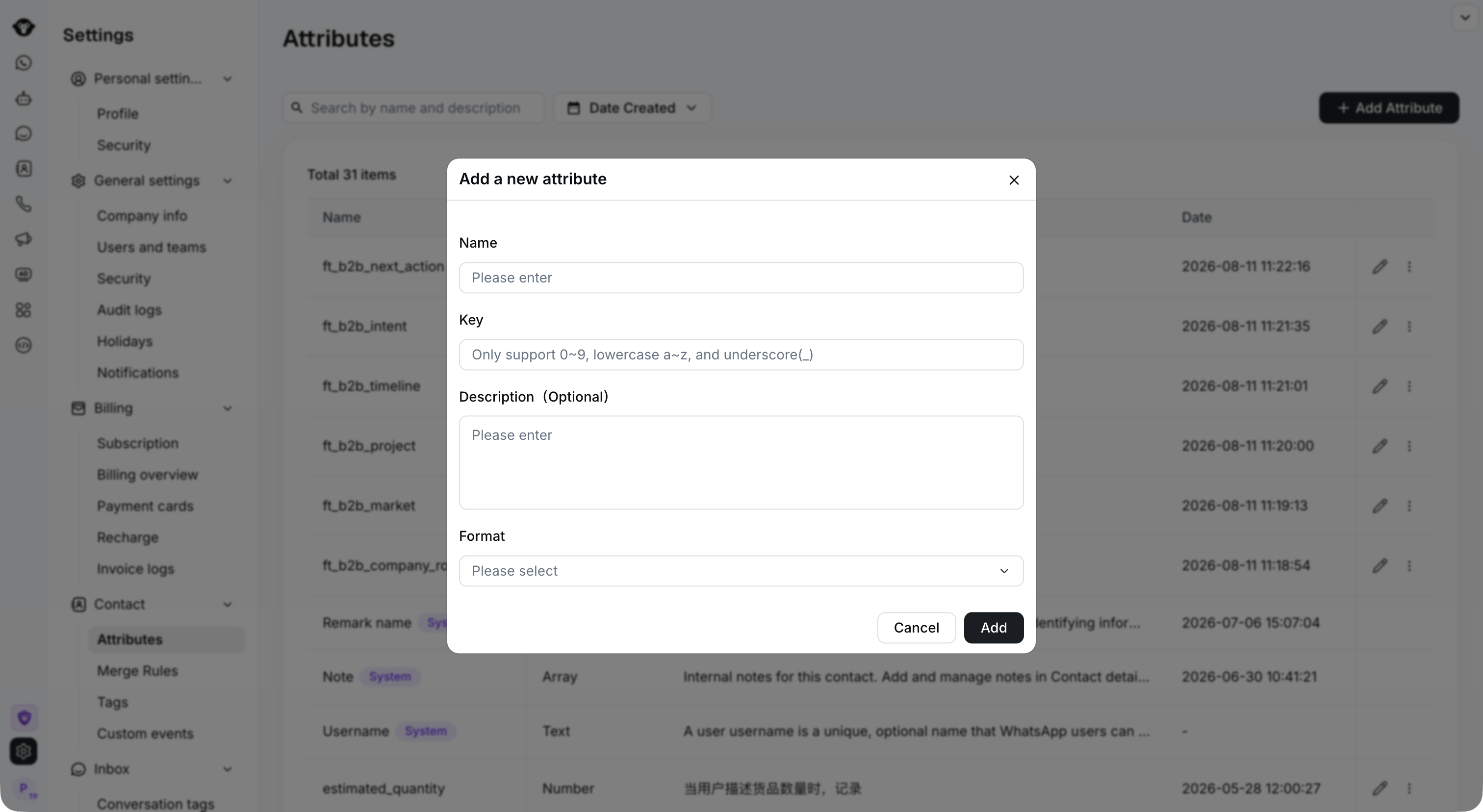
Define the attribute name, unique key, and format for information your team needs to collect.
Define canned responses
Set up team-wide canned responses From the avatar in the lower-left corner, go to Account, then click Edit > Canned response > Add Canned Response- Analyze common customer issue typesCarefully analyze the types of common customer inquiries, complaints, or questions, such as product usage, order status, and returns and exchanges. This is the foundation for creating canned responses.
- Organize standard solutionsFor each common issue, develop a standard solution and response process. This can include the problem description, resolution steps, promised timeline, and more.
- Write concise and efficient response templatesBased on the standard solutions, write clear and concise response templates. Keep the language concise and polite, and avoid lengthy or cumbersome wording.
- User thanks”Hello, thank you very much for your inquiry. If you have any other questions, please feel free to let me know anytime. Wish you a pleasant shopping experience!”
- Returns and exchanges”Dear customer, I’m sorry that you are not satisfied with the product. According to our returns and exchanges policy, you may request a return or exchange within [days] of receiving the item. Please log in to the website and submit a return request, and we will handle it as soon as possible. If you have any questions, feel free to let me know.”
- Product inquiry”Thank you very much for your interest in our product. [Product name] features [product highlights] and is very suitable for [target audience]. If you have any other questions, feel free to ask anytime, and I will be happy to help.”
- Complaint handling”Hello, I understand your dissatisfaction. Customer satisfaction is our top priority. Please tell me the specific issue, and I will coordinate the handling as soon as possible and take remedial measures. Sorry again for the inconvenience. We will work hard to improve our service quality.”
- Technical support”I’m sorry that you encountered a problem while using it. Based on your description, I suggest you try [solution steps]. If the problem is still not resolved, please provide [required information], and I will quickly investigate the cause and help you. Thank you for your patience.”
View Inbox analytics
Use real-time statistics to understand the team’s live handling status.Agents
Click Inbox in the left navigation bar. As an admin/support agent, you can view all WhatsApp messages here.Personal status settings
After logging in, the status is “Away”. Please change your personal status to “Available” so that newly received conversations can be automatically assigned to you.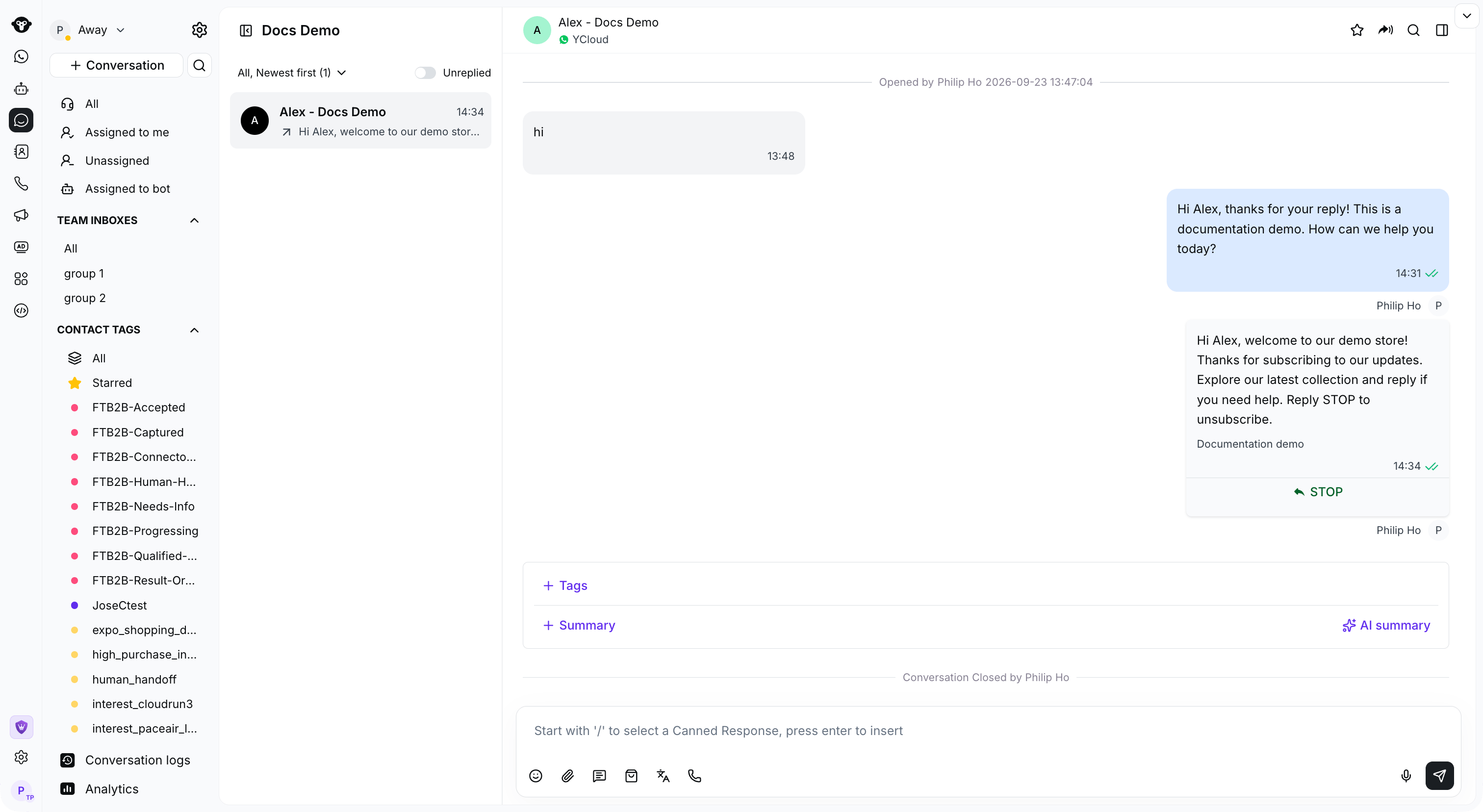
Check the status beside your profile at the upper left of Inbox, then switch from Away to Available when you are ready.
Make full use of customer details
Tagging customers helps categorize and manage them better, prioritize key customers, and improve the customer experience.
Open Details in Inbox to review a customer's tags, notes, and Owner while handling the conversation.