

Step 1: Create a Rule-based Agent flow
Open the Rule-based Agent, then select Create a flow.
Open Flows, then select Create a flow. The flows shown in this demo are inactive.
- Add a trigger. When a customer’s message matches it, the flow starts.

Start the flow by selecting Add a trigger.
- Add keywords and choose Exact matching or Containing.

Choose a matching rule and enter a keyword. This form has not been saved.
- Ask a question: After the user triggers this Rule-based Agent, you can set the questions you want to ask the user in this section, along with setting reply buttons.
- Send message: When the user clicks the button, the Rule-based Agent will automatically reply with the preset answer.
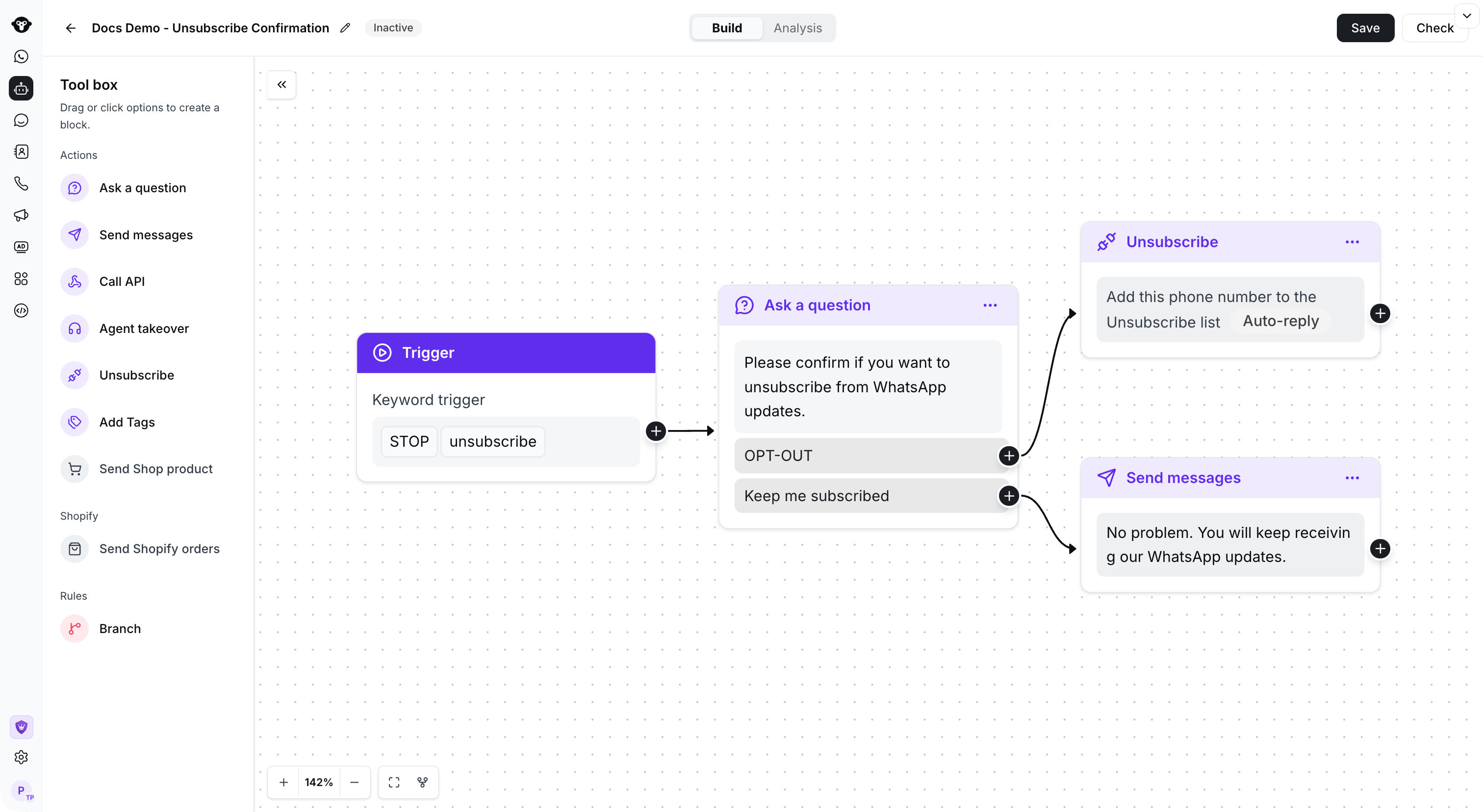
Example: connect a keyword trigger to a confirmation question and route each reply to an action.
Copy a flow
Open the action menu for the flow you want to reuse, then select Copy.
Open the flow action menu and select Copy.

Select the destination agent, then choose Copy.