

Filter the data
Use the filters at the top of the page to narrow the analysis:- Time Submitted: Select the reporting period based on when messages were submitted.
- WhatsApp Business Number: View data for one or more sending numbers.
- Country: Filter by the recipient’s country or region.
- Message Type: Filter by message category, such as Authentication, Utility, Marketing, Marketing Lite, or Service.

Use the filters to choose the reporting period, business numbers, countries, and message types. These are demonstration account results.
Delivery Rate
The Delivery Rate section compares message delivery by message type.
Use this section to quickly compare delivery performance across different message types.
Failure reason share
The Failure reason share section analyzes failed messages by error code. It displays the number and percentage of failures attributed to each reason, making it easier to identify the issues responsible for most delivery failures. Review the error descriptions before retrying a message or adjusting your sending strategy. You can also export the failure-reason data for further analysis.Message Volume & Delivery Rate Trend
This chart shows message volume and delivery rate over the selected period:- The stacked bars show delivered-message volume by message type.
- The line shows the overall delivery rate.
- Enable Compare Total & Delivered to compare total submissions with delivered messages.
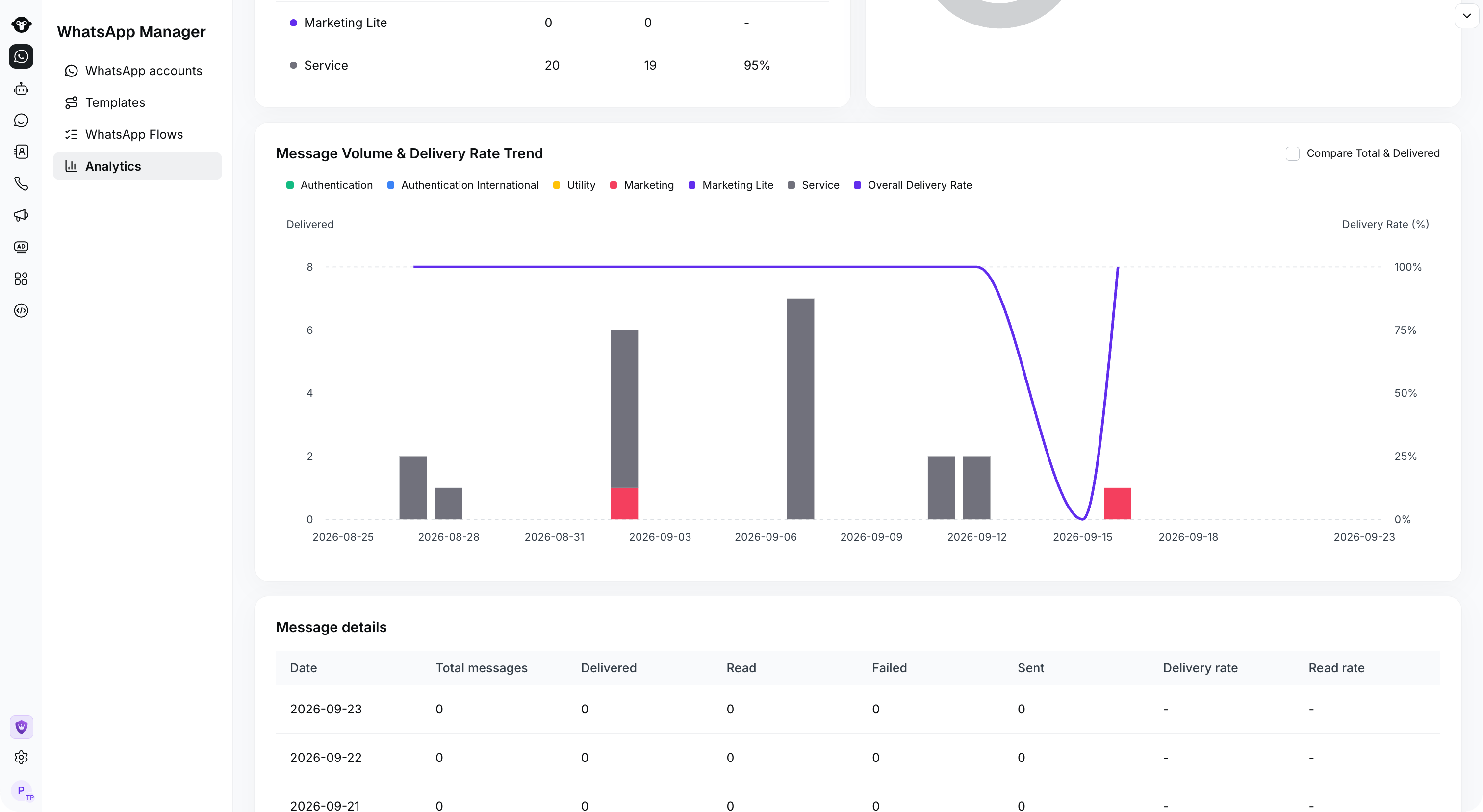
Compare message volume with delivery rate over the selected period.
Message details
The Message details table provides a daily breakdown:A read status may be unavailable when a recipient has disabled read receipts.