

Open keyboard shortcut settings
- Open Inbox.
- Click the Inbox settings gear at the top left, beside your availability status, to open Personal settings.
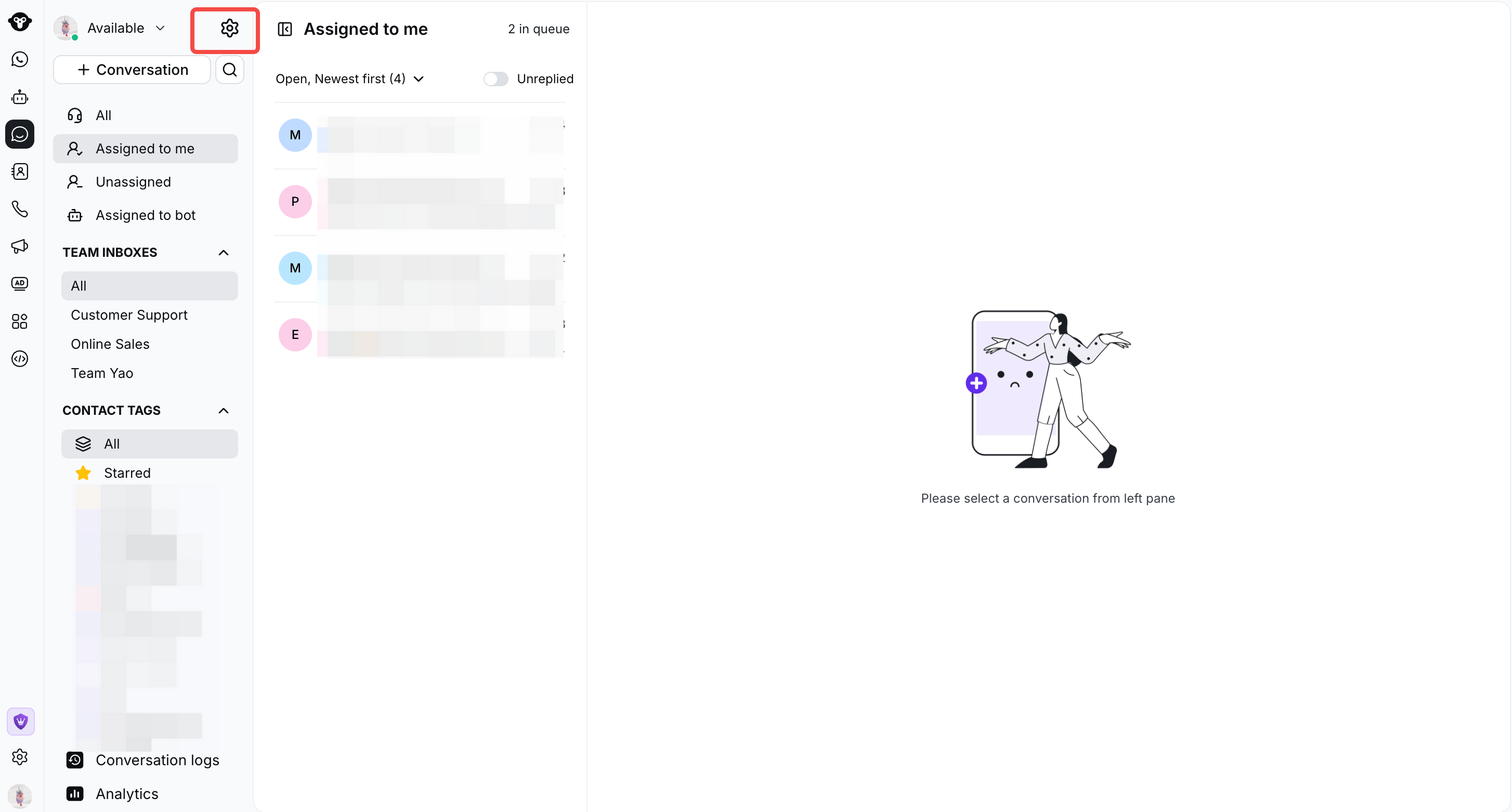
Click the gear beside your availability status to open Personal settings.
- Select Keyboard shortcuts in the left menu.
- Select Windows or macOS to view the shortcuts for your operating system.
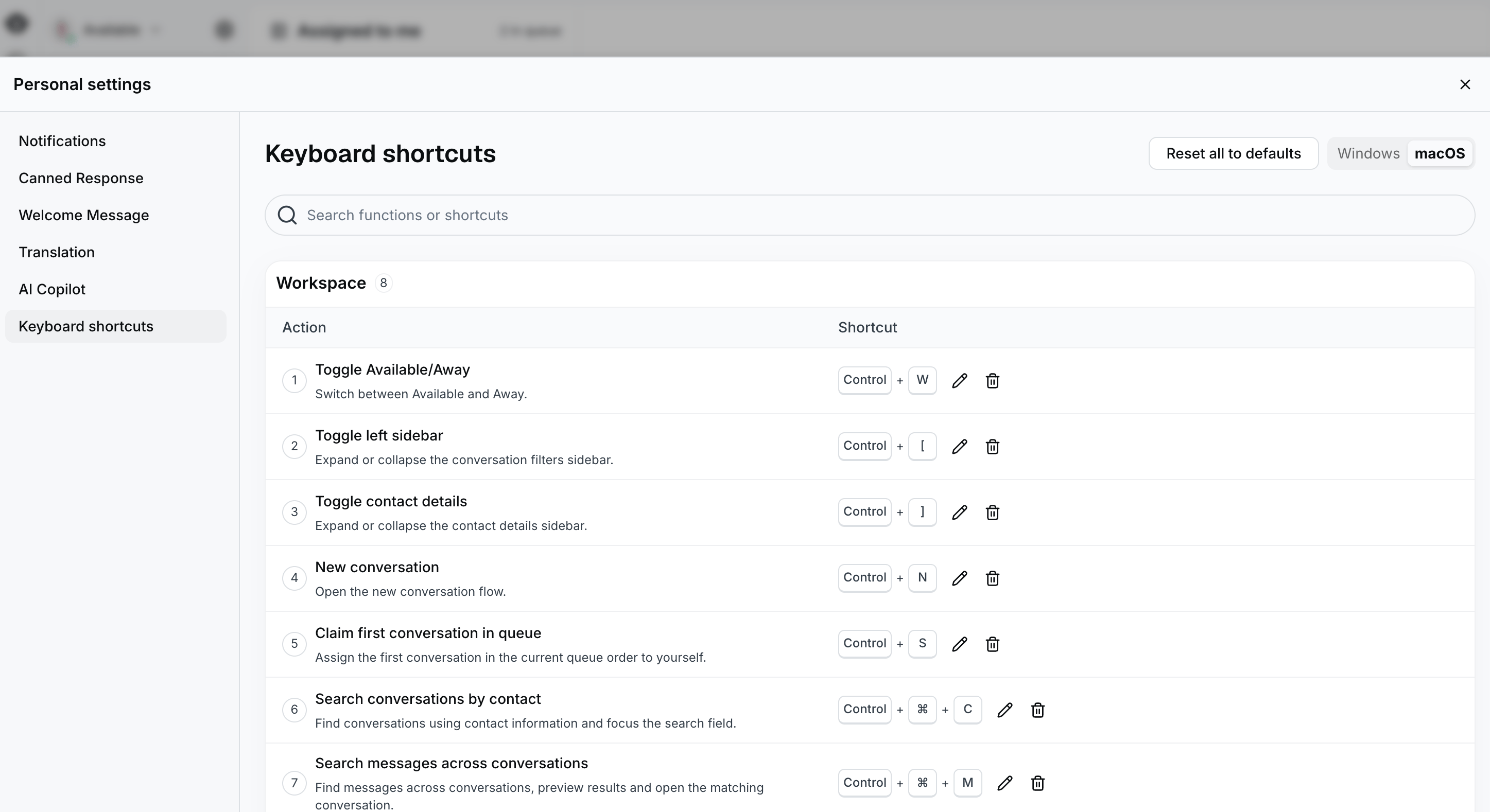
View, search, and customize keyboard shortcuts in Inbox Personal settings.
Find and use a shortcut
Enter an action name or key combination in Search functions or shortcuts. Find the action, then check its assigned keys in the Shortcut column. Return to Inbox and press those keys together to perform the action.Shortcut reference
The tables below cover all 23 actions in Keyboard shortcuts for Windows and macOS. Shortcuts can be customized, so use the current combination displayed in your own settings. Key labels:Ctrl means Control, ⌘ means Command on macOS, and Win means the Windows logo key. On macOS, Control and Command are different keys.
Workspace
Conversations
Messages and calls
Customize a shortcut
- Find the action you want to change.
- Click the pencil icon beside its current shortcut.
- Follow the on-screen prompts to set the new key combination.
- Check that the updated combination appears in the Shortcut column, then try it in Inbox.