

What is Canned Response
After serving customers for a few days, you’ll notice that you often use the same greetings or closing lines, or that there are some common questions that come up repeatedly. That’s why we introduced Canned Response to reduce repetitive work. You can save frequently sent messages as templates and use them quickly in chats with the help of shortcuts. In Inbox, admins have permission to set up company-wide global Canned Response. After they are configured, all users under the tenant can use them in Inbox.How to create Canned Response
Inbox manager/Admin can create or modify account-wide Canned Response. To add a new preset reply, follow these steps.Step 1: Go to Settings > Inbox > Canned response
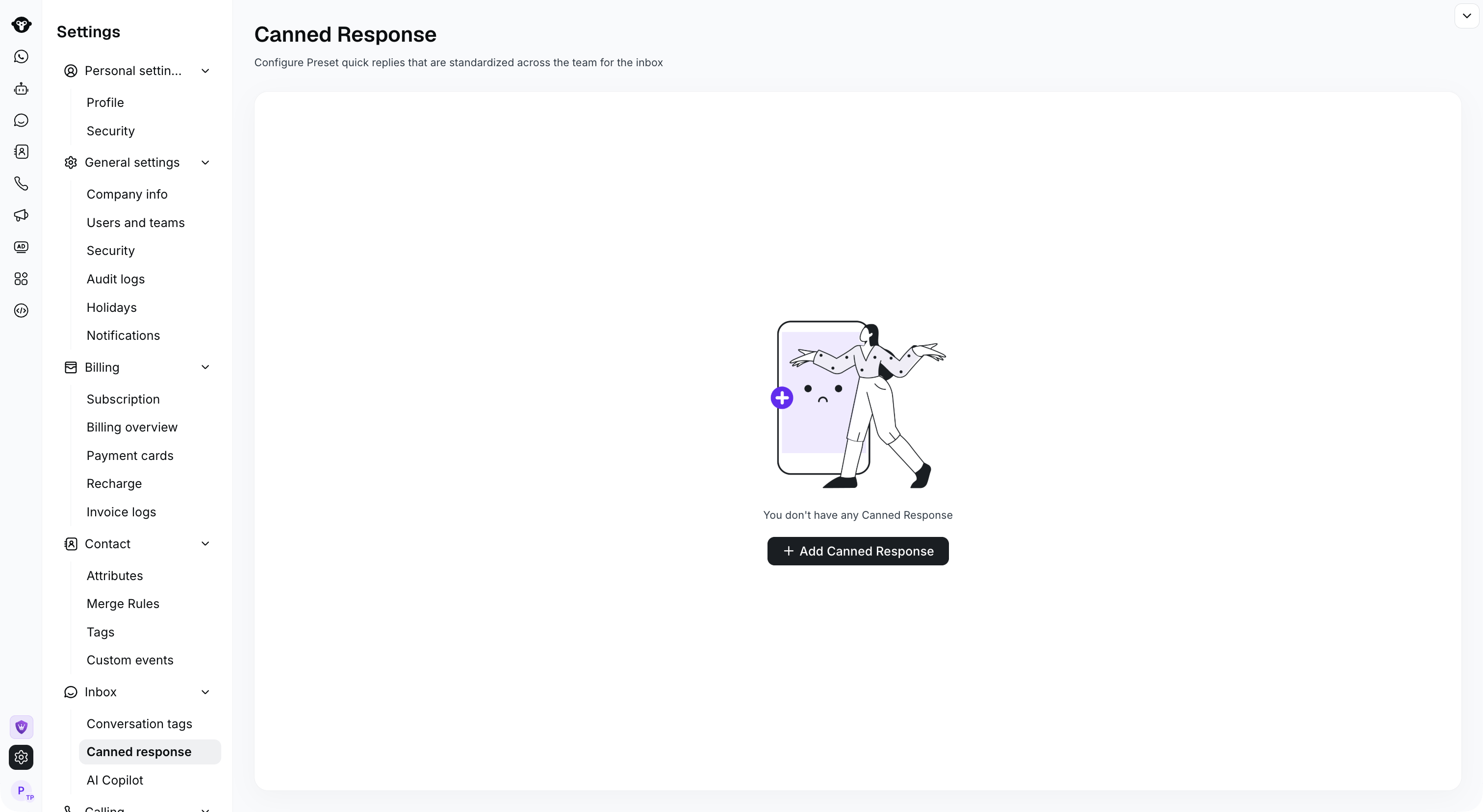
Go to Settings > Inbox > Canned response and select Add Canned Response.
Step 2: Select Add Canned Response and complete the required fields
- Short code: Write a short code that is easy to remember later, used to trigger the Canned Response phrase or text. Each shortcut code must be unique, with a maximum of 150 characters.
- Content: Enter the message you want to save as a template. The content supports tags and 1 attachment. The content supports up to 1024 characters.
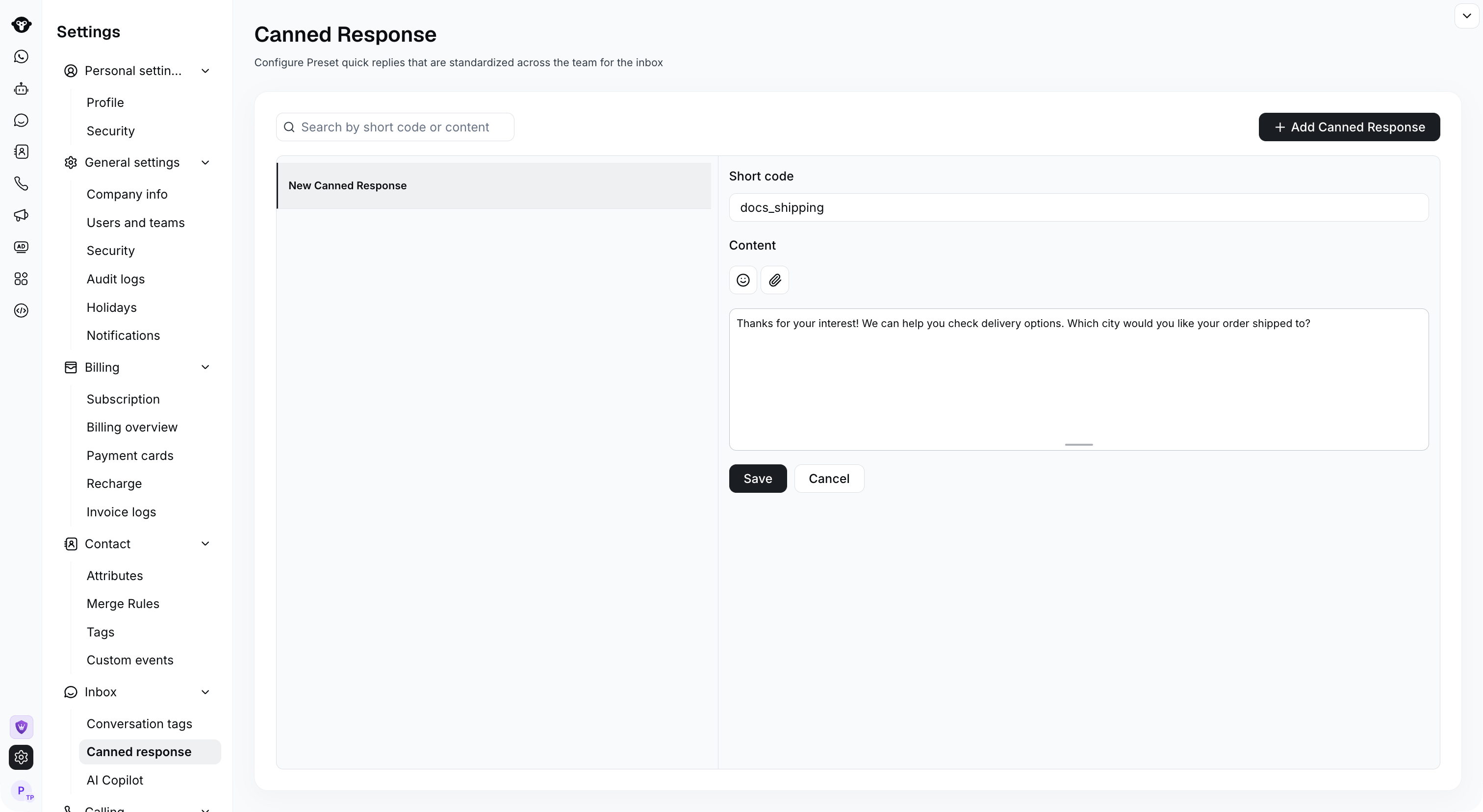
Enter a unique Short code and the Content to insert in conversations.
Step 3: Save the Canned Response
Click the Save button at the bottom to save the Canned Response. Click Cancel, and this record will not be saved. After saving, you can click the red Delete button to delete this record.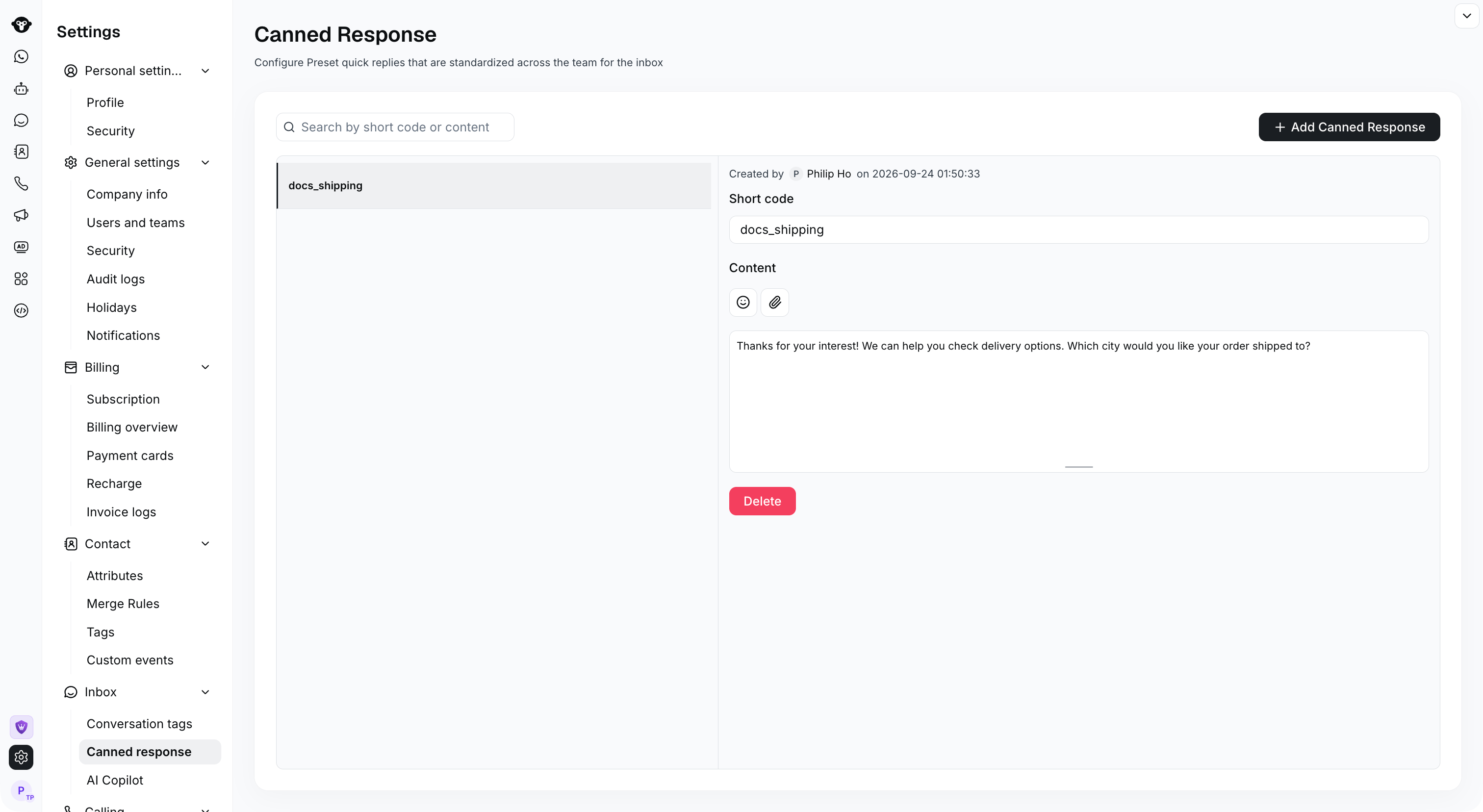
After saving, the reply appears in the list with its creator and creation time.
How to create company Canned Response
Company Canned Response can be configured under Settings > Inbox > Canned Response. Company Canned Response are global and can be used by all service agents after they are set up.How to use Canned Response
Step 1: Trigger Canned Response. In the chat input box, type “/”. This symbol must be at the very beginning of the chat box and cannot follow any text. This will display a list of all preset replies. The left side shows the Canned Response list, and the right side shows a content preview.
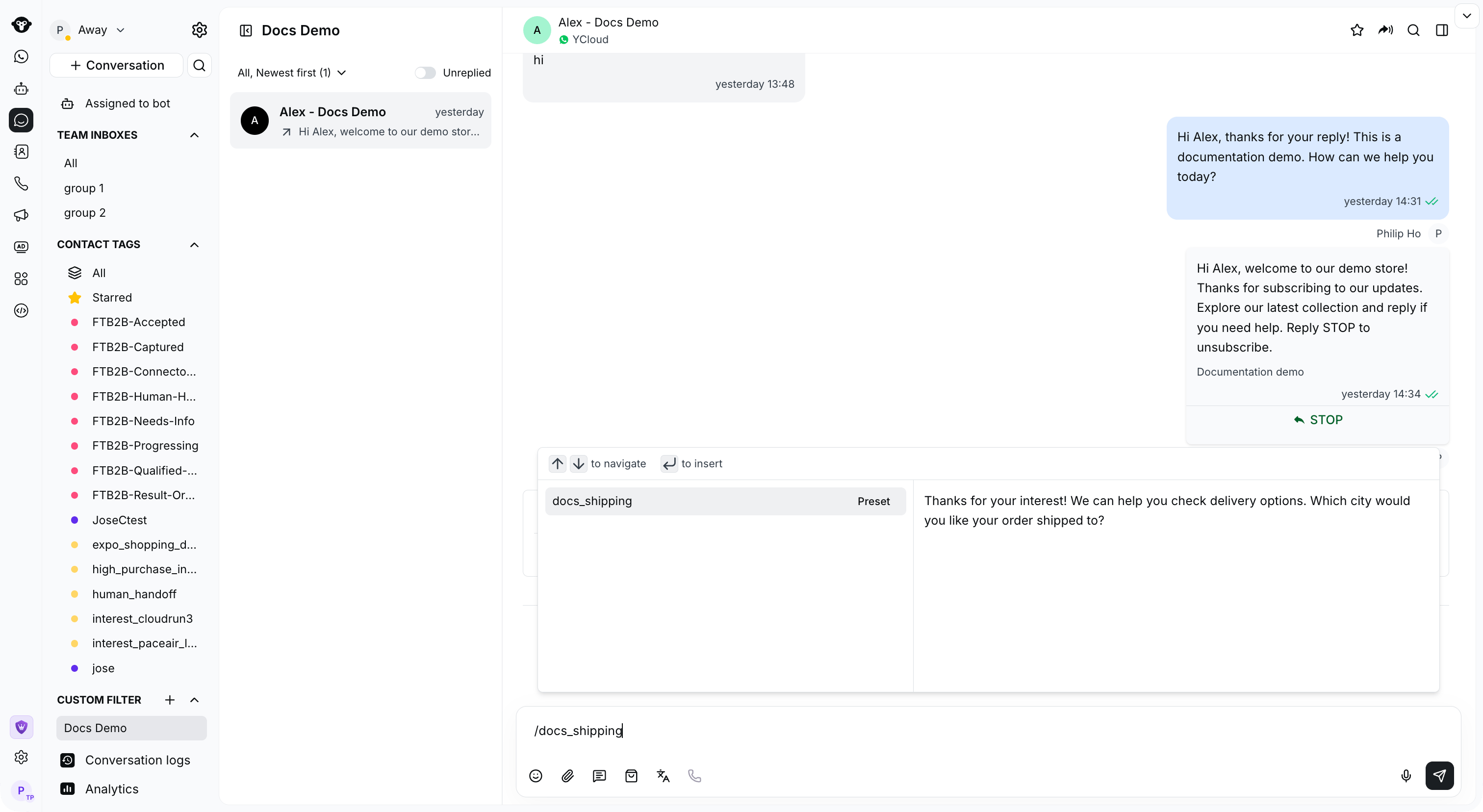
Type a slash followed by the short code to find and preview the saved reply.
Enter, and your text editor will be filled with the reply.
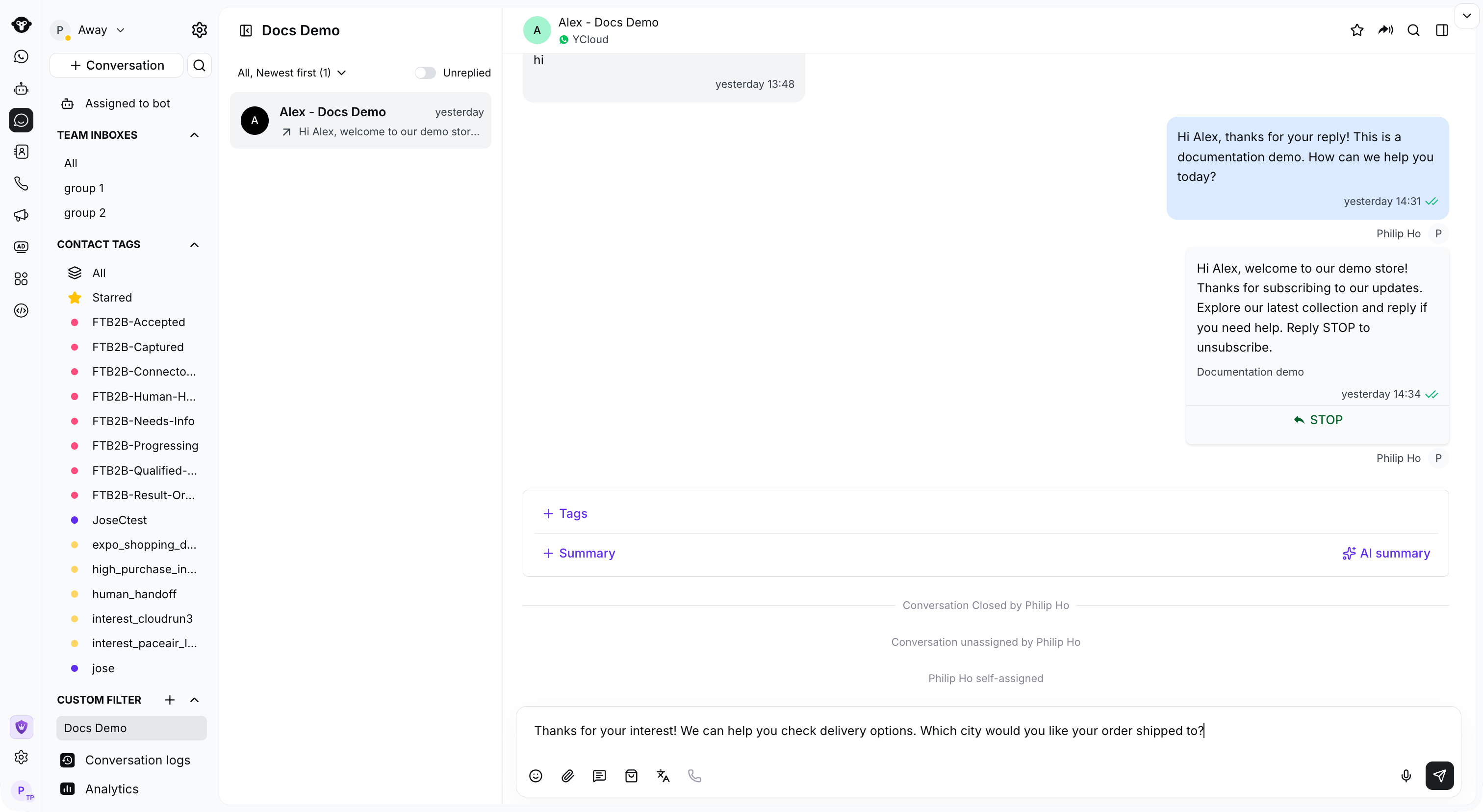
Select the preset or press Enter to insert it, then review the text before sending.