

Open external app connections
- Open your AI Agent and select Knowledge.
- Click Add knowledge.
- Select Connect external app content.
- Choose From Feishu or From Notion.
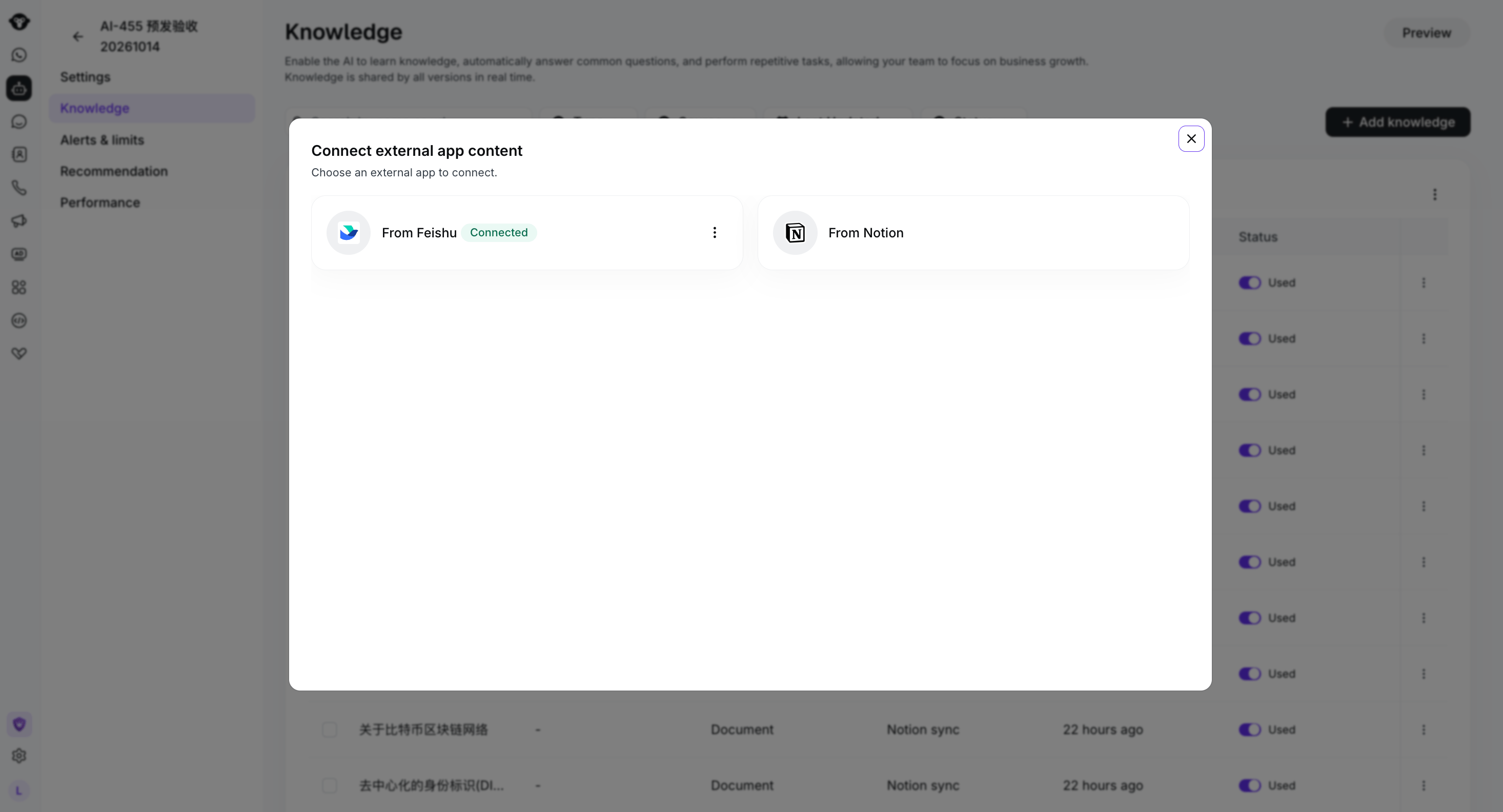
Choose Feishu or Notion as the external content source.
Authorize Feishu
Before you connect Feishu content, grant the Feishu bot Viewer access to each wiki space that you want the AI Agent to use. Make sure the bot has already been created and note its name.- In Feishu Docs, open Wiki, then open the wiki space that you want to authorize.
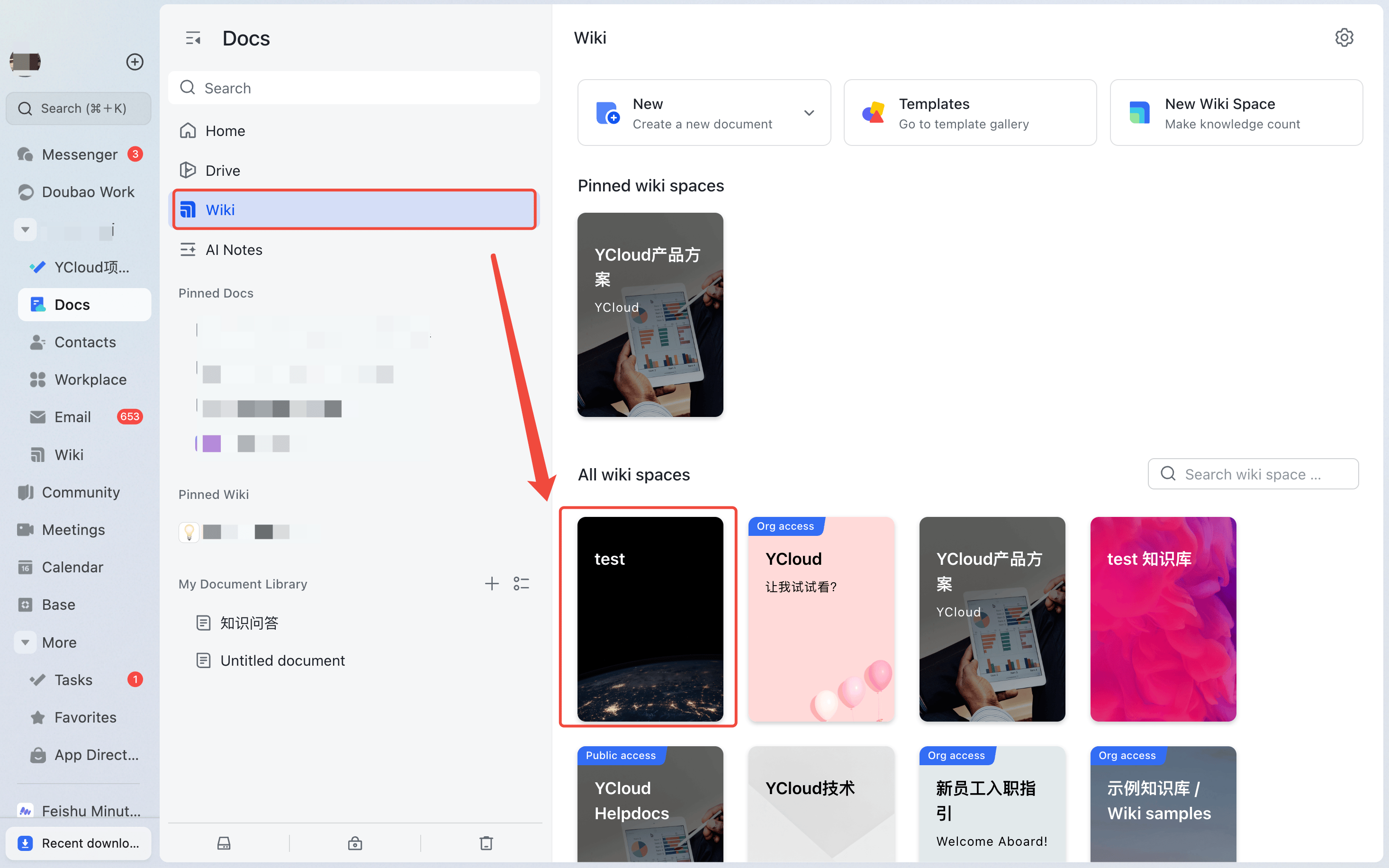
Open the Feishu wiki space that you want the AI Agent to access.
- Click Settings in the lower-left corner.
- Open the Members tab.
- Under Roles and permissions, select Viewer, then click Add Member.
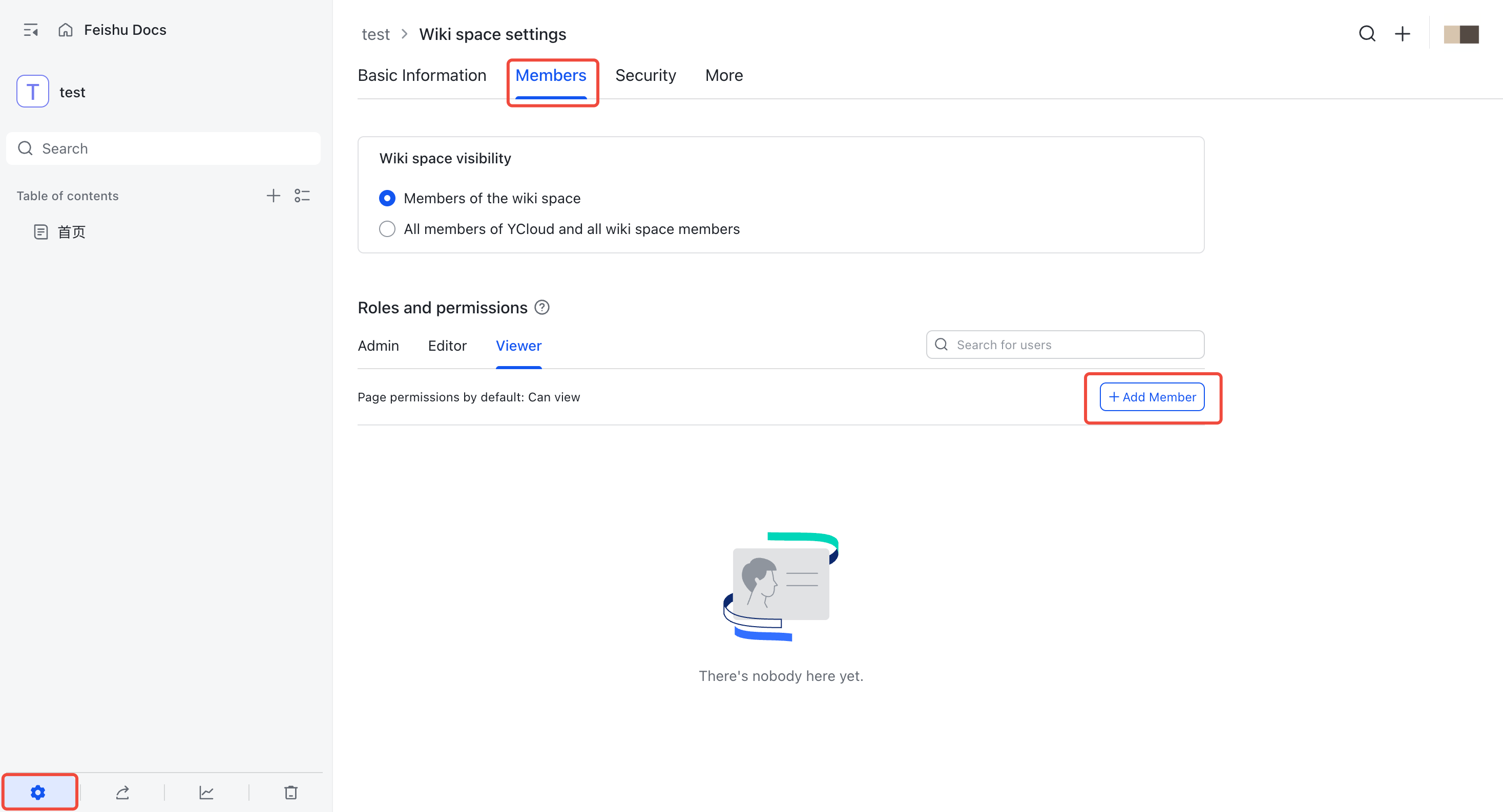
Open Members, select Viewer, and add a member.
- Search for the Feishu bot by name and select it.
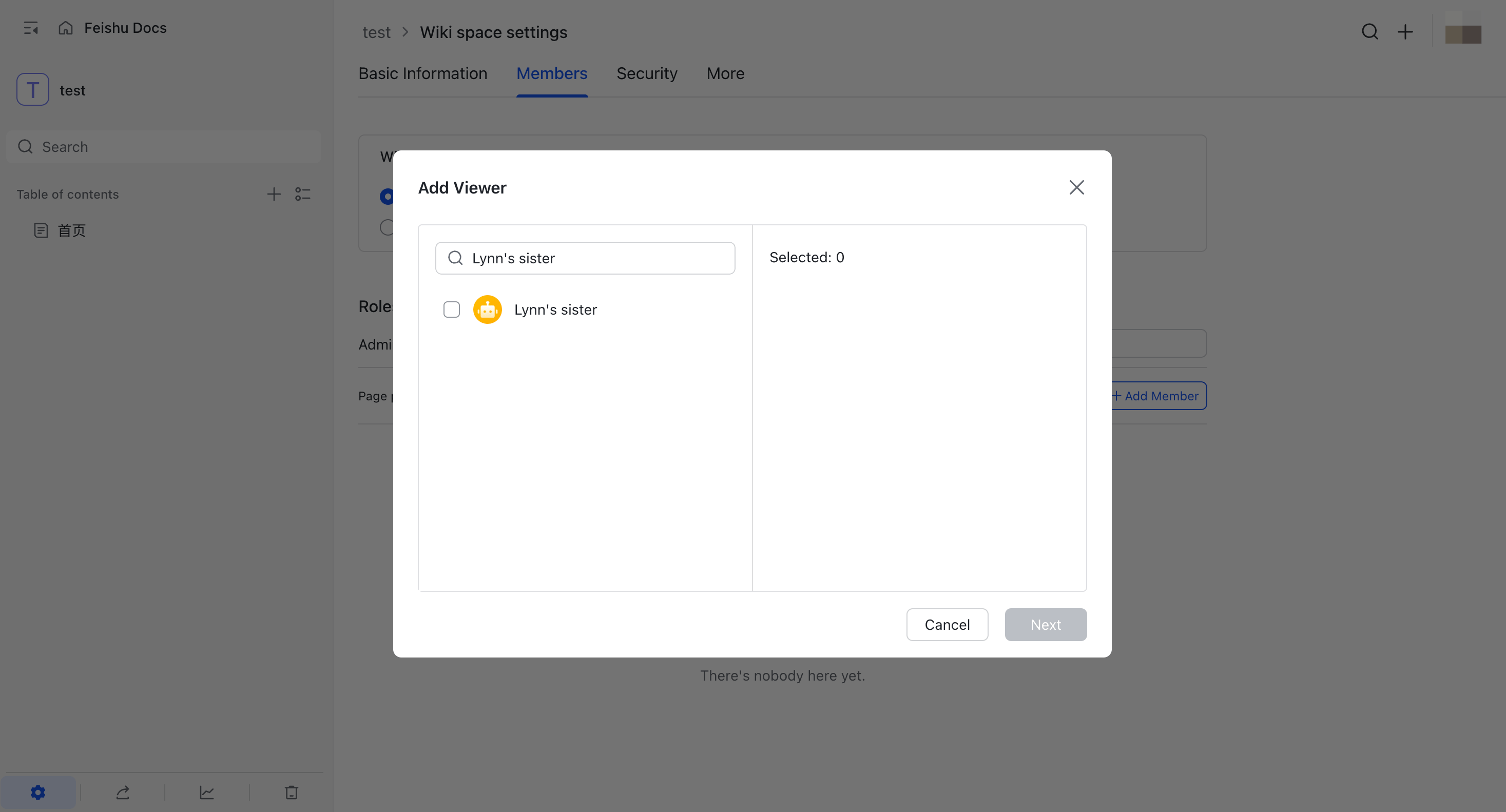
Search for and select the Feishu bot that the AI Agent will use.
- Complete the addition and confirm that the bot appears under Viewer.
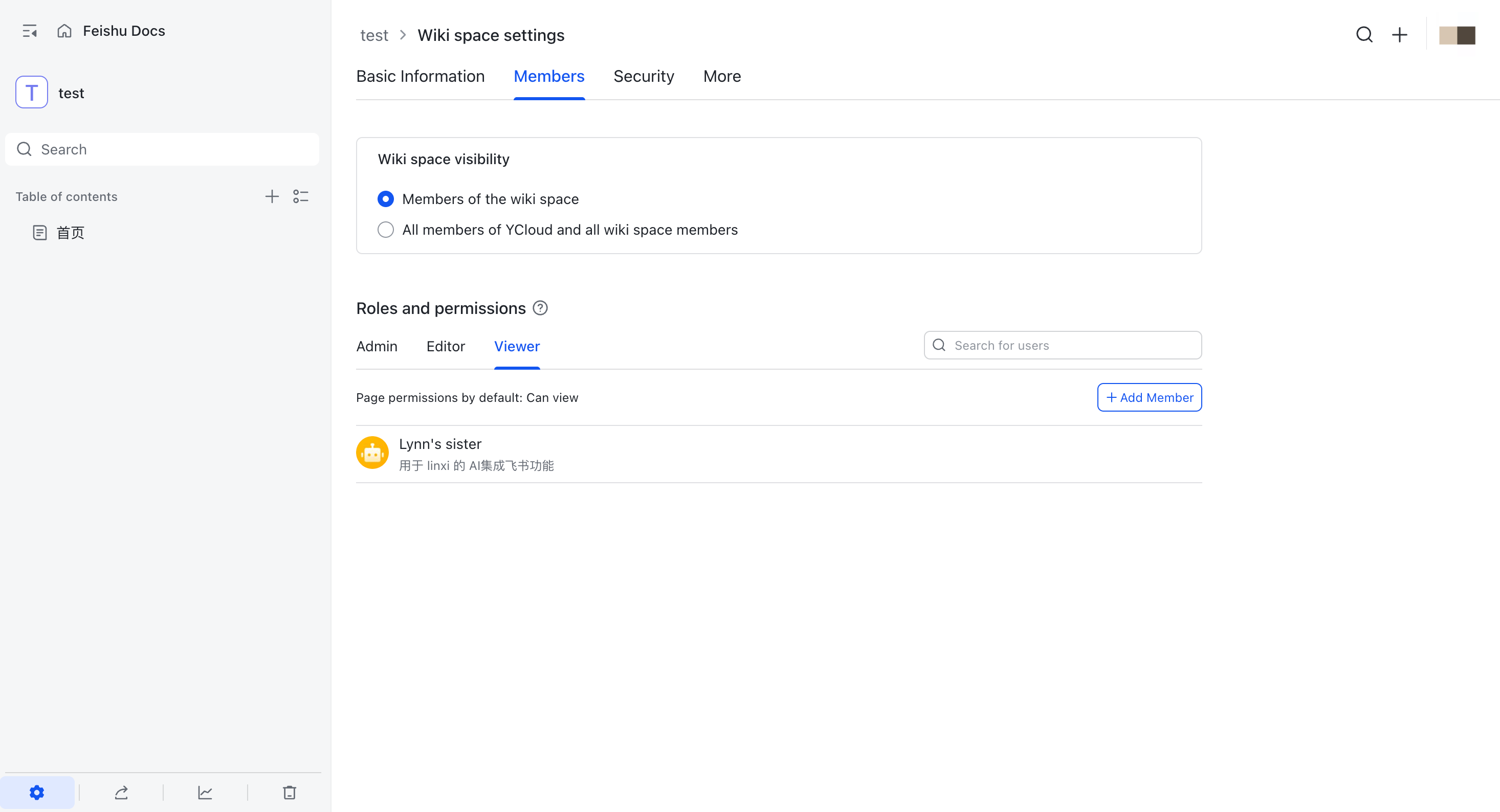
Confirm that the Feishu bot has Viewer access to the wiki space.
Authorize Notion
Authorize Notion for the first time
- In YCloud, select From Notion.
- On the Notion authorization page, confirm the workspace and review the permissions requested by YCloud.
- Click Select pages, choose the pages that you want to authorize, and complete the authorization.
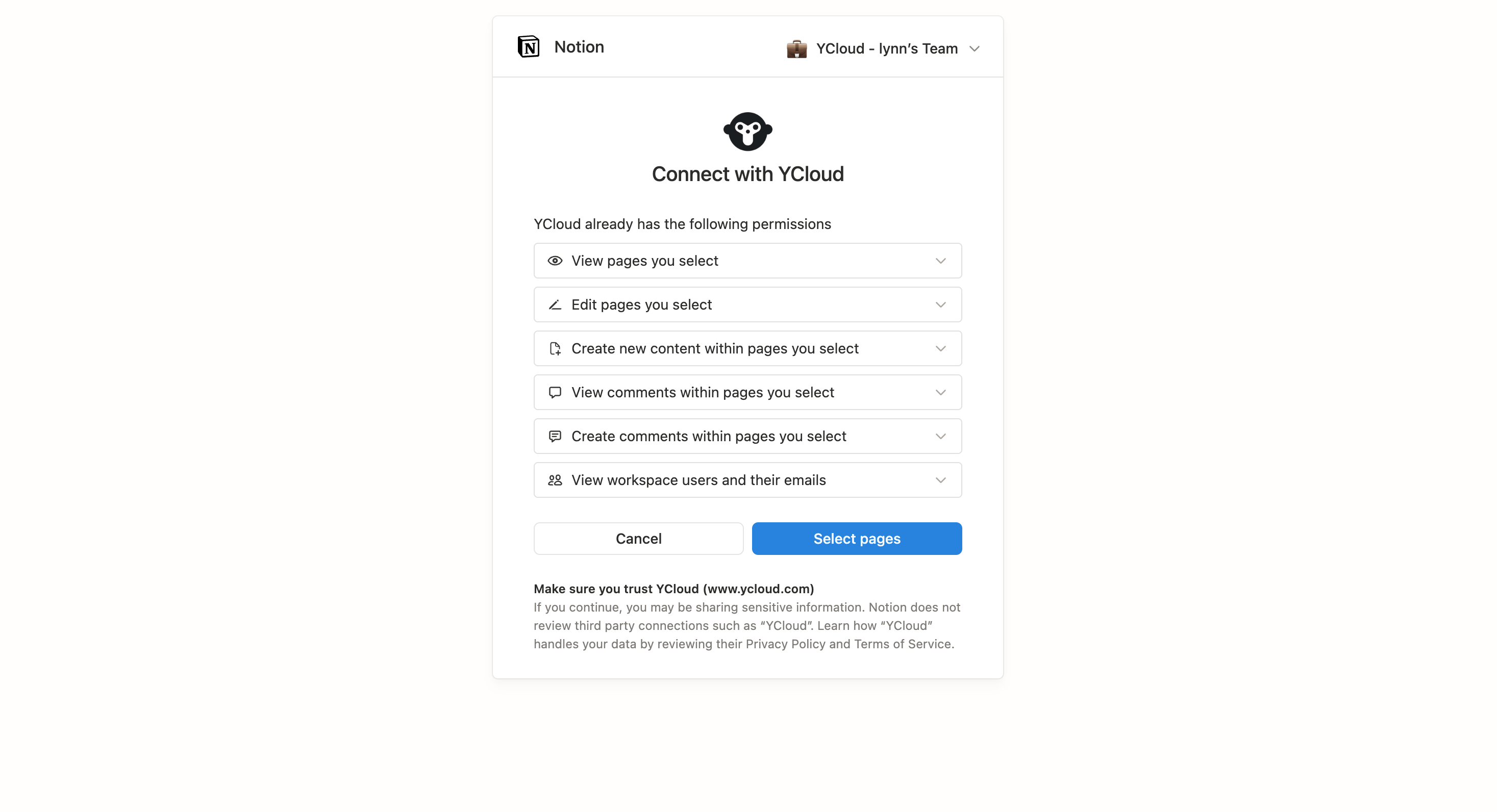
Review the YCloud connection permissions and select the Notion pages to authorize.
Update the authorization later
To review or change the YCloud connection for existing Notion content:- Open the Notion page or database.
- Click the three-dot menu in the upper-right corner.
- Select More > Connections > YCloud.
- Select YCloud and update the authorization as needed.
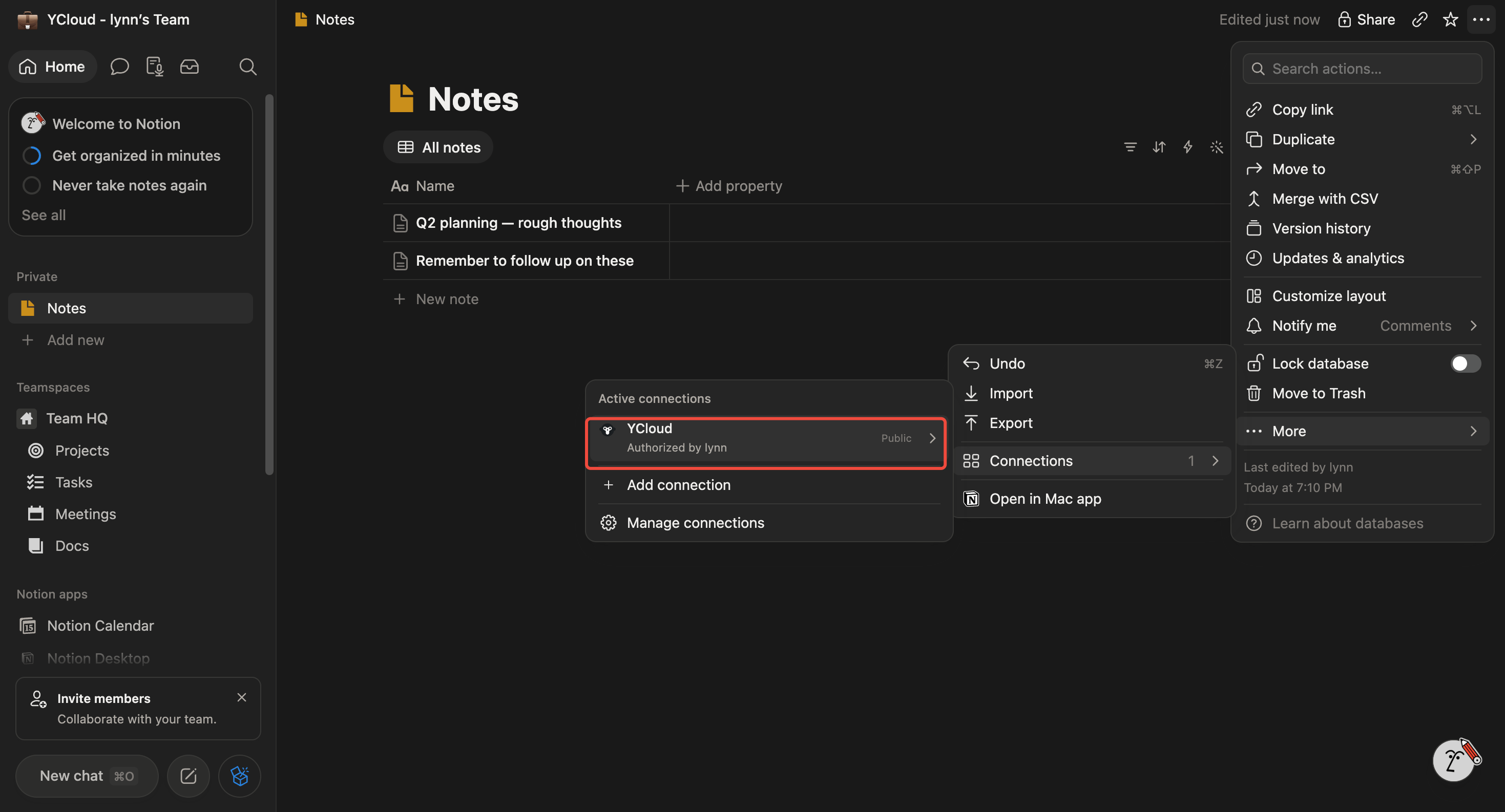
Open More, Connections, and YCloud to update the connection for Notion content.